How to Prevent wkhtmltopdf from Cutting Off Images
Diagnose page splits versus in-image crops, then work through practical CSS, markup, renderer and troubleshooting steps for wkhtmltopdf.
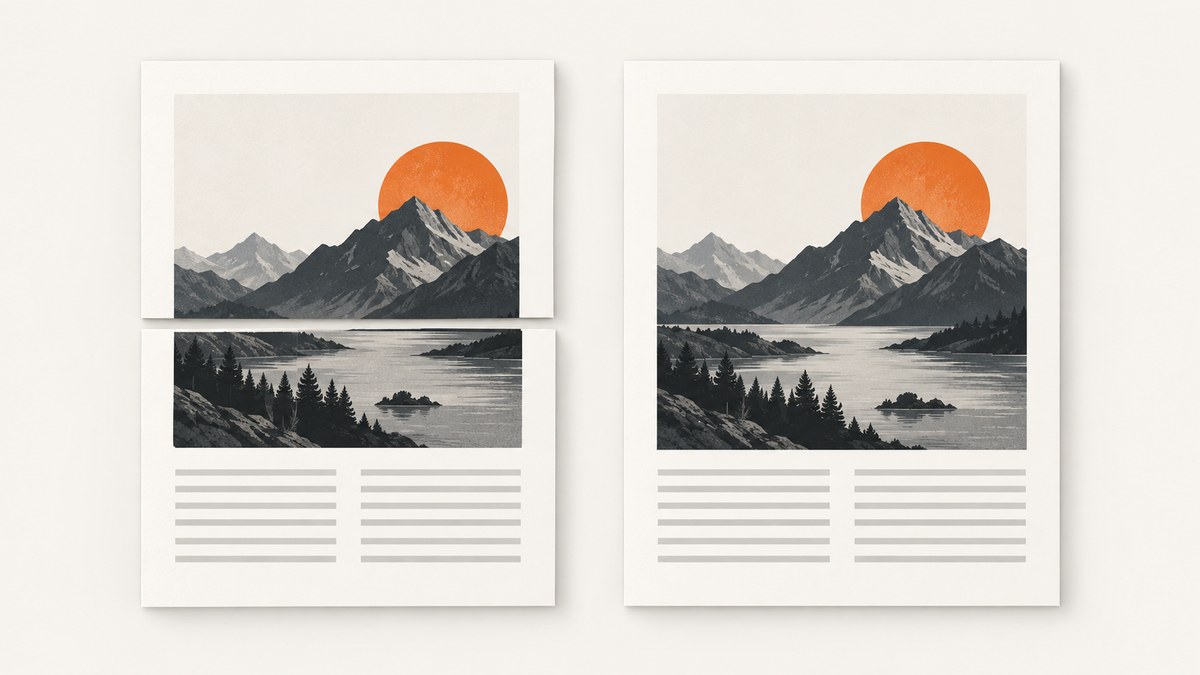
wkhtmltopdf can split an image across PDF pages because it lays out a long WebKit page and then cuts that page into sheets. Start by identifying whether the image is split at a page boundary or cropped inside its own box: those are different failures with different fixes. For a page-boundary split, try page-break-inside: avoid on the smallest meaningful container and create cleaner places for pages to break. This is a mitigation, not a universal fix; the manual describes it as helping “somewhat,” and reported nested-table cases show it can fail.
1. Identify what “cut off” means
Before changing CSS, inspect the PDF and classify the failure. A page break through an image is usually pagination. A missing edge within the image’s box points instead toward clipping, sizing, SVG features, overflow, or an image that did not load as expected.
| What you see | Likely area to investigate |
|---|---|
| Top of image on one page, remainder on the next | Page pagination and break opportunities |
| Image ends abruptly within one page, with no continuation | CSS clipping, dimensions, overflow, SVG or loading |
| Only images inside a table are split | Table nesting and renderer pagination behavior |
| Image is blank or missing | URL accessibility, image loading and renderer settings |
Also record whether the content is a raster image, an SVG, a CSS background, or an image inside a table. These details narrow the search. wkhtmltopdf’s settings reference lists image loading and other rendering settings, but it does not provide a single switch that prevents every kind of image clipping. See the official settings reference.
2. Reproduce the issue with a small input
Save the following as case.html. Replace the example source with the image and surrounding markup that fail. A small case helps establish whether the problem follows the image itself, the container, or the larger document’s pagination.
<!doctype html>
<html>
<head>
  <meta charset="utf-8">
  <style>
    .image-block {
      page-break-inside: avoid;
      break-inside: avoid;
    }
    img {
      display: block;
      max-width: 100%;
      height: auto;
    }
  </style>
</head>
<body>
  <div class="image-block">
    <p>Image caption</p>
    <img src="https://example.com/image.jpg" alt="Example image">
  </div>
</body>
</html>
Replace https://example.com/image.jpg with a reachable image URL or a local asset. Then convert the file:
wkhtmltopdf case.html case.pdfIf the minimal case works, add the original document’s structure back in stages: surrounding tables, wrappers, stylesheets, scripts, headers and footers. If the minimal case still fails, the page dimensions, renderer build, image format or SVG/CSS styling may be relevant.
3. For an image split at a page boundary
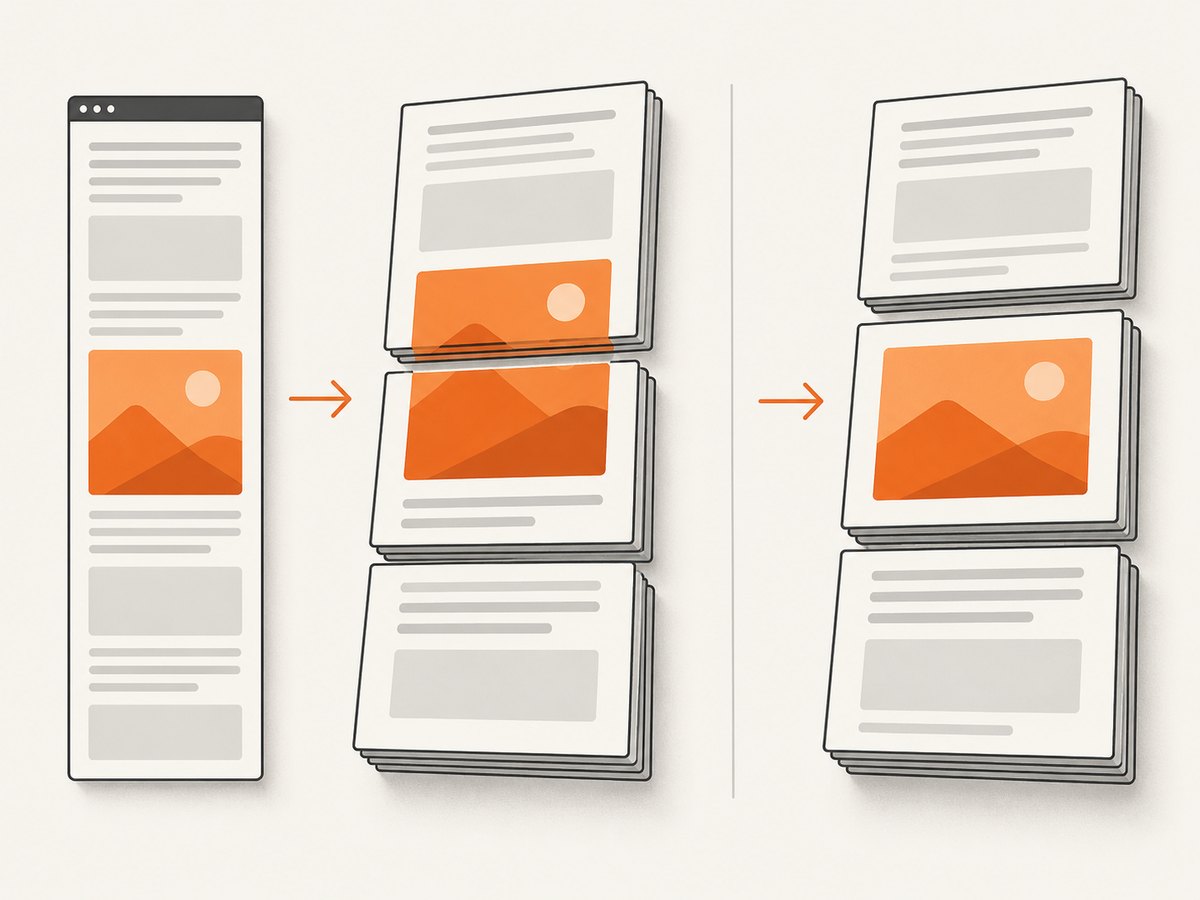
The wkhtmltopdf manual explains that the renderer lays out the page and cuts it into pages, which can divide an image. It suggests page-break-inside as a partial remedy with patched Qt and recommends organizing the HTML to provide lines where pages can be cut cleanly. The manual does not promise that the property will work in every document. Consult the manual for that limitation and its build context.
Put the rule on the relevant container
Apply the break rule to a wrapper that includes the image and any caption or label that should stay with it. A rule on an unrelated outer element may not constrain the actual break point. Keep the wrapper as small and meaningful as possible.
<style>
.figure {
  page-break-inside: avoid;
  break-inside: avoid;
}
.figure img {
  display: block;
  max-width: 100%;
  height: auto;
}
</style>

<div class="figure">
  <img src="chart.png" alt="Quarterly chart">
  <p>Quarterly chart</p>
</div>
page-break-inside is the compatibility rule documented for this use. Including break-inside can express the same intent to newer CSS implementations, but do not assume it changes behavior in your wkhtmltopdf build. Check the generated PDF.
Make sure the whole block can fit
A break-avoid rule cannot make an oversized image fit on a page. Compare the image block’s rendered height with the printable area after margins, headers and footers. If the block is taller than that area, the renderer has no clean page on which to place it intact. Resize the image or split the content intentionally into smaller sections; then check whether the new layout preserves its meaning.
Avoiding a break can also leave a large blank area near the bottom of a page when the remaining space is too small for the block. That is a side effect of moving the block to a later break point, not evidence that the image itself is clipped. Test the actual output with your page size and margins.
Create clean page-break opportunities
Long documents with few natural break points are harder to paginate cleanly. Put related content into clear sections, and avoid wrapping a very large portion of the document in one unbreakable container. Where your content design permits, start a new section deliberately rather than relying on a page break through an image.
.report-section {
  page-break-before: always;
}

.figure {
  page-break-inside: avoid;
}
Use a forced break only where the document structure calls for one. Applying it to every image or section can create excessive whitespace and unexpectedly long PDFs.
4. If the image is inside a table
Table structure can affect pagination. A GitHub issue records a reproduction in which images deep inside nested tables split despite page-break-inside: avoid !important. The report says the behavior occurred on versions 0.12.4, 0.12.5 and 0.13.0, and that placing the images in the outermost table worked for that case. Treat this as one reported workaround, not a general guarantee. See the issue report.
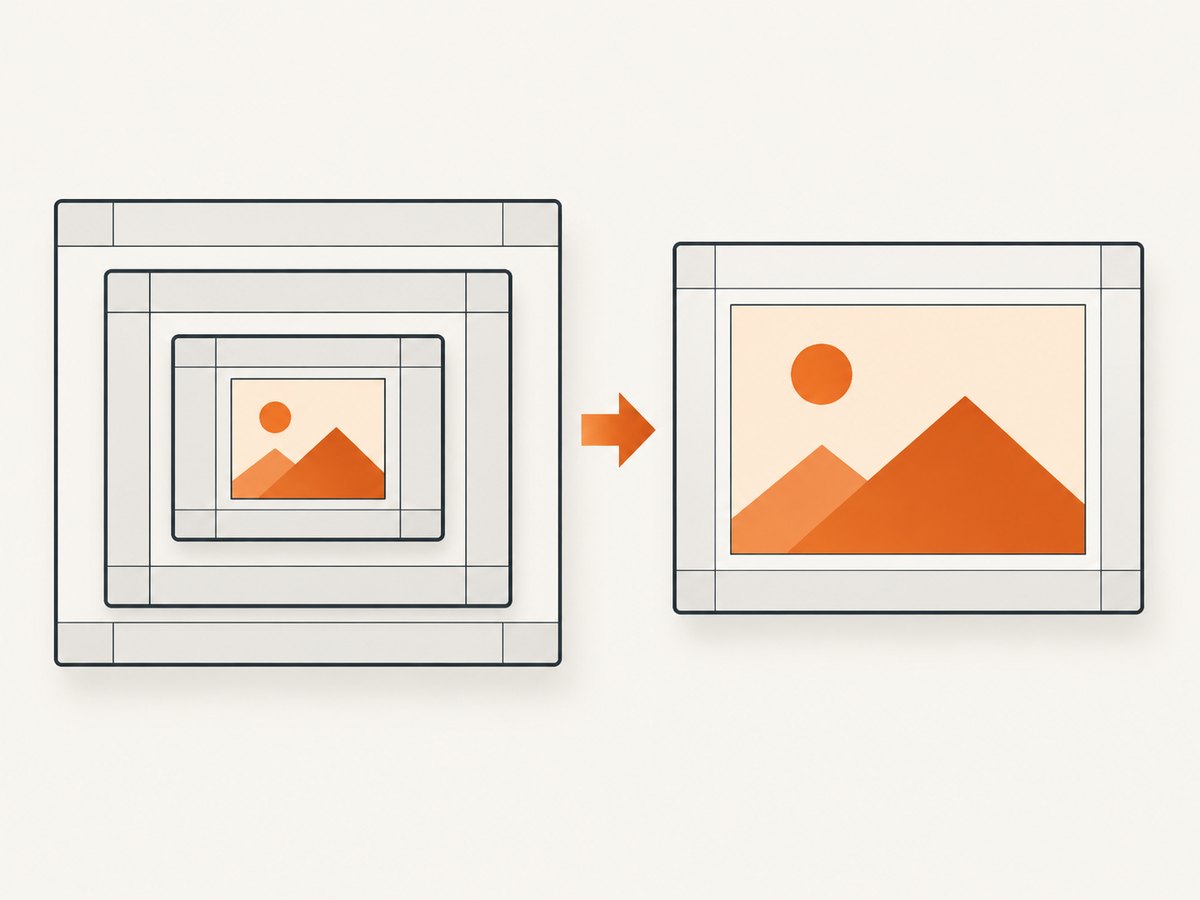
- Temporarily move the image and its wrapper outside the nested table. If the split stops, table nesting is likely involved.
- Reduce the table nesting where practical, or move the image to a simpler outer structure.
- Apply
page-break-inside: avoidto the table row or smallest containing element that holds the image, then compare output. - Keep the table layout if the simpler structure does not help or harms the document, and include that result in a minimal issue report.
Do not rely on !important as a universal fix. The cited report includes it and still describes a failure.
5. If the crop is inside the image box
When an image is not divided between pages, temporarily simplify its styles and markup to isolate the crop. Check the intrinsic image dimensions, the rendered width and height, and styles on both the image and its ancestors. In particular, inspect overflow, fixed dimensions, transforms, and clipping effects. Restore one feature at a time after the crop disappears.
Check SVG clipping separately
SVGs can define their own clipping paths. A Stack Overflow report about an SVG cropped by wkhtmltopdf describes replacing clip-path with clip-path="none". A later answer suggests testing opacity: .99. These are community anecdotes for matching cases, not official settings or general fixes. See the discussion.
If the image is an SVG, make a copy and temporarily remove or simplify its clipPath and related CSS. If that changes the PDF, reduce the SVG to a small reproduction before deciding how to alter the artwork. Test the opacity suggestion only when the failure resembles the reported case, and compare the result for visual changes.
6. Check the renderer build and PDF settings
Record the exact wkhtmltopdf version, operating system and version, and whether the build uses patched Qt if you can determine that. The manual notes that features differ in unpatched Qt builds, so “wkhtmltopdf” alone is not a complete environment description. Settings such as page size, margins, print-media selection, image loading and intelligent shrinking can affect the rendered page or the space available for an image. Review the official options reference and change one relevant setting at a time.
For example, to select a paper size and set margins from the command line:
wkhtmltopdf \
  --page-size A4 \
  --margin-top 15mm \
  --margin-right 15mm \
  --margin-bottom 15mm \
  --margin-left 15mm \
  case.html case.pdf
Those flags set page geometry; they do not directly repair an SVG clip or guarantee that an image remains on one page. If your application invokes wkhtmltopdf through a library, inspect the options it passes and capture the effective command or configuration. Check whether the input is styled for screen or print and use the corresponding print-media option only when it matches your stylesheet.
7. Troubleshooting checklist
| Symptom | Likely cause | Next step |
|---|---|---|
| Image continues on the next page | Pagination cut through a long WebKit layout | Add page-break-inside: avoid to a suitable container; provide clean break points and confirm the block fits. |
| Rule has no effect inside a nested table | Renderer and table pagination interaction | Reduce nesting or test the image in a simpler outer structure; verify against your HTML. |
| Edge is missing within a single page | CSS overflow, fixed sizing, transform or clipping | Remove those constraints temporarily, then restore styles individually. |
| Only an SVG is affected | SVG clip path or renderer-specific SVG behavior | Make a minimal SVG reproduction; simplify clipping and compare. |
| Image is blank or absent | Image did not load or image loading is disabled | Confirm the asset is reachable by the conversion process and review image-loading settings. |
| Layout differs between machines | Different binary, Qt build, OS, fonts or settings | Record the full environment and compare the effective invocation. |
| Fix causes a large blank gap | Unbreakable block moved to the next page | Reduce its height or choose a more useful break point. |
When the cause remains unclear, reduce the document to the smallest HTML, CSS and JavaScript case that still fails. The project support page asks for the wkhtmltopdf version, operating system and version, a detailed description, and a test case. Include the command or library settings and generated PDF when possible. See the project support guidance.
8. Performance, reliability and maintenance
Keep the reproduction small while diagnosing; it makes each conversion quicker to inspect and each changed variable easier to identify. For production documents, use the same binary, fonts, assets and settings in development and deployment where possible. A changed build or environment can alter pagination, so record those details alongside the HTML and CSS that define the document.
For reliability, confirm that the process can access every image and stylesheet before treating a missing image as a clipping bug. Keep a representative PDF as a visual reference when updating the renderer or document styles. For large images, scaling them to the intended printed dimensions can reduce unnecessary page height and file weight, but preserve enough detail for the document’s intended use.
Cost depends on how the conversion runs and how many documents it processes; the sources cited here do not establish a universal cost or performance figure. Account for renderer hosting, conversion resources, storage and operational work in your own deployment rather than assuming a CSS change changes those costs.
9. Or skip the browser setup
If what you need is a screenshot of a web page rather than a PDF generated from your own HTML, ScreenshotNeo is a website screenshot API and MCP server. One GET request returns a PNG, JPEG, WebP or PDF; see the API documentation for its options. For a PDF screenshot, adapt the output settings in the documented request.
curl -G "https://api.screenshotneo.com/v1/shot" \
  -d access_key=YOUR_API_KEY \
  --data-urlencode url=https://stripe.com \
  -o shot.webp
import requests
r = requests.get(
"https://api.screenshotneo.com/v1/shot",
params={"access_key": "YOUR_API_KEY", "url": "https://stripe.com"},
timeout=90,
)
open("shot.webp", "wb").write(r.content)const q = new URLSearchParams({
access_key: 'YOUR_API_KEY',
url: 'https://stripe.com'
});
const res = await fetch(`https://api.screenshotneo.com/v1/shot?${q}`);ScreenshotNeo accepts cookie and consent banners like a visitor and removes more than 60 known consent platforms, newsletter popups and chat widgets before capture; each step can be turned off. Bot checks, blank pages and failed loads are never billed. Its MCP server gives AI agents tools for screenshots, page information and PDF capture. The free plan includes 1,000 screenshots a month with no card; paid plans start at $5 for 3,000. Sign up free and get 1,000 screenshots a month with no card.
10. FAQ
Is there a single wkhtmltopdf option that guarantees images will not be cut off?
No universal image-clipping switch is identified in the settings reference. First distinguish pagination from an in-box crop, then adjust the relevant markup or rendering conditions.
Will page-break-inside: avoid always keep an image on one page?
No. The manual calls it a partial remedy in patched Qt, and a nested-table report describes a case where it did not work.
Should I replace wkhtmltopdf when this happens?
First isolate the cause and confirm your exact build and input. The available sources do not establish that one renderer or configuration is best for every case.
What should I include in a bug report?
Provide a minimal failing HTML/CSS/JS example, wkhtmltopdf version, operating system and version, invocation or library settings, and the resulting PDF if possible.


