How to Prevent Word Breaking in Puppeteer-Generated PDFs
Diagnose why Puppeteer PDFs wrap differently from browser previews, then match the fix to line wrapping, long tokens, or page breaks.
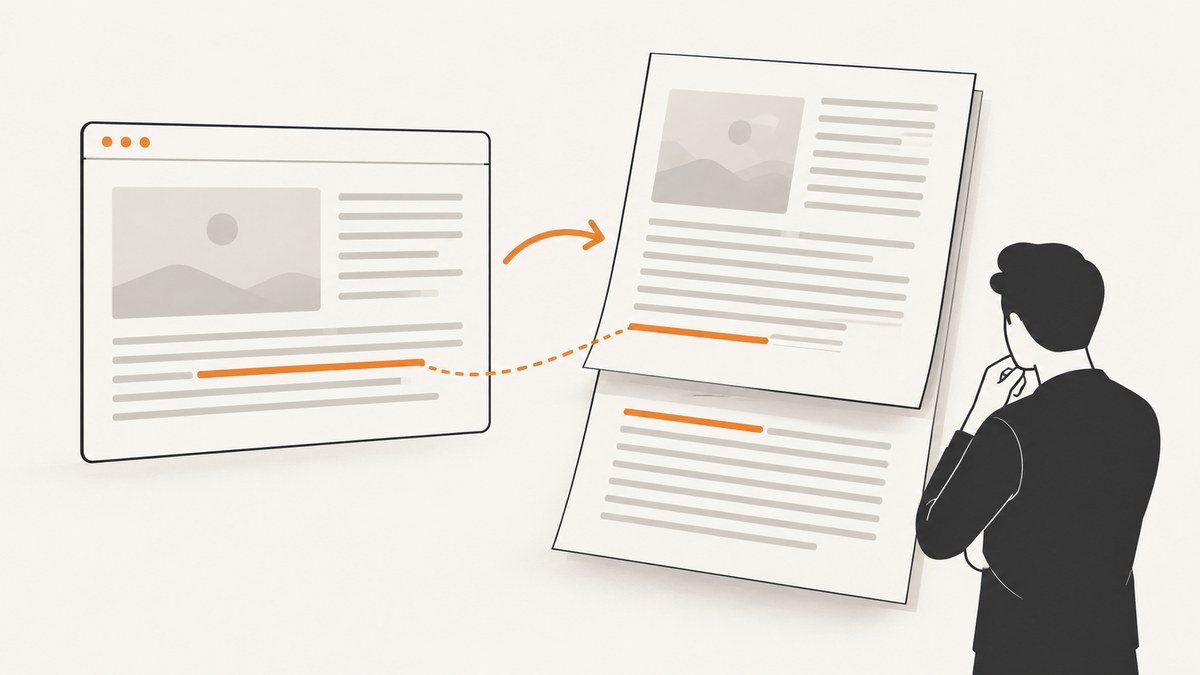
Puppeteer can wrap text differently in a PDF than in a browser screenshot because page.pdf() uses print CSS by default. First compare the actual print layout, available text width, and applied fonts. Then identify what “word breaking” means in your case: a whole word moved to the next line, a long unbroken token split inside itself, or a block divided between PDF pages. Each needs a different fix; break-inside: avoid only addresses the last kind.
1. Identify which kind of break you have
Start by describing the exact symptom in the generated PDF. A word that stays intact but moves down is ordinary line wrapping. A URL or identifier split within the token is text breaking. A paragraph, card, or table row that continues on the next printed page is page fragmentation. Those events happen at different stages of layout, so changing one CSS property at random can make the document worse without fixing the cause.
| Symptom | What is breaking? | Where to investigate |
|---|---|---|
| A whole word moves intact to another line | Inline text wrapping | Print media, usable line width, font metrics, padding and margins |
| A long URL or identifier splits inside the token | Text-breaking behavior | overflow-wrap, word-break, token length and container overflow |
| A box or paragraph is cut across pages | Page fragmentation | Print page geometry and break-inside |
Chromium describes line fragmentation and block fragmentation as distinct layout behavior. Printing creates page fragmentation, where block content can continue across pages. MDN likewise defines break-inside in terms of page, column, and region breaks inside a generated box, rather than ordinary inline wrapping. MDN: break-inside · Chrome for Developers: LayoutNG block fragmentation.
2. Why does Puppeteer wrap text in the PDF but not in the screenshot?
The first thing to check is the media mode. Puppeteer’s Page.pdf() renders with the CSS print media type by default. A screenshot usually reflects screen media. Your stylesheet may define different font sizes, widths, visibility, columns, or margins in @media print; even without an explicit print block, browser defaults and PDF page geometry can change the effective available width. Puppeteer documents emulating screen media before PDF generation when a screen-styled PDF is specifically wanted. Puppeteer Page.pdf() API.
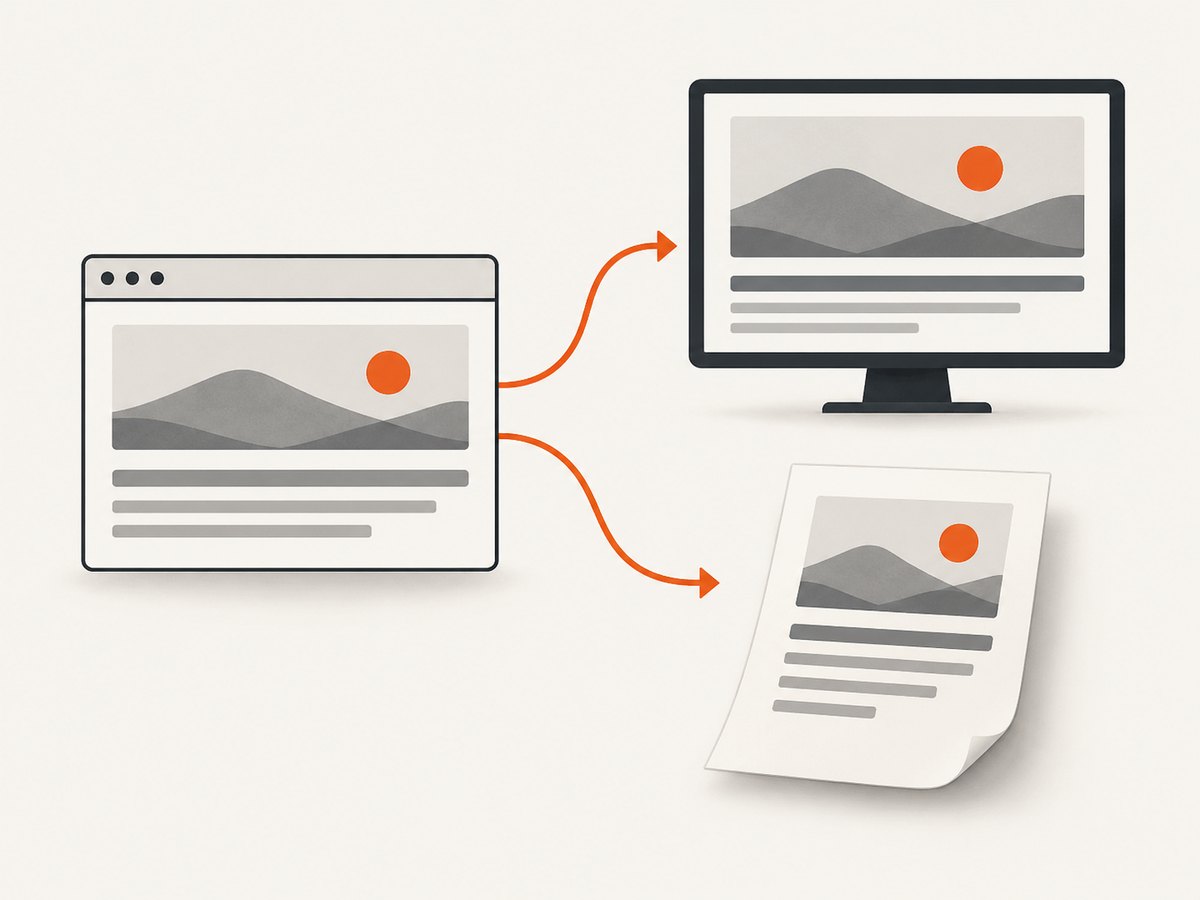
Next, check the actual line width and font used in print layout. A content box may lose usable width to padding, borders, margins, columns, or PDF page margins. A different font or fallback can also change glyph widths, moving a word onto another line. This is a practical diagnosis based on layout: there is no universal single cause for a screenshot/PDF discrepancy.
Puppeteer’s PDF guide says PDF generation waits for fonts by default. That wait does not prove that the intended remote font loaded successfully or that the CSS selected it. Check the network outcome, computed font-family, and the environment in which the PDF is generated. Puppeteer PDF generation guide.
3. Reproduce the exact PDF render
Keep the HTML, CSS, viewport, PDF options, Puppeteer and Chromium versions, operating system, and font availability consistent while diagnosing. Compare the generated PDF to a screenshot only after accounting for print versus screen media. A small reproducible document helps separate a CSS issue from application state or unrelated content.
import puppeteer from 'puppeteer';

const browser = await puppeteer.launch({ headless: true });
const page = await browser.newPage({
  viewport: { width: 1280, height: 900 },
});

await page.goto('http://localhost:3000/invoice', {
  waitUntil: 'networkidle0',
});

// Capture the screen layout for comparison.
await page.screenshot({ path: 'screen.png', fullPage: true });

// page.pdf() uses print media by default.
await page.pdf({
  path: 'print.pdf',
  format: 'A4',
  printBackground: true,
  margin: { top: '12mm', right: '12mm', bottom: '12mm', left: '12mm' },
});

await browser.close();
Run this in an ES module project with Puppeteer installed and replace the local URL with the page you are diagnosing. Keep the example’s two outputs separate: the screenshot documents screen rendering; the PDF documents print rendering. If the PDF should intentionally use screen styles, emulate screen media before calling pdf():
await page.emulateMediaType('screen');
await page.pdf({ path: 'screen-styled.pdf', printBackground: true });
Use screen emulation only when that is the intended output. It is a rendering-mode choice, not a general text-wrapping fix. The PDF may still have page dimensions and fragmentation behavior to account for.
4. Fix the cause that matches the symptom
A whole word wraps to a new line
Inspect computed print styles for the text container and its ancestors. Measure the usable content width after padding, borders, margins, columns, and page margins. Check print-only rules and the actual font. If a print stylesheet narrows the content area unnecessarily, correct that width or spacing at the relevant breakpoint. If the design calls for screen CSS, use emulateMediaType('screen') before PDF generation.
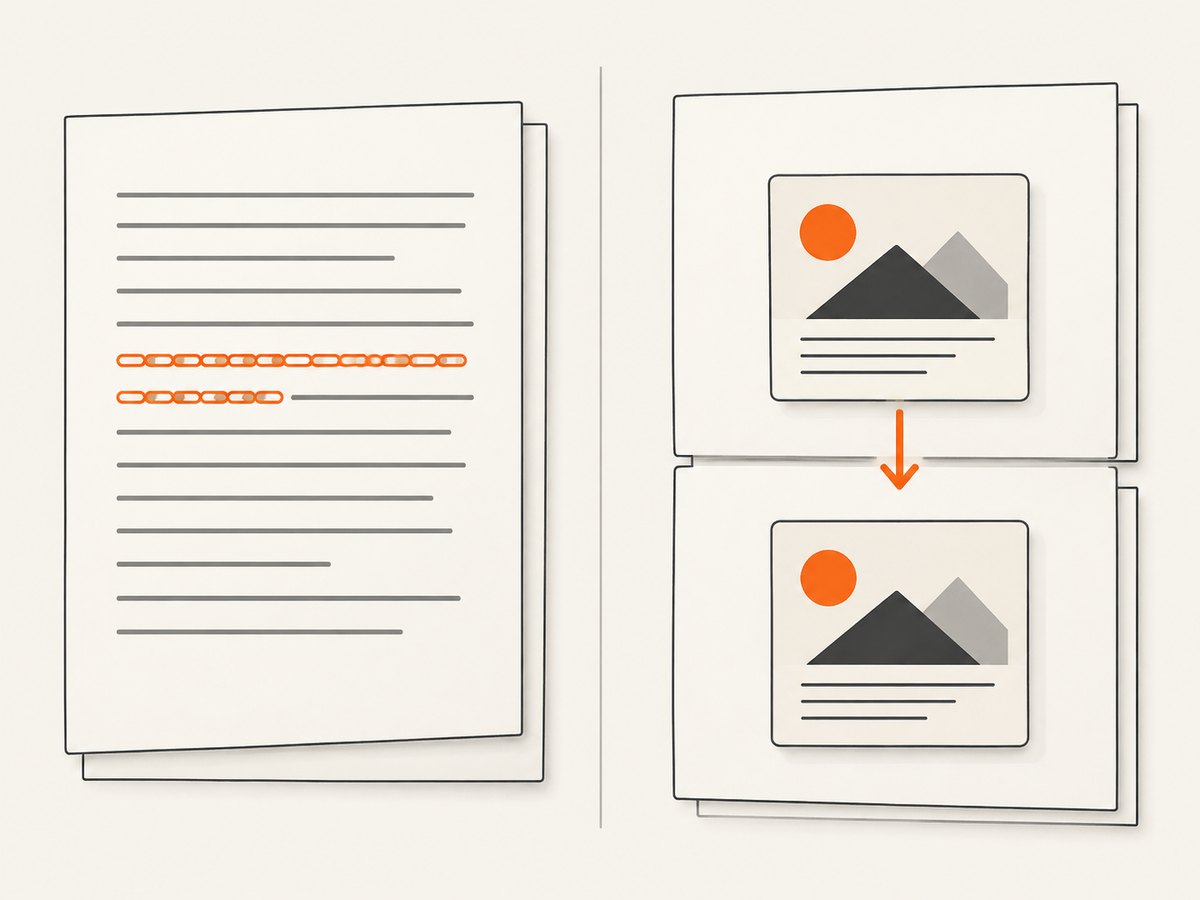
Do not start by applying word-break: keep-all or disabling wrapping everywhere. A word that moves intact has not been split internally; the line simply could not accommodate it under the current layout. Forcing no wrapping can create overflow or clipped content, particularly in narrow columns or tables.
A URL, hash, or identifier splits inside itself
Long unbroken strings need deliberate overflow behavior. Choose a rule appropriate for your content and supported browser behavior. For prose and URLs that may wrap at arbitrary points to avoid overflow, a common option is overflow-wrap: anywhere. If preserving a token as one unit matters more, consider allowing horizontal overflow or placing the token in a separately styled element. Test the result in both screen and print contexts.
/* Allow long URLs or identifiers to wrap when needed. */
.print-content {
  overflow-wrap: anywhere;
}

/* Alternatively, keep a short code token intact where space permits. */
.inline-code {
  white-space: nowrap;
}
These choices have tradeoffs: overflow-wrap: anywhere can split a token, while white-space: nowrap can make a line overflow. Avoid applying broad word-break: break-all to body copy unless character-by-character breaking is genuinely desired. The relevant rules are the ones in your stylesheet; verify computed values in print mode.
A block splits between PDF pages
Apply a page-fragmentation rule to a suitable box, such as a card or short section that should remain together:
@media print {
  .keep-together {
    break-inside: avoid;
    page-break-inside: avoid; /* legacy compatibility hint */
  }
}
The element needs a generated box for break-inside to apply. Keep the target reasonably small: if it is taller than the available page area, it cannot fit intact. Chromium may honor an avoidance request less strictly when needed to prevent fragmentainer overflow, so this declaration is not an absolute guarantee for arbitrarily large content. Check the resulting PDF and adjust page geometry or split the content intentionally where needed.
5. Inspect print styles, widths, and fonts systematically
- Check media rules. Search for
@media print, print-specific font sizes and widths, hidden elements, and selectors whose visibility changes the layout. - Check the text’s containing block. Inspect computed width, padding, borders, margins, grid or flex constraints, and column sizing. Include PDF page margins when calculating the remaining line width.
- Check font selection and loading. Confirm the intended font is available in the PDF environment and that the computed family is the expected one. A completed font wait does not guarantee a successful font request.
- Check output geometry. Record the PDF format or custom dimensions, margins, scale, and orientation. These affect the printable area and therefore line layout.
- Change one variable at a time. Generate the PDF again after each change and inspect the artifact itself. A screenshot is not a substitute for examining print output.
A historical Puppeteer issue reported a word moving to a new line in PDF output despite appearing on one line in an HTML preview and screenshot. It was opened in 2020 against Puppeteer 5.4.1 and labeled unconfirmed; it is an example of the symptom, not a diagnosis for current installations. Puppeteer issue #6554.
6. Common errors and fixes
| What you see | Likely cause to check | Practical fix |
|---|---|---|
| PDF differs from the browser screenshot | PDF uses print media by default | Inspect print CSS; emulate screen media only if screen styling is the goal |
| One word wraps while nearby text does not | Usable line width or font metrics differ | Check container geometry and computed font in print layout |
| Long URL breaks at awkward positions | Text-breaking rules conflict with the desired token behavior | Set a deliberate overflow strategy on the URL or code element |
A card still breaks despite break-inside: avoid |
The box may not fit on a page, or the rule may target the wrong box | Confirm generated box and available page height; shorten or split oversized content |
| PDF uses a fallback font | Font request failed, font is unavailable, or CSS selected another family | Inspect font loading and computed styles in the target runtime |
| Change has no visible effect | Different stylesheet, media query, selector, or build is active | Inspect computed print styles and verify the deployed CSS and PDF output |
7. Performance, reliability, and cost notes
PDF layout work depends on the page’s content, fonts, assets, and CSS. For reliable captures, wait for the page state your document requires, make font and image dependencies available in the generation environment, and pin the Puppeteer/Chromium version used in production. These practices make discrepancies easier to reproduce; they do not guarantee identical output across different browser versions or operating systems.
Keep a representative PDF as a review artifact when changing print CSS. If you generate many documents, render a small set that covers long paragraphs, tables, URLs, and page-boundary cases after layout changes. That is a workflow recommendation, not a benchmark claim. For cost, account for browser runtime and any infrastructure you operate; there is no universal price per PDF because deployment and workload vary.
8. Or skip the browser setup
If the job is to capture a website as an image or PDF rather than to debug your own Puppeteer layout, ScreenshotNeo provides a screenshot API and MCP server. One GET request returns a PNG, JPEG, WebP, or PDF. The API accepts the URL and supports print output; see the ScreenshotNeo API documentation for request options.
curl -G "https://api.screenshotneo.com/v1/shot" \
  -d access_key=YOUR_API_KEY \
  --data-urlencode url=https://stripe.com \
  -o shot.pdf
import requests
r = requests.get(
"https://api.screenshotneo.com/v1/shot",
params={"access_key": "YOUR_API_KEY", "url": "https://stripe.com", "format": "pdf"},
timeout=90,
)
r.raise_for_status()
open("shot.pdf", "wb").write(r.content)const q = new URLSearchParams({
access_key: 'YOUR_API_KEY',
url: 'https://stripe.com',
format: 'pdf',
});
const res = await fetch(`https://api.screenshotneo.com/v1/shot?${q}`);
if (!res.ok) throw new Error(`Screenshot request failed: ${res.status}`);
await Bun.write('shot.pdf', res);Replace YOUR_API_KEY with your key. The Python example uses requests; the Node.js example uses fetch and Bun’s file writer to save the response. ScreenshotNeo accepts cookie or consent banners like a visitor and removes more than 60 known consent platforms, newsletter popups, and chat widgets before capture; each cleanup step can be turned off. Bot checks, CAPTCHAs, blank pages, timeouts, failed loads, and cache hits are not billed, and response headers report the page verdict and billing status. Its MCP server provides take_screenshot, get_page_info, and capture_pdf for Claude, Cursor, and other MCP clients.
The free plan includes 1,000 screenshots per month with no card. Paid plans start at $5 for 3,000 screenshots; every feature is included on every plan. For an API or MCP workflow that removes consent banners and reports billing outcomes, create a free ScreenshotNeo account.
9. FAQ
How do I stop words from breaking in a Puppeteer PDF?
First establish whether a whole word wraps to the next line or a long token splits internally. For an intact word moving, compare print media, available line width, and font. For a token splitting internally, adjust its overflow and text-breaking rules.
How do I keep a block together across PDF pages?
Apply break-inside: avoid to the appropriate generated box in print CSS, then check that the box can fit in the available page area. The browser may still need to fragment content that cannot fit.
Should I always use screen media for PDF generation?
No. Use screen media only when the PDF is meant to follow the screen design. Print styles are often intentional, so inspect them before changing media mode.
Does Puppeteer wait for fonts before making a PDF?
The current PDF guide says it waits for fonts by default. Still verify that the expected font actually loaded and was selected in the environment producing the PDF.
Why is the HTML preview not enough to diagnose the problem?
The preview may use screen media and different page geometry. Inspect the generated PDF under the same Puppeteer, Chromium, font, and print CSS conditions used in production.


