How to Preview the First Page of an Uploaded Document With PHP or JavaScript
Render page one of an uploaded PDF in the browser with PDF.js or on the server with PHP Imagick, with validation and troubleshooting.
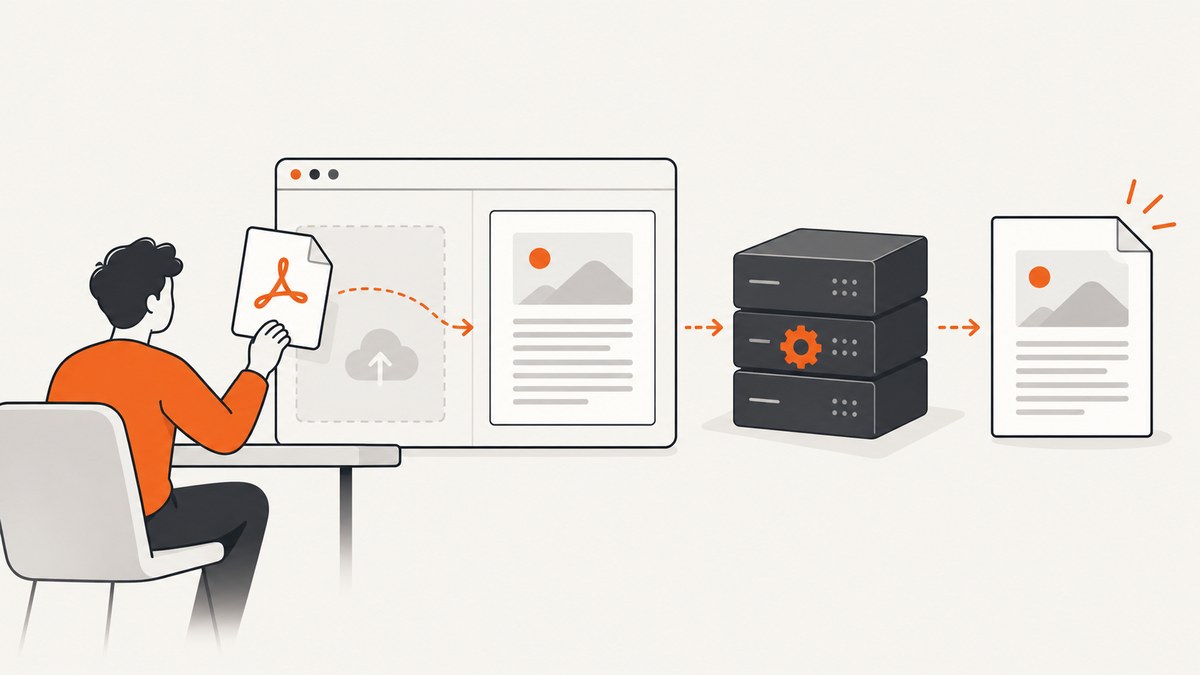
For PDF uploads, use PDF.js in the browser or Imagick in PHP. PDF.js loads the file, gets page 1, and paints it on a canvas. On the server, Imagick reads the first page with the zero-based selector [0] and writes an image. Validate the upload before either renderer receives it.
This guide focuses on PDFs. The examples do not prove support for DOCX, XLSX, or other office formats; confirm the real formats your application accepts before choosing a renderer.
Choose where the preview is rendered
| Decision | Browser-side PDF.js | PHP-side Imagick |
|---|---|---|
| Rendering location | The user’s browser, using JavaScript and a canvas. | Your PHP server, producing an image file or response. |
| PDF page selector | getPage(1); PDF.js page numbers start at one. |
file.pdf[0]; Imagick’s example uses zero-based page selection. |
| Upload transfer | A local File can be previewed without sending it to your server. |
The file is uploaded first and must be validated before parsing. |
| Dependencies | PDF.js and a matching worker build, served over HTTP during development. | PHP Imagick and a PDF-capable local ImageMagick configuration. |
| Resource control | Render only the visible page or pages. | Set output resolution and enforce application-specific processing limits. |
Option 1: Preview the first page in the browser with PDF.js
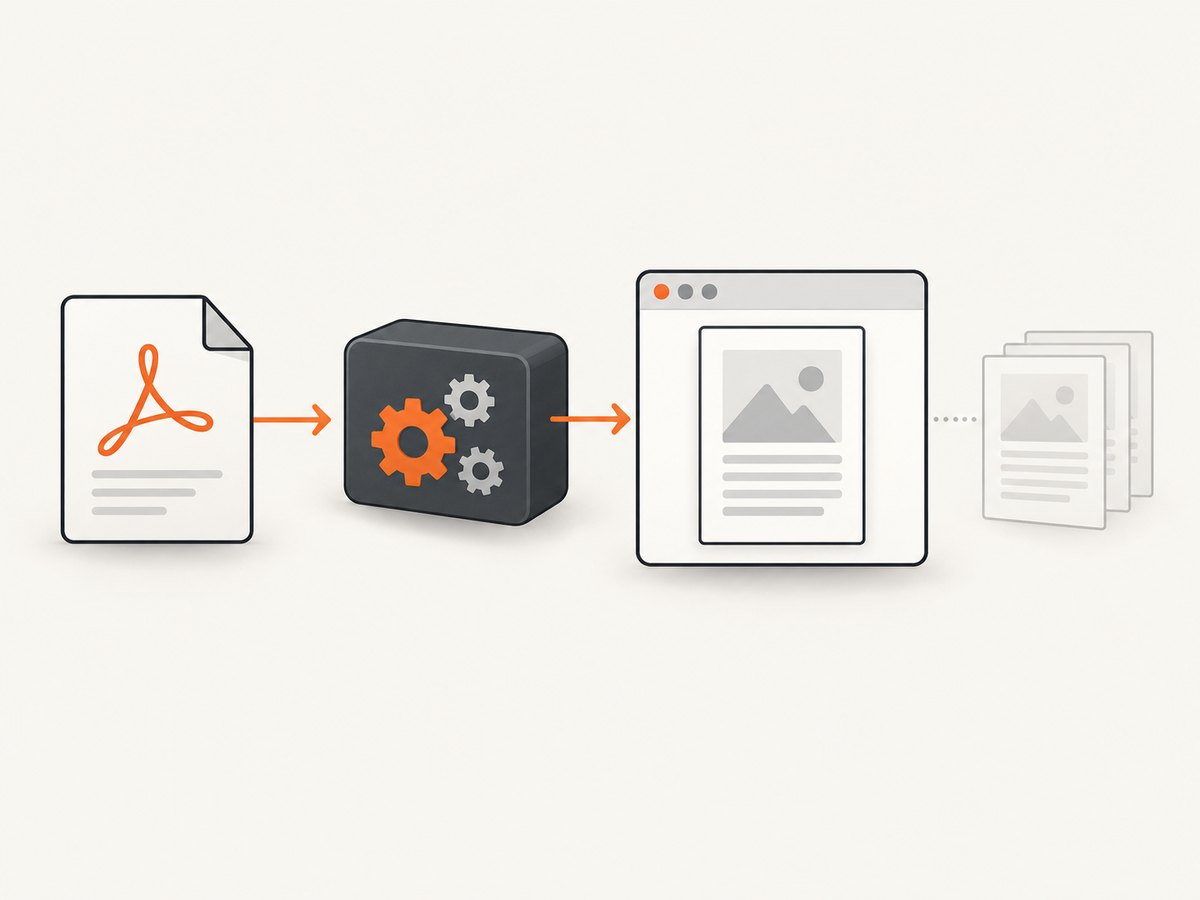
PDF.js separates its parsing and display APIs from its viewer UI. The documented sequence is: create a loading task, await the document, request page 1, create a viewport, size the canvas, and render it. Use a pinned PDF.js package and a worker from the same release in production. The worker is not enabled when a page is opened with file://, so serve the example through a local HTTP server. See the PDF.js getting-started guide.
Complete browser example
<!doctype html>
<html lang='en'>
<meta charset='utf-8'>
<title>PDF first-page preview</title>
<style>
  #preview { max-width: 100%; border: 1px solid #ccc; }
  #status { min-height: 1.5em; }
</style>
<input id='pdf-file' type='file' accept='application/pdf,.pdf'>
<p id='status' role='status'></p>
<canvas id='preview'></canvas>

<script type='module'>
  import * as pdfjsLib from 'https://cdnjs.cloudflare.com/ajax/libs/pdf.js/6.3.289/pdf.min.mjs';

  pdfjsLib.GlobalWorkerOptions.workerSrc =
    'https://cdnjs.cloudflare.com/ajax/libs/pdf.js/6.3.289/pdf.worker.min.mjs';

  const input = document.querySelector('#pdf-file');
  const canvas = document.querySelector('#preview');
  const context = canvas.getContext('2d');
  const status = document.querySelector('#status');

  input.addEventListener('change', async () => {
    const file = input.files?.[0];
    if (!file) return;
    if (file.type !== 'application/pdf' && !file.name.toLowerCase().endsWith('.pdf')) {
      status.textContent = 'Choose a PDF file.';
      return;
    }

    status.textContent = 'Loading first page…';
    try {
      const bytes = new Uint8Array(await file.arrayBuffer());
      const loadingTask = pdfjsLib.getDocument({ data: bytes });
      const pdf = await loadingTask.promise;
      const page = await pdf.getPage(1);

      const cssWidth = Math.min(900, page.getViewport({ scale: 1 }).width);
      const baseViewport = page.getViewport({ scale: 1 });
      const scale = cssWidth / baseViewport.width;
      const viewport = page.getViewport({ scale });
      const pixelRatio = window.devicePixelRatio || 1;

      canvas.width = Math.floor(viewport.width * pixelRatio);
      canvas.height = Math.floor(viewport.height * pixelRatio);
      canvas.style.width = `${Math.floor(viewport.width)}px`;
      canvas.style.height = `${Math.floor(viewport.height)}px`;

      await page.render({
        canvasContext: context,
        viewport,
        transform: pixelRatio !== 1 ? [pixelRatio, 0, 0, pixelRatio, 0, 0] : null
      }).promise;
      status.textContent = `Showing page 1 of ${pdf.numPages}.`;
    } catch (error) {
      console.error(error);
      status.textContent = 'The PDF could not be rendered.';
      context.clearRect(0, 0, canvas.width, canvas.height);
    }
  });
</script>
</html>
How the browser code works
- The file input supplies a browser
File. arrayBuffer()reads its bytes, andgetDocument()starts PDF.js parsing.getPage(1)requests only the first page.- The viewport is sized to the preview container. The device-pixel-ratio transform keeps text sharper on HiDPI displays.
- The canvas’s CSS dimensions and backing-pixel dimensions are set separately so the preview does not become physically huge.
For a multi-page viewer, render pages as they become visible instead of allocating canvases for every page. The PDF.js FAQ recommends rendering only visible pages to reduce memory use. Partial HTTP range fetching is conditional on browser and server support; do not assume every remote PDF can be fetched incrementally. See the PDF.js FAQ.
Option 2: Generate a first-page image with PHP and Imagick
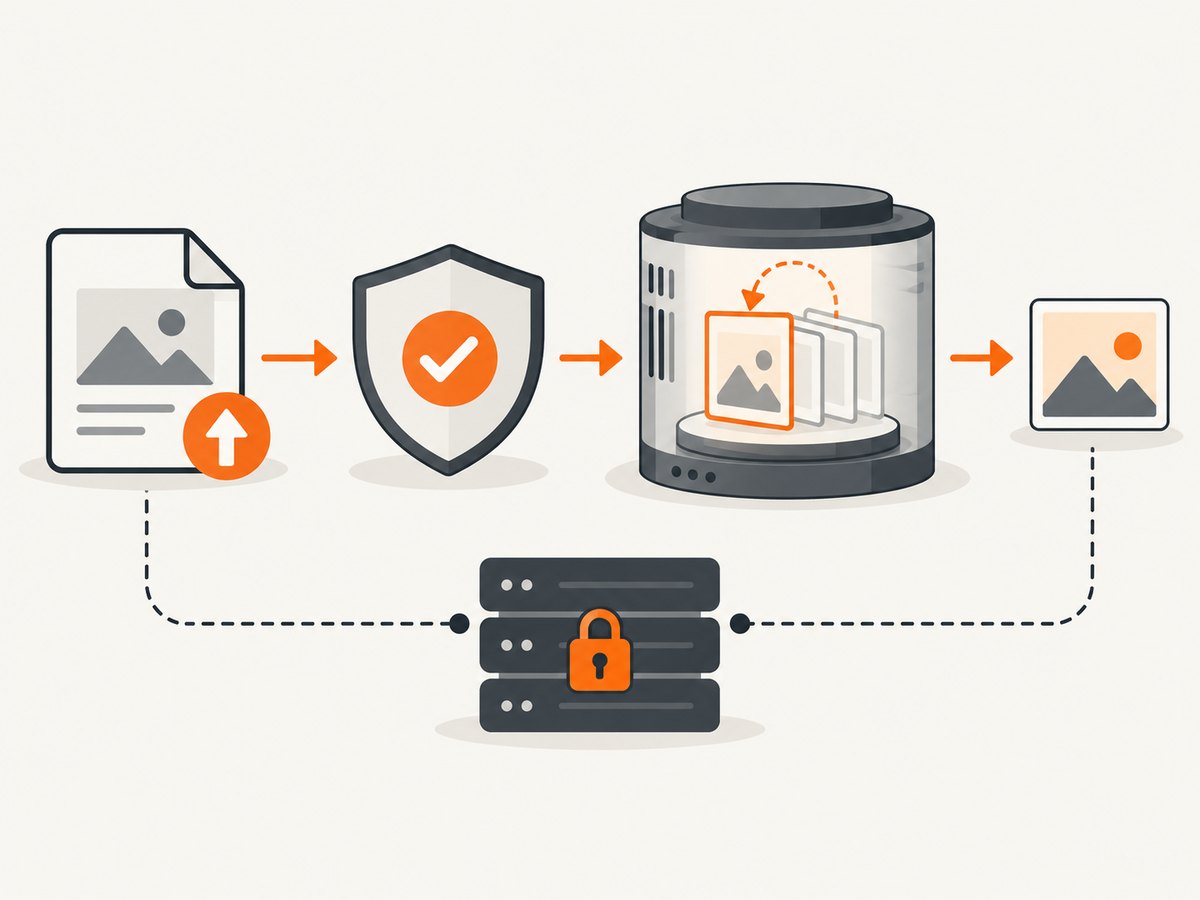
Imagick can select the first PDF page with [0]. Set the resolution before reading when you need a sharper thumbnail, then choose an output format. The PHP manual demonstrates this pattern in its Imagick readImage documentation.
Upload form and PHP endpoint
<form action='/preview.php' method='post' enctype='multipart/form-data'>
  <label>PDF: <input name='document' type='file' accept='application/pdf,.pdf' required></label>
  <button type='submit'>Create preview</button>
</form>
<?php
// preview.php
declare(strict_types=1);
const MAX_BYTES = 25 * 1024 * 1024;
if ($_SERVER['REQUEST_METHOD'] !== 'POST') {
http_response_code(405);
exit('POST required');
}
if (!isset($_FILES['document']) || is_array($_FILES['document']['error'])) {
http_response_code(400);
exit('No file uploaded');
}
$file = $_FILES['document'];
if ($file['error'] !== UPLOAD_ERR_OK) {
http_response_code(400);
exit('Upload failed');
}
if ($file['size'] > MAX_BYTES) {
http_response_code(413);
exit('File is too large');
}
if (!is_uploaded_file($file['tmp_name'])) {
http_response_code(400);
exit('Invalid upload source');
}
$finfo = new finfo(FILEINFO_MIME_TYPE);
$mime = $finfo->file($file['tmp_name']);
if ($mime !== 'application/pdf') {
http_response_code(415);
exit('Only PDF files are accepted');
}
try {
$image = new Imagick();
// Set resolution before reading for a higher-quality raster.
$image->setResolution(150, 150);
$image->readImage($file['tmp_name'] . '[0]');
$image->setIteratorIndex(0);
$image->setImageFormat('jpeg');
$image->setImageCompressionQuality(85);
// JPEG has no alpha channel; flatten against white if needed.
$image->setImageBackgroundColor('white');
$image->setImageAlphaChannel(Imagick::ALPHACHANNEL_REMOVE);
header('Content-Type: image/jpeg');
header('Content-Disposition: inline; filename="document-page-1.jpg"');
echo $image->getImageBlob();
$image->clear();
$image->destroy();
} catch (Throwable $exception) {
error_log($exception->getMessage());
http_response_code(422);
echo 'The PDF could not be rendered';
}
?>The size in this sample is an application policy, not a universal safe limit. Tune upload size, resolution, timeout, memory and concurrency for your workload. Keep originals and generated previews in private or access-controlled storage unless public access is intentional.
Validate uploads before rendering
The browser-provided MIME field is user input. Inspect the temporary file, check the upload error and size, and assign a safe stored name. PHP documents is_uploaded_file() for confirming that a path came through HTTP POST. Read the relevant guidance in the PHP file-upload documentation and is_uploaded_file() reference.
- Allow only formats your renderer actually supports.
- Reject missing, partial and oversized uploads before parsing.
- Use a generated identifier instead of the original filename for storage.
- Do not expose uploaded documents publicly by default.
- Consider malware scanning, isolation and retention rules for your application; these short checks alone do not establish a complete security boundary.
Scale, quality and reliability considerations
Browser previews
- Render page one only for an initial preview; create other pages on demand.
- Choose a scale from the container width and cap the canvas dimensions.
- Use the device-pixel-ratio transform for sharp output, while remembering that higher pixel counts consume more memory.
- For remote PDFs, configure the server for byte-range requests if you want PDF.js to fetch portions of a file; support depends on both ends.
PHP previews
- Resolution increases CPU, memory and output size. Pick a thumbnail resolution rather than the print resolution.
- Use a queue or worker for large files and concurrent uploads so web requests do not exhaust PHP workers.
- Apply request and renderer timeouts, and clean temporary files after success or failure.
- Prefer PNG when preserving transparency matters; flatten to a background before JPEG output.
- Cache a preview by a content hash plus rendering settings so repeated requests do not rerender the same page.
Troubleshooting
| Symptom | Likely cause | Fix |
|---|---|---|
| PDF.js worker error or blank canvas | The page was opened with file://, or worker and core versions differ. |
Serve through HTTP and pin matching PDF.js and worker builds. |
getPage(1) fails |
The file is not a valid PDF, is encrypted, or parsing failed. | Catch the loading error, verify the file type from bytes, and show a user-facing failure state. |
| Preview is blurry | The canvas backing resolution is too low. | Render with a suitable scale and device-pixel-ratio transform; cap dimensions to avoid excessive memory. |
| Imagick says no decode delegate | ImageMagick cannot read PDFs in the server environment. | Install and configure a PDF-capable delegate according to your platform policy, then verify it in a controlled environment. |
| PHP returns “only PDF files are accepted” | The MIME check rejected the temporary file. | Inspect the detected MIME and your allowed-format policy; do not trust $_FILES['type']. |
| JPEG has black or unexpected background | The source page has transparency and JPEG has no alpha channel. | Flatten against an explicit background color before encoding JPEG, or use PNG. |
| Requests run out of memory or time | Large pages, high resolution or too many concurrent conversions. | Lower resolution, bound dimensions, render asynchronously, and limit concurrency. |
| Local preview works but server preview fails | The browser and server use different supported formats or renderer configurations. | Define the accepted formats explicitly and test representative PDFs in the deployment environment. |
Or skip the browser setup
If the document is available at a URL, ScreenshotNeo can return a screenshot of that page with one request. Host an uploaded PDF behind an access-controlled URL, or use it for a document viewer page, then capture that URL.
cURL
curl -G "https://api.screenshotneo.com/v1/shot" -d access_key=YOUR_API_KEY --data-urlencode url=https://example.com/document-viewer -o shot.webpPython
import requests
r = requests.get("https://api.screenshotneo.com/v1/shot", params={"access_key": "YOUR_API_KEY", "url": "https://example.com/document-viewer"}, timeout=90)
open("shot.webp", "wb").write(r.content)
Node.js
const q = new URLSearchParams({ access_key: 'YOUR_API_KEY', url: 'https://example.com/document-viewer' });
const res = await fetch(`https://api.screenshotneo.com/v1/shot?${q}`);
const data = Buffer.from(await res.arrayBuffer());
require('node:fs').writeFileSync('shot.webp', data);
See the ScreenshotNeo API documentation for request options. Cookie banners, newsletter popups and chat widgets are removed before the shot. Bot checks, blank pages and failed loads are never billed. An MCP server lets AI agents take screenshots. The free plan includes 1,000 screenshots a month with no card, and paid plans start at $5 for 3,000. Create a free ScreenshotNeo account.
FAQ
Can PDF.js preview a DOCX file?
Not with the PDF.js flow shown here. Convert the document to PDF first or choose a renderer that explicitly supports DOCX.
Why is the first page called page 1 in JavaScript but [0] in PHP?
PDF.js exposes human-style page numbers beginning at one. Imagick’s image-sequence selector uses a zero-based index in the documented example.
Should I upload the PDF to PHP if I only need a local preview?
No. A browser-side preview can keep the file local until you actually need server processing or storage.
How do I preview a password-protected PDF?
Handle the renderer’s password or decryption error explicitly and define whether your application accepts protected files. The examples here do not supply credentials.


