How to Preview HTML and CSS Code
Preview HTML and CSS by opening a file, using a local server, DevTools, an editor extension, or an online playground.

For a basic static page, save an .html file, link your stylesheet, and open the HTML file in a browser. For a faster editing loop, use a local server or editor preview extension, then refresh automatically or manually. Browser DevTools let you inspect the rendered DOM, test CSS declarations live, and diagnose why a rule is not appearing.
This guide covers each method, when to use it, complete working files, live editing, server-only behavior, troubleshooting, and a way to capture the final page without maintaining browser automation.
1. Open an HTML file directly in your browser
This is the shortest method for static HTML and CSS. Create a folder containing an HTML file and a stylesheet:

preview-demo/
├── index.html
└── styles.css
Create index.html:
<!doctype html>
<html lang="en">
  <head>
    <meta charset="utf-8">
    <meta name="viewport" content="width=device-width, initial-scale=1">
    <title>HTML and CSS preview</title>
    <link rel="stylesheet" href="styles.css">
  </head>
  <body>
    <main class="card">
      <p class="eyebrow">Preview</p>
      <h1>A working HTML and CSS page</h1>
      <p>Edit the files, save them, and reload the browser.</p>
      <a class="button" href="#details">Read more</a>
    </main>
  </body>
</html>
Create styles.css:
:root {
  font-family: system-ui, sans-serif;
  color: #172033;
  background: #eef2ff;
}

body {
  min-height: 100vh;
  display: grid;
  place-items: center;
  margin: 0;
}

.card {
  max-width: 36rem;
  padding: 3rem;
  border-radius: 1rem;
  background: white;
  box-shadow: 0 1rem 3rem rgb(34 45 90 / 15%);
}

.eyebrow {
  color: #4f46e5;
  font-weight: 700;
  letter-spacing: .08em;
  text-transform: uppercase;
}

.button {
  display: inline-block;
  padding: .7rem 1rem;
  border-radius: .5rem;
  color: white;
  background: #4f46e5;
  text-decoration: none;
}- Save both files in the same directory.
- Open
index.htmlby double-clicking it or using your browser’s Open File command. - After editing, save the file and reload the page.
The address usually begins with file:///. This is sufficient for static markup, styles, images, and many simple scripts. It can fail when your project expects HTTP requests, JavaScript modules, client-side routing, server-side processing, or browser features restricted on file: URLs.
2. Preview with a local HTTP server
A local server gives the page an http://localhost URL and behaves more like deployment. From the directory containing index.html, run:
python3 -m http.server 8000Visit http://localhost:8000. Stop the server with Ctrl+C. This method is useful for ES modules, fetch requests, relative URLs, and projects where file: security rules cause misleading errors.
If your project already has a development command, use that instead, for example the command documented by its framework. Keep the browser DevTools open while you work so you can inspect layout, console output, and network requests.
3. Use an editor preview or live-reload extension
Many code editors provide a preview extension that starts a local server and reloads the browser when files change. The exact command and extension name vary, but the workflow is consistent:
- Open the project folder in your editor.
- Install a reputable HTML preview or live-server extension from the editor’s marketplace.
- Open
index.htmland choose the extension’s preview or serve command. - Edit and save HTML or CSS; the browser reloads automatically when supported.
Automatic reload is convenient, but it does not replace checking the actual project server. A preview extension can use a different base path, headers, proxy, or build process than production.
4. Use DevTools to test HTML and CSS immediately
Modern browsers include developer tools that show the runtime DOM and the CSS rules applied to each element. In the browser, open Inspect (or the documented keyboard shortcut), then use the Elements or Inspector panel.
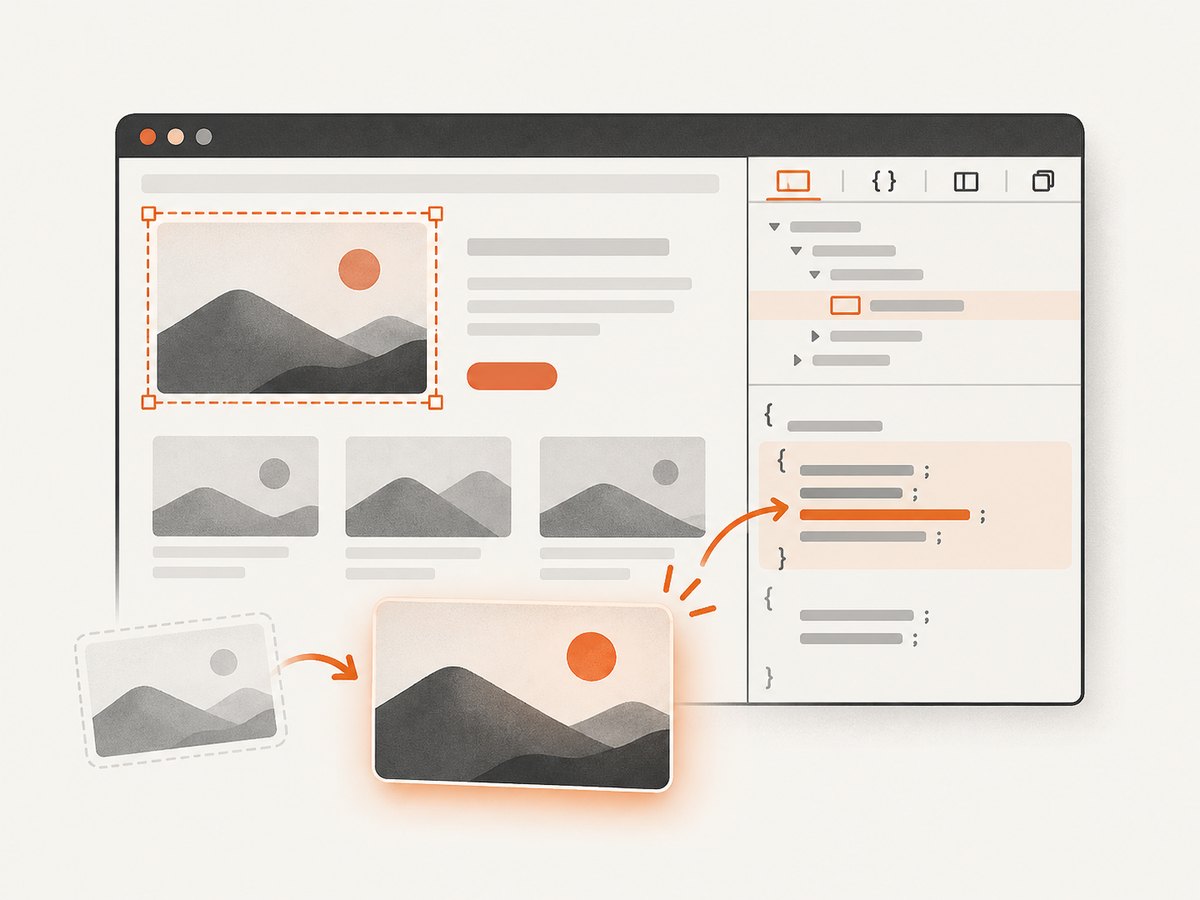
- Select an element in the page or DOM tree.
- In the Styles pane, edit a declaration such as
color,margin, ordisplay. - Toggle declarations on and off to identify the rule that changes the layout.
- Use the Computed view to see the final value after inheritance and the cascade.
- Copy useful changes back into your source stylesheet.
DevTools edits normally affect only the running page. They are not automatically saved to your source files. Some browsers provide a workspace feature that maps DevTools changes to local files; otherwise, copy the final declarations into your editor and reload.
The DOM shown by DevTools is the parsed, runtime document. It can differ from the original source when the browser repairs malformed HTML or JavaScript adds, removes, or changes elements.
5. Use an online HTML/CSS playground
An online playground is useful for isolated examples, teaching, bug reports, and shareable reproductions. CodePen’s Live View updates the preview when code, settings, or Blocks change.
Paste the HTML into the HTML panel and the stylesheet into the CSS panel. Check the playground’s HTML template, CSS reset, asset rules, and JavaScript settings before assuming behavior matches your project. Recheck the result in your real application when paths, fonts, APIs, or build tools matter.
6. Choose the right preview method
| Method | Setup | Automatic refresh | Inspect computed CSS | Persists source edits | HTTP/server behavior | Sharing |
|---|---|---|---|---|---|---|
Open index.html |
Lowest | No | Yes, with DevTools | Yes, when you edit files | Limited | Low |
| Local server | Low | Usually manual | Yes | Yes | Good | Low |
| Editor preview extension | Low | Usually yes | Yes | Yes | Good | Low |
| DevTools only | None | Immediate | Excellent | Usually no | Depends on page | None |
| Online playground | Low | Usually yes | Yes | Yes inside the playground | Sandbox-dependent | Excellent |
7. Why your CSS is not showing
- Wrong stylesheet path: Confirm that
hrefmatches the filename and directory exactly. Case matters on many servers. - Stylesheet did not load: Open the Network panel and look for a failed CSS request. A 404 means the URL is wrong or the file is not being served.
- A different rule wins: Inspect the element and check crossed-out declarations. Specificity, source order, and
!importantaffect the cascade. - Invalid CSS: Check the Console and Styles pane for parse errors, missing braces, invalid values, and failed
@importorurl()resources. - Selector does not match: Compare the selector with the runtime class, id, and element name. JavaScript may have changed the class after load.
- Cached content: First verify that the stylesheet request points to the expected file. Then reload; use a hard refresh only when the file is loading but an old response is cached.
- Viewport or media query: Check the responsive device mode and whether an
@mediacondition is active. file:behavior differs: Start a local server and test athttp://localhost.
8. A repeatable preview checklist
- Confirm the HTML file has a doctype, character set, viewport, and stylesheet link.
- Save HTML and CSS before judging a change.
- Inspect the element, not only the source text.
- Check computed values and crossed-out declarations.
- Check Console and Network errors.
- Test at the viewport sizes and browsers your users need.
- Use a local server when modules, fetch, routing, or server behavior is involved.
- Validate the final result in the actual application environment.
9. Performance, reliability, and cost considerations
Opening a local file has almost no setup cost, but it can hide HTTP-only failures. A local server adds a small setup step and makes relative URLs, modules, and request behavior more representative. Editor live reload saves manual refresh time, while DevTools changes are fastest for one-off experiments but can be lost when the page reloads.
For reliable debugging, keep the browser Console and Network panels visible, reproduce the issue from a clean reload, and record the viewport and URL. Online playgrounds are reliable for small isolated examples, but external assets, third-party scripts, and browser policies can differ from your project.
10. Or skip the browser setup
If you need a saved screenshot of a page rather than an interactive editing session, ScreenshotNeo returns a PNG, JPEG, WebP, or PDF from one GET request. Its capture options include full-page screenshots with lazy images loaded, CSS-selector element capture, custom CSS and JavaScript, device presets or any viewport, dark mode, retina scale, waits, request blocking, custom headers and cookies, geolocation, timezone, transparent backgrounds, resizing, caching, signed links, asynchronous jobs, bulk capture, and PDF settings.
Before capture, ScreenshotNeo accepts cookie or consent banners like a visitor and removes more than 60 known consent platforms, newsletter popups, and chat widgets. Bot checks, blank pages, timeouts, failed loads, and cache hits are not billed; response headers identify the page verdict and whether the request was billed. Its MCP server provides take_screenshot, get_page_info, and capture_pdf tools for Claude, Cursor, and other MCP clients.
curl -G "https://api.screenshotneo.com/v1/shot" -d access_key=YOUR_API_KEY --data-urlencode url=https://stripe.com -o shot.webpimport requests
r = requests.get("https://api.screenshotneo.com/v1/shot", params={"access_key": "YOUR_API_KEY", "url": "https://stripe.com"}, timeout=90)
open("shot.webp", "wb").write(r.content)const q = new URLSearchParams({ access_key: 'YOUR_API_KEY', url: 'https://stripe.com' });
const res = await fetch(`https://api.screenshotneo.com/v1/shot?${q}`);See the ScreenshotNeo documentation for request parameters and response headers. The Free plan includes 1,000 screenshots each month with no card; paid plans start at $5 for 3,000 screenshots. Create a free ScreenshotNeo account.
11. FAQ
Can I preview HTML without installing anything?
Yes. Save an HTML file and open it in a browser, or use an online playground such as CodePen.
Should I use file: or localhost?
Use file: for a simple static page. Use localhost when the project uses modules, fetch requests, routing, or server-dependent behavior.
Why do DevTools changes disappear?
Most DevTools edits apply only to the current page session. Copy them into your HTML or CSS file, or configure a browser workspace that saves mapped changes.
What is the fastest way to find the CSS rule affecting an element?
Inspect the element, review the Styles pane for crossed-out declarations, then check Computed values and the matching selector.
Does a preview prove the page works in production?
No. Production can change URL paths, HTTP headers, asset handling, JavaScript execution, browser security behavior, and server-side responses. Test through the same build and server path your users receive.


