How to Preview HTML, CSS, and JavaScript Online
Preview HTML, CSS, and JavaScript in minutes with online playgrounds, DevTools, and browser IDEs. Includes runnable examples, debugging steps, and ScreenshotNeo.

Fast answer: use an online playground when you have a small example. Put structure in the HTML panel, styles in CSS, behavior in JavaScript, and inspect the live result beside the editors. Use browser developer tools when you need to change a page that is already open. Use a browser IDE when your work has multiple files, dependencies, or a framework.
This guide explains each route, gives a complete example you can paste into a playground, shows how to debug blank or incorrect previews, and explains when a remote screenshot is more useful than a local preview.
1. Choose the right online preview method
| What you are trying to do | Best method | Why |
|---|---|---|
| Test one small component or code idea | Snippet playground | Separate HTML, CSS, JavaScript and result panels provide a short feedback loop. |
| Inspect or temporarily adjust a page you already opened | Browser developer tools | You can edit the runtime DOM and applied styles and run JavaScript in the console. |
| Build a multi-file app or framework project | Browser IDE | Project files, dependencies and a browser runtime are closer to a normal development environment. |
| Capture a consistent image or PDF of a URL | Screenshot API | A remote browser performs the capture without requiring your own browser setup. |
JSFiddle documents four panels—HTML, CSS, JavaScript and Result—and adds basic document scaffolding automatically, so a snippet usually does not need its own <html>, <head> or <body> wrapper (JSFiddle getting started). MDN describes browser developer tools as a way to inspect HTML, CSS, JavaScript and requested assets, then see HTML and CSS changes reflected immediately in the viewport (MDN developer tools). For larger projects, StackBlitz documents browser environments ranging from lightweight playgrounds to WebContainers, a browser-based Node.js environment (StackBlitz environments).
2. Preview a complete HTML, CSS and JavaScript example
Open a playground such as JSFiddle or CodePen, then place each part of this example in its matching editor. CodePen describes its editor as producing a real-time preview; its separate automatically updating Live View is documented as a PRO feature, so check the current plan before relying on that view (CodePen features).

HTML panel
<main class="card">
  <p class="eyebrow">Online preview</p>
  <h1>Try the button</h1>
  <p>This card is rendered from three separate panels.</p>
  <button id="theme-button" type="button">Switch theme</button>
  <p id="status" role="status">Light theme active</p>
</main>
CSS panel
:root {
  font-family: system-ui, sans-serif;
  color: #172033;
  background: #eef2ff;
}

* { box-sizing: border-box; }

body {
  margin: 0;
  min-height: 100vh;
  display: grid;
  place-items: center;
  padding: 2rem;
}

.card {
  width: min(100%, 34rem);
  padding: 2rem;
  border-radius: 1rem;
  background: white;
  box-shadow: 0 1rem 3rem rgb(23 32 51 / 15%);
}

.eyebrow {
  margin: 0 0 .5rem;
  color: #4f46e5;
  font-size: .8rem;
  font-weight: 700;
  letter-spacing: .08em;
  text-transform: uppercase;
}

button {
  border: 0;
  border-radius: .5rem;
  padding: .7rem 1rem;
  color: white;
  background: #4f46e5;
  cursor: pointer;
}

.dark {
  color: #f8fafc;
  background: #111827;
}

.dark .card { background: #1f2937; }
JavaScript panel
const button = document.querySelector('#theme-button');
const status = document.querySelector('#status');

button.addEventListener('click', () => {
  document.documentElement.classList.toggle('dark');
  const dark = document.documentElement.classList.contains('dark');
  status.textContent = `${dark ? 'Dark' : 'Light'} theme active`;
});
The result panel should show a centered card. Clicking the button toggles the dark class on the root element and updates the status text. If your playground expects a full document instead of snippets, combine the panels as follows:
<!doctype html>
<html lang="en">
<head>
  <meta charset="utf-8">
  <meta name="viewport" content="width=device-width, initial-scale=1">
  <title>Online preview</title>
  <style>/* paste the CSS here */</style>
</head>
<body>
  <!-- paste the HTML here -->
  <script>/* paste the JavaScript here */</script>
</body>
</html>
Check the preview systematically
- Confirm the HTML creates the element your script selects.
- Confirm the selector matches exactly, including punctuation and capitalization.
- Check that the JavaScript runs after the button exists. A script at the end of
bodyis a simple way to ensure that. - Open the playground’s console or browser console and read the first error, not just the final visual symptom.
- Resize the preview to check narrow and wide layouts.
3. Preview edits to an existing website with DevTools
Developer tools are useful when the page you want to understand is already loaded. Right-click an element and choose Inspect, or open DevTools from your browser’s menu. The Elements or Inspector panel shows the runtime DOM and the styles currently applied. You can edit an attribute, change text, add a node, or toggle CSS declarations and see the viewport update immediately. The Console panel can execute JavaScript against that page and report syntax or runtime errors.
// Run in the DevTools Console
const heading = document.querySelector('h1');
if (heading) heading.textContent = 'Temporary heading';

document.body.style.background = '#fff7ed';
These are experiments in the current browser session. MDN explicitly notes that inspector changes cannot be saved to the original source files. To keep a change, copy it into your project or use the playground’s source editors. A refresh normally removes your DevTools edits.
4. Move from a snippet to a browser IDE
A snippet playground is intentionally small. Choose a browser IDE when you need several files, package dependencies, a build step, a framework, or a server-like runtime. StackBlitz documents both lighter playground environments and WebContainers for browser-based Node.js projects. Create the smallest project that reproduces the issue, then add files or dependencies one at a time so a build error remains easy to isolate.
Project preview checklist
- Confirm the expected start command and entry file.
- Keep the first reproduction free of unrelated packages.
- Open the browser console and the IDE’s terminal or build output.
- Check that imports use the correct relative path and filename case.
- Verify that environment variables and API keys are not pasted into a public project.
- Test the preview at the same viewport size and URL path that matters to you.
5. Common preview problems and fixes
| Symptom | Likely cause | Fix |
|---|---|---|
| Blank result | HTML is malformed, the script throws immediately, or the playground expects a full document. | Read the first console error; validate the markup; add a complete document wrapper if required. |
| Styles do not change | A selector does not match, a later rule wins, or the CSS was pasted into the wrong panel. | Inspect the element, check crossed-out declarations, and test a distinctive rule such as outline: 3px solid red. |
| Button does nothing | The selected element is null, the event name is wrong, or JavaScript ran before the markup existed. |
Log the selected element, use the exact ID, and move the script after the HTML or wait for DOMContentLoaded. |
| “Unexpected token” | JavaScript syntax is invalid, often from a missing brace, quote or comma. | Go to the reported line and inspect the preceding line; syntax errors often surface one line late. |
| External font, image or API fails | The resource blocks cross-origin requests, needs credentials, or the URL is incorrect. | Open the resource directly, inspect the Network panel, and use a permitted test endpoint or local asset. |
| Layout differs from production | The playground lacks production CSS, fonts, scripts, viewport settings or server data. | Reproduce those inputs explicitly, then verify the final page at its real URL. |
| Changes disappear | DevTools edits are runtime-only, or a playground was not saved. | Copy changes into source control and check the editor’s current save and visibility controls. |
6. Preview responsive, interactive and asynchronous states
A single successful render is not enough for front-end work. Test at several viewport widths, keyboard focus, hover and active states, long text, empty data, loading indicators, and error responses. In a playground, replace production data with a small static fixture so the visual state is deterministic.
const output = document.querySelector('#status');
output.textContent = 'Loading…';

setTimeout(() => {
  output.textContent = 'Loaded preview data';
}, 600);
For network-driven code, inspect the Network panel. A request can be blocked by CORS, fail because authentication is missing, or return a response shape your code does not expect. Log the status code and parsed data before changing the rendering code.
7. Capture a remote preview without browser setup
When you need a repeatable image or PDF of a URL, ScreenshotNeo runs the capture for you. Its API accepts one GET request and returns PNG, JPEG, WebP or PDF. It can wait for a selector, delay or network idle; load lazy images; capture a CSS-selected element or a full page; set a viewport, device preset, retina scale, dark mode, cookies, headers, user agent, timezone or geolocation; run custom CSS and JavaScript; click an element; hide selectors; block ads, trackers, requests or resource types; resize images; cache with a chosen TTL; create signed links; submit asynchronous jobs with signed webhooks; capture up to 100 URLs in one bulk call; and expose usage through an API.
Or skip the browser setup
See the full parameter list in the ScreenshotNeo documentation. This minimal request captures a URL as a WebP image:
curl -G "https://api.screenshotneo.com/v1/shot" -d access_key=YOUR_API_KEY --data-urlencode url=https://stripe.com -o shot.webpimport requests
r = requests.get(
"https://api.screenshotneo.com/v1/shot",
params={"access_key": "YOUR_API_KEY", "url": "https://stripe.com"},
timeout=90,
)
r.raise_for_status()
open("shot.webp", "wb").write(r.content)const q = new URLSearchParams({ access_key: 'YOUR_API_KEY', url: 'https://stripe.com' });
const res = await fetch(`https://api.screenshotneo.com/v1/shot?${q}`);
if (!res.ok) throw new Error(`HTTP ${res.status}`);
const bytes = new Uint8Array(await res.arrayBuffer());
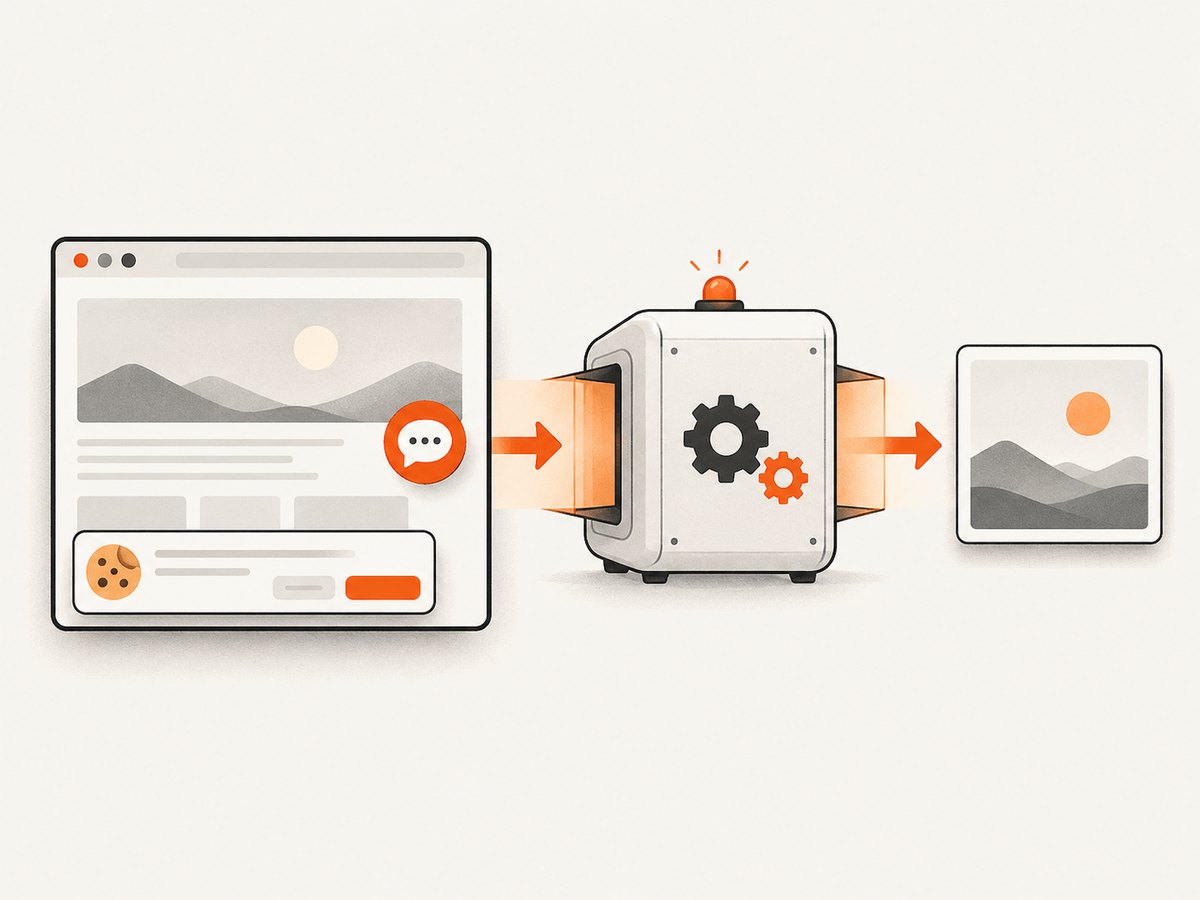
// Write bytes to a file using your runtime's file API.Cookie banners, newsletter popups and chat widgets are removed before the shot. Bot checks, blank pages and failed loads are never billed, and response headers identify the page verdict and whether it was billed. An MCP server lets Claude, Cursor and other MCP clients call take_screenshot, get_page_info and capture_pdf. The Free plan includes 1,000 screenshots a month with no card; paid plans start at $5 for 3,000. Create a free ScreenshotNeo account.
8. Performance, reliability and cost considerations
- Playgrounds: quickest for isolated examples, but external assets and third-party APIs can make a preview nondeterministic.
- DevTools: immediate for one loaded page; edits vanish on refresh and do not represent a saved deployment.
- Browser IDEs: better for repeatable projects, with startup and dependency-install time to account for.
- Remote captures: make URL-to-image automation repeatable. Use caching for unchanged pages, wait conditions for dynamic content, and asynchronous jobs or bulk capture for larger batches.
- Security: do not expose production API keys in public playgrounds. Use test credentials, restrict custom headers, and remove secrets before sharing a reproduction.
- Cost: ScreenshotNeo bills only clean shots. Cache hits, bot checks or CAPTCHAs, blank pages, timeouts and failed loads cost nothing; inspect the
X-Page-VerdictandX-Billedresponse headers when accounting for usage.
9. Practical decision checklist
- Is the code a single example? Start with a playground.
- Is the page already open and you only need to inspect it? Use DevTools.
- Does it require multiple files, a framework or dependencies? Use a browser IDE.
- Do you need a stable image or PDF from a URL? Use ScreenshotNeo.
- Does the preview depend on timing, consent banners or popups? Add explicit waits or let ScreenshotNeo clean the page before capture.
- Will someone else reproduce the issue? Save the smallest example and document required viewport, data and browser assumptions.
10. FAQ
Do I need a complete HTML document in a playground?
Not always. JSFiddle documents automatic scaffolding for basic snippets. If a service expects a full document, use the complete template shown above.
Can DevTools replace my code editor?
They are excellent for investigation and temporary experiments, but inspector changes are not saved to your source project.
Why does my preview work locally but not online?
Compare browser version, viewport, environment variables, network permissions, external resource URLs and the exact console and Network errors.
When should I capture an element instead of the full page?
Capture one element when you need a component, chart or card. Use full-page capture when the complete document, including content below the fold, matters.
Can an AI agent take screenshots?
Yes. ScreenshotNeo provides an MCP server with take_screenshot, get_page_info and capture_pdf tools for MCP clients such as Claude and Cursor.


