How to Preview Images in JavaScript
Preview a selected image before upload with URL.createObjectURL(), clean up object URLs, support drag and drop, and handle multiple files accessibly.

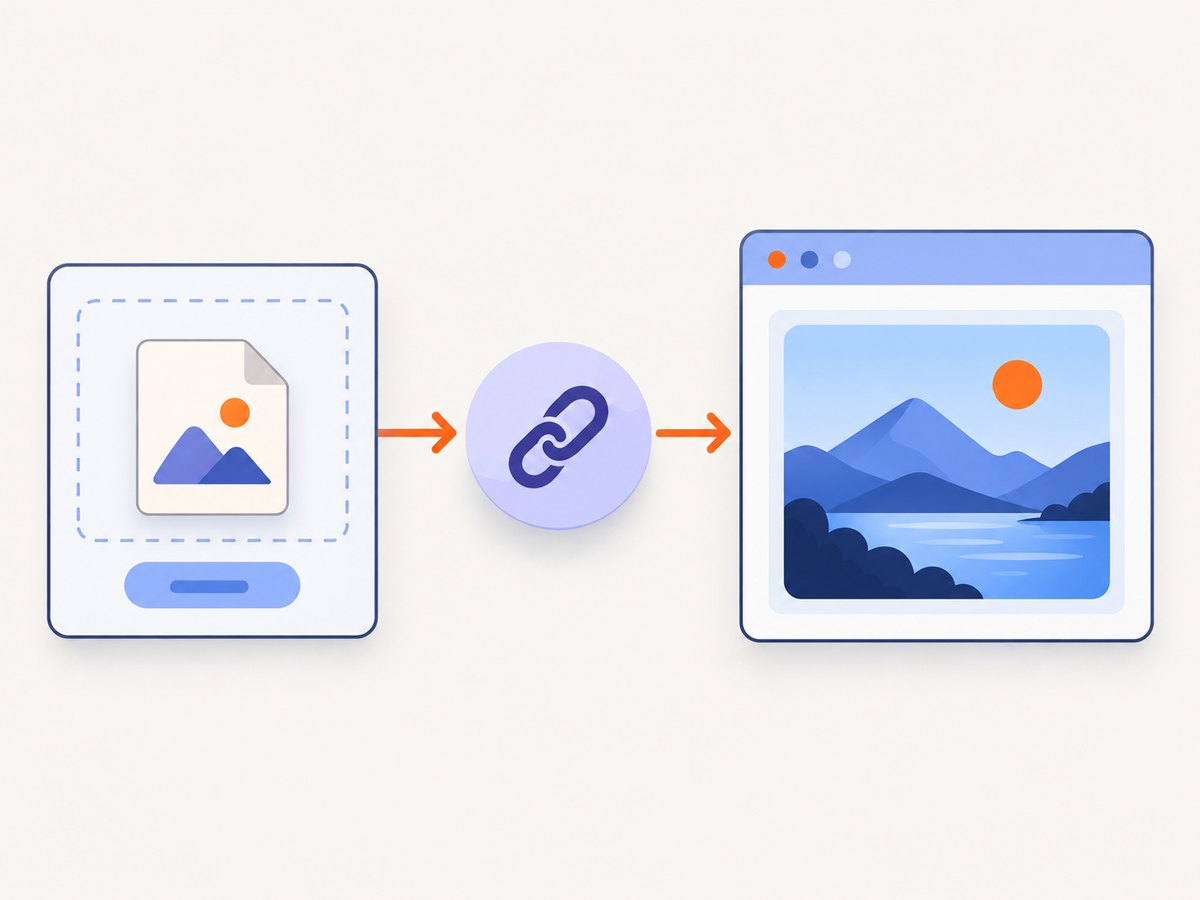
The simplest way to preview an image before uploading it is to listen for the file input’s change event, read the selected File from input.files, create an object URL with URL.createObjectURL(file), and assign that URL to an <img> element. Revoke the previous object URL when a preview is replaced or removed.
A browser does not give JavaScript arbitrary access to files by local pathname. The user must select a file through a file input or provide it through drag and drop. The input’s value is not the real local path; the useful object is the File in its files collection.
Basic image preview with an object URL
This complete page previews one selected image and lets the user clear it. Save it as index.html and open it in a browser.
<!doctype html>
<html lang="en">
<head>
  <meta charset="utf-8">
  <meta name="viewport" content="width=device-width, initial-scale=1">
  <title>Image preview</title>
  <style>
    .preview {
      display: block;
      max-width: 100%;
      max-height: 24rem;
      margin-top: 1rem;
    }
    [hidden] { display: none; }
  </style>
</head>
<body>
  <main>
    <h1>Choose an image</h1>
    <label for="image-input">Image file</label>
    <input id="image-input" type="file" accept="image/*">
    <p id="status" role="status" aria-live="polite"></p>
    <img id="preview" class="preview" alt="Selected image preview" hidden>
    <button id="clear" type="button" hidden>Clear preview</button>
  </main>

  <script>
    const input = document.querySelector('#image-input');
    const preview = document.querySelector('#preview');
    const clearButton = document.querySelector('#clear');
    const status = document.querySelector('#status');
    let objectUrl = null;

    function clearPreview() {
      if (objectUrl !== null) {
        URL.revokeObjectURL(objectUrl);
        objectUrl = null;
      }
      preview.removeAttribute('src');
      preview.hidden = true;
      clearButton.hidden = true;
    }

    input.addEventListener('change', () => {
      const file = input.files?.[0];

      if (!file) {
        clearPreview();
        status.textContent = 'No image selected.';
        return;
      }

      if (!file.type.startsWith('image/')) {
        clearPreview();
        status.textContent = 'Please choose an image file.';
        input.value = '';
        return;
      }

      if (objectUrl !== null) {
        URL.revokeObjectURL(objectUrl);
      }

      objectUrl = URL.createObjectURL(file);
      preview.src = objectUrl;
      preview.alt = `Preview of ${file.name}`;
      preview.hidden = false;
      clearButton.hidden = false;
      status.textContent = `${file.name} selected.`;
    });

    clearButton.addEventListener('click', () => {
      input.value = '';
      clearPreview();
      status.textContent = 'Preview cleared.';
    });
  </script>
</body>
</html>
URL.createObjectURL() creates a temporary URL that points at the selected File or another Blob. The image element can load that URL directly. Each call creates a unique URL, so a dynamic interface should call URL.revokeObjectURL() when the URL is no longer needed. See MDN’s guidance on using files from web applications.
How the preview flow works
- The user chooses a file with
<input type="file">. - The
changehandler reads the first item frominput.files. - The code checks that a file exists and that its metadata identifies an image.
URL.createObjectURL(file)returns a temporary preview source.- The source is assigned to
img.src. - When another file replaces it, or the preview is cleared, the old URL is revoked.
The accept="image/*" attribute helps guide the file picker, but it is not complete validation. Users can still provide unexpected files through different browser or operating-system flows, so the application should handle unsupported selections clearly. Upload validation on a server is a separate concern.
Object URL versus FileReader data URL
There are two documented browser approaches for this job. Choose based on the value your application needs.

| Approach | Preview source | Use it when | Cleanup |
|---|---|---|---|
URL.createObjectURL(file) |
A temporary object URL | You only need to point an image element at a selected file or blob | Call URL.revokeObjectURL(url) when replaced or removed |
FileReader.readAsDataURL(file) |
A data URL containing the file representation | Your code specifically needs the contents as a data URL | Wait for the reader’s load event or promise wrapper |
The available documentation does not establish a universal performance winner. Use an object URL for a direct preview, and use FileReader when a data URL is an explicit requirement.
FileReader example
const input = document.querySelector('#image-input');
const preview = document.querySelector('#preview');
const status = document.querySelector('#status');

input.addEventListener('change', () => {
  const file = input.files?.[0];
  if (!file) return;

  if (!file.type.startsWith('image/')) {
    status.textContent = 'Please choose an image file.';
    return;
  }

  const reader = new FileReader();
  reader.addEventListener('load', () => {
    preview.src = reader.result;
    preview.hidden = false;
  });
  reader.addEventListener('error', () => {
    status.textContent = 'The image could not be read.';
  });
  reader.readAsDataURL(file);
});
readAsDataURL() reads the file asynchronously and exposes the result through reader.result. MDN documents this method in the readAsDataURL reference.
Preview multiple images
Add multiple to the input, create one image for each accepted file, and retain every object URL so it can be revoked when the gallery is rebuilt.
<input id="images" type="file" accept="image/*" multiple>
<section id="gallery" aria-live="polite"></section>

<script>
  const imagesInput = document.querySelector('#images');
  const gallery = document.querySelector('#gallery');
  let galleryUrls = [];

  function clearGallery() {
    for (const url of galleryUrls) URL.revokeObjectURL(url);
    galleryUrls = [];
    gallery.replaceChildren();
  }

  imagesInput.addEventListener('change', () => {
    clearGallery();

    for (const file of imagesInput.files) {
      if (!file.type.startsWith('image/')) continue;

      const url = URL.createObjectURL(file);
      galleryUrls.push(url);

      const figure = document.createElement('figure');
      const image = document.createElement('img');
      image.src = url;
      image.alt = `Preview of ${file.name}`;
      image.style.maxWidth = '16rem';
      figure.append(image);
      gallery.append(figure);
    }
  });
</script>
For a remove button on each thumbnail, revoke that thumbnail’s URL when its figure is removed. If the entire gallery is replaced, revoke all stored URLs before calling replaceChildren().
Drag and drop using the same preview routine
Drag-and-drop files arrive in a DataTransfer object. The preview logic can be shared with the file input by passing it a FileList-like collection.
<label id="drop-zone" for="image-input">
  Drop images here or choose files
</label>
<input id="image-input" type="file" accept="image/*" multiple>
<section id="gallery"></section>

<script>
  const dropZone = document.querySelector('#drop-zone');
  const input = document.querySelector('#image-input');

  function handleFiles(fileList) {
    // Reuse the multiple-preview implementation here.
    for (const file of fileList) {
      if (file.type.startsWith('image/')) {
        console.log('Accepted image:', file.name);
      }
    }
  }

  input.addEventListener('change', () => handleFiles(input.files));
  dropZone.addEventListener('dragover', event => {
    event.preventDefault();
  });
  dropZone.addEventListener('drop', event => {
    event.preventDefault();
    handleFiles(event.dataTransfer.files);
  });
</script>
Keep the real file input and a label-backed control available even when a drop zone is present. MDN describes this pattern in its file drag-and-drop documentation.
Accessibility and interface details
- Give the input a visible label or connect it to a label with
forandid. - Use meaningful
alttext for the preview. If the image is purely decorative, use an emptyaltvalue. - Announce selection errors, replacement, and empty states with visible text or an element using
role="status". - Provide an obvious way to replace or clear the selected file.
- Do not make drag and drop the only interaction; keyboard and touch users need the file picker.
Common errors and fixes
| Symptom | Cause | Fix |
|---|---|---|
| Nothing appears after choosing a file | The handler reads the wrong element or never assigns src |
Confirm the listener is attached to the input and inspect input.files[0] before creating the URL. |
Cannot read properties of undefined |
The user canceled the picker, leaving the file list empty | Check if (!file) before accessing name, type, or creating a URL. |
| Old previews consume resources in a long-running UI | Object URLs were created repeatedly and never revoked | Store the current URL and call URL.revokeObjectURL() when replacing or removing it. |
| Some files are rejected unexpectedly | The code assumes every selected item is an image | Handle unsupported metadata, show a clear message, and do not rely on accept as validation. |
| Drag and drop reloads the page | The browser’s default drop behavior was not canceled | Call event.preventDefault() during both dragover and drop. |
| The preview is visually too large | The source image dimensions are unconstrained | Set CSS limits such as max-width: 100% and max-height; this changes display size, not the selected file. |
Performance, reliability, and upload boundaries
An object URL avoids manually converting the selected file into a string just to display it. The browser still has to decode the image, and very large images can take time to render. Set display dimensions with CSS and show a status while a gallery is being built.
Revoke URLs at lifecycle boundaries: before replacing a single preview, when deleting a thumbnail, when clearing a gallery, and when destroying a component. In a framework, put that cleanup in the component’s unmount or effect cleanup path.
Previewing does not upload anything. The selected File remains available for a later fetch or form submission. A preview also does not prove that an upload will be accepted; the server may impose different type, size, or content rules.
Testing checklist
- Select one valid image and confirm it appears.
- Cancel the picker and confirm the current preview remains or clears according to your intended behavior.
- Select a non-image and verify the error is announced.
- Replace an image and verify the old preview disappears.
- Clear the preview and select the same file again.
- Select several images with
multiple. - Drop files into the drop zone using a mouse, keyboard-accessible fallback, and touch-capable device.
- Check the interface with a screen reader or browser accessibility tools.
Or skip the browser setup
If your goal is to capture a rendered web page rather than preview a file selected on the user’s device, ScreenshotNeo provides a website screenshot API and MCP server. One GET request returns a PNG, JPEG, WebP, or PDF. Cookie and consent banners, newsletter popups, and chat widgets are removed before the shot. Bot checks, blank pages, failed loads, timeouts, and cache hits are not billed, and the response identifies the page verdict and billing result in headers.
See the ScreenshotNeo API documentation for all options. A minimal request looks like this:
cURL
curl -G "https://api.screenshotneo.com/v1/shot" -d access_key=YOUR_API_KEY --data-urlencode url=https://stripe.com -o shot.webpPython
import requests

r = requests.get(
    "https://api.screenshotneo.com/v1/shot",
    params={"access_key": "YOUR_API_KEY", "url": "https://stripe.com"},
    timeout=90,
)
r.raise_for_status()
open("shot.webp", "wb").write(r.content)
Node.js
const q = new URLSearchParams({ access_key: 'YOUR_API_KEY', url: 'https://stripe.com' });
const res = await fetch(`https://api.screenshotneo.com/v1/shot?${q}`);
if (!res.ok) throw new Error(`Screenshot failed: ${res.status}`);
const buffer = Buffer.from(await res.arrayBuffer());
require('fs').writeFileSync('shot.webp', buffer);
ScreenshotNeo also includes full-page capture with lazy images loaded, element capture by CSS selector, dark mode, device presets, retina scale, custom CSS and JavaScript, click and wait controls, request blocking, headers, cookies, user agents, authorization, timezone and geolocation, transparent backgrounds, resizing, cache TTLs, signed links, asynchronous jobs with signed webhooks, bulk capture for up to 100 URLs per call, a usage API, and an OpenAPI specification. Its MCP server exposes take_screenshot, get_page_info, and capture_pdf for Claude, Cursor, and other MCP clients.
There is a free allowance of 1,000 screenshots per month with no card. Paid plans start at $5 for 3,000 shots, and every feature is available on every plan. Create a free ScreenshotNeo account.
FAQ
Can JavaScript preview a file from a pathname?
No. The browser requires a user-provided file from a file input, drag-and-drop operation, or another permitted file selection flow.
Do I need to upload the file to preview it?
No. An object URL previews the selected local File without sending it to a server.
When should I use FileReader?
Use it when your application specifically needs the image represented as a data URL. For a straightforward <img> preview, an object URL is usually the simpler API.
Why should object URLs be revoked?
Each object URL is unique and remains available until released or the document ends. Revoke URLs that are no longer used, especially when previews are replaced repeatedly.
Can the same code support pasted images?
Yes, if the paste event exposes image files through its clipboardData.files collection. Pass those files through the same validation and preview routine used for input and drop events.