How to Preview a Link Before Clicking
Learn how to reveal a link’s real destination on desktop and mobile, inspect domains safely, and preview pages without exposing your credentials.
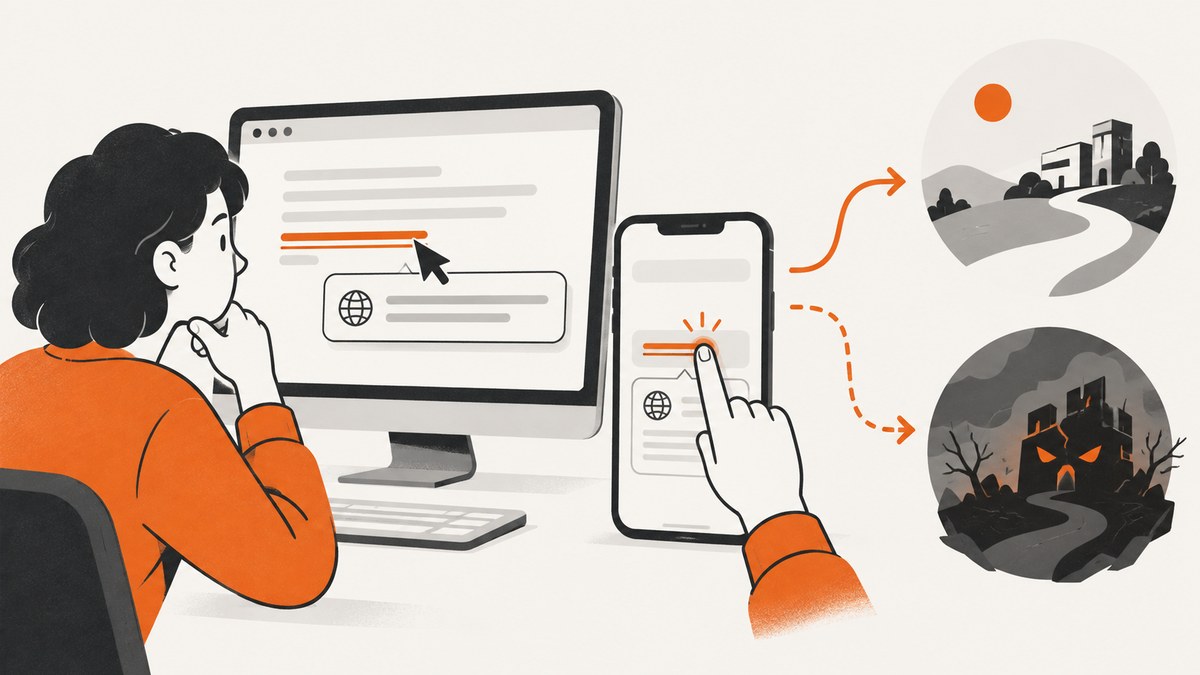
To preview a link safely, reveal its destination without opening it. On a computer, move your pointer over the link and read the URL shown in the browser or email status area. On a phone or tablet, press and hold the link until the address and preview menu appear. Inspect the registered domain, watch for misspellings and shortened URLs, and treat HTTPS as encryption rather than proof that the site is legitimate. If anything looks wrong, close the preview and visit the organization through an address or app you already trust.
What link previewing tells you
Link text is only a label. A message can display “View invoice” while the underlying hyperlink leads somewhere completely different. A preview lets you inspect that underlying address before a page loads, downloads content, or asks for credentials.
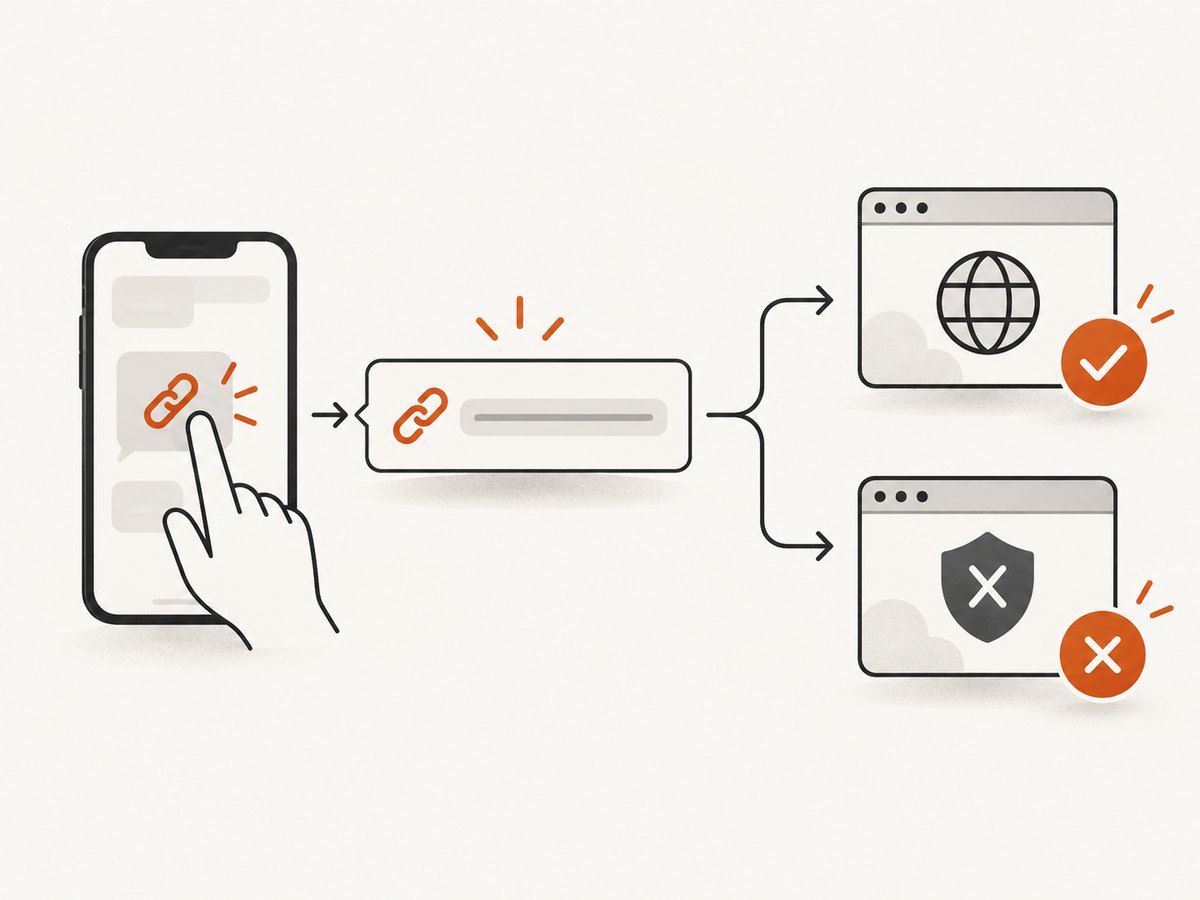
There are two kinds of preview:
- Address preview: the browser or app reveals the actual URL. This is the most important check because you can evaluate the domain yourself.
- Content preview: the app shows a title, image, description, or reading time. This helps you understand the destination, but it is not a safety verdict.
A preview can still contact a remote server. Do not enter passwords, payment details, verification codes, or personal information merely because a card or thumbnail looks familiar.
Preview a link on a desktop browser
- Move the pointer over the link without clicking.
- Read the address in the lower-left status area or tooltip.
- Check the registered domain, spelling, path, and unusual query parameters.
- Move the pointer away if the destination is unexpected. Do not click.
Safari for Mac displays the website URL in its status bar. If that bar is hidden, choose View > Show Status Bar. Apple also documents Force Click previews on supported trackpads; use the address check first, because a visual card can omit important URL details. Apple’s Safari support guide describes these controls.
When the status URL is hard to read
Right-click the link and choose Copy Link or the equivalent command. Paste it into a plain-text editor. Reading a pasted URL does not navigate to it. If you paste it into the browser address bar, stop before pressing Enter.
Look at the rightmost part of the hostname before the first slash. In billing.example.com.evil.test/login, the registered domain is evil.test, not example.com. Subdomains can contain convincing brand names.
Preview a link on Android, iPhone, or iPad
- Press and hold the link for about a second.
- Wait for the context menu or preview card.
- Read the displayed destination and inspect the domain.
- Choose Cancel, Close, or tap outside the menu if you do not trust it.
The exact menu differs between browsers, mail clients, and social apps. Boston University IT and the Swiss National Cyber Security Centre both document long-press inspection as the general method for Android and Apple devices. A long press is safer than tapping first because it gives you a chance to reject the destination.
Prevent accidental navigation
Keep your finger still until the menu appears. If the app opens the page immediately, close it without interacting, clear any download prompt, and do not type sensitive information. For links in notifications, open the app directly and locate the message there instead of tapping the notification URL.
Read the URL like an analyst
Find the registered domain
Ignore the visible link label and most of the path until you know who controls the hostname. Brand words in a subdomain can be deceptive. Compare the spelling with the organization’s known domain, including hyphens, extra letters, and swapped characters.
Spot look-alike characters
Attackers can register domains that resemble familiar names or use characters from other alphabets. Zoom in on the hostname, copy it into a text editor, and compare it character by character. A familiar logo or page title does not override a mismatched domain.
Treat shortened links as unresolved
Services such as bit.ly, t.co, tinyurl.com, and cutt.ly hide the final destination. A short link is not automatically malicious, but you cannot assess the final domain until it is expanded. If the sender cannot provide the full address, use the organization’s official site instead.
Do not equate HTTPS with trust
HTTPS encrypts the connection between your browser and the server. Malicious sites can also obtain HTTPS certificates. Use the domain, message context, and expected action as your decision points; the padlock alone proves very little about the operator.
Browser and email features that show more
Firefox Link Preview
Mozilla says Firefox 142 introduced Link Previews and that the feature is rolling out progressively. Hold a link for about a second, or right-click and choose Preview Link when available. The card may include an image, title, description, and estimated reading time. Optional AI-generated key points read the beginning of the page on-device; Mozilla says that option requires at least 3 GB of available RAM. Because availability depends on rollout and settings, always inspect the URL separately. Mozilla’s Link Preview documentation lists the current behavior.
Outlook rich previews
Outlook.com and Outlook on the web can render a URL with its title, thumbnail, and description. Microsoft says rich previews are enabled by default for the documented services. You can disable them under Settings > Mail > Compose and reply > Link preview. A card exposes metadata; it does not verify that the destination is safe. Microsoft’s Outlook link-preview guidance explains the setting.
Decide whether to open the destination
| Signal | What it means | Action |
|---|---|---|
| Expected domain and message | The address matches an action you were expecting. | Open only if you still do not need to enter sensitive data. |
| Misspelled or look-alike domain | The hostname may imitate a real organization. | Do not open; navigate independently. |
| Shortened URL | The final host is hidden. | Ask for the full URL or use the official site. |
| Unexpected login, payment, or file download | The link requests high-impact action from an untrusted context. | Close it and use the known app or bookmark. |
| HTTPS only | Traffic is encrypted, but the operator may still be malicious. | Continue checking the domain and context. |
The Swiss National Cyber Security Centre advises checking the URL before clicking and avoiding sensitive disclosures on pages reached from unexpected email or text messages. Sender names, email addresses, and phone numbers can be spoofed.
If you already opened a suspicious link
- Close the tab or app. Do not interact with popups or download prompts.
- If a file downloaded, do not open it; remove it using your system’s normal file controls.
- If you entered a password, change it from the organization’s known website and enable multifactor authentication.
- If you entered payment information, contact the card issuer through its official number.
- Report the message through your mail or messaging provider.
Malwarebytes gives similar guidance: close the page, avoid entering information, and change credentials if they were submitted. Keep the response proportional to what actually happened.
Preview a destination without opening it in your main browser
For a URL you are authorized to inspect, you can retrieve a rendered image in an isolated service and review the result separately. This is useful for link inventories, moderation queues, support tickets, and documentation workflows. It does not make an untrusted destination safe; treat the URL as potentially hostile and never send secrets in query strings or custom headers.
Or skip the browser setup
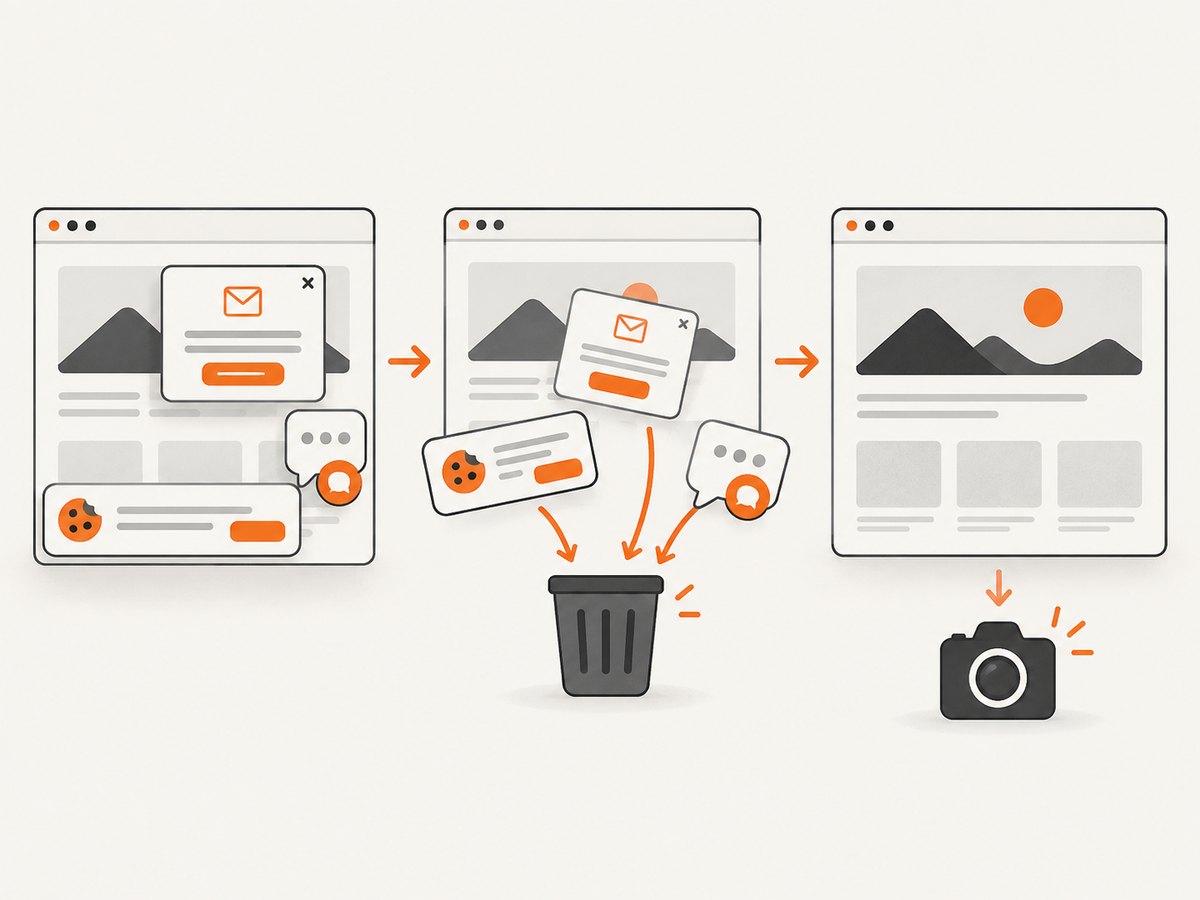
ScreenshotNeo is a website screenshot API and MCP server. One GET request returns a PNG, JPEG, WebP, or PDF. Before capture it accepts cookie and consent banners like a visitor and removes more than 60 known consent platforms, newsletter popups, and chat widgets. Each step can be turned off. Bot checks, blank pages, timeouts, failed loads, and cache hits are not billed, and the response identifies the result with X-Page-Verdict and X-Billed headers. An MCP server provides take_screenshot, get_page_info, and capture_pdf tools for Claude, Cursor, and other MCP clients.
See the ScreenshotNeo API documentation for authentication and options. Replace the example URL with the destination you have decided to inspect.
curl -G "https://api.screenshotneo.com/v1/shot" -d access_key=YOUR_API_KEY --data-urlencode url=https://example.com -o shot.webpimport requests
r = requests.get("https://api.screenshotneo.com/v1/shot", params={"access_key": "YOUR_API_KEY", "url": "https://example.com"}, timeout=90)
open("shot.webp", "wb").write(r.content)const q = new URLSearchParams({ access_key: 'YOUR_API_KEY', url: 'https://example.com' });
const res = await fetch(`https://api.screenshotneo.com/v1/shot?${q}`);
if (!res.ok) throw new Error(`HTTP ${res.status}`);
const image = Buffer.from(await res.arrayBuffer());
require('fs').writeFileSync('shot.webp', image);Relevant controls include full-page capture with lazy images loaded, an element CSS selector, dark mode, 12 device presets or any viewport, retina scale, custom CSS and JavaScript, clicks, selector or network-idle waits, ad/tracker/request blocking, custom headers and cookies, user-agent, timezone, geolocation, transparent backgrounds, resizing, TTL caching, signed links, asynchronous jobs with signed webhooks, bulk capture of up to 100 URLs per call, usage reporting, and PDF paper, margin, orientation, and page-range settings. Parameter names used by other screenshot APIs also work, which simplifies migration.
ScreenshotNeo includes 1,000 shots per month free with no card. Paid plans start at $5 for 3,000 shots; higher plans are $15 for 15,000, $39 for 60,000, $99 for 250,000, and $249 for 1,000,000. Yearly billing gives two months free, and every feature is available on every plan. Create a free ScreenshotNeo account to get started.
Troubleshooting
| Problem | Likely cause | Fix |
|---|---|---|
| No URL appears on hover | The status bar is hidden or the app does not expose targets. | Enable Safari’s status bar, move the pointer again, or copy the link address. |
| Long press opens the page | The gesture was too short or the app handles links differently. | Press and hold longer, then use the app’s copy-link command. |
| The domain looks almost correct | Look-alike spelling or Unicode characters. | Compare every character and navigate from a known bookmark. |
| A preview card looks legitimate | Metadata can be copied or spoofed. | Inspect the actual hostname and message context. |
| ScreenshotNeo returns a bot-check or blank verdict | The destination blocked automated rendering or failed to load. | Read X-Page-Verdict, retry with an appropriate wait or user agent, and do not treat a failed capture as evidence that the link is safe. |
| Capture is slow | Heavy scripts, lazy resources, or a long wait condition. | Capture an element, set a bounded delay or selector wait, block unnecessary resources, and use caching with a TTL. |
| Unexpected charges | A clean page was captured rather than a failed or cached response. | Inspect X-Billed, enable caching, and use bulk or asynchronous jobs for predictable workloads. |
Performance, reliability, and privacy notes
- Manual checks: hovering and long-pressing are immediate and require no service, but they do not render the page safely for you.
- Rich previews: thumbnails and descriptions are convenient, yet they can be stale or misleading and may contact remote servers.
- Automated capture: bound waits, block trackers and ads when appropriate, reuse cached results, and submit bulk jobs for batches. A timeout or bot verdict should be recorded as an inconclusive result.
- Credentials: never put passwords, session cookies, API keys, or private tokens in a URL sent to a preview service. Use custom headers or cookies only for destinations you own or are authorized to inspect.
- Cost control: ScreenshotNeo bills only clean shots; bot checks, blank pages, timeouts, failed loads, and cache hits cost nothing. Check the verdict and billing headers in logs.
FAQ
Can I trust a link because it uses HTTPS?
No. HTTPS protects transport encryption. A malicious operator can also use HTTPS, so inspect the registered domain and context.
Is copying a link safer than clicking it?
Copying and pasting into a text editor lets you read the address without navigating. Do not paste it into the browser and press Enter by accident.
Do shortened links always indicate phishing?
No. They hide the final destination, so treat them as unresolved until you can verify where they lead.
Will a screenshot prove that a destination is safe?
No. It shows rendered content at capture time. Safety still depends on the domain, message context, and what the page asks you to do.
What is the safest way to reach a company’s login page?
Type the known address yourself, use a saved bookmark, or open the company’s official app. Avoid credentials on pages reached from unexpected messages.


