How to Preview a PDF in the Browser From Node.js and Express
Serve authorized PDF bytes with the right headers, embed them in an iframe, and keep a reliable download fallback in Node.js and Express.
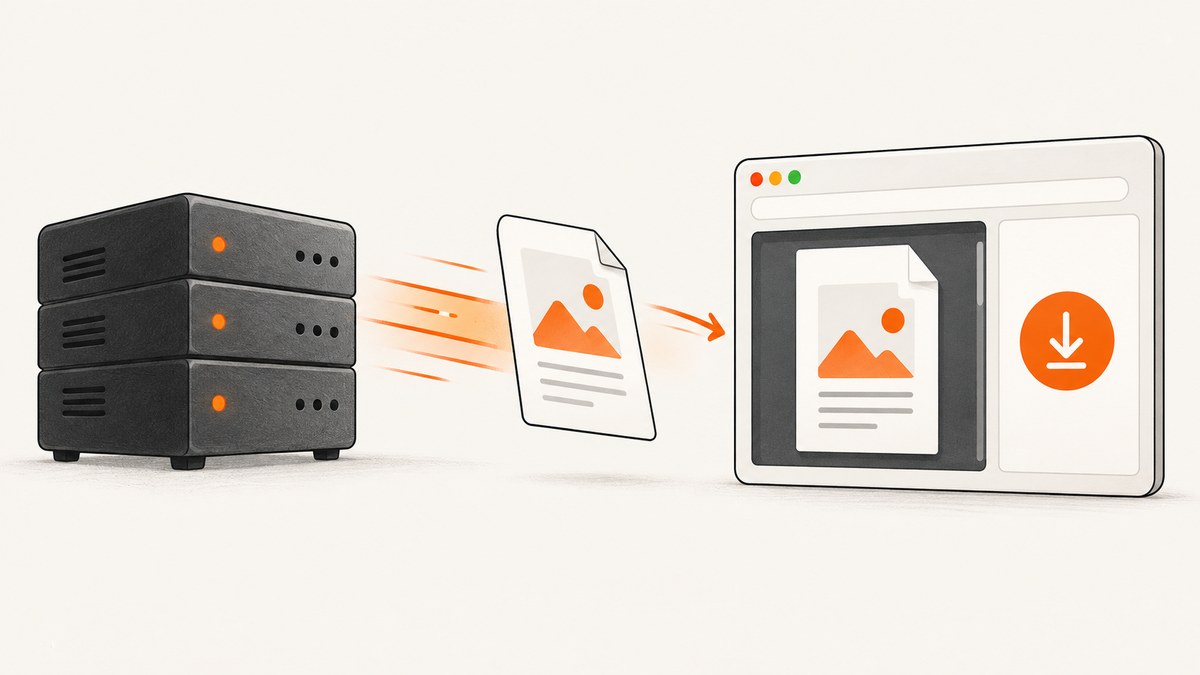
Direct answer: create a dedicated GET route that returns the actual PDF bytes with Content-Type: application/pdf and an inline disposition. Users can open that URL directly or load it in an <iframe>. Keep a separate link that opens the PDF in a new tab, because inline viewing depends on the browser’s PDF viewer and user settings. Use res.sendFile() for a trusted file path or send a Buffer after setting the media type; reserve res.download() for an explicit download action.
This pattern follows Express’s file-transfer behavior, RFC 6266’s definitions of inline and attachment, and MDN’s guidance for PDF navigation and iframe embedding. Express res.sendFile(), RFC 6266, MDN MIME types, and MDN iframe are the primary references.
1. Build a safe inline-preview endpoint
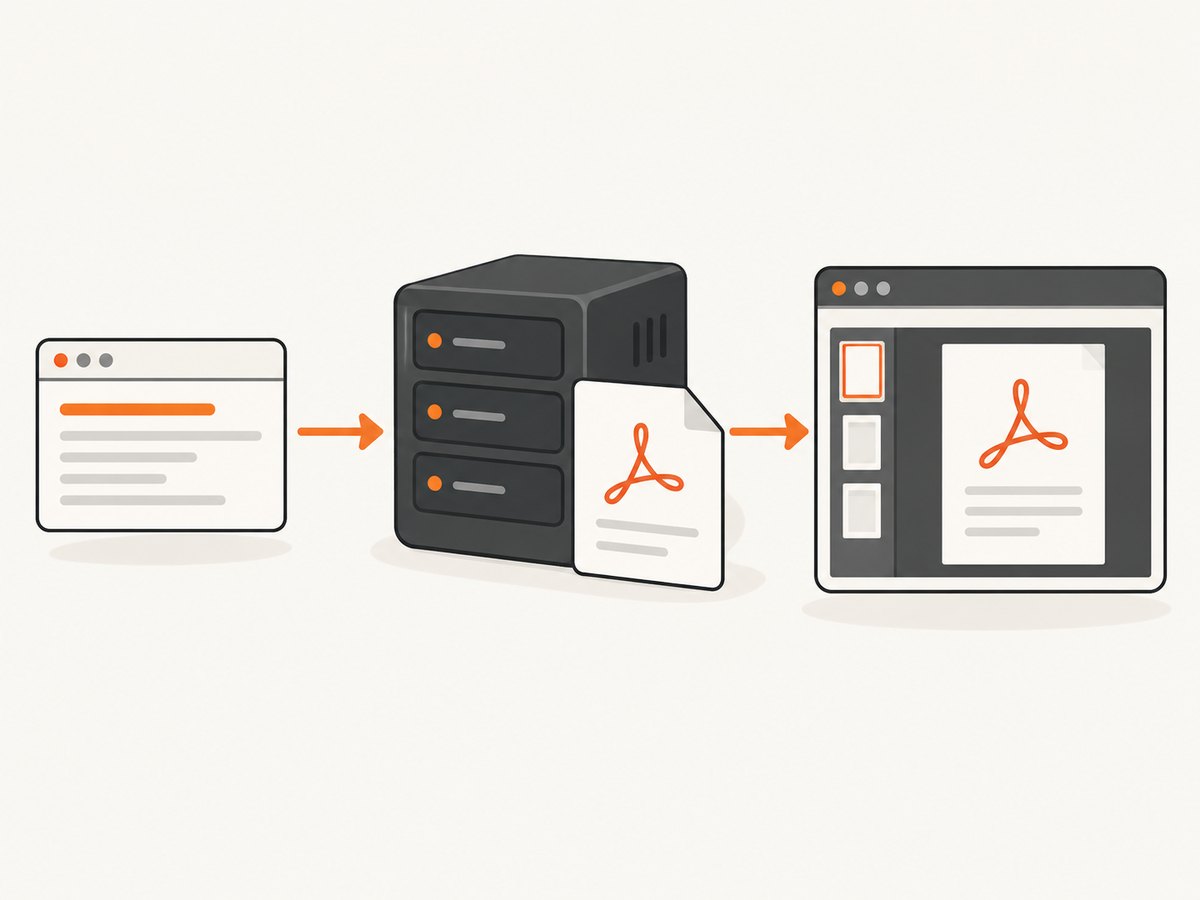
The route below assumes your application has already authenticated the request. The document ID is mapped to a server-controlled path by findAuthorizedPdfPath; never concatenate an unchecked request value into a filesystem path.
import express from 'express';

const app = express();
const port = process.env.PORT || 3000;

// Replace this with a database lookup plus an authorization check.
async function findAuthorizedPdfPath(documentId, user) {
  const records = {
    '123': '/srv/app/private-pdfs/invoice-123.pdf'
  };
  // Confirm that user is allowed to read documentId before returning a path.
  return records[documentId] || null;
}

app.get('/documents/:id/preview', async (req, res, next) => {
  try {
    const filePath = await findAuthorizedPdfPath(req.params.id, req.user);
    if (!filePath) return res.sendStatus(404);

    res.type('application/pdf');
    res.set('Content-Disposition', 'inline; filename="document.pdf"');
    res.sendFile(filePath, (err) => {
      if (err && !res.headersSent) next(err);
    });
  } catch (err) {
    next(err);
  }
});

app.listen(port, () => {
  console.log(`PDF preview server listening on ${port}`);
});
res.type('application/pdf') makes the media type explicit. The Content-Disposition value asks the client to process the response inline and supplies a fallback filename. The filename is supplementary; inline is the part that requests normal media-type handling. If you omit Content-Disposition, a browser may still preview a PDF based on its default handling, but setting it deliberately makes the route’s intent clear.
For a route that should download the same document, use a separate handler:
app.get('/documents/:id/download', async (req, res, next) => {
  try {
    const filePath = await findAuthorizedPdfPath(req.params.id, req.user);
    if (!filePath) return res.sendStatus(404);
    res.download(filePath, 'document.pdf', (err) => {
      if (err && !res.headersSent) next(err);
    });
  } catch (err) {
    next(err);
  }
});
Express documents res.download() as an attachment transfer, so it normally prompts a save dialog. Do not use it for the preview route.
2. Embed the PDF in an HTML page
An iframe lets the browser’s built-in PDF viewer occupy part of your application page. Give it a title, a useful size, and an outside link that works if embedding fails.
<main>
  <h1>Invoice 123</h1>
  <iframe
    src="/documents/123/preview"
    title="Invoice 123 PDF preview"
    width="100%"
    height="720"
    loading="lazy">
  </iframe>
  <p>
    <a href="/documents/123/preview" target="_blank" rel="noopener">
      Open the PDF separately
    </a>
    ·
    <a href="/documents/123/download">Download PDF</a>
  </p>
</main>
MDN recommends an independent link because an iframe has no child fallback content when the browser cannot display the PDF. Avoid adding a restrictive sandbox attribute unless you have verified it with your supported browsers; sandbox settings can prevent the built-in viewer from loading.
Direct navigation is often the simplest design when the PDF should fill a tab. Use an iframe when the preview belongs beside your application’s metadata, comments, or actions. Both designs still depend on the browser’s PDF support.
3. Send PDFs held in memory
If a database, object store, or PDF generator gives you a Buffer, set the content type before sending it. Express otherwise uses application/octet-stream for a Buffer when no type has been selected.
app.get('/reports/:id/preview', async (req, res, next) => {
  try {
    const pdfBuffer = await loadAuthorizedPdfBuffer(req.params.id, req.user);
    if (!pdfBuffer) return res.sendStatus(404);

    res.set({
      'Content-Type': 'application/pdf',
      'Content-Disposition': 'inline; filename="report.pdf"',
      'Content-Length': String(pdfBuffer.length)
    });
    res.send(pdfBuffer);
  } catch (err) {
    next(err);
  }
});
Only set Content-Length when it matches the bytes you send. Compression middleware usually offers little benefit for already-compressed PDF content and can complicate range behavior, so measure before enabling special handling.
4. Secure file selection and authorization
Previewing a PDF is also a file-access problem. A secure implementation should:
- Authenticate the request before resolving a document.
- Authorize the specific document for the current user or service.
- Map an opaque ID to a record in a database or allowlisted path.
- Keep private PDFs outside a directly served public directory.
- Reject path traversal characters and never trust a user-provided filename.
- Return the same not-found response for missing and unauthorized IDs when revealing existence would be sensitive.
- Log authorization failures without logging tokens or PDF contents.
If you use Express’s root option, pass a validated relative filename and a fixed absolute root. Express can verify that the resolved path stays inside that root. This containment check does not replace authorization; it only limits where a resolved path may point.
Generate a conservative filename such as document-123.pdf. Do not copy arbitrary database text into Content-Disposition without sanitizing it. For cross-origin previews, configure authentication and CORS for the actual deployment. Framing policies such as Content-Security-Policy: frame-ancestors and legacy X-Frame-Options can also determine whether another origin may embed the route.
5. Verify the response from the command line
Use curl to check headers and confirm that the endpoint returns PDF bytes:
curl -I http://localhost:3000/documents/123/preview
curl -fL http://localhost:3000/documents/123/preview -o preview.pdf
file preview.pdf
You should see Content-Type: application/pdf. A valid file normally begins with the PDF signature %PDF-; an HTML login page saved as .pdf indicates an authentication or routing problem.
A Node.js client can fetch the endpoint and save the result:
const response = await fetch('http://localhost:3000/documents/123/preview', {
  headers: { Authorization: `Bearer ${process.env.TOKEN}` }
});
if (!response.ok) throw new Error(`HTTP ${response.status}`);
const bytes = Buffer.from(await response.arrayBuffer());
await import('node:fs/promises').then(fs => fs.writeFile('preview.pdf', bytes));
Python automation uses the same HTTP contract:
import requests

response = requests.get(
    'http://localhost:3000/documents/123/preview',
    headers={'Authorization': 'Bearer ' + token},
    timeout=30,
)
response.raise_for_status()
with open('preview.pdf', 'wb') as pdf:
    pdf.write(response.content)
6. Browser behavior, ranges, and reliability
inline is a request, not a guarantee. A browser without an inline PDF viewer may download the file or hand it to an external application. MDN documents navigator.pdfViewerEnabled as a capability indication when navigating to a PDF:
const canPreviewPdf = 'pdfViewerEnabled' in navigator
  ? navigator.pdfViewerEnabled
  : true;

if (!canPreviewPdf) {
  document.querySelector('#pdf-fallback').hidden = false;
}
Keep the open and download links visible even when this value is true; it describes a capability, not every embedding or policy decision.
Express’s res.sendFile() supports byte ranges by default. A viewer may request only portions of a large PDF, receiving 206 Partial Content. Reverse proxies, object storage, and authentication middleware can change range behavior, so check the production path with browser developer tools before depending on it for performance.
For large or frequently viewed files, store immutable PDFs in object storage and place a cache in front of them. Set cache headers only when authorization allows shared caching. If each user sees different content, use private caching or a signed, short-lived URL. Do not cache an authenticated response publicly by accident.
7. Troubleshooting common failures
| Symptom | Likely cause | Fix |
|---|---|---|
| The browser downloads the file | res.download() or Content-Disposition: attachment |
Use the preview route with inline; retain download as a separate route. |
| A blank viewer or “failed to load” message | Response is HTML, truncated, or not a real PDF | Check status, content type, authentication redirects, and the first bytes with curl. |
| Download has an unknown file type | Buffer response kept Express’s default octet-stream type | Set Content-Type: application/pdf before res.send(buffer). |
| Iframe is blocked | CSP, X-Frame-Options, cross-origin policy, or sandbox |
Inspect response headers, allow the intended parent origin, and remove or relax sandbox only as required. |
| 404 for a valid document | Authorization lookup returned no path or route ID differs from the database key | Log the internal ID mapping and authorization result; do not expose filesystem paths. |
| Path traversal warning | User input is being joined directly to a directory | Use an allowlisted ID-to-path mapping or a fixed root with validated relative names. |
| Preview works locally but not behind a proxy | Proxy strips range, auth, or framing headers | Inspect the production response, preserve required headers, and test 206 range requests. |
| Viewer loops on login | Iframe request does not carry the expected session or token | Use same-origin cookies with appropriate settings, or provide a short-lived authorized URL. |
8. Performance, cost, and operational choices
- Prefer streaming for large files.
res.sendFile()avoids loading the entire file into your application heap. - Generate once, serve many times. Persist deterministic PDFs and reuse them instead of regenerating on every preview.
- Set timeouts. PDF generation and storage reads should have bounded operation times, with errors passed to Express’s error handler.
- Monitor bytes and latency. Track status codes, response size, generation time, and range requests. Do not claim a browser will always request ranges.
- Separate preview from download authorization. Both routes can share policy while emitting different disposition headers.
- Control caching deliberately. Public immutable documents can cache; private documents need private or no-store directives.
The browser preview itself has no special licensing cost, but your application still pays for PDF generation, storage, bandwidth, and proxy transfer. If a third-party service renders pages into PDFs or screenshots, account for its request pricing and failure semantics separately.
9. Or skip the browser setup
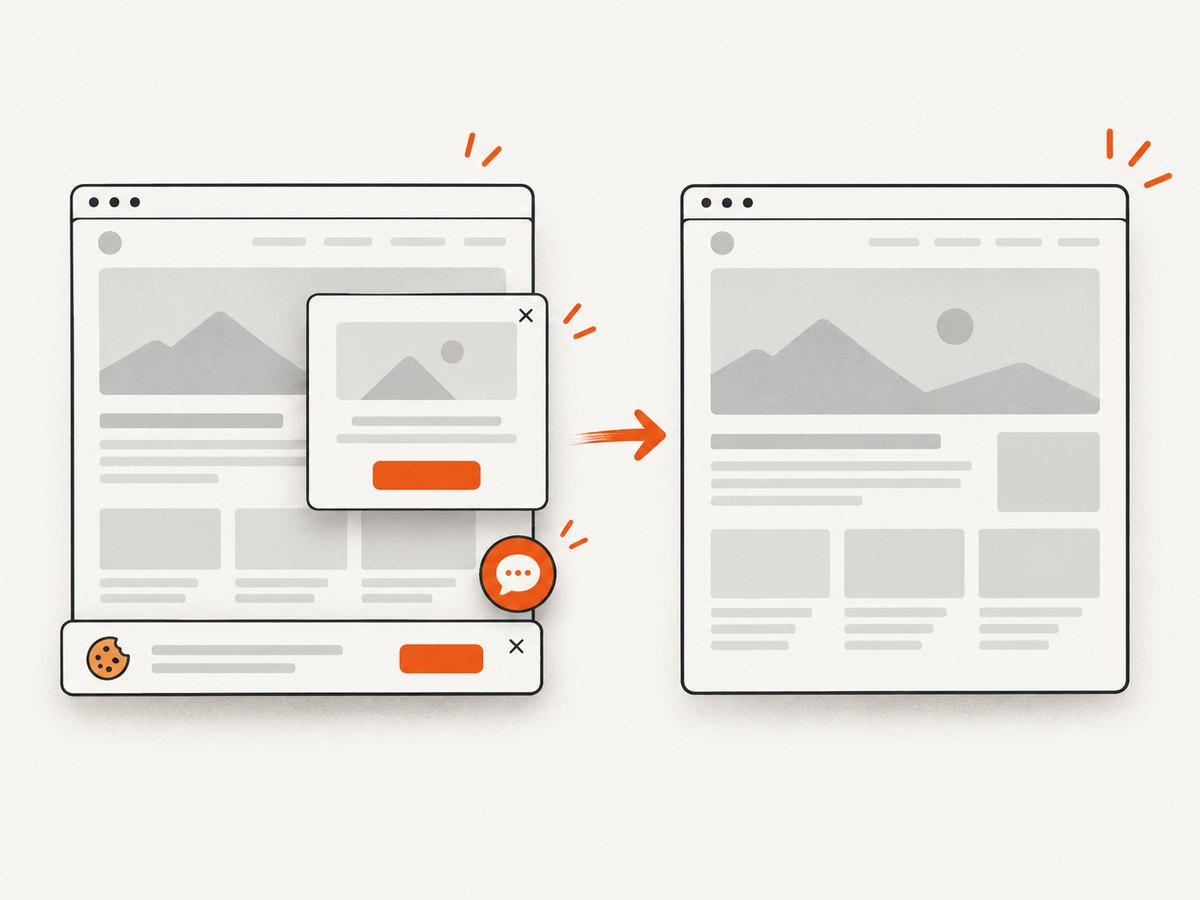
When your goal is a clean capture of a web page or PDF-ready artifact rather than maintaining a browser pipeline, ScreenshotNeo provides a single HTTP endpoint. It removes cookie and consent banners, newsletter popups, and chat widgets before capture; bot checks, blank pages, failed loads, timeouts, and cache hits are not billed; and an MCP server lets Claude, Cursor, and other MCP clients call take_screenshot, get_page_info, and capture_pdf.
See the ScreenshotNeo API documentation for all options. A basic request is:
curl -G "https://api.screenshotneo.com/v1/shot" -d access_key=YOUR_API_KEY --data-urlencode url=https://stripe.com -o shot.webpimport requests
r = requests.get("https://api.screenshotneo.com/v1/shot", params={"access_key": "YOUR_API_KEY", "url": "https://stripe.com"}, timeout=90)
open("shot.webp", "wb").write(r.content)const q = new URLSearchParams({ access_key: 'YOUR_API_KEY', url: 'https://stripe.com' }); const res = await fetch(`https://api.screenshotneo.com/v1/shot?${q}`);ScreenshotNeo supports PNG, JPEG, WebP, and PDF output, full-page and element capture, device presets, custom headers and cookies, waits, blocking rules, CSS and JavaScript, signed links, asynchronous jobs, bulk capture, caching, and usage reporting. Responses identify the page verdict and whether the request was billed through X-Page-Verdict and X-Billed headers. The free plan includes 1,000 screenshots per month with no card; paid plans start at $5 for 3,000.
Create a free ScreenshotNeo account and start with the included 1,000 screenshots.
10. FAQ
Should I use an iframe or a new tab?
Use an iframe when the document is part of a detail page. Use a new tab when the PDF deserves the full viewport. Keep both links when possible.
Does inline force every browser to render the PDF?
No. It requests normal processing for the media type. Browser capabilities, settings, policies, and installed viewers can still cause a download or external handoff.
Can I use res.sendFile() with a relative path?
Use an absolute path, or provide a fixed root and a validated relative filename. Resolve authorization before sending the file.
Why keep a download route?
It gives users a reliable fallback when inline viewing or iframe embedding is unavailable and makes the attachment behavior explicit.


