How To Preview And Test Social Card Images
A practical workflow to validate Open Graph tags, preview cards on real platforms, refresh stale caches, and diagnose missing images.
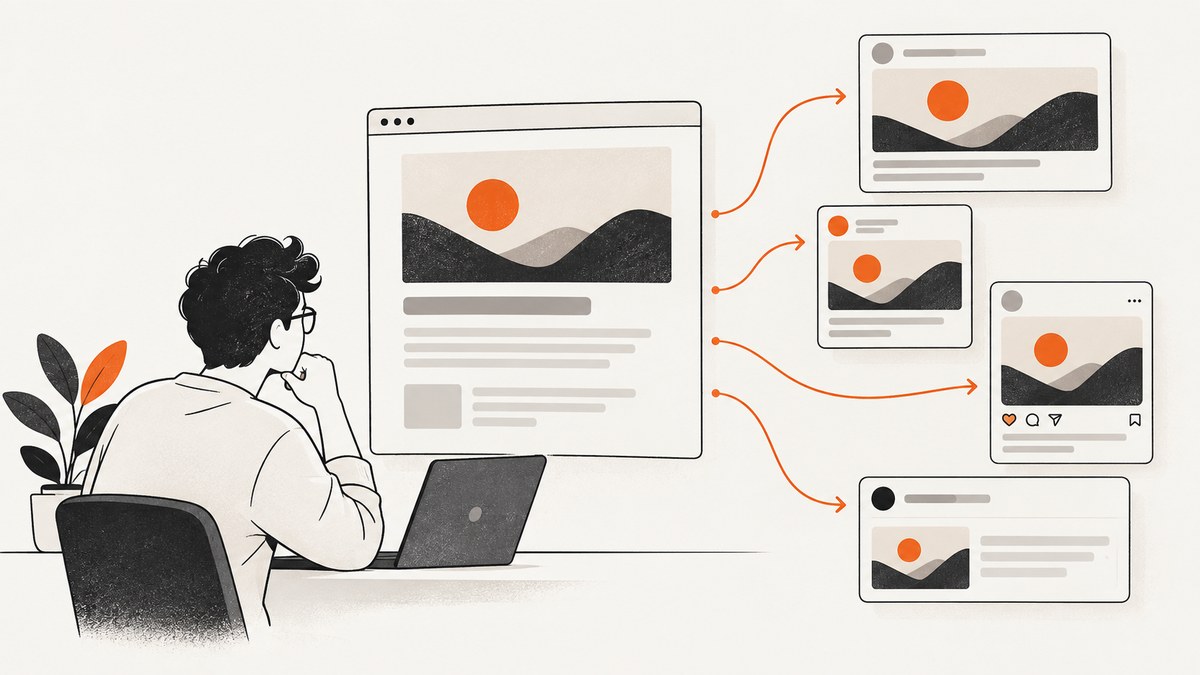
Direct answer: Add the page’s Open Graph metadata, publish the exact public URL, inspect that URL with the target platform’s own preview tool, and compare the returned title, description, and image with your intended card. If the result is stale, use that platform’s refresh workflow and test a new post. For LinkedIn, Post Inspector refreshes previews for new posts, while existing posts keep their original preview.
1. Add the metadata social crawlers read
Put these tags in the <head> of the page you will share:
<meta property="og:title" content="How To Preview And Test Social Card Images">
<meta property="og:description" content="A practical workflow for validating social card metadata and fixing stale previews.">
<meta property="og:image" content="https://example.com/social-card.jpg">
<meta property="og:url" content="https://example.com/articles/social-cards">
<meta property="og:type" content="article">
Use an absolute, publicly reachable URL for og:image. The image endpoint must return the bytes to an unauthenticated crawler; a file that only works in your browser session can produce a card with no image. LinkedIn’s sharing guidance identifies og:title, og:image, og:description, and og:url as the key tags (LinkedIn Help).
What each tag controls
| Tag | Purpose | Common failure |
|---|---|---|
og:title |
Headline shown in the card | Missing tag causes a platform to fall back to the HTML title |
og:description |
Summary below the headline | Platform chooses visible page text instead |
og:image |
Preview image URL | Crawler cannot fetch, image is too large, or URL is blocked |
og:url |
Canonical URL associated with the card | Different URL variants are cached separately |
2. Make the image retrievable and platform-ready
For LinkedIn’s sharing module, the documented limits are a maximum file size of 5 MB, minimum dimensions of 1200 × 627 pixels, and a recommended 1.91:1 aspect ratio (LinkedIn image guidance). These values are LinkedIn requirements, not a universal rule for every network.
- Serve the image over HTTPS with a stable URL.
- Return an image content type such as
image/jpeg,image/png, orimage/webp. - Keep the file below the target platform’s limit; for LinkedIn, stay under 5 MB.
- Do not require cookies, a login, a referer header, or a browser challenge to download it.
- Check that redirects end at the image and do not loop.
3. Inspect the exact public URL
- Deploy the metadata and image.
- Copy the exact URL users will share, including its path and meaningful query parameters.
- Open the target platform’s official inspection tool. LinkedIn provides Post Inspector.
- Enter the URL and inspect the title, description, image, and canonical URL returned by the platform.
- Publish a new test post only after the inspector shows the intended values.
A browser’s “view source” confirms what your server sends, but it does not prove that a platform’s crawler can fetch every resource. The platform inspector is the authoritative check for that platform’s interpretation.
4. Refresh stale previews correctly
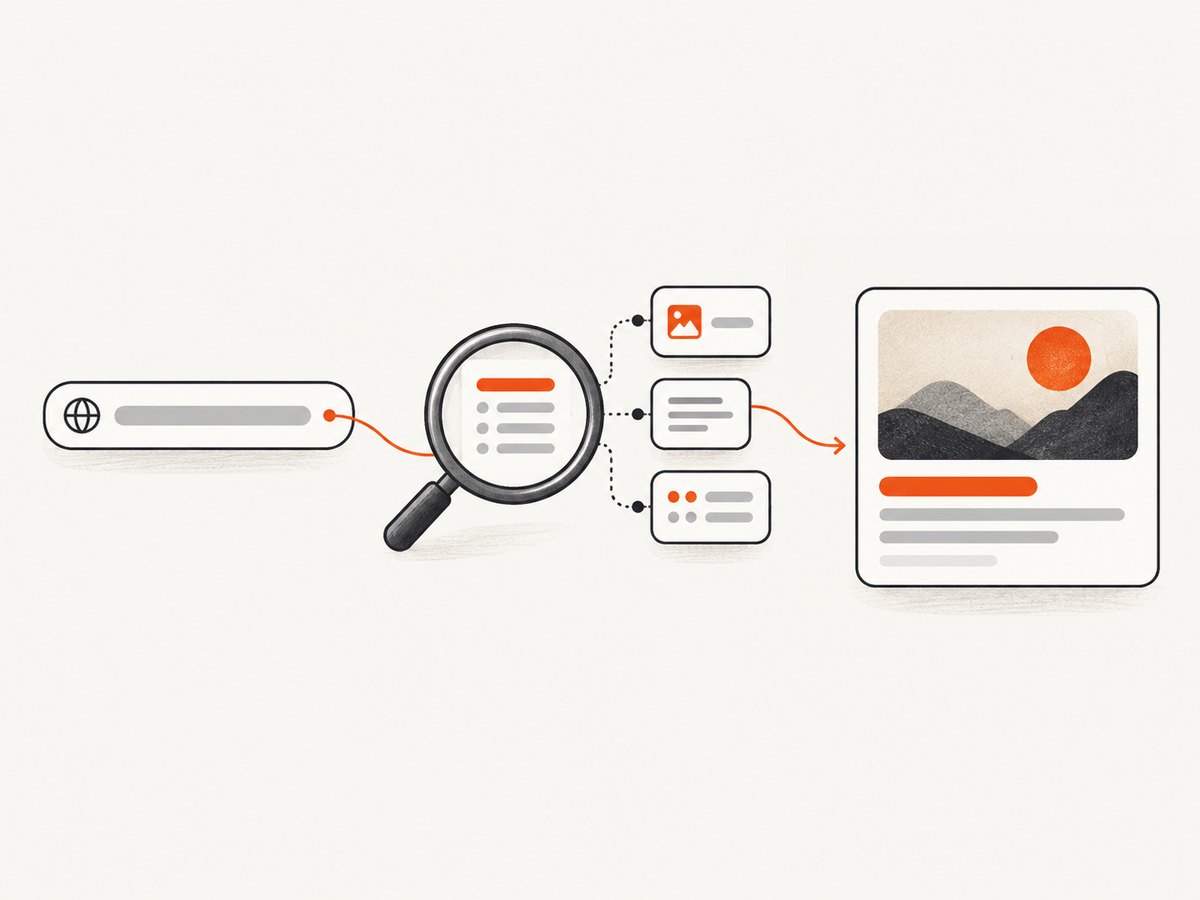
When an inspector shows an older card, trigger the platform’s refresh procedure and inspect the URL again. LinkedIn says Post Inspector can refresh a URL preview for new posts (Post Inspector). That refresh does not rewrite a preview already stored in an existing LinkedIn post. LinkedIn’s troubleshooting guidance also advises allowing up to 48 hours after a URL was shared or its tags were updated before retrying (LinkedIn troubleshooting guidance).
For other platforms, use the current official debugger or sharing tool for that platform. Do not assume that a refresh in one network clears another network’s cache.
5. Test the rendered card, not only the tags
Run this checklist for every important URL:
- Verify the title is the intended wording and is not truncated in an awkward place.
- Confirm the description is useful when read without the page body.
- Check that the image has the intended crop and readable subject at card size.
- Confirm the card points to the intended canonical URL.
- Inspect on each platform where the link will be shared; platforms can apply different image rules, fallbacks, and cache policies.
- Create a new test post after a successful refresh. An old post can continue showing its original card.
6. Capture a deterministic screenshot for review
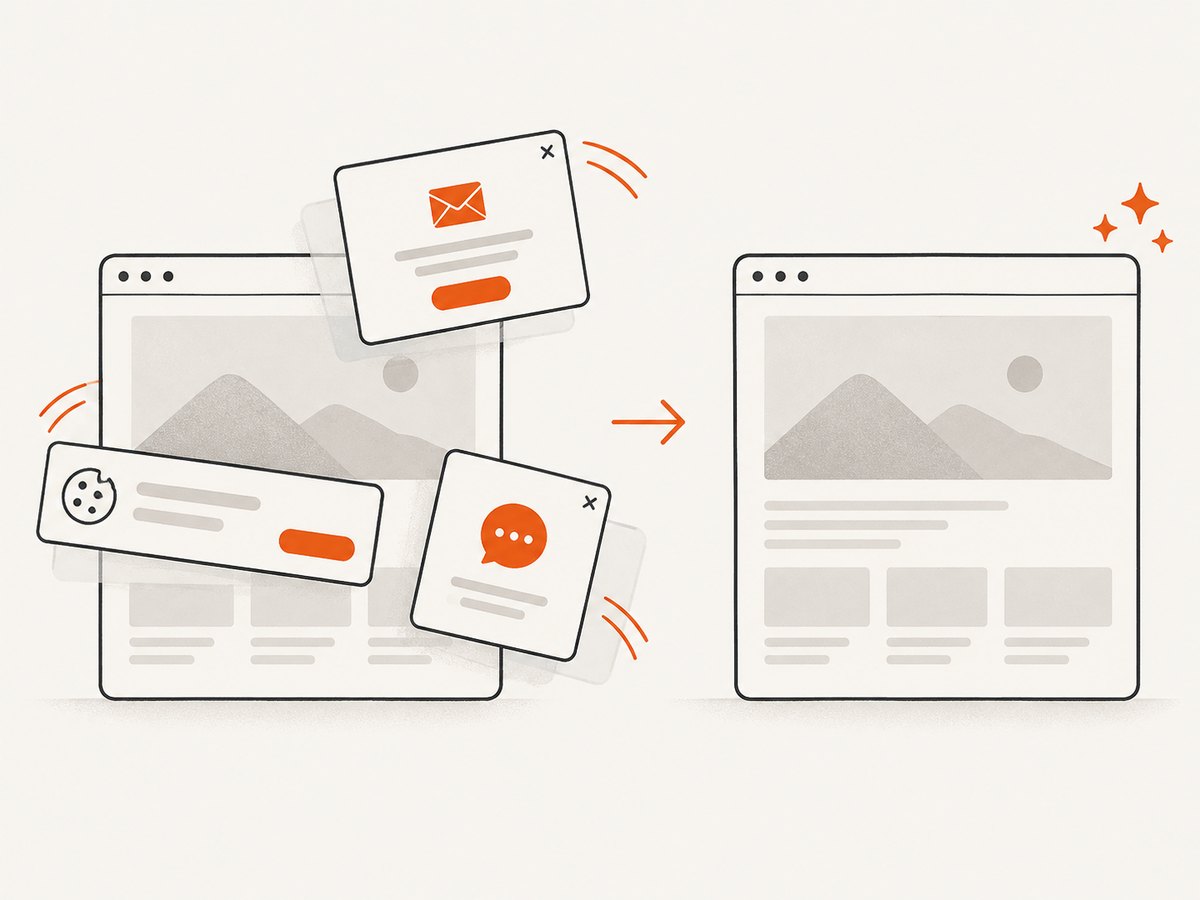
A screenshot helps your team review the page and the social-card asset at a fixed viewport. You can capture the public page with a browser automation script or use ScreenshotNeo, a website screenshot API and MCP server for developers. ScreenshotNeo can remove cookie banners, newsletter popups, and chat widgets before capture, which keeps those overlays out of the review image.
Browser automation example (Playwright)
import { chromium } from 'playwright';

const browser = await chromium.launch();
const page = await browser.newPage({ viewport: { width: 1200, height: 800 }, deviceScaleFactor: 1 });
await page.goto('https://example.com/articles/social-cards', { waitUntil: 'networkidle' });
await page.screenshot({ path: 'social-card-review.png', fullPage: true });
await browser.close();
Or skip the browser setup
Use ScreenshotNeo’s one-request capture when you need a clean review image. Cookie banners, popups, and chat widgets are removed before the shot; bot checks, blank pages, and failed loads are never billed. Its MCP server lets AI agents take screenshots, and the free plan includes 1,000 screenshots a month with no card; paid plans start at $5 for 3,000. See the ScreenshotNeo API documentation.
curl -G "https://api.screenshotneo.com/v1/shot" -d access_key=YOUR_API_KEY --data-urlencode url=https://example.com/articles/social-cards -o shot.webpimport requests
r = requests.get("https://api.screenshotneo.com/v1/shot", params={"access_key": "YOUR_API_KEY", "url": "https://example.com/articles/social-cards"}, timeout=90)
r.raise_for_status()
open("shot.webp", "wb").write(r.content)const q = new URLSearchParams({ access_key: 'YOUR_API_KEY', url: 'https://example.com/articles/social-cards' });
const res = await fetch(`https://api.screenshotneo.com/v1/shot?${q}`);
if (!res.ok) throw new Error(`Screenshot failed: ${res.status}`);
const bytes = Buffer.from(await res.arrayBuffer());
await import('node:fs/promises').then(fs => fs.writeFile('shot.webp', bytes));ScreenshotNeo returns PNG, JPEG, WebP, or PDF captures. Responses include X-Page-Verdict and X-Billed headers, so you can distinguish clean captures from bot checks, blank pages, timeouts, failed loads, and cache hits. You can also set a viewport or device preset, retina scale, full-page mode, a wait condition, custom CSS, and a cache TTL when those affect your review. Learn about ScreenshotNeo, then sign up free for 1,000 screenshots per month with no card.
7. Troubleshooting
| Symptom | Likely cause | Fix |
|---|---|---|
| Wrong title or description | Missing or duplicated Open Graph tags; platform fallback | Inspect the deployed HTML source, keep one value for each tag, then refresh the platform preview. |
| No image | Image URL is private, blocked, redirects incorrectly, or exceeds limits | Request the image without browser cookies, verify a 2xx response and image content type, remove access controls, and meet the platform’s dimensions and size rules. |
| Old card after editing | Platform cache | Use the platform’s official inspector or refresh workflow. For LinkedIn, wait according to its guidance and test a new post; old posts retain their stored preview. |
| Image is cropped badly | Aspect ratio differs from the platform’s frame | Compose the important subject inside a safe center area and generate a platform-specific variant when needed. |
| Inspector cannot retrieve the page | Firewall, robots policy, authentication, DNS, or a bot challenge | Allow the platform crawler to reach the public URL, remove challenge pages from the shared route, and verify DNS and TLS from outside your network. |
| Screenshot includes consent UI | Capture occurred before the banner was handled | Accept or hide the banner in automation, wait for the resulting layout, or use ScreenshotNeo’s consent and popup removal. |
8. Performance, reliability, and cost notes
- Performance: Cache-busting every test URL can create more crawler work. Change the image filename or query string only when you intentionally need a new asset, then inspect the exact shared URL.
- Reliability: Test from outside your development network. A page that works locally can still be inaccessible to a platform crawler because of authentication, firewall rules, DNS, or a bot check.
- Consistency: Keep metadata in the server-rendered HTML when possible. Client-side changes that occur after load may not be seen by a crawler.
- Screenshot cost: ScreenshotNeo bills only clean shots; bot checks, blank pages, timeouts, failed loads, and cache hits are not billed. Its plans include 1,000 free shots monthly, then Starter $5 for 3,000, Growth $15 for 15,000, Pro $39 for 60,000, Scale $99 for 250,000, and Business $249 for 1,000,000. Yearly billing gives two months free.
9. Release checklist
- Open Graph tags are present in production HTML.
-
og:imageis absolute, public, stable, and below the target platform’s file limit. - The image meets LinkedIn’s 1200 × 627 minimum and 1.91:1 recommendation when LinkedIn is a target.
- The exact shared URL passes the target platform inspector.
- A new test post shows the expected card.
- Existing posts were treated as cached artifacts rather than expected to update.
FAQ
Do I need separate social card images?
Not always. Start with one well-composed image that meets each target’s limits. Create variants when a platform’s crop or size requirement harms the composition.
Will changing og:image update an old post?
Usually the old post keeps its stored preview. LinkedIn explicitly documents this behavior.
Can a valid image still be rejected?
Yes. A crawler must be able to retrieve it without your browser session, and the platform can apply access, size, or format rules beyond the HTML tag itself.
Should I trust a third-party preview generator?
Use one for a quick comparison, but verify final behavior in each platform’s own inspector because only that platform knows its current parser and cache.


