How to Preview a Webcam in the Browser
Show a live webcam feed in a browser with getUserMedia(), handle permission and device errors, choose a camera, and stop the stream cleanly.
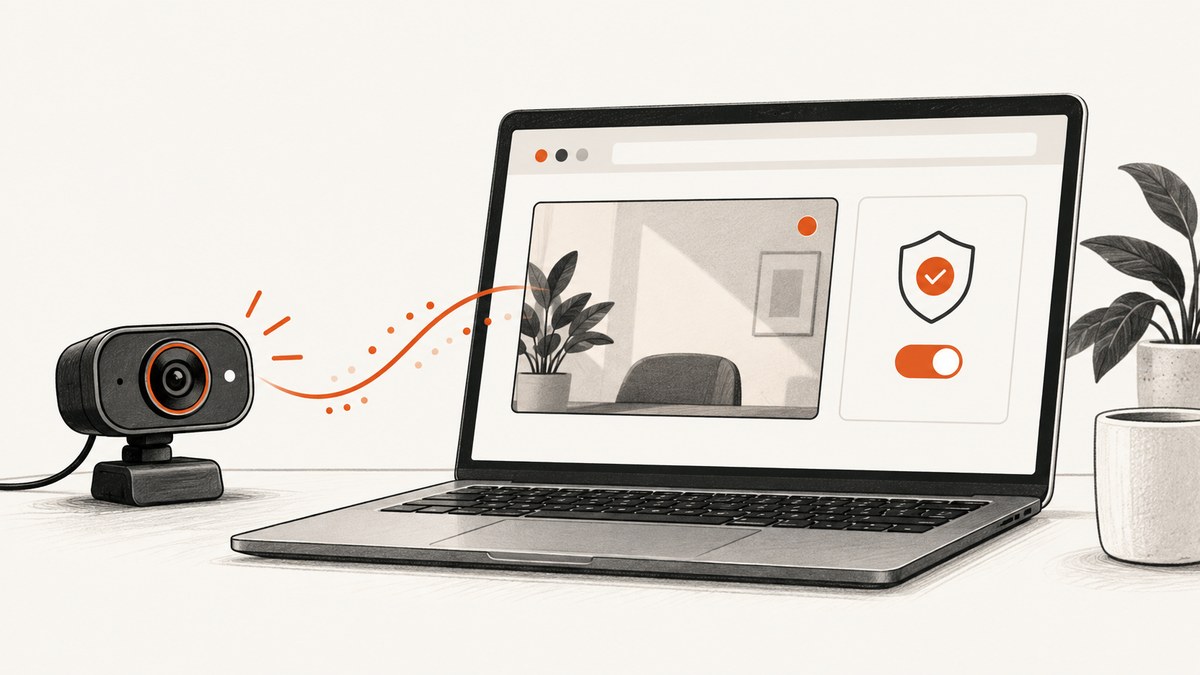
To preview a webcam in the browser, call navigator.mediaDevices.getUserMedia({ video: true, audio: false }) after the user presses a Start button, assign the returned stream to a <video> element’s srcObject, and stop every media track when the preview ends. Serve the page over HTTPS (or use localhost for local development), handle permission and device errors, and use autoplay muted playsinline for a practical inline preview.
This guide shows how to show a live camera feed in a video element, select a camera, choose resolution constraints, embed the feature, diagnose common failures, and clean up reliably.
1. Minimal runnable webcam preview
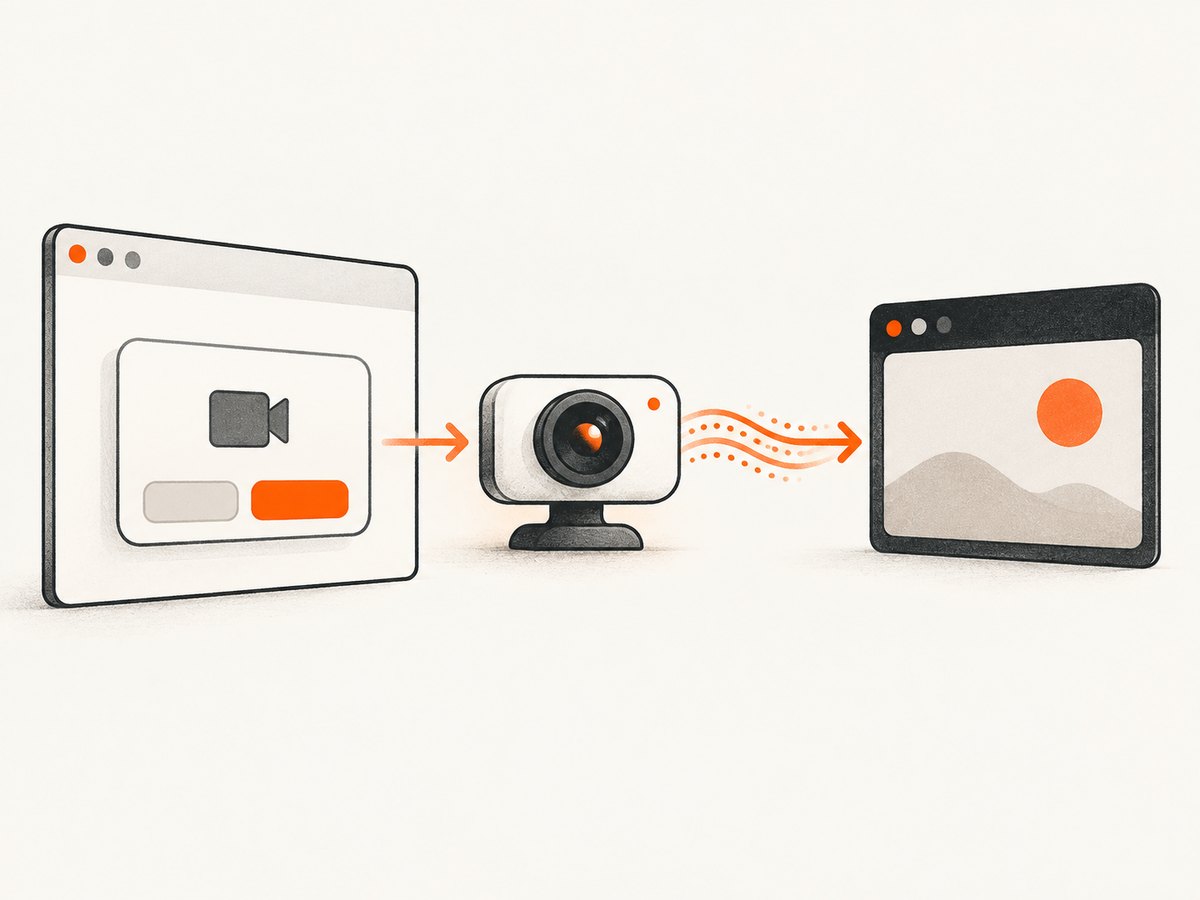
Save this as an HTML file and serve it from localhost or an HTTPS site. The user starts the camera explicitly, and the page requests video only. The play() call is awaited so a playback failure can be reported instead of leaving an unexplained blank video area.
<!doctype html>
<html lang="en">
<head>
  <meta charset="utf-8">
  <meta name="viewport" content="width=device-width, initial-scale=1">
  <title>Webcam preview</title>
  <style>
    video { display: block; width: min(100%, 640px); background: #111; }
  </style>
</head>
<body>
  <h1>Webcam preview</h1>
  <video id="preview" autoplay muted playsinline></video>
  <button id="start" type="button">Start camera</button>
  <button id="stop" type="button" disabled>Stop camera</button>
  <p id="status" role="status">Camera is off.</p>

  <script>
    const video = document.querySelector('#preview');
    const start = document.querySelector('#start');
    const stop = document.querySelector('#stop');
    const status = document.querySelector('#status');
    let stream;

    start.addEventListener('click', async () => {
      if (!navigator.mediaDevices?.getUserMedia) {
        status.textContent = 'Camera access is unavailable. Use HTTPS or localhost in a supported browser.';
        return;
      }

      start.disabled = true;
      status.textContent = 'Waiting for camera permission…';
      try {
        stream = await navigator.mediaDevices.getUserMedia({
          video: true,
          audio: false
        });
        video.srcObject = stream;
        await video.play();
        status.textContent = 'Camera preview is running.';
        stop.disabled = false;
      } catch (error) {
        status.textContent = `${error.name}: ${error.message}`;
        stream?.getTracks().forEach((track) => track.stop());
        stream = undefined;
        video.srcObject = null;
        start.disabled = false;
      }
    });

    stop.addEventListener('click', () => {
      stream?.getTracks().forEach((track) => track.stop());
      stream = undefined;
      video.srcObject = null;
      start.disabled = false;
      stop.disabled = true;
      status.textContent = 'Camera stopped.';
    });
  </script>
</body>
</html>
getUserMedia() prompts for permission and, if allowed, resolves to a MediaStream containing the requested tracks. Assigning it to video.srcObject connects the stream to the preview. A video-only preview should request audio: false, so the browser does not ask for microphone access too. [MDN: MediaDevices.getUserMedia()]
2. Requirements: secure context, permission, and embedding
Use HTTPS in production
Camera access is restricted to secure contexts. Use HTTPS for a deployed page. For local development, browsers treat localhost as a secure context; the file:/// scheme is also documented as a secure-context case. If navigator.mediaDevices is undefined, check how the page is served before debugging the event handler or video element. [MDN: privacy and security]
Request permission at a clear moment
The browser controls the permission prompt, and the user can deny it or leave it unanswered. Triggering the request from a button gives a clear explanation of why access is needed. Do not imply that permission alone guarantees a picture: the camera may be absent, busy, blocked by policy, or unable to satisfy the requested constraints.
Delegate access to an iframe
An embedded preview also needs the embedding page to delegate camera access through Permissions Policy. The iframe can request access with an allow attribute, while the page’s policy must permit the camera for that embedded origin. For example, an embed might look like this:
<iframe src="https://camera.example/preview" allow="camera"></iframe>Use the appropriate camera policy for your site and the iframe’s origin. A policy restriction can cause the request to fail even if the user previously granted camera permission. [MDN: Permissions Policy]
3. Why the video attributes matter
autoplayasks the browser to begin playback when the stream is attached.mutedmakes autoplay more compatible with browser autoplay policies and avoids unexpected audio. The sample requests no audio track in the first place.playsinlinekeeps the preview inline on browsers that might otherwise switch video to a full-screen presentation; Safari requires it for autoplay behavior described by MDN.await video.play()lets your code catch a rejected playback promise and show a useful message.
Autoplay policy can apply to both the HTML attribute and a JavaScript call to play(). Handle that promise rather than assuming that a successful camera request means playback has started. [MDN: autoplay guide]
4. Select a camera and set resolution
Begin with video: true when the default camera is acceptable. Add constraints only when the product needs a particular size or input. A basic resolution request is:
const stream = await navigator.mediaDevices.getUserMedia({
  video: { width: 1280, height: 720 },
  audio: false
});
Camera constraints can be preferences or strict requirements, depending on how they are specified. If a requested size is essential, the interface needs a clear fallback for OverconstrainedError; otherwise, avoid making capture unnecessarily brittle. A camera picker can enumerate devices after the user grants permission and then request the selected device by its deviceId:
async function listCameras() {
  const devices = await navigator.mediaDevices.enumerateDevices();
  return devices
    .filter((device) => device.kind === 'videoinput')
    .map((device) => ({ id: device.deviceId, label: device.label }));
}

async function openCamera(deviceId) {
  return navigator.mediaDevices.getUserMedia({
    video: { deviceId: { exact: deviceId } },
    audio: false
  });
}
Device labels may not be available before permission, so populate or refresh the picker after access is granted. If the chosen device disappears or cannot be opened, tell the user and offer to retry with the default camera. [MDN: enumerateDevices()]
5. Stop the stream and manage its lifecycle
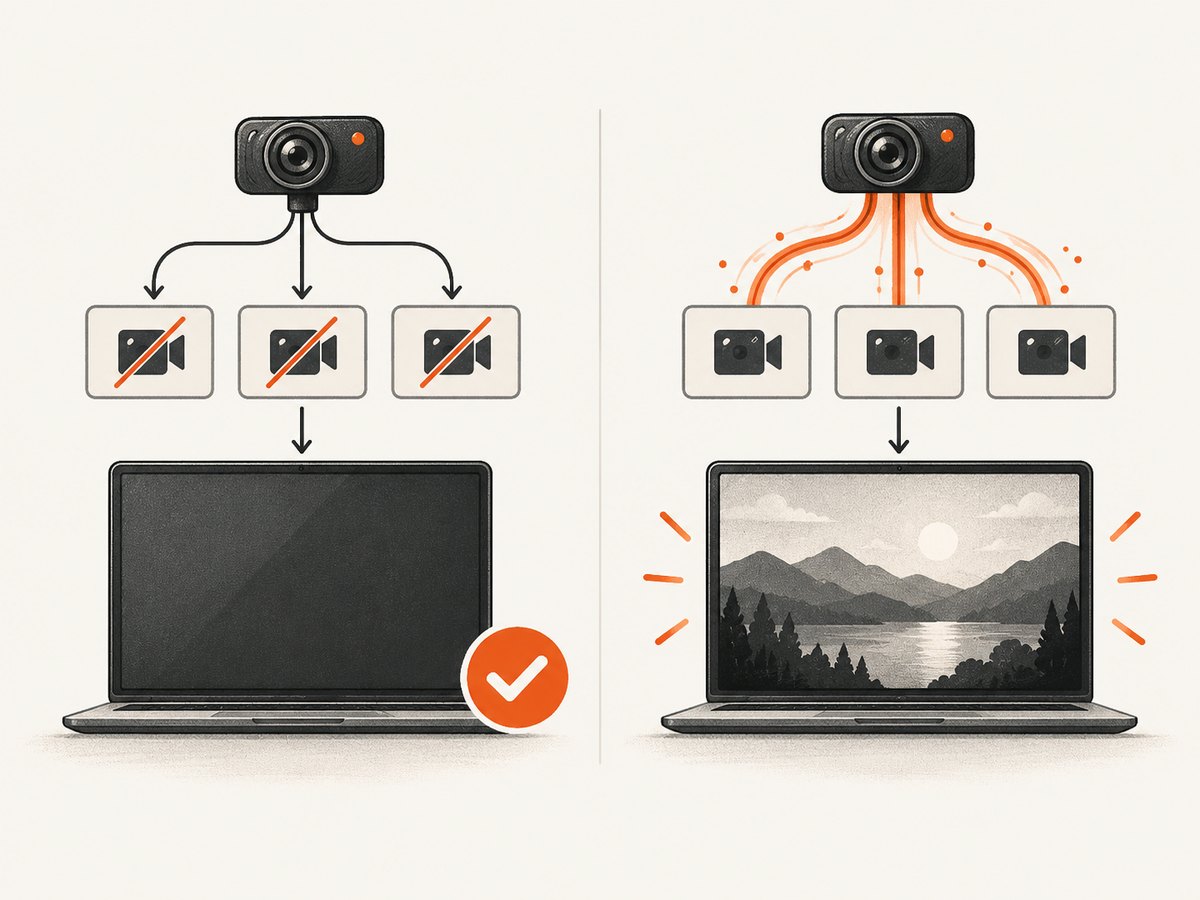
Stopping a preview means stopping its tracks, not only hiding the video element. Call stop() for every track and clear srcObject. This releases the page’s active media stream and keeps the UI state aligned with the camera state.
function stopPreview(video, stream) {
  stream?.getTracks().forEach((track) => track.stop());
  video.srcObject = null;
}
Use the same cleanup when the user cancels, changes cameras, or leaves a screen that owns the preview. If your application moves between views without unloading the page, wire cleanup to that view’s teardown as well. The browser provides camera-use indicators; request only the media the feature needs and make the active state visible in your own interface too.
6. Troubleshooting: “How do I preview my webcam in the browser?”
Use the error name to narrow down the cause. Show a short, actionable message to the user and keep more detailed diagnostics in your developer logs where appropriate.
| Error or symptom | Likely cause | What to check or change |
|---|---|---|
NotAllowedError |
The user denied access, the page is insecure, or an embedding policy blocks the request. | Use HTTPS or localhost; check the browser’s site permission; if embedded, check Permissions Policy and the iframe’s allow attribute. |
NotFoundError |
No camera satisfies the requested video constraints. | Check that a camera is connected and enabled. Relax requested dimensions or device selection. |
NotReadableError |
Permission was granted, but the operating system, hardware, or page could not read from the camera. | Check whether another application is using the camera, whether the OS allows browser camera access, and whether the device is available. Retry after releasing it elsewhere. |
OverconstrainedError |
The requested device or constraint cannot be satisfied. | Relax width, height, facing mode, or selected deviceId. If the requirement is essential, explain it and offer a fallback. |
TypeError or missing mediaDevices |
The constraints are empty or false, or the page is in an insecure context where camera access is unavailable. | Check the request object and secure context first. Use { video: true, audio: false } for the simplest preview. |
| Permission succeeds but the video stays blank | The stream was not attached, playback did not begin, the stream has no live video track, or the video is hidden or has no usable size. | Set video.srcObject = stream, await video.play(), inspect stream.getVideoTracks(), and confirm the element is visible and styled with a nonzero width. |
| Works in a top-level page but not inside an embed | The iframe or the page’s Permissions Policy does not delegate camera access. | Check the embedding response’s policy and the iframe’s camera permission. Test with the actual deployed origins. |
| Camera opens but stops unexpectedly | The device became unavailable, another app took control, or application lifecycle code stopped its tracks. | Handle track end events if the UI needs to react, and offer a user initiated retry. |
The error categories and causes above follow the documented getUserMedia() behavior. In particular, permission does not guarantee a usable feed: missing devices, hardware read failures, and unsatisfied constraints are separate cases. [MDN: getUserMedia() exceptions]
7. Performance, reliability, and privacy notes
- Start only when needed. A button-triggered request makes permission timing predictable and avoids opening the camera before the user understands why it is needed.
- Request video alone for previews. Leaving audio disabled avoids asking for microphone access when it is not part of the feature.
- Keep constraints modest. Ask for a resolution only when the interface needs it. Exact device or size requirements can fail on otherwise usable cameras.
- Clean up on every exit path. Stop every track on explicit stop, view teardown, or camera switch. Clear the video source so an old stream is not mistaken for a live preview.
- Test the browsers and devices you support.
getUserMedia()is widely available, with MDN documenting browser support since September 2017, but permission interfaces and autoplay behavior can vary. [MDN: browser compatibility] - Do not confuse a screenshot with a webcam capture. This browser API provides a local live media stream. A website screenshot service captures a web page and is a different tool.
For supportability, report the browser-visible error name and a clear next step. Avoid logging sensitive media data; the preview code does not need to upload frames or record the stream.
8. Legacy browser APIs
New code should use the promise-based navigator.mediaDevices.getUserMedia() API. The older callback method navigator.getUserMedia() is deprecated; it should not be the default for a new implementation. [MDN: deprecated Navigator.getUserMedia()]
9. Or skip the browser setup
ScreenshotNeo is a website screenshot API and MCP server for capturing web pages; it does not open a visitor’s webcam or provide a live camera feed. If your task is to capture a page rather than preview a camera, one GET request returns an image or PDF. See the ScreenshotNeo documentation for setup and options.
curl -G "https://api.screenshotneo.com/v1/shot" -d access_key=YOUR_API_KEY --data-urlencode url=https://stripe.com -o shot.webpFor example, the same request in Python:
import requests

r = requests.get(
    "https://api.screenshotneo.com/v1/shot",
    params={"access_key": "YOUR_API_KEY", "url": "https://stripe.com"},
    timeout=90,
)
open("shot.webp", "wb").write(r.content)
Or Node.js:
const q = new URLSearchParams({ access_key: 'YOUR_API_KEY', url: 'https://stripe.com' });
const res = await fetch(`https://api.screenshotneo.com/v1/shot?${q}`);
ScreenshotNeo removes cookie banners, newsletter popups, and chat widgets before the shot; bot checks, blank pages, and failed loads are never billed. Its MCP server lets AI agents take screenshots, and the Free plan includes 1,000 screenshots a month with no card; paid plans start at $5 for 3,000. Learn about ScreenshotNeo or sign up for 1,000 free screenshots a month, with no card.
10. FAQ
Can I preview a webcam without asking for microphone permission?
Yes. Request { video: true, audio: false }. That requests a video track without a microphone track.
Why does the browser wait if the user does not answer the permission prompt?
The permission request may remain pending until the user responds. Keep the interface in a waiting state and do not mark the camera as running until the request resolves and playback begins.
Is a webcam preview the same as taking a screenshot?
No. The preview displays a live camera stream in a video element. A screenshot captures a web page at a point in time.
Should I use the deprecated callback API for older browsers?
Use the modern promise-based API for new work. MDN describes getUserMedia() as widely available and marks the older Navigator.getUserMedia() method as deprecated.


