Preview a Website by Country Using a Proxy
Learn how to preview country-specific redirects, pricing, language, and blocking with verified network locations, screenshots, and reproducible tests.
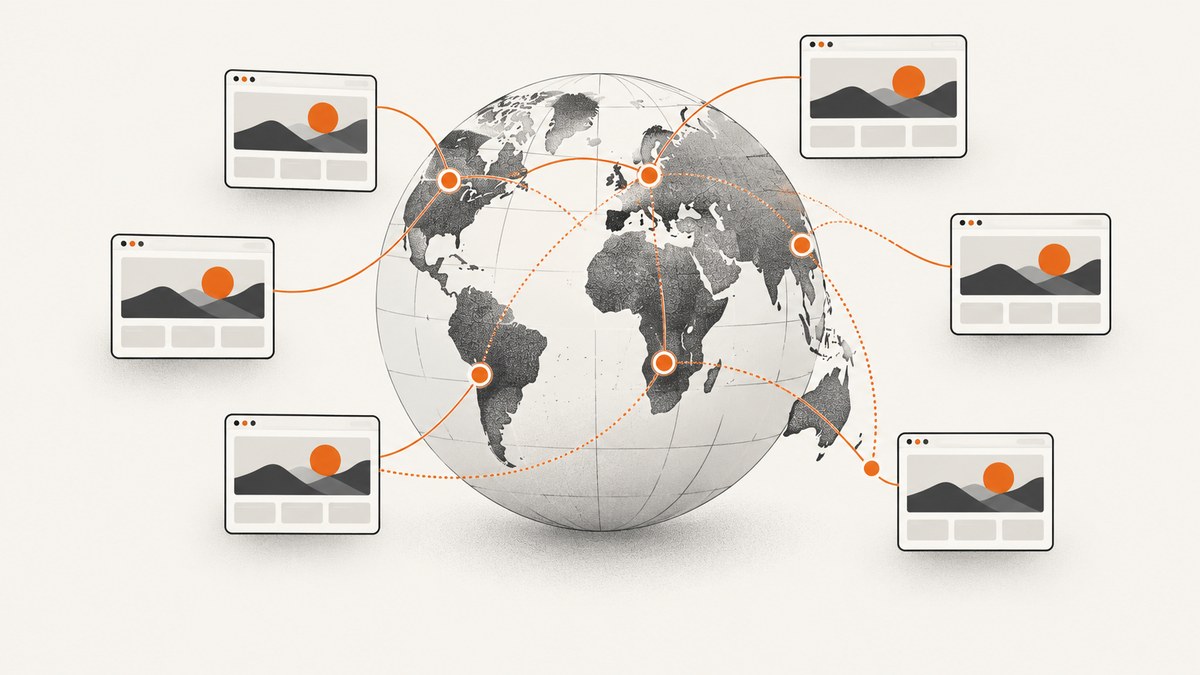
To preview a website as visitors in another country see it, send the request through network infrastructure whose apparent IP address is in that country, or use a render server physically located there. Then verify the egress location before interpreting redirects, currency, language, catalog availability, or access blocks.
A proxy or VPN can help with a one-off request, but reliable testing requires more than changing an IP. Browser language, cookies, device settings, DNS, bot detection, and session state can also affect the result. For interactive testing, use a cloud browser with country selection. For fast visual checks, use a screenshot service with render servers in known locations.
What a country preview actually tests
IP geolocation tests network origin. It does not set a device’s GPS coordinates or grant browser location permission. A site can combine IP data with other signals, so record the full test context.
| Behavior | What to observe | Useful evidence |
|---|---|---|
| Geo-blocking | HTTP status, block page, challenge, or unavailable catalog | Final URL, response headers, screenshot, egress country |
| Regional redirect | Redirect chain and destination domain or path | Every URL in the chain and timestamp |
| Pricing and currency | Currency symbol, tax treatment, prices, payment options | Rendered page, locale, cookies, account state |
| Language | Automatic translation or localized copy | Accept-Language, browser language, screenshot |
| Catalog and availability | Products, shipping countries, stock, or feature access | URL, location, session state, observed result |
Choose the right method
| Method | Best for | Strengths | Limits |
|---|---|---|---|
| BrowserStack IP Geolocation | Interactive QA and automation | Select a country or region, use cloud browsers and devices, click through flows, and save the geolocation capability in a test configuration. BrowserStack states that its feature covers IP addresses in 60+ countries and 30+ states. | Requires an account and generally paid access. The target must be public for this geolocation path. It changes network location, not GPS. |
| GeoPeeker | Rapid visual spot checks | Renders a site from multiple locations at once and provides screenshots plus DNS, availability, ping, propagation, and caching diagnostics. Its FAQ says the render servers are physically present in the indicated locations rather than relying on proxies. | Designed for screenshots and diagnostics, not full interactive browsing. |
| Ordinary proxy or VPN | One-off manual requests | Simple and inexpensive when you already have a trustworthy endpoint in the target country. | Country accuracy, proxy detection, browser language, cookies, DNS, and provider quality vary. You must verify the actual egress location. |
Repeatable country-preview workflow
- Define the behavior. Decide whether you are checking a block, redirect, currency, language, listing, or availability.
- Choose interaction level. Use a cloud browser for clicks, forms, authentication, and automation. Use a geographically located screenshot service for visual comparisons.
- Set the country and related signals. Select the country or region, then set browser language, timezone, viewport, and cookies when your test requires them.
- Confirm egress. Check the tool’s reported country or IP. BrowserStack warns that a session can fall back without geolocation; do not treat that result as evidence for the selected country.
- Use a clean session. Start without stale cookies unless persistence is part of the scenario. Record whether you were logged in.
- Capture evidence. Save the URL, timestamp, country or region, egress confirmation, language, device, cookies or session state, and the observed result.
- Repeat for controls. Run the same page from a second country and from your normal connection so differences are attributable to location.
Use BrowserStack for an interactive test
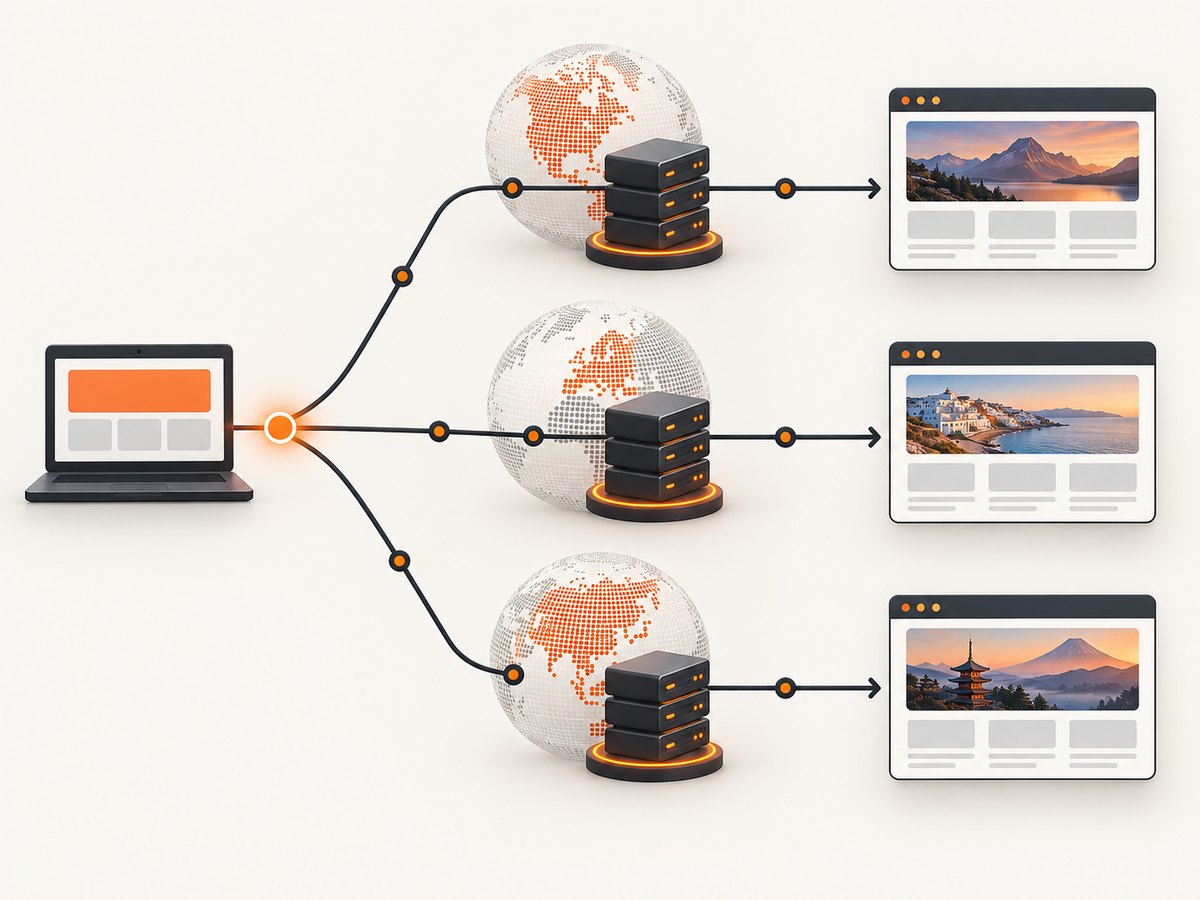
BrowserStack’s Test Companion accepts a named country or region and opens a cloud browser through its IP Geolocation capability. The site under test therefore sees traffic from that location. This is the practical choice when you need to submit forms, follow redirects, inspect authenticated pages, or automate a complete journey.
- Open Test Companion and choose the target country or region.
- Open the public URL you want to inspect.
- Confirm that the session reports the requested geolocation. If it falls back, restart the session or fix the capability before recording results.
- Set browser language and other test inputs deliberately.
- Save a screenshot and the redirect or network evidence for each assertion.
For localhost, staging, or private networks, BrowserStack Local Testing can provide a secure tunnel. That is a separate capability and does not make the request originate from the named country.
Use GeoPeeker for fast visual comparisons
GeoPeeker is useful when the question is “What does this page render like from several places?” Submit the URL, select the locations, and compare the returned screenshots and diagnostics. Because the service uses physically located render servers, the result is a location-based render rather than a browser session configured only with a locale.
Use it for regional redirects, landing-page differences, availability checks, and visual regressions. Switch to an interactive cloud browser when you need to click, log in, submit a form, or inspect a multi-step flow.
Use an ordinary proxy from the command line
For a manual request, obtain an HTTPS proxy endpoint whose provider identifies the endpoint’s country. Replace the placeholder with your proxy URL and target URL:
curl --proxy http://PROXY_HOST:PROXY_PORT \
  --location \
  --dump-header response-headers.txt \
  --output page.html \
  https://example.com/
Inspect the final URL, response headers, and HTML. If the site uses client-side JavaScript for redirects or pricing, a raw HTTP request is insufficient; use a real browser.
Python with requests
import requests

proxy = "http://PROXY_HOST:PROXY_PORT"
proxies = {"http": proxy, "https": proxy}

response = requests.get(
    "https://example.com/",
    proxies=proxies,
    headers={"Accept-Language": "en-US,en;q=0.9"},
    timeout=30,
    allow_redirects=True,
)

print("final URL:", response.url)
print("status:", response.status_code)
print(response.text[:500])
Add proxy credentials in the proxy URL only when your provider requires them. Keep credentials out of source control and logs.
Node.js with an HTTPS proxy agent
import { ProxyAgent } from "undici";

const proxy = new ProxyAgent("http://PROXY_HOST:PROXY_PORT");
const response = await fetch("https://example.com/", {
  dispatcher: proxy,
  redirect: "follow",
  headers: { "accept-language": "en-US,en;q=0.9" }
});

console.log("status:", response.status);
console.log("final URL:", response.url);
console.log((await response.text()).slice(0, 500));
Install the agent with npm install undici. Node’s built-in fetch does not automatically route traffic through a proxy.
Browser signals that can change the result
- Cookies and local storage: A previous country selection or consent choice can override a fresh IP-based decision.
- Accept-Language: An IP in France with an English browser may receive different copy from a French browser.
- Timezone: Date, delivery, and availability logic can use the browser timezone.
- Geolocation permission: IP location and GPS-style browser geolocation are separate signals.
- DNS and CDN routing: A proxy can change the HTTP source while DNS resolution or asset delivery follows another path.
- Bot detection: Datacenter proxies, rapid repetition, and automation can trigger a challenge or alternate page.
- Authentication: A logged-in account may have a fixed market independent of IP.
Or skip the browser setup
For a clean visual capture after your URL is reachable, ScreenshotNeo returns a PNG, JPEG, WebP, or PDF from one GET request. Read the complete option list in the ScreenshotNeo API documentation.
curl -G "https://api.screenshotneo.com/v1/shot" -d access_key=YOUR_API_KEY --data-urlencode url=https://stripe.com -o shot.webpimport requests
r = requests.get("https://api.screenshotneo.com/v1/shot", params={"access_key": "YOUR_API_KEY", "url": "https://stripe.com"}, timeout=90)
open("shot.webp", "wb").write(r.content)const q = new URLSearchParams({ access_key: 'YOUR_API_KEY', url: 'https://stripe.com' });
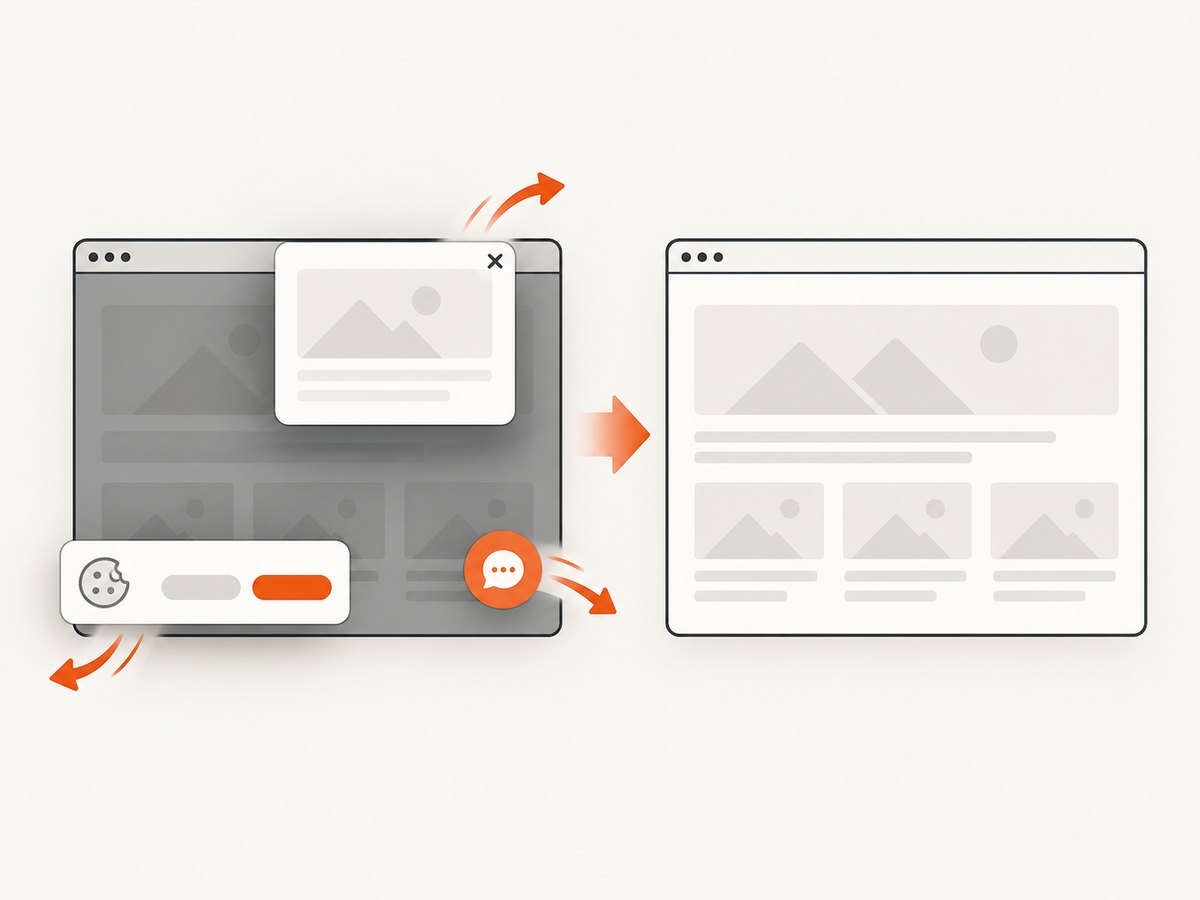
const res = await fetch(`https://api.screenshotneo.com/v1/shot?${q}`);- Cookie and consent banners are accepted and removed before capture, along with 60+ known consent platforms, newsletter popups, and chat widgets. Each cleanup step can be disabled.
- Bot checks, blank pages, failed loads, timeouts, and cache hits are not billed. Response headers identify the page verdict and whether the shot was billed.
- An MCP server lets Claude, Cursor, and other MCP clients call
take_screenshot,get_page_info, andcapture_pdf. - The Free plan includes 1,000 screenshots per month with no card. Paid plans start at $5 for 3,000 screenshots.
ScreenshotNeo handles rendering and cleanup; verify country-specific network egress separately when the test depends on the visitor’s IP. Create a free ScreenshotNeo account to start.
Troubleshooting
| Symptom | Likely cause | Fix |
|---|---|---|
| The page shows the home country | Proxy fallback, wrong endpoint, or cached response | Check the reported egress IP and country, disable caching, and rerun from a fresh session. |
| BrowserStack result has no country evidence | Geolocation capability fell back | Do not record the result. Recreate the session with the country capability and confirm it before testing. |
| Currency is unchanged | Account market, cookie, or language overrides IP | Clear cookies, use a logged-out session, set language and timezone deliberately, and test the account market separately. |
| Raw curl or Python output misses the redirect | Redirect or pricing logic runs in JavaScript | Use a real browser or cloud-browser session and capture the final rendered state. |
| Access is blocked with a CAPTCHA | Proxy reputation or automation detection | Try a reputable endpoint, reduce request rate, and use an interactive browser session. |
| Private staging URL cannot be opened | The country tool requires a public URL | Use a secure local tunnel for private access, then treat the network origin as a separate test variable. |
| Different runs disagree | CDN variation, rotating proxy, session state, or time-based content | Pin the endpoint, record timestamps, preserve cookies and headers, and repeat with a control location. |
Performance, reliability, and cost
- Performance: A geographically distant browser or proxy adds connection latency. Screenshot services are usually faster for a single visual check than starting an interactive session.
- Reliability: Treat an unverified location as an inconclusive result. Save the egress evidence with every screenshot.
- Reproducibility: Record country, IP or location confirmation, URL, timestamp, browser, viewport, language, timezone, cookies, and authentication state.
- Cost: Cloud-browser geolocation and proxy quality vary by provider and plan. For visual output, ScreenshotNeo has 1,000 free shots monthly with no card; paid plans begin at $5 for 3,000.
FAQ
Does a proxy change my phone’s GPS location?
No. It changes the apparent network origin. GPS-style browser permissions and device location are separate.
Can I test localhost from another country?
Not through a public-site geolocation path. Use a secure tunnel for private access, and remember that the tunnel does not make the request originate from the selected country.
Is a VPN enough for pricing tests?
It may change the IP signal, but pricing can also depend on cookies, account market, language, timezone, and payment details. Verify all of those inputs.
When should I use screenshots instead of a browser?
Use screenshots for quick visual comparisons and browser sessions for interaction, authentication, forms, and automation.
Can ScreenshotNeo prove that a page was served from a country?
The supplied ScreenshotNeo features support rendering, cleanup, and browser geolocation or timezone settings. Country-specific IP egress must be verified with a location-aware network or browser tool.


