How to Preview a Website in Visual Studio
Run your website from Visual Studio, choose a browser, and refresh changes. Learn how ASP.NET Core preview, Browser Link, and Web Live Preview differ.
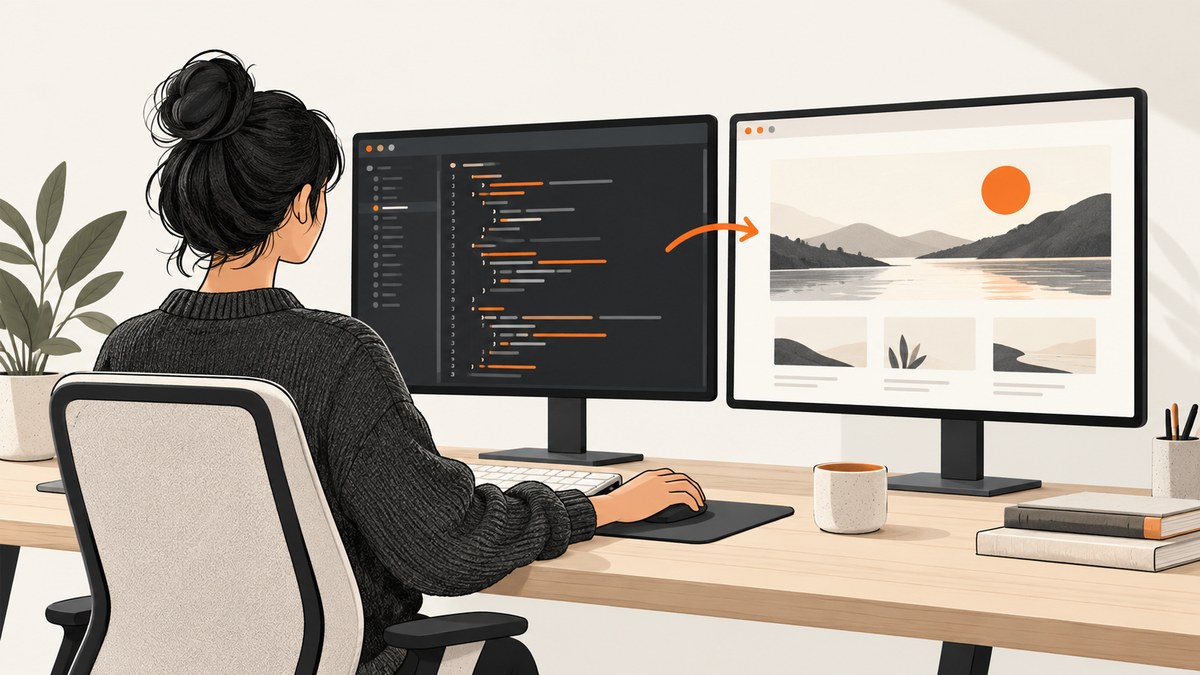
To preview an ASP.NET Core website in Visual Studio, open the project, select its https launch target, then press F5 to run with debugging or Ctrl+F5 to run without debugging. Visual Studio builds and starts the app, then opens its local address in a browser. You are looking at the running website, so links, routes, forms, and server-rendered pages can work as the app implements them. Press Shift+F5 to stop a debugging session. See Microsoft’s ASP.NET Core Visual Studio tutorial.
This guide focuses on Visual Studio IDE and ASP.NET Core. Visual Studio Code is a separate editor, and its Live Preview extension is not the same feature as Visual Studio’s Web Live Preview. If you only need a screenshot of a public website, without launching a local development server, see the ScreenshotNeo website screenshot API section below.
1. Start the website and open it in a browser
- Open the solution or project in Visual Studio. For an existing solution, select the web app project as the startup project if it is not already selected.
- In the toolbar, choose the https launch target. Depending on the project, you may see a project name or IIS Express as the target instead.
- Choose a browser from the debug target dropdown if you want something other than the default browser.
- Press F5 to build and start debugging, or Ctrl+F5 to run without attaching the debugger.
- Wait for the browser to open at the app’s local URL, often an
https://localhost:...address. Navigate the site and test the pages you need. - When finished, stop debugging with Shift+F5. With a non-debugging run, close the running app or stop it using Visual Studio’s available controls.
If an HTTPS development certificate prompt appears, Visual Studio’s tutorial says it may ask you to accept the ASP.NET Core SSL certificate. Read and follow the prompt for your environment. Certificate errors can depend on the machine and certificate state, so use current Microsoft certificate guidance for a persistent problem instead of applying a generic command blindly.
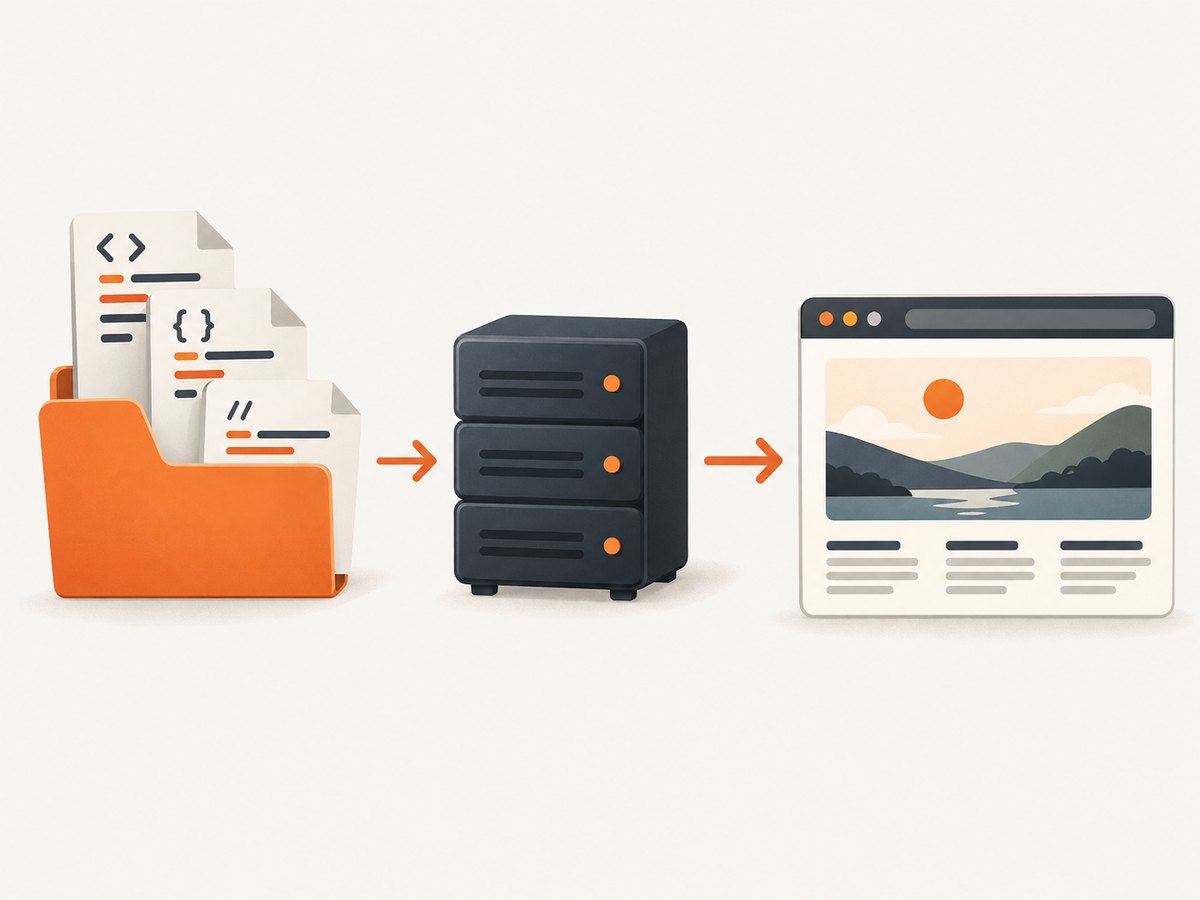
What F5 actually previews
The browser displays responses from the app that Visual Studio built and started. For example, the ASP.NET Core tutorial describes Index.cshtml as the home page that runs in a web browser. This distinction matters: opening a Razor file directly from File Explorer will not run the ASP.NET Core app, process server-side code, or use its routes. Start the app first, then browse its local URL.
2. Choose a browser or preview in several browsers
The browser selection is part of the debug target controls. Use the dropdown next to the run target to select an installed browser. You can also choose Browse with…, select multiple browsers (hold Ctrl while selecting), and choose Browse where the project and Visual Studio version offer that option. Microsoft’s Browser Link documentation describes opening multiple browsers and refreshing connected browsers together.
For browser-specific JavaScript debugging, Visual Studio’s launch/debug target can connect the debugger to supported browser configurations. Microsoft Edge documentation demonstrates Visual Studio building an ASP.NET Core app, starting its web server, opening an Edge preview channel, and navigating to the configured local URL. Those instructions are version-specific; use your installed Visual Studio’s current menus and supported browser options.
| What you need | Use | What it does |
|---|---|---|
| See the app in a browser | F5 or Ctrl+F5 | Builds and runs the app, then launches a browser. |
| Pick one browser | Debug target dropdown | Chooses the browser Visual Studio launches, when configured. |
| Inspect multiple browser layouts | Browse with… | Opens the app in selected browsers; Browser Link can refresh connected instances. |
| Refresh connected browsers during development | Browser Link and CSS Hot Reload | Provides development-time browser communication and CSS refresh behavior. |
| Edit Web Forms pages in a live designer workflow | Web Live Preview | A distinct Visual Studio 2022 Web Forms experience, not the general ASP.NET Core launch path. |
3. See edits in the running page
After changing a page or style, save the file and inspect the browser. Depending on the edit and project setup, you may need to refresh the page, use Hot Reload, or stop and restart the app. Do not assume every source change is applied instantly.
Browser Link and CSS Hot Reload
Browser Link creates a development communication channel between Visual Studio and one or more browsers. Microsoft documents its use for refreshing multiple browsers, checking different screen sizes, mapping selected browser elements to source, and browser test automation. The Browser Link toolbar can show connected browsers and offer refresh controls. CSS Hot Reload can automatically refresh connected browsers when CSS files change. These controls and behavior vary with project type and Visual Studio version. Microsoft’s Browser Link documentation recommends Hot Reload for observing Razor (.cshtml) changes rather than runtime compilation.
Browser Link is not the same as starting a site. The app must already be running. Think of it as an optional development aid for the connection and refresh between the running app and browsers.
Web Live Preview versus VS Code Live Preview
Microsoft’s Visual Studio Toolbox describes Web Live Preview as part of the Visual Studio 2022 Web Forms designer experience, where changes can be reflected in the running app. It is not a universal preview mode for every ASP.NET Core project. If you searched for a Visual Studio Code Live Preview extension and cannot find the same command in Visual Studio IDE, the names refer to different products and workflows. First identify whether you have Visual Studio or Visual Studio Code, then check documentation for your exact project type and installed version.
4. Preview a particular page or route
Once the app is running, use the browser address bar to navigate to the route you want to inspect. For example, if Visual Studio opens https://localhost:7042/, you can try an implemented route such as https://localhost:7042/privacy. The port in your project may differ; use the URL Visual Studio launched. A route returning 404 may simply be absent or require a different path, not a failure of preview.
For layout checks, resize the browser window or use its developer tools’ responsive view. To compare browser rendering, launch multiple browsers and check the same route. For authenticated or data-dependent pages, use the app’s normal local sign-in and data setup. Avoid assuming that production accounts, services, or content are available in a local development environment.
5. If the browser does not open or changes look stale
| Symptom | Likely cause | What to try |
|---|---|---|
| No browser launches | The launch profile may not be configured to start one, or the wrong target is selected. | Check the debug target dropdown and the selected profile’s browser launch setting and app URL. Microsoft documents launch-profile settings in the Visual Studio Debug tab. |
| Build fails before a page appears | The app never started. | Read the Error List and Output window, resolve the build error, then run again. Preview depends on a running app. |
| HTTPS certificate warning or connection error | The development certificate may not be trusted or may be invalid for this machine. | Follow the Visual Studio prompt if it appears. For ongoing errors, consult current Microsoft HTTPS development certificate guidance for your OS and SDK version. |
| Page loads but shows 404 | The URL path may not match an app route. | Start from the root URL Visual Studio opened, then navigate to a route implemented by the app. |
| Saved change is absent | The browser has stale content, or the change needs Hot Reload or a restart. | Refresh the page. Check Hot Reload output and project support; restart the app if needed. |
| CSS changes do not appear across browsers | Browser Link may be disabled, browsers may not be connected, or CSS Hot Reload may not be enabled. | Check the Browser Link toolbar and dashboard, enable the relevant option if available, and refresh to reconnect after re-enabling. |
| No Live Preview command | The searched extension may target Visual Studio Code, or Web Live Preview may not apply to the project type. | Confirm the IDE and project type. Use F5 for the standard ASP.NET Core browser preview; look up Web Forms designer availability for Web Live Preview. |
| Local page works but deployed page differs | Local configuration, data, environment, or browser differs from production. | Compare the correct environment settings and test the deployed URL separately. A local preview does not prove the production deployment is healthy. |
6. Performance, reliability, and cost
For local development, F5 and Ctrl+F5 use your machine to build and run the app. Debugging is useful when you need breakpoints or to inspect application behavior; running without debugging avoids attaching the debugger. Startup and page speed depend on the project, its dependencies, and the local environment. Browser Link and Hot Reload can reduce manual refresh steps, but they do not remove the app’s build, runtime, or data dependencies.

This workflow does not require a screenshot service: it is the right choice when you need an interactive local site. It is also not a remote website capture method. A browser screenshot service needs a URL it can reach; a local-only localhost address is generally not reachable from an external service. For a public or otherwise accessible URL, ScreenshotNeo can return an image or PDF from a single GET request. Consider the target and access requirements before choosing the workflow.
7. Or skip the browser setup
If your goal is a screenshot of an accessible website rather than an interactive local preview, ScreenshotNeo is a website screenshot API and MCP server. Its API accepts a URL and returns a PNG, JPEG, WebP, or PDF. The request below saves a WebP response; use the ScreenshotNeo API docs for request details and options.
curl -G "https://api.screenshotneo.com/v1/shot" \
  -d access_key=YOUR_API_KEY \
  --data-urlencode url=https://stripe.com \
  -o shot.webp
ScreenshotNeo accepts cookie and consent banners like a visitor and removes more than 60 known consent platforms, newsletter popups, and chat widgets before capture; each step can be turned off. Bot checks and CAPTCHAs, blank pages, timeouts, failed loads, and cache hits are not billed, and response headers report the page verdict and billing status. Its MCP server gives AI agents tools for screenshots, page information, and PDF capture. The free plan includes 1,000 shots per month without a card; paid plans start at $5 for 3,000 shots.
Equivalent requests in Python and Node.js
These snippets use the same target and save the response body. Keep your access key out of source control; supply it through your local environment or secret manager in an application.
import requests

r = requests.get(
    "https://api.screenshotneo.com/v1/shot",
    params={"access_key": "YOUR_API_KEY", "url": "https://stripe.com"},
    timeout=90,
)
r.raise_for_status()
open("shot.webp", "wb").write(r.content)
const q = new URLSearchParams({
access_key: 'YOUR_API_KEY',
url: 'https://stripe.com'
});
const res = await fetch(`https://api.screenshotneo.com/v1/shot?${q}`);
if (!res.ok) throw new Error(`Screenshot request failed: ${res.status}`);
const fs = await import('node:fs/promises');
await fs.writeFile('shot.webp', Buffer.from(await res.arrayBuffer()));These are remote captures, not a way to expose a private development server. If a screenshot needs your local changes, use Visual Studio’s browser workflow or arrange an appropriately accessible test URL.
Create a free ScreenshotNeo account for 1,000 screenshots a month with no card.
8. Frequently asked questions
How do I open my website in a browser from Visual Studio?
Choose the web app’s launch target and press F5 or Ctrl+F5. Visual Studio starts the app and opens its configured local URL.
Can I preview a plain HTML file in Visual Studio?
For a static HTML file, open it in a browser to inspect it. F5 is intended to launch a configured project; it is not required to render a standalone file. Server-side features require a server or app that runs them.
Does Visual Studio automatically update every edit?
No. Refresh, Hot Reload, Browser Link, or a restart may be needed depending on the kind of change and project configuration.
Can I take a screenshot of the local preview with ScreenshotNeo?
A service must be able to reach the target URL. A private localhost URL on your computer is not automatically accessible externally; use the local browser for that case.
References
- Microsoft Learn: Create a C# ASP.NET Core web application in Visual Studio
- Microsoft Learn: Browser Link in ASP.NET Core
- Microsoft Learn: Web Live Preview
- Microsoft Learn: Visual Studio for web development
- Microsoft Learn: Enable debugging for ASP.NET apps
- Microsoft Q&A: Live Preview option confusion


