How to Preview a Website Without Opening It
Preview a link with search snippets, chat unfurls, metadata APIs, or a rendered screenshot—then check the destination safely before visiting.

You can preview a website without opening it in a browser tab by checking a search result, using a chat app’s link unfurl, requesting page metadata through a URL-preview API, or generating a rendered screenshot through a screenshot service. These methods reveal different amounts of information: a title or snippet is quick, while a screenshot shows how the page renders. None proves that a destination is safe. Treat previews as clues, then verify the domain and heed browser security warnings before visiting.
1. Choose a preview based on where the link is
Start with the source of the link and the detail you need. If you only need to identify a page, search or metadata may be enough. If you need to inspect layout, a rendered preview is more useful.
| Method | Best for | What you see | Limit to remember |
|---|---|---|---|
| Search result | A page or domain you can look up | Title, snippet, sometimes a thumbnail | May be stale, abbreviated, or absent |
| Chat link unfurl | A URL already in Slack or another collaboration app | A card generated from link metadata | External content in a preview is not necessarily validated by the app |
| URL-preview API | An application that needs title, description, or image metadata | Structured preview data | A third party may fetch the URL; publisher controls can limit previews |
| Rendered screenshot | Checking visible design or page rendering | An image or PDF of the rendered page | It is a point-in-time rendering, not a security verdict |
| Hover-preview extension | Occasional previews while browsing | A floating window or preview pane | Availability, support, and permissions vary |
2. Look up the page in a search engine
Paste the full URL, domain, or a distinctive page title into a search engine. Inspect the result’s displayed domain, title, snippet, and any thumbnail before deciding whether to follow the link. Search previews can help identify a page without visiting it. Google describes these as content previews, including text snippets and other media, that help people decide whether a result is relevant.
- Copy the address without clicking it.
- Search the exact URL or its domain and distinctive path.
- Compare the displayed domain with the expected spelling, including the part immediately before the top-level domain.
- Use the snippet as context, not as a complete or guaranteed-current copy of the page.
A page may not appear in results, and snippets may omit the part you care about. Search indexing can lag changes to a page. A result that looks ordinary also does not establish that the live destination is harmless.
3. Use a chat app’s link unfurl
In Slack or another app that supports link previews, paste the URL into a message draft or an appropriate channel and inspect the generated card. Depending on the app and page metadata, it may show a title, description, or image. Slack documents link previews shared with members, as well as ways to remove or disable previews. Follow your workspace’s rules before posting a URL to a shared channel: the preview may expose information to other members.
Unfurls are convenient when the link is already in a conversation, but they are not a safe way to inspect a suspicious URL. The platform may display external content that it has not validated or endorsed. If the URL contains a private token, personal data, or an internal host name, do not paste it into a third-party service or shared chat just to get a preview.
4. Request metadata with a URL-preview API
If you are building a link card or internal tool, a URL-preview API can return structured metadata such as a page title, description, or image. Microsoft’s URL Preview reference describes an API endpoint for preview results and says content-owner requests to disable previews must be honored. Check the API’s current documentation for authentication, request limits, data fields, and content-owner controls before integrating it.
Do not confuse metadata lookup with rendering a page. Open Graph or similar metadata can be missing, stale, misleading, or tailored for sharing. An API may also fetch a destination on your behalf, so consider privacy and server-side request risks when accepting URLs from users. Restrict which hosts your application may fetch, block private network addresses, limit redirects and response sizes, and use timeouts. Never let an untrusted URL turn your server into a way to reach internal services.
5. Inspect the rendered page with a screenshot
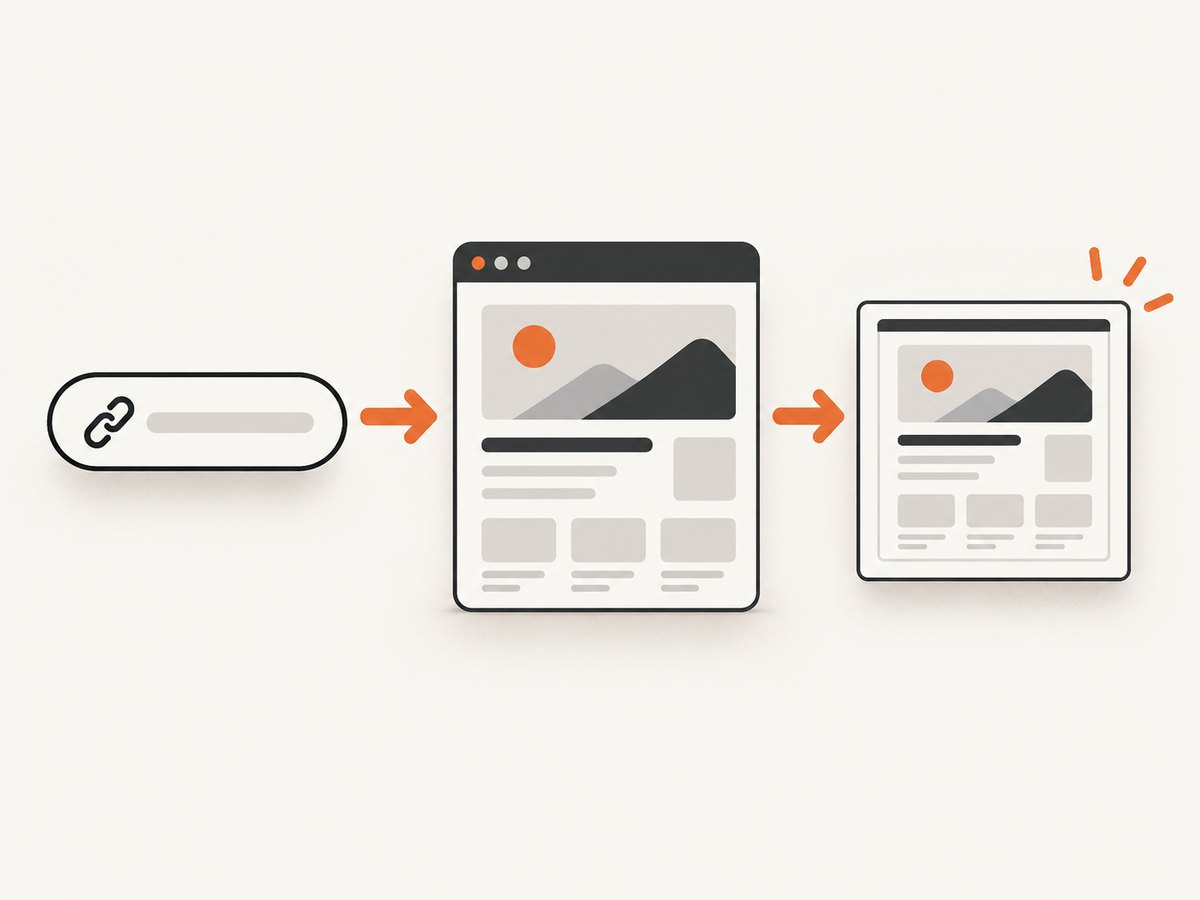
A screenshot is useful when the question is visual: does the page load, what does its layout look like, or is a particular element visible? It captures a rendering at a point in time, so it can show more than a snippet while still omitting interactions, hidden content, and later changes. A screenshot does not certify a site’s safety.
Do it yourself with a browser
For a local, repeatable preview, Playwright can open the page in a headless browser and save a screenshot. Install it in a project with Node.js, then install its browser runtime:
npm install playwright
npx playwright install chromium
Save this as preview.mjs. It accepts a URL argument, waits for the page to reach a useful state, and writes a full-page PNG. Only run it against URLs you are allowed to access.
import { chromium } from 'playwright';

const input = process.argv[2];
if (!input) throw new Error('Usage: node preview.mjs https://example.com');
const url = new URL(input);
if (!['http:', 'https:'].includes(url.protocol)) {
  throw new Error('Only http and https URLs are supported');
}

const browser = await chromium.launch({ headless: true });
try {
  const page = await browser.newPage({ viewport: { width: 1440, height: 900 } });
  await page.goto(url.href, { waitUntil: 'domcontentloaded', timeout: 30000 });
  await page.screenshot({ path: 'preview.png', fullPage: true, animations: 'disabled' });
} finally {
  await browser.close();
}
Run it with node preview.mjs https://example.com. The viewport affects responsive layouts; change its width and height to inspect another screen size. A full-page capture can be very tall on long pages. For a viewport-only screenshot, use fullPage: false. To inspect a single element, locate it with a selector and use its locator’s screenshot method. Add waits only for a known element or state that matters: fixed delays slow every run, and a network-idle condition may never occur on pages with long-lived requests.
For sensitive or user-supplied URLs, add network controls. A browser page can follow redirects, load scripts, and make requests to other hosts. Run captures in an isolated environment, limit allowed destinations, and prevent access to loopback, private, and link-local addresses. Avoid sending credentials or cookies unless the target is trusted and those values are required.
Or skip the browser setup
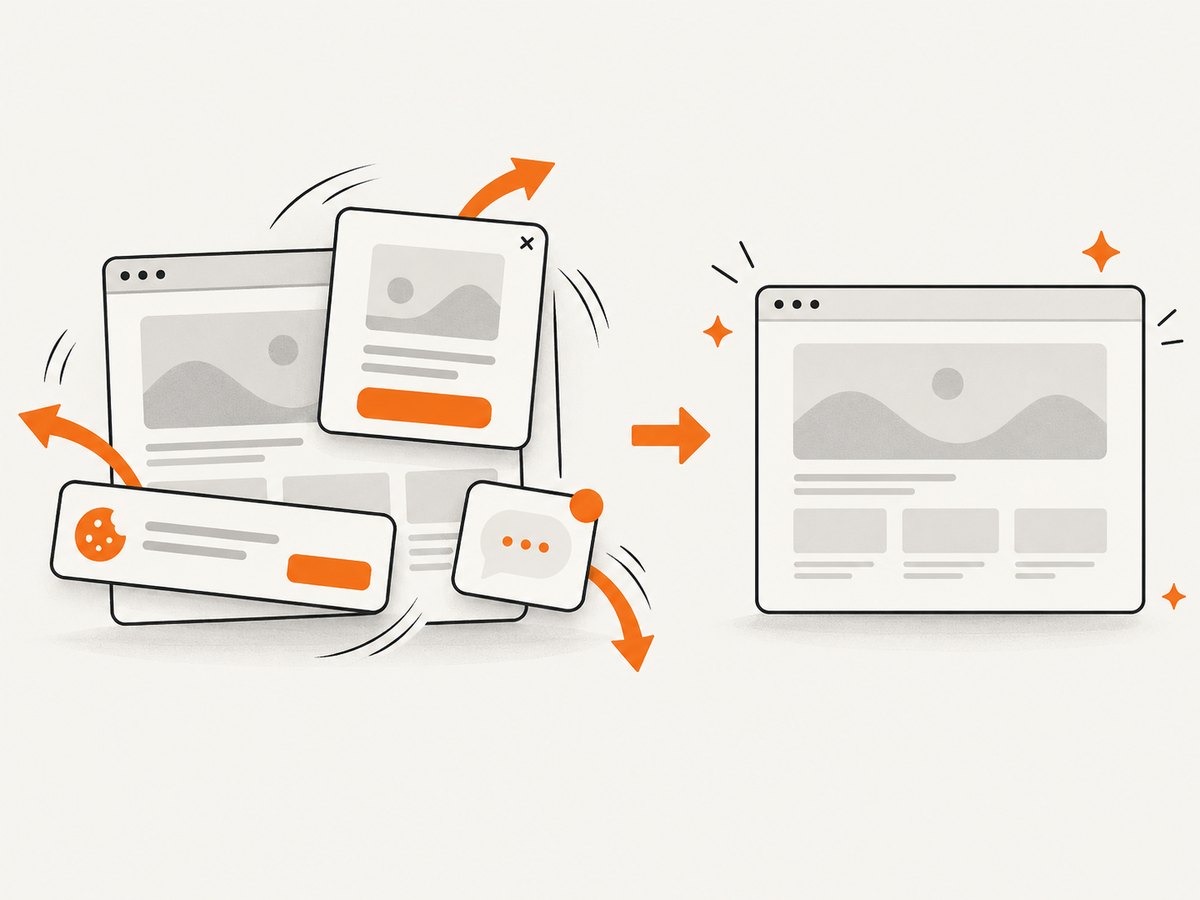
ScreenshotNeo is a website screenshot API and MCP server for developers. Its GET endpoint returns an image or PDF from a URL; see the API documentation for parameters and formats.
curl -G "https://api.screenshotneo.com/v1/shot" -d access_key=YOUR_API_KEY --data-urlencode url=https://example.com -o shot.webpimport requests
r = requests.get(
"https://api.screenshotneo.com/v1/shot",
params={"access_key": "YOUR_API_KEY", "url": "https://example.com"},
timeout=90,
)
r.raise_for_status()
open("shot.webp", "wb").write(r.content)const q = new URLSearchParams({ access_key: 'YOUR_API_KEY', url: 'https://example.com' });
const res = await fetch(`https://api.screenshotneo.com/v1/shot?${q}`);
if (!res.ok) throw new Error(`Screenshot request failed: ${res.status}`);
await Bun.write('shot.webp', res);ScreenshotNeo removes cookie and consent banners, newsletter popups, and chat widgets before capture; each step can be turned off. Bot checks, blank pages, failed loads, timeouts, and cache hits are not billed, and response headers report the page verdict and billing status. AI agents can use its MCP server and tools, including take_screenshot, get_page_info, and capture_pdf. The free plan includes 1,000 screenshots a month with no card; paid plans start at $5 for 3,000. Every feature is on every plan. Sign up for 1,000 free screenshots a month, no card required.
6. Consider a hover-preview extension
Some browser extensions show a linked page in a floating window or preview pane when you hover over a link. This can help when the URL is on a page you are already reading and you want a quick visual check without opening a new tab.
Extensions are optional conveniences, not a universal browser feature. Before installing one, check its current store listing, publisher, maintenance status, and requested permissions. An extension that can read browsing data may see more than the link you intend to preview. Store availability and browser compatibility can change.
7. Check safety before visiting
A preview answers “what might this page be?” It does not answer “is it safe to visit?” A title or screenshot can be stale, forged, incomplete, or generated from content different from what a visitor receives. Use these checks when a link is unfamiliar:
- Read the domain carefully. Look for misspellings, extra words, or a deceptive subdomain. In
account.example.com.attacker.test, the registered destination is underattacker.test. - Check HTTPS, but do not treat it as a trust badge. HTTPS encrypts the connection and certificates help establish the domain connection; a malicious site can still use HTTPS.
- Heed browser warnings. Google Safe Browsing says Chrome and other browsers use warnings before users visit dangerous sites or download harmful apps. Do not bypass a warning because a preview looked normal.
- Keep private URLs private. Search engines, chat apps, preview APIs, extensions, and screenshot services may receive the URL. A signed link can grant access to whoever sees it.
- Do not enter credentials based on a preview. Navigate to a known official domain independently when an account or payment action is involved.
8. Troubleshooting previews
| Symptom | Likely cause | What to try |
|---|---|---|
| No search result or snippet | The page is not indexed, is new, or limits indexing | Try the exact domain or title; use another appropriate preview method |
| Chat card is missing | The app has not fetched metadata, the page lacks share metadata, or previews are disabled | Check workspace settings and the page’s public metadata; avoid repeatedly reposting sensitive links |
| Preview shows old title or image | A search index or app cache may be stale | Allow for refresh or use a source that fetches current content; remember that refresh behavior depends on the service |
| API returns little or no metadata | The publisher opted out, the page blocks fetching, or tags are absent | Handle missing fields gracefully and provide a plain link fallback |
| Browser capture times out | Slow server, long-running requests, redirect loop, or overly strict wait condition | Use a sensible timeout, wait for DOM content or a specific selector, and inspect the final URL and network behavior |
| Screenshot is blank or incomplete | Client rendering has not finished, lazy content is below the fold, or the page requires interaction | Wait for a known element, scroll when appropriate, or capture after the relevant interaction |
| Extension does not preview a link | Unsupported browser, disabled permission, or extension incompatibility | Review the current listing and permissions; remove it if its access is broader than needed |
9. Performance, reliability, and cost
Search snippets and existing chat unfurls are usually the quickest choices because you are reusing information already available. An API or screenshot requires a fetch and can be slower when the target is slow, blocked, or client-rendered. Browser automation also consumes compute and can multiply work if you capture many URLs or viewport sizes.
For a production preview feature, set timeouts, cap response size, limit redirects, and cache results for a period appropriate to the content. Serve a useful fallback when metadata is missing or a target times out. Cache keys should account for the normalized URL and any options that affect rendering. Do not cache private or personalized pages in a shared cache. Treat preview data as untrusted input: escape titles and descriptions before inserting them into HTML, and validate image URLs before displaying them.
For a small one-off check, a search result or chat unfurl has little setup cost. A self-hosted browser gives control over rendering but requires browser installation, isolation, maintenance, and compute. A hosted API trades that setup for per-plan usage and service-specific behavior; compare the required options, privacy handling, and billing rules before using it at scale.
10. A practical decision checklist
- Need only identity? Search the domain or page title.
- Already discussing the URL in a trusted workspace? Inspect its unfurl, considering who can see the message.
- Building software? Use a URL-preview API, honor publisher controls, and protect your fetcher from unsafe destinations.
- Need to inspect layout? Generate a screenshot with an isolated browser or a screenshot API.
- Have an unfamiliar or suspicious link? Verify the domain, keep private URLs out of preview services, and heed browser warnings before visiting.
Frequently asked questions
Can I preview a link without opening a new tab?
Yes. Search snippets, chat unfurls, and some hover-preview extensions can show information without a new tab. A screenshot service can also render a page separately from your everyday browser.
Does a website preview tell me whether a link is safe?
No. A preview is partial content or metadata, not a security verdict. Check the domain and follow browser warnings.
Can I preview a page that requires a login?
Only if the preview method has authorized access and you configure it to use that access. Do not send passwords or session cookies to a service unless you trust it and understand how it handles them.
Why can the preview differ from the page I see later?
Previews can be cached, generated from metadata, or rendered at a different time and viewport. Pages may also personalize content or change after the preview is made.


