How to Preview a WordPress Site
Preview WordPress posts, pages, themes, mobile layouts, and site-wide changes safely before visitors see them.

WordPress gives you several ways to inspect a change before visitors see it. For one post or page, open the editor’s View menu and choose Preview in new tab. Use the desktop, tablet, and mobile presets, then resize the preview canvas manually when you need to check an in-between width. For theme, plugin, or site-wide work, use a staging environment instead of relying on a single post preview.
This guide explains the difference between editor previews, visitor views, Site Editor previews, staging sites, and automated screenshots. It also shows how to capture a preview with code when you need review links, regression checks, or an archive of what a page looked like.
1. Preview one WordPress post or page
Block editor steps
- Sign in to your WordPress dashboard.
- Open Posts or Pages, then edit the item.
- In the editor toolbar, open View.
- Select Preview in new tab. WordPress opens the front-end rendering separately from the editing canvas.
- Inspect the desktop, tablet, and mobile canvas presets. Where the interface allows it, drag the canvas width to test sizes between those presets.
- After further edits, save them and refresh the preview tab. Use Save draft for draft content and Save for published content before refreshing.
The preview uses your active theme, so it shows typography, spacing, navigation, sidebars, templates, and other front-end styling that the editor canvas may not represent exactly. Check headings, links, images, embeds, buttons, forms, and any blocks that depend on a plugin.

Draft versus published content
A draft is not public. Its preview is intended for editors and collaborators who have the required access. A published page with proposed edits is different: preview the saved revision, then consider checking the public URL in a logged-out browser window. A logged-out check can reveal differences caused by caching, personalization, membership rules, or a toolbar that only authenticated users see.
2. Check desktop, tablet, and mobile behavior
A preview is a visual inspection, not a guarantee that every device will render identically. Work through a small responsive checklist:
- Desktop: confirm the content width, header, navigation, columns, tables, and wide images.
- Tablet: look for columns that collapse awkwardly, oversized headings, and menus that change mode.
- Mobile: check line wrapping, tap target size, sticky elements, image cropping, horizontal scrolling, and forms.
- Intermediate widths: resize the preview canvas between WordPress presets to catch breakpoint gaps.
- Real device: if the page uses touch gestures, camera access, location, or a browser-specific feature, open the saved URL on a physical device as a final check.
Save before refreshing. If the preview still looks stale, clear the browser cache or purge the site’s page cache according to your host’s instructions. A cache can preserve an older HTML or stylesheet version even after the editor has saved.
3. Preview a block theme and the Site Editor
The Site Editor is available when a block theme is active. Open Appearance > Editor and use its preview controls to inspect templates and site designs. View site opens the front end in a new tab.
Pay attention to the scope of every proposed change before saving. A header, footer, navigation template, or other shared template part can affect every page that uses it. Preview representative page types, such as the home page, a single post, an archive, a search result, and a page with a different template. If you change a global style, inspect both a content-heavy page and a simple page.
For a single template adjustment, the Site Editor preview may be enough. For a broad theme or plugin experiment, use staging so production remains unchanged while you test interactions.
4. When to use a staging site
Use staging when the change affects more than one piece of content: a theme update, plugin update, PHP or configuration change, checkout flow, membership rules, or a suspected plugin conflict. A staging site is a clone or separate copy where you can test without modifying production.
WordPress.com documents staging for Business and Commerce plans. Its instructions describe cloning the site, testing changes, and syncing selected changes back to production. Review exactly what will be copied or overwritten before syncing. Those plan and workflow details apply to WordPress.com and should not be assumed for every WordPress host.
A practical staging workflow is:
- Create or refresh the staging copy.
- Record the change you intend to test and the pages that must be checked.
- Apply the theme, plugin, content, or configuration change on staging.
- Open representative URLs while logged in and logged out.
- Test forms, commerce, search, navigation, and integrations that matter to your site.
- Capture screenshots or notes for review.
- Sync only the approved changes, then recheck production.
5. Temporary preview links with WordPress Studio
WordPress Studio can create temporary hosted preview sites from local work for client or team feedback. The official developer guide describes these previews as intended for early feedback for up to seven days. Permanent access requires a hosting plan, and the guide describes a limit of up to ten preview sites per account. Treat this as a feedback link for a snapshot, not as a replacement for a production-like staging workflow.
6. Capture a preview automatically
Manual previews are useful during editing. Automated screenshots help when you need a repeatable record, visual review in a pull request, a scheduled archive, or a check at several viewport sizes. The general flow is:
- Make the page available at a URL that the browser can reach.
- Load the page in a real browser engine.
- Wait for the content that matters, such as a selector, a delay, or network idle.
- Set the viewport and device characteristics.
- Capture the viewport, a selected element, or the full page.
- Store the image with the commit, preview ID, or review date.
For private staging, the capture browser must be able to authenticate. Common approaches include a temporary signed URL, custom headers, cookies, basic authentication, or a network path available to the capture worker. Never place a long-lived administrator password in a public preview URL.
DIY browser automation with Playwright
The following Node.js example captures a saved page at desktop and mobile widths. Install Playwright with npm install playwright, then install its browser binaries as directed by the package.
import { chromium } from 'playwright';

const browser = await chromium.launch();
const page = await browser.newPage({
  viewport: { width: 1440, height: 900 },
  deviceScaleFactor: 1
});

await page.goto('https://example.com/preview-page', {
  waitUntil: 'networkidle'
});
await page.screenshot({ path: 'preview-desktop.png', fullPage: true });

await page.setViewportSize({ width: 390, height: 844 });
await page.goto('https://example.com/preview-page', {
  waitUntil: 'networkidle'
});
await page.screenshot({ path: 'preview-mobile.png', fullPage: true });

await browser.close();
Replace the URL with your preview address. For a draft protected by WordPress authentication, create the browser context with the required cookies or headers. For a component-level check, locate the element and call locator.screenshot() instead of taking the whole page. If fonts or lazy images are still loading after network idle, wait for a meaningful selector or add a short delay before the screenshot.
Useful automation decisions
| Need | Approach |
|---|---|
| One article review | Editor preview in a new tab |
| Responsive review | Desktop, tablet, mobile, and an intermediate width |
| Global theme or plugin change | Staging clone |
| Repeatable visual record | Browser automation or a screenshot API |
| One component | Capture an element by selector |
| Private preview | Temporary credentials, headers, cookies, or a protected network path |
7. Or skip the browser setup
ScreenshotNeo captures a URL with one request and returns PNG, JPEG, WebP, or PDF. Its browser handles full-page capture, lazy images, element selectors, device presets, custom viewports, retina scale, dark mode, custom CSS and JavaScript, click actions, hide selectors, selector or network-idle waits, request blocking, headers, cookies, user agents, authorization, timezone, geolocation, transparent backgrounds, resizing, caching, signed links, asynchronous jobs, webhooks, bulk capture, and usage reporting. See the ScreenshotNeo documentation for the complete parameter list and OpenAPI specification.
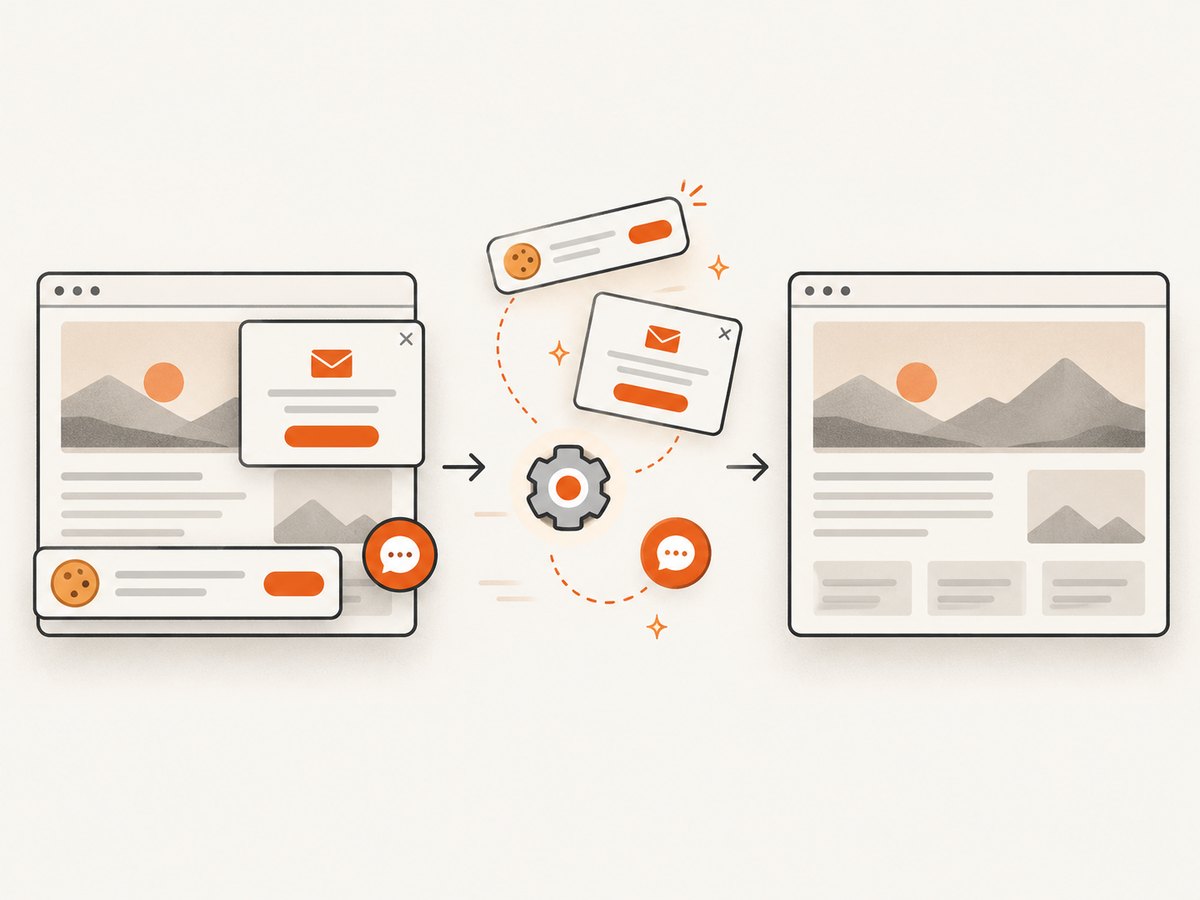
It also removes cookie and consent banners, newsletter popups, and chat widgets before capture. Bot checks, blank pages, timeouts, failed loads, and cache hits are not billed; each response reports the page verdict and billing status in X-Page-Verdict and X-Billed headers.
cURL
curl -G "https://api.screenshotneo.com/v1/shot" \
  -d access_key=YOUR_API_KEY \
  --data-urlencode url=https://example.com/preview-page \
  -o preview.webp
Python
import requests

r = requests.get(
    "https://api.screenshotneo.com/v1/shot",
    params={
        "access_key": "YOUR_API_KEY",
        "url": "https://example.com/preview-page"
    },
    timeout=90
)
r.raise_for_status()
open("preview.webp", "wb").write(r.content)
Node.js
const q = new URLSearchParams({
  access_key: 'YOUR_API_KEY',
  url: 'https://example.com/preview-page'
});
const res = await fetch(`https://api.screenshotneo.com/v1/shot?${q}`);
if (!res.ok) throw new Error(`Screenshot failed: ${res.status}`);
const buffer = Buffer.from(await res.arrayBuffer());
await import('node:fs/promises').then(fs => fs.writeFile('preview.webp', buffer));
Use the same request with options for a full-page capture, a CSS selector, a mobile preset, a wait condition, custom cookies, or PDF output. The service accepts the parameter names used by other screenshot APIs, which can reduce migration work. An MCP server provides take_screenshot, get_page_info, and capture_pdf tools for Claude, Cursor, and other MCP clients.
There are 1,000 free screenshots each month with no card. Paid plans start at $5 for 3,000 screenshots; all features are available on every plan. Create a free ScreenshotNeo account and use the free allowance to capture your next WordPress preview.
8. Troubleshooting preview problems
The preview shows old content
Save the draft or published edit, refresh the preview tab, and clear or purge page caches if necessary. Check whether a CDN or optimization plugin is serving an older page.
The page looks correct in the editor but wrong in the preview
The active theme and front-end CSS control the public rendering. Inspect the preview tab, not only the editor canvas. Check theme styles, template parts, responsive rules, and plugin-generated markup.
Mobile content is cut off
Test a narrow viewport and an intermediate width. Look for fixed-width containers, wide tables, unscaled images, long URLs, and scripts that add horizontal overflow.
A draft preview is inaccessible to a reviewer
The reviewer may not have permission to view drafts, or the preview may require your logged-in session. Use an authorized account, a temporary protected link, or a staging preview with access controls.
A screenshot is blank or missing lazy images
Wait for a content selector, a known image, or network idle. Full-page capture must allow the page to scroll or otherwise trigger lazy loading. Confirm that the target URL is reachable from the capture environment.
Staging changes appear on production
Verify the hostname before editing, and confirm that the host’s staging copy is decoupled from production. Review the sync direction and selected items before applying a sync.
9. Performance, reliability, and cost notes
- Capture only the viewport or element you need when a full-page image is unnecessary; it transfers less data and is easier to review.
- Use a wait condition tied to real content instead of an unnecessarily long fixed delay.
- Cache stable URLs with a TTL when repeated captures do not need fresh data.
- For many URLs, queue asynchronous jobs or use bulk capture rather than starting hundreds of browser processes at once.
- Record the URL, viewport, theme or commit identifier, timestamp, and page verdict beside each artifact.
- For ScreenshotNeo, inspect
X-Page-VerdictandX-Billedso failed loads and cache hits can be separated from clean, billable shots. - Keep preview credentials short-lived and scoped to the pages being reviewed.
10. WordPress preview checklist
- Saved the draft or published edit.
- Checked the front-end preview in a new tab.
- Reviewed desktop, tablet, mobile, and an intermediate width.
- Verified headings, links, images, embeds, forms, and buttons.
- Opened the public URL while logged out when the page is published.
- Inspected shared templates after Site Editor changes.
- Used staging for theme, plugin, configuration, or site-wide changes.
- Captured repeatable screenshots when a reviewer needs evidence.
- Confirmed caches and CDN behavior before publishing.
FAQ
Can I preview a WordPress page without publishing it?
Yes. Edit the draft and choose View > Preview in new tab. Access depends on the user’s WordPress permissions.
How do I preview a page on a phone?
Use the mobile preset in the preview controls, resize the canvas where available, and confirm important interactions on a real phone when touch behavior matters.
Is a preview the same as staging?
No. A post or page preview checks one saved rendering. Staging is a separate copy for testing broader site changes.
Why does a shared header change many pages?
Block themes reuse template parts. Editing a shared header or footer changes every template that includes it, so preview representative page types before saving.
Can I make screenshots of a private WordPress staging site?
Yes, if the capture browser can authenticate through temporary cookies, headers, authorization, or an accessible network path. Keep credentials scoped and short-lived.
What is the quickest automated option?
Use a screenshot API such as ScreenshotNeo when you want a URL-to-image request without maintaining browser binaries, wait logic, consent cleanup, and capture infrastructure.