How to Print Duplex Documents with wkhtmltopdf
wkhtmltopdf creates the PDF; duplex printing is selected in your printer workflow. Follow this complete guide to reliable two-sided output.
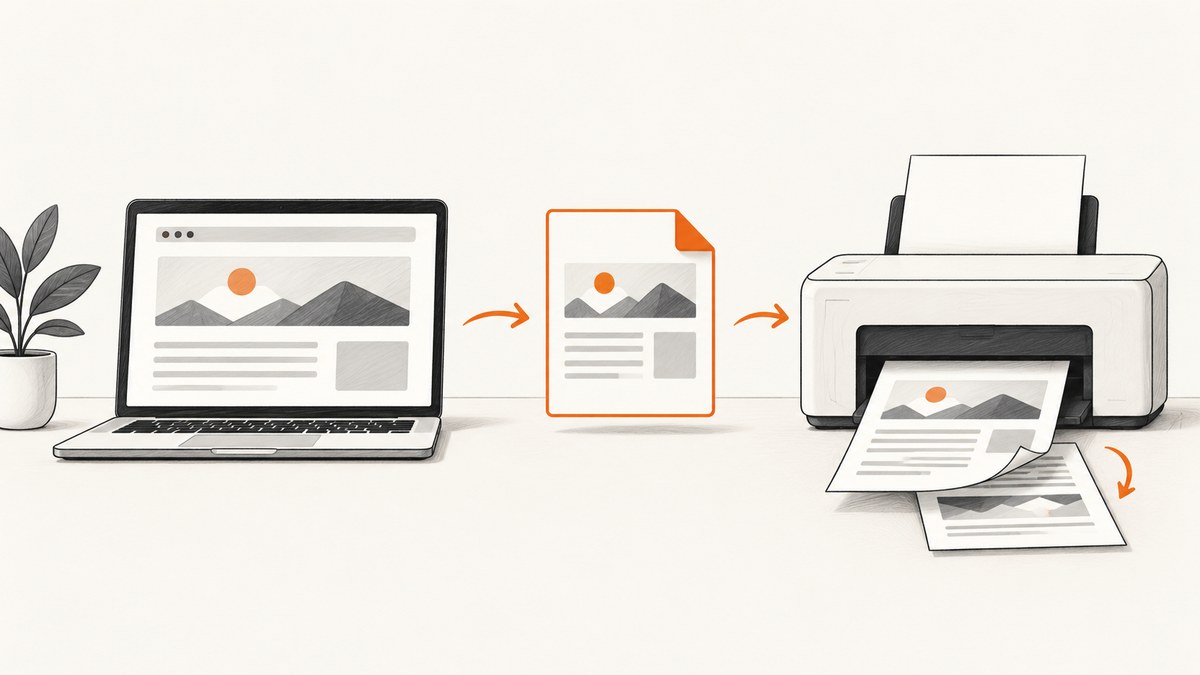
Direct answer: wkhtmltopdf does not provide a documented duplex or two-sided printing switch. It converts HTML into a PDF. You select two-sided printing later in the operating system print dialog, print queue, or printer driver, provided the printer supports duplex. The reliable workflow is therefore: render the PDF, verify its page geometry, then send that PDF to a duplex-capable print system.
What wkhtmltopdf does—and where duplex begins
The wkhtmltopdf project describes the tool as an open-source command-line program that renders HTML into PDF (and other image formats) with the Qt WebKit rendering engine. A basic conversion looks like this:
wkhtmltopdf input.html output.pdfThe 0.12.6 command-line manual documents page size, dimensions, orientation, margins, grayscale, copies, print media, headers, footers, and many rendering controls. It does not document a --duplex, --two-sided, or equivalent option. Physical duplex means printing on both sides of one sheet; that decision belongs to the printer and its driver.
This boundary matters because a PDF has pages, not physical sheets. The printer decides how pages map onto paper. A four-page PDF can become two sheets when duplex is enabled, four sheets when simplex is selected, or a different result if the driver imposes pages per sheet.
Complete workflow: HTML to a two-sided print job
- Prepare stable HTML. Use explicit widths, predictable fonts, and print CSS. Avoid relying on viewport behavior that differs between screen and paper.
- Render the PDF. Run wkhtmltopdf and choose paper size, orientation, and margins deliberately.
- Inspect the PDF. Confirm page count, page breaks, orientation, and that content is not clipped.
- Open the system print workflow. Select a printer that supports automatic duplex.
- Enable two-sided printing. The setting may be labelled Duplex, Two-sided, Print on both sides, or Long-edge/short-edge binding.
- Print a small sample. Check page order, rotation, margins, and the side on which the reverse page appears before printing a large batch.
A dependable wkhtmltopdf command
wkhtmltopdf \
  --page-size A4 \
  --orientation Portrait \
  --margin-top 18mm \
  --margin-right 18mm \
  --margin-bottom 18mm \
  --margin-left 18mm \
  --print-media-type \
  input.html output.pdf
A4 and Portrait are the documented defaults, but specifying them makes an automated job easier to review. Use --page-size Letter for Letter paper, or use --page-width and --page-height when a custom sheet is required. These options change the PDF layout; they do not turn duplex on.
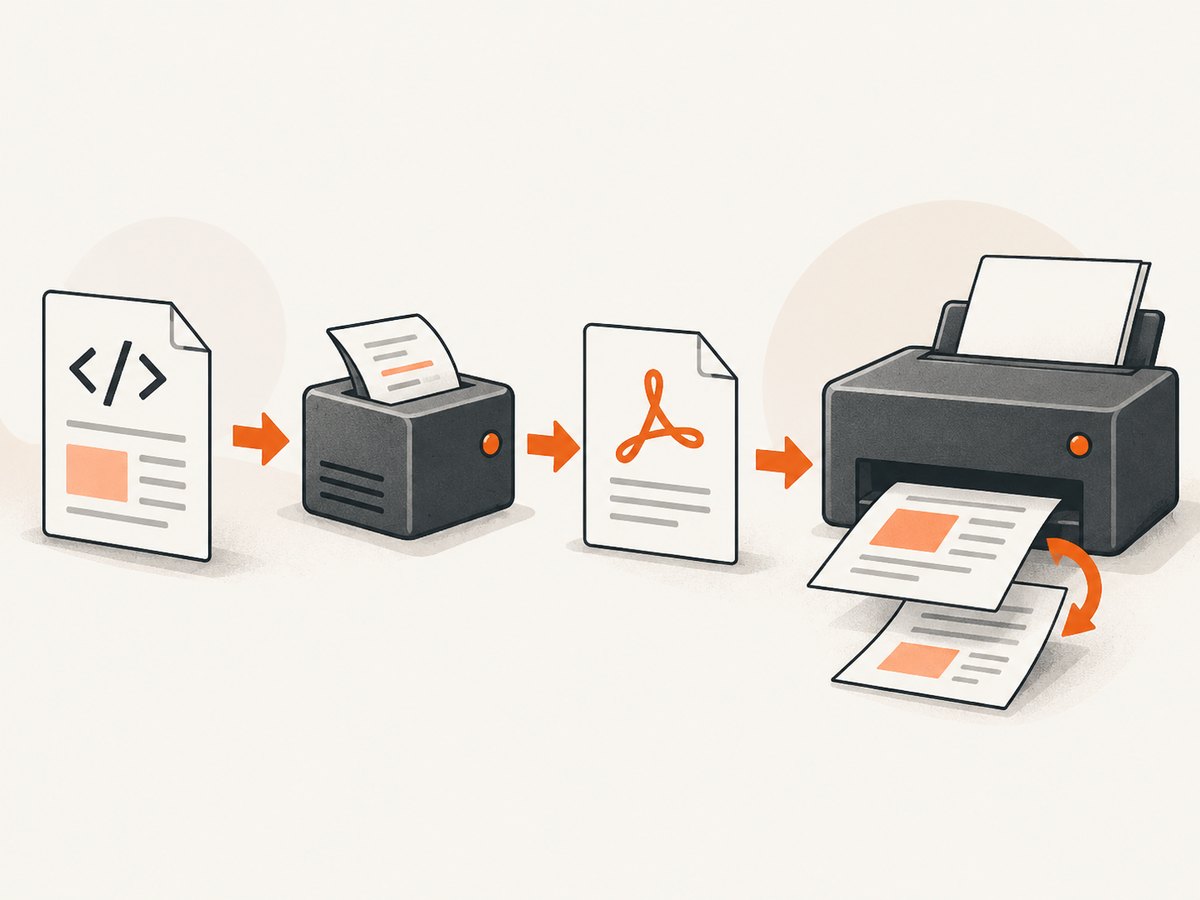
Print from a graphical PDF viewer
Open output.pdf, choose Print, select the intended printer, and look for the two-sided control. Choose long-edge binding for a conventional portrait document that turns like a book. Short-edge binding is useful when the reverse side should flip upward, such as a calendar or landscape handout. Names and locations vary by operating system and driver.
Print from a Unix-like command line
On systems using CUPS, lp can submit the PDF. The exact option names depend on the printer queue, so inspect its advertised capabilities first:
lpoptions -p YOUR_QUEUE -l
lp -d YOUR_QUEUE -o sides=two-sided-long-edge output.pdf
Some queues expose sides=two-sided-short-edge instead. If sides is not listed, the queue may not expose duplex support, the driver may be incomplete, or the device may be simplex-only. Do not assume that accepting an option means the printer physically supports it; confirm with a test sheet.
Layout settings that affect duplex results
| Concern | wkhtmltopdf control | Why it matters for two-sided paper |
|---|---|---|
| Paper | --page-size, --page-width, --page-height |
Mismatch can scale, clip, or shift both sides. |
| Orientation | --orientation Portrait|Landscape |
Determines which edge is treated as the binding edge. |
| Safe area | --margin-* |
Printers have non-printable edges; mirrored pages need room on both sides. |
| Page breaks | CSS break-before, break-after, and legacy page-break-* |
Prevents headings, tables, or cards from splitting unexpectedly. |
| Media rules | --print-media-type |
Uses print-specific CSS when the document defines it. |
| Copies | --copies |
Controls the number of PDF copies; it is not a duplex setting. |
Use print CSS to control page boundaries
@media print {
  @page {
    size: A4 portrait;
    margin: 18mm;
  }

  .chapter {
    break-before: page;
    page-break-before: always;
  }

  table, figure, pre {
    break-inside: avoid;
    page-break-inside: avoid;
  }

  a {
    color: #000;
    text-decoration: none;
  }
}
Keep the printable area consistent across odd and even pages. If your design needs different inner margins for a bound booklet, wkhtmltopdf’s normal page layout does not automatically mirror left and right margins by page parity. Build and inspect the document with the binding method in mind, or apply booklet-specific imposition later.
Automatic versus manual duplex
Automatic duplex requires a printer and driver that can feed a sheet back through and print its reverse. When supported, the driver handles page sequencing and orientation after you choose the binding edge.
If the printer has no automatic duplex unit, some models support a manual procedure: print one side, reload the stack, and print the other side. Reload direction, whether to print odd or even pages first, and page rotation differ by model. The available sources do not establish a universal sequence. Follow the printer’s own instructions and test with two pages before using a full document.
Troubleshooting
No duplex option appears
Cause: the selected device or driver does not advertise two-sided printing. Fix: verify the physical model, install the manufacturer’s driver, select the correct queue, and inspect its capabilities. If it remains absent, use the device’s documented manual-duplex process or a printer with automatic duplex.
The reverse side is upside down
Cause: the wrong binding edge was selected. Fix: use long-edge for book-style portrait pages and short-edge when the page should flip over its short edge. Reprint a two-page sample.
Pages are clipped or shifted
Cause: PDF paper size, printer paper, scaling, or margins disagree. Fix: match --page-size to the loaded paper, disable unintended “Fit to page” scaling when exact dimensions matter, and keep content inside conservative margins.
Blank or nearly blank pages appear
Cause: CSS page breaks, oversized elements, or a forced break at the end of a section. Fix: inspect the PDF before printing, remove redundant breaks, constrain images and tables, and avoid placing break-before: page on the first element of a page.
Headers and footers overlap content
Cause: header/footer spacing is smaller than the rendered header or footer. Fix: increase the relevant margin and header/footer spacing, then inspect the first and last page of each section.
The PDF differs from the browser preview
Cause: wkhtmltopdf uses Qt WebKit and print rendering rules, not the exact engine used by a modern browser. Fix: use print CSS, embed or install required fonts, avoid unsupported modern CSS where possible, and treat the generated PDF as the source of truth.
Images or web fonts are missing
Cause: inaccessible URLs, blocked resources, authentication, or timing. Fix: make assets reachable from the conversion environment, use local files where appropriate, and ensure the HTML has finished loading before conversion. Check the command output for resource errors.
Reliability, performance, and repeatable jobs
- Pin the wkhtmltopdf version used by a build or document service; distributions and patched builds can differ.
- Keep source HTML, CSS, and assets together and record the command-line options beside the generated PDF.
- Render once, validate the PDF, and submit that exact file to the print queue. Re-rendering during printing makes troubleshooting harder.
- For batches, generate files with deterministic names, record page counts, and print a sample after changing templates or printer drivers.
- Use conservative margins and avoid unnecessarily large raster images to reduce rendering time and PDF size.
- Separate conversion failures from print failures: first confirm that
output.pdfopens correctly, then diagnose the queue or device.
Or skip the browser setup
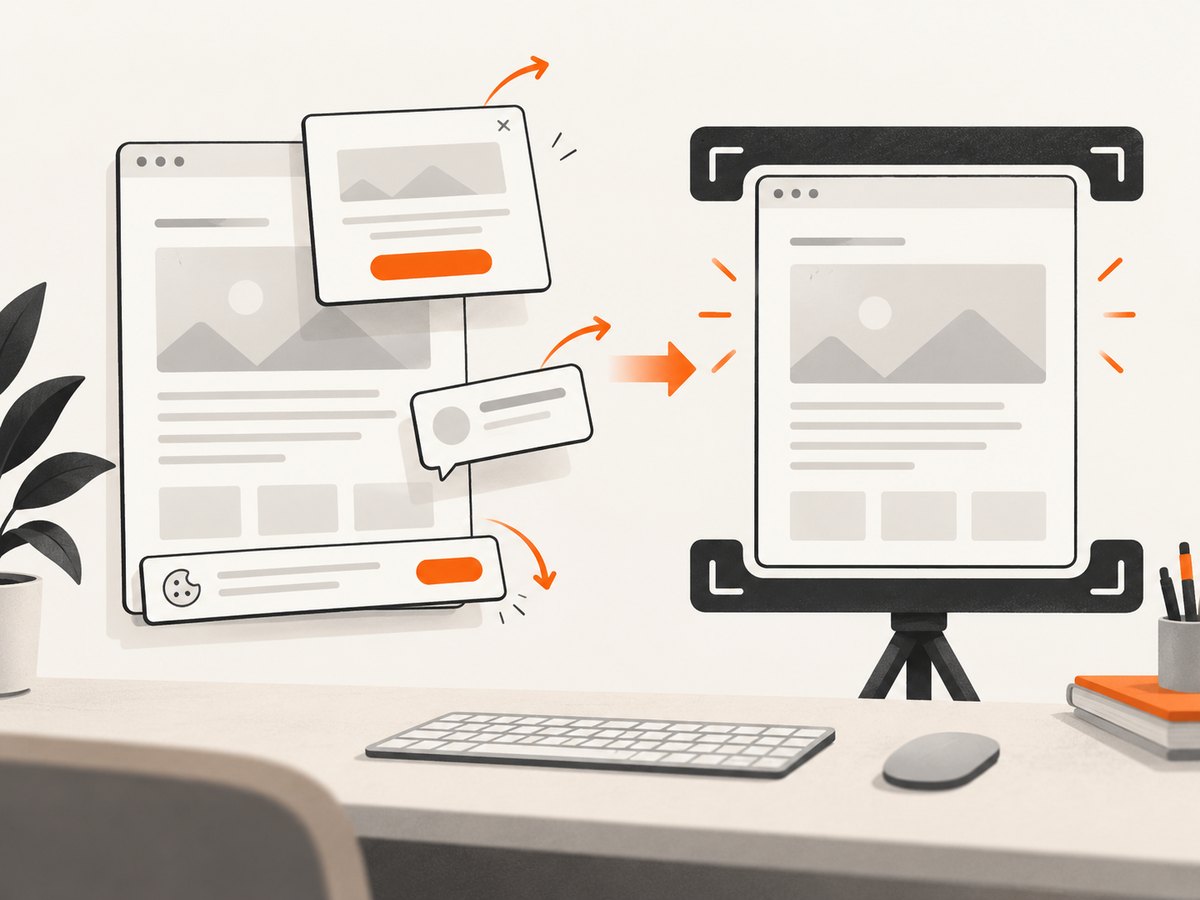
If your actual need is a clean capture of a web page for review, documentation, or an asset pipeline rather than a physical two-sided print, ScreenshotNeo returns a screenshot or PDF from one GET request. It handles the capture browser for you. Cookie and consent banners, newsletter popups, and chat widgets are removed before the shot; bot checks, blank pages, timeouts, failed loads, and cache hits are not billed. The response identifies the result with X-Page-Verdict and X-Billed headers. An MCP server also lets Claude, Cursor, or another MCP client call take_screenshot, get_page_info, and capture_pdf.
See the ScreenshotNeo API documentation for the complete option list, including PDF paper size, margins, orientation, page ranges, custom CSS and JavaScript, waiting rules, authentication, cookies, caching, signed links, asynchronous jobs, bulk capture, and usage data.
cURL
curl -G 'https://api.screenshotneo.com/v1/shot' \
  -d access_key=YOUR_API_KEY \
  --data-urlencode url=https://stripe.com \
  -o shot.webp
Python
import requests

r = requests.get(
    'https://api.screenshotneo.com/v1/shot',
    params={'access_key': 'YOUR_API_KEY', 'url': 'https://stripe.com'},
    timeout=90,
)
r.raise_for_status()
open('shot.webp', 'wb').write(r.content)
Node.js
const q = new URLSearchParams({
  access_key: 'YOUR_API_KEY',
  url: 'https://stripe.com'
});
const res = await fetch(`https://api.screenshotneo.com/v1/shot?${q}`);
if (!res.ok) throw new Error(`HTTP ${res.status}`);
const fs = await import('node:fs/promises');
await fs.writeFile('shot.webp', Buffer.from(await res.arrayBuffer()));
ScreenshotNeo includes 1,000 screenshots per month free with no card. Paid plans start at $5 for 3,000 shots, and every feature is available on every plan. Create a free ScreenshotNeo account.
FAQ
Can I add --duplex to wkhtmltopdf?
The cited 0.12.6 manual does not document such an option. Treat duplex as a print-driver setting.
Does --copies 2 print front and back?
No. It controls the number of copies in the PDF output. It does not select two-sided printing.
Which binding option should I choose?
For portrait pages that turn like a book, choose long-edge. Choose short-edge when the reverse should flip upward. Confirm with a small sample.
Can wkhtmltopdf create a booklet automatically?
The workflow described here creates ordinary PDF pages. Booklet imposition and duplex sequencing are separate print or PDF-processing steps.
What should I verify before a large print run?
Check paper size, orientation, scale, margins, page order, reverse-side rotation, and the printer’s duplex capability with a two-page sample.


