Print a Full-Page Screenshot
Capture an entire webpage below the fold as an image, or print it to a paginated PDF. Follow exact Firefox, Edge, Chrome, and automation steps.
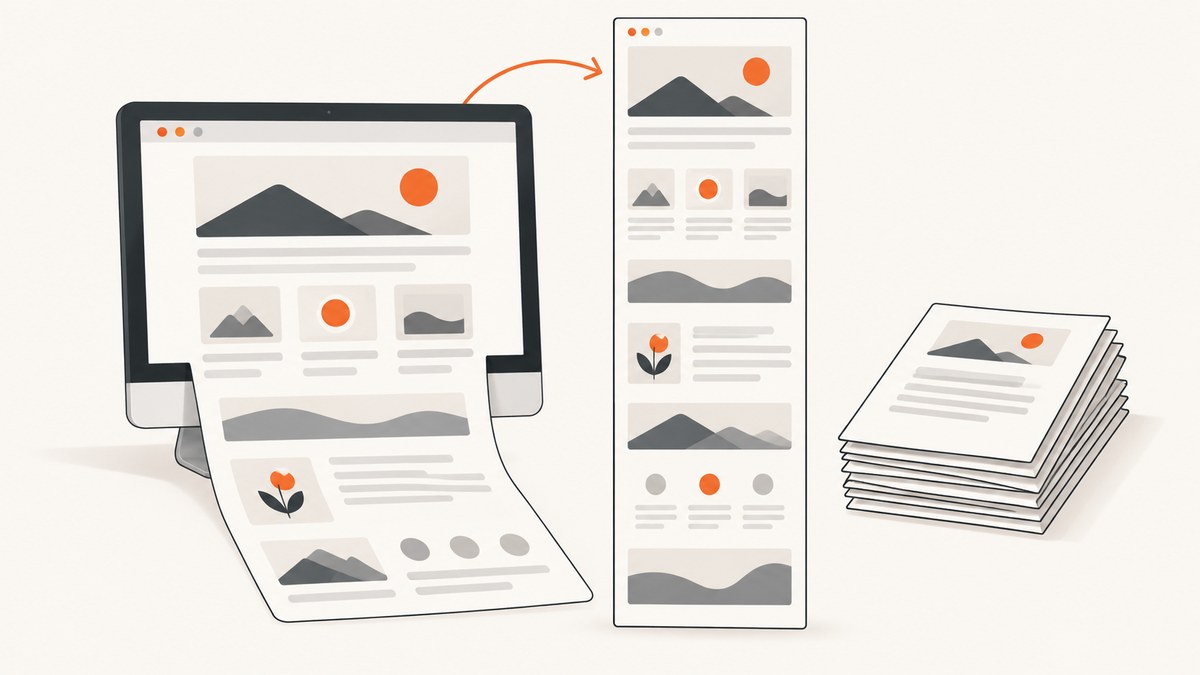
To capture a webpage below the fold as one image, use your browser’s full-page screenshot command. Firefox calls it Save full page, Edge calls it Capture full page, and Chrome provides full-page capture through DevTools. If you need a printable document with pages, headers, or margins, use the browser’s print dialog and choose a PDF destination instead. A screenshot image and a print-to-PDF document are different outputs.
Choose the right output
| Goal | Best method | Result |
|---|---|---|
| One tall visual record of the rendered page | Browser full-page screenshot | PNG or another image format |
| A document that can paginate or follow print styles | Print dialog → PDF destination | Paginated PDF |
| Only the visible viewport | Normal screenshot or browser “visible” option | Image of what is currently on screen |
| One component below the fold | Chrome DevTools node capture | Image of the selected DOM node |
Dynamic loading, animations, lazy images, browser versions, and device differences can change the result. Review the capture before sharing it.
Firefox: save the entire page
- Open the page in Firefox.
- Right-click an empty area and select Take Screenshot. You can also press Ctrl+Shift+S on Windows/Linux or Command+Shift+S on macOS.
- Choose Save full page.
- Download the image or copy it using the options shown.
Choose Save visible when you only need the current viewport. Firefox also lets you add a Screenshot button through toolbar customization. Menu names can move between browser releases. See Mozilla’s Firefox Screenshots instructions.
Microsoft Edge: capture the full page
- Open the webpage in Edge.
- Press Ctrl+Shift+S on Windows, or open Screenshot from the page’s right-click menu or Edge Settings menu.
- Select Capture full page.
- Review the result, then copy or save it.
Edge’s tool can capture content beyond the screen, including long or moving webpages. Availability and behavior can vary by device type, market, and browser version. If you need a document, open Settings and more → Print (or press Ctrl+P on Windows or Command+P on macOS), then select the desired PDF destination. Microsoft also documents Immersive Reader as a possible way to simplify some pages before printing, though it is not available on every site. See Microsoft Edge’s Screenshot Tool page.
Chrome: use DevTools for a full-page capture
Chrome’s technical route is useful when you need a repeatable developer workflow or want to capture a specific DOM node.
- Open the page and press F12 (or Command+Option+I on macOS) to open DevTools.
- Open the Elements panel.
- Right-click the element you want to capture.
- Select Capture node screenshot. For the entire document, select the page’s top-level document element when appropriate.
This captures the selected node, including content below the visible viewport. Chrome’s Command Menu also has Capture area screenshot, but that is for a user-selected region, not a full-page capture. Chrome documents both workflows in its DevTools screenshot guide.
Chrome Headless: automate a full-page image or PDF
For scripts and CI jobs, Chrome Headless exposes separate screenshot and PDF routes. The following commands require a Chrome/Chromium executable available as google-chrome (adjust the executable name for your system).
google-chrome --headless --disable-gpu \
  --window-size=1440,900 \
  --timeout=15000 \
  --screenshot=page.png \
  https://example.com
--window-size sets the viewport used for rendering, --timeout limits how long Chrome waits, and --screenshot writes an image. A very tall page can produce a large file; check dimensions and memory use in your pipeline.
google-chrome --headless --disable-gpu \
  --window-size=1440,900 \
  --timeout=15000 \
  --print-to-pdf=page.pdf \
  https://example.com
--print-to-pdf is a separate output route. It follows print-oriented behavior and produces pages rather than one continuous image. See the Chrome Headless documentation for the current command-line reference.
Handling pages that do not capture cleanly
Lazy-loaded images are missing
Scroll through the page once before capturing so images have a chance to load. If you automate the process, wait for the page’s network activity and image elements before taking the shot. Some sites intentionally load media only after an interaction.
Sticky headers repeat or cover content
A fixed header can appear over every section or obscure text in a stitched capture. Temporarily hide it with DevTools, use a reader/print view for a document, or capture a clean rendered page through an API that supports custom CSS and hidden selectors.
Animations, video, and carousels are inconsistent
Pause media where possible and capture after the desired frame is visible. Two captures of the same URL can differ when content moves or rotates. Edge specifically notes that its tool can encounter moving content; treat the result as a snapshot of one moment.
The page is blocked by a login, bot check, or consent banner
Sign in first when you are authorized to access the page. For consent dialogs, accept the required choice before capturing. A bot challenge may prevent a browser or automation job from obtaining the real page at all.
Or skip the browser setup
ScreenshotNeo returns a page screenshot or PDF from one GET request. Its full-page mode loads lazy images, and options include CSS element capture, custom CSS and JavaScript, click actions, selector or network-idle waits, dark mode, device presets, retina scale, hidden selectors, request blocking, headers, cookies, user agents, timezone, geolocation, resizing, caching, async jobs, bulk capture, and PDF settings. The ScreenshotNeo API documentation lists the parameters.
curl -G "https://api.screenshotneo.com/v1/shot" -d access_key=YOUR_API_KEY --data-urlencode url=https://stripe.com -o shot.webpimport requests
r = requests.get(
"https://api.screenshotneo.com/v1/shot",
params={"access_key": "YOUR_API_KEY", "url": "https://stripe.com"},
timeout=90,
)
r.raise_for_status()
open("shot.webp", "wb").write(r.content)const q = new URLSearchParams({ access_key: 'YOUR_API_KEY', url: 'https://stripe.com' });
const res = await fetch(`https://api.screenshotneo.com/v1/shot?${q}`);
if (!res.ok) throw new Error(`HTTP ${res.status}`);
const bytes = new Uint8Array(await res.arrayBuffer());
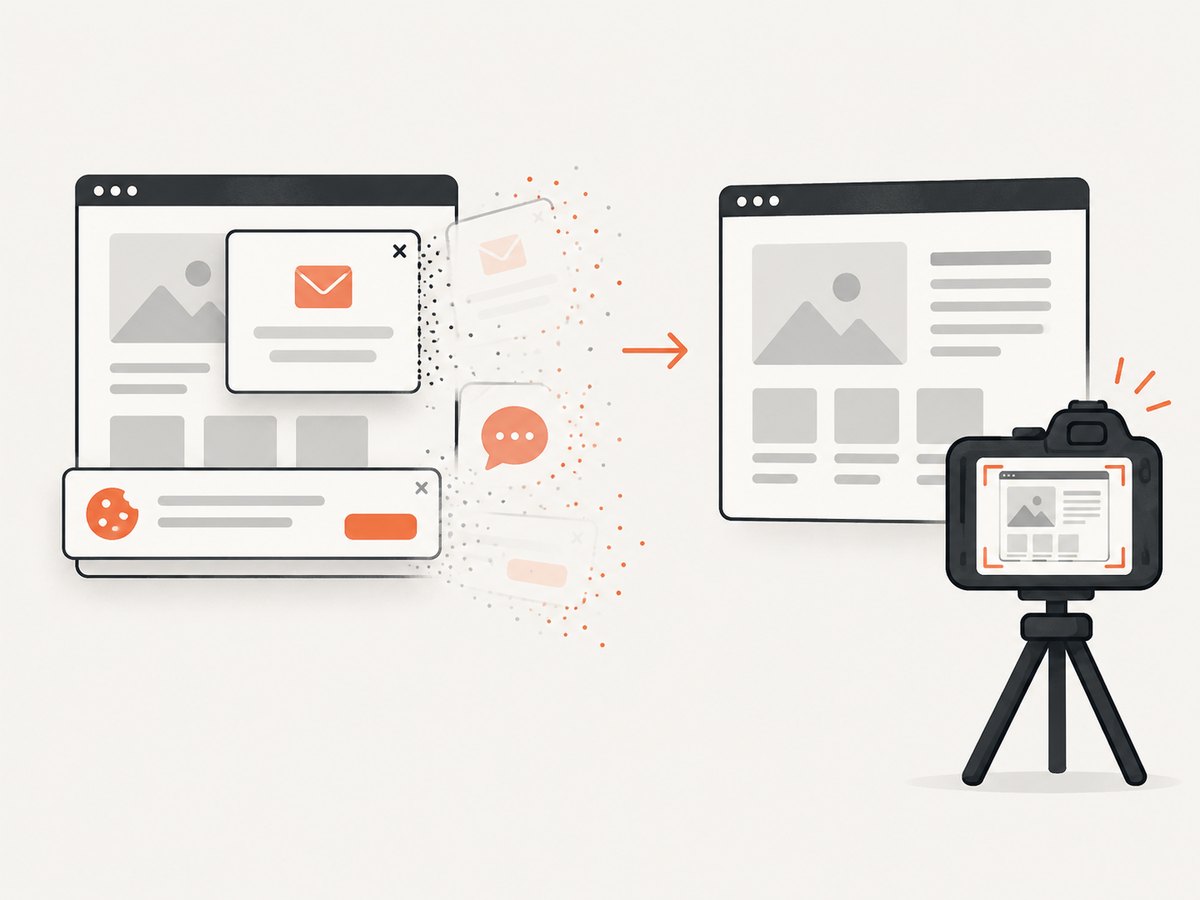
await Bun.write('shot.webp', bytes);Cookie and consent banners, newsletter popups, and chat widgets are removed before the shot. Bot checks, blank pages, timeouts, failed loads, and cache hits are not billed; response headers identify the page verdict and whether it was billed. An MCP server provides take_screenshot, get_page_info, and capture_pdf tools for Claude, Cursor, and other MCP clients. The Free plan includes 1,000 screenshots per month with no card; paid plans start at $5 for 3,000 shots. Create a free ScreenshotNeo account.
Troubleshooting checklist
| Symptom | Likely cause | Fix |
|---|---|---|
| Only the visible screen is saved | Visible/area capture was selected | Use Firefox Save full page, Edge Capture full page, or Chrome node capture. |
| Bottom sections are blank | Lazy loading had not completed | Scroll first, increase the wait, or use a capture option that loads lazy images. |
| Text is hidden behind a bar | Sticky navigation overlays the page | Hide the selector with temporary CSS or capture after removing the overlay. |
| PDF has unexpected page breaks | Print CSS and paper settings control pagination | Adjust print settings, paper size, margins, and orientation; use an image capture for one continuous canvas. |
| Headless command times out | Slow network, scripts, or a blocked page | Raise the timeout, verify the URL from the same environment, and inspect redirects or authentication. |
| Screenshot differs between runs | Animations, rotating content, ads, or personalization | Pause motion, block changing resources, set a fixed viewport, and use deterministic test data. |
Performance, reliability, and cost considerations
- Page height: A full-page image can be much larger than a viewport capture. Resize or choose WebP when your delivery system supports it.
- Wait strategy: A fixed delay is simple; waiting for a selector or network idle is usually more targeted. Set an upper timeout so a broken page does not stall a job.
- Repeatability: Fix viewport, device scale, timezone, locale, authentication state, and animation state when comparing screenshots.
- PDF versus image: PDF is preferable for printing and text selection; an image preserves the visual canvas and is easier to embed in image workflows.
- Service billing: ScreenshotNeo bills only clean shots. Failed loads, bot checks, blank pages, timeouts, and cache hits are free, with status exposed in response headers. Its cache TTL, bulk endpoint, and asynchronous jobs can reduce repeated work for large batches.
FAQ
Does “full page” include content below the fold?
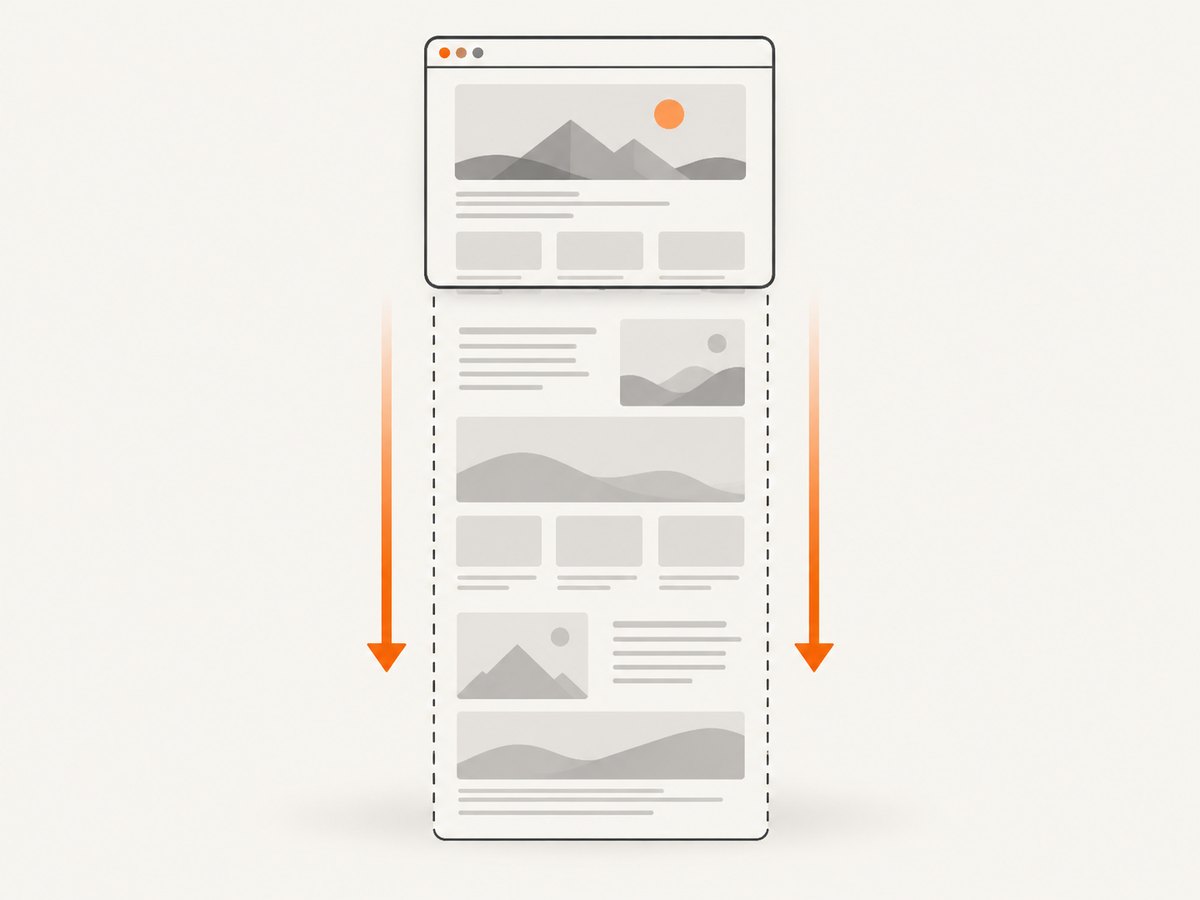
Yes. It captures content outside the currently visible viewport, subject to what the page successfully renders.
Is a full-page screenshot the same as printing?
No. A screenshot is an image of the rendered page. Printing to PDF creates a paginated document using print settings and print styles.
Can I capture just one long component?
Yes. Chrome DevTools can capture a selected node, and ScreenshotNeo can target an element with a CSS selector.
Why is there no Safari procedure here?
The available official research did not confirm a current Safari full-page image workflow, so use a verified Safari-specific source for that browser.


