How to Print an Image With Chrome Command-Line Switches
Learn what Chrome’s command-line switches can print, capture, or save—and how to turn a webpage into an image, PDF, or paper copy.
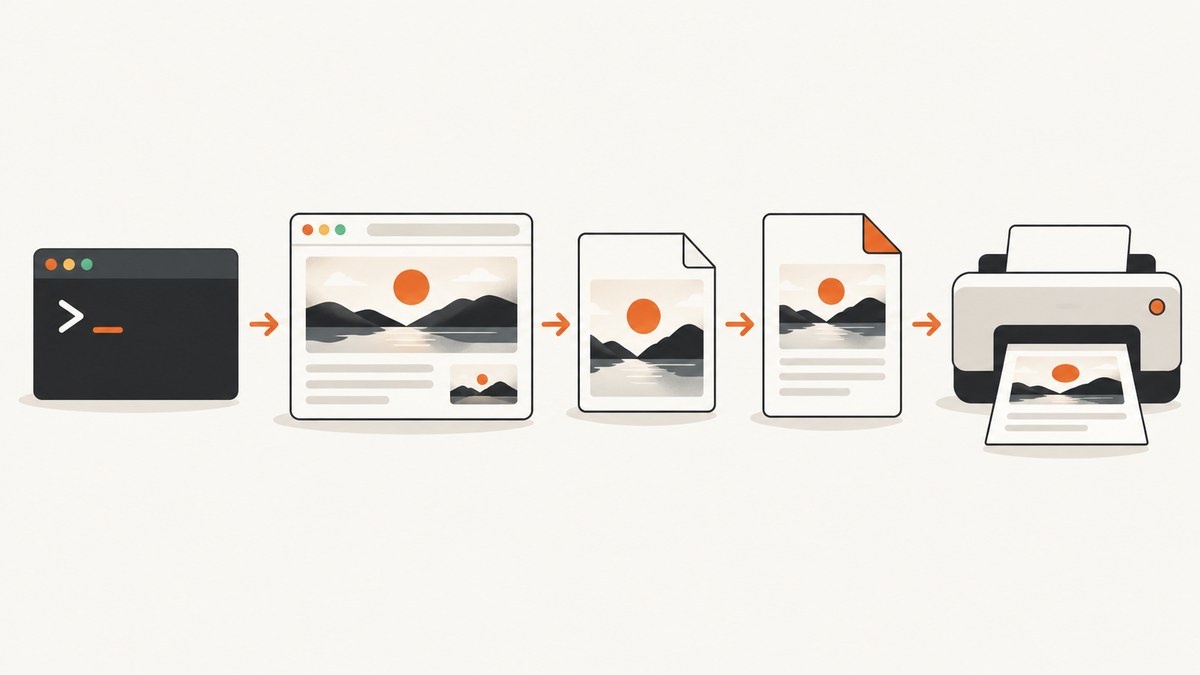
Short answer: Chrome’s documented Headless command-line switches capture a rendered webpage as an image or save it as a PDF. They do not directly send an arbitrary image file to a physical printer. Use --screenshot for PNG, JPEG, or WebP output, --print-to-pdf for a PDF, then submit that file through your operating system’s print workflow.
This distinction matters because “print an image” can mean three different jobs:
- Render a URL and save the result as a raster image.
- Render a URL and save a printable PDF.
- Send an existing image or PDF to a configured printer.
The first two are supported by Chrome Headless. The third is a separate desktop or enterprise print operation. The Chrome Headless command-line reference documents the capture and PDF switches, while Chrome Enterprise documentation covers printer submission and PDF rasterization policies.
1. Capture a webpage as an image
Run this command from a shell:
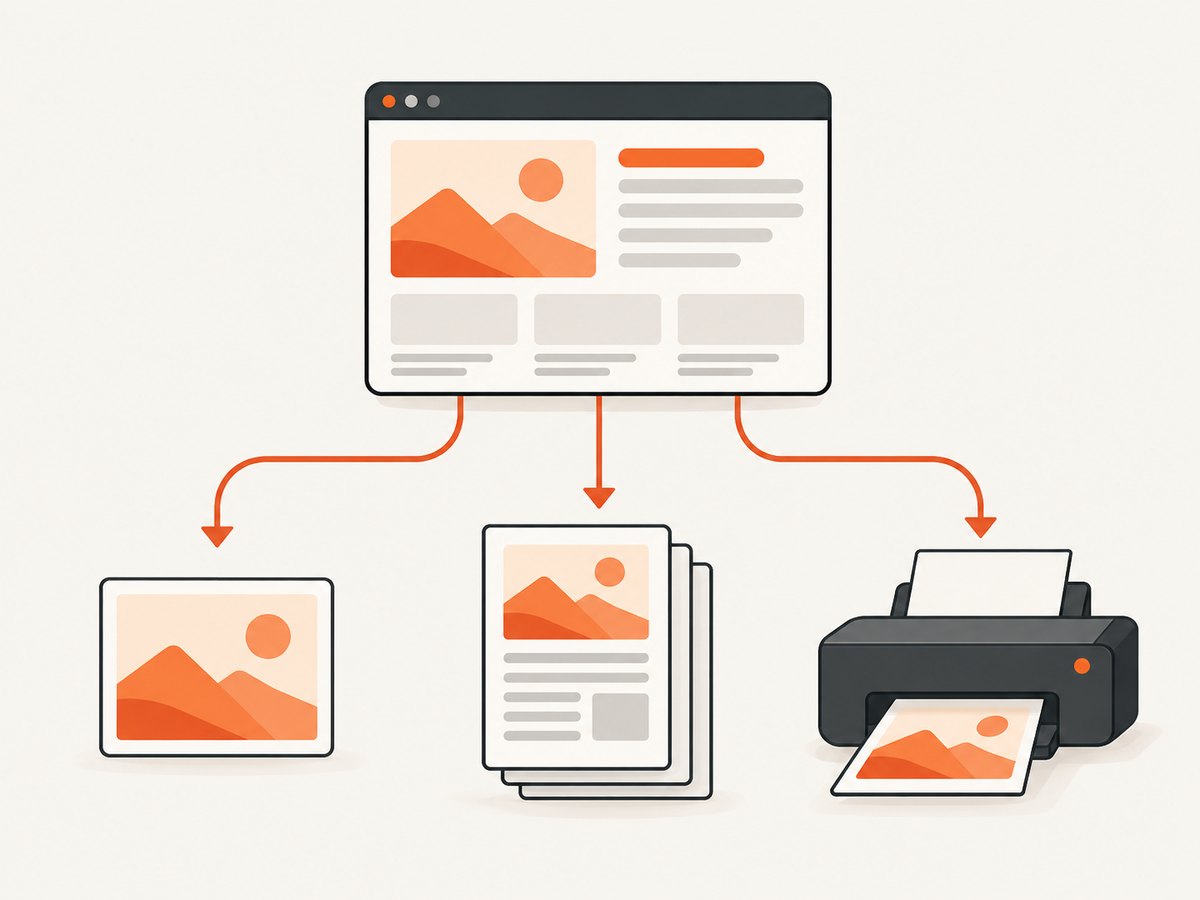
chrome --headless --screenshot --window-size=1200,1600 https://example.comChrome renders the URL and writes screenshot.png in the current directory by default. The --window-size value controls the viewport and therefore the screenshot dimensions. To choose a filename and format, pass a path after --screenshot:
chrome --headless --screenshot=landing.webp --window-size=1440,1200 https://example.com
chrome --headless --screenshot=landing.jpg --window-size=1440,1200 https://example.com
chrome --headless --screenshot=landing.png --window-size=1440,1200 https://example.com
Chromium’s command handler accepts .jpeg, .jpg, .png, and .webp screenshot paths. An unsupported extension is rejected. Use a writable working directory and quote URLs that contain shell metacharacters.
Platform-specific executable names
The binary is commonly named chrome on Linux, google-chrome on some Linux installations, chromium or chromium-browser on distributions that package Chromium, Google Chrome on macOS, and chrome.exe on Windows. For macOS, a typical invocation is:
"/Applications/Google Chrome.app/Contents/MacOS/Google Chrome" \
  --headless --screenshot=shot.png --window-size=1200,1600 \
  https://example.com
On Windows PowerShell:
& "$env:ProgramFiles\Google\Chrome\Application\chrome.exe" `
  --headless --screenshot=shot.png --window-size=1200,1600 `
  https://example.com
2. Save a webpage as a printable PDF
Use --print-to-pdf when the artifact you need is a PDF:
chrome --headless --print-to-pdf=output.pdf --no-pdf-header-footer https://example.comIf no path is supplied, Chrome writes output.pdf in the current directory. --no-pdf-header-footer removes the generated date, time, URL, and page footer. Older Chrome releases may use the deprecated switch name --print-to-pdf-no-header; check the version’s help output if the current flag is rejected.
A PDF is usually the better intermediate format for paper because it preserves page geometry and lets the operating system’s print dialog select paper size, scaling, duplex mode, and a physical printer. Creating output.pdf does not itself print anything.
3. Decide whether you need an image, PDF, or paper
| Goal | Chrome command | Result | Next step |
|---|---|---|---|
| Pixel image of a URL | --screenshot |
PNG, JPEG, or WebP | Open, edit, archive, or print with an image viewer |
| Paginated document | --print-to-pdf |
Send PDF to the system print workflow | |
| Physical paper | Neither switch alone | A file plus a configured printer | Use desktop printing, CUPS, Windows, macOS, or an enterprise print service |
--screenshot targets a page or URL; it is not documented as a general image-file-to-printer command. If you already have photo.png, open it with an image application or convert it to a PDF, then print through the platform’s normal print command. Chrome Enterprise policies can control PDF-as-image handling for some Windows and Mac printer paths, especially where a non-PostScript printer needs rasterization. That policy affects print handling, not Headless screenshot generation.
4. Control timing for JavaScript-rendered pages
Single-page applications may need time to render after the initial document response. Chrome’s Headless reference shows a five-second delay with --timeout=5000:
chrome --headless --screenshot=app.png --window-size=1440,1000 \
  --timeout=5000 https://example.com/dashboard
--timeout waits in real time before capture. --virtual-time-budget=5000 advances the page’s virtual clock, allowing timers and time-dependent code to progress while potentially taking less wall-clock time:
chrome --headless --screenshot=app.png --window-size=1440,1000 \
  --virtual-time-budget=5000 https://example.com/dashboard
Neither option proves that every remote image, font, API request, or third-party script finished successfully. If content depends on a network response, verify the output and consider a longer delay, a deterministic test page, or a capture service that can wait for a selector or network-idle state.
5. Full-page and tall content
--window-size=1200,1600 sets the viewport. It does not automatically guarantee a stitched, full-document screenshot for pages taller than the viewport. For a long page, a PDF is often the simplest complete artifact. If you require one tall raster image, use a browser automation workflow that measures document height and captures a full-page screenshot, or use a screenshot API with an explicit full-page option.
Lazy-loaded images are another edge case: many sites load them only after scrolling. A fixed viewport capture can therefore contain placeholders. Scroll through the document before capture in automation, or select a service that loads lazy images as part of full-page capture.
6. URLs, restricted pages, and Chrome schemes
Quote URLs containing &, ?, or shell expansion characters:
chrome --headless --screenshot="search.png" \
  "https://example.com/search?q=chrome&format=image"
Authenticated pages may require cookies, headers, or a logged-in profile. Headless Chrome does not magically inherit a website session from another browser process. Use an automation script to establish a session, provide the required headers, or capture a publicly reachable URL.
For chrome:// URLs, the documented --allow-chrome-scheme-url switch is required and is available from Chrome 123:
chrome --headless --allow-chrome-scheme-url \
  --screenshot=version.png chrome://version
Do not enable broad security-bypass flags for untrusted pages in production. Keep the browser process isolated and run it with an account that has only the filesystem and network access it needs.
7. A repeatable shell workflow
The following script creates a dated output directory, captures both image and PDF forms, and fails if Chrome returns a nonzero status:
#!/usr/bin/env bash
set -euo pipefail

url="${1:?usage: $0 https://example.com}"
out="capture-$(date +%Y%m%d-%H%M%S)"
mkdir -p "$out"

chrome --headless \
  --window-size=1440,1200 \
  --timeout=5000 \
  --screenshot="$out/page.webp" \
  "$url"

chrome --headless \
  --timeout=5000 \
  --print-to-pdf="$out/page.pdf" \
  --no-pdf-header-footer \
  "$url"

echo "Wrote $out/page.webp and $out/page.pdf"
For reproducible builds, pin the Chrome major version in your environment, record the viewport and timing flags, and keep the URL and output path in logs. A browser update can change font rendering, PDF pagination, or page behavior even when the command is unchanged.
8. Or skip the browser setup
ScreenshotNeo exposes a GET endpoint that returns a PNG, JPEG, WebP, or PDF from one request. See the ScreenshotNeo API documentation for all options.
curl -G "https://api.screenshotneo.com/v1/shot" -d access_key=YOUR_API_KEY --data-urlencode url=https://stripe.com -o shot.webpimport requests
r = requests.get("https://api.screenshotneo.com/v1/shot", params={"access_key": "YOUR_API_KEY", "url": "https://stripe.com"}, timeout=90)
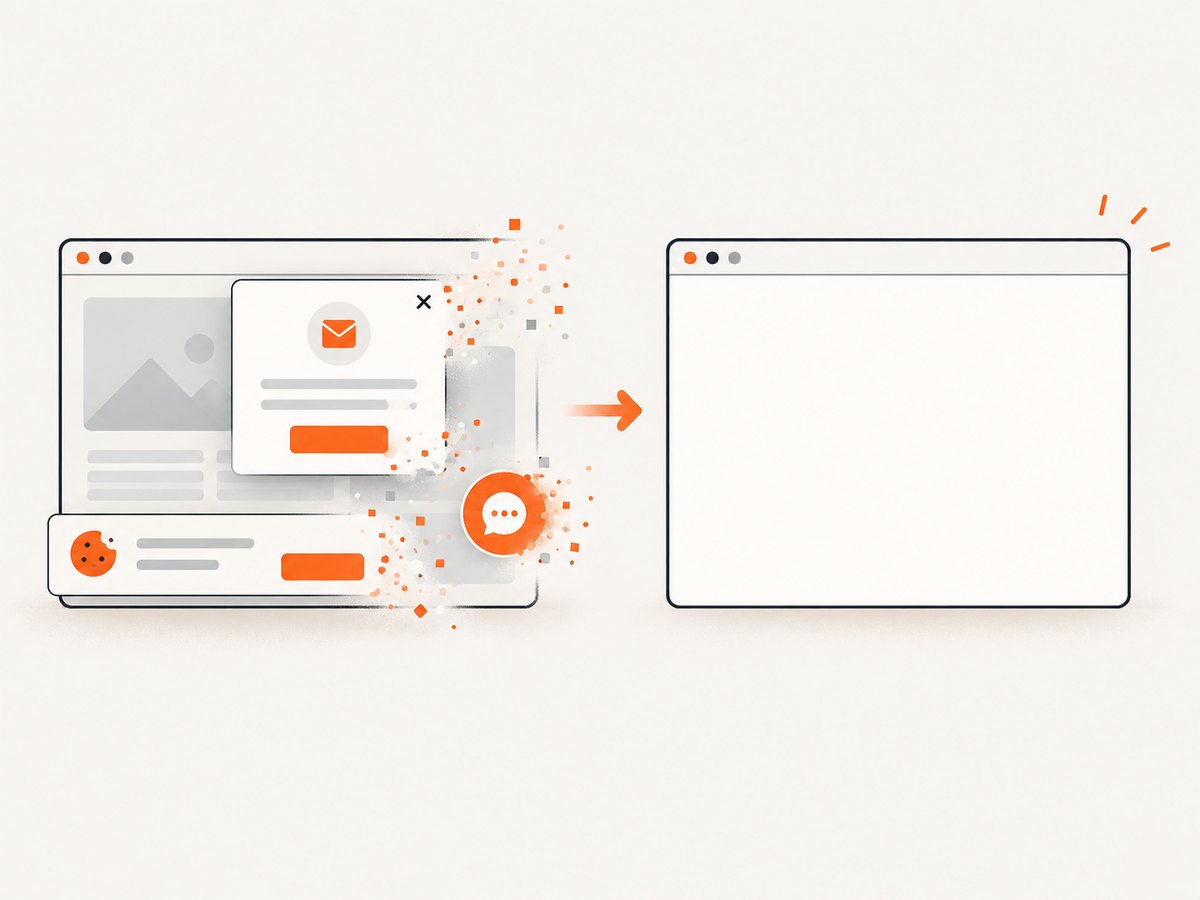
open("shot.webp", "wb").write(r.content)const q = new URLSearchParams({ access_key: 'YOUR_API_KEY', url: 'https://stripe.com' }); const res = await fetch(`https://api.screenshotneo.com/v1/shot?${q}`);Cookie and consent banners, newsletter popups, and chat widgets are removed before the shot. Bot checks, blank pages, failed loads, timeouts, and cache hits are not billed, and response headers identify the page verdict and billing status. An MCP server provides take_screenshot, get_page_info, and capture_pdf tools for Claude, Cursor, and other MCP clients. The Free plan includes 1,000 screenshots each month without a card; paid plans start at $5 for 3,000 shots. Create a free ScreenshotNeo account.
9. ScreenshotNeo options for production capture
When a command-line process becomes a service, you may need controls that are cumbersome to build around a local browser. ScreenshotNeo supports full-page capture with lazy images loaded, CSS-selector element capture, dark mode, 12 device presets plus custom viewports, retina scale, PDF paper sizes and margins, landscape orientation and page ranges, HTML/CSS-to-image, custom CSS and JavaScript, pre-capture clicks, hidden selectors, waits for selectors, delays or network idle, blocking ads, trackers, requests or resource types, custom headers, cookies, user agents and Authorization, timezone and geolocation, transparent backgrounds, image resizing, cache TTLs, signed public image links, asynchronous jobs with signed webhooks, bulk capture of up to 100 URLs per call, a usage API, and an OpenAPI specification.
Its parameter names also accept the names used by other screenshot APIs, which can reduce migration work. Every plan includes every feature. Yearly billing provides two months free; plans are Free (1,000/month), Starter ($5 for 3,000), Growth ($15 for 15,000), Pro ($39 for 60,000), Scale ($99 for 250,000), and Business ($249 for 1,000,000).
10. Troubleshooting checklist
“chrome: command not found”
Chrome is not on PATH, or the executable has a different name. Locate the installed binary, use its absolute path, or add its directory to PATH.
The output is blank or missing content
The page may render client-side, depend on a blocked request, or need more time. Add --timeout or --virtual-time-budget, verify network access, and inspect the resulting file rather than assuming a successful process means complete content.
Images are placeholders
They may be lazy-loaded below the viewport, blocked by a cookie gate, or unavailable to the browser. Use a full-page scrolling workflow, provide required cookies, or capture after the page’s image requests complete.
“Unknown flag” for header removal
Use --no-pdf-header-footer on current Chrome. Older releases may only recognize --print-to-pdf-no-header; upgrading is preferable when possible.
The screenshot dimensions are wrong
Check --window-size=WIDTH,HEIGHT, device pixel ratio, page zoom, and CSS media queries. A viewport size is expressed in CSS pixels; the encoded image can have different physical pixel dimensions when a high device scale is involved.
The PDF prints with unexpected margins or page breaks
PDF generation follows the page’s print CSS and Chrome’s pagination. Add print styles, choose a deliberate paper size in the print workflow, and inspect the PDF before sending it to a printer.
A physical printer does nothing
The Headless command only created a file. Confirm that the printer is installed, online, and selected in the operating system’s print dialog or print service. For managed fleets, check Chrome Enterprise policies and the platform print queue.
A screenshot costs more time than expected
Long waits, large pages, video, third-party trackers, and repeated uncached requests increase runtime. Block unnecessary resource types, set a deliberate cache policy, reuse a browser process in automation, or use ScreenshotNeo’s cache TTL, blocking, and asynchronous job options.
11. Performance, reliability, and cost considerations
- Performance: Smaller viewports, blocked ads and trackers, and shorter deterministic waits reduce work. Virtual time can advance timer-driven pages with less wall-clock waiting, but it does not eliminate network dependencies.
- Reliability: Treat the output file as the success signal. Check its existence, size, and format, and retain stderr. Retry transient navigation failures with a limit and backoff; do not blindly retry a page that consistently returns a bot check or blank state.
- Repeatability: Pin browser versions, fonts, locale, timezone, viewport, and URL data. Record command flags alongside artifacts.
- Cost: A self-hosted Chrome process costs compute, storage, maintenance, and printer infrastructure. A managed API trades browser operations for per-shot pricing and operational controls. ScreenshotNeo bills only clean shots; bot checks, blank pages, timeouts, failed loads, and cache hits are not billed, with
X-Page-VerdictandX-Billedheaders describing each response.
12. FAQ
Can --print-to-pdf print a PNG file?
No. It renders a URL to a PDF. Open or convert an existing PNG with an image/PDF tool, then use the platform print workflow.
What is Chrome’s default screenshot filename?
screenshot.png in the current working directory.
What is Chrome’s default PDF filename?
output.pdf in the current working directory.
Should I use a screenshot or PDF for paper?
Use PDF when pagination, paper size, and printer scaling matter. Use an image when you need a fixed raster asset.
Does --timeout=5000 wait for every request?
No. It waits five seconds before capture. Requests can still fail or remain incomplete.
Can I capture a private dashboard?
Yes, if the browser has valid authentication through cookies, headers, or an established session. Never place credentials in publicly logged command lines.
When is a managed screenshot API preferable?
Use one when you need repeatable cleanup, full-page lazy-image handling, selector waits, bulk jobs, webhooks, or AI-agent access without maintaining Chrome processes.


