How to Print JavaScript-Rendered Pages and Charts to PDF
Learn browser printing, print CSS, Chart.js resizing, and Puppeteer automation for reliable PDFs from JavaScript-rendered pages.
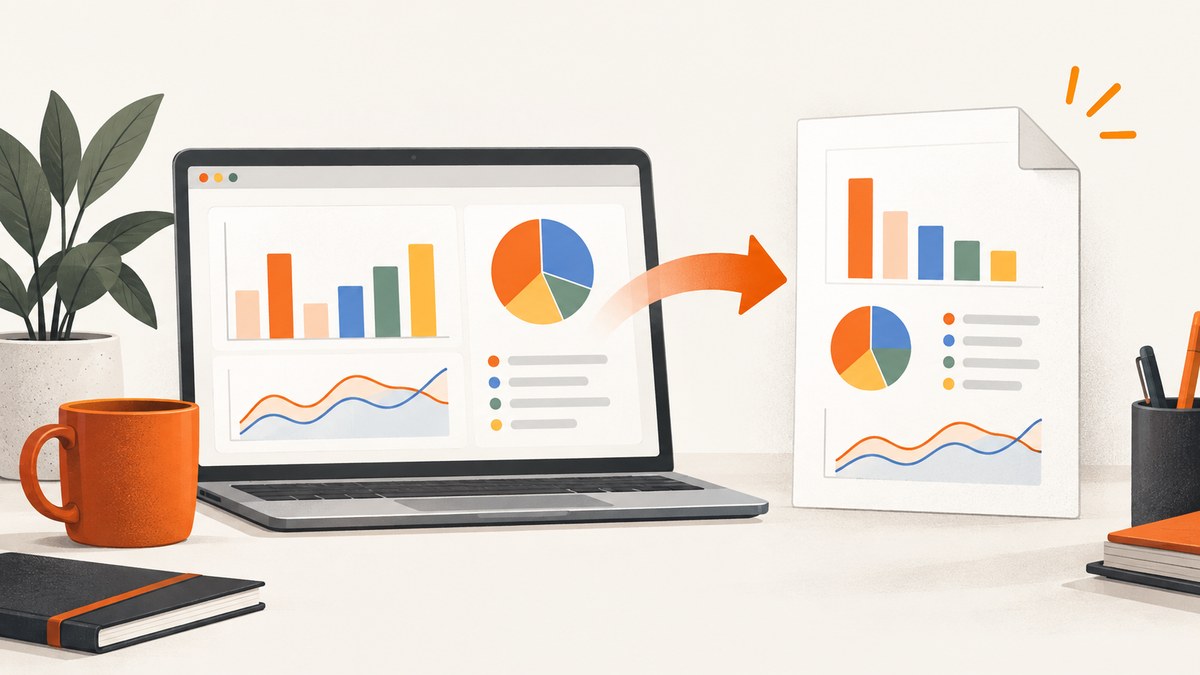
Short answer: For a one-off PDF, let the JavaScript finish rendering, open the browser print dialog, inspect the preview, and save as PDF. For repeatable output, use Puppeteer: navigate after the page is ready, apply print CSS, resize responsive charts when needed, and call page.pdf(). Always inspect the generated PDF because print layout, fonts, chart sizing, colors, and page breaks can differ from the screen.
This guide covers browser printing, CSS for pages you control, the canvas-chart edge case, a complete Puppeteer workflow, PDF options, troubleshooting, and a hosted alternative with ScreenshotNeo.
1. Print a rendered page from a browser
Browser printing is the fastest approach when a person needs to save a page once.
- Open the page and wait for data, charts, web fonts, and images to finish loading.
- Open the browser’s print interface (commonly Ctrl+P on Windows/Linux or Command+P on macOS).
- Choose a PDF or “Save to PDF” destination when your browser and operating system provide one.
- Choose paper size, portrait or landscape orientation, scale, and margins.
- Review every page in the preview. Check chart labels, clipped content, blank canvases, colors, and page breaks.
- Save the PDF, then open the file separately to verify the result.
A wide chart often needs landscape orientation or a larger paper size. A long dashboard may need a print-specific layout rather than simply shrinking the screen layout.
2. Add print CSS to a page you control
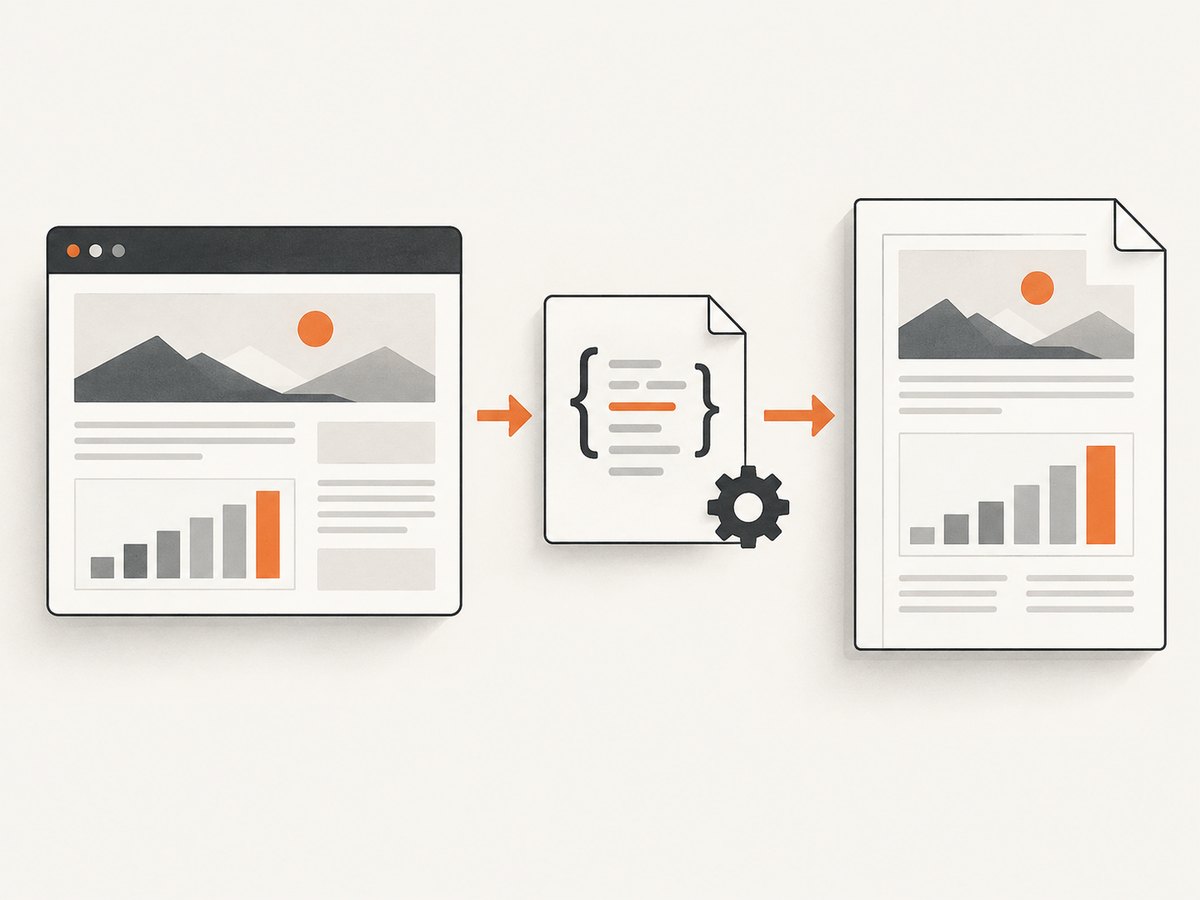
CSS can replace an interactive screen layout with a document layout. MDN describes the print media type as applying styles used for printed content (MDN printing guide).
/* screen layout remains the default */
@media print {
  nav,
  .toolbar,
  .sticky-controls,
  button,
  .chat-widget,
  .screen-only {
    display: none !important;
  }

  body {
    margin: 0;
    color: #111;
    background: #fff;
    font-size: 11pt;
  }

  .report {
    width: 100%;
  }

  .card,
  .chart {
    break-inside: avoid;
  }

  h1, h2, h3 {
    break-after: avoid;
  }
}

@page {
  size: A4 portrait;
  margin: 14mm 12mm;
}

@media print {
  .wide-chart {
    break-before: auto;
    break-after: auto;
  }
}
The @page rule sets page dimensions, orientation, and margins. Browser support for individual features can vary, so preview the output in the browsers your users rely on (MDN @page reference). Use print rules for structural changes such as hiding navigation, removing sticky controls, changing widths, and controlling page breaks.
Do not assume screen colors will be identical in the PDF. Print rendering can alter colors, and backgrounds may be omitted unless the browser’s print settings allow them. Keep important information in text or borders rather than relying only on a background fill.
3. Make responsive charts print correctly
A canvas chart can be visible and correct on screen but blank, clipped, or blurry in print preview. Canvas has an internal render size and a separate CSS display size; changing only CSS can leave the drawing buffer at the wrong dimensions.
Chart.js documents beforeprint and afterprint hooks for this case. Its guidance is to resize charts explicitly before printing, then restore automatic sizing afterward (Chart.js responsive charts documentation).
const chart = new Chart(document.getElementById('sales'), {
  type: 'line',
  data: salesData,
  options: {
    responsive: true,
    maintainAspectRatio: false
  }
});

window.addEventListener('beforeprint', () => {
  // Pick dimensions that fit your intended paper layout.
  chart.resize(1000, 520);
});

window.addEventListener('afterprint', () => {
  // Passing no dimensions returns the chart to responsive sizing.
  chart.resize();
});
Apply the same idea to other chart libraries using their documented resize or redraw API. The exact method is library-specific. Trigger the resize only after the chart’s data has arrived and the print layout has been applied. Browser print layout and resize-event timing can make automatic behavior unreliable, so inspect the preview and saved PDF.
4. Generate PDFs repeatedly with Puppeteer
Puppeteer is appropriate for scheduled reports, downloads, CI jobs, and any workflow that must be repeatable. Its Page.pdf() method generates a PDF using the print CSS media type by default (Puppeteer Page.pdf()).
Install and run a complete example
npm install puppeteerconst puppeteer = require('puppeteer');
const url = process.argv[2] || 'https://example.com/report';
(async () => {
const browser = await puppeteer.launch({
headless: true
});
try {
const page = await browser.newPage();
await page.setViewport({ width: 1440, height: 1000, deviceScaleFactor: 1 });
await page.goto(url, {
waitUntil: 'networkidle2',
timeout: 90000
});
// Replace this with an application-specific readiness condition.
await page.waitForSelector('[data-report-ready]', { timeout: 30000 });
// Let fonts finish before creating the document.
await page.evaluate(() => document.fonts && document.fonts.ready);
await page.pdf({
path: 'report.pdf',
format: 'A4',
printBackground: true,
margin: {
top: '14mm',
right: '12mm',
bottom: '14mm',
left: '12mm'
},
preferCSSPageSize: true
});
} finally {
await browser.close();
}
})();
Run it with node print-report.js https://your-site.example/report. The selector in the example is an application contract: render it only when the report’s data and charts are ready. If you cannot add such a marker, wait for a specific chart element, a known heading, or a bounded delay after the data request. There is no universal readiness signal for every JavaScript application.
Print media versus screen media
Puppeteer uses print media for PDFs. If your page has a separate screen layout and you need that styling, call await page.emulateMediaType('screen') before page.pdf() (Puppeteer PDF generation guide). In most reports, print media is preferable because it activates your @media print rules.
5. Puppeteer PDF options that matter
| Option | Use it for | Common caution |
|---|---|---|
format |
Named paper sizes such as A4 or Letter | Content still follows your page CSS and may span pages. |
landscape |
Wide tables and charts | Check that headings and margins remain readable. |
width, height |
Custom paper dimensions | Use consistently with your print CSS. |
margin |
Printable whitespace around content | Large margins can force unexpected page breaks. |
printBackground |
Background colors and graphics | It does not fix incorrect chart colors or missing assets. |
pageRanges |
Export selected pages | Validate the range against the final page count. |
scale |
Fine adjustment of rendered size | Scaling too far can make text hard to read. |
preferCSSPageSize |
Let @page size take precedence |
Confirm that the CSS size matches your intended output. |
The current Puppeteer API reference documents these and additional PDFOptions fields (PDFOptions interface). Set only options you need, then inspect the PDF. Puppeteer waits for fonts by default, but delayed data, authentication, animations, and continuing network activity still require application-specific handling.
6. Colors, backgrounds, and page breaks
Puppeteer notes that PDF colors are modified for printing by default. If exact colors are required, request print color adjustment in your stylesheet:
@media print {
  * {
    -webkit-print-color-adjust: exact;
    print-color-adjust: exact;
  }
}
Use this deliberately: exact colors can consume more ink on physical printers, and the final appearance still depends on the PDF viewer and printer. Keep page-break rules close to the components they govern:
.section {
  break-inside: avoid;
}

.section-title {
  break-after: avoid;
}

.new-page {
  break-before: page;
}
7. Troubleshooting checklist
| Symptom | Likely cause | Fix |
|---|---|---|
| Chart is blank | PDF captured before data or canvas drawing completed | Wait for a readiness selector, verify chart data, then call the library’s resize or redraw method. |
| Chart is clipped | Print width differs from screen width | Use print CSS for the chart container and resize it in a print hook. |
| Text overlaps | Screen-only absolute or sticky positioning survived printing | Disable those rules in @media print and use normal document flow. |
| Backgrounds are missing | Browser print settings or Puppeteer option excludes them | Enable background graphics in the browser, or set printBackground: true. |
| Colors look different | Print color adjustment changed them | Use print-color-adjust: exact where needed and inspect the PDF viewer. |
| Fonts fall back | Web fonts were not loaded at capture time | Await document.fonts.ready and confirm the font request succeeds. |
| Content is stale | Cached data, delayed API response, or an animation | Use a deterministic data URL or readiness marker; disable animations for print. |
| Navigation times out | Long polling, analytics, or streaming requests keep the page busy | Use a targeted selector instead of relying only on networkidle2; block nonessential requests when appropriate. |
| Only part of a dashboard appears | Viewport or page height assumptions | Use full-page print CSS, remove fixed-height containers, and verify all sections in the PDF. |
8. Performance, reliability, and cost
- Readiness: A precise selector is usually more reliable than an arbitrary sleep. Still allow time for fonts and canvas redraw after the selector appears.
- Assets: Large images and many web fonts increase capture time and PDF size. Serve appropriately sized assets and remove print-only decorations.
- Animations: Pause transitions and animated charts in print CSS so the captured frame is deterministic.
- Isolation: Launch a fresh page for each job, close it after capture, and close the browser in a
finallyblock. - Retries: Retry transient navigation or asset failures with a limit, and log the URL, readiness condition, and resulting file for diagnosis.
- Inspection: Keep a sample PDF in CI or review output after changes to print CSS, chart versions, fonts, or page content.
Browser automation has an infrastructure cost: Chromium installation, memory, process lifecycle, and maintenance of readiness logic. A hosted screenshot or PDF API can move those concerns out of your application.
Or skip the browser setup
ScreenshotNeo provides a website capture API and MCP server. Use the same simple GET request from cURL, Python, or Node.js; see the ScreenshotNeo API documentation for PDF and capture options.
curl -G "https://api.screenshotneo.com/v1/shot" -d access_key=YOUR_API_KEY --data-urlencode url=https://stripe.com -o shot.webpimport requests
r = requests.get("https://api.screenshotneo.com/v1/shot", params={"access_key": "YOUR_API_KEY", "url": "https://stripe.com"}, timeout=90)
open("shot.webp", "wb").write(r.content)const q = new URLSearchParams({ access_key: 'YOUR_API_KEY', url: 'https://stripe.com' });
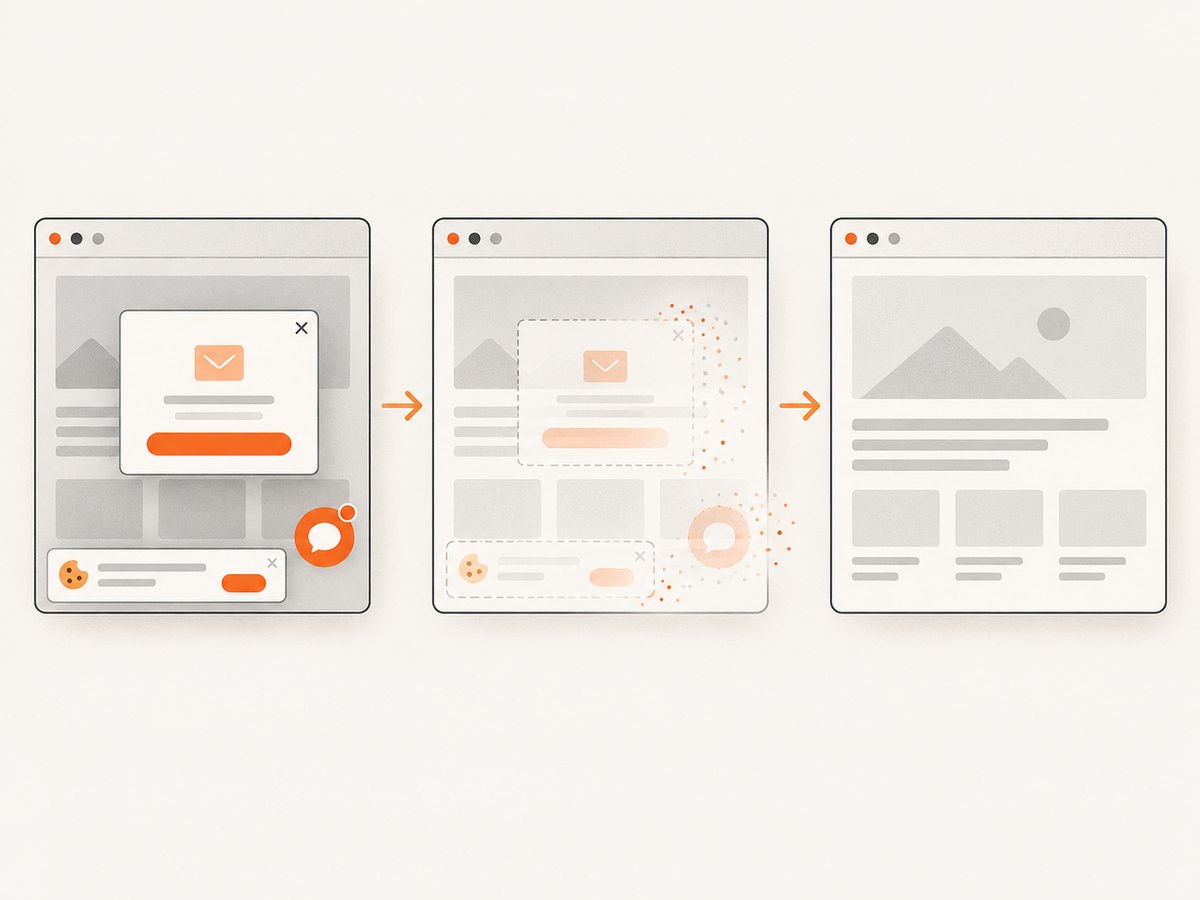
const res = await fetch(`https://api.screenshotneo.com/v1/shot?${q}`);Cookie banners, popups, and chat widgets are removed before the shot. Bot checks, blank pages, failed loads, and cache hits are never billed, and the response identifies the result with X-Page-Verdict and X-Billed headers. An MCP server lets AI agents such as Claude, Cursor, and other MCP clients take screenshots. The free plan includes 1,000 screenshots a month with no card; paid plans start at $5 for 3,000 shots.
Create a free ScreenshotNeo account and start with the 1,000 included screenshots.
FAQ
Can a PDF preserve JavaScript interactivity?
No. The PDF is a document snapshot. Links may remain clickable depending on the generator, but live controls, animations, and application state are not preserved as interactive features.
Should I use the browser dialog or Puppeteer?
Use the dialog for an occasional manual save. Use Puppeteer when the same report must be generated repeatedly, on a schedule, or in CI.
Why does a chart look correct on screen but wrong in the PDF?
Print layout can change the canvas dimensions after the chart rendered. Add a print-time resize or redraw hook and verify the saved PDF at its actual paper size.
How do I choose portrait versus landscape?
Choose the orientation that keeps the widest content readable without excessive scaling. Wide charts and tables usually need landscape; text-heavy reports usually fit portrait.


