How to Print a PDF With Headless Chrome on Ubuntu
Save a web page as a PDF from an Ubuntu terminal with headless Chrome. Learn the core command, timing options, troubleshooting, and ways to automate capture.
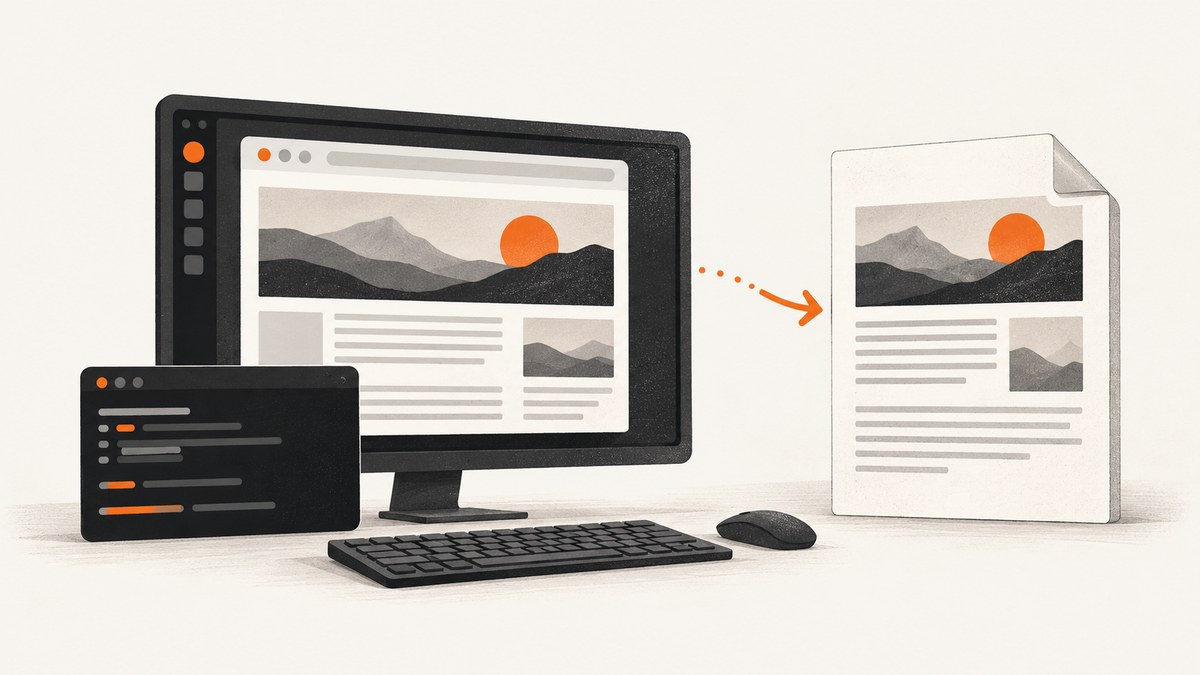
To save a web page as a PDF on Ubuntu, run Chrome in headless mode with --print-to-pdf:
google-chrome --headless --print-to-pdf https://example.com/Chrome writes output.pdf to the current working directory. To remove Chrome’s generated date, time, URL, and page-number header and footer, add --no-pdf-header-footer. Replace google-chrome if your installation exposes the browser under another executable name.
This creates a PDF file; it does not send anything to a physical printer. The steps below cover installation checks, output location, timing controls, automation, and common errors.
1. Check Chrome and Ubuntu compatibility
Google lists 64-bit Ubuntu 18.04 or later among the Linux systems supported by Chrome. Its installation guidance for Debian and Ubuntu is to select a .deb package for the machine’s architecture and install it using the system installer. Check the current download page for package availability and architecture options before installing. The package is added to the package manager for updates.
Google’s referenced installation instructions describe a graphical installer flow, so this guide does not assume a particular terminal installation command. Once installed, locate the executable available in your environment. Google’s package commonly uses google-chrome; Chrome’s command-line documentation uses chrome. Packaging choices can change the name.
command -v google-chrome
command -v chrome
If both commands return no path, Chrome may not be installed or may be installed under a different name. Check the package and executable provided by your distribution or installation method before continuing.
2. Save a URL as a PDF
Run the basic command from the directory where you want the result:
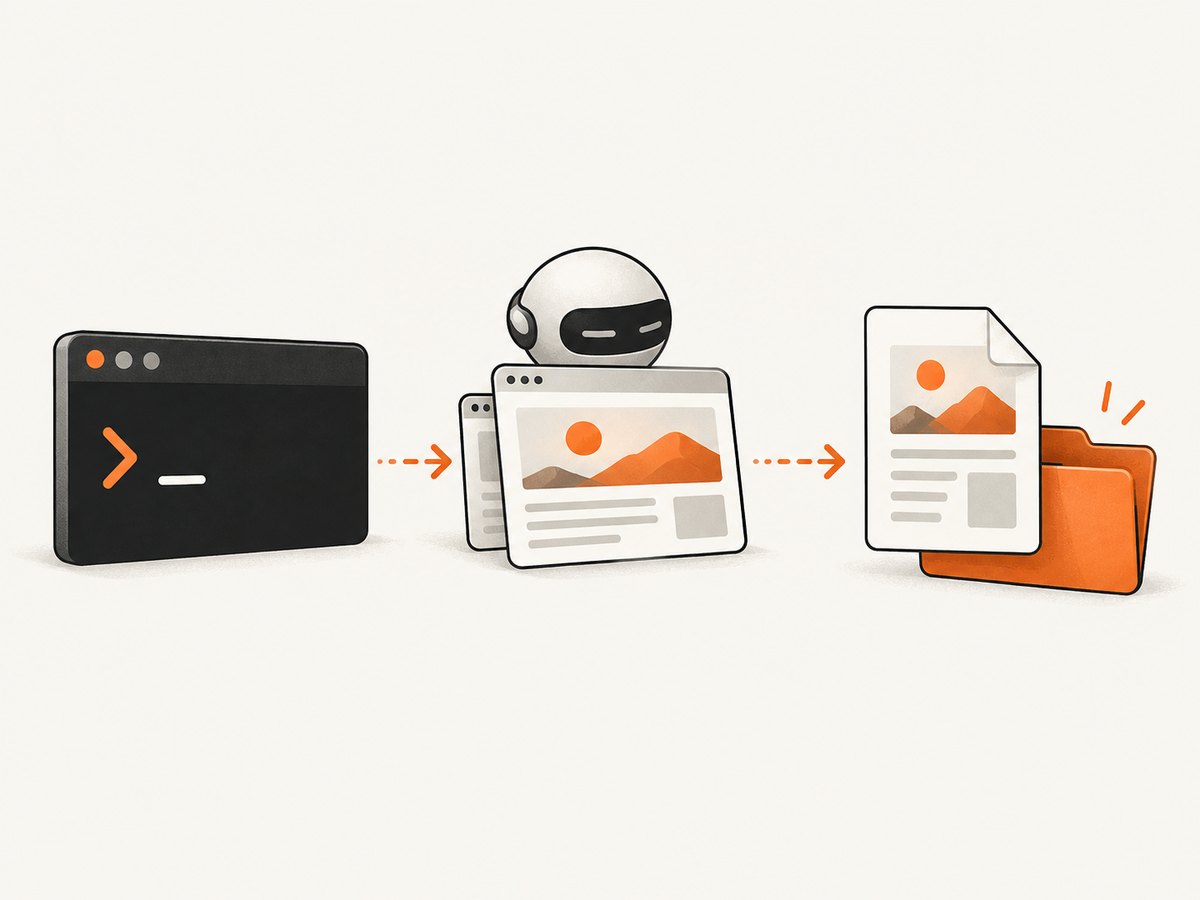
google-chrome --headless --print-to-pdf https://example.com/The URL is the page Chrome will render. Quote URLs that contain shell characters such as &, so the shell passes the complete address as one argument:
google-chrome --headless --print-to-pdf 'https://example.com/search?q=ubuntu&sort=new'Chrome’s command-line reference documents output.pdf as the default filename in the current working directory. For example, if you start the command from /home/alex/reports, look for /home/alex/reports/output.pdf. Check the directory and file after the command completes:
pwd
ls -l output.pdf
The reviewed command reference establishes the default output name. If you need a custom destination or filename, check the command syntax supported by your installed Chrome version rather than assuming a flag from another version or wrapper.
3. Remove the generated header and footer
Chrome’s PDF output may include a generated print header with date and time and a footer with the page URL and page number. Add --no-pdf-header-footer to omit those elements:
google-chrome --headless --print-to-pdf --no-pdf-header-footer https://example.com/If Chrome reports that the flag is unknown, check the installed browser version. Older versions used --print-to-pdf-no-header. Prefer the flag supported by the version actually running; command-line options can change over time.
4. Wait for pages that render late
A page can load its main document before all the content you care about appears. JavaScript may fetch data, populate a chart, or reveal content after a delay. Chrome provides two timing controls for these cases.

Set a maximum capture timeout
--timeout=5000 sets a maximum wait of five seconds before capture, even if the page is still loading:
google-chrome --headless --print-to-pdf --timeout=5000 https://example.com/The timeout is a capture-timing control, not a guarantee that every asynchronous request has finished. Increase it when a page needs more real time, then inspect the generated PDF to confirm the content is present.
Advance virtual time
--virtual-time-budget=5000 advances virtual time for page scripts such as setTimeout and setInterval:
google-chrome --headless --print-to-pdf --virtual-time-budget=5000 https://example.com/Chrome’s documentation describes virtual time as a way to simulate elapsed page time while execution runs faster than waiting in real time. Pick a budget based on the page’s behavior. Neither timing option can guarantee completion for every site-specific script or network dependency, so validate the resulting PDF.
Do not add a large wait automatically to every capture. For static pages, the basic command may be sufficient; for delayed content, tune one timing option and compare the output.
5. Use the command in a simple shell workflow
A small shell script can make the URL and timing choice explicit while returning Chrome’s exit status to the caller:
#!/usr/bin/env bash
set -euo pipefail

url='https://example.com/'
chrome_bin='google-chrome'

"$chrome_bin" \
  --headless \
  --print-to-pdf \
  --no-pdf-header-footer \
  --timeout=5000 \
  "$url"

if [[ ! -s output.pdf ]]; then
  echo 'PDF was not created or is empty' >&2
  exit 1
fi

printf 'Created %s/output.pdf\n' "$PWD"
Save this as a script, make it executable with chmod +x, and invoke it from the directory where you want output.pdf. The non-empty-file check catches a missing or empty result; it does not validate that every page rendered correctly. Open or otherwise inspect the PDF as part of any workflow where content completeness matters.
6. Chrome version and special URLs
Use the current standard --headless form for ordinary URLs. Chrome’s February 2023 announcement described the transition to a unified headless implementation and the then-new --headless=new option; that announcement is historical context, not a reason to copy old transition instructions into a current command.
The Chromium Headless README notes that beginning with milestone 132, the old headless-shell functionality is no longer part of the Chrome binary. If a workflow specifically depends on that old implementation, the README directs users to the separate chrome-headless-shell binary. That is distinct from the ordinary Chrome PDF recipe above.
For a chrome:// page, Chrome documents --allow-chrome-scheme-url, available from Chrome 123. This option is rarely needed for normal websites:
google-chrome --headless --allow-chrome-scheme-url --print-to-pdf chrome://version/7. Troubleshooting
| Symptom | Likely cause | What to try |
|---|---|---|
command not found |
The executable name differs, or Chrome is not installed in this environment. | Check command -v google-chrome and command -v chrome. Confirm the installed package and architecture. |
| Chrome fails to launch | Installation, architecture, or environment issue. | Confirm the system meets Google’s listed Linux support and that the package matches the machine architecture. Check the error output from Chrome for a specific launch failure. |
No output.pdf appears |
The process may have failed, or you are looking in a different directory. | Run pwd before capture, inspect Chrome’s exit status and error output, and check that the current directory is writable. |
| PDF exists but misses late content | The page’s scripts or network requests had not finished when capture occurred. | Try --timeout=5000 or an appropriate --virtual-time-budget=5000, then inspect the PDF. Increase or adjust the value if the page requires more time. |
| Header or footer is still present | The flag may be unsupported by this Chrome version or was omitted. | Use --no-pdf-header-footer on current versions; check older-version support for --print-to-pdf-no-header. |
A chrome:// URL does not render |
Chrome restricts access to its internal scheme unless the documented option is enabled. | On supported versions, add --allow-chrome-scheme-url; Chrome documents availability from version 123. |
| PDF looks different from the on-screen site | PDF generation uses page rendering and print output; page behavior may depend on scripts or site-specific rendering. | Inspect the PDF, adjust the timing control if content is late, and check the page itself for print-specific behavior. |
These checks are practical diagnostics, not a complete Ubuntu dependency matrix. The cited Chrome guidance does not promise that a timing flag fixes every rendering problem.
8. Performance, reliability, and cost
Headless Chrome performs the rendering on the Ubuntu machine where the command runs. The command itself does not specify a performance guarantee: page complexity, network activity, browser startup, and timing choices all affect the time a job takes. Avoid treating a larger timeout as a speed setting; it only changes how long capture may wait.
For repeatable output, record the Chrome version and use the same relevant command options for each run. Check the output file exists and is non-empty, and inspect representative PDFs when the page changes or the workflow is important. A successful process is not proof that a site finished every asynchronous task.
The command-line workflow has no per-shot service fee described in the cited Chrome documentation; it does require a machine and browser installation that you operate. If you would rather not manage browser setup for URL-to-image or URL-to-PDF captures, ScreenshotNeo offers a hosted screenshot API with a one-call request, usage-based monthly plans, and billing rules described below.
Or skip the browser setup
For a hosted screenshot or PDF request, ScreenshotNeo accepts a URL at its API endpoint. This example saves the response body as page.pdf; consult the ScreenshotNeo API documentation for the PDF request options and response details.
curl -G "https://api.screenshotneo.com/v1/shot" \
  -d access_key=YOUR_API_KEY \
  --data-urlencode url=https://stripe.com \
  -d format=pdf \
  -o page.pdf
ScreenshotNeo is a website screenshot API and MCP server from Yorker Media. It accepts cookie and consent banners and removes more than 60 known consent platforms, newsletter popups, and chat widgets before capture; each of those steps can be turned off. Bot checks and CAPTCHAs, blank pages, timeouts, failed loads, and cache hits cost nothing, and response headers identify the page verdict and whether the request was billed. Its MCP server provides take_screenshot, get_page_info, and capture_pdf for Claude, Cursor, and other MCP clients.
The free plan includes 1,000 shots per month with no card. Paid plans start at $5 for 3,000 shots; higher listed plans are Growth at $15 for 15,000, Pro at $39 for 60,000, Scale at $99 for 250,000, and Business at $249 for 1,000,000. Yearly billing gives two months free, and every feature is on every plan. Check the docs for the current request parameters before adapting the example to a production workflow.
Sign up for 1,000 free screenshots a month, with no card required.
FAQ
Does this send the page to a printer?
No. --print-to-pdf creates a PDF file. Printing that file on paper is a separate step using a printer and print software.
Can I capture a page served on my own machine?
Yes, if Chrome running in that environment can reach the page URL. Use the URL that resolves from the machine running Chrome, rather than assuming a browser on another computer can access the same address.
Why is the output named output.pdf?
That is Chrome’s documented default filename for --print-to-pdf, written to the current working directory.
What if the page uses timers?
Try a virtual-time budget or a real capture timeout, then inspect the PDF. Those controls can help with delayed page behavior but do not guarantee every script or request has completed.
Official references
- Chrome Headless command-line reference — PDF output, header/footer control, timeout, virtual time, and Chrome scheme URLs.
- Chrome for Developers: Chrome’s Headless mode — unified headless background and virtual-time discussion.
- Google Chrome system requirements and installation — Linux support and installation guidance.
- Chromium Headless README — headless-shell change beginning at milestone 132.


