How to Print Symfony Labels on A4 Paper
Create precisely aligned Symfony labels for A4 sheets with Twig, CSS millimetres, PDF settings, printer checks, and plain-paper calibration.
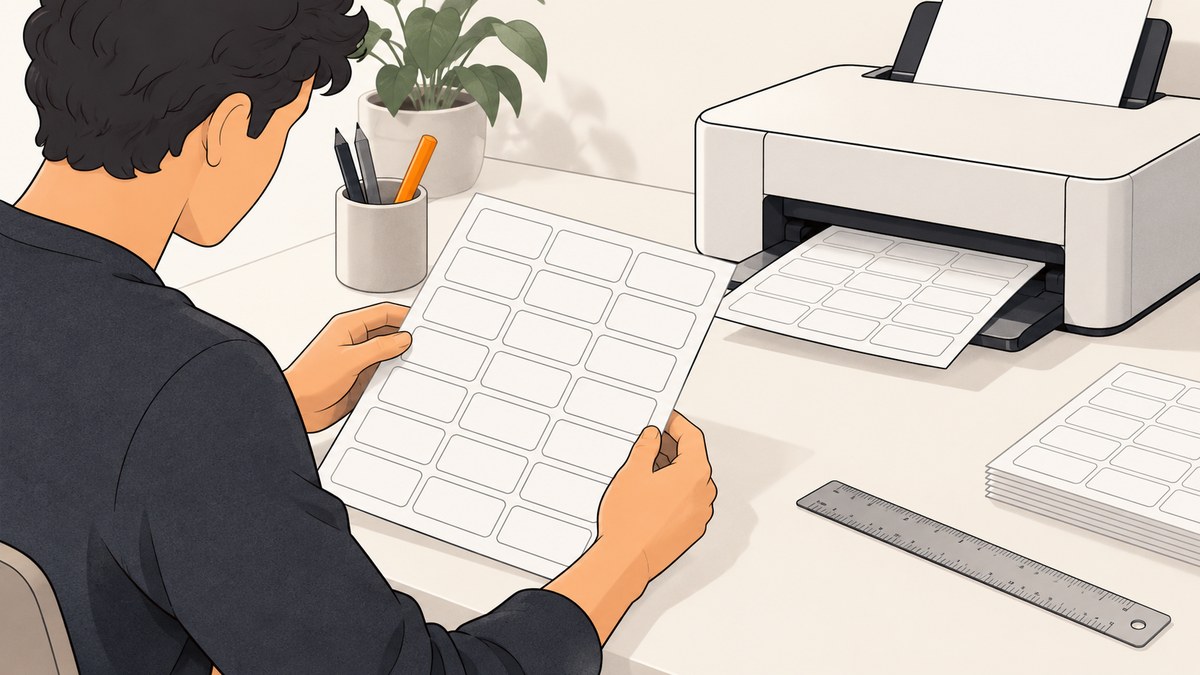
Direct answer: Symfony generates the label content, while Twig, CSS, and your print or PDF settings control the A4 geometry. Set each field’s text with Symfony’s label or Twig’s form_label, place labels in a fixed-size CSS grid measured in millimetres, generate an A4 portrait page, and print at 100% / Actual Size with browser headers and footers disabled. Print a test on plain paper before using adhesive stock.
1. Confirm the physical label sheet first
Do not begin with a generic three-column layout. Measure or identify the exact sheet you bought. Record:
- Paper size: A4 is 210 × 297 mm.
- Label width and height.
- Number of columns and rows.
- Left, right, top, and bottom margins.
- Horizontal and vertical gutters.
- Portrait or landscape orientation.
- Printer technology compatibility and feed direction.
For example, HEMA 38310012 is documented as 21 labels arranged in 3 columns × 7 rows, with each label 63.5 × 38.1 mm on an A4 portrait sheet. Those dimensions are only an example: replace them with the measurements for your own stock. A template cross-reference such as LabelPlanet’s A4 guide can help map generic dimensions to a compatible template code.
2. Render Symfony label text
Symfony’s form system can provide the label text and attributes. The label option sets a field’s visible caption, label_attr adds HTML attributes, and Twig’s form_label helper renders the label element. Keep content generation separate from the physical sheet layout.
Form type example
<?php
// src/Form/ContactType.php
namespace App\\Form;

use Symfony\\Component\\Form\\AbstractType;
use Symfony\\Component\\Form\\Extension\\Core\\Type\\TextType;
use Symfony\\Component\\Form\\FormBuilderInterface;
use Symfony\\Component\\OptionsResolver\\OptionsResolver;

final class ContactType extends AbstractType
{
    public function buildForm(FormBuilderInterface $builder, array $options): void
    {
        $builder
            ->add('name', TextType::class, [
                'label' => 'Name',
                'label_attr' => ['class' => 'label-text'],
            ])
            ->add('address', TextType::class, [
                'label' => 'Address',
                'label_attr' => ['class' => 'label-text'],
            ]);
    }

    public function configureOptions(OptionsResolver $resolver): void
    {
        $resolver->setDefaults([
            'data_class' => Contact::class,
        ]);
    }
}
If your labels are not form fields, pass plain values to Twig and render them directly. Use escaped output for untrusted values; only mark content safe when you have deliberately sanitized it.
3. Build a print-only Twig template
A dedicated print view avoids navigation, buttons, and screen styles leaking into the output. The controller can pass an array called items and, when needed, a form view.
{# templates/labels/a4.html.twig #}
<!doctype html>
<html lang="en">
<head>
    <meta charset="utf-8">
    <title>A4 labels</title>
    <link rel="stylesheet" href="{{ asset('styles/labels-print.css') }}">
</head>
<body>
<main class="a4-sheet" aria-label="A4 labels">
    {% for item in items %}
        <div class="label-cell">
            <div class="label-name">{{ item.name }}</div>
            <div class="label-address">{{ item.address|nl2br }}</div>
        </div>
    {% endfor %}
</main>
</body>
</html>
When a Symfony form field is the source of the text, the equivalent cell can use:
<div class="label-cell">
    {{ form_label(form[item.field], item.text, {
        label_attr: { class: 'label-text' }
    }) }}
</div>
4. Match the sheet with millimetre CSS
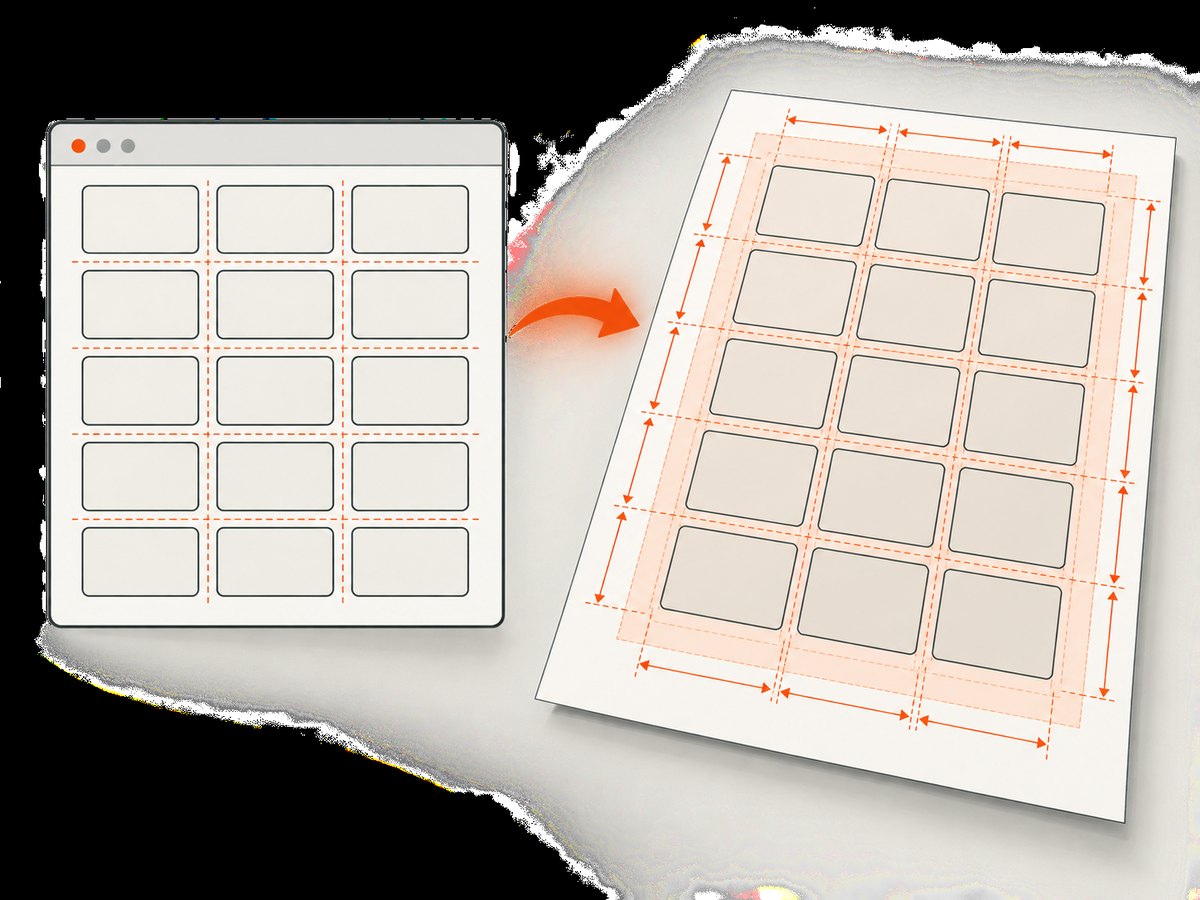
CSS millimetres express the intended physical geometry, but they do not override the print dialog’s scaling. The following reproduces the documented 3 × 7, 63.5 × 38.1 mm example. Replace every dimension for your sheet.
/* public/styles/labels-print.css */
@page {
    size: A4 portrait;
    margin: 13mm 6mm;
}

* { box-sizing: border-box; }

html, body {
    margin: 0;
    padding: 0;
}

.a4-sheet {
    display: grid;
    grid-template-columns: repeat(3, 63.5mm);
    grid-auto-rows: 38.1mm;
    column-gap: 3mm;
    row-gap: 0;
    width: 196.5mm;
}

.label-cell {
    width: 63.5mm;
    height: 38.1mm;
    overflow: hidden;
    padding: 4mm;
    break-inside: avoid;
    font: 10pt/1.2 Arial, sans-serif;
}

.label-name { font-weight: 700; }
.label-address { white-space: normal; }

@media screen {
    .a4-sheet { outline: 1px dashed #999; }
    .label-cell { outline: 1px dotted #bbb; }
}

@media print {
    .a4-sheet { outline: 0; }
}
The @page margins must agree with the stock’s non-label area and your printer’s printable region. If the sheet has no gap between labels, set the relevant gap to zero. If labels continue across pages, insert a page break after the last cell that fits rather than allowing a browser to split a label.
Controller response
<?php
// src/Controller/LabelController.php
namespace App\\Controller;

use Symfony\\Bundle\\FrameworkBundle\\Controller\\AbstractController;
use Symfony\\Component\\HttpFoundation\\Response;
use Symfony\\Component\\Routing\\Attribute\\Route;

final class LabelController extends AbstractController
{
    #[Route('/labels/print', name: 'labels_print')]
    public function print(): Response
    {
        $items = [
            ['name' => 'Ada Lovelace', 'address' => "1 Example Street\\nLondon"],
            ['name' => 'Grace Hopper', 'address' => "2 Example Street\\nLondon"],
        ];

        return $this->render('labels/a4.html.twig', [
            'items' => $items,
        ]);
    }
}
5. Produce an A4 PDF when repeatability matters
A PDF is useful when the file will be printed by another person or machine. Configure the PDF page itself as A4 portrait, preserve the CSS millimetre dimensions, and do not apply a second scaling pass. Check the PDF viewer’s paper size and scaling controls before printing. A browser print preview can also work, but its page-size and margin controls still matter.
- Open the print view or generate the PDF.
- Set paper to A4 and orientation to portrait unless your sheet specifies landscape.
- Choose 100%, Actual Size, or equivalent. Do not choose “Fit,” “Shrink,” or “Scale to printable area.”
- Disable browser headers and footers.
- Use minimum or no margins where the printer permits.
- Load stock according to the printer manufacturer’s feed instructions.
Labeliy’s vendor guidance identifies scale not being set to 100% as the leading cause of misalignment. A printer’s unprintable edge can still create an offset even when the CSS is correct, so calibrate against the actual device.
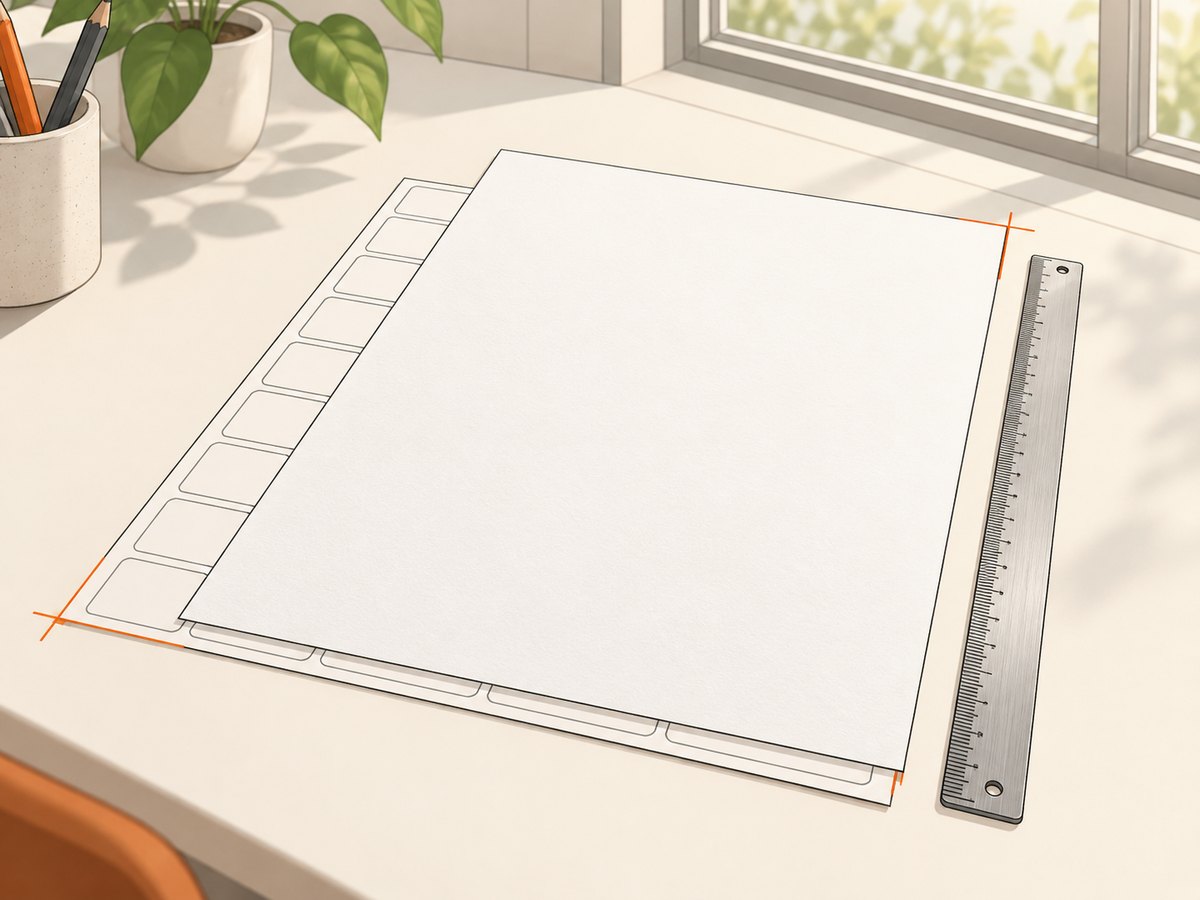
6. Calibrate with a plain-paper overlay
- Print one page on ordinary paper using the final A4 and 100% settings.
- Place it over an adhesive sheet and hold both against a light source.
- Compare all four edges, the first row, and the last row.
- If every label is shifted by the same amount, adjust the page margin or printer alignment offset.
- If the error grows across columns or rows, recheck label width, height, gutter, and scale.
- Repeat until the entire grid aligns, then print adhesive stock.
Never correct a scaling problem by changing individual text sizes. Text styling affects readability; the cell dimensions and print scale determine placement.
7. Options for difficult label content
Long names and addresses
Set overflow: hidden to prevent one record from changing the grid. Decide whether to wrap, reduce font size, or truncate before rendering. Test the longest realistic value, not only short fixtures.
Barcodes and images
Give images explicit physical dimensions and keep important marks away from label edges. Use high-resolution source files and verify that the printer does not resample them.
Empty cells and partial pages
If a page starts at a particular unused position, render empty cells before the first item. For a partial final page, output the remaining records only; do not let a flex layout redistribute them.
Landscape sheets
Change both @page and the grid orientation together. A landscape page with portrait columns will otherwise appear rotated or clipped.
Screen versus print
Keep screen outlines inside @media screen. Remove backgrounds and debugging borders in print when the stock already has visible boundaries.
8. Troubleshooting misaligned or missing labels
| Symptom | Likely cause | Fix |
|---|---|---|
| Everything is uniformly too small | Fit-to-page or browser scaling | Choose A4 and 100% / Actual Size. |
| Every row is shifted down | Top margin or printer offset | Measure the offset and adjust the page margin or printer alignment setting. |
| Columns drift farther right | Wrong label width or gutter | Recheck the sheet specification and use millimetres for both. |
| Only the last row is clipped | Grid height exceeds printable area | Check page margins, row height, and the printer’s non-printable region. |
| Labels split between pages | Normal browser pagination | Use break-inside: avoid and explicit page breaks between complete grids. |
| Text overlaps or disappears | Content exceeds fixed cell height | Wrap, shorten, reduce type size, or reject oversized data before printing. |
| Output is blank | Print stylesheet hides content or data array is empty | Inspect the rendered HTML, disable print-only hiding temporarily, and verify the controller data. |
| Adhesive sheet jams | Stock is unsuitable or incorrectly fed | Use stock rated for the printer technology and follow its feed guidance. |
9. Performance, reliability, and cost considerations
For a small batch, a server-rendered Twig page is usually sufficient. For repeatable jobs, generate a PDF with a fixed A4 page size and retain the input data used to create it. Validate dimensions in configuration rather than scattering numbers through templates. A plain-paper test is cheaper than consuming an entire sheet of labels.
Printing is affected by the printer, paper path, driver, PDF viewer, and browser. Treat the first successful alignment as a device-specific calibration. If multiple printers are supported, keep a small offset profile per model and document the paper tray and orientation.
Use laser-compatible stock in a laser printer and follow the stock manufacturer’s instructions. The cited Despec guidance notes that output depends on both printer and label quality.
10. Or skip the browser setup
If you need a rendered preview of the print page, a remote URL, or a PDF capture without maintaining browser automation, ScreenshotNeo can capture the page with one request. See the ScreenshotNeo documentation for all options.
curl -G "https://api.screenshotneo.com/v1/shot" \\
  -d access_key=YOUR_API_KEY \\
  --data-urlencode url=https://your.example.com/labels/print \\
  -o labels.webp
import requests
r = requests.get(
"https://api.screenshotneo.com/v1/shot",
params={
"access_key": "YOUR_API_KEY",
"url": "https://your.example.com/labels/print",
},
timeout=90,
)
r.raise_for_status()
open("labels.webp", "wb").write(r.content)const q = new URLSearchParams({
access_key: 'YOUR_API_KEY',
url: 'https://your.example.com/labels/print'
});
const res = await fetch(`https://api.screenshotneo.com/v1/shot?${q}`);
if (!res.ok) throw new Error(`Screenshot failed: ${res.status}`);
const fs = await import('node:fs/promises');
await fs.writeFile('labels.webp', Buffer.from(await res.arrayBuffer()));ScreenshotNeo removes cookie banners, newsletter popups, and chat widgets before capture. Bot checks, blank pages, timeouts, failed loads, and cache hits are not billed; response headers identify the page verdict and whether the request was billed. Its MCP server provides take_screenshot, get_page_info, and capture_pdf tools for Claude, Cursor, and other MCP clients. You can also set viewport and device presets, wait for a selector or network idle, inject CSS or JavaScript, hide selectors, send cookies or headers, block resources, choose PDF paper settings, and use caching or signed links. The free plan includes 1,000 screenshots per month with no card; paid plans start at $5 for 3,000 shots. Create a free ScreenshotNeo account.
11. Short FAQ
Does Symfony decide the A4 label size?
No. Symfony supplies HTML content. Twig and CSS define the grid, while the print or PDF settings determine physical scaling.
Can I use pixels instead of millimetres?
You can, but millimetres communicate the physical sheet geometry directly and make calibration easier.
Why does the browser preview look correct but paper does not?
Preview can hide printer margins or scaling. Verify A4, 100% / Actual Size, disabled headers and footers, and the printer’s printable area.
Should I test on adhesive stock?
No. First print plain paper, overlay it on the stock, and adjust the layout only after checking the alignment.
How do I print a different sheet template?
Replace the grid dimensions, gaps, page margins, and orientation with that template’s documented measurements, then repeat the overlay test.


