How to Print Unicode UTF-8 HTML to PDF in C#
Print Unicode HTML to PDF in C# reliably: UTF-8 encoding, Playwright rendering, fonts, troubleshooting, deployment, and a hosted alternative.

Direct answer: keep your document as a .NET string, declare <meta charset="utf-8"> in the HTML, write or send the HTML as UTF-8 bytes, and use a renderer such as Playwright .NET to create the PDF. If characters still appear as boxes, encoding is probably correct and the selected fonts do not contain glyphs for those scripts.
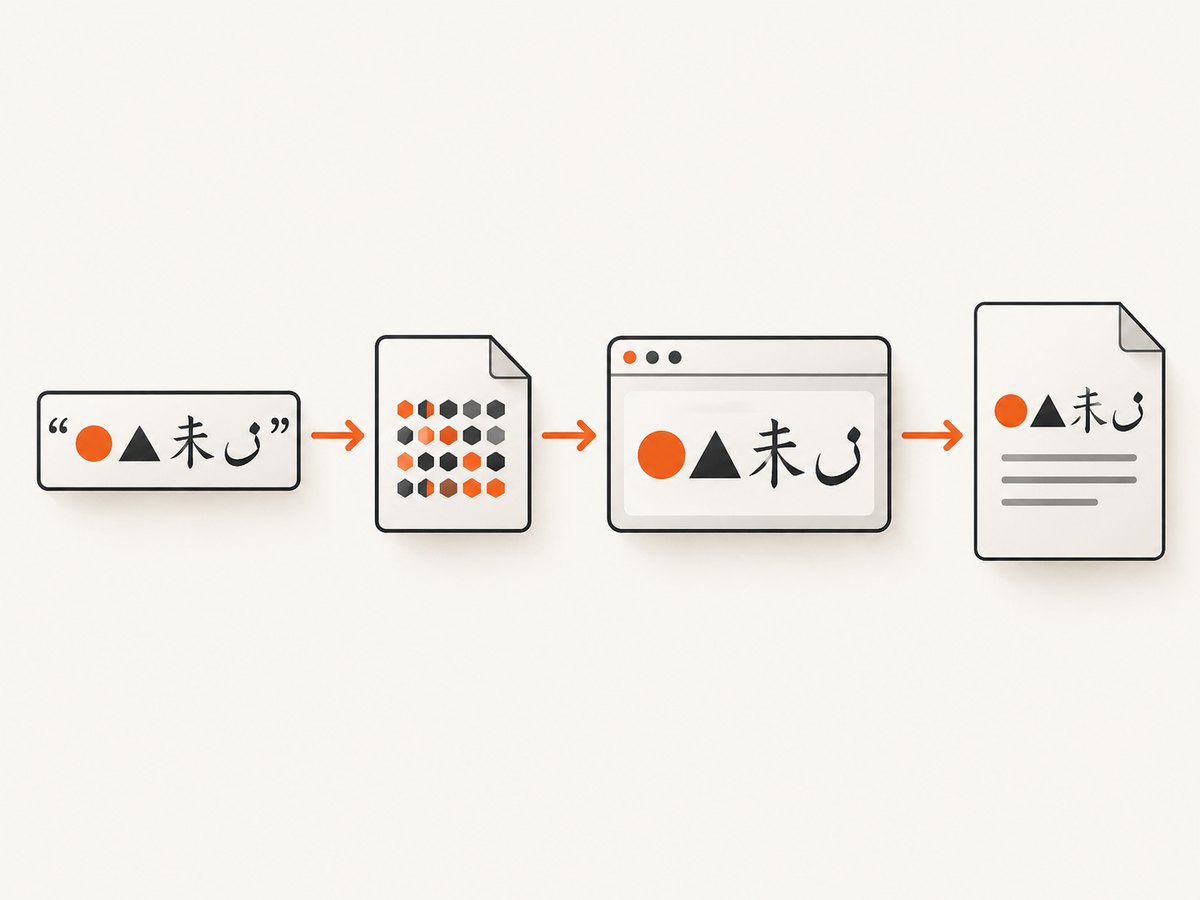
The complete pipeline is:
- C# stores text in a Unicode .NET
string(internally UTF-16). - Your application serializes that string to UTF-8 HTML bytes or a UTF-8 file.
- The renderer decodes the HTML and builds a page layout.
- The renderer selects fonts and shapes each script.
- The renderer returns PDF bytes, which you save or send to a client.
These are separate failure points. Mojibake such as café usually means bytes were decoded with the wrong encoding. Empty squares or replacement glyphs usually mean the font lacks a glyph, even though the HTML was decoded correctly.
1. Create UTF-8 HTML in C#
Declare the encoding in the document itself. Put the declaration near the beginning of <head>, before substantial text:
string html = """
<!doctype html>
<html lang="en">
<head>
  <meta charset="utf-8">
  <style>
    body { font-family: "Noto Sans", "Segoe UI", sans-serif; }
  </style>
</head>
<body>
  <h1>Unicode invoice</h1>
  <p>English: café — Ελληνικά — 日本語 — हिन्दी — العربية — 😀</p>
</body>
</html>
""";
In a raw string literal, the source file is normally decoded as UTF-8 by the compiler. Keep dynamic values separate from the template and HTML-encode untrusted values before interpolation:
using System.Net;

string customerName = "Zoë & Co.";
string safeName = WebUtility.HtmlEncode(customerName);
string html = $"""
<!doctype html>
<html><head><meta charset="utf-8"></head>
<body><h1>Hello, {safeName}</h1></body></html>
""";
When you write a file, specify UTF-8 explicitly so the behavior is obvious to maintainers:
using System.Text;

await File.WriteAllTextAsync("document.html", html, new UTF8Encoding(encoderShouldEmitUTF8Identifier: false));
Microsoft documents that StreamWriter defaults to UTF-8 without a byte-order mark, but explicit encoding makes the contract clear. See the StreamWriter documentation and Microsoft’s character encoding guidance.
2. Render the HTML with Playwright .NET
Playwright is a browser-backed renderer. Its Page.PdfAsync API returns PDF bytes and uses print CSS media by default. Install the package, install the browser binaries in your build or deployment image, then render:
dotnet add package Microsoft.Playwright
# Run once after building the project:
dotnet build
pwsh bin/Debug/net8.0/playwright.ps1 install chromium
using Microsoft.Playwright;
public static class PdfWriter
{
public static async Task WritePdfAsync(string html, string outputPath)
{
using var playwright = await Playwright.CreateAsync();
await using var browser = await playwright.Chromium.LaunchAsync(
new BrowserTypeLaunchOptions { Headless = true });
var page = await browser.NewPageAsync(new BrowserNewPageOptions
{
Locale = "en-US"
});
await page.SetContentAsync(html, new PageSetContentOptions
{
WaitUntil = WaitUntilState.NetworkIdle
});
// Optional: use screen styles instead of print styles.
// await page.EmulateMediaAsync(new PageEmulateMediaOptions
// {
// Media = Media.Screen
// });
byte[] pdf = await page.PdfAsync(new PagePdfOptions
{
Format = "A4",
PrintBackground = true,
PreferCSSPageSize = true,
Margin = new Margin
{
Top = "16mm",
Right = "16mm",
Bottom = "16mm",
Left = "16mm"
}
});
await File.WriteAllBytesAsync(outputPath, pdf);
}
}
await PdfWriter.WritePdfAsync(html, "document.pdf");For a complete console program, put the HTML construction and the call above in Program.cs. The browser process must be able to start in the target environment. Playwright’s browser installation documentation describes installing binaries and operating-system dependencies.
Choose print or screen media deliberately
PDF generation uses print media by default. Define print-specific rules for page breaks, hidden navigation, and readable margins:
@page { size: A4; margin: 16mm; }
@media print {
  .screen-only { display: none; }
  h2 { break-after: avoid; }
  table, img { break-inside: avoid; }
}
If the design depends on screen styles, call EmulateMediaAsync with Media.Screen before PdfAsync. Test both paths because pagination can change.
3. Control page size, margins, and pagination
Playwright accepts a named paper format such as A4 or Letter, or explicit Width and Height. Do not combine a CSS @page size with contradictory API dimensions unless you understand which setting wins. PreferCSSPageSize = true tells Chromium to honor the CSS page size.
var options = new PagePdfOptions
{
    Landscape = true,
    DisplayHeaderFooter = true,
    HeaderTemplate = "<span></span>",
    FooterTemplate = "<div style='font-size:9px;width:100%;text-align:center'>Page <span class='pageNumber'></span> of <span class='totalPages'></span></div>",
    PageRanges = "1-3",
    Scale = 0.95f,
    PrintBackground = true
};
Header and footer templates have restricted styling and do not behave like the main document. For complex headers, place them in the HTML body and manage page breaks with CSS.
4. Make sure fonts contain the required glyphs
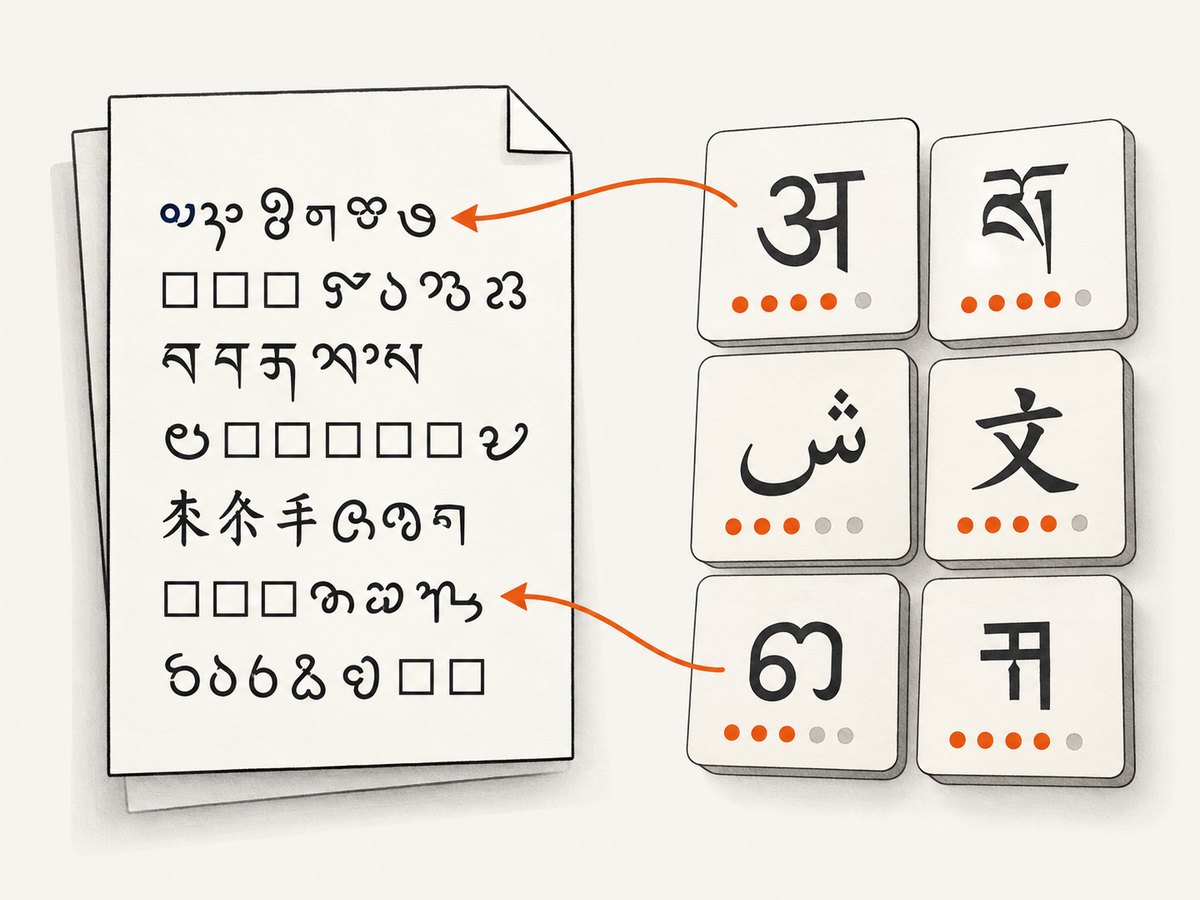
UTF-8 tells the renderer which characters you meant; it does not provide the artwork for those characters. Install fonts that cover every script you generate and declare a fallback stack:
body {
  font-family: "Noto Sans", "Noto Sans CJK JP", "Noto Sans Devanagari",
               "Noto Sans Arabic", "Segoe UI", sans-serif;
}
Font selection is environment-dependent. A developer laptop may have fonts that a Linux container lacks. Package the fonts with the application image or install them during deployment, then rebuild the font cache where your operating system requires it. For searchable PDFs, use real text and fonts rather than rasterizing the page.
Check the output with representative samples: accented Latin, combining marks, emoji, right-to-left Arabic, Devanagari, Chinese, Japanese, and Korean. Emoji often use color-font behavior that differs across operating systems and PDF viewers. A missing glyph can therefore be a font or viewer limitation rather than an encoding bug.
5. Loading images, CSS, and local resources
SetContentAsync can load remote resources referenced by absolute HTTPS URLs. For deterministic output, wait for the network to become idle and ensure the renderer can resolve every URL. If your HTML references relative paths, either use a base URL or serve the document from a local HTTP endpoint:
await page.SetContentAsync(html, new PageSetContentOptions
{
    WaitUntil = WaitUntilState.NetworkIdle
});
await page.WaitForTimeoutAsync(250); // only when a known late font/image needs it
For local files, prefer a controlled temporary directory and a file URL, or inline small assets as data URLs. Avoid arbitrary local paths from user input. If the page depends on JavaScript, wait for a specific selector that proves rendering is complete instead of using a long fixed delay.
6. Diagnose the common failures
| Symptom | Likely cause | Fix |
|---|---|---|
café or similar mojibake |
UTF-8 bytes decoded as Windows-1252 or Latin-1 | Keep meta charset="utf-8"; write with UTF8Encoding; inspect the first bytes of the HTML file. |
| Empty squares or tofu boxes | Selected font has no glyph | Install a font covering the script and add it to the CSS fallback list. |
| Accents work but Arabic or Indic text is broken | Missing font, shaping support, or an unsuitable fallback | Install a script-specific font and test the same container used in production. |
| Images missing | Relative URL, blocked network, authentication, or capture before load | Use absolute URLs or a base URL, provide credentials where appropriate, and wait for a selector or network idle. |
| PDF is blank | Page captured before client-side rendering, navigation failed, or browser crashed | Check browser logs, wait for a meaningful selector, and verify the URL or HTML independently. |
| Different page breaks in CI | Different Chromium version, fonts, viewport, or CSS | Pin browser versions, package fonts, set paper options explicitly, and compare generated PDFs in CI. |
Executable doesn't exist |
Playwright browser binaries were not installed | Run the generated playwright.ps1 install command during image or deployment setup. |
| Permission or sandbox errors | Restricted container user or missing OS dependencies | Install Playwright dependencies and configure a writable temporary directory; follow your container’s security policy. |
7. Reliability, performance, and cost considerations
Reuse browser processes
Launching Chromium for every document adds startup latency and memory use. In a service, create one browser per worker and create a fresh page or browser context per job. Close pages in a finally block, cap concurrency, and recycle the browser after a bounded number of jobs if memory grows.
Use bounded waits
Set navigation and rendering timeouts. Prefer a readiness selector such as #invoice-ready over an arbitrary multi-second sleep. A network-idle wait can remain open when analytics or long polling never stop, so combine it with a timeout and an application-level ready marker.
Control output size
Large images and many pages increase CPU, memory, and PDF size. Resize source images, avoid embedding unused assets, and use page ranges when only a subset is needed. Keep HTML generation separate from rendering so you can log document size and timing for each stage.
Make jobs repeatable
Pin the .NET runtime, Playwright package, Chromium revision, CSS, and fonts. Record the renderer version with each generated document. If PDFs are used for legal or financial records, retain the input data and a content hash so a later investigation can identify exactly what was rendered.
8. Alternative renderers and selection criteria
A browser renderer is useful when you need modern CSS and browser layout. Dedicated HTML-to-PDF engines can have different CSS coverage, font embedding, pagination, licensing, and deployment requirements. The research available here does not establish a universal winner or current commercial terms for other engines, so compare them with your own representative documents.
- Rendering fidelity: test the CSS, web fonts, charts, and page breaks your application actually uses.
- Unicode and fonts: verify shaping, fallback, embedding, searchable text, and the scripts you support.
- Deployment: account for browser binaries and operating-system dependencies with Playwright.
- Maintenance: verify supported .NET versions and current project activity before adopting an older package.
- Licensing and support: check the current vendor terms directly for your deployment model.
9. Or skip the browser setup
If you need a hosted capture or PDF workflow, ScreenshotNeo provides a website screenshot API and MCP server. It accepts one GET request and can return a PNG, JPEG, WebP, or PDF. The API can load full pages, wait for selectors or network idle, run custom JavaScript, set headers and cookies, choose a viewport or device preset, and apply PDF paper size, margins, orientation, and page ranges. See the ScreenshotNeo API documentation for the current parameter names.
curl -G "https://api.screenshotneo.com/v1/shot" -d access_key=YOUR_API_KEY --data-urlencode url=https://stripe.com -o shot.webpimport requests
r = requests.get("https://api.screenshotneo.com/v1/shot", params={"access_key": "YOUR_API_KEY", "url": "https://stripe.com"}, timeout=90)
open("shot.webp", "wb").write(r.content)const q = new URLSearchParams({ access_key: 'YOUR_API_KEY', url: 'https://stripe.com' });
const res = await fetch(`https://api.screenshotneo.com/v1/shot?${q}`);ScreenshotNeo removes cookie and consent banners, newsletter popups, and chat widgets before the capture. Bot checks, blank pages, failed loads, timeouts, and cache hits are not billed, and response headers identify the page verdict and billing status. Its MCP server exposes take_screenshot, get_page_info, and capture_pdf for Claude, Cursor, and other MCP clients. The Free plan includes 1,000 shots per month without a card; paid plans start at $5 for 3,000 shots. Create a free ScreenshotNeo account.
10. Checklist before shipping
- HTML contains an early UTF-8 charset declaration.
- Files and streams use explicit UTF-8 encoding.
- Dynamic values are HTML-encoded.
- Fonts for every supported script are installed in the deployment environment.
- Print CSS, page size, margins, and page breaks are intentional.
- Images and web fonts have a deterministic loading strategy.
- Readiness waits and timeouts are bounded.
- Chromium binaries and OS dependencies are installed in CI and production.
- Representative multilingual PDFs are opened in more than one viewer.
FAQ
Are C# strings UTF-8?
No. .NET strings are UTF-16 values. Convert them to UTF-8 when writing HTML, sending a response, or creating a byte array.
Do I need a byte-order mark?
Usually no. UTF-8 is self-identifying through the declared encoding and byte patterns; Playwright can render UTF-8 without a BOM. Use one only when a specific downstream consumer requires it.
Why does the browser show the text correctly but the PDF does not?
The browser and PDF viewer may choose different fonts or have different font availability. Package and declare the fonts used by the PDF renderer, then inspect the generated file in your target viewer.
Can I make a PDF from a URL instead of an HTML string?
Yes. Navigate a Playwright page to the URL, wait for the application-specific ready condition, and call PdfAsync. For a hosted one-call workflow, use ScreenshotNeo’s URL endpoint.
How can I confirm the PDF contains real Unicode text?
Select and copy text in a PDF viewer, or extract text with a PDF inspection tool. If extraction returns the expected characters but the display is wrong, investigate fonts and the viewer rather than HTML encoding.


