How to Print a Vue.js Component or Convert It to PDF
Print one Vue component or save it as PDF with browser print CSS, helper libraries, structured renderers, and ScreenshotNeo.
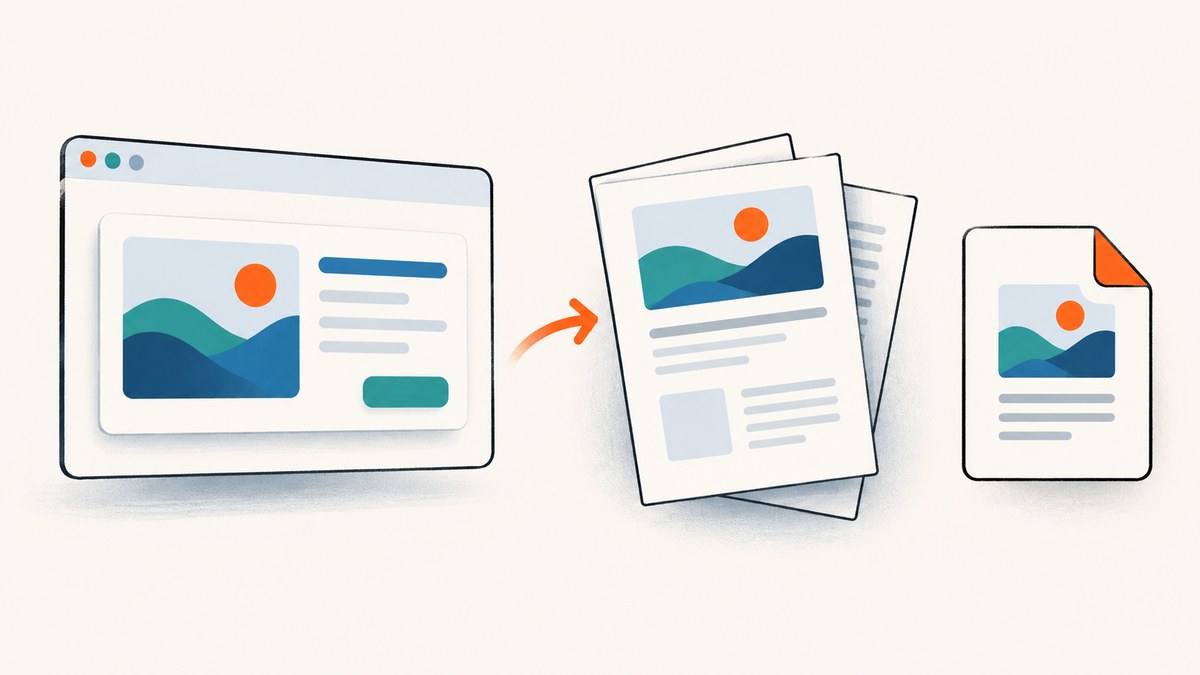
Direct answer: Vue prints the DOM it has rendered. Wait until the component has its final data, call window.print() from a user action, and use @media print rules to hide navigation and controls. The browser’s print dialog can send the result to a physical printer or a Save as PDF destination.
For invoices, statements, and other files that must be generated without a dialog, use a structured PDF renderer or a component library’s export API. For a remote URL, ScreenshotNeo can capture a rendered page as PNG, JPEG, WebP, or PDF without you maintaining a browser service.
1. Print one Vue component with the browser
A Vue single-file component (SFC) keeps its JavaScript, template, and CSS together. Vue renders that template into ordinary DOM, so browser printing works with normal HTML and CSS. See the official Vue guide for the component and SFC model.
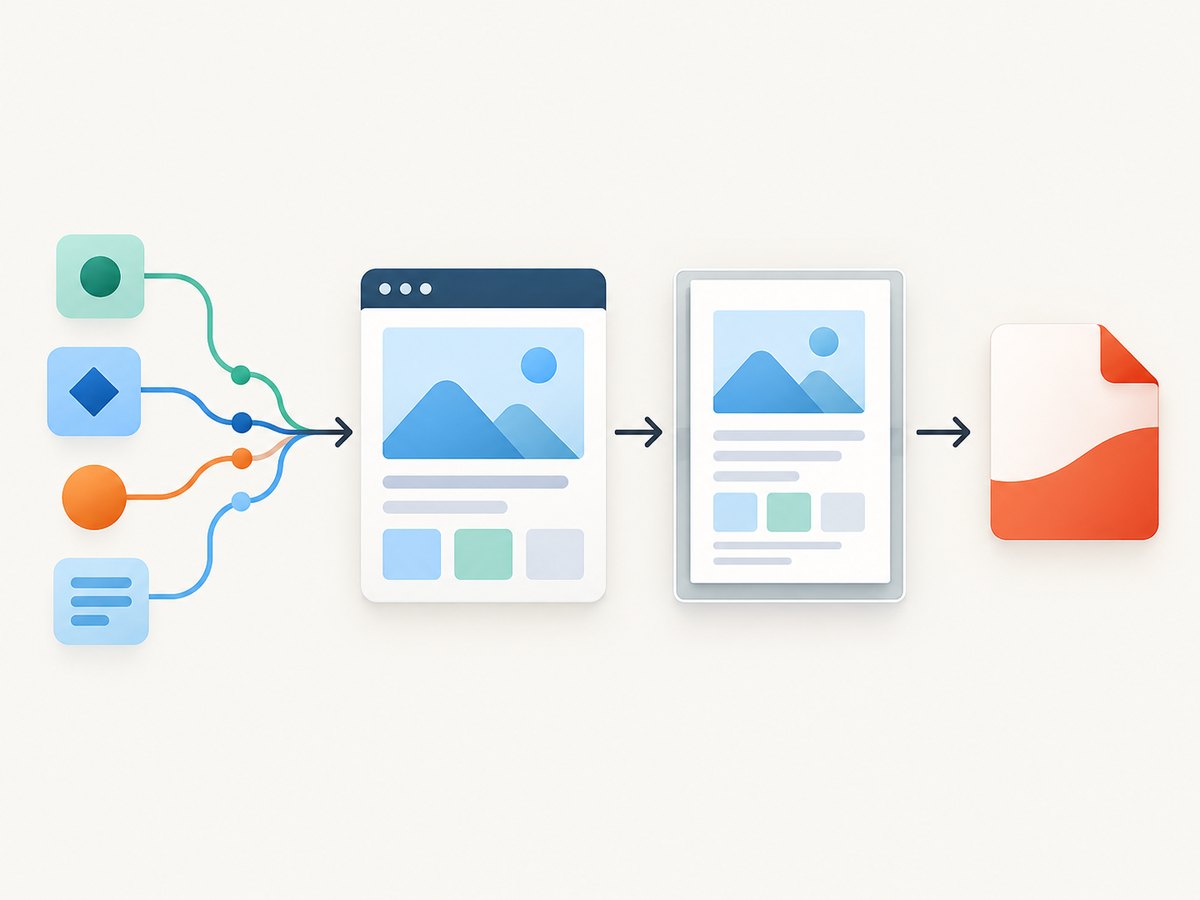
Complete Vue 3 example
<!-- ReportPage.vue -->
<script setup>
import { nextTick, ref, onMounted } from 'vue'

const report = ref(null)
const loading = ref(true)
const error = ref('')

async function loadReport () {
  loading.value = true
  error.value = ''
  try {
    // Replace this with your application request.
    report.value = {
      customer: 'Acme Ltd',
      period: 'January 2026',
      total: '$12,480.00',
      rows: [
        { description: 'Implementation', quantity: 1, amount: '$8,000.00' },
        { description: 'Support', quantity: 4, amount: '$4,480.00' }
      ]
    }
  } catch (cause) {
    error.value = cause instanceof Error ? cause.message : 'Unable to load report'
  } finally {
    loading.value = false
  }
}

async function printReport () {
  if (!report.value || loading.value) return
  // Let Vue flush the newest reactive state before opening print preview.
  await nextTick()
  await waitForImages(document.getElementById('report-to-print'))
  window.print()
}

function waitForImages (root) {
  if (!root) return Promise.resolve()
  const images = [...root.querySelectorAll('img')]
  return Promise.all(images.map(image => {
    if (image.complete) return Promise.resolve()
    return new Promise(resolve => {
      image.addEventListener('load', resolve, { once: true })
      image.addEventListener('error', resolve, { once: true })
    })
  }))
}

onMounted(loadReport)
</script>

<template>
  <button class="no-print" type="button" :disabled="loading || !report" @click="printReport">
    {{ loading ? 'Loading…' : 'Print or save as PDF' }}
  </button>

  <p v-if="error" class="no-print" role="alert">{{ error }}</p>
  <p v-else-if="loading" class="no-print">Loading report…</p>

  <main v-else id="report-to-print">
    <article class="report-sheet">
      <h1>Report for {{ report.customer }}</h1>
      <p>Period: {{ report.period }}</p>

      <table>
        <thead>
          <tr><th scope="col">Description</th><th scope="col">Qty</th><th scope="col">Amount</th></tr>
        </thead>
        <tbody>
          <tr v-for="row in report.rows" :key="row.description">
            <td>{{ row.description }}</td>
            <td>{{ row.quantity }}</td>
            <td>{{ row.amount }}</td>
          </tr>
        </tbody>
      </table>
      <p class="total">Total: {{ report.total }}</p>
    </article>
  </main>
</template>

<style>
.report-sheet { max-width: 800px; margin: 2rem auto; padding: 2rem; background: white; }
table { width: 100%; border-collapse: collapse; }
th, td { padding: .5rem; border-bottom: 1px solid #d8d8d8; text-align: left; }
.total { margin-top: 1rem; font-weight: 700; text-align: right; }

@media print {
  @page { size: A4; margin: 16mm; }
  .no-print, nav, header, footer, aside, .sidebar { display: none !important; }
  html, body { background: white; }
  .report-sheet { max-width: none; margin: 0; padding: 0; }
  tr, img, .keep-together { break-inside: avoid; page-break-inside: avoid; }
  thead { display: table-header-group; }
  a { color: inherit; text-decoration: none; }
}
</style>
Why nextTick() matters
Reactive assignments are flushed asynchronously. Calling window.print() immediately after changing state can open preview before the new values are in the DOM. Await nextTick(), then wait for important images and fonts if they affect layout.
2. Print-only layouts and page breaks
Dashboards contain buttons, filters, sidebars, and transient states that rarely belong on paper. A dedicated report component can use the same data while providing semantic headings, tables, and stable pagination.
- Hide application chrome with
display: none !important. - Set paper size and margins with
@page. - Use
break-inside: avoidfor cards, rows, and figures that must stay together. - Use
thead { display: table-header-group; }so table headings repeat where supported. - Do not depend on background colors being printed; users may disable background graphics in the dialog.
- Check long tables, nested flex or grid layouts, fixed-position elements, and links in each target browser.
3. Print only a component with a helper
A Vue print helper can open an isolated print window and copy selected markup and styles. The vue-to-print project describes this print-window and style-copy approach and lists Chrome, Safari, Firefox, and Edge support. APIs and Vue-version compatibility are package-version concerns, so check its current README before installing.
<script setup>
import { ref } from 'vue'

const printable = ref(null)

function printComponent () {
  // Use the helper's current API with printable.value.
  // Keep the component's print CSS available in the new window.
}
</script>

<template>
  <button type="button" @click="printComponent">Print component</button>
  <section ref="printable">Printable report</section>
</template>
A helper does not remove pagination, font-loading, image, canvas, or cross-origin limitations. Test the actual content and browser versions you support. Scoped styles also need to be copied or otherwise made available in the separate print document.
4. Generate a PDF directly
Use direct PDF generation when the file must download without a print dialog, be produced on a server, or have deterministic document structure. Structured renderers expose primitives such as Document, Page, Text, and View, with browser download/print components and Node.js rendering documented by Vue PDF resources.
This approach is a good fit for invoices and statements because text remains selectable and pagination is explicit. It usually requires a separate PDF layout; arbitrary screen CSS and interactive widgets do not map one-to-one to PDF primitives. Do not assume screen and PDF output will be pixel identical.
When to choose each method
| Method | Best for | Trade-off |
|---|---|---|
window.print() plus print CSS |
User-driven printing and Save as PDF | Browser settings and pagination affect output |
| Vue print helper | Isolating one component in a print window | Extra dependency and copied-style/asset edge cases |
| Component-library export API | Charts or widgets with native export support | Tied to that component vendor |
| Structured PDF renderer | Server files, downloads, invoices, deterministic pagination | Separate document layout and more code |
5. Component-library export APIs
If a chart or widget library owns the rendering, use its documented export API. DevExtreme’s Vue chart API, for example, documents exportTo(fileName, format) with PDF support and a print() method that opens the browser Print window. The exact reference is version-sensitive; follow the documentation for the installed release.
// Typical DevExtreme Vue pattern from the chart instance API
this.$refs.chart.instance.exportTo('Exported Chart', 'PDF')
this.$refs.chart.instance.print()
6. Readiness checklist
- Load all asynchronous data before enabling print.
- Await Vue’s DOM update with
nextTick(). - Wait for images and web fonts that determine dimensions.
- Hide navigation, controls, ads, and transient status elements.
- Define page margins, table headers, colors, and break rules.
- Test at least one Chromium browser and one other browser you support.
- Test empty states, very long text, missing images, right-to-left text, and multi-page tables.
7. Troubleshooting
| Symptom | Likely cause | Fix |
|---|---|---|
| Old values appear | Print opened before Vue flushed state | Await nextTick() after the final state change. |
| Blank or missing images | Images were still loading or blocked by origin policy | Wait for image load/error events, use accessible same-origin assets where possible, and test the browser’s print restrictions. |
| Styles disappear in a helper window | Stylesheets or scoped styles were not copied | Include the relevant styles in the print document; verify the helper’s current configuration. |
| Buttons and sidebars print | No print selectors or overly specific rules | Add stable classes and hide them under @media print with sufficient specificity. |
| Rows split across pages | Break rules are unsupported or applied to the wrong element | Apply break-inside: avoid to the row/card wrapper and test the target browser. |
| Background colors are absent | User disabled background graphics | Use borders and contrast that work without backgrounds; explain the browser print setting when color is required. |
| PDF text is not selectable | The page was rasterized as an image | Use a structured PDF renderer when selectable text is a requirement. |
| Print dialog never opens | Call was not triggered by a user gesture or the page is blocked | Call window.print() directly from the click handler and check popup/security policies. |
| Private data appears in a remote capture | Capture request lacks authentication context | Use authenticated headers/cookies only with a service you control and avoid exposing secrets in client-side code. |
8. Performance, reliability, and cost
- Print only the required component; a smaller DOM reduces layout work.
- Use a print-specific layout for large dashboards instead of hiding hundreds of interactive nodes.
- Compress or resize large images and avoid loading video, maps, and animations in print media.
- Wait for network data explicitly. A print preview is not a reliable signal that every request has finished.
- For server-generated PDFs, queue long jobs and make retries idempotent so a retry does not create duplicate records.
- Browser printing has no API charge, but it depends on the user’s browser, fonts, settings, and device.
- Remote screenshot services charge according to their billing rules. Compare whether failed pages and cache hits are billable before selecting one.
9. Or skip the browser setup
ScreenshotNeo captures a rendered URL as PNG, JPEG, WebP, or PDF through one GET request. It accepts cookie and consent banners like a visitor, removes more than 60 known consent platforms plus newsletter popups and chat widgets before capture, and lets each cleanup step be turned off. Bot checks or CAPTCHAs, blank pages, timeouts, failed loads, and cache hits are not billed; response headers identify the page verdict and whether the request was billed.

See the ScreenshotNeo API documentation for all options. This example captures a Vue route that is already deployed:
cURL
curl -G "https://api.screenshotneo.com/v1/shot" \
  -d access_key=YOUR_API_KEY \
  --data-urlencode url=https://example.com/reports/123 \
  -o report.webp
Python
import requests

r = requests.get(
    "https://api.screenshotneo.com/v1/shot",
    params={"access_key": "YOUR_API_KEY", "url": "https://example.com/reports/123"},
    timeout=90,
)
r.raise_for_status()
open("report.webp", "wb").write(r.content)
Node.js
const q = new URLSearchParams({
  access_key: 'YOUR_API_KEY',
  url: 'https://example.com/reports/123'
})
const res = await fetch(`https://api.screenshotneo.com/v1/shot?${q}`)
if (!res.ok) throw new Error(`Screenshot failed: ${res.status}`)
const bytes = Buffer.from(await res.arrayBuffer())
await import('node:fs/promises').then(fs => fs.writeFile('report.webp', bytes))
ScreenshotNeo also supports full-page capture with lazy images loaded, CSS-selector element capture, device presets or custom viewports, dark mode, retina scale, PDF paper size/margins/landscape/page ranges, custom CSS and JavaScript, clicks, selector or network-idle waits, request blocking, headers/cookies/user agents/Authorization, timezone and geolocation, transparent backgrounds, resizing, chosen cache TTLs, signed image links, asynchronous jobs with signed webhooks, bulk capture of up to 100 URLs per call, usage data, and an OpenAPI specification. An MCP server exposes take_screenshot, get_page_info, and capture_pdf to Claude, Cursor, and other MCP clients.
There is a free allowance of 1,000 shots per month with no card. Paid plans start at $5 for 3,000 shots; yearly billing gives two months free, and every feature is available on every plan. Create a free ScreenshotNeo account to capture your first 1,000 screenshots.
10. FAQ
Can I print a component without printing the whole app?
Yes. Put the component in a dedicated wrapper, hide the rest of the application under @media print, or use a print helper that opens only the selected markup.
Does Save as PDF require a PDF library?
No. window.print() opens the browser dialog, where the user can select Save as PDF. A library is useful when you need an automatic download or server-side generation.
Should a dashboard use screen CSS for its PDF?
Usually use a print-specific layout. It gives you control over page breaks, repeated headings, and which interactive controls appear.
How do I export a private Vue route with ScreenshotNeo?
Provide the authentication context supported by your deployment, such as custom headers or cookies, through the API options. Keep the access key and private credentials on your server.
Will every browser produce the same PDF?
No. Pagination, fonts, color settings, cross-origin assets, and some CSS features vary. Validate the browsers and paper settings your users rely on.


