How to Print a Web Page with Html2canvas
Learn how to capture a web page with html2canvas, download it, and build a reliable print or PDF workflow around its limits.
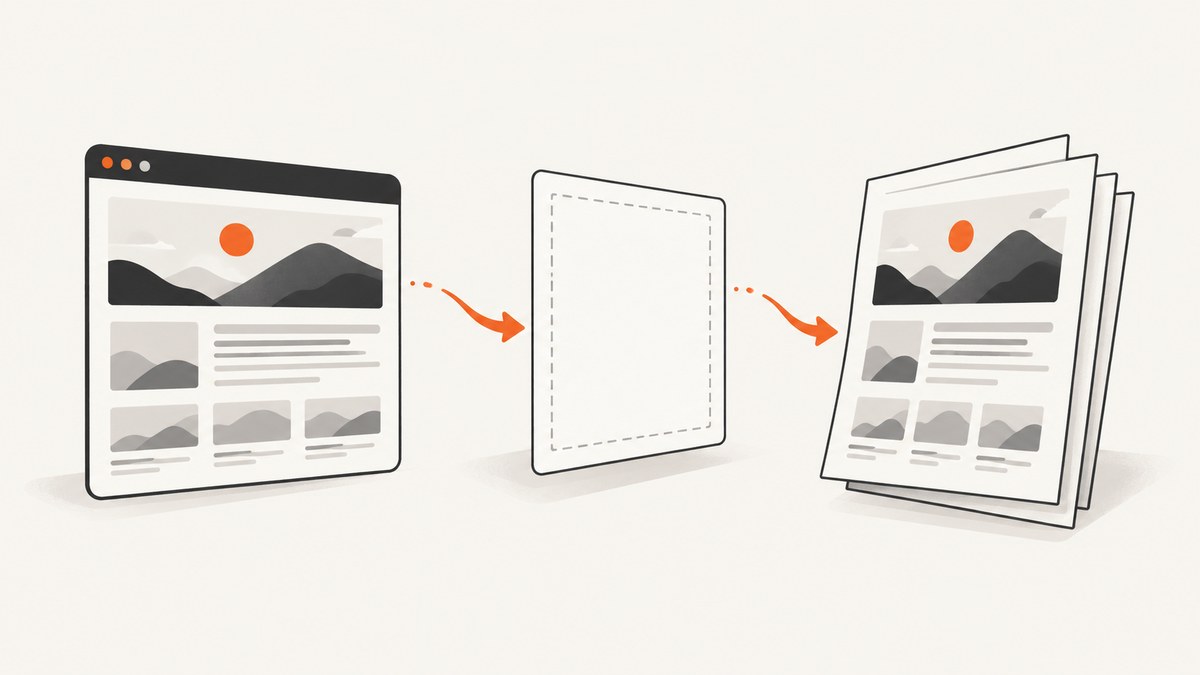
Short answer: html2canvas can render a DOM element into a canvas, which you can download as PNG or JPEG and send to a print workflow. It does not directly open the operating system print dialog, create paginated text PDFs, or take a literal screenshot of the browser. For a basic capture, load the library, select an element, await html2canvas(element), then export the returned canvas.
<button id="print-button" type="button">Print article</button>
<article id="article">
  <h1>Example article</h1>
  <p>This is the content to capture.</p>
</article>

<script src="https://cdn.jsdelivr.net/npm/html2canvas@1.4.1/dist/html2canvas.min.js"></script>
<script>
  document.querySelector('#print-button').addEventListener('click', async () => {
    const target = document.querySelector('#article');
    const canvas = await html2canvas(target);

    const image = canvas.toDataURL('image/png');
    const printWindow = window.open('', '_blank');
    printWindow.document.write(`
      <!doctype html>
      <html>
        <head>
          <title>Printable article</title>
          <style>
            @page { margin: 12mm; }
            html, body { margin: 0; }
            img { display: block; width: 100%; height: auto; }
          </style>
        </head>
        <body><img src="${image}" alt="Printable article"></body>
      </html>`);
    printWindow.document.close();
    printWindow.addEventListener('load', () => {
      printWindow.focus();
      printWindow.print();
    });
  });
</script>
This approach prints a raster image. If you need selectable text, semantic page breaks, or a server-side PDF, use browser-native printing or a browser automation/PDF pipeline instead.
1. What html2canvas actually does
html2canvas reconstructs a visual representation by traversing the DOM and reading styles; it does not photograph the page’s pixels. The project documentation states: “The script traverses through the DOM of the page it is loaded on.” Unsupported or partially supported CSS can therefore differ from the live page. See the official documentation.
The distinction matters when choosing an output:
| Goal | Best starting point | Main tradeoff |
|---|---|---|
| Print the current document with selectable text | window.print() plus print CSS |
Browser pagination and print settings control the result |
| Capture a DOM section as an image | html2canvas | Raster output and incomplete CSS coverage |
| Create a server-side screenshot | Puppeteer or Playwright | Requires a browser runtime on the server |
| Create a paginated PDF | Browser PDF printing or a PDF pipeline | Requires page-break testing and PDF-specific layout work |
2. Install and capture an element
CDN
<script src="https://cdn.jsdelivr.net/npm/html2canvas@1.4.1/dist/html2canvas.min.js"></script>npm
npm install html2canvasimport html2canvas from 'html2canvas';
const element = document.querySelector('#invoice');
const canvas = await html2canvas(element);
document.body.appendChild(canvas);The official Getting Started guide follows this same pattern: select an element, await the returned canvas, and append or export it.
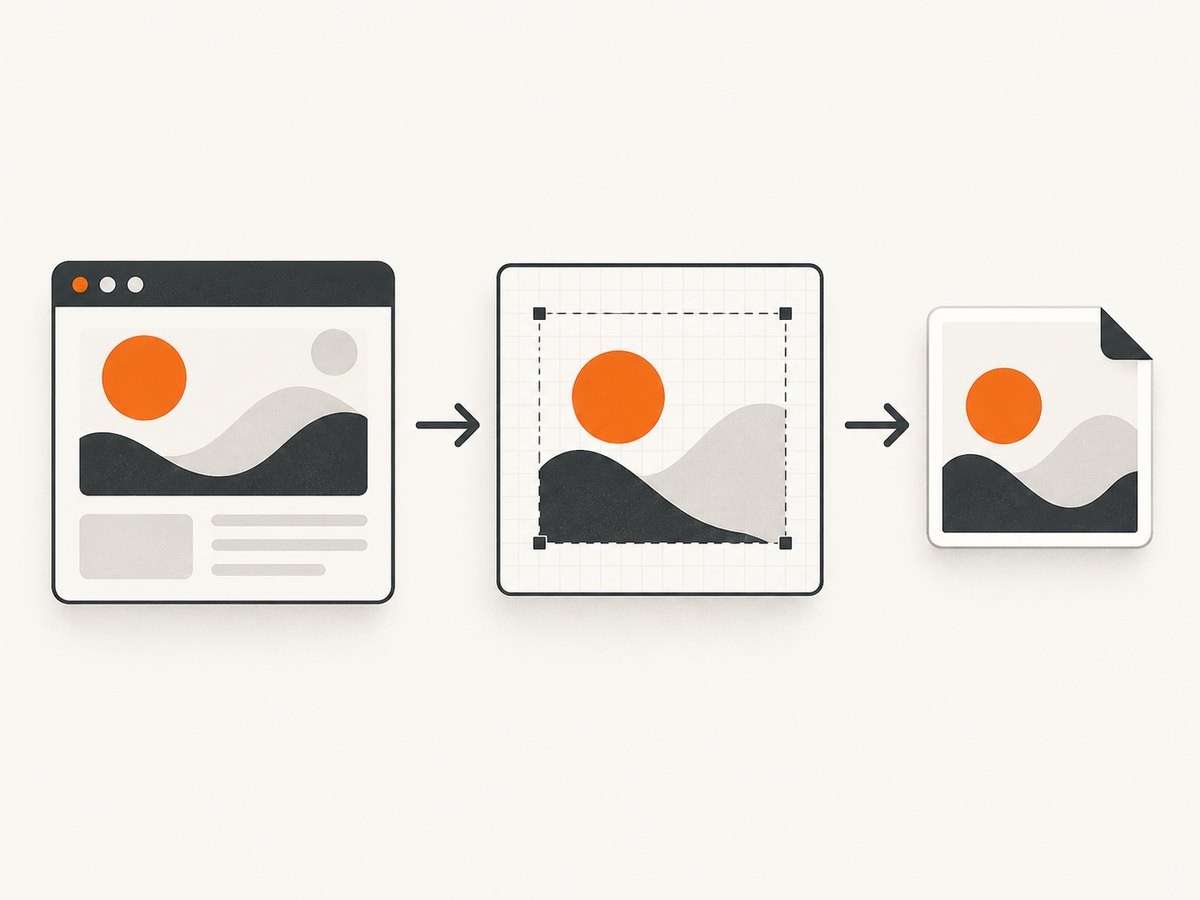
Download as PNG or JPEG
async function downloadCapture(selector, type = 'image/png') {
  const element = document.querySelector(selector);
  if (!element) throw new Error(`No element matches ${selector}`);

  const canvas = await html2canvas(element);
  const extension = type === 'image/jpeg' ? 'jpg' : 'png';
  const link = document.createElement('a');
  link.download = `capture.${extension}`;
  link.href = canvas.toDataURL(type, 0.92);
  link.click();
}

downloadCapture('#article');
PNG preserves sharp edges and transparency. JPEG is smaller for photographic content but loses transparency and uses lossy compression. The official examples show exporting a canvas with toDataURL().
3. Capture a full, tall element
Do not automatically capture document.body. Select the content region you want and exclude navigation, controls, and unrelated widgets. For a horizontally or vertically scrollable target, pass its scroll dimensions as the rendering window:
const target = document.querySelector('#article');
const canvas = await html2canvas(target, {
  windowWidth: target.scrollWidth,
  windowHeight: target.scrollHeight
});

const link = document.createElement('a');
link.download = 'full-article.png';
link.href = canvas.toDataURL('image/png');
link.click();
A tall canvas consumes substantial memory. Browser and device canvas ceilings vary, and an oversized capture can be blank, clipped, or partially rendered. If that happens, reduce the capture width, lower scale, or split the page into sections.
4. Remove elements before capture
Ignore elements with an attribute
<button data-html2canvas-ignore>Share</button>
<aside data-html2canvas-ignore>Related links</aside>
Use ignoreElements
const canvas = await html2canvas(document.querySelector('#article'), {
  ignoreElements: element => element.matches('.cookie-banner, .share-controls, nav')
});
Modify the cloned document with onclone
const canvas = await html2canvas(document.querySelector('#article'), {
  onclone: clonedDocument => {
    clonedDocument.querySelectorAll('.print-only-hidden').forEach(node => {
      node.remove();
    });
    clonedDocument.querySelectorAll('.sticky-toolbar').forEach(node => {
      node.style.display = 'none';
    });
  }
});
onclone changes the temporary cloned document used for rendering, so the visible page remains unchanged. The documented options include ignoreElements and onclone; check the configuration reference for the version installed in your project.
5. Control resolution and viewport
const canvas = await html2canvas(target, {
  scale: Math.min(window.devicePixelRatio || 1, 2),
  windowWidth: target.scrollWidth,
  windowHeight: target.scrollHeight,
  backgroundColor: '#ffffff'
});scalecontrols output pixels per CSS pixel. Higher values improve detail but increase memory use and canvas-limit risk.windowWidthandwindowHeightaffect layout calculations. Set them to the intended capture dimensions for wide or tall content.backgroundColorgives transparent areas a solid background. Usenullwhen transparency is required and supported by your output path.
Capture after fonts, images, and asynchronous content have loaded. A practical pattern is to wait for fonts and the target’s images:
await document.fonts.ready;
await Promise.all(
  [...document.querySelectorAll('#article img')].map(img =>
    img.complete
      ? Promise.resolve()
      : new Promise(resolve => {
          img.addEventListener('load', resolve, { once: true });
          img.addEventListener('error', resolve, { once: true });
        })
  )
);

const canvas = await html2canvas(document.querySelector('#article'));
6. Cross-origin images, fonts, and iframes
Browser security is the most common reason images are missing or export fails. An image from another origin must permit CORS access, or the resource must be fetched through a proxy that you control. Setting useCORS: true only helps when the image server sends an appropriate CORS header; it cannot bypass browser policy.
const canvas = await html2canvas(target, {
  useCORS: true,
  proxy: 'https://your.example.com/html2canvas-proxy'
});
Never treat a proxy as a way to access arbitrary private resources. Restrict it to approved hosts, validate URLs, and avoid forwarding user credentials. Cross-origin iframes cannot be read by html2canvas because the browser prevents access to their DOM. Render iframe content separately, configure it for same-origin access where appropriate, or use a browser automation tool.
7. Printing the canvas correctly
html2canvas returns a canvas; it does not invoke the system print dialog. To print, open a print-specific document containing the exported image, wait for it to load, and call print(). The image can be scaled to the paper width, but a very tall image may be split unpredictably across pages.
function printCanvas(canvas) {
  const printWindow = window.open('', '_blank', 'noopener,noreferrer');
  if (!printWindow) throw new Error('The print window was blocked');

  const dataUrl = canvas.toDataURL('image/png');
  printWindow.document.write(`
    <!doctype html>
    <html>
      <head>
        <title>Print capture</title>
        <style>
          @page { size: auto; margin: 10mm; }
          body { margin: 0; }
          img { width: 100%; height: auto; display: block; }
        </style>
      </head>
      <body><img id="capture" src="${dataUrl}" alt="Captured page"></body>
    </html>`);
  printWindow.document.close();
  printWindow.addEventListener('load', () => {
    printWindow.focus();
    printWindow.print();
  }, { once: true });
}

const canvas = await html2canvas(document.querySelector('#article'));
printCanvas(canvas);
For predictable multi-page documents, build a PDF workflow that explicitly handles page size, margins, scaling, and page breaks. A single raster canvas does not preserve selectable text and does not provide reliable semantic pagination by itself.
8. A complete browser example
<!doctype html>
<html lang="en">
<head>
  <meta charset="utf-8">
  <meta name="viewport" content="width=device-width, initial-scale=1">
  <title>html2canvas print example</title>
  <script src="https://cdn.jsdelivr.net/npm/html2canvas@1.4.1/dist/html2canvas.min.js"></script>
</head>
<body>
  <button id="download" type="button">Download PNG</button>
  <button id="print" type="button">Print</button>
  <main id="article">
    <h1>A capture target</h1>
    <p>Only this main element is rendered.</p>
    <button data-html2canvas-ignore>This button is excluded</button>
  </main>
  <script>
    const target = document.querySelector('#article');

    async function capture() {
      await document.fonts.ready;
      return html2canvas(target, {
        windowWidth: target.scrollWidth,
        windowHeight: target.scrollHeight,
        scale: Math.min(window.devicePixelRatio || 1, 2),
        backgroundColor: '#ffffff'
      });
    }

    document.querySelector('#download').addEventListener('click', async () => {
      const canvas = await capture();
      const link = document.createElement('a');
      link.download = 'article.png';
      link.href = canvas.toDataURL('image/png');
      link.click();
    });

    document.querySelector('#print').addEventListener('click', async () => {
      const canvas = await capture();
      const printWindow = window.open('', '_blank');
      if (!printWindow) return;
      printWindow.document.write(`<img style="width:100%" src="${canvas.toDataURL('image/png')}">`);
      printWindow.document.close();
      printWindow.addEventListener('load', () => printWindow.print(), { once: true });
    });
  </script>
</body>
</html>
9. cURL, Python, and Node.js alternatives
html2canvas runs in a browser, so it is not a Node.js server renderer. For server-side capture, the html2canvas FAQ points developers toward Puppeteer or Playwright. A generic Puppeteer example is:
npm install puppeteerimport puppeteer from 'puppeteer';
const browser = await puppeteer.launch({ headless: true });
const page = await browser.newPage();
await page.goto('https://example.com', { waitUntil: 'networkidle2' });
await page.screenshot({ path: 'page.png', fullPage: true });
await browser.close();For a command-line request to a screenshot service, the equivalent shape is:
curl -G "https://api.example.com/screenshot" \
  --data-urlencode "url=https://example.com" \
  -o page.png
The right choice depends on whether you need browser-local DOM control, a reproducible server job, or a hosted API.
10. Troubleshooting checklist
| Symptom | Likely cause | Fix |
|---|---|---|
| Images are missing | Cross-origin image without CORS | Serve the image with CORS headers, use useCORS, or route approved assets through a proxy. |
| Export throws a tainted-canvas security error | A cross-origin resource was drawn without permission | Fix CORS for every image/font involved; a client-side option cannot override browser security. |
| An iframe is blank | Cross-origin iframe isolation | Capture the iframe separately or use same-origin content/browser automation. |
| The result is cut off | Viewport does not include scroll dimensions | Set windowWidth and windowHeight from the target’s scroll dimensions. |
| The canvas is blank or partially blank | Canvas dimensions exceed browser or device limits | Lower scale, reduce width, or capture in sections. |
| Fonts differ | Web fonts have not finished loading | Await document.fonts.ready and verify the font is CORS-accessible. |
| Sticky headers repeat or overlap | Fixed positioning is reconstructed in the clone | Hide the element with data-html2canvas-ignore, ignoreElements, or onclone. |
| Modern CSS looks different | html2canvas does not support every CSS property | Check the documentation, simplify print styles, or use a browser-native screenshot. |
| Print dialog never appears | Popup blocked or print called before the document loaded | Open the window from the user gesture, close the document, and wait for its load event. |
| Capture times out while waiting for assets | Network resource never resolves | Handle image errors, preload critical assets, and set a bounded application timeout. |
The project FAQ documents a default image-load timeout of 15,000 milliseconds in its configuration information. Treat browser and platform limits as variable rather than relying on a universal maximum.
11. Performance and reliability
- Capture the smallest meaningful element. Rendering the whole document increases DOM traversal, layout work, memory use, and output size.
- Wait for fonts and critical images before starting. Otherwise the canvas can contain fallback fonts or empty boxes.
- Cap
scalefor mobile devices and long pages. Pixel count grows with both width and height, so a modest scale increase can multiply memory use. - Hide animated, sticky, and interactive controls in the clone. Pause animations when a consistent frame matters.
- Test representative browsers and screen sizes. CSS support and canvas ceilings vary across browser engines, operating systems, and hardware.
- For repeatable server jobs, prefer a managed browser runtime or hosted screenshot API over trying to run html2canvas without a DOM.
12. Or skip the browser setup
ScreenshotNeo provides a hosted website screenshot API and MCP server. One GET request returns a PNG, JPEG, WebP, or PDF. See the ScreenshotNeo API documentation for the full option list.
cURL
curl -G "https://api.screenshotneo.com/v1/shot" -d access_key=YOUR_API_KEY --data-urlencode url=https://stripe.com -o shot.webpPython
import requests

r = requests.get("https://api.screenshotneo.com/v1/shot", params={"access_key": "YOUR_API_KEY", "url": "https://stripe.com"}, timeout=90)
open("shot.webp", "wb").write(r.content)
Node.js
const q = new URLSearchParams({ access_key: 'YOUR_API_KEY', url: 'https://stripe.com' });
const res = await fetch(`https://api.screenshotneo.com/v1/shot?${q}`);
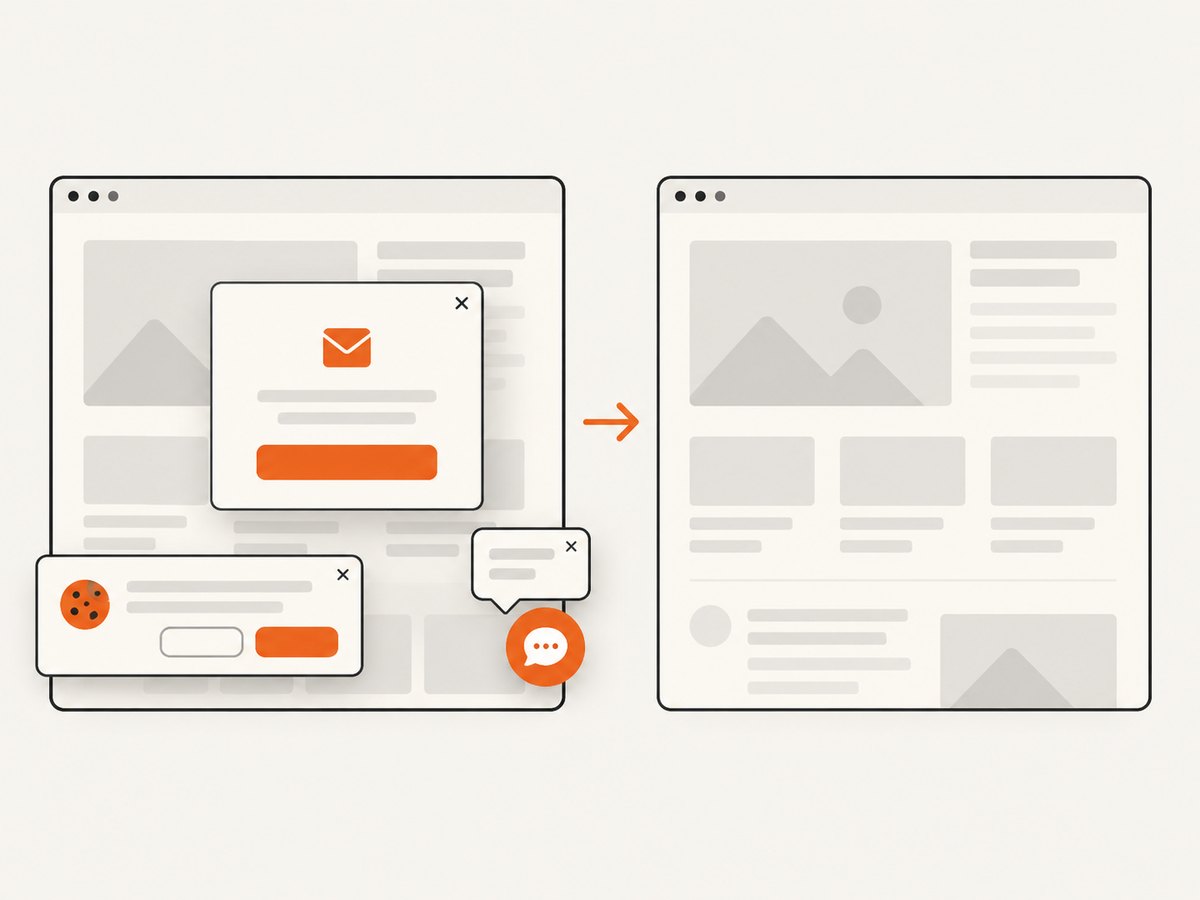
Before capture, ScreenshotNeo accepts cookie and consent banners like a visitor and removes more than 60 known consent platforms, newsletter popups, and chat widgets; each step can be turned off. Bot checks, blank pages, timeouts, failed loads, and cache hits are not billed, and the response identifies the result with X-Page-Verdict and X-Billed headers. Its MCP server provides take_screenshot, get_page_info, and capture_pdf tools for Claude, Cursor, and other MCP clients. The Free plan includes 1,000 screenshots per month with no card; paid plans start at $5 for 3,000 shots. Create a free ScreenshotNeo account.
13. Cost and output decisions
html2canvas has no hosted capture charge, but it uses the visitor’s CPU, memory, network, and browser. A hosted service adds an API cost while moving browser setup and operational work out of your application. Compare the total cost of retries, proxy maintenance, browser workers, storage, and PDF generation rather than only the per-request price.
Choose the output before implementing:
- Use browser print CSS when text selection, accessibility, and native pagination matter.
- Use html2canvas when a client-side image of a specific DOM region is sufficient.
- Use Puppeteer or Playwright when you control a server browser and need a faithful rendered page.
- Use a screenshot API when you want a single request, consistent capture options, caching, bulk jobs, or PDF output without maintaining browsers.
14. FAQ
Does html2canvas make a real screenshot?
No. It reconstructs the page from DOM and styles, so unsupported CSS and browser-only effects can differ from the live rendering.
Can html2canvas print directly?
No. It returns a canvas. Export the canvas and open a print document, or use window.print() for the original page.
Can it create a multi-page PDF?
It can provide raster content for a PDF workflow, but pagination, paper size, margins, and page breaks require additional code and testing.
Why are external images not included?
The image origin must allow CORS access, or the asset must be supplied through a suitable proxy. Cross-origin iframes remain inaccessible.
Is html2canvas usable in Node.js?
It is a browser library. For Node.js server rendering, use a browser automation library such as Puppeteer or Playwright, or a hosted screenshot API.
What should I do with a very long page?
Capture a smaller content region, set the intended window dimensions, lower the scale, and split the page if the resulting canvas exceeds the browser’s limits.


