How to Print a Web Page to PDF in C# WPF
Use WebView2 PrintToPdfAsync to save the current WPF page silently, with code for files, streams, print settings, errors, and alternatives.

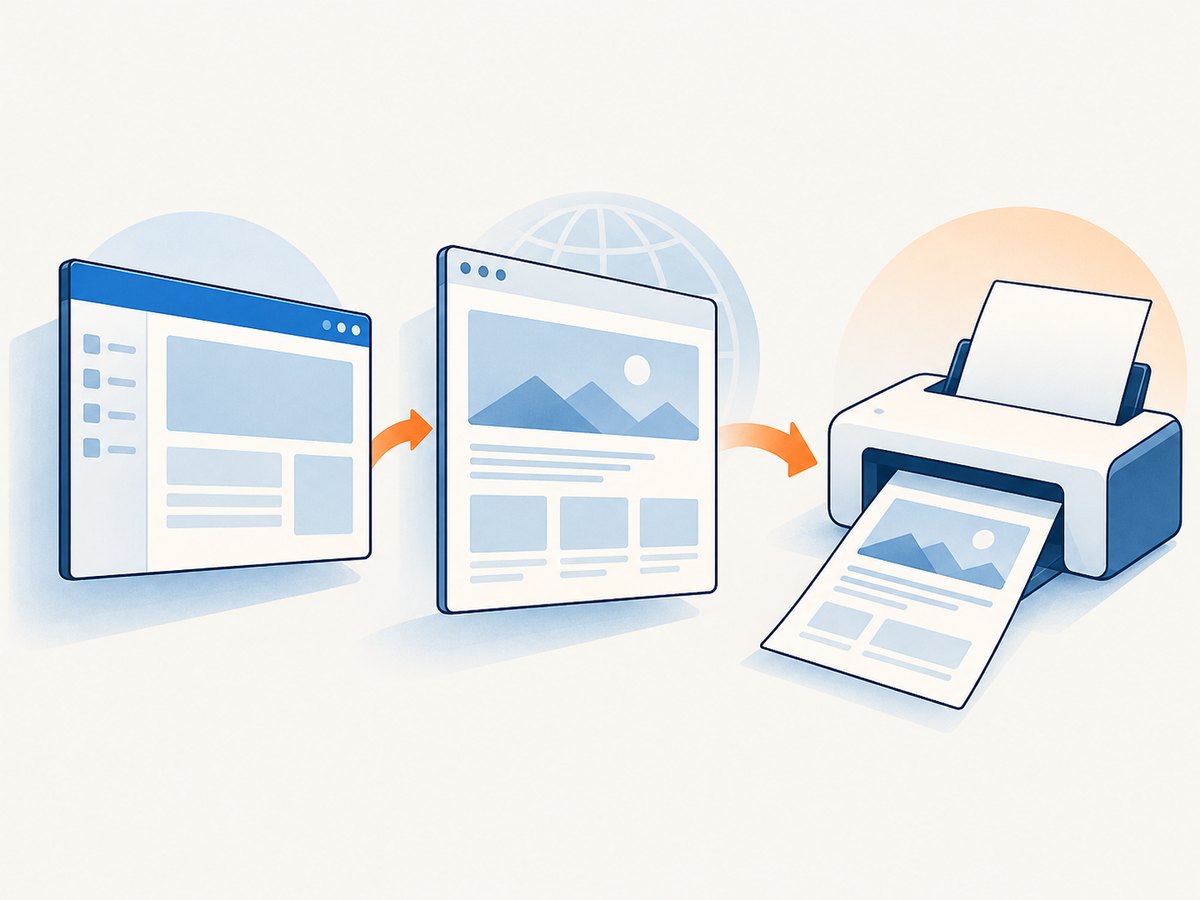
Use Microsoft Edge WebView2 in your WPF application, wait for CoreWebView2 to initialize, then call PrintToPdfAsync. The method silently prints the current top-level document to a PDF file and returns a Boolean indicating whether the operation succeeded.
private async void PrintToPdf_Click(object sender, RoutedEventArgs e)
{
    var dialog = new Microsoft.Win32.SaveFileDialog
    {
        Filter = "PDF Files|*.pdf",
        DefaultExt = ".pdf",
        AddExtension = true
    };

    if (dialog.ShowDialog() != true)
        return;

    try
    {
        // EnsureCoreWebView2Async must have completed before this handler runs.
        CoreWebView2PrintSettings? settings = null;
        bool ok = await webView.CoreWebView2.PrintToPdfAsync(
            dialog.FileName,
            settings);

        MessageBox.Show(ok
            ? "Print to PDF succeeded"
            : "Print to PDF failed");
    }
    catch (Exception ex)
    {
        MessageBox.Show($"Could not create the PDF: {ex.Message}");
    }
}
The API is part of WebView2’s CoreWebView2 object. Microsoft describes PrintToPdfAsync as silently printing the current top-level document to a PDF file. See the WebView2 printing guide and the PrintToPdfAsync API reference.
1. Set up WebView2 in a WPF project
Install the WebView2 WPF package that matches your target framework, add a control to the window, and navigate it to the page you want to export.
<Window x:Class="PdfDemo.MainWindow"
        xmlns="http://schemas.microsoft.com/winfx/2006/xaml/presentation"
        xmlns:x="http://schemas.microsoft.com/winfx/2006/xaml"
        xmlns:wv2="clr-namespace:Microsoft.Web.WebView2.Wpf;assembly=Microsoft.Web.WebView2.Wpf"
        Title="Web page PDF" Height="800" Width="1200">
    <Grid>
        <Grid.RowDefinitions>
            <RowDefinition Height="*" />
            <RowDefinition Height="Auto" />
        </Grid.RowDefinitions>

        <wv2:WebView2 x:Name="webView" Grid.Row="0" />
        <Button Grid.Row="1" Content="Export PDF" Click="PrintToPdf_Click"
                Margin="8" Padding="12,6" HorizontalAlignment="Left" />
    </Grid>
</Window>
Initialize the browser before using CoreWebView2. Doing this in Loaded keeps browser startup out of the click handler.
using System.Windows;
using Microsoft.Web.WebView2.Core;

namespace PdfDemo;

public partial class MainWindow : Window
{
    private bool _isPrintToPdfInProgress;

    public MainWindow()
    {
        InitializeComponent();
        Loaded += MainWindow_Loaded;
    }

    private async void MainWindow_Loaded(object sender, RoutedEventArgs e)
    {
        await webView.EnsureCoreWebView2Async();
        webView.Source = new Uri("https://example.com");
    }

    private async void PrintToPdf_Click(object sender, RoutedEventArgs e)
    {
        if (_isPrintToPdfInProgress)
            return;

        _isPrintToPdfInProgress = true;
        try
        {
            var dialog = new Microsoft.Win32.SaveFileDialog
            {
                Filter = "PDF Files|*.pdf",
                DefaultExt = ".pdf",
                AddExtension = true
            };

            if (dialog.ShowDialog() != true)
                return;

            bool ok = await webView.CoreWebView2.PrintToPdfAsync(
                dialog.FileName, null);

            MessageBox.Show(ok ? "PDF saved." : "PDF export failed.");
        }
        catch (NotImplementedException)
        {
            MessageBox.Show("The installed WebView2 runtime does not implement PDF printing.");
        }
        catch (Exception ex)
        {
            MessageBox.Show($"PDF export failed: {ex.Message}");
        }
        finally
        {
            _isPrintToPdfInProgress = false;
        }
    }
}
2. Wait for the page before exporting
PrintToPdfAsync prints the current top-level document. If navigation is still in progress, images or fonts may be missing. Handle NavigationCompleted, or wait for a page-specific element before enabling the export button.
private bool _pageReady;

private void WebView_NavigationCompleted(
    object? sender,
    CoreWebView2NavigationCompletedEventArgs e)
{
    _pageReady = e.IsSuccess;
    exportButton.IsEnabled = _pageReady;
}

private async Task WaitForSelectorAsync(string selector, TimeSpan timeout)
{
    var deadline = DateTime.UtcNow + timeout;
    var script = $"document.querySelector({System.Text.Json.JsonSerializer.Serialize(selector)}) !== null";

    while (DateTime.UtcNow < deadline)
    {
        string result = await webView.CoreWebView2.ExecuteScriptAsync(script);
        if (result == "true")
            return;
        await Task.Delay(100);
    }

    throw new TimeoutException($"Selector was not found: {selector}");
}
For pages that render after navigation, wait for a known content selector, a controlled delay, or an application-level ready signal. Do not start multiple exports against the same control at once.
3. Customize PDF output
Pass null for WebView2 defaults. Create CoreWebView2PrintSettings when you need options such as landscape orientation.
using Microsoft.Web.WebView2.Core;

var settings = webView.CoreWebView2.Environment.CreatePrintSettings();
settings.Orientation = CoreWebView2PrintOrientation.Landscape;

bool ok = await webView.CoreWebView2.PrintToPdfAsync(
    outputPath,
    settings);
The exact settings available depend on the WebView2 SDK/runtime version. Check the installed SDK’s CoreWebView2PrintSettings members before relying on a property in a distributed application.
4. Choose the right WebView2 printing API
| Requirement | API | Result |
|---|---|---|
| Let the user review settings | ShowPrintUI() |
Browser preview or system print dialog |
| Save silently to a file | PrintToPdfAsync(path, settings) |
PDF file |
| Keep PDF bytes in memory | PrintToPdfStreamAsync(settings) |
Stream |
| Send to a physical printer | PrintAsync(settings) |
Printer job and status |
Show the print interface
await webView.CoreWebView2.ShowPrintUI();Use this when the user should choose printer or preview options. It is interactive and is not the silent export path.
Receive a PDF stream
using var pdfStream = await webView.CoreWebView2
    .PrintToPdfStreamAsync(null);

using var destination = File.Create("page.pdf");
await pdfStream.CopyToAsync(destination);
The stream form is useful when you need to upload, inspect, or transform the PDF without first choosing a file path.
Print to a device
CoreWebView2PrintStatus status =
    await webView.CoreWebView2.PrintAsync(null);

MessageBox.Show($"Printer status: {status}");
PrintAsync creates a printer job; it does not create a PDF file.
5. File handling and reliability checklist
- Call
EnsureCoreWebView2Asyncbefore accessingCoreWebView2. - Wait for successful navigation and any application-specific content readiness condition.
- Use a writable absolute path from
SaveFileDialogor a controlled application directory. - Prevent overlapping exports with a flag or disabled button.
- Await the task and inspect its Boolean result.
- Catch file-system, runtime, and unsupported-operation exceptions.
- Keep the UI responsive by using the asynchronous API and an
asyncevent handler.
6. Troubleshooting common failures
| Symptom | Likely cause | Fix |
|---|---|---|
CoreWebView2 is null |
Initialization has not completed. | Await EnsureCoreWebView2Async during startup or Loaded. |
| PDF is blank or incomplete | Export began while navigation or client-side rendering was active. | Wait for NavigationCompleted and a required selector or ready signal. |
| Method is not implemented | The installed WebView2 runtime does not support the requested API. | Install or update the Evergreen WebView2 Runtime, and handle NotImplementedException. |
| Boolean result is false | The runtime could not complete the print operation. | Verify the path, permissions, free disk space, and runtime state; report failure and allow retry. |
| Access denied or path errors | The destination directory is read-only or invalid. | Use SaveFileDialog or validate the directory before calling the API. |
| Two exports interfere | Concurrent calls share one WebView2 instance. | Serialize exports and disable the command while one is running. |
| Missing images or fonts | Resources have not loaded or are blocked by the page. | Wait for the page’s ready condition and verify the same URL works in the WebView. |
7. Performance, reliability, and cost considerations
Export time is dominated by page navigation, JavaScript rendering, network resources, and PDF generation. Reusing an initialized WebView2 instance avoids browser startup for every export. For batches, queue jobs so only one print operation uses a given control at a time.
PDF output is local to the desktop application, so your costs are the browser runtime, storage, and network access required by the page. WebView2 does not provide a service-side usage price for this API. If a page depends on authentication, preserve the WebView2 profile and session that loaded it, and apply normal controls for sensitive files.
Or skip the browser setup
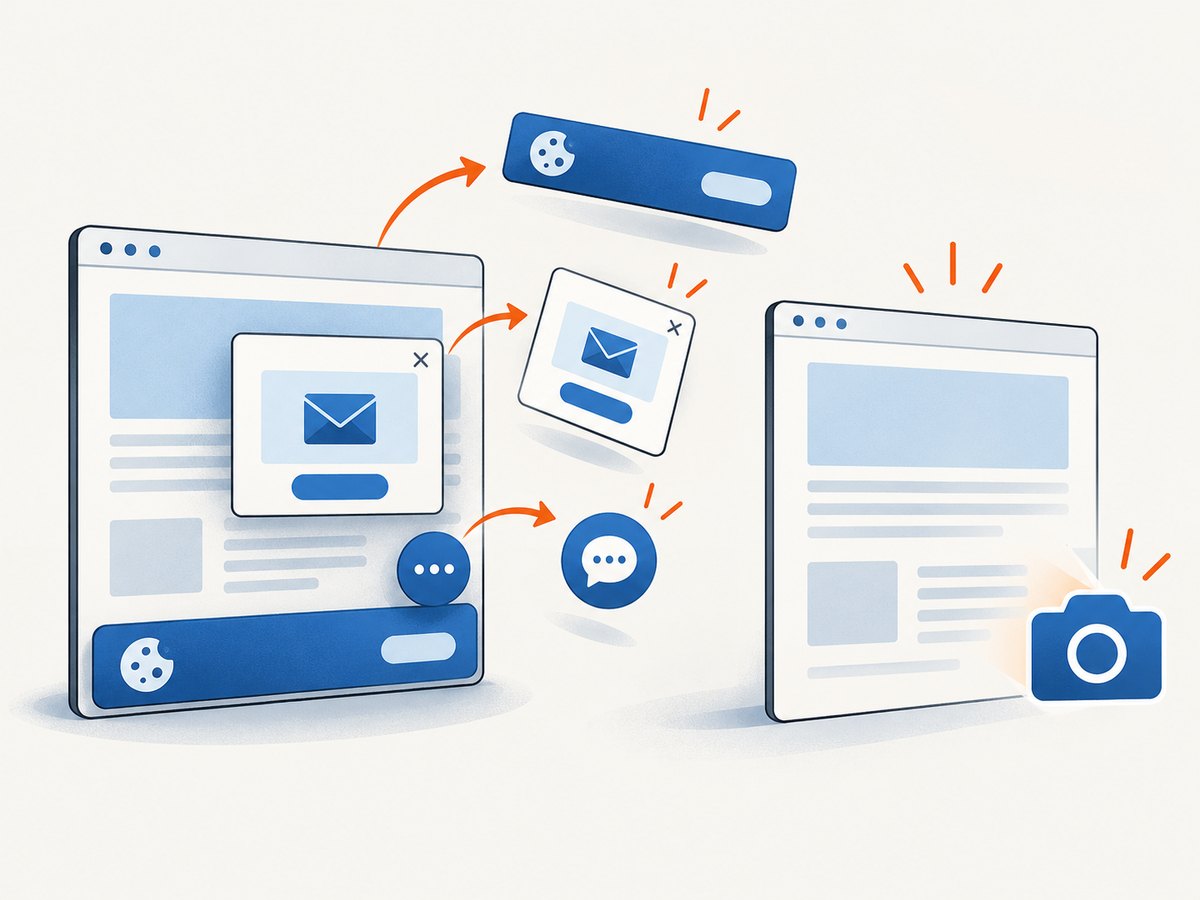
If you need an API response instead of a WPF browser control, ScreenshotNeo can capture a URL as a PDF with one GET request. Its cleaning steps accept cookie or consent banners and remove more than 60 known consent platforms, newsletter popups, and chat widgets before capture; each step can be turned off. Bot checks, blank pages, timeouts, failed loads, and cache hits are not billed, and the response identifies the result with X-Page-Verdict and X-Billed headers. An MCP server also provides take_screenshot, get_page_info, and capture_pdf for Claude, Cursor, and other MCP clients.
See the ScreenshotNeo API documentation for PDF parameters such as paper size, margins, landscape mode, and page ranges.
curl -G "https://api.screenshotneo.com/v1/shot" \
  -d access_key=YOUR_API_KEY \
  --data-urlencode url=https://stripe.com \
  -d format=pdf \
  -o page.pdf
import requests
r = requests.get(
"https://api.screenshotneo.com/v1/shot",
params={
"access_key": "YOUR_API_KEY",
"url": "https://stripe.com",
"format": "pdf",
},
timeout=90,
)
r.raise_for_status()
open("page.pdf", "wb").write(r.content)const q = new URLSearchParams({
access_key: 'YOUR_API_KEY',
url: 'https://stripe.com',
format: 'pdf'
});
const res = await fetch(`https://api.screenshotneo.com/v1/shot?${q}`);
if (!res.ok) throw new Error(`HTTP ${res.status}`);
require('fs').writeFileSync('page.pdf', Buffer.from(await res.arrayBuffer()));ScreenshotNeo includes 1,000 shots per month free with no card. Paid plans start at $5 for 3,000 shots, and every feature is available on every plan. Create a free ScreenshotNeo account.
FAQ
Can I print the page without showing a dialog?
Yes. Use PrintToPdfAsync for a silent file export. ShowPrintUI is the interactive option.
Does this print only the visible viewport?
WebView2 prints the current top-level document using its print layout. Page content and CSS determine pagination; test pages with long or responsive layouts.
How do I upload the PDF without saving it first?
Use PrintToPdfStreamAsync, then copy the returned stream into your upload request.
Can I use the old WPF WebBrowser control?
Use WebView2 for this workflow. The printing APIs described here belong to CoreWebView2.


