How to Print a Webpage Without Images Using CSS and Browser Print Settings
Remove webpage images for cleaner paper or PDF output with print CSS, Firefox and Edge settings, troubleshooting, and an API option.
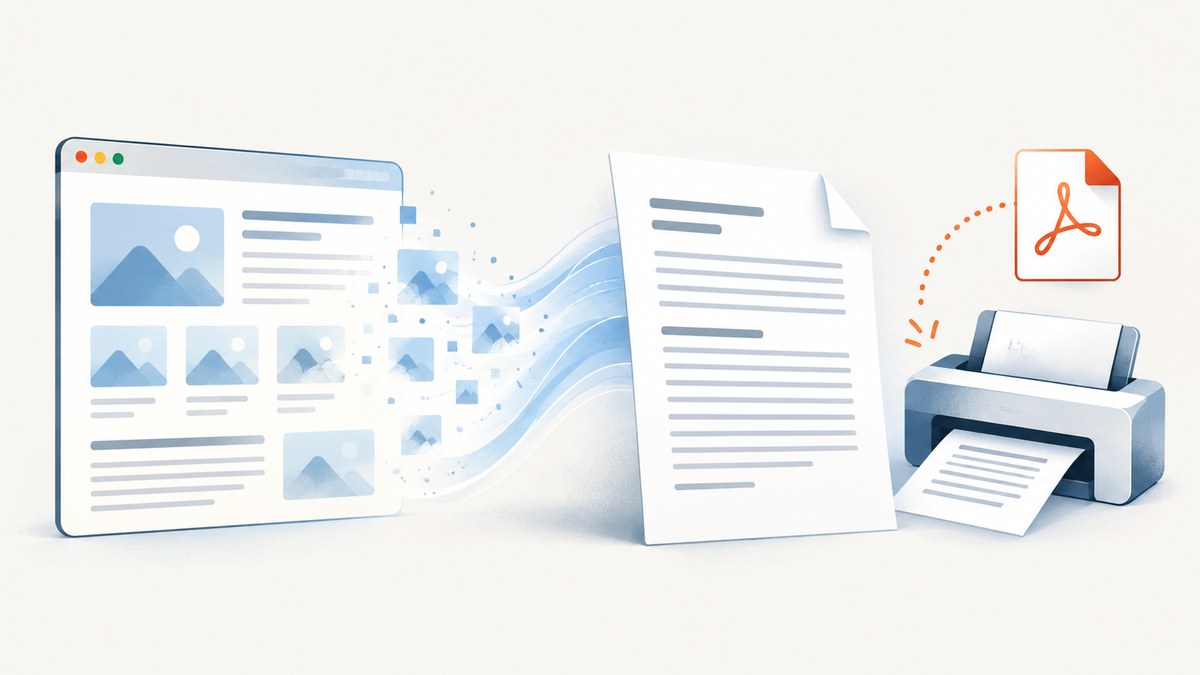
To print a webpage without images, use a print-only CSS rule when you control the page, or use a browser’s simplified or reader mode when you do not. The common starting point is:
@media print {
  img,
  picture,
  video {
    display: none !important;
  }
}
Open print preview before printing or saving a PDF. This selector removes those HTML elements, but it does not automatically remove CSS background images, visuals drawn by JavaScript, advertisements, navigation, or the space left by a surrounding layout. If you need a clean capture of a page you do not maintain, Firefox Simplified or Reader View can help when available. Edge has a Background graphics setting and, on supported pages, Immersive Reader.
Choose the method that matches your page
| Situation | Best first method | What it controls |
|---|---|---|
| You own the website | @media print CSS |
Exact print layout, including which elements are hidden |
| You do not control the website | Firefox Simplified or Reader View | Clutter reduction, background images, ads and controls when supported |
| You only need to suppress backgrounds | Edge’s Background graphics option | CSS background graphics; it is not a universal inline-image switch |
| You need repeatable screenshots or PDFs in code | A browser automation workflow or ScreenshotNeo | Automated rendering with configurable capture options |
The distinction matters: an <img> element, a CSS background-image, and a canvas drawing are different things. A rule targeting img cannot promise to remove the other two. Print preview is the final authority for the page, browser, and operating system you are using.
Method 1: hide images with print CSS
Use a print media query in the page stylesheet. MDN documents @media as the mechanism for applying styles to print and PDF output. Read the MDN printing guide for the broader print workflow.
Basic rule
@media print {
  img,
  picture,
  video {
    display: none !important;
  }
}
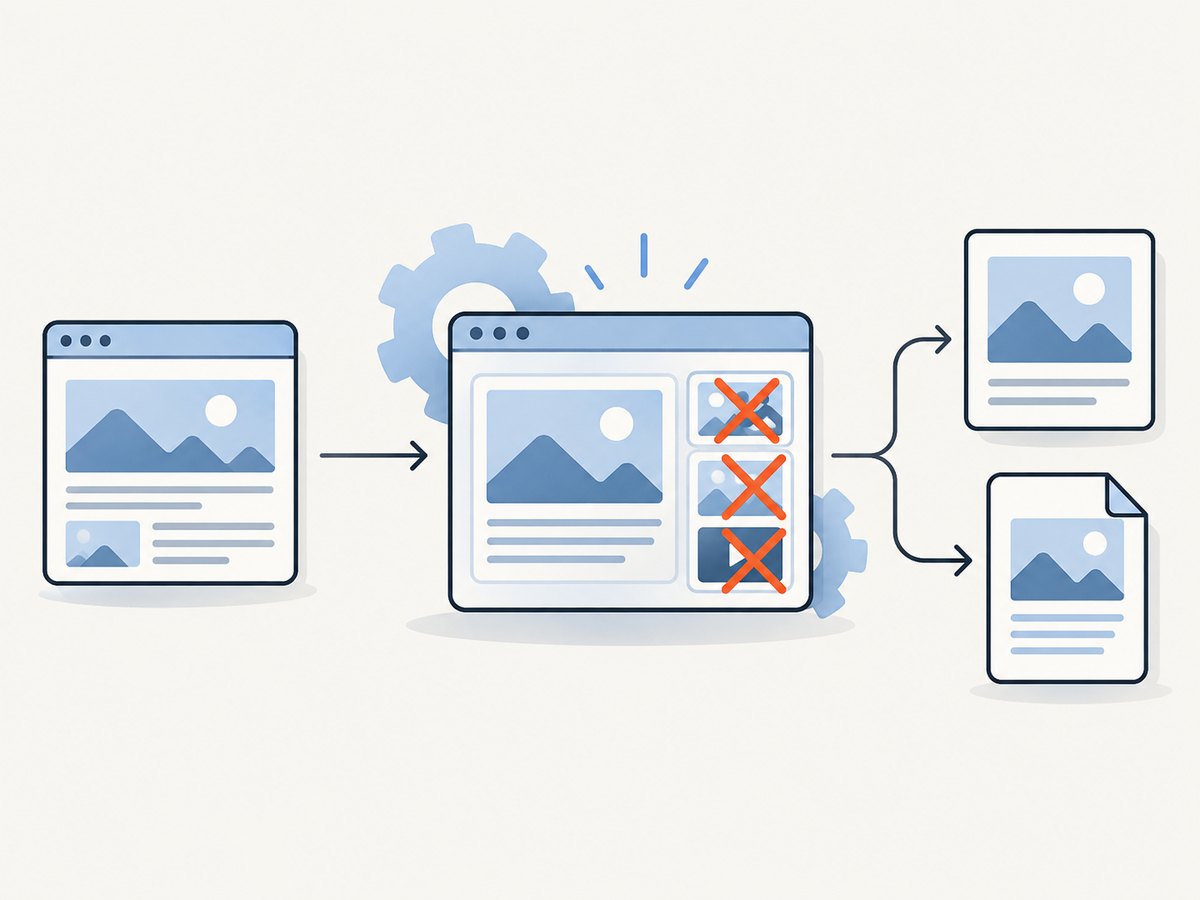
picture hides the picture wrapper and its responsive image sources. video is included because motion is usually unwanted on paper, although it is not an image element. The !important flag helps override component styles that otherwise set display or visibility.
Remove the space left by an image
Hiding an element with display: none removes it from normal flow. A blank area can still remain when the space belongs to a parent, a fixed-height card, a grid track, or a pseudo-element. Add print-specific rules for those containers using your site’s actual classes:
@media print {
  img,
  picture,
  video,
  figure:has(img) {
    display: none !important;
  }

  .hero,
  .image-card,
  .thumbnail-column {
    min-height: 0 !important;
    height: auto !important;
    background: none !important;
  }

  .content-grid {
    display: block !important;
  }
}
:has() is useful when supported by your target browsers, but you can replace it with a class on the figure for wider compatibility. Prefer explicit classes for production print styles when the markup is under your control.
Handle CSS background images
Background graphics are not selected by img. Disable them on the elements that use them:
@media print {
  *,
  *::before,
  *::after {
    background-image: none !important;
    box-shadow: none !important;
  }

  .brand-mark {
    background: none !important;
  }
}
The universal rule can remove useful visual cues such as colored labels or diagrams. A narrower selector is safer when some backgrounds carry meaning. Background colors are separate from background images; if you want monochrome output, also set background-color: transparent, but remember that browser print dialogs may have a separate background option.
Hide page chrome and decorative content
@media print {
  nav,
  aside,
  .cookie-banner,
  .newsletter-popup,
  .chat-widget,
  .advertisement,
  .share-buttons,
  .screen-only {
    display: none !important;
  }

  .print-only {
    display: block !important;
  }
}

.print-only {
  display: none;
}
Use semantic classes rather than guessing every third-party widget’s markup. A consent banner that appears after page load may be inserted dynamically, so test with the banner visible and hidden.
Improve pagination and readability
@media print {
  @page {
    size: A4;
    margin: 16mm;
  }

  body {
    color: #000;
    background: #fff;
    font: 11pt/1.45 system-ui, sans-serif;
  }

  a {
    color: #000;
    text-decoration: underline;
  }

  h1,
  h2,
  h3 {
    break-after: avoid;
  }

  table,
  pre,
  blockquote {
    break-inside: avoid;
  }

  thead {
    display: table-header-group;
  }
}
Browser support for paged-media details varies. Chrome for Developers discusses @page and other paged-media features, while noting historical differences between browsers. Review the Chrome print CSS guidance and verify the actual preview.
Method 2: Firefox Simplified and Reader View
When you cannot edit the source, Firefox may offer a simplified print format. Open the Firefox menu, choose Print, expand More settings, and look for Format. Choose Simplified if it appears; the preview should change to a clutter-reduced version. Mozilla says the option is unavailable when the page has no simplified version. See Firefox’s print settings.
Another route is to open Reader View from the address bar, then print the reader page. Reader View can remove navigation, advertisements, background images, and other page furniture, but it is page-dependent. Mozilla documents both the Reader View and Simplified flows in its clutter-free printing guide.
Firefox’s normal print panel still controls destination, paper size, orientation, scale, margins, color, headers and footers, and whether print backgrounds are included. Labels can differ by platform and version. Inspect every page break before committing to paper.
Method 3: Microsoft Edge print settings
In Edge, open Print from the menu or press Ctrl+P on Windows or Command+P on macOS. Expand More settings and use Background graphics to control webpage backgrounds. This setting does not remove every inline <img>.
For a more extensive cleanup, Microsoft documents Immersive Reader on supported websites. Open Immersive Reader (F9 on Windows where available), then print from that view. It is not available for every page. Microsoft’s Edge printing documentation explains the current controls.
Printing versus saving a PDF
Most browsers use the same print rendering path for a physical printer and the Save to PDF destination. A page can therefore look correct on screen but fail in print preview because fonts reflow, fixed-position elements move, or an image’s parent keeps a height. Always preview the PDF destination itself.
- Apply or select the image-removal method.
- Open print preview.
- Check the first page, a page containing a heading, and the final page.
- Look for clipped text, empty image-sized gaps, orphaned headings, and missing table rows.
- Adjust scale, margins, and print CSS, then preview again.
Or skip the browser setup
If your goal is an automated screenshot or PDF rather than a physical print job, ScreenshotNeo provides a website screenshot API and MCP server. It can hide selectors, inject custom CSS or JavaScript, wait for a selector, delay, or network idle, block resource types, choose full-page or element capture, and return PNG, JPEG, WebP, or PDF. You can pass print-style CSS as custom CSS and hide image selectors before capture.
See the ScreenshotNeo API documentation for all options. A minimal request is:
curl -G "https://api.screenshotneo.com/v1/shot" -d access_key=YOUR_API_KEY --data-urlencode url=https://stripe.com -o shot.webpimport requests
r = requests.get("https://api.screenshotneo.com/v1/shot", params={"access_key": "YOUR_API_KEY", "url": "https://stripe.com"}, timeout=90)
open("shot.webp", "wb").write(r.content)const q = new URLSearchParams({ access_key: 'YOUR_API_KEY', url: 'https://stripe.com' });
const res = await fetch(`https://api.screenshotneo.com/v1/shot?${q}`);Cookie banners, newsletter popups, and chat widgets are removed before the shot. Bot checks, blank pages, timeouts, failed loads, and cache hits are not billed, and response headers identify the page verdict and whether it was billed. An MCP server lets Claude, Cursor, and other MCP clients call take_screenshot, get_page_info, and capture_pdf. The free plan includes 1,000 screenshots a month with no card; paid plans start at $5 for 3,000 shots. Create a free ScreenshotNeo account.
Options for an image-free capture
For a repeatable workflow, decide which layer you need to remove:
- Inline images: hide
imgandpicture. - Backgrounds: disable
background-imageon known components or use the browser’s background setting. - Video and animation: hide
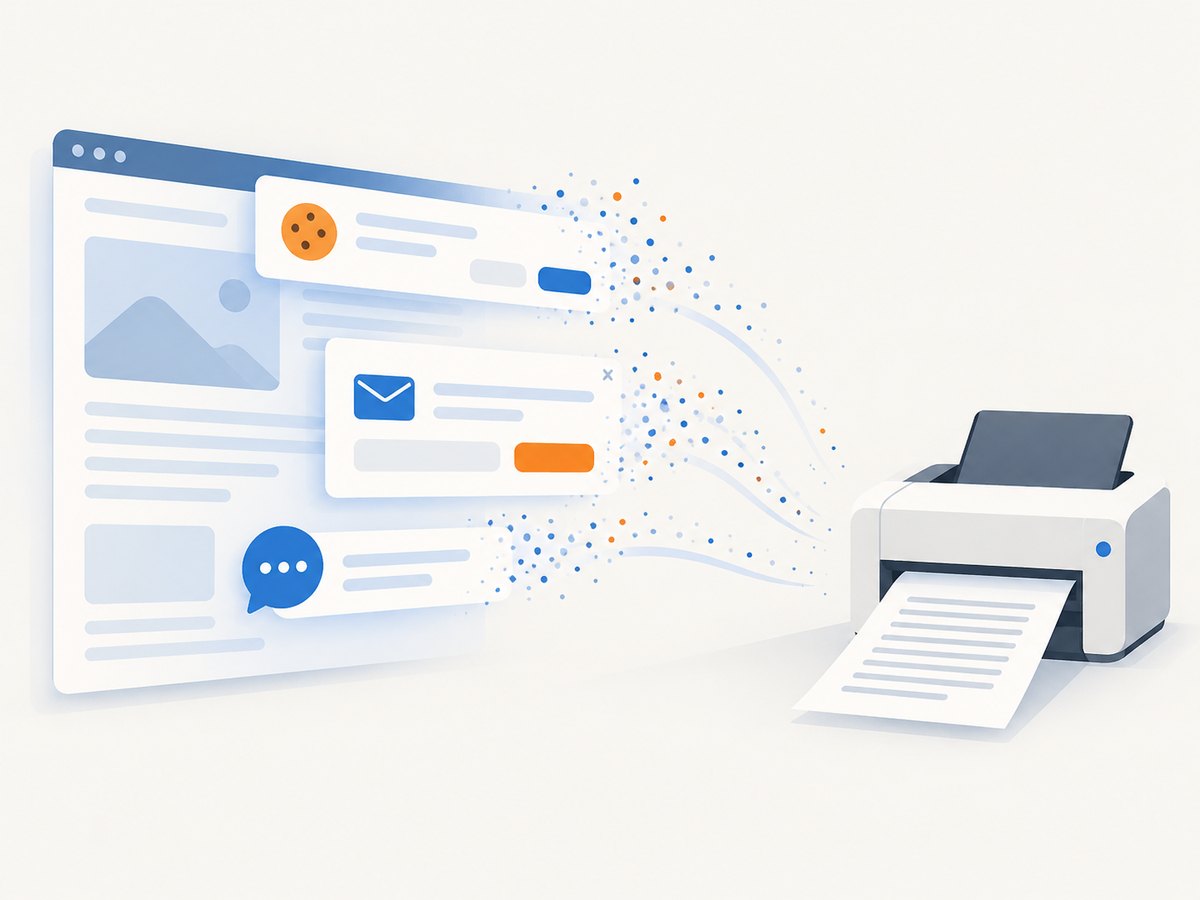
videoand pause animated content where your tooling supports it. - Clutter: hide navigation, ads, consent banners, popups, and chat widgets with maintained selectors.
- Layout gaps: reset fixed heights, grid columns, aspect-ratio boxes, and margins created for the removed media.
For ScreenshotNeo, combine hide selectors with custom CSS, a wait condition for the article, and a full-page capture when the page contains lazy-loaded content. A custom viewport and device preset help reproduce a known layout; retina scale changes pixel density, not the logical page width. Caching with a chosen TTL can reduce repeated work when the source page has not changed.
Troubleshooting
| Symptom | Likely cause | Fix |
|---|---|---|
| Images still print | The rule is not loaded, has lower specificity, or targets the wrong element | Confirm the stylesheet appears in print preview, add a scoped !important rule, and inspect whether the visual is a background or canvas. |
| Large blank gaps remain | A parent has fixed height, aspect ratio, padding, or a grid track | Reset the parent in @media print; change the layout to block flow. |
| Backgrounds remain in Edge | Background graphics are enabled or the visual is an inline image | Turn off Background graphics and separately hide img elements. |
| Firefox Simplified is missing | The page has no supported simplified version | Try Reader View, author CSS, or manually hide elements with browser developer tools. |
| Content is clipped | Fixed dimensions or overflow rules designed for screens | Set height: auto, overflow: visible, and remove fixed positioning for print. |
| PDF has different page breaks | Print engines and fonts differ from the screen | Use print preview for the PDF destination, load fonts before capture, and use break rules sparingly. |
| Automated capture is blank | The page has not finished loading or a bot check blocked it | Wait for a selector or network idle, inspect the verdict headers, and provide required headers or cookies only when authorized. |
Performance, reliability, and cost
Hiding images with CSS can reduce visual clutter but does not necessarily prevent the browser from downloading them. If bandwidth or render time matters, block image requests at the browser or capture layer, while checking that the page does not depend on an image request to finish its layout. Blocking every image can also remove icons that communicate status.
Full-page captures require the renderer to lay out the entire document and load lazy content. Wait for a stable selector or network idle rather than relying only on a short delay. Element captures are faster and produce smaller files when you need one article card or chart. A chosen cache TTL improves repeatability and reduces duplicate rendering for unchanged URLs.
For ScreenshotNeo, only clean shots are billed. Bot checks or CAPTCHAs, blank pages, timeouts, failed loads, and cache hits cost nothing, and X-Page-Verdict and X-Billed explain the response. Bulk capture supports up to 100 URLs per call; asynchronous jobs with signed webhooks suit longer queues. Use the usage API to reconcile consumption, and signed links when a public <img> tag must fetch a protected result.
Checklist before you print
- Decide whether you control the CSS.
- Define “images”: inline elements, backgrounds, video, canvas, or general clutter.
- Apply print rules or choose Simplified/Reader View.
- Reset containers that reserve media space.
- Preview the exact printer or Save to PDF destination.
- Check page breaks, tables, links, headers, footers, and contrast.
- For automation, wait for content, set a viewport, and inspect failure verdicts.
FAQ
Does turning off Background graphics remove all images?
No. It controls background graphics. Inline <img> elements need CSS, reader mode, or a capture rule.
Can I hide images only when printing?
Yes. Put the selectors inside @media print; normal screen rendering remains unchanged.
Why does a hidden image still leave whitespace?
The whitespace usually belongs to a parent with a fixed height, aspect ratio, padding, or grid definition. Reset that layout in the same print query.
Will print CSS remove images drawn on a canvas?
No. Canvas content is not an img element. Hide the canvas or prevent the script from drawing it in print mode.
Can I print a page I do not own without editing its files?
Use Firefox Simplified or Reader View when available, Edge Immersive Reader on supported pages, or a browser extension/developer stylesheet. Availability depends on the page and browser.
Is CSS enough for an automated PDF pipeline?
It can be, but reliable automation also needs load waits, viewport control, handling for lazy content, and checks for bot pages or failures. ScreenshotNeo packages those capture controls behind an API and MCP server.


