How to Print Webpages to PDF with Node.js and WebdriverIO
Save the current WebdriverIO page as a PDF with Node.js, configure print layout, troubleshoot failures, and compare browser and API approaches.
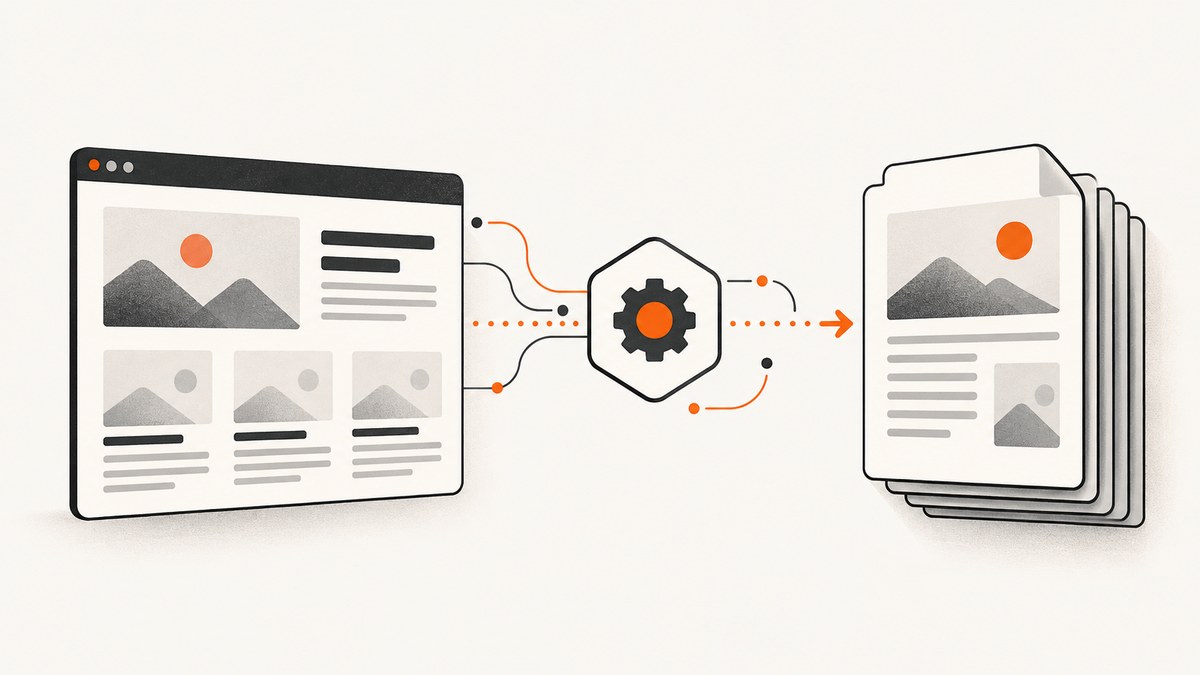
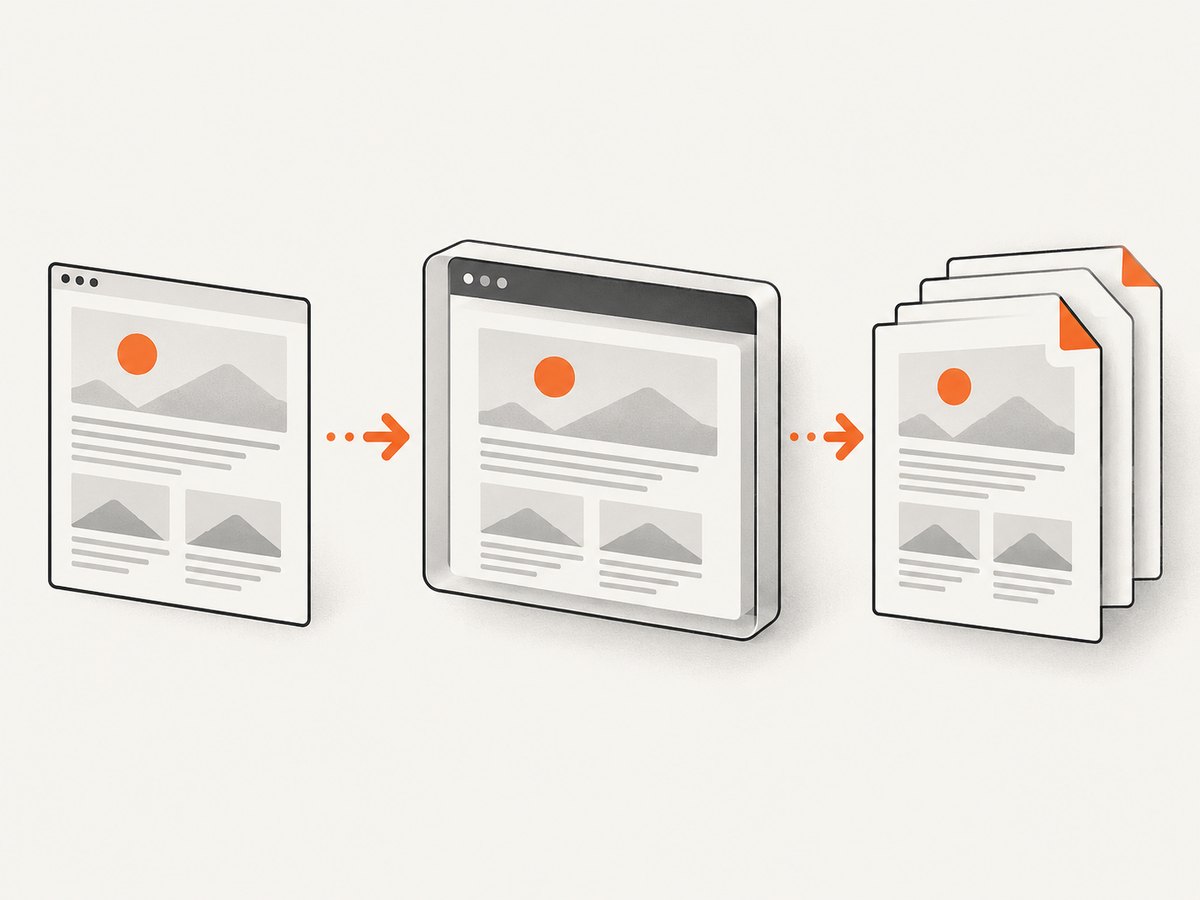
To print the page currently open in a WebdriverIO browser session, call await browser.savePDF('./output.pdf', options). The path must end in .pdf. WebdriverIO prints the current browsing context, writes the file, and returns a Buffer. The method is documented in the WebdriverIO savePDF API.
await browser.savePDF('./output.pdf', {
  orientation: 'portrait',
  scale: 1,
  background: true
})
This guide shows a complete Node.js setup, explains every documented print option, covers timing and print CSS, and compares savePDF with WebDriver’s printPage and Chrome’s headless command line. If you need a PDF without maintaining a browser session, a ScreenshotNeo API example appears after the WebdriverIO workflow.
1. Choose the PDF route
| Route | Use it when | Result | Important constraint |
|---|---|---|---|
browser.savePDF |
Your page is already open in WebdriverIO | Writes a PDF file and returns a Buffer | Destination needs a .pdf suffix |
browser.printPage |
You want the WebDriver print command | Base64-encoded PDF representation | WebdriverIO’s surfaced protocol documentation says Chrome currently supports it in headless mode |
Chrome --print-to-pdf |
You want a standalone browser CLI | PDF written by Chrome | Layout and waiting are controlled with command-line flags and the page itself |
Use savePDF when a WebdriverIO session already contains the authenticated page, cookies, device emulation, or navigation state you need. Use printPage when your project is deliberately using the WebDriver protocol and can run Chrome headless. Use Chrome’s CLI for a small shell-based job that does not need WebdriverIO’s interaction APIs.
2. Install and start WebdriverIO
The exact runner configuration depends on your project, but the browser call must execute after a WebdriverIO session has started and the target URL has loaded. A minimal test-style setup looks like this:
npm init -y
npm install --save-dev webdriverio @wdio/cli @wdio/local-runner @wdio/mocha-framework
npx wdio config
In the generated configuration, select a local Chrome capability and a test framework. The following test navigates to a page, waits for its main content, and saves the PDF:
describe('PDF capture', () => {
  it('prints the current page', async () => {
    await browser.url('https://example.com')
    await $('main').waitForDisplayed({ timeout: 15000 })

    const pdfBuffer = await browser.savePDF('./artifacts/example.pdf', {
      orientation: 'portrait',
      scale: 1,
      background: true
    })

    console.log(`PDF bytes returned: ${pdfBuffer.length}`)
  })
})
Create ./artifacts before the run, or point the file at an existing writable directory. The path is resolved relative to the process execution directory. The returned Buffer is useful when you also want to upload the PDF, calculate a checksum, or send it to another service.
3. Save the current WebdriverIO page
The current browsing context is the tab or window WebdriverIO is controlling at the moment of the call. Navigate first, complete any required interaction, and then print. For a page that needs a login, this means authenticating in the same session rather than opening a second browser process.
await browser.url('https://example.com/account/report')
await $('#report').waitForDisplayed({ timeout: 20000 })

await browser.savePDF('./output/report.pdf', {
  orientation: 'landscape',
  scale: 0.9,
  background: true,
  shrinkToFit: true,
  marginTop: 12,
  marginBottom: 12,
  marginLeft: 10,
  marginRight: 10
})
Keep the extension exactly .pdf. If the directory does not exist or the process lacks write permission, fix the filesystem path before investigating browser behavior. A successful navigation does not imply that the page is ready for printing; wait for a stable element or application-specific state.
4. Configure print layout
The documented savePDF options expose the controls developers usually need for pagination. Names and accepted values can vary with the WebdriverIO and browser versions in your project, so pin compatible versions and consult the API reference when upgrading.
| Option | Purpose | Practical guidance |
|---|---|---|
orientation |
Portrait or landscape page orientation | Use portrait for articles and forms; landscape for wide tables or dashboards. |
scale |
Scales printed content | Lower it when content clips; raise it only when the document remains within page bounds. |
background |
Includes page background colors and graphics | Enable it for designed reports; disable it for ink-saving documents. |
width, height |
Sets page dimensions | Use dimensions that match the paper or output contract you need. |
marginTop, marginBottom, marginLeft, marginRight |
Controls printable margins | Increase margins when headers, footers, or edge content are clipped. |
shrinkToFit |
Allows content to be reduced to fit | Useful for long lines and wide tables; verify that text remains readable. |
pageRanges |
Selects pages to include | Use ranges when the complete document contains appendices or other pages you do not need. |
A layout-focused example:
await browser.savePDF('./artifacts/invoice.pdf', {
  orientation: 'portrait',
  width: 8.27,
  height: 11.69,
  scale: 0.95,
  background: true,
  marginTop: 18,
  marginBottom: 18,
  marginLeft: 16,
  marginRight: 16,
  shrinkToFit: true,
  pageRanges: '1-3'
})
Choose settings based on the document rather than assuming one universal combination. Inspect page breaks, background rendering, and wide elements with representative content.
5. Make the page print-ready
Wait for application state
Navigation completion can occur before client-side data, charts, fonts, or images are ready. Wait for a selector that represents the finished state:
await browser.url('https://example.com/report')
await $('#report-ready').waitForDisplayed({ timeout: 30000 })
await browser.savePDF('./artifacts/report.pdf', { background: true })
If the page has no reliable marker, wait for a short, documented application-specific delay as a fallback. Avoid arbitrary long sleeps as your only readiness strategy; they make every capture slower and still do not prove that data arrived.
Use print CSS
Browsers apply print media rules when generating a PDF. Add a print stylesheet for page breaks, hidden navigation, and readable colors:
@media print {
  nav, .cookie-banner, .interactive-toolbar {
    display: none !important;
  }

  .page-break {
    break-before: page;
  }

  a {
    color: #000;
    text-decoration: none;
  }
}
Test long tables, fixed-position elements, overflowing code blocks, and images near page boundaries. Print CSS can change the output substantially even when the screen view looks correct.
Handle authentication and popups
Perform login and dismiss required dialogs before calling savePDF. If a modal obscures the document, close it with the same WebdriverIO interactions a user would use. Keep credentials in environment variables and avoid writing them into source files or generated artifacts.
6. Capture the PDF as a Buffer
savePDF returns a Buffer in addition to writing the file. This lets you process the bytes without reading the file again:
const pdf = await browser.savePDF('./artifacts/page.pdf', {
  orientation: 'portrait',
  background: true
})

// Example: hand the bytes to an uploader in your application.
await uploadPdf(pdf, {
  filename: 'page.pdf',
  contentType: 'application/pdf'
})
Keep the file-writing path and any upload retry policy separate. If an upload fails after capture, you can retry the upload from the Buffer or saved file without opening another browser session.
7. Use WebDriver’s printPage command
WebdriverIO also documents browser.printPage(...), a WebDriver protocol route that returns a base64-encoded PDF representation. It is a separate API from savePDF. The surfaced WebdriverIO protocol documentation notes that Chrome currently supports this command only in headless mode; verify the browser and driver versions used by your project.
const encodedPdf = await browser.printPage({
  orientation: 'portrait',
  scale: 1,
  background: true
})

const pdfBytes = Buffer.from(encodedPdf, 'base64')
await fs.promises.writeFile('./artifacts/protocol-print.pdf', pdfBytes)
Use this route when your infrastructure already standardizes on the WebDriver print endpoint and headless Chrome. If your goal is simply to save the current page from a normal WebdriverIO workflow, savePDF is the more direct API.
8. Use Chrome Headless without WebdriverIO
Chrome documents a command-line alternative:
google-chrome --headless --print-to-pdf=output.pdf https://example.comChrome also documents --no-pdf-header-footer to omit the default print header and footer, and --timeout to set the maximum wait before capture while the page may still be loading:
google-chrome \
  --headless \
  --no-pdf-header-footer \
  --timeout=10000 \
  --print-to-pdf=output.pdf \
  https://example.com
This is a browser CLI route rather than a WebdriverIO API. It does not give you WebdriverIO’s element interactions, so use it for public pages or workflows that do not require scripted login and setup.
9. Or skip the browser setup
ScreenshotNeo provides a website capture API when you want a remote PDF request instead of maintaining Chrome and WebdriverIO. See the ScreenshotNeo documentation for the full parameter list. The API call is:
curl -G "https://api.screenshotneo.com/v1/shot" \
  -d access_key=YOUR_API_KEY \
  --data-urlencode url=https://stripe.com \
  -o page.pdf
import requests
r = requests.get(
"https://api.screenshotneo.com/v1/shot",
params={
"access_key": "YOUR_API_KEY",
"url": "https://stripe.com",
"format": "pdf"
},
timeout=90
)
r.raise_for_status()
open("page.pdf", "wb").write(r.content)const q = new URLSearchParams({
access_key: 'YOUR_API_KEY',
url: 'https://stripe.com',
format: 'pdf'
})
const res = await fetch(`https://api.screenshotneo.com/v1/shot?${q}`)
if (!res.ok) throw new Error(`ScreenshotNeo returned ${res.status}`)
const bytes = Buffer.from(await res.arrayBuffer())
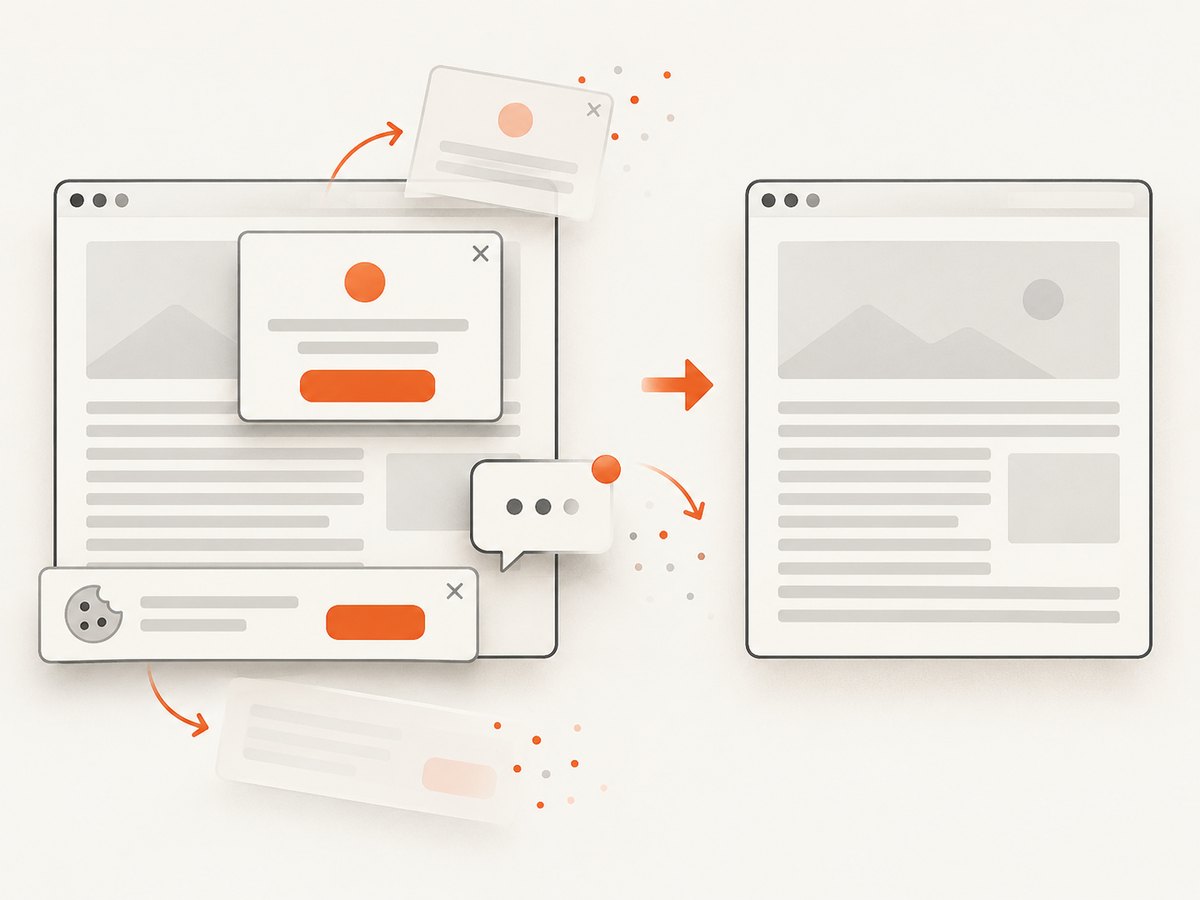
await require('node:fs').promises.writeFile('page.pdf', bytes)ScreenshotNeo removes cookie and consent banners, newsletter popups, and chat widgets before capture. Bot checks, blank pages, timeouts, failed loads, and cache hits are not billed, and response headers identify the page verdict and billing result. Its MCP server gives AI agents the take_screenshot, get_page_info, and capture_pdf tools. The Free plan includes 1,000 screenshots per month without a card; paid plans start at $5 for 3,000 shots. Create a free ScreenshotNeo account.
10. Troubleshooting
| Symptom | Likely cause | Fix |
|---|---|---|
| “Path must end in .pdf” or an invalid output error | The filepath has another extension | Use a filename such as ./artifacts/page.pdf. |
| ENOENT or permission denied | The directory is missing or not writable | Create the directory and check the process working directory and permissions. |
| PDF contains a loading shell | Capture started before client-side data finished | Wait for a page-specific ready selector or state. |
| Background colors are missing | Background printing is disabled | Set background: true and confirm print CSS. |
| Wide content is clipped | Content exceeds the selected page width | Use landscape, dimensions, margins, a smaller scale, or shrinkToFit. |
| Only part of the document appears | Page ranges or print CSS exclude content | Remove pageRanges and inspect @media print rules. |
printPage is rejected |
Browser is not running in a supported mode | Run Chrome headless and verify browser, driver, and WebdriverIO versions. |
| Fonts or images differ from the screen | Resources were not ready or print rules differ | Wait for the relevant elements, check network access, and review print CSS. |
| Popup covers the PDF | A modal, consent banner, or chat widget remains open | Dismiss or hide it before capture, or use ScreenshotNeo’s cleanup behavior. |
11. Reliability, performance, and cost
Reliability
- Wait on a meaningful page state instead of relying only on navigation completion.
- Keep browser and driver versions compatible and reproduce failures with the same headless or headed mode used in CI.
- Write to a unique output path when jobs run concurrently.
- Preserve the returned Buffer or file so downstream failures can be retried without recapturing.
- Record the URL, print options, browser version, and capture timestamp with each artifact.
Performance
PDF time is dominated by page navigation, application rendering, fonts, images, and browser startup. Reuse a session for several pages when isolation requirements allow it, wait for a precise ready signal, and avoid unnecessarily large dimensions or scale values. For bulk, remote captures, ScreenshotNeo supports bulk capture of up to 100 URLs per call and configurable caching with a TTL.
Cost
Self-hosted WebdriverIO costs compute, browser maintenance, and CI runtime rather than a per-shot API fee. A remote API can reduce that operational work. ScreenshotNeo bills only clean shots; bot checks, blank pages, timeouts, failed loads, and cache hits cost nothing. Its plans are Free (1,000 shots/month), Starter ($5 for 3,000), Growth ($15 for 15,000), Pro ($39 for 60,000), Scale ($99 for 250,000), and Business ($249 for 1,000,000); yearly billing provides two months free.
12. A practical checklist
- Start a compatible WebdriverIO browser session.
- Navigate to the exact page and complete authentication or interactions.
- Wait for a selector or application state that proves the page is ready.
- Apply print CSS for navigation, page breaks, tables, and links.
- Choose orientation, dimensions, scale, margins, background, shrink-to-fit, and page ranges.
- Use a writable path ending in
.pdf. - Save the returned Buffer if another system needs the PDF.
- Inspect representative pages for clipping, missing backgrounds, and late-loading assets.
FAQ
Does savePDF print the whole website?
It prints the current browsing context. The page’s print CSS, layout, and loaded state determine what appears across PDF pages.
Can I print a page that requires login?
Yes. Authenticate in the same WebdriverIO session, confirm the protected content is visible, and then call savePDF.
What is the difference between a Buffer and the saved file?
The method writes the requested file and returns the PDF bytes as a Buffer, so you can upload or process the result without reading it again.
Should I use printPage instead?
Use it when your project specifically needs the WebDriver print endpoint and can run a supported headless Chrome configuration. Otherwise, savePDF is the direct WebdriverIO method.
When is an API better than browser automation?
An API is useful for scheduled or bulk captures where you do not want to manage browser processes. ScreenshotNeo adds cleanup for consent banners and widgets, billing verdict headers, PDF capture, and an MCP server for AI-agent workflows.


