How to Print a Website Without Images
Print cleaner, text-focused web pages by using Firefox Simplified, Chrome Reading mode, or Edge's background-graphics setting.
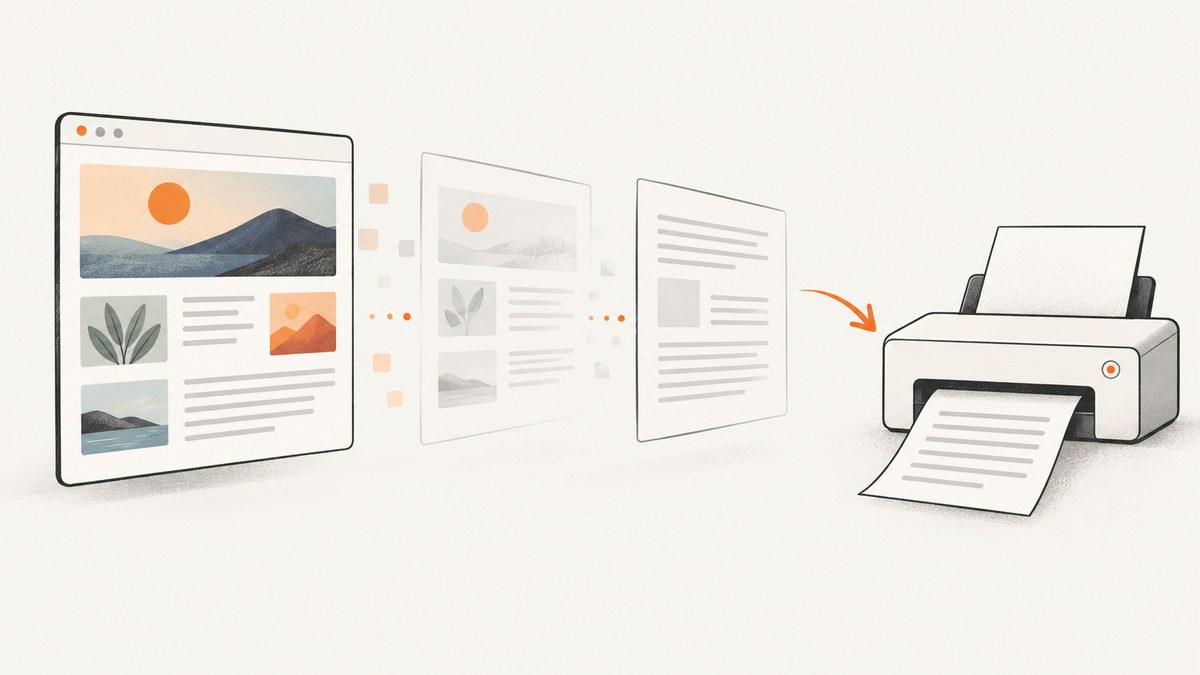
To print a website without images, use the browser view that removes or hides them before opening the print dialog:
- Firefox: choose Print > More settings > Format > Simplified when the option is available.
- Chrome: open the page in Reading mode, turn Images off, then print that reading view.
- Microsoft Edge: leave Background graphics unchecked in More settings. This removes backgrounds, not necessarily inline pictures.
Always inspect the print preview. Simplified and reading views are conditional, and a page can render differently on paper than it does on screen.
Choose the right method
| Browser | Where to change the page | What it removes | Limits |
|---|---|---|---|
| Firefox | Print > More settings > Format > Simplified | Clutter such as buttons, ads and background images | The Format control may be unavailable; it is not a guarantee that every image disappears. |
| Chrome | Reading mode settings > Images off | Images in the Reading mode view | The setting affects Reading mode only, not the ordinary webpage. Reading mode does not support every page. |
| Edge | Print > More settings > Background graphics off | Webpage background graphics | Inline images can remain. Availability of clutter-free printing can depend on the browser version or rollout. |
These controls have different scopes. A background graphic is not the same thing as an image embedded in the article, so do not expect Edge’s background setting to remove every picture. Mozilla documents Simplified as a way to strip clutter, including background images, while Google documents Chrome’s image switch specifically for Reading mode. Mozilla’s Simplified printing guide, Google’s Reading mode guide, and Microsoft’s Edge printing guide describe the relevant controls.
Firefox: print with Simplified format
- Open the page you want to print.
- Open the Firefox menu and select Print.
- Expand More settings.
- Under Format, select Simplified, if it is offered.
- Review the preview, then print or save the result as a PDF.
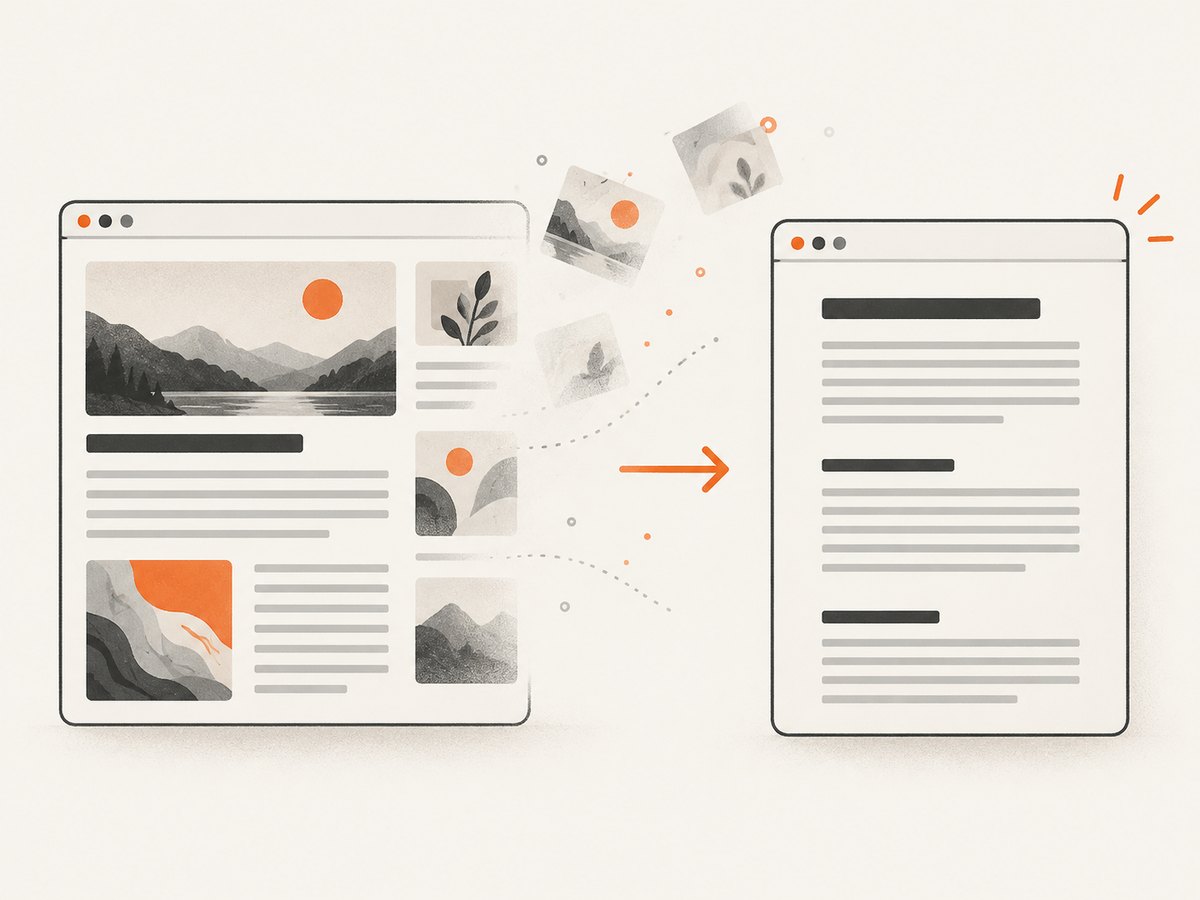
Mozilla says Simplified format removes clutter such as buttons, advertisements and background images. It may leave some content images in place, so use the preview to confirm what remains. Firefox’s print settings also let you adjust paper size, scale, pages per sheet, margins, headers and footers, two-sided printing and print backgrounds. See Firefox’s print settings documentation.
If Simplified is missing
Firefox may not have a simplified version for that page, or Reader View may already be active. If the Reader View icon appears in the address bar, open it and print from that cleaner view. If neither option exists, continue with the normal print preview and disable backgrounds where the dialog provides that control.
Chrome: turn images off in Reading mode
- Open the page in Chrome.
- Open Reading mode using the browser’s Reading mode control.
- Open the Reading mode settings.
- Set Images to off.
- Print from the resulting Reading mode view. On Windows or Linux, use Ctrl+P; on macOS, use Command+P.
- Check the preview before printing or saving.
Google states that Reading mode settings apply to text in Reading mode and do not change ordinary webpages. Reading mode may not work as expected for image galleries, interactive maps, forms, quizzes, payment pages or login screens. If the page is incompatible, use its normal print preview or try Firefox Simplified instead. Chrome’s print instructions explain the print and save workflow.
Edge: omit background graphics
- Open the page in Microsoft Edge.
- Open the print dialog.
- Expand More settings.
- Leave Background graphics unchecked.
- Review the preview and print or save it.
With the option unchecked, Edge ignores webpage background graphics. Microsoft does not describe this control as an all-image switch, so pictures placed directly in the page can still appear. Edge may also show a clutter-free printing option that removes surrounding material such as advertisements and navigation; its availability depends on the version or rollout.
How to check the result before wasting paper
- Scroll through every preview page.
- Confirm that headings, paragraphs, tables and links you need are still present.
- Look for blank spaces where an image was removed.
- Check page breaks, margins, scale and orientation.
- Save as PDF first if you need to review or share the result.
Previewing is the practical verification step because websites can define print-specific layouts that differ from the screen version. If essential information was contained in an image, a text-only printout may be incomplete.
Common problems and fixes
| Problem | Likely cause | Fix |
|---|---|---|
| The Firefox Simplified option is not visible. | The page has no simplified version, or Reader View is already enabled. | Look for the Reader View icon, print normally, or use another browser’s supported reading workflow. |
| Chrome still shows images. | You changed Reading mode settings but printed the ordinary page. | Open Reading mode, turn Images off there, and start printing from that view. |
| Edge removed the background but not article photos. | Background graphics and inline images are different types of content. | Use Firefox Simplified or Chrome Reading mode where supported. |
| The page loses a form, map or login control. | Reading or simplified views can change page content, and Chrome lists these formats as unsupported or unreliable. | Print the ordinary page and disable only backgrounds, or keep the interactive page on screen and print a separate text view. |
| The preview looks different from the webpage. | The site supplies print-specific styling. | Use the preview as the source of truth; adjust scale, margins, paper size and orientation before printing. |
| A blank area remains after an image is hidden. | The page layout reserved space for the image. | Try a reading or simplified view, which rebuilds the page for reading, instead of only hiding graphics. |
Performance, reliability and cost considerations
- Speed: Reading and simplified views can reduce the amount of visual content the browser has to lay out, but the sources do not provide a cross-browser timing measurement.
- Reliability: Availability depends on the page and browser version. Treat these as supported workflows rather than universal switches.
- Ink and paper: Removing pictures can reduce visual density, but the research does not establish a reliable percentage of ink or paper saved.
- Accessibility: Keep captions, diagrams or screenshots when they carry information that the surrounding text does not contain.
- Privacy: Browser printing keeps the workflow local to your browser and printer. Saving a PDF lets you inspect the final document before sending it to a printer.
Or skip the browser setup
If you need a repeatable image or PDF capture in code, ScreenshotNeo provides a website screenshot API. It accepts a URL and returns a PNG, JPEG, WebP or PDF. You can hide image selectors, block resource types, apply custom CSS, wait for a selector or network idle, and capture full pages or a selected element. Its cookie and consent handling removes more than 60 known consent platforms, newsletter popups and chat widgets before capture, with each step configurable.
Only clean shots are billed: bot checks or CAPTCHAs, blank pages, timeouts, failed loads and cache hits cost nothing, and the response reports the result in X-Page-Verdict and X-Billed headers. ScreenshotNeo also provides an MCP server with take_screenshot, get_page_info and capture_pdf tools for Claude, Cursor and other MCP clients.
See the ScreenshotNeo API documentation for the available options.
cURL
curl -G "https://api.screenshotneo.com/v1/shot" -d access_key=YOUR_API_KEY --data-urlencode url=https://example.com -o shot.webpPython
import requests

r = requests.get(
    "https://api.screenshotneo.com/v1/shot",
    params={"access_key": "YOUR_API_KEY", "url": "https://example.com"},
    timeout=90,
)
r.raise_for_status()
open("shot.webp", "wb").write(r.content)
Node.js
const fs = require('node:fs/promises');

const q = new URLSearchParams({
  access_key: 'YOUR_API_KEY',
  url: 'https://example.com'
});
const res = await fetch(`https://api.screenshotneo.com/v1/shot?${q}`);
if (!res.ok) throw new Error(`Screenshot failed: ${res.status}`);
await fs.writeFile('shot.webp', Buffer.from(await res.arrayBuffer()));
ScreenshotNeo has a free tier of 1,000 shots per month with no card. Paid plans start at $5 for 3,000 shots; every feature is available on every plan. Create a free ScreenshotNeo account.
FAQ
Does turning off Background graphics remove every image?
No. In Edge, that setting is documented for webpage backgrounds. Inline article images can remain.
Can Chrome’s Images setting change the original webpage?
No. Google documents it as a Reading mode setting; the ordinary webpage is unchanged.
Why did Firefox print an image that Simplified did not remove?
Simplified removes clutter, including background images, when a simplified version is available. It is not documented as a guarantee that every image on every page disappears.
Should I print directly or save a PDF first?
Save a PDF first when you need to inspect pagination, missing content or image removal before using paper.


