Capturing Screenshots of Private URLs and IP Addresses
Use Playwright to capture authorized private pages, choose the right screenshot options, and understand the network security precautions that matter.
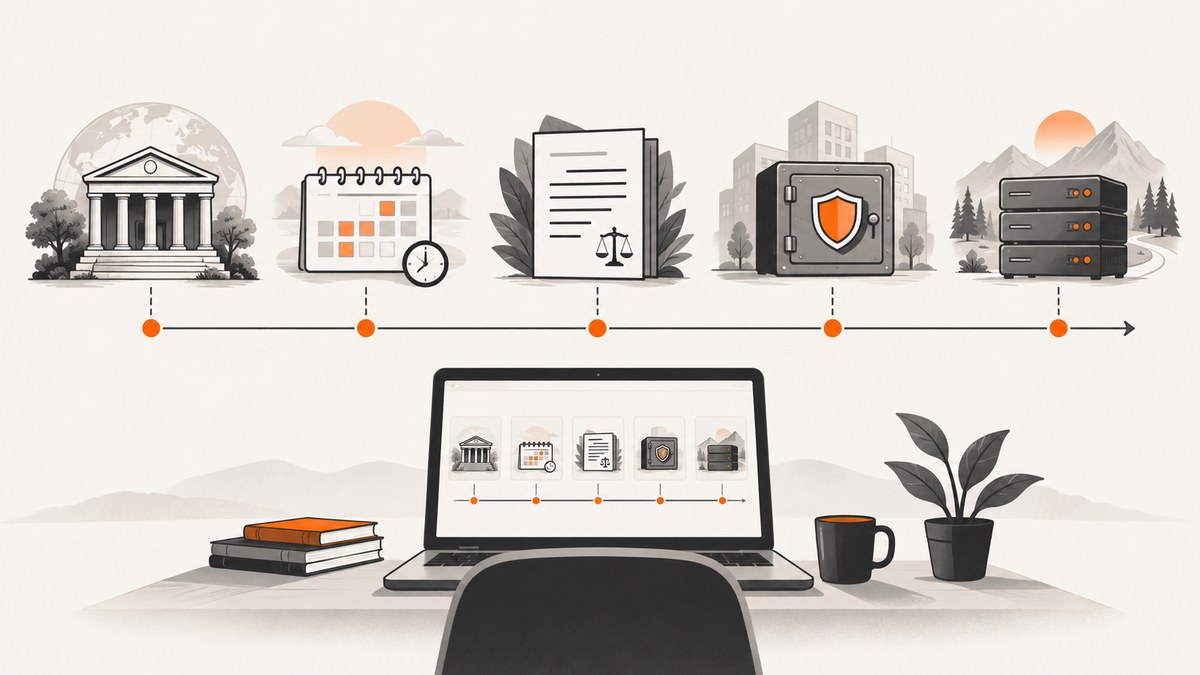
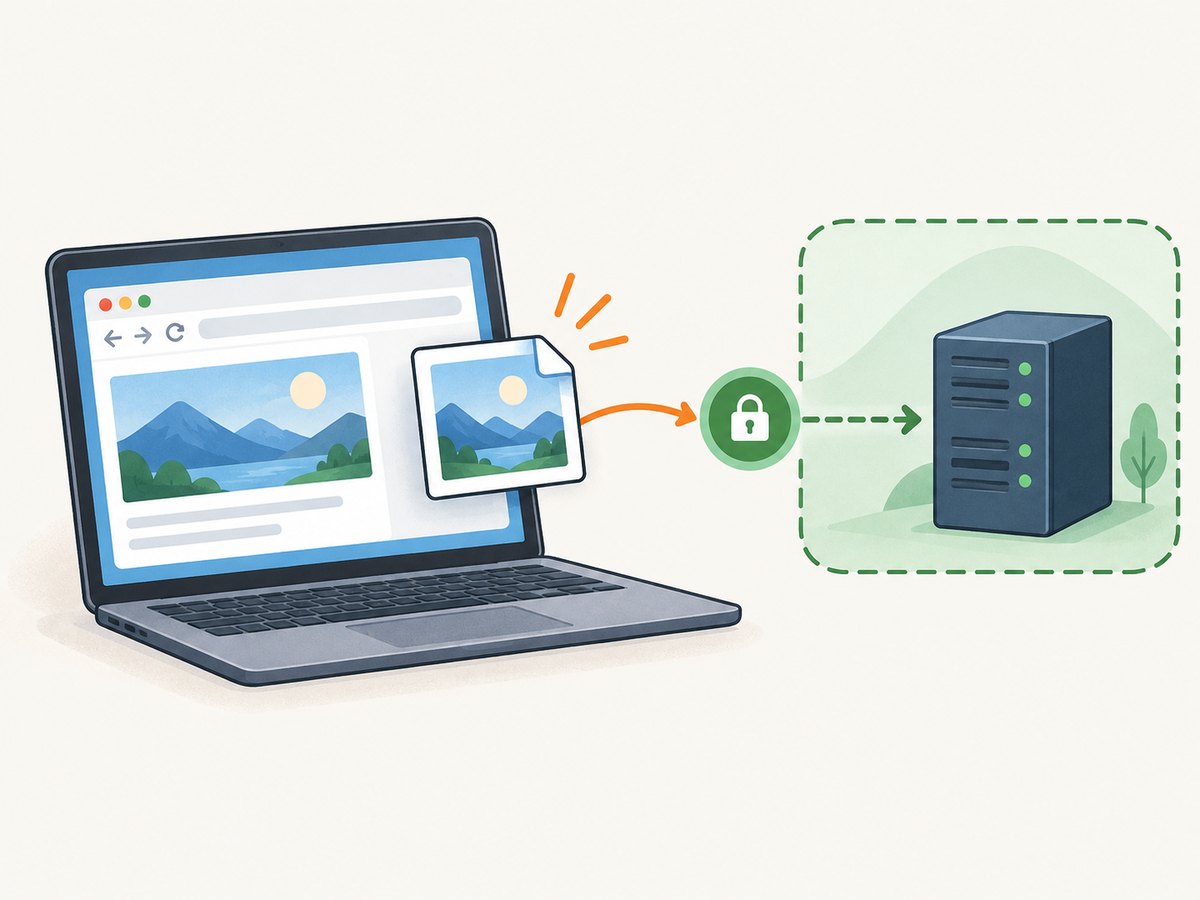
To capture a screenshot of a private URL or IP address, run a browser where that address is reachable, navigate to a system you own or are authorized to test, and save the page with Playwright. For a local development server, this can be as simple as navigating to http://127.0.0.1:3000. The browser’s ability to reach a page is a network capability as well as a screenshot capability: run it in an environment with only the access it needs, and do not expose browser automation control ports to untrusted networks.
This guide shows viewport, full-page, and element screenshots with Playwright, explains image and repeatability options, and covers security boundaries. It also explains when a hosted screenshot API may or may not fit a private target.
1. What you need to decide first
Before writing code, establish that you are authorized to access the destination and decide where the browser will run. A private hostname may resolve only on a company VPN, inside a container network, or on a developer workstation. A browser running elsewhere cannot reach it simply because the URL is valid.
- Destination: use a URL for a system you own or are explicitly authorized to test. Include the scheme, such as
http://orhttps://. - Execution location: run Playwright on a machine or in a protected environment that can resolve and reach the destination.
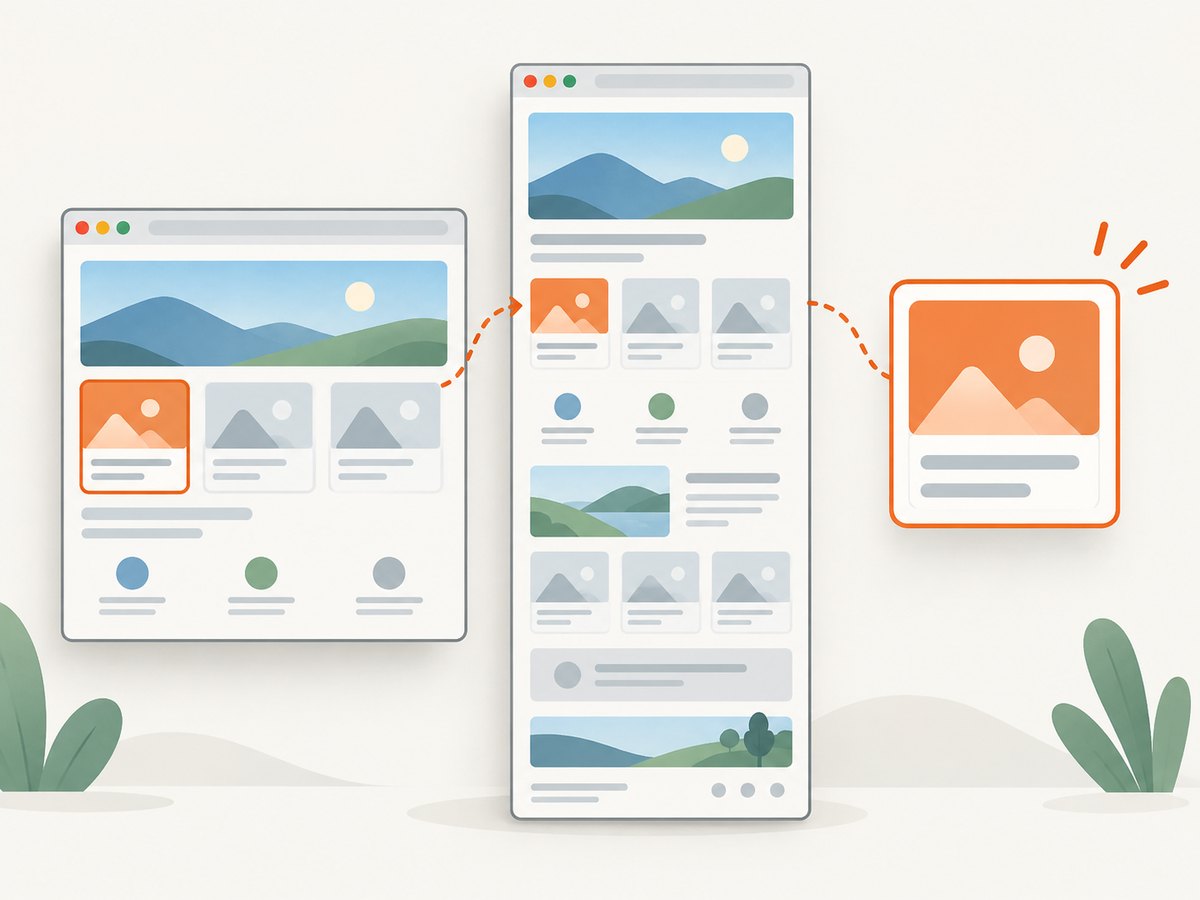
- Capture area: choose the visible viewport, full scrollable page, or a specific element.
- Artifact: choose an image format and output location appropriate to debugging, documentation, or visual comparison.
- Consistency: for repeatable comparisons, use the same browser and host environment used to create the baseline.
Playwright’s Page API documents navigation and screenshots, including full-page capture, masking, formats, scale, and screenshot bytes. Consult the Playwright Page API for the exact options supported by your installed version.
2. Install Playwright and capture an authorized URL
The following Node.js example is runnable with a recent Node.js installation. It launches Chromium, navigates to a target supplied through an environment variable, waits for the page load event, and saves a PNG. The default points at a local development server; change it to an authorized private URL reachable from the machine running the script.
mkdir private-page-shot
cd private-page-shot
npm init -y
npm install playwright
npx playwright install chromium
Save this as capture.mjs:
import { chromium } from 'playwright';

const url = process.env.TARGET_URL ?? 'http://127.0.0.1:3000';
const output = process.env.OUTPUT ?? 'private-page.png';

const browser = await chromium.launch({ headless: true });
try {
  const page = await browser.newPage({
    viewport: { width: 1440, height: 900 },
    deviceScaleFactor: 1
  });
  const response = await page.goto(url, {
    waitUntil: 'load',
    timeout: 30_000
  });
  if (!response) {
    throw new Error('Navigation produced no main-resource response');
  }
  if (!response.ok()) {
    throw new Error(`Navigation failed: HTTP ${response.status()} ${response.statusText()}`);
  }
  await page.screenshot({ path: output, type: 'png' });
  console.log(`Saved ${output} (${response.status()})`);
} finally {
  await browser.close();
}
Start the script with a local address or authorized private destination:
TARGET_URL=http://127.0.0.1:3000 node capture.mjs
TARGET_URL=https://staging.example.internal OUTPUT=staging.png node capture.mjs
The second example works only if that hostname resolves and the running machine has network access, credentials, and any required VPN or routing. Do not put secrets in a URL or commit them to the script.
3. Choose viewport, full-page, or element capture
Viewport screenshot
A normal screenshot captures the current viewport. Set viewport dimensions when opening the page if a test needs a particular layout breakpoint. The deviceScaleFactor controls device pixel density; use 1 for CSS-pixel-sized output or a higher value for denser images, understanding that larger output can increase file size.
await page.screenshot({ path: 'viewport.png', type: 'png' });Full scrollable page
Use fullPage: true to capture the entire scrollable page rather than only the visible viewport. Long pages can produce very tall images, consume more memory, and expose content below the fold that a viewport shot would not include. Pages that load content only as the visitor scrolls may need additional scrolling or application-specific readiness logic before capture.
await page.screenshot({ path: 'whole-page.png', fullPage: true, type: 'png' });One element
Use a locator to capture a component such as a card, chart, or error banner. A selector that matches no element will fail; wait for the expected element before capturing.
const card = page.locator('[data-testid="summary-card"]');
await card.waitFor({ state: 'visible', timeout: 10_000 });
await card.screenshot({ path: 'summary-card.png', type: 'png' });
Format, scale, masking, and bytes
Playwright supports PNG, JPEG, and WebP output. PNG is lossless and useful for visual comparisons; JPEG is useful when a smaller lossy image is acceptable. Specify the format explicitly when the filename extension should not determine it. Screenshot scale can be css or device; device scale can create larger images on high-DPI configurations. The API also supports masking locators and style injection. These change the artifact, so document masks and styles when images are used as evidence or comparison baselines.
const bytes = await page.screenshot({
  type: 'webp',
  scale: 'css',
  fullPage: false,
  mask: [page.locator('[data-private]')],
  maskColor: '#222222'
});
// `bytes` is a Buffer and can be written, uploaded, or post-processed.
For exact type and option behavior, check the installed Playwright version’s screenshot API reference. Keep sensitive content out of artifacts where possible. Masking is a visual alteration, not a substitute for access control or data handling policy.
4. Timing and authenticated test pages
A page can return its main document before client-side rendering, images, or data requests have completed. Select a readiness condition based on the page being tested rather than adding an arbitrary long sleep to every capture.
await page.goto(url, { waitUntil: 'domcontentloaded', timeout: 30_000 });
await page.locator('[data-testid="dashboard-ready"]').waitFor({ state: 'visible' });
await page.screenshot({ path: 'dashboard.png', fullPage: true });
For a page that has no stable marker, a short delay may be appropriate, but it makes capture slower and does not prove the page is ready. Network-idle signals can also be unsuitable for pages that maintain long-running requests. Prefer an application-specific selector or state when available.
For authenticated QA, use a dedicated test account with only the permissions needed for the test. Playwright supports browser contexts and stored authentication state; treat saved state files as credentials because they can contain cookies or tokens. Keep them out of source control, restrict file access, and remove them when no longer needed. The ChromeDriver security guidance similarly recommends a test account without access to sensitive data. Avoid embedding passwords in source code or logging request headers.
5. Security: a screenshot browser can make network requests
When a browser navigates to a private destination, it performs network activity from the machine or service running it. Page content may trigger additional requests. This is why the capture environment matters as much as the screenshot call.
Chrome for Developers describes ChromeDriver as powerful software and recommends keeping its connections local by default, using a low-privilege test account, running in a protected environment such as a container or virtual machine, applying firewall controls, protecting ports used by third-party tools, and keeping Chrome and ChromeDriver current. Its guidance says, “By default, ChromeDriver only allows local connections.” These are driver deployment precautions; they are not a complete policy for safely accepting arbitrary URLs.
If you build a service that accepts user-provided URLs, do not assume that checking the initial URL string is a complete destination policy. The research available for this article does not establish a verified design for private-address filtering, DNS changes, redirects, cloud metadata endpoints, or related server-side request forgery defenses. Verify those controls against authoritative security guidance before implementing them. A hosted screenshot provider’s network boundary and tenant isolation also matter; the browser automation documentation alone does not establish those properties for any particular service.
Use this workflow only for destinations you own or are authorized to test. Never expose a browser driver or debugging endpoint publicly without an appropriate protected access design. Avoid testing with accounts or environments that can reach sensitive production data.
6. Repeatable screenshots and visual comparisons
Two screenshots of the same URL may differ even when the page code has not changed. Playwright’s visual comparison guidance notes variation from operating system, browser version, settings, hardware, power source, and headless mode. Generate and compare baselines in the same environment. Pin browser and dependency versions where practical, use fixed viewport and scale settings, and wait for stable page content.
- Fix the viewport size and device scale factor.
- Use the same operating system, browser build, fonts, and headless mode for baseline and comparison runs.
- Wait for a stable application marker instead of relying on timing alone.
- Disable or mask dynamic regions only when the test intention calls for it, and record the choice.
- Keep output names and test inputs deterministic so failures can be traced to a specific run.
Visual comparison is a workflow choice: a bug report may need the actual rendered state, while a regression test may intentionally mask a timestamp. Do not hide a region merely to silence a meaningful difference.
7. Or skip the browser setup
ScreenshotNeo is a website screenshot API and MCP server. A single GET request can return an image or PDF. For a publicly reachable URL, the API call looks like this; check the ScreenshotNeo docs for the API options and access key setup:
curl -G "https://api.screenshotneo.com/v1/shot" \
  -d access_key=YOUR_API_KEY \
  --data-urlencode url=https://stripe.com \
  -o shot.webp
import requests
r = requests.get(
"https://api.screenshotneo.com/v1/shot",
params={"access_key": "YOUR_API_KEY", "url": "https://stripe.com"},
timeout=90,
)
open("shot.webp", "wb").write(r.content)const q = new URLSearchParams({
access_key: 'YOUR_API_KEY',
url: 'https://stripe.com'
});
const res = await fetch(`https://api.screenshotneo.com/v1/shot?${q}`);
if (!res.ok) throw new Error(`Screenshot request failed: ${res.status}`);
await Bun.write('shot.webp', new Uint8Array(await res.arrayBuffer()));These examples use a public URL. Do not assume a hosted API can reach a private hostname or IP on your network: the supplied product facts do not establish private-network connectivity or network isolation controls. Use a hosted service only when its documented reachability and security properties meet your requirements.
ScreenshotNeo accepts cookie or consent banners like a visitor and removes 60+ known consent platforms, newsletter popups, and chat widgets before capture; each cleanup step can be turned off. Bot checks, blank pages, timeouts, failed loads, and cache hits are not billed, and responses identify the page verdict and billing status in headers. Its MCP server provides take_screenshot, get_page_info, and capture_pdf for Claude, Cursor, or another MCP client. The free plan includes 1,000 shots per month with no card; paid plans start at $5 for 3,000, and every feature is on every plan. Sign up for 1,000 free screenshots a month, with no card required.
8. Troubleshooting
| Symptom | Likely cause | Fix |
|---|---|---|
| Hostname cannot be resolved | The script is outside the VPN or DNS context, or the private hostname is misspelled. | Run it where the hostname resolves; verify the URL from that same environment and use the intended scheme. |
| Connection refused or times out | The service is not listening, a firewall or route blocks access, or the port is wrong. | Check the server process, port, routing, and firewall from the capture host. Do not open the driver control port to solve a target reachability problem. |
| TLS or certificate error | The target certificate is untrusted, expired, or does not match the hostname. | Fix the test certificate chain or configure a trusted test CA in the browser environment. Do not disable certificate checks as a general workaround. |
| Screenshot is blank or incomplete | Capture occurred before app rendering, or content is lazy-loaded. | Wait for a stable selector; for lazy content, scroll through the page as needed before taking a full-page capture. |
| Element locator times out | The selector is wrong, the element is absent, or it never becomes visible. | Inspect the page and selector, wait for the correct state, and distinguish hidden from missing elements. |
| Image differs between runs | Browser, host, fonts, scale, dynamic content, or headless mode changed. | Use the baseline environment and fixed capture settings; mask only intentional dynamic regions. |
| Process hangs or uses excessive memory | Page activity never settles, a huge full-page image is being produced, or browser cleanup did not run. | Use a bounded navigation timeout, wait on a specific marker, consider viewport or element capture, and close the browser in a finally block. |
9. Performance, reliability, and cost
With local Playwright, the main operational costs are browser installation and maintenance, the machine or container time for each run, storage and transfer for artifacts, and engineering time for keeping capture environments consistent. Full-page and device-scale screenshots generally create more pixels than a viewport at CSS scale, so use the smallest capture area and output quality that satisfies the task. Reuse a controlled environment for batches, but isolate jobs and close contexts to avoid leaking state between tests.
For reliability, make each capture bounded: set navigation and selector timeouts, close browser resources even on failure, and record the URL, viewport, browser version, and failure stage alongside the artifact. A successful screenshot call means an image was produced; it does not prove that the target content was correct or that every subresource loaded. Review response status and application readiness separately.
A local script has no per-shot API charge, but still consumes compute and maintenance. A hosted service trades that setup for an API plan and external processing. ScreenshotNeo lists 1,000 free shots each month, then $5 for 3,000, $15 for 15,000, $39 for 60,000, $99 for 250,000, or $249 for 1,000,000; yearly billing gives two months free. Only clean shots are billed, with the response headers identifying outcomes. These prices are the provided plan facts; compare current terms in the product documentation before choosing a plan.
10. FAQ
Can Playwright capture localhost?
Yes, when the browser process runs on a machine where the local service is listening. In a container, 127.0.0.1 refers to that container itself, not automatically to the host.
Can I capture an IP address instead of a hostname?
Yes, if the browser can route to it and the URL scheme, port, and certificate setup are valid. Use only an address you are authorized to access.
Does a screenshot API automatically have access to my private network?
No such access should be assumed. Hosted reachability depends on the provider’s documented network design; the product facts here do not establish ScreenshotNeo access to private destinations.
Should I use full-page mode for every screenshot?
No. Use it for a complete page record. Viewport capture is often smaller and better reflects what a user initially sees; element capture is useful for focused component evidence.
Why can a valid page still produce a failed screenshot?
Navigation, application readiness, browser resources, or a selector can fail independently. Report which stage failed and preserve the error details so the failure can be diagnosed.


