The Problem with Persisting Browser Profiles
Browser profiles keep useful settings and sign-ins, but can also retain sensitive data—or lose cookies unexpectedly. Find the right fix for your browser and situation.

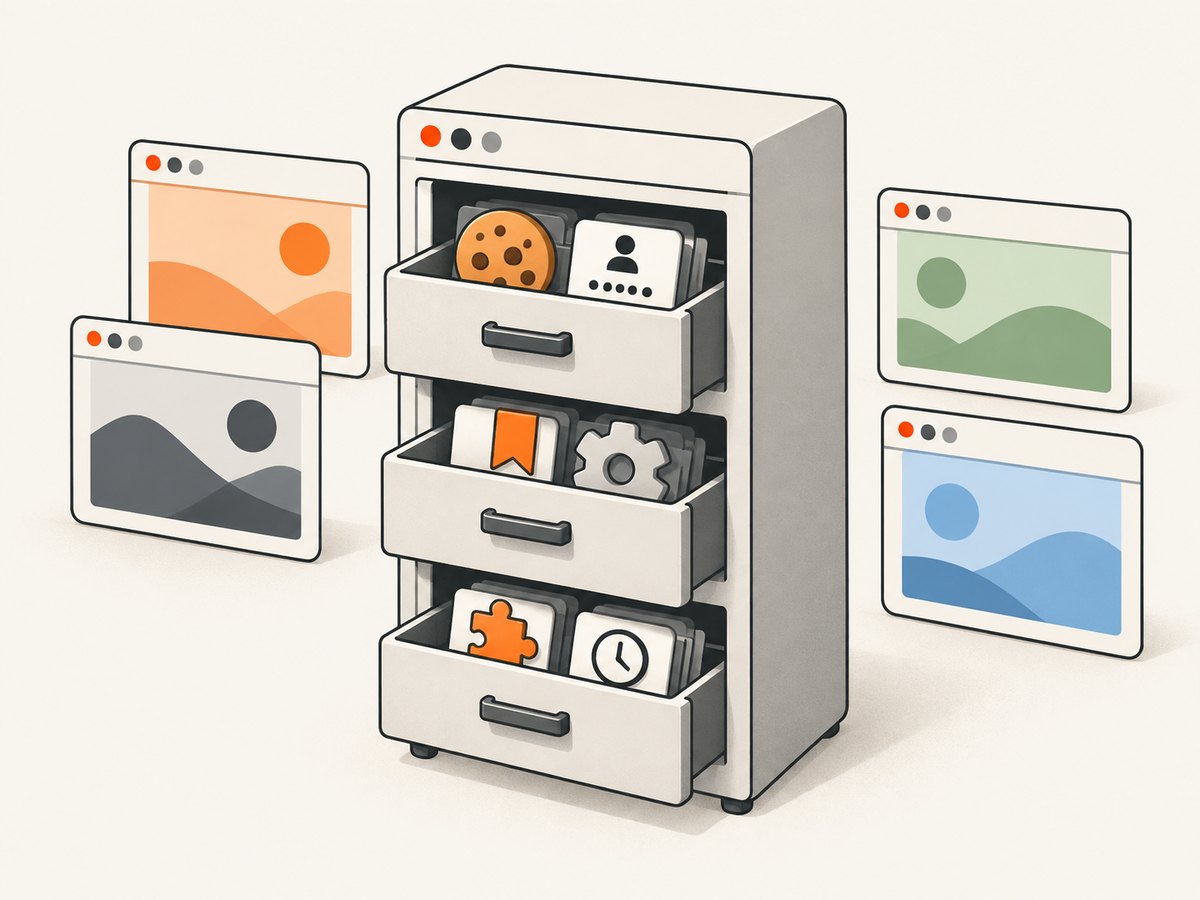
A browser profile is a persistent data environment: it can remember bookmarks, passwords, settings, add-ons, history, cookies, and sign-ins. That persistence is useful when you want continuity, but it can also keep sensitive state on a device. If data disappears when you expected it to stay—or stays when you wanted a clean session—the right fix depends on the browser, the type of data, and whether the device is personal, shared, or managed.
Start by identifying which problem you have: “Why does my browser keep logging me out?” or “Why are my cookies deleted when I close the browser?” points toward lost session state. “How do I keep browser profiles separate?” points toward isolation. They are related questions, but the controls are different.
1. What a browser profile remembers
A profile is more than a name, avatar, or color theme. Firefox describes profiles as separate environments that can hold bookmarks, settings, add-ons, and browsing data, including cookies and logins. Firefox profiles are local by default; signing into Sync is a separate choice. A profile can therefore preserve a substantial amount of state without syncing it to an account. Mozilla’s profile guide explains profiles and their relationship to Multi-Account Containers.
Authentication state can be part of that persistence. Microsoft documents persistent Microsoft Entra session tokens as persistent browser cookies, while non-persistent session tokens are stored in session cookies and destroyed when the browser session closes. The identity provider, authentication flow, and browser privacy behavior all affect whether a sign-in continues to work. Microsoft’s Entra cookie documentation describes these distinctions and notes that privacy features and private browsing can affect cookie availability.
That creates a practical tradeoff: continuity versus local retention. A work profile may save time, while a shared device may call for a temporary session. Also consider separation scope: do you need different cookies and logins, or separate bookmarks, add-ons, history, and settings too?
2. Pick the control that matches the goal
| Control | Useful for | Boundary to understand |
|---|---|---|
| Separate Firefox profiles | Distinct work and personal environments, including broader browser data | Profiles separate more categories of data than containers. Sync is separately configured. |
| Firefox Multi-Account Containers | Keeping site cookies, logins, and site data in separate contexts inside one profile | They do not separate the broader set of data that distinct profiles can. |
| Chrome Guest | A guest browsing session without signing into a normal profile | Guest is a separate session with fewer capabilities than a full profile. |
| Chrome Incognito | Temporary browsing in a separate window type | Only Incognito windows use that context; regular windows remain regular. Session data is not saved on local disk according to Google’s comparison. |
| Chrome Ephemeral profile | Managed environments that need a fuller session and remove its data at the end | It is policy-controlled; data is written during the session and removed at session end. Sync can be available. |
See Google’s comparison of Chrome Guest, Incognito, and Ephemeral modes. These choices are not interchangeable, and none should be treated as a guarantee against malware, tracking, or account compromise. Managed Chrome profile separation and migration settings are administrator workflows, not universal consumer controls; see Chrome policy documentation.
3. Troubleshoot sign-ins or cookies that disappear
If a site asks you to sign in every time the browser restarts, work through the likely causes in order. Microsoft’s Edge troubleshooting guidance covers the checks below. Menu labels and policy availability can change by version, operating system, and management setup, so consult current browser documentation if a label differs.
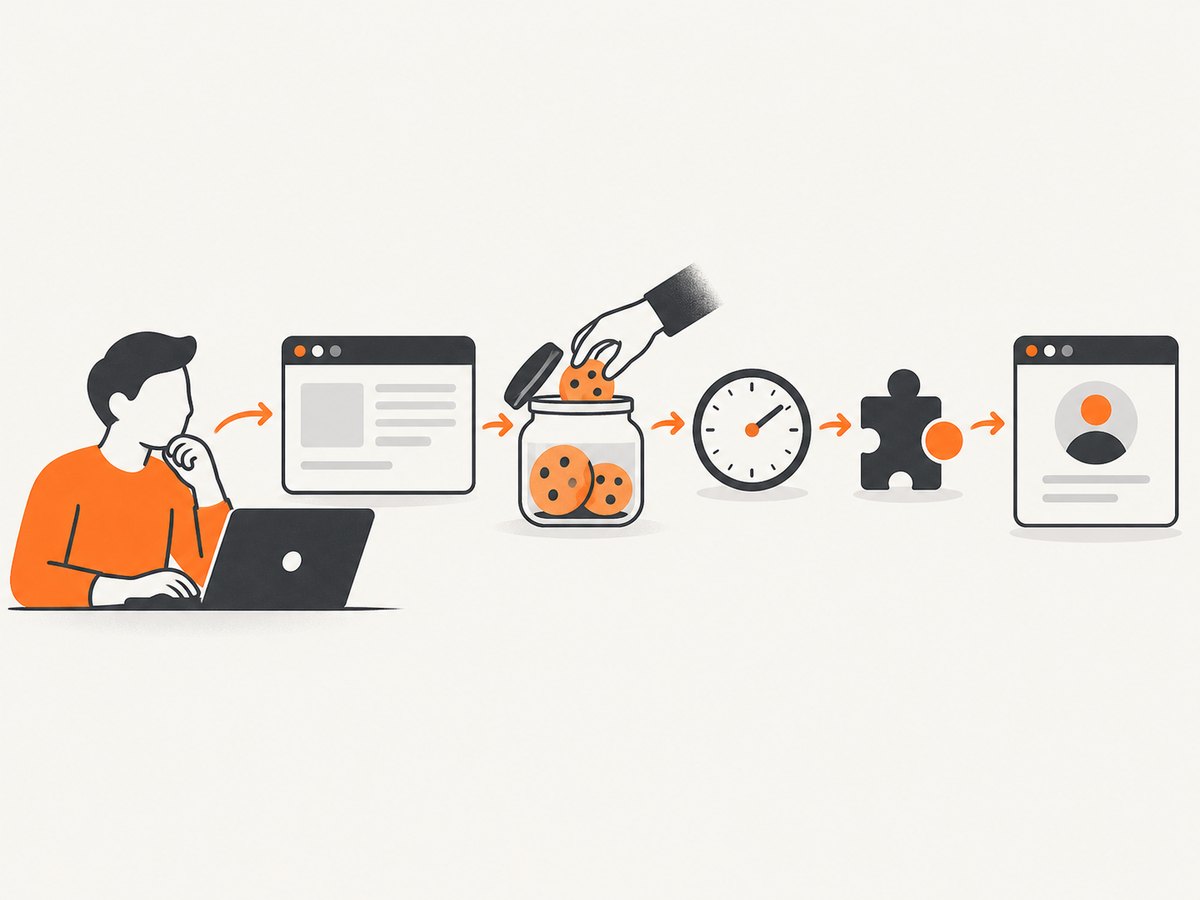
- Check clear-on-exit settings. Review privacy and browsing-data settings for an option that deletes cookies or site data when the browser closes. Disable only the clearing behavior that conflicts with your goal.
- Check cookie permissions for the affected site. Confirm the site is allowed to save cookies and site data. If the issue is limited to a single sign-in domain, use a narrow exception where the browser offers one.
- Review tracking prevention. Test whether the browser’s tracking-prevention level is interfering with the sign-in flow. If testing identifies this cause, restore your preferred protection level and add an exception for the affected sign-in domain if needed. Do not leave global protection lowered as a routine fix.
- Check managed policies. On a work or school device, an administrator may control cookie retention or profile behavior. Browser settings can be locked or overridden; ask the administrator to check the relevant policy.
- Verify the system clock and time zone. Incorrect time can disrupt authentication and make valid credentials or tokens appear expired. Correct the device clock, then sign in again.
- Temporarily isolate extensions that manage privacy or cookies. A cleanup extension may remove site data in the background. Disable likely extensions one at a time, restart, and see whether the session persists; then configure or replace the extension if it is responsible.
- Test a fresh browser profile. Sign into the affected site in a new profile and restart the browser. If cookies persist in the same scenario in the new profile, Microsoft says the original profile is likely corrupted. Move to a clean profile cautiously; do not copy sensitive profile files as a blind repair.
Microsoft Learn summarizes one possible cause directly: “A privacy or cookie-management extension can purge cookies in the background.” Read the full Edge cookie and sign-in troubleshooting guide for the documented sequence.
When sign-in behavior differs in private windows
Do not assume a login problem in Incognito or InPrivate proves the regular profile is broken. Identity flows may rely on cookies that are unavailable or handled differently in private contexts. Microsoft notes that this can affect single sign-on, reauthentication prompts, consent dialogs, and sign-out flows. Retest in a standard window and check whether the identity provider supports the browser and authentication library in use.
4. Keep profiles separate without losing the state you need
For a personal computer, separate profiles are useful when you need broad separation, such as work bookmarks, extensions, and logins apart from personal browsing. If you only need different cookie and sign-in contexts for sites within Firefox, containers may be sufficient. Decide whether Sync should be enabled separately; a local profile does not automatically imply cloud synchronization.
For a shared device, consider whether users need a guest or temporary session and whether browser data should remain on the device after they finish. For a managed workplace, have the administrator select and document the intended policy. Google’s Chrome documentation describes administrator-controlled profile separation, including whether existing browsing data is brought into a managed profile. Avoid assuming that a consumer toggle can override enterprise management.
Before deleting or refreshing a profile, identify data that exists only there: bookmarks, locally stored passwords, extension settings, and open work. Use the browser’s supported export or sync features when appropriate, and confirm you can sign into important services before discarding the old profile. Profile state can include authentication data, so copying it to another computer or a backup location can extend the exposure of that state.
5. Security and reliability: what persistence does—and does not—mean
Persistent cookies can make repeat sign-ins convenient, but they also represent authentication state that remains available to the browser. Protect access to the device and its operating-system account, use separate profiles when their data boundaries fit your needs, and remove or sign out of a profile when it should no longer be available to that user. A profile boundary is not a promise that malicious software cannot access browser state.
A 2025 paper, User Profiles: The Achilles’ Heel of Web Browsers, reports weaknesses in the security assumptions it tested and demonstrates proof-of-concept attacks involving profile data, extensions, certificates, and device permissions. Its findings belong to the paper’s tested threat model; they do not establish how often ordinary users are compromised. The authors write: “We show that security measures like password and cookie encryption can be easily bypassed.” Read that as a research finding, not as a claim that all profiles are routinely compromised. Read the 2025 study.
For reliability, make one change at a time and test the same site through a full browser restart. Record whether the failure affects one site, all sites, one profile, or only private windows. That simple distinction narrows the likely cause: a site-only failure suggests permissions or authentication behavior; a profile-wide failure suggests settings, extensions, policy, or profile health.
6. Troubleshooting checklist
- Cookies vanish on every restart: inspect clear-on-close controls and cookie-management extensions first.
- Only one site logs out: check its cookie permission, tracking-prevention exception, and identity-provider requirements.
- Private mode will not keep a login: that may be expected; try a normal profile if continuity is required.
- Settings are locked or revert: check for a managed browser or device policy with an administrator.
- One profile fails, a fresh profile works: migrate needed data carefully and treat the old profile as potentially damaged.
- Sessions fail intermittently across services: verify system date, time, and time zone; note whether a restart or extension change alters the result.
- Work SSO changes when privacy settings change: check supported browser and authentication-library guidance with the identity administrator rather than disabling protections broadly.
7. Capture a page without maintaining a browser profile
If your goal is a screenshot of a webpage rather than a continuing signed-in browsing session, a screenshot API can remove the need to manage a local browser profile for each capture. Browser-based automation remains appropriate when you need to interact with a site using your own authenticated session; use only authorized access and do not pass personal credentials to an unrelated capture service.
DIY: capture a page with Playwright and Chromium
This Python example creates a fresh browser context for each run, visits a public page, waits for the document to load, and saves a full-page PNG. Install Playwright and its browser once, then run the script. It does not persist a login between runs; a persistent context is a separate choice with corresponding local-data implications.
python -m pip install playwright
python -m playwright install chromium

# save as capture.py
import asyncio
from playwright.async_api import async_playwright

async def main():
    async with async_playwright() as p:
        browser = await p.chromium.launch(headless=True)
        context = await browser.new_context(viewport={"width": 1440, "height": 900})
        page = await context.new_page()
        response = await page.goto("https://example.com", wait_until="networkidle", timeout=60000)
        if response is None or not response.ok:
            raise RuntimeError(f"Page did not load successfully: {response.status if response else 'no response'}")
        await page.screenshot(path="page.png", full_page=True)
        await browser.close()

asyncio.run(main())
Replace the example URL with a page you are allowed to capture. For applications that keep network connections open, networkidle may never occur; use domcontentloaded or load, then wait for a specific selector that marks the content you need. A full-page screenshot can be very tall, and lazy-loaded images may require scrolling or application-specific waits before capture. A fresh context is isolated for the run; do not switch to persistent storage unless you intend to keep cookies and other profile data on disk.
8. Or skip the browser setup
ScreenshotNeo is a website screenshot API and MCP server for developers. Its one-call API accepts a URL and returns an image or PDF. See the ScreenshotNeo API documentation for setup and parameters.
curl -G "https://api.screenshotneo.com/v1/shot" -d access_key=YOUR_API_KEY --data-urlencode url=https://stripe.com -o shot.webpimport requests
r = requests.get(
"https://api.screenshotneo.com/v1/shot",
params={"access_key": "YOUR_API_KEY", "url": "https://stripe.com"},
timeout=90,
)
r.raise_for_status()
open("shot.webp", "wb").write(r.content)const q = new URLSearchParams({ access_key: 'YOUR_API_KEY', url: 'https://stripe.com' });
const res = await fetch(`https://api.screenshotneo.com/v1/shot?${q}`);
if (!res.ok) throw new Error(`Screenshot request failed: ${res.status}`);
await Bun.write('shot.webp', new Uint8Array(await res.arrayBuffer()));ScreenshotNeo removes cookie banners, newsletter popups, and chat widgets before the shot. Bot checks, blank pages, and failed loads are never billed, and response headers say which page verdict applied and whether the request was billed. Its MCP server gives AI agents tools to take screenshots, get page information, and capture PDFs. The free plan includes 1,000 screenshots each month with no card; paid plans start at $5 for 3,000. Sign up for 1,000 free screenshots a month, no card required.
FAQ
Does a browser profile mean my data is synced?
No. Local profile storage and account sync are distinct choices. Firefox profiles are local by default; Sync must be configured separately.
Are containers the same as separate profiles?
No. Firefox containers separate cookies, logins, and site data within a profile. Profiles separate a broader set of browser data.
Will Incognito keep me signed in?
It is designed as a separate private browsing context, and session data is not saved on the local disk in Google’s comparison. Authentication behavior can also depend on the site and identity flow.
Should I delete the profile that keeps logging me out?
Only after checking settings, extensions, policy, and the system clock, and after securing data you need. A fresh profile is a useful diagnostic; deleting the old one is not the first diagnostic step.
Can a profile guarantee that my passwords and cookies are safe?
No. Profiles organize browser data and provide useful boundaries, but they do not guarantee protection against malware or every form of account compromise.


