How to Programmatically Get a Screenshot of a Page
Learn how to capture webpage screenshots with Playwright, Puppeteer, Chrome Headless, cURL, Python, and Node.js—including full-page and element shots.
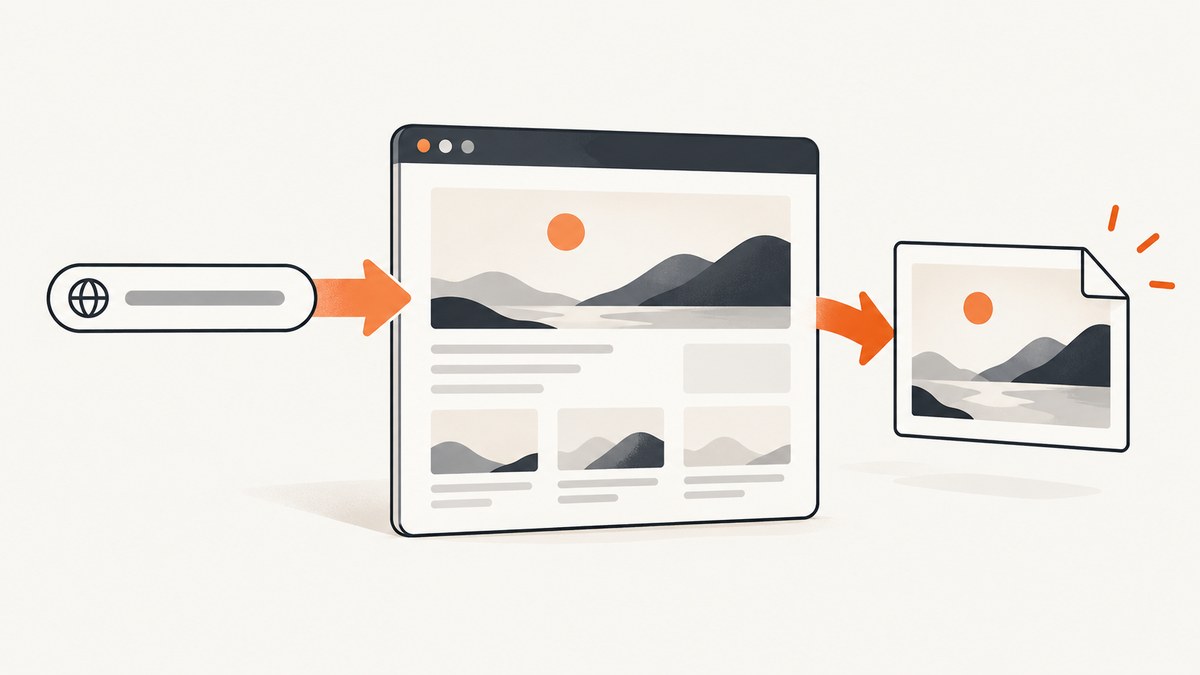
Direct answer: render the URL in a browser, wait for the page state you need, then call the browser’s screenshot API. Playwright and Puppeteer are the best choices when the capture includes navigation or interaction. Chrome Headless is convenient for a one-off command-line capture. Choose between the visible viewport, the full scrollable page, a clipped region, or one element before writing your code.
This guide covers repeatable captures, full-page output, element screenshots, formats, dynamic pages, failures, performance, and a hosted alternative.
1. Choose the capture method
| Situation | Recommended method | Why |
|---|---|---|
| Navigation, clicks, authentication, or waits | Playwright or Puppeteer | They expose browser automation APIs and screenshot options. |
| A direct capture from a shell | Chrome Headless | The --screenshot flag captures a target page without a custom script. |
| Many URLs in a service | Playwright/Puppeteer with a reused browser | Keep one browser process and create isolated pages. |
Playwright’s official API supports viewport, element, and full-page captures, while Puppeteer provides the same basic pattern through Page.screenshot(). Chrome documents the --screenshot flag and its use with --window-size. Check the documentation for the versions installed in your project because option names and defaults evolve.
2. Playwright: a complete JavaScript example
Install Playwright and its browser binaries:
npm install playwright
npx playwright install chromium
Create screenshot.mjs:
import { chromium } from 'playwright';

const browser = await chromium.launch({ headless: true });
const page = await browser.newPage({
  viewport: { width: 1440, height: 900 },
  deviceScaleFactor: 1
});

try {
  await page.goto('https://example.com', {
    waitUntil: 'networkidle',
    timeout: 30_000
  });

  await page.screenshot({
    path: 'page.png',
    fullPage: true,
    type: 'png'
  });
} finally {
  await browser.close();
}
Run it with node screenshot.mjs. The documented Playwright workflow is to navigate and call page.screenshot(); see the Playwright screenshot documentation.
Playwright capture options
path: destination filename. Omit it to receive a buffer.type:pngorjpeg; JPEG supports aqualityvalue.fullPage: captures the full scrollable page instead of only the viewport.clip: captures a rectangle withx,y,width, andheight.omitBackground: makes the background transparent where the browser can render transparency.animations: disable or wait for animations when your installed Playwright version supports that option.mask: cover selected locators to keep changing or sensitive content out of repeatable captures.
Capture one element
const card = page.locator('[data-testid="pricing-card"]').first();
await card.screenshot({ path: 'card.png', type: 'png' });
Wait for the element to be visible before capturing it. If the element is inside a scroll container, bring it into view with await card.scrollIntoViewIfNeeded().
Control dynamic content
await page.addStyleTag({
  content: `*, *::before, *::after {
    animation: none !important;
    transition: none !important;
    caret-color: transparent !important;
  }`
});
await page.waitForSelector('main');
await page.waitForTimeout(500);
await page.screenshot({ path: 'stable.png', fullPage: true });
Prefer a meaningful selector or application-ready signal over an arbitrary delay. Use a delay only when the page has no reliable readiness signal.
3. Playwright with Python
Install the package and Chromium:
pip install playwright
playwright install chromium
from playwright.sync_api import sync_playwright
with sync_playwright() as p:
browser = p.chromium.launch(headless=True)
page = browser.new_page(viewport={"width": 1440, "height": 900})
try:
page.goto("https://example.com", wait_until="networkidle", timeout=30_000)
page.screenshot(path="page.png", full_page=True, type="png")
finally:
browser.close()The async API has the same options. Use page.locator("selector").screenshot(path="element.png") for an element capture.
4. Puppeteer
npm install puppeteerimport puppeteer from 'puppeteer';
const browser = await puppeteer.launch({ headless: true });
const page = await browser.newPage();
await page.setViewport({ width: 1440, height: 900 });
try {
await page.goto('https://example.com', {
waitUntil: 'networkidle2',
timeout: 30_000
});
await page.screenshot({ path: 'page.png', fullPage: true, type: 'png' });
} finally {
await browser.close();
}Puppeteer’s documentation describes Page.screenshot(), full-page and clipping options, element screenshots, and returning image data instead of writing a file. See the Puppeteer Page.screenshot API.
const element = await page.$('.invoice');
if (!element) throw new Error('invoice element not found');
await element.screenshot({ path: 'invoice.png' });
5. Chrome Headless from the command line
google-chrome --headless --disable-gpu \
  --window-size=1440,900 \
  --screenshot=page.png \
  https://example.com
The official Chrome reference states that --screenshot saves screenshot.png in the current directory; specifying a filename is supported by current Chromium builds. Confirm the exact flags for your installed version in the Chrome Headless documentation.
6. Decide what to capture
- Viewport: omit
fullPageand set the viewport dimensions explicitly. - Full page: use
fullPage: true. Long pages can create very large files or exceed browser limits. - Element: call the locator or element handle’s screenshot method.
- Region: use a clip rectangle after the page has reached the required layout.
For responsive testing, capture each viewport separately. Set the device scale factor deliberately: a retina value increases pixel dimensions and output size.
7. Authentication, headers, cookies, and location
Create a browser context with the state your page requires. Do not put secrets in a screenshot filename or log output.
const context = await browser.newContext({
  viewport: { width: 1280, height: 800 },
  locale: 'en-US',
  timezoneId: 'America/New_York',
  extraHTTPHeaders: { Authorization: `Bearer ${process.env.TOKEN}` },
  storageState: 'auth-state.json'
});
const page = await context.newPage();
For cookie-based sessions, add cookies to the context before navigation. If the page depends on geolocation, grant the relevant permission and configure coordinates in the context.
8. Make captures repeatable
- Pin the browser and automation-library versions in your project.
- Set viewport, locale, timezone, color scheme, and device scale factor.
- Wait for a stable selector or application-ready event.
- Disable animations and mask changing or private regions.
- Use a fixed font environment where visual diffs matter.
- Save metadata beside the image: URL, timestamp, viewport, browser version, and readiness condition.
Network-idle waits can be unreliable on pages with analytics or long-lived connections. A specific selector or readiness event is usually more predictable.
9. Troubleshooting
| Symptom | Likely cause | Fix |
|---|---|---|
| Browser executable not found | Browser binaries were not installed. | Run the library’s install command, such as npx playwright install chromium or playwright install chromium. |
| Blank or half-rendered image | Capture happened before the app rendered. | Wait for a stable selector, an application-ready signal, or required fonts/images. |
| Timeout on navigation | Slow server, blocked resource, or never-ending connection. | Increase the navigation timeout, use a less strict wait condition, and inspect failed requests. |
| Element not found | Selector changed, content is conditional, or the frame is different. | Check the selector, wait for it, and target the correct frame. |
| Full-page image is clipped | Very tall content or a layout that uses an internal scroll container. | Capture the relevant element or scroll and stitch deliberately; test the installed browser version. |
| Fonts differ from local output | Fonts are unavailable in the runtime. | Install or package the fonts and wait for document.fonts.ready. |
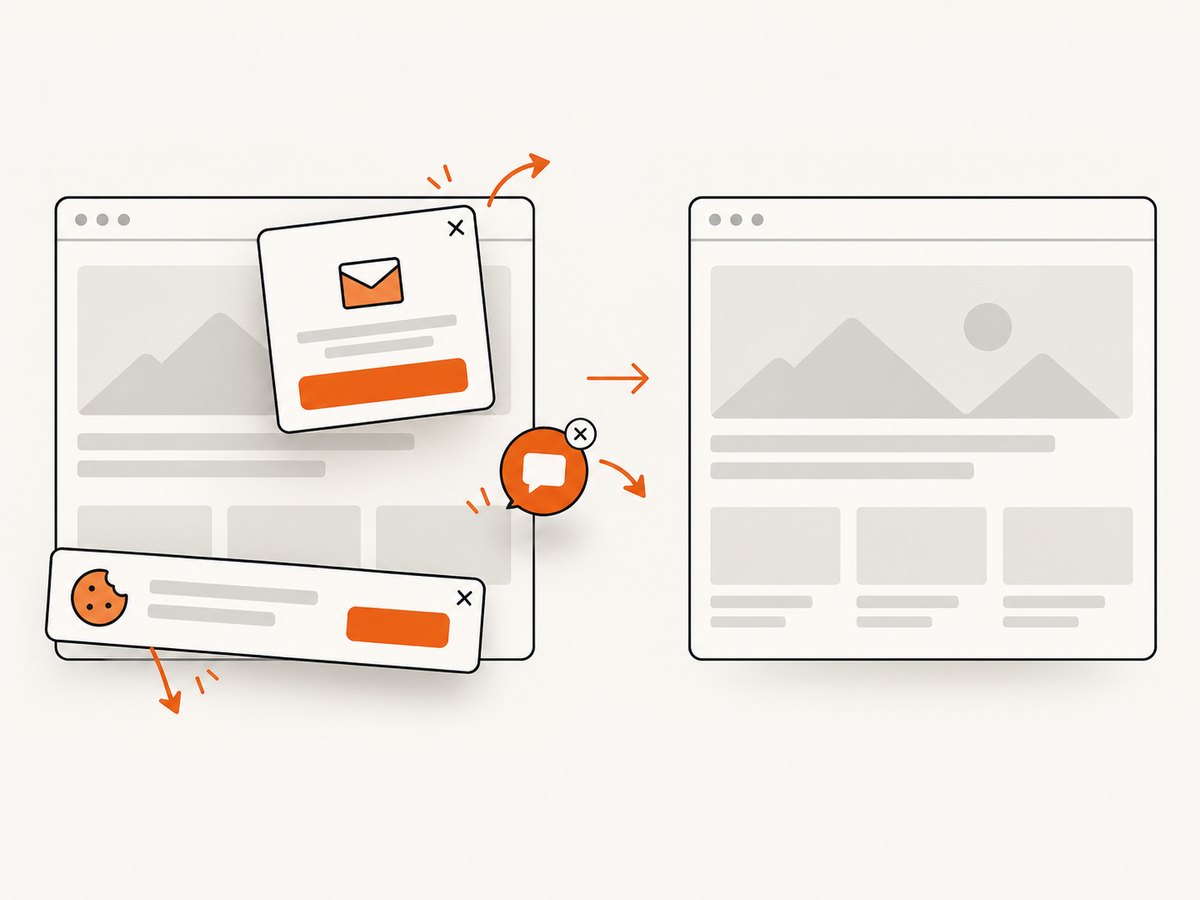
| Cookie banner or popup obscures content | The page requires an interaction before capture. | Click the consent or close control, or hide the selector after confirming it is safe. |
| Images are missing | Lazy loading waits for scrolling, or requests failed. | Scroll through the page, wait for image completion, and inspect network errors. |
10. Performance, reliability, and cost
- Reuse one browser process and create a fresh context or page per job.
- Limit concurrency to the CPU and memory available; browser tabs are expensive.
- Use JPEG for photographic pages when smaller files matter, PNG for sharp text or transparency, and WebP when your consumer supports it.
- Cache identical inputs when the page is immutable, but include viewport, headers, cookies, and relevant options in the cache key.
- Retry transient navigation failures with bounded exponential backoff. Avoid retrying deterministic selector or authentication errors.
- Record the URL, options, browser version, duration, and failure reason so a visual mismatch can be reproduced.
- Redact credentials and personal data from logs and screenshots.
Browser automation has infrastructure costs for the browser process, memory, bandwidth, and page execution. A hosted screenshot API can move that operational work out of your application.
11. Or skip the browser setup
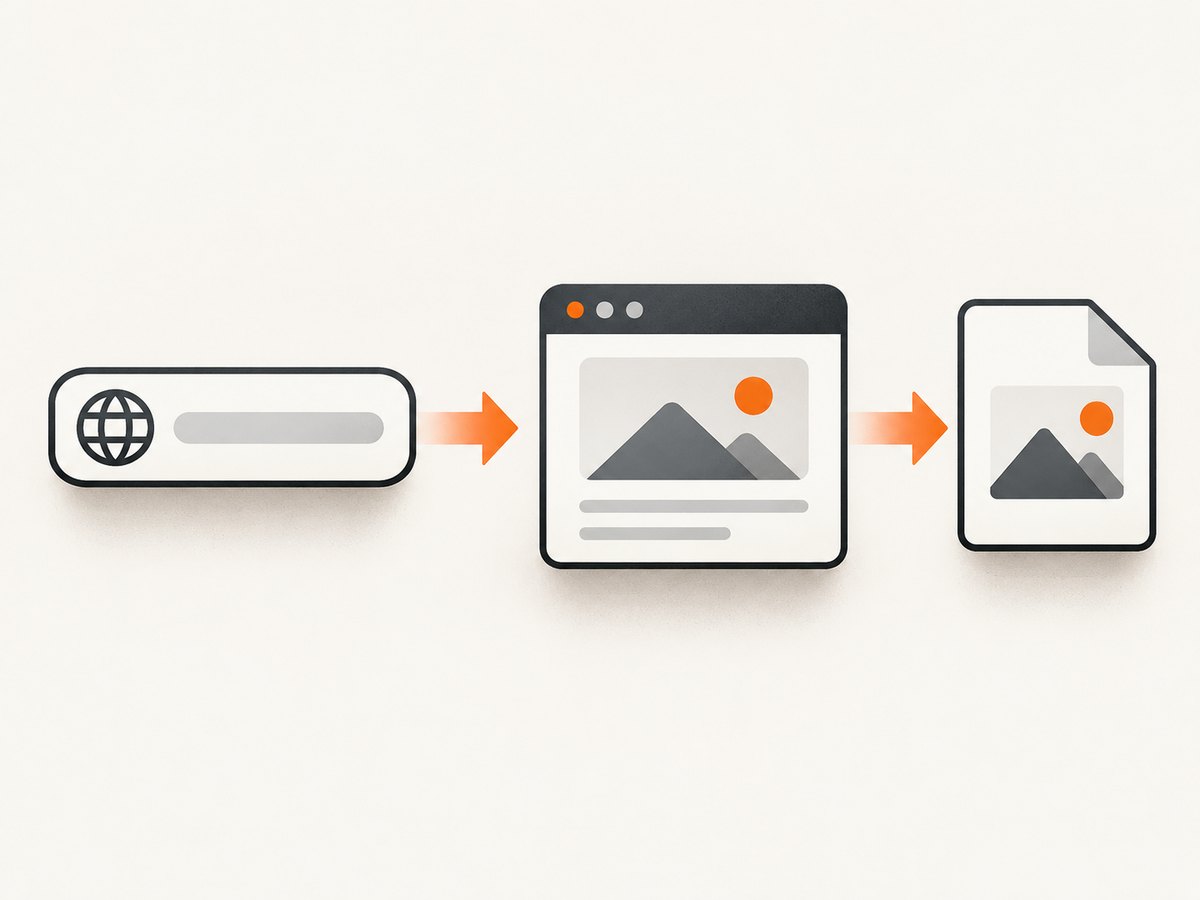
ScreenshotNeo returns a PNG, JPEG, WebP, or PDF from one GET request. Its screenshot API accepts the URL and the capture options described in the ScreenshotNeo documentation.
curl -G "https://api.screenshotneo.com/v1/shot" -d access_key=YOUR_API_KEY --data-urlencode url=https://stripe.com -o shot.webpimport requests
r = requests.get("https://api.screenshotneo.com/v1/shot", params={"access_key": "YOUR_API_KEY", "url": "https://stripe.com"}, timeout=90)
open("shot.webp", "wb").write(r.content)const q = new URLSearchParams({ access_key: 'YOUR_API_KEY', url: 'https://stripe.com' });
const res = await fetch(`https://api.screenshotneo.com/v1/shot?${q}`);Cookie banners, newsletter popups, and chat widgets are removed before the shot. Bot checks, blank pages, timeouts, failed loads, and cache hits are not billed as clean shots; the response identifies the result with X-Page-Verdict and X-Billed headers. An MCP server provides take_screenshot, get_page_info, and capture_pdf tools for Claude, Cursor, and other MCP clients. The Free plan includes 1,000 screenshots per month with no card; paid plans start at $5 for 3,000 shots. Create a free ScreenshotNeo account.
12. Short FAQ
Should I use a screenshot API or run a browser myself?
Run Playwright or Puppeteer when screenshots are one step in a larger workflow that needs custom browser logic. Use an API when you want a request-based integration without maintaining browser binaries and workers.
What is the difference between viewport and full-page capture?
A viewport capture contains the currently visible browser area. A full-page capture extends across the page’s scrollable content.
Can a screenshot include a logged-in page?
Yes. Supply storage state, cookies, headers, or an authentication flow in the browser context, and protect the resulting files.
Why does the same page produce different pixels?
Fonts, animations, time-dependent content, locale, viewport, device scale factor, and asynchronous requests can all change rendering. Fix those inputs and wait for a stable readiness condition.


