How to Prompt for Login Credentials and Enter Them with Puppeteer
Prompt for credentials safely, fill a login form with Puppeteer, and wait for a reliable success signal across navigation and single-page apps.
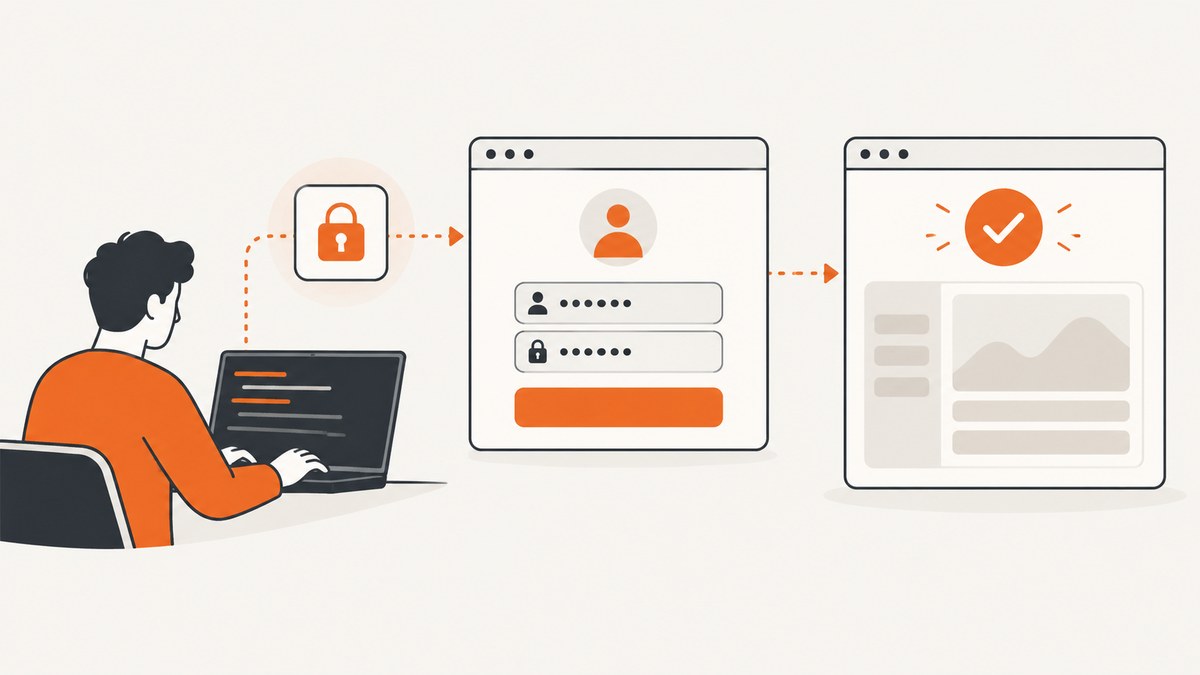
To enter credentials in an ordinary HTML login form with Puppeteer, get the username and password in your Node.js process, navigate to the authorized login page, locate the fields, fill them, submit the form, and wait for a site-specific signal that login succeeded. Use page.locator(...).fill(...) for typical form controls. If submission triggers a document navigation, start waitForNavigation() and the click together with Promise.all. For a single-page app (SPA), wait for a known authenticated element or state instead.
“Prompt for credentials” can mean asking a person interactively, or receiving values from deployment configuration. Puppeteer handles browser interaction; it does not prescribe how your application collects or stores secrets. The example below reads environment variables as one runtime option. Use the secret-handling approach appropriate to your environment, and do not put real credentials in source code or logs.
1. Install Puppeteer and configure credentials
Start with a Node.js project and install Puppeteer, which provides the browser automation API and downloads a compatible browser as part of its standard installation flow. See the Puppeteer getting started guide for setup details. Set credentials in the environment that runs the script:
npm install puppeteer
export LOGIN_USERNAME='your-username'
export LOGIN_PASSWORD='your-password'
node login.mjs
On Windows PowerShell, set the variables for the current shell with $env:LOGIN_USERNAME="your-username" and $env:LOGIN_PASSWORD="your-password". Avoid committing a local environment file containing real credentials. In a hosted service, inject secrets through the deployment platform’s configured secret mechanism.
2. Fill and submit a standard login form
Save this as login.mjs. Replace the example URL, selectors, and authenticated-state selector with values from the site you are authorized to automate:

import puppeteer from 'puppeteer';

const username = process.env.LOGIN_USERNAME;
const password = process.env.LOGIN_PASSWORD;
if (!username || !password) {
  throw new Error('Set LOGIN_USERNAME and LOGIN_PASSWORD before running');
}

const browser = await puppeteer.launch();
try {
  const page = await browser.newPage();
  await page.goto('https://example.test/login', {
    waitUntil: 'domcontentloaded',
    timeout: 30_000,
  });

  await page.locator('input[name="username"]').fill(username);
  await page.locator('input[name="password"]').fill(password);

  await Promise.all([
    page.waitForNavigation({ waitUntil: 'domcontentloaded', timeout: 30_000 }),
    page.locator('button[type="submit"]').click(),
  ]);

  // Replace this with a stable, site-specific signal for authenticated state.
  await page.locator('[data-testid="account-menu"]').wait();
  console.log('Authenticated UI is ready');
} finally {
  await browser.close();
}
The selector names and account-menu test ID are illustrative placeholders, not selectors guaranteed to exist on a particular site. Use a stable field name, associated label, accessible role, or test ID when available. Puppeteer locators wait for elements and action preconditions, which helps with ordinary render timing, but they cannot tell whether you selected the correct field or whether the server accepted the credentials. The page interactions guide explains locator-based interaction, and Locator.fill() documents supported fill targets.
3. Choose a credential prompt that fits your program
The environment-variable example works for a script launched by a person or a service that injects secrets. If you specifically need a terminal prompt, read values before launching the browser and keep password input hidden using a suitable terminal prompt library. Do not echo a password back to the terminal. In a web service, do not expose another user’s credentials through a public request parameter or return them in an error.
Keep credential acquisition separate from page automation. Pass the resulting strings to the login function, and make sure failures do not print them. Avoid taking screenshots or tracing while password values are visible in the form. If you need diagnostic artifacts, capture only after clearing sensitive fields or on a page that contains no credentials.
4. Pick selectors that identify the intended controls
Common selectors include input[name="email"], input[type="password"], and a submit button with a stable accessible name or test ID. Prefer selectors tied to labels, roles, names, or explicit test hooks. Positional selectors such as input:nth-of-type(2) are fragile: a new field can silently change which input receives the password.
Some sites render controls inside an iframe. Locate the frame and use its frame-scoped page API to find and fill the controls; selectors on the top-level page cannot target a separate frame’s document. Other pages use shadow DOM or multi-step forms. Puppeteer’s selector support includes CSS and Puppeteer-specific selectors for accessibility attributes, text, XPath, and shadow DOM; consult the Locator API for the syntax supported by your installed version.
5. Fill fields or simulate typing?
For normal inputs, fill() is the simplest choice. It sets the control value through Puppeteer’s locator interaction. Use keyboard typing only when the page depends on per-keystroke behavior, such as a custom widget that reacts to keyboard events. Puppeteer’s Page.type() and Keyboard.type() APIs send keyboard and input events character by character; keyboard typing also supports a delay.
// Ordinary input: concise form fill
await page.locator('input[name="username"]').fill(username);

// Use only if the page requires keyboard-event behavior
await page.locator('input[name="username"]').click();
await page.keyboard.type(username, { delay: 35 });
Do not add typing delays by default. They increase runtime and do not make automation more reliable unless the application actually requires keyboard events. Test the page’s behavior with the interaction method you choose.
6. Wait for the right kind of login completion
When submission navigates to a new document
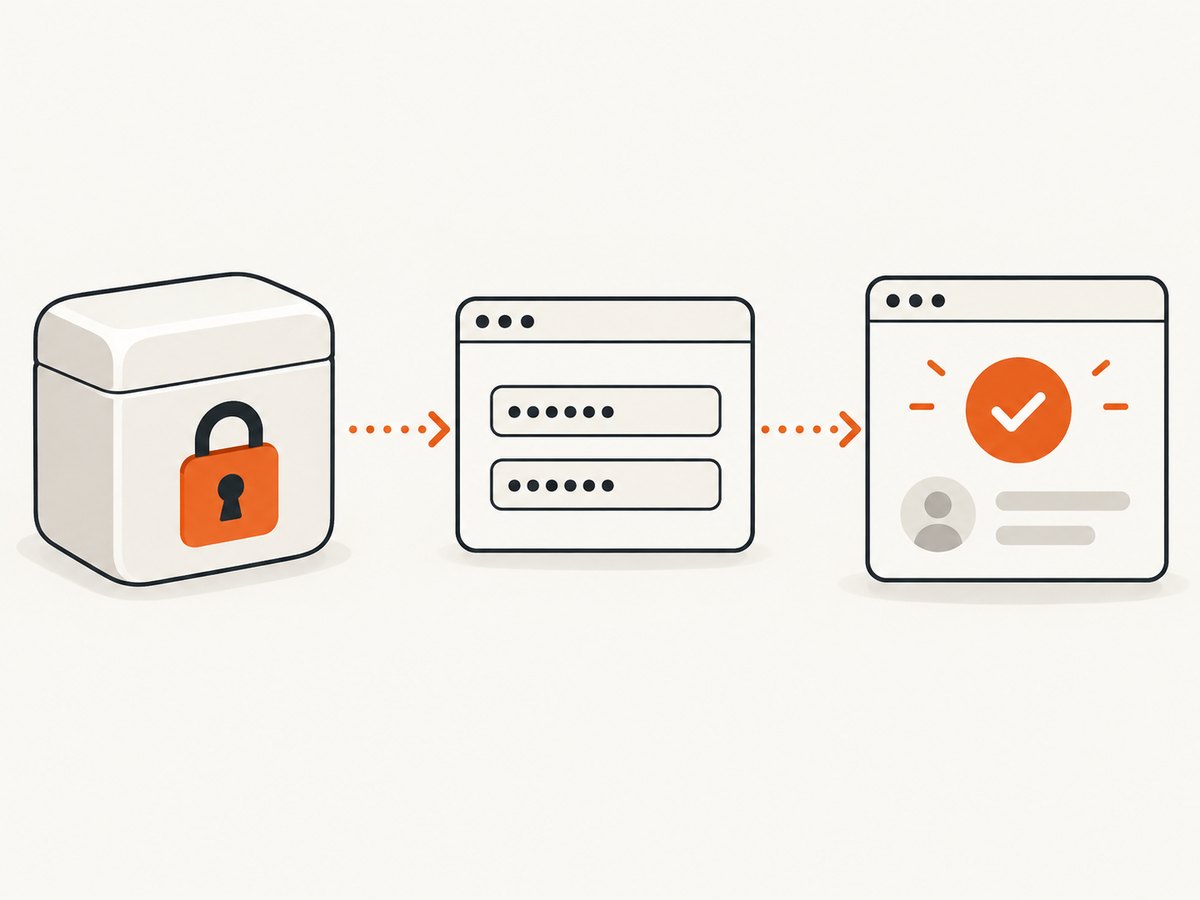
A submit click may trigger navigation. Begin the navigation wait before or at the same time as the click so a fast navigation cannot happen before the wait is registered:
const [response] = await Promise.all([
  page.waitForNavigation({ waitUntil: 'domcontentloaded' }),
  page.locator('button[type="submit"]').click(),
]);

// response can be null for some History API or anchor navigations.
await page.locator('[data-testid="account-menu"]').wait();
Puppeteer’s waitForNavigation() documentation describes the concurrent pattern and notes that navigation may resolve with null, including History API navigation. Treat navigation as a page lifecycle event, not proof of valid credentials. Confirm the resulting authenticated UI or another reliable signal.
When the login is an SPA transition
A single-page app can update the current view without loading a new document. Do not wait indefinitely for navigation that will never occur. Instead, click submit and wait for an application-specific success element:
await page.locator('button[type="submit"]').click();
await page.locator('[data-testid="account-menu"]').wait();
The selector above is a placeholder. A success signal might be a user menu, an authenticated dashboard heading, or a URL/state change your application documents. Choose a positive signal that distinguishes successful login from a still-visible form or an error. Avoid relying on a fixed sleep: it can be too short on a slow run and unnecessarily long on a fast one.
7. Distinguish HTML forms from HTTP authentication
page.authenticate() is for HTTP authentication challenges, such as a browser requesting credentials for a protected resource. It does not type into username and password fields rendered in an HTML page. For a normal web form, locate and fill the DOM controls as above.
// For an HTTP authentication challenge only:
await page.authenticate({ username, password });
await page.goto('https://example.test/protected-resource');
Puppeteer’s Page.authenticate() API reference says authentication enables request interception behind the scenes and may affect performance. Use it only when the site actually uses HTTP authentication.
8. Handle errors and unusual login flows
| Symptom | Likely cause | What to change |
|---|---|---|
| Locator times out | Wrong selector, delayed rendering, wrong page, or a control inside an iframe. | Confirm the current URL and inspect the page structure. Use the correct frame, and wait for a specific form-ready element if rendering is delayed. |
| Credentials appear in the wrong field | A broad or positional selector matched an unrelated input. | Use a stable name, label, role, or test ID and verify the selected control before submitting. |
| Click times out or is intercepted | The submit button is disabled, covered by a dialog, or not yet actionable. | Wait for the expected form state, dismiss a legitimate blocking dialog, and confirm the button is enabled. Do not click through security challenges. |
| Navigation wait times out | The application uses an SPA transition, the click did not submit, or the form failed validation. | Check for inline validation errors. For an SPA, wait for an authenticated UI signal instead of document navigation. |
| Navigation completes but login failed | The site redirected back to the form or rendered an error page. | Check the resulting URL and a positive authenticated signal; handle a visible error state separately. |
| Fill succeeds but the app ignores the value | A custom control depends on keyboard events or framework-specific interaction. | Try clicking and using keyboard typing for that control, then verify the submitted state. Use typing only when needed. |
| Script works locally but not in deployment | Missing environment variables, browser dependencies, restricted outbound access, or different selectors/content. | Confirm secret injection and runtime setup, then log non-sensitive page state and error categories. Never log the credential values. |
| Login requires MFA or a bot check | The site has an additional access-control step. | Use an authorized, site-supported automation flow. Do not bypass MFA, bot protections, or access controls. |
9. Reliability, runtime, and cost considerations
Reliability depends on explicit timeouts, stable selectors, and a success condition that reflects the application rather than an assumed delay. Set navigation timeouts to suit the target site and fail with a useful, non-sensitive error. Close the browser in a finally block so failures do not leave browser processes running. If you reuse a browser for multiple authorized jobs, isolate pages and session state carefully so one job’s cookies or credentials cannot leak into another.
Performance depends on launching browsers, page weight, network speed, and the site’s login flow. Reusing a browser process can avoid repeated startup cost, but keep separate contexts or otherwise isolate sessions when users or jobs differ. Avoid needless character delays and oversized waits. HTTP authentication may add interception overhead, as noted in Puppeteer’s API reference. No fixed runtime or benchmark applies across sites and environments.
For an in-house script, account for the compute and maintenance needed to run a browser, its dependencies, and the login flow. A screenshot API can remove browser setup when the task is to capture a public page, but it is not a substitute for automating a private login flow: do not send account credentials to a screenshot endpoint. If you only need a public-page screenshot after your development work, ScreenshotNeo offers a one-request screenshot API and MCP server.
10. Or skip the browser setup
If the goal is a screenshot of a public page rather than logging into an account, ScreenshotNeo’s API documentation covers its request options. One GET request returns an image or PDF:
curl -G "https://api.screenshotneo.com/v1/shot" -d access_key=YOUR_API_KEY --data-urlencode url=https://stripe.com -o shot.webpimport requests
r = requests.get(
"https://api.screenshotneo.com/v1/shot",
params={"access_key": "YOUR_API_KEY", "url": "https://stripe.com"},
timeout=90,
)
open("shot.webp", "wb").write(r.content)const q = new URLSearchParams({ access_key: 'YOUR_API_KEY', url: 'https://stripe.com' });
const res = await fetch(`https://api.screenshotneo.com/v1/shot?${q}`);
if (!res.ok) throw new Error(`Screenshot request failed: ${res.status}`);
await Bun.write('shot.webp', res);In Node.js environments without Bun, write the response bytes with your preferred file API. ScreenshotNeo removes cookie banners, newsletter popups, and chat widgets before the shot; bot checks, blank pages, and failed loads are never billed. Its MCP server lets AI agents take screenshots. The free plan includes 1,000 screenshots a month with no card; paid plans start at $5 for 3,000. Sign up for ScreenshotNeo’s free plan.
FAQ
How do I enter a username and password with Puppeteer?
Read the values in Node.js, then call fill() on locators matching the username and password fields. Submit and verify a site-specific success signal.
Should I use page.type() or fill()?
Use fill() for ordinary form inputs. Use keyboard typing when the site depends on per-keystroke keyboard events.
Why does waitForNavigation() return null?
Some URL changes use the History API without a new document response. Check the resulting page state and authenticated UI.
Can Puppeteer bypass MFA or a CAPTCHA?
This workflow is for authorized login automation. It does not provide a method to bypass MFA, bot checks, or site access controls.
Does Puppeteer store my credentials?
The browser API interaction shown here does not define a credential storage policy. Your application is responsible for sourcing and handling the values safely.
Sources and version note
This guide follows the Puppeteer documentation for locators, filling, typing, navigation, and HTTP authentication: page interactions, fill, Page.type(), Keyboard.type(), waitForNavigation(), and authenticate(). Documentation pages can be versioned independently; check the API available in your installed Puppeteer package before relying on a particular method. Example URLs, selectors, and success indicators must be adapted to the authorized site being automated.


