How to Protect a Generated PDF in Java
Password-protect and restrict a generated PDF with Apache PDFBox, with complete Java code, permissions, compatibility notes, and troubleshooting.
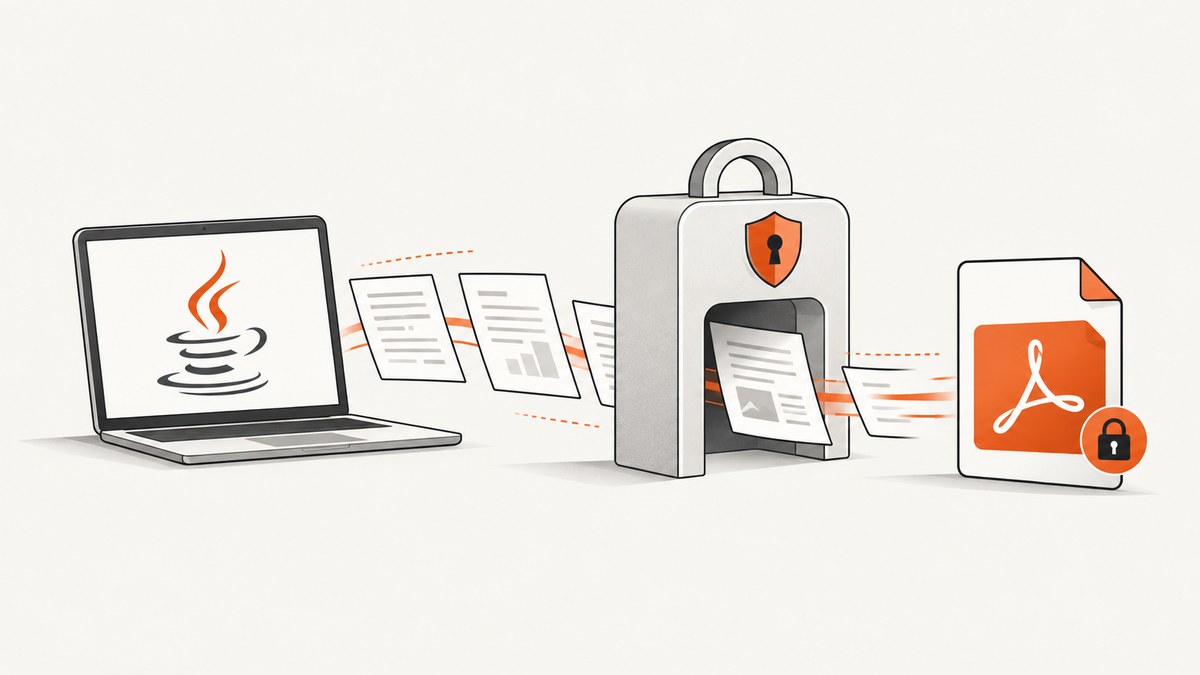
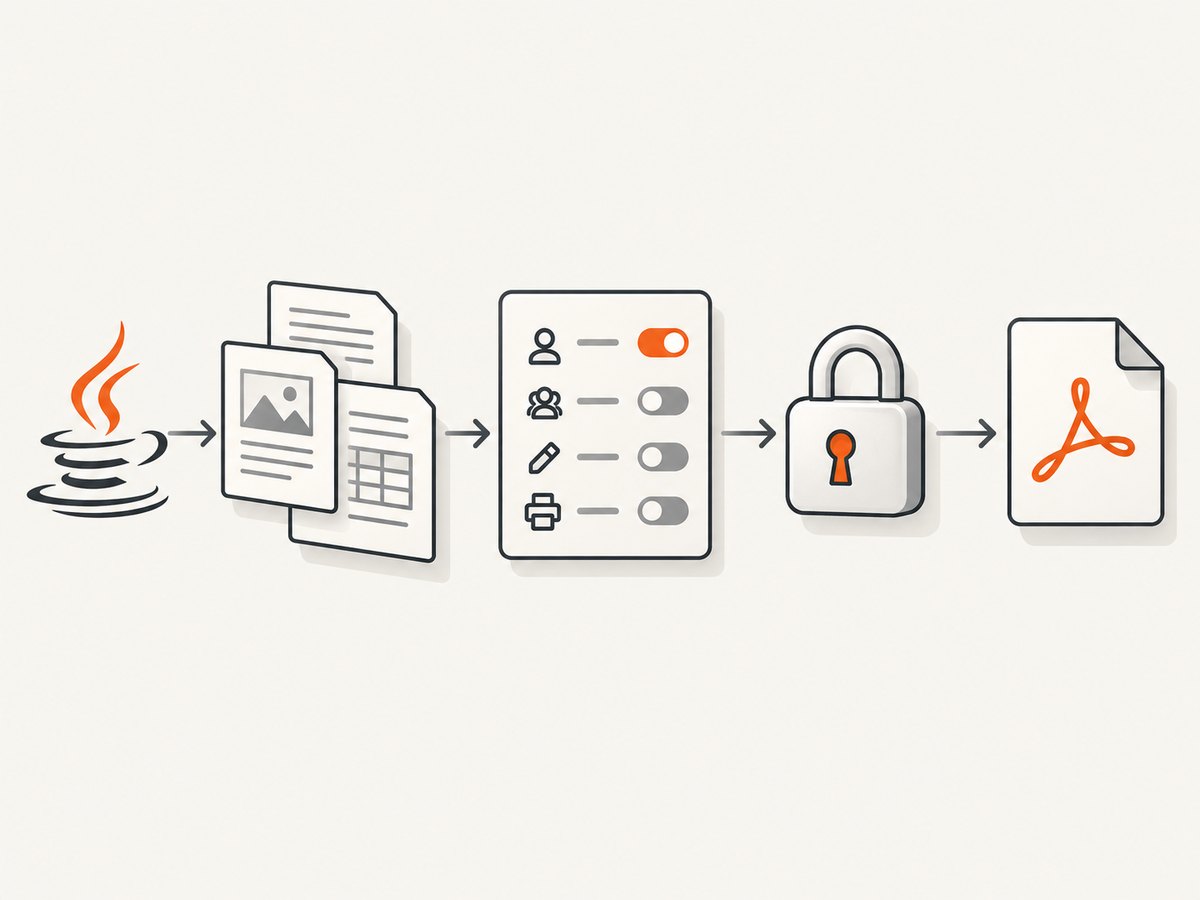
Direct answer: With Apache PDFBox, create an AccessPermission, put it in a StandardProtectionPolicy with owner and user passwords, call document.protect(policy), and save the document. Apply protection before saving. A user password controls opening the file; an owner password grants access to the full permission set. You can also let users open the file without a password while restricting actions such as printing or content extraction.
This guide uses the PDFBox 2.0 API shown in the official cookbook. The PDFBox project also publishes a 3.x line, so pin your dependency and verify imports and APIs against the exact version in your application. The cookbook example and API reference are for PDFBox 2.0: Encrypting a File and StandardProtectionPolicy API.
What PDF protection means
PDF security has two related but separate parts:
- Opening protection: a user password is required to open and view the file.
- Permission protection: the file records whether printing, copying, editing, form filling, or other operations are allowed.
The PDFBox cookbook describes the user password as the password to open and view a file with restricted permissions, and the owner password as the password for access with all permissions. An empty user password therefore means “open without a password,” not “no protection.” It can still carry restrictions.
Permission flags are policy signals, not guaranteed digital-rights-management enforcement. Different PDF viewers may expose or enforce them differently. If your requirement is confidentiality, use a non-empty user password and protect the password separately from the PDF. If your requirement is only to discourage printing or copying, use permissions with an empty user password and explain that behavior to your users.
Set up PDFBox
For a PDFBox 2.0 project, add the dependency below. Check the Apache PDFBox project site for current releases before pinning a version.
<dependency>
  <groupId>org.apache.pdfbox</groupId>
  <artifactId>pdfbox</artifactId>
  <version>2.0.37</version>
</dependency>
The code in the next section creates a one-page PDF in memory, writes text to it, configures encryption, and saves the protected result. It uses the 2.0-style API. Do not copy a 2.x dependency or loading call into a PDFBox 3.x project without checking that version’s migration notes.
Complete Java example
import java.io.IOException;
import java.nio.file.Path;
import java.nio.file.Paths;

import org.apache.pdfbox.pdmodel.PDDocument;
import org.apache.pdfbox.pdmodel.PDPage;
import org.apache.pdfbox.pdmodel.PDPageContentStream;
import org.apache.pdfbox.pdmodel.common.PDRectangle;
import org.apache.pdfbox.pdmodel.encryption.AccessPermission;
import org.apache.pdfbox.pdmodel.encryption.StandardProtectionPolicy;

public final class ProtectedPdfExample {
    private ProtectedPdfExample() {
    }

    public static void main(String[] args) throws IOException {
        Path output = Paths.get("protected-report.pdf");

        // Load these from a secret manager or protected configuration in production.
        String ownerPassword = System.getenv("PDF_OWNER_PASSWORD");
        String userPassword = System.getenv("PDF_USER_PASSWORD");

        if (ownerPassword == null || ownerPassword.isBlank()) {
            throw new IllegalStateException("PDF_OWNER_PASSWORD is required");
        }
        if (userPassword == null) {
            throw new IllegalStateException("PDF_USER_PASSWORD must be set (it may be empty)");
        }

        try (PDDocument document = new PDDocument()) {
            PDPage page = new PDPage(PDRectangle.LETTER);
            document.addPage(page);

            try (PDPageContentStream content =
                         new PDPageContentStream(document, page)) {
                content.beginText();
                content.setFont(org.apache.pdfbox.pdmodel.font.PDType1Font.HELVETICA, 12);
                content.newLineAtOffset(72, 720);
                content.showText("Confidential generated report");
                content.endText();
            }

            AccessPermission permissions = new AccessPermission();
            permissions.setCanPrint(false);
            permissions.setCanExtractContent(false);

            StandardProtectionPolicy policy = new StandardProtectionPolicy(
                    ownerPassword,
                    userPassword,
                    permissions);
            policy.setEncryptionKeyLength(256);

            // Protect before saving the generated document.
            document.protect(policy);
            document.save(output.toFile());
        }

        System.out.println("Wrote " + output.toAbsolutePath());
    }
}
Run it with environment variables rather than putting credentials in source control:
export PDF_OWNER_PASSWORD='long-owner-secret'
export PDF_USER_PASSWORD='open-secret'
mvn -q package
java -cp target/classes:$HOME/.m2/repository/org/apache/pdfbox/pdfbox/2.0.37/pdfbox-2.0.37.jar ProtectedPdfExample
A real application will also need PDFBox’s transitive dependencies on its runtime classpath. Let Maven or Gradle construct the classpath instead of assembling it manually.
Choose passwords and permissions deliberately
User and owner passwords
Use a strong, non-empty user password when the PDF must not be readable by anyone who obtains the file. Generate it or obtain it from a secret-management system, then deliver it through a separate channel. The owner password should be different and should not be sent to ordinary recipients.
If you pass an empty user password, recipients can open the PDF without entering a password, while the permission flags still describe allowed operations. This is useful for a broadly viewable document where you want to discourage casual copying or printing. It is not suitable for confidential data.
Common permission controls
AccessPermission exposes controls for operations such as printing, modifying the document, copying content, adding or modifying annotations, filling forms, extracting content for accessibility, and assembling pages. Enable only what the use case needs. For example:
AccessPermission permissions = new AccessPermission();
permissions.setCanPrint(false);
permissions.setCanPrintDegraded(false);
permissions.setCanModify(false);
permissions.setCanModifyAnnotations(false);
permissions.setCanFillInForm(false);
permissions.setCanAssembleDocument(false);
permissions.setCanExtractContent(false);
permissions.setCanExtractForAccessibility(true);
Names and availability can vary by PDFBox major version, so compile against your pinned dependency. Accessibility extraction is a separate concern from ordinary copy and paste; decide whether assistive technology must remain able to read the document.
Encryption key length
The PDFBox cookbook demonstrates 40-, 128-, and 256-bit choices and uses 256 bits in its example. The sample above follows that 256-bit setting. A longer key can reduce compatibility with older readers, so test the target viewers. Do not claim that a key length alone solves weak passwords or poor secret handling.
Protect an existing generated document
If another part of your application generates the PDF, load that document, configure the policy, protect it, save it, and close it:
try (PDDocument document = PDDocument.load(inputFile)) {
    AccessPermission permissions = new AccessPermission();
    permissions.setCanPrint(false);
    permissions.setCanExtractContent(false);

    StandardProtectionPolicy policy = new StandardProtectionPolicy(
            ownerPassword, userPassword, permissions);
    policy.setEncryptionKeyLength(256);

    document.protect(policy);
    document.save(outputFile);
}
Do not save first and then assume a later call will encrypt an already-written file. Protection belongs in the document lifecycle before the final save. If you need to return bytes from a web endpoint, save to a ByteArrayOutputStream after protect, then send those bytes with the appropriate download headers.
Generated PDFs, templates, and incremental workflows
- Generate then protect: add pages, fonts, images, metadata, and form values first. Call
protectonly when all edits are complete. - Template workflows: load the template, fill fields, flatten if required by your workflow, then protect and save.
- Multiple saves: avoid treating an intermediate unprotected file as a deliverable. Write it to a restricted temporary directory or keep the document in memory.
- Large documents: close streams promptly and consider PDFBox memory settings appropriate for your workload. Encryption itself does not replace memory and disk hygiene.
- Metadata: encryption does not automatically remove metadata. Remove or sanitize author names, titles, embedded files, and other sensitive metadata before protecting the file.
Compatibility: PDFBox versus iText
Apache PDFBox is open-source Java software under the Apache License 2.0 and supports creating and manipulating PDFs. Its documented password-protection flow is a practical choice when PDFBox is already in your dependency stack.
iText documents its own encryption APIs and discusses AES-128 and AES-256, compatibility trade-offs, and newer PDF 2.0 AES-GCM and MAC protection. Its documentation warns against RC4 and recommends validating target-reader support when selecting newer formats. Compare the libraries on your existing dependencies, licensing requirements, required encryption mode, and the viewers that must open the output. The sources do not establish one universal choice for every application.
Troubleshooting
The file opens without asking for a password
Cause: the user password is empty. Fix: provide a non-empty user password if opening must be gated. An owner password alone does not create the user experience you may expect.
Printing or copying still works in a viewer
Cause: permission flags are not enforced identically by every PDF reader, or the reader has privileged access. Fix: verify the flags in a second standards-aware viewer and treat permissions as policy signaling rather than absolute DRM. Use a user password for confidentiality.
ClassNotFoundException or missing PDFBox classes
Cause: the runtime classpath lacks PDFBox or a transitive dependency. Fix: run through Maven or Gradle and inspect the resolved dependency tree. Ensure the runtime uses the same major version as compilation.
The protection call does not compile after upgrading
Cause: PDFBox 3.x can differ from 2.x in loading APIs, package behavior, or supported methods. Fix: pin the version, read its API and migration documentation, and update the example rather than mixing 2.x snippets with 3.x dependencies.
The output is corrupt or truncated
Cause: the document or output stream was closed too early, or bytes were read before save completed. Fix: use try-with-resources, call protect before save, flush the response only after saving, and verify the complete byte count.
Passwords appear in logs or source control
Cause: credentials were hard-coded or logged during debugging. Fix: use environment variables or a secret manager, redact configuration values, rotate exposed credentials, and keep the owner password separate from recipient delivery.
Performance, reliability, and cost considerations
For most generated files, the expensive work is document creation, font embedding, image processing, and I/O. Encryption adds processing and can increase output work, especially for large embedded assets. Measure with your document sizes and target concurrency rather than assuming a fixed overhead.

Use bounded worker pools for batch generation, write to local or managed storage with sufficient space, and delete temporary unprotected files promptly. Make output naming deterministic enough for retries but unique enough to avoid accidental overwrites. A retry should regenerate or reopen a known source document and produce a complete protected artifact; do not retry by appending to a partially written PDF.
Validate security and compatibility in CI: open the result with the expected user password, confirm that the owner password permits administrative operations, inspect permission flags, and test representative viewers. Keep the PDFBox version pinned and review release notes before upgrades.
Or skip the browser setup
If your actual job is capturing a web page as a PDF rather than protecting a PDF your Java code generated, ScreenshotNeo provides a single API request. It handles the browser lifecycle and can capture PDF output with paper size, margins, landscape mode, and page ranges. See the ScreenshotNeo documentation for the complete option list.
curl -G "https://api.screenshotneo.com/v1/shot" \
  -d access_key=YOUR_API_KEY \
  --data-urlencode url=https://stripe.com \
  -o page.pdf
import requests
r = requests.get(
"https://api.screenshotneo.com/v1/shot",
params={"access_key": "YOUR_API_KEY", "url": "https://stripe.com"},
timeout=90,
)
r.raise_for_status()
open("page.pdf", "wb").write(r.content)const q = new URLSearchParams({
access_key: 'YOUR_API_KEY',
url: 'https://stripe.com'
});
const res = await fetch(`https://api.screenshotneo.com/v1/shot?${q}`);
if (!res.ok) throw new Error(`ScreenshotNeo request failed: ${res.status}`);
const fs = await import('node:fs/promises');
await fs.writeFile('page.pdf', Buffer.from(await res.arrayBuffer()));Cookie and consent banners, newsletter popups, and chat widgets are removed before the shot. Bot checks, blank pages, failed loads, timeouts, and cache hits are not billed, and response headers identify the page verdict and whether the response was billed. ScreenshotNeo also offers an MCP server with take_screenshot, get_page_info, and capture_pdf tools for Claude, Cursor, and other MCP clients. One thousand screenshots each month are free with no card; paid plans start at $5 for 3,000 shots. Create a free ScreenshotNeo account.
FAQ
Can I restrict printing without requiring a password?
Yes. Use an empty user password and set the relevant printing permissions to false. Explain that viewer enforcement varies.
Is the owner password recoverable from the PDF?
Do not treat it as recoverable secret storage. Keep passwords in a secret manager and rotate them if exposed.
Should I use 128-bit or 256-bit encryption?
PDFBox documents both. Choose based on your security policy and the oldest reader you must support, then test the resulting file.
Does encryption remove PDF metadata?
No. Inspect and sanitize metadata and embedded files separately before protecting the document.
Can a PDF be completely prevented from being copied?
No permission setting guarantees that every viewer or capture method will prevent copying. For sensitive content, combine access control, encryption, secure delivery, and an appropriate threat model.


