How to Generate Protractor E2E HTML Reports with Failed-Test Screenshots
Build a Protractor HTML report that links failed-test screenshots, with working Jasmine reporter code, CI troubleshooting, and a migration-aware workflow.
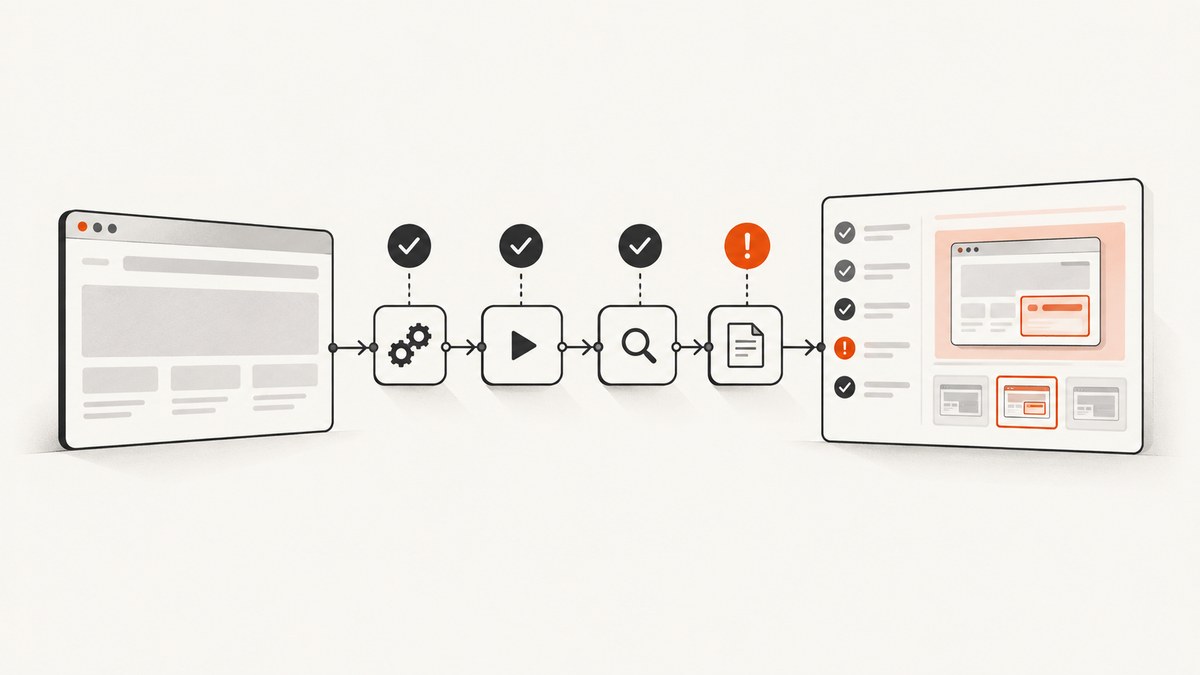
Direct answer: capture a PNG when Jasmine marks a spec as failed, save it with a deterministic browser-and-spec filename, write XML test results, then pass that XML and the screenshot directory to an HTML reporter. The report can link each failed spec to its image. For a legacy suite, the most controllable implementation is a Jasmine failure hook plus protractor-html-reporter-2. A bundled reporter such as protractor-beautiful-reporter is simpler, but its compatibility and maintenance constraints must match your installed stack.
Lifecycle warning: Protractor reached end-of-life in August 2023. Its official project says it discourages new users from adopting Protractor and recommends migrating existing suites to another end-to-end solution. Use the procedure below to maintain a legacy Angular or AngularJS suite while you plan that migration. See the official Protractor project for the status statement.
1. How the report pipeline works
There are two artifacts and two jobs:
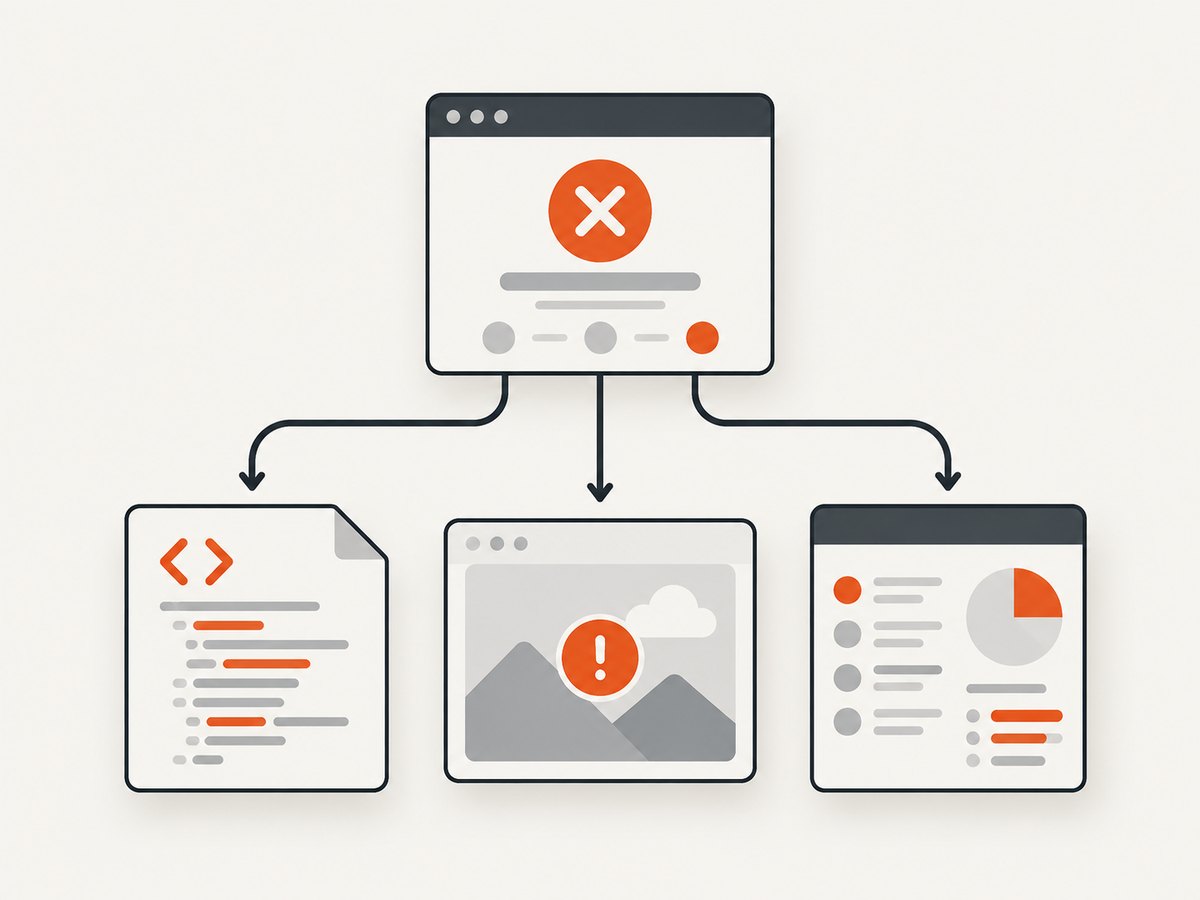
- Test results: a Jasmine XML reporter records passed, failed and skipped specs.
- Failure images: a Jasmine
specDonehook asks WebDriver for a PNG only whenresult.status === 'failed'. - HTML rendering: an HTML reporter reads the XML and searches the configured screenshot directory using its expected browser and filename convention.
The image does not automatically become part of the report merely because it exists on disk. The report output path, screenshot path, browser identifier and filename must agree. Keep report files and screenshots in a stable directory that CI can archive.
2. Install a compatible legacy toolchain
Pin versions that are known to work together in your repository. Do not install several HTML reporters and register all of them at once; each reporter may consume Jasmine events differently.
npm install --save-dev \
  protractor \
  jasmine-reporters \
  protractor-html-reporter-2 \
  fs-extra
The exact APIs vary by package release, Node version, Jasmine major version, browser and driver. Commit the lockfile and record those versions in CI logs. The example below follows the documented XML-to-HTML pattern, with modern path handling and a sanitized filename.
3. Pattern A: Jasmine failure hook plus XML-to-HTML
3.1 Recommended directory layout
project/
  protractor.conf.js
  e2e/
  reports/
    xml/
    screenshots/
    html/
Resolve paths from the process working directory or from __dirname, then use the same absolute locations throughout the run. A common CI failure is writing screenshots relative to one directory while the HTML renderer searches another.
3.2 Complete configuration example
const fs = require('fs-extra');
const path = require('path');
const { JUnitXmlReporter } = require('jasmine-reporters');
const HTMLReport = require('protractor-html-reporter-2');

const root = __dirname;
const xmlDir = path.join(root, 'reports', 'xml');
const screenshotDir = path.join(root, 'reports', 'screenshots');
const htmlDir = path.join(root, 'reports', 'html');

exports.config = {
  framework: 'jasmine',
  specs: ['e2e/**/*.spec.js'],
  directConnect: true,
  capabilities: {
    browserName: 'chrome'
  },

  onPrepare: async function () {
    await fs.emptyDir(xmlDir);
    await fs.emptyDir(screenshotDir);
    await fs.emptyDir(htmlDir);

    // XML is consumed by the HTML reporter after the run.
    jasmine.getEnv().addReporter(new JUnitXmlReporter({
      savePath: xmlDir,
      consolidateAll: true,
      filePrefix: 'results'
    }));

    jasmine.getEnv().addReporter({
      specDone: async function (result) {
        if (result.status !== 'failed') return;

        const caps = await browser.getCapabilities();
        const browserName = caps.get('browserName') || 'unknown-browser';
        const pngBase64 = await browser.takeScreenshot();
        const safeName = result.fullName
          .replace(/[^a-z0-9_-]+/gi, '_')
          .replace(/^_+|_+$/g, '')
          .slice(0, 180);
        const fileName = `${browserName}-${safeName || 'failed-spec'}.png`;
        await fs.writeFile(
          path.join(screenshotDir, fileName),
          pngBase64,
          'base64'
        );
      }
    });
  },

  onComplete: async function () {
    const caps = await browser.getCapabilities();
    const browserName = caps.get('browserName') || 'unknown-browser';
    const browserVersion = caps.get('browserVersion') || '';

    // Use the XML filename emitted by your jasmine-reporters version.
    await new HTMLReport().from(
      path.join(xmlDir, 'results.xml'),
      {
        reportTitle: 'Protractor Test Execution Report',
        outputPath: htmlDir,
        outputFilename: 'ProtractorTestReport',
        screenshotPath: screenshotDir,
        testBrowser: browserName,
        browserVersion
      }
    );
  }
};
Run it with:
npx protractor protractor.conf.jsThis is an adaptation of the repository examples, not a promise that every package release awaits asynchronous reporter callbacks. Verify that your Jasmine runner waits for the hook and confirm the XML filename and screenshot naming convention generated by your installed versions. Older examples may use callback-style promises or new Buffer(...); use Buffer.from and current filesystem APIs in maintained code.
3.3 Why the filename matters
protractor-html-reporter-2 matches screenshots using configuration and naming conventions rather than inspecting arbitrary files. Include the browser name and a sanitized full spec name. If you shard or parallelize, add a run or shard identifier:
const shard = process.env.CI_NODE_INDEX || 'local';
const fileName = `${browserName}-${shard}-${safeName}.png`;
Limit filename length, remove slashes and punctuation, and avoid relying on duplicate spec names. Keep the screenshot directory beside the report output when following the reporter’s example layout, or use explicit absolute paths everywhere.
4. Pattern B: a reporter plugin that captures and renders
protractor-beautiful-reporter registers a Jasmine 2 reporter and can collect screenshots and HTML in one integration. Its documented setup is:
const HtmlReporter = require('protractor-beautiful-reporter');

exports.config = {
  framework: 'jasmine',
  specs: ['e2e/**/*.spec.js'],
  onPrepare: function () {
    jasmine.getEnv().addReporter(
      new HtmlReporter({
        baseDirectory: 'tmp/screenshots',
        takeScreenShotsOnlyForFailedSpecs: true
      }).getJasmine2Reporter()
    );
  }
};
With takeScreenShotsOnlyForFailedSpecs: true, the report still lists passed tests but omits their images. The repository states that Jasmine 1 is unsupported, that result collection assumes one continuous run, and that it needs new maintainers. Treat those as package-specific constraints. Validate retries, multiple browsers and sharding before adopting it in CI.
protractor-screenshoter-plugin documents options including screenshotPath, screenshotOnExpect, screenshotOnSpec and writeReportFreq. Its asap frequency writes after each expectation, but its documentation warns that concurrent browsers can race while writing. For parallel CI, end-of-test writing is usually easier to reason about; confirm the behavior in your own suite.
5. Make failures useful instead of merely decorative
- Capture only failures: this reduces disk use and keeps reports readable.
- Record context: include browser, browser version, shard, spec name and CI build ID in filenames or adjacent metadata.
- Preserve the original failure: do not let a screenshot exception replace the assertion error. Wrap capture in a
try/catchand log the capture failure. - Keep the page state stable: a
specDonescreenshot may occur after cleanup or navigation. The reviewed sources do not guarantee a pixel-perfect image of the exact assertion instant. - Archive artifacts: configure CI to retain
reports/html,reports/screenshotsand XML files even when the test command exits nonzero.
specDone: async function (result) {
  if (result.status !== 'failed') return;
  try {
    // capture and write the image here
  } catch (error) {
    console.error(`Could not capture ${result.fullName}:`, error);
  }
}
6. Troubleshooting checklist
| Symptom | Likely cause | Fix |
|---|---|---|
| PNG exists but is absent from HTML | Wrong screenshotPath, browser name or filename pattern |
Compare the generated filename with the reporter’s documented convention; use absolute paths and the exact testBrowser value. |
| Screenshots are in the wrong directory | Relative paths use the CI working directory | Resolve from __dirname, create directories before the run and print the resolved paths. |
| Reporter crashes or fields are missing | Jasmine major-version mismatch or missing Jasmine 2 adapter | Check package compatibility, use the adapter required by that reporter and pin dependencies. |
| Parallel browsers overwrite images | Names contain only the spec | Add browser, shard and build identifiers; sanitize and cap the filename length. |
| ASAP mode produces corrupt or incomplete reports | Concurrent report writes race | Use end-of-test writing for multi-browser CI or serialize report generation. |
| Local run passes but CI reporter fails | Different Node, driver, browser, working directory or lifecycle timing | Log all versions, run the same command in CI, retain raw XML and validate that asynchronous hooks are awaited. |
| Image shows a later state | Capture happens after the assertion or cleanup | Confirm runner timing; capture earlier with a plugin hook if precise timing is required, and document the limitation. |
| XML report is empty | Reporter was registered after specs started or the process exited early | Register in onPrepare, ensure the output directory is writable and wait for reporter completion. |
7. Performance, reliability and cost considerations
A screenshot is an additional browser command, PNG encoding operation and filesystem write for every failed spec. In a healthy suite that overhead is paid only during failures, but a cascading outage can create hundreds of images. Cap artifact retention, compress or clean old runs, and avoid per-expectation capture unless you need that diagnostic detail.
Parallel execution shortens test time but increases collision risk. Use unique names and one report directory per worker, then merge or publish the reports in a final CI step. A single continuous run is safer for reporters that maintain in-memory result state. Retries can produce multiple failures for one spec; include an attempt number if your runner retries.
These tools have no physical infrastructure requirement beyond the browser, WebDriver and Node process. The practical costs are CI minutes, disk storage and maintenance of an end-of-life framework. Treat the reporting setup as a bridge while migrating tests to a maintained runner.
8. Or skip the browser setup
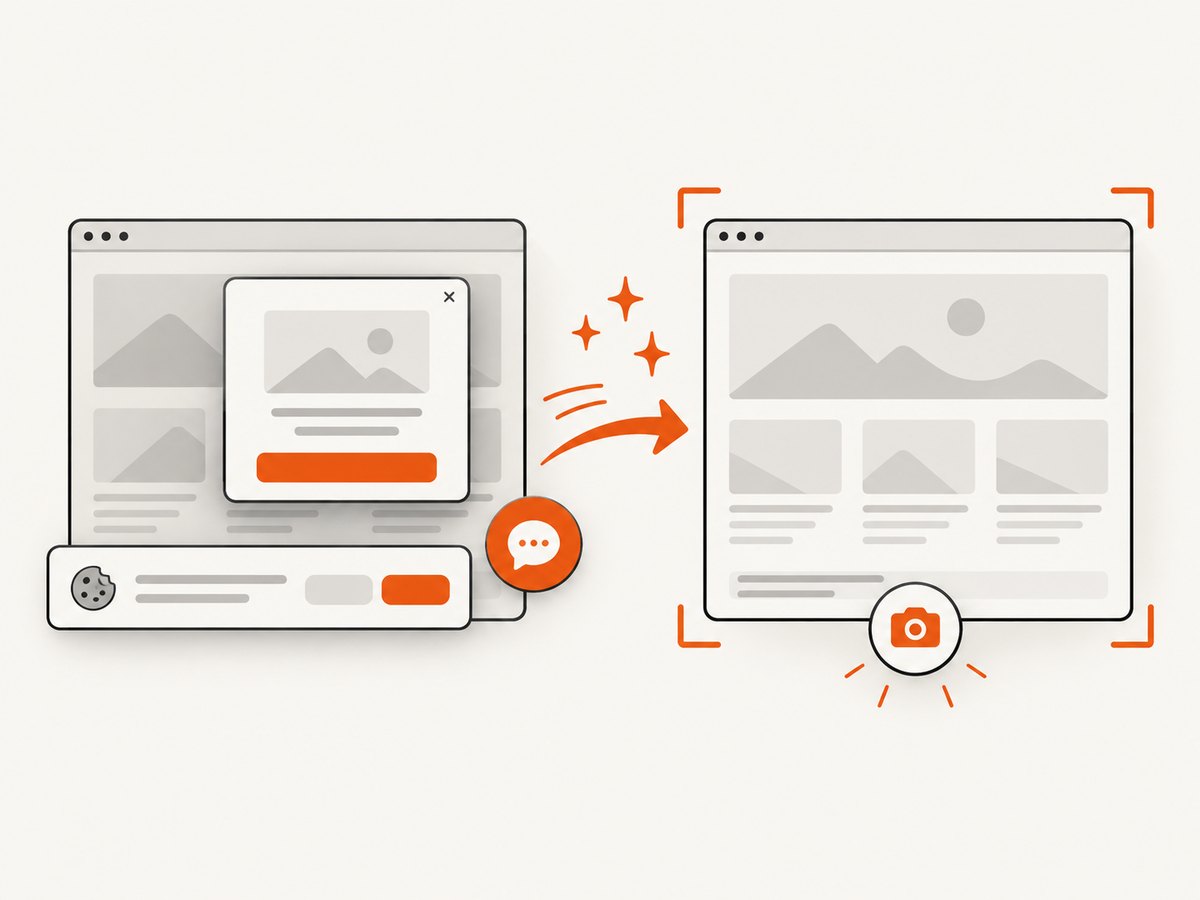
If you need screenshots for reports, documentation or post-failure diagnostics without maintaining a capture browser, ScreenshotNeo provides a website screenshot API and MCP server. A GET request returns PNG, JPEG, WebP or PDF. The same parameters commonly used by other screenshot APIs work, which reduces migration effort.
Using the ScreenshotNeo API documentation:
curl -G "https://api.screenshotneo.com/v1/shot" \
  -d access_key=YOUR_API_KEY \
  --data-urlencode url=https://stripe.com \
  -o shot.webp
import requests
r = requests.get(
"https://api.screenshotneo.com/v1/shot",
params={"access_key": "YOUR_API_KEY", "url": "https://stripe.com"},
timeout=90,
)
r.raise_for_status()
open("shot.webp", "wb").write(r.content)const q = new URLSearchParams({
access_key: 'YOUR_API_KEY',
url: 'https://stripe.com'
});
const res = await fetch(`https://api.screenshotneo.com/v1/shot?${q}`);
if (!res.ok) throw new Error(`Screenshot failed: ${res.status}`);
const bytes = Buffer.from(await res.arrayBuffer());
require('fs').writeFileSync('shot.webp', bytes);Before capture, ScreenshotNeo accepts cookie and consent banners and removes more than 60 known consent platforms, newsletter popups and chat widgets; each step can be disabled. Bot checks or CAPTCHAs, blank pages, timeouts, failed loads and cache hits are not billed, and the response identifies the result with X-Page-Verdict and X-Billed headers. Its MCP server exposes take_screenshot, get_page_info and capture_pdf for Claude, Cursor and other MCP clients.
For report workflows, relevant options include full-page capture with lazy images loaded, CSS-selector element capture, dark mode, device presets or custom viewports, retina scale, custom CSS and JavaScript, click-before-capture, selector or network-idle waits, blocked requests and resource types, custom headers, cookies, user agents, Authorization, timezone, geolocation, transparent backgrounds, resizing, selectable cache TTL, signed image links, asynchronous jobs with signed webhooks, bulk capture for 100 URLs per call and a usage API. Free usage includes 1,000 screenshots per month with no card; paid plans start at $5 for 3,000. Create a free ScreenshotNeo account.
9. Migration-minded operating checklist
- Record Protractor, Node, Jasmine, browser and driver versions.
- Choose one reporter pattern and pin its dependencies.
- Register reporters before test execution.
- Use absolute, writable report and screenshot directories.
- Capture only failed specs unless per-step evidence is required.
- Make names unique across browser, shard, retry and build.
- Archive HTML, PNG and XML artifacts on both pass and fail.
- Run the complete lifecycle in CI, including retries and parallel workers.
- Document the known timing limitation of
specDonescreenshots. - Plan migration because Protractor is end-of-life.
10. FAQ
Can I add screenshots to an existing XML report?
Yes. Capture PNGs during the run, then configure the HTML reporter with the XML file, screenshot directory, browser name and matching filenames.
Should every expectation create an image?
Usually no. Failure-only capture keeps CI storage and report size manageable. Per-expectation capture is useful for debugging a small, unstable area and can increase race and storage problems.
Why does a passed test appear without an image?
That is expected when the reporter is configured for failed specs only. The result remains in the report while its image is omitted.
Does Protractor work for a new project?
The official project recommends against new adoption because Protractor reached end-of-life in August 2023. Use this guide for maintenance and migration work.
Can a screenshot service replace the Jasmine reporter?
It can replace browser setup for capturing a deployed URL, but it does not know Jasmine assertion state. Keep the test reporter for pass/fail metadata and call a screenshot service when your workflow needs an external page capture.


