How to Set Up Screenshot Reporting for Protractor Tests
Add failure screenshots to a legacy Protractor and Jasmine 2 suite, connect them to an HTML report, and troubleshoot common CI problems.
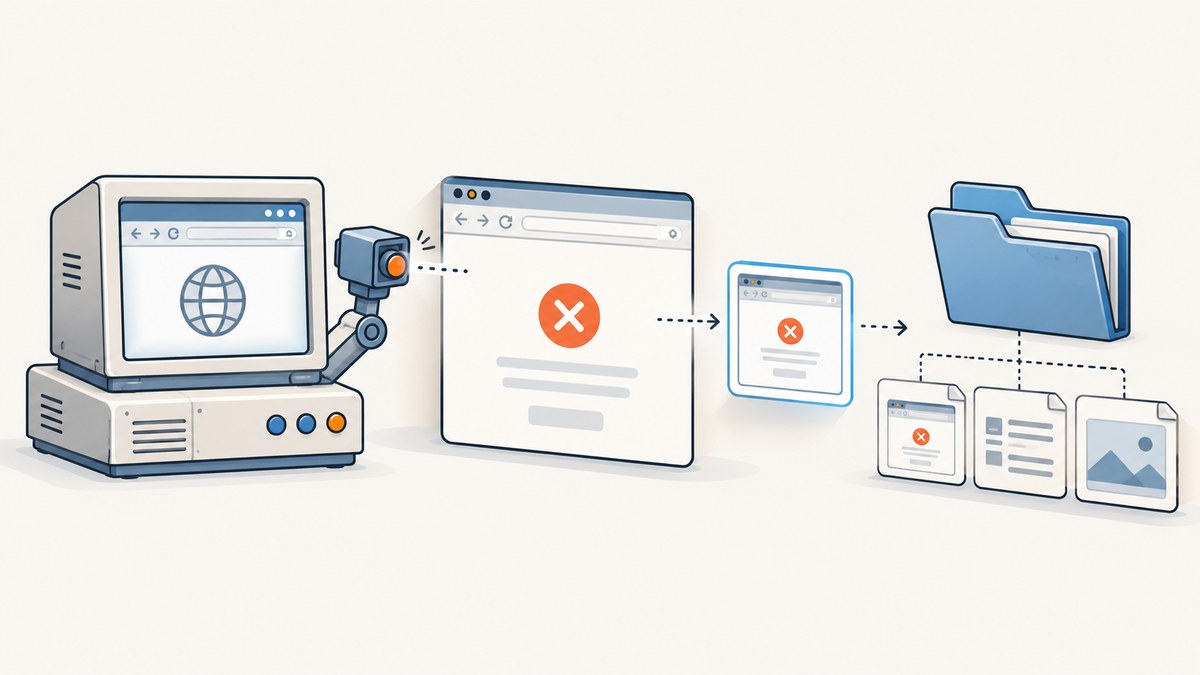
For an existing Protractor suite using Jasmine 2, register a screenshot reporter in onPrepare or add a Protractor plugin, then configure a writable artifact directory and make sure your HTML report points to the saved images. Run one known failing spec and verify the image survives the test run and appears in the report.
Protractor reached end of life in August 2023. Its official site discourages new adoption and recommends migration for existing users, so treat this as maintenance guidance for a legacy suite rather than a setup recommendation for new projects. Protractor’s official site
1. Check the suite before choosing a reporter
Screenshot reporting crosses several version-sensitive pieces: Protractor, Jasmine, Node.js, the browser driver, and the reporter package. Record the versions already in the repository before installing or upgrading anything. Reporter projects do not publish a compatibility matrix covering every old stack, so verify your exact combination in a branch or CI job.
node --version
npm ls protractor jasmine-core
Also inspect the Protractor configuration to confirm the framework is jasmine2. A reporter designed for Jasmine 1 may have a different interface and may not receive events correctly. For Jasmine 2, the protractor-angular-screenshot-reporter documentation specifically provides getJasmine2Reporter() as the compatibility method. Reporter documentation
2. Pick the capture granularity
There are three practical paths. Choose based on what you need to diagnose and how much artifact volume you can retain.
| Path | Useful when | Tradeoff |
|---|---|---|
| Jasmine screenshot reporter | You want a focused setup that generates screenshots and a simple HTML report. | Check the reporter’s Jasmine 2 compatibility and image/report layout. |
| Protractor plugin | You need expectation-level capture, browser logs, raw HTML, or multi-capability reporting. | More options and dependencies; validate its documented features in your environment. |
| Custom Jasmine reporter | Your team needs custom naming, metadata, or artifact handling. | You own asynchronous capture, file output, and report integration. |
Expectation-level screenshots show the browser near the failing assertion; whole-spec capture is simpler and usually creates fewer files. Failure-only capture generally gives a useful balance between debugging value and storage use.
3. Register the Jasmine 2 screenshot reporter
Install the reporter in the project using the version that fits the repository’s legacy dependency set. The package’s documentation describes PNG and JSON output and copies a small HTML report application into the configured base directory.
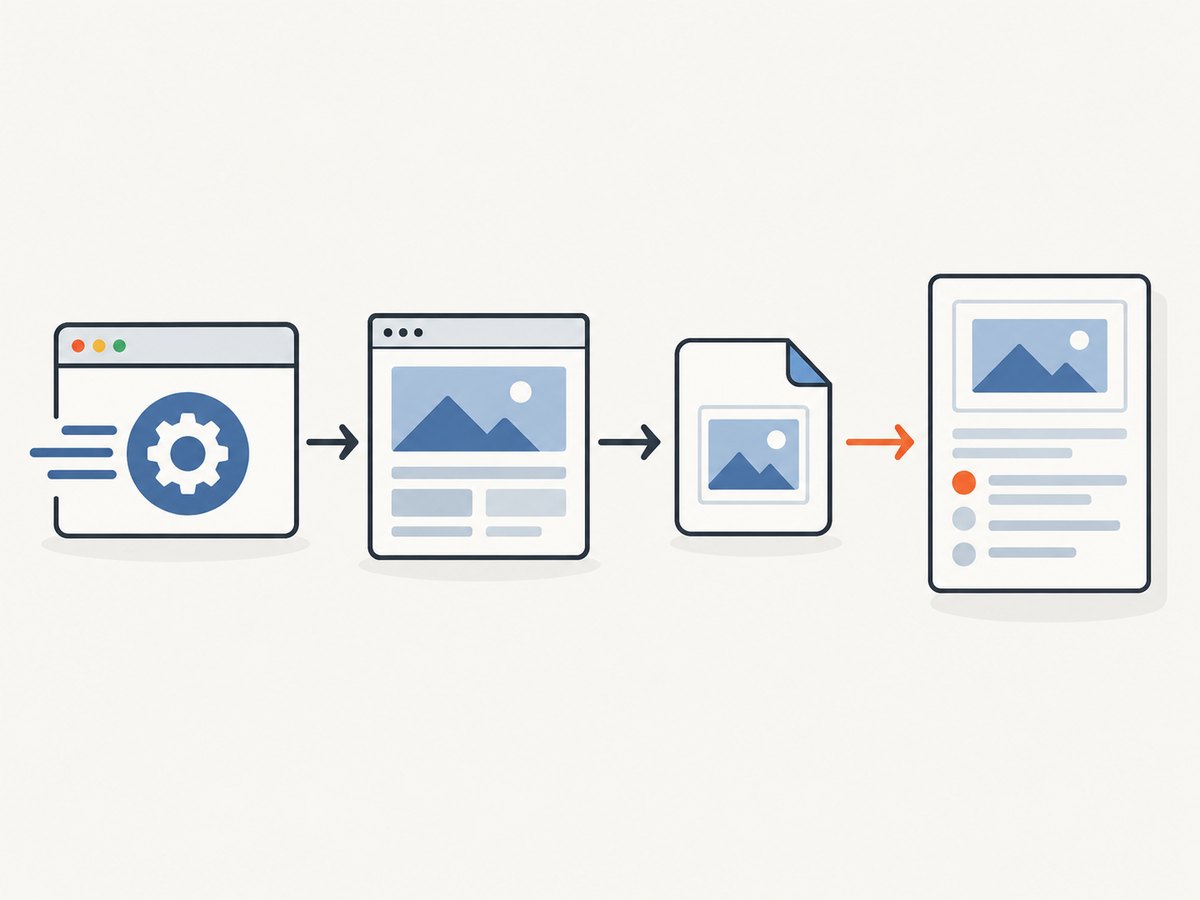
npm install --save-dev protractor-angular-screenshot-reporterIn your Protractor configuration, set an explicit output location and register the Jasmine 2 adapter from onPrepare:
var HtmlReporter = require('protractor-angular-screenshot-reporter');

exports.config = {
  framework: 'jasmine2',
  onPrepare: function () {
    jasmine.getEnv().addReporter(
      new HtmlReporter({
        baseDirectory: './reports/protractor',
        takeScreenShotsOnlyForFailedSpecs: true,
        captureSkippedSpecs: false
      }).getJasmine2Reporter()
    );
  }
};
The documented required setting is baseDirectory. The package also describes options for capturing only failed specs and including skipped specs; confirm the exact option spelling and defaults against the package version installed in your project. If your version exposes a different option name, use its README as the source of truth.
Use a path relative to the process working directory only if CI starts Protractor from a predictable directory. An absolute path can be easier to reason about in containers. Ensure the test process can create the directory, and configure the CI artifact collector to preserve it after the job.
4. Configure a Protractor screenshot plugin
A plugin can capture at expectation or spec level and may collect additional artifacts such as browser console logs or raw HTML. The following is the documented configuration shape for protractor-screenshoter-plugin; check its README and installed version for supported option values. Plugin README
exports.config = {
  framework: 'jasmine2',
  plugins: [{
    package: 'protractor-screenshoter-plugin',
    screenshotPath: './reports/e2e',
    screenshotOnExpect: 'failure',
    screenshotOnSpec: 'none',
    withLogs: true,
    writeReportFreq: 'asap'
  }]
};
Set screenshotOnExpect to 'failure' to focus on failed expectations. Set it to 'failure+success' if successful assertions also need visual evidence, accepting the extra artifacts. Use 'none' to disable that capture level. screenshotOnSpec has corresponding failure, success-plus-failure, and none modes. Avoid enabling both expectation and spec capture by default: it can duplicate images and increase storage.
The plugin README describes related controls for HTML capture, logs, report generation, and parallel runs. It also notes that some optional ASCII screenshot functionality needs platform-specific GraphicsMagick dependencies. Enable only features your workflow needs, and verify multi-browser or sharded behavior with the project’s own capabilities and CI setup.
5. Make an HTML report resolve its screenshots
A report is useful only when its image paths resolve after the CI job has finished. Keep the screenshots and generated report together when possible, or configure the report to use the correct relative path. For protractor-html-reporter, its documentation notes that screenshot files must be placed where the report expects them and that screenshot names can differ by browser. HTML reporter documentation
- Choose one stable artifact root, such as
reports/e2e. - Configure screenshot output and HTML report output to use that root or known subdirectories.
- Preserve the whole directory as a CI artifact, including image files, JSON data, and report assets.
- Open the report from the downloaded artifact, not only from the original working directory.
- Confirm that browser names or shard identifiers make filenames unique where parallel runs share an output location.
6. Validate capture before relying on CI
Use a deliberately failing spec in a disposable branch or a temporary local change. The goal is to verify the pipeline end to end, not to infer success from a green test run.
describe('screenshot reporter check', function () {
  it('captures a visible failure', function () {
    browser.get('about:blank');
    expect('actual').toBe('intentionally different');
  });
});
Run the spec and check that an image is created, has nonzero size, and depicts the browser state near the failure. Then open the generated HTML report and check that it loads the image. Remove the temporary failing spec after validation.
- Verify the artifact path from the same working directory CI uses.
- Check that test cleanup or a later job step does not delete the files before artifact upload.
- Run with the same browser capability and headless settings used in CI.
- Check retries, flakes, shards, and parallel browser instances; they can change capture timing or cause output-name collisions.
7. Custom reporter: use only when package behavior is insufficient
Jasmine reporters receive lifecycle callbacks such as specDone; the result includes status and failed expectations. Jasmine’s current reporter documentation allows asynchronous callbacks in supported versions, but old Jasmine 2 and Protractor combinations need version-specific validation. Jasmine custom reporter guide
A minimal synchronous reporter can identify failures, but it does not by itself guarantee that a WebDriver screenshot command will finish before the runner exits:
var fs = require('fs');
var path = require('path');
var outputDir = path.resolve('reports/custom');

exports.config = {
  framework: 'jasmine2',
  onPrepare: function () {
    fs.mkdirSync(outputDir, { recursive: true });
    jasmine.getEnv().addReporter({
      specDone: function (result) {
        if (result.status !== 'failed') return;
        var filename = result.fullName
          .replace(/[^a-z0-9_-]+/gi, '-') + '.png';
        browser.takeScreenshot().then(function (data) {
          fs.writeFileSync(path.join(outputDir, filename), data, 'base64');
        });
      }
    });
  }
};
This code illustrates the shape, but has an important limitation: it starts asynchronous work without ensuring the runner waits for it. An archived Protractor issue documents screenshot capture from Jasmine’s specDone callback failing to resolve in a reported setup. Test any custom approach against your exact stack and ensure async work completes before process exit; do not assume the snippet is reliable just because it runs once. Archived Protractor issue #1753
For custom code, also decide how to handle duplicate spec names, invalid filename characters, screenshots that fail, global failures, and output errors. Jasmine notes that failures may be reported at spec, suite, or overall-suite completion, so a reporter meant to give complete failure accounting should consider specDone, suiteDone, and jasmineDone.
8. Troubleshooting
| Symptom | Likely cause | Fix |
|---|---|---|
| No image appears | Reporter not registered, wrong Jasmine adapter, or screenshot mode is set to none. | Confirm framework: 'jasmine2', register in onPrepare, and check the package’s Jasmine 2 integration and capture options. |
| Images exist locally but not in CI artifacts | The collector watches another directory, the path is relative to a different working directory, or cleanup runs too early. | Use an explicit artifact root, inspect the job’s working directory, and preserve the complete report directory. |
| HTML report shows broken images | The report’s expected relative path or browser-specific filename does not match the saved files. | Keep output together or adjust the report configuration and verify its naming convention. |
| Custom capture hangs or is missing intermittently | Async WebDriver work in a reporter callback may not finish before runner shutdown; legacy callback timing can vary. | Prefer a maintained reporter/plugin that fits the stack, or validate explicit async completion under the project’s versions. |
| Parallel jobs overwrite screenshots | Workers share a directory and produce colliding names. | Use worker, shard, capability, or run-specific subdirectories; verify the report can merge or link them. |
| Too many files or large artifacts | Both expectation and spec capture are enabled, or passing specs are captured. | Use failure-only capture and one granularity level; retain only the needed report window under your CI policy. |
| Plugin fails to load | It is not installed in the location Protractor resolves, or its dependency tree conflicts with the legacy project. | Install locally and inspect the module path and package versions. Follow the README’s local path configuration if required. |
9. Performance, reliability, and storage
Capturing an image requires browser-driver work and filesystem output. Capturing every expectation adds work inside a spec and generates more files than capturing one image per failed spec. Logs, raw HTML, and multi-browser output add further artifacts. There is no universal duration or storage figure for these options; measure in your own CI environment rather than assuming a benchmark.
For more reliable diagnostics, capture only failures, keep report assets with images, and make output names unique across workers. Decide how long CI retains artifacts based on how quickly your team investigates failures and the storage limits of your CI system. A failed screenshot should not silently erase the original test failure: preserve both the assertion error and any capture error in logs where your reporter supports it.
10. Or skip the browser setup
If you need a screenshot of a page for a report, documentation, or a separate diagnostic workflow, ScreenshotNeo is a website screenshot API and MCP server from Yorker Media. A request returns an image or PDF; it is not a Jasmine reporter and does not automatically attach an image to a Protractor spec. For an API-based capture outside the test runner, the one-call request is:
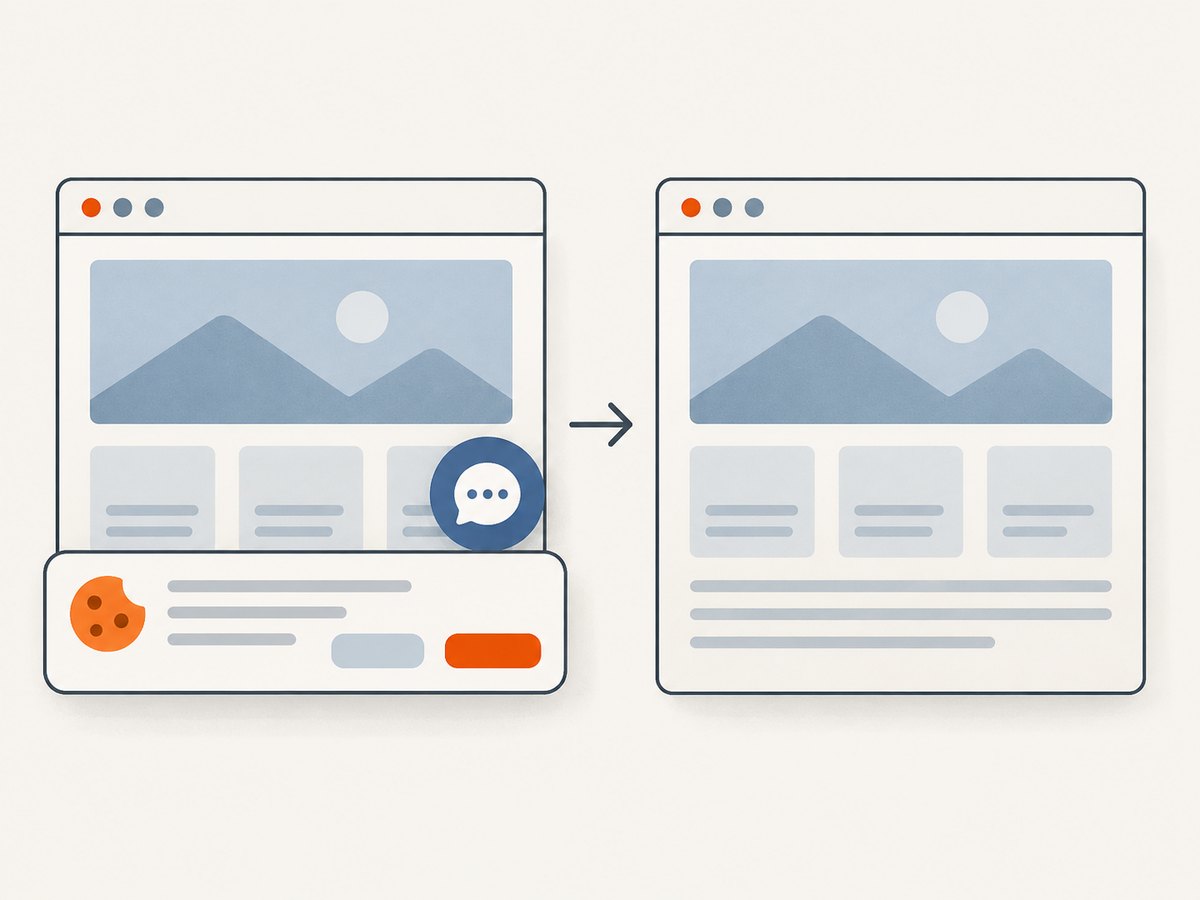
curl -G "https://api.screenshotneo.com/v1/shot" -d access_key=YOUR_API_KEY --data-urlencode url=https://stripe.com -o shot.webpSee the ScreenshotNeo API documentation for request parameters and setup. Cookie banners, popups, and chat widgets are removed before the shot; bot checks, blank pages, and failed loads are never billed. An MCP server lets AI agents take screenshots. The free plan includes 1,000 screenshots a month with no card; paid plans start at $5 for 3,000.
Create a free ScreenshotNeo account to get 1,000 screenshots a month with no card.
11. FAQ
Should a new Angular project use Protractor?
No. Protractor is end of life; its official site recommends migration for existing projects and discourages new adoption. This guide is for maintaining a suite already using it.
Should I save screenshots for passing tests?
Usually only when visual history or a specific debugging workflow requires it. Failure-only capture limits artifact growth.
Can the generated report be opened after the CI run?
Yes, if the job preserves the report, its assets, and all referenced screenshot files in the same downloadable artifact layout.
Does ScreenshotNeo replace the Jasmine reporter?
No. It captures URLs through an API or MCP server; the reporter integrates with Protractor’s test lifecycle and associates artifacts with specs.


