How to Use a Proxy with Pyppeteer in Python
Route Pyppeteer traffic through HTTP or SOCKS proxies, handle authentication, troubleshoot failures, and compare Playwright and ScreenshotNeo.
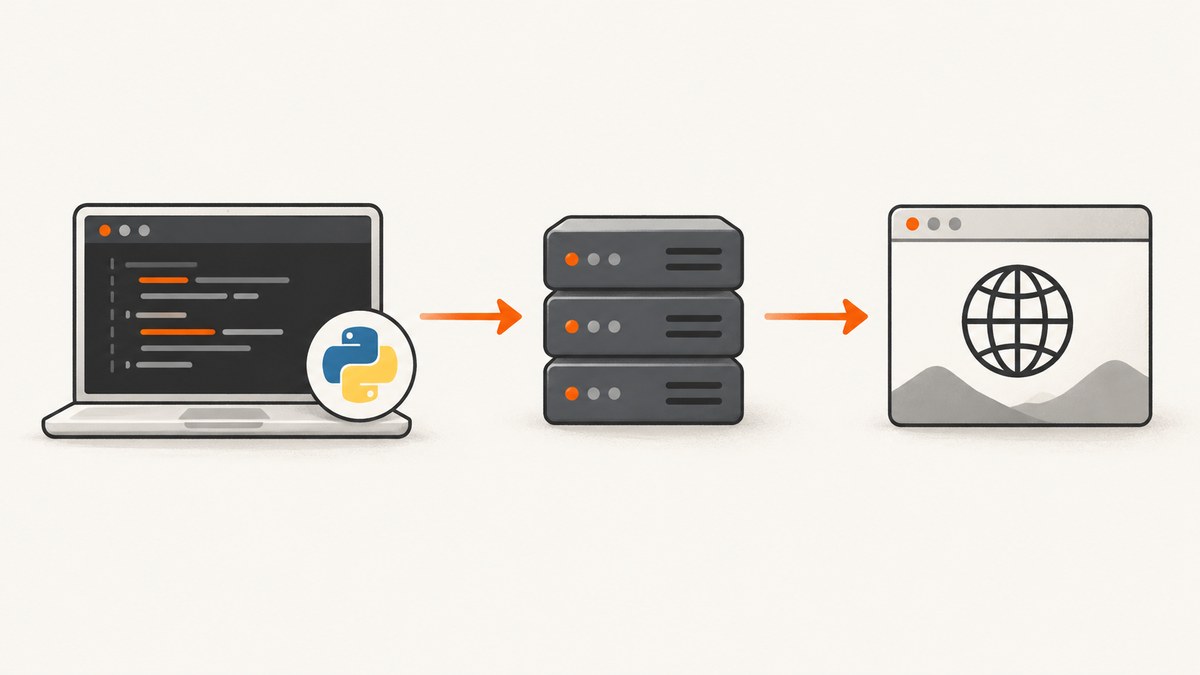
Pass Chromium’s --proxy-server argument through Pyppeteer’s launch() function. Pyppeteer launches Chromium; it does not provide a proxy endpoint. You must supply a proxy service or server that you are authorized to use.
import asyncio
from pyppeteer import launch

async def main():
    browser = await launch(
        args=["--proxy-server=http://proxy.example:8080"]
    )
    try:
        page = await browser.newPage()
        await page.goto("https://example.com", {"waitUntil": "networkidle2"})
        print(await page.title())
    finally:
        await browser.close()

asyncio.run(main())
Pyppeteer documents extra Chromium arguments through launch(args=[...]), and Chromium documents --proxy-server for proxy configuration. See the Pyppeteer launch API and Chromium proxy documentation.
1. Install Pyppeteer and prepare Chromium
python -m pip install pyppeteerPyppeteer requires Python 3.8 or later. On first use, it may download a Chromium build if a suitable browser is not available. The project README estimates that download at about 150 MB. In a container or CI job, cache the browser directory between runs when your environment permits it.
python -m pyppeteer installYou can also point Pyppeteer at an existing browser with executablePath:
import asyncio
from pyppeteer import launch

async def main():
    browser = await launch(
        executablePath="/usr/bin/google-chrome",
        args=["--proxy-server=http://proxy.example:8080"]
    )
    try:
        page = await browser.newPage()
        await page.goto("https://example.com")
    finally:
        await browser.close()

asyncio.run(main())
2. Configure common proxy schemes
Chromium supports DIRECT, HTTP, HTTPS, SOCKSv4 and SOCKSv5 proxy schemes. An HTTP proxy can handle HTTP, HTTPS, WebSocket and secure WebSocket destinations. For an HTTPS destination through an HTTP proxy, Chromium establishes a CONNECT tunnel and sends the destination hostname to the proxy while creating that tunnel.

HTTP proxy
args=["--proxy-server=http://proxy.example:8080"]HTTPS proxy
args=["--proxy-server=https://proxy.example:8443"]SOCKS5 proxy
args=["--proxy-server=socks5://proxy.example:1080"]Use the scheme your proxy operator documents. A SOCKS endpoint and an HTTP CONNECT endpoint have different authentication and routing behavior, so do not change the prefix only by trial and error.
3. Route schemes separately and define bypass rules
A single proxy URI sends all supported traffic through one endpoint. Chromium also supports scheme-specific mappings, bypass lists and fallback entries. The exact mapping syntax is documented on Chromium’s proxy page.
args=[
    "--proxy-server=http=proxy.example:8080;https=secure-proxy.example:8443;socks=socks5://socks.example:1080",
    "--proxy-bypass-list=localhost;127.0.0.1;*.internal.example"
]
A fallback such as direct:// allows a direct connection when the proxy cannot be reached. Add it only when bypassing the proxy is acceptable for your application. A direct fallback can expose requests or produce different results from proxied requests.
args=[
    "--proxy-server=http://proxy.example:8080,direct://"
]
Keep bypass patterns as narrow as possible. Include local health endpoints or internal hosts only when you intentionally want them to avoid the proxy.
4. Build a reusable Pyppeteer proxy function
import asyncio
import os
from pyppeteer import launch

async def capture_title(url: str, proxy: str) -> str:
    browser = await launch(args=[f"--proxy-server={proxy}"])
    try:
        page = await browser.newPage()
        await page.goto(url, {"waitUntil": "networkidle2", "timeout": 60000})
        return await page.title()
    finally:
        await browser.close()

async def main():
    proxy = os.environ["HTTP_PROXY_ENDPOINT"]
    title = await capture_title("https://example.com", proxy)
    print(title)

asyncio.run(main())
Store the endpoint in an environment variable or secret manager rather than committing it to source control:
export HTTP_PROXY_ENDPOINT='http://proxy.example:8080'5. Proxy authentication: do not embed credentials in the URI
Do not assume that http://username:password@proxy.example:8080 will authenticate Chromium. Chromium’s manual proxy documentation states that Chrome does not use credentials embedded in manual proxy settings. Authentication must follow Chromium’s normal credential flow, and the supported method depends on the proxy scheme and challenge.
Pyppeteer exposes an HTTP authentication method:
await page.authenticate({
    "username": os.environ["PROXY_USERNAME"],
    "password": os.environ["PROXY_PASSWORD"]
})
Verify this against the authentication challenge produced by your proxy. The documented sources do not establish that page.authenticate() works for every proxy scheme or authentication mechanism. Keep credentials out of source code, command history, logs and exception messages.
6. Verify that the request used the proxy
Use a diagnostic endpoint controlled by your team or an endpoint that reports the observed client address. Then print the response body from a page:
import asyncio
from pyppeteer import launch

async def main():
    browser = await launch(
        args=["--proxy-server=http://proxy.example:8080"]
    )
    try:
        page = await browser.newPage()
        await page.goto("https://example.com", {"waitUntil": "domcontentloaded"})
        print(await page.url())
    finally:
        await browser.close()

asyncio.run(main())
Do not treat a successful page load as proof that the proxy was used. Check the proxy’s own access logs or an approved diagnostic service, and verify both HTTP and HTTPS destinations if your application needs both.
7. Complete example with timeouts and request logging
import asyncio
import os
from pyppeteer import launch

async def main():
    proxy = os.environ["HTTP_PROXY_ENDPOINT"]
    browser = await launch(
        headless=True,
        args=[
            f"--proxy-server={proxy}",
            "--proxy-bypass-list=localhost;127.0.0.1"
        ]
    )
    try:
        page = await browser.newPage()
        page.setDefaultNavigationTimeout(60000)
        page.on("request", lambda request: print("->", request.method, request.url))
        page.on("requestfailed", lambda request: print("failed:", request.url, request.failure))
        page.on("response", lambda response: print("<-", response.status, response.url))
        await page.goto("https://example.com", {"waitUntil": "networkidle2"})
        print("title:", await page.title())
    finally:
        await browser.close()

asyncio.run(main())
8. Troubleshooting
| Symptom | Likely cause | Fix |
|---|---|---|
| Chromium starts but requests fail | Wrong scheme, hostname or port | Confirm the endpoint with the proxy operator, then test the same scheme in Chromium’s documented format. |
ERR_PROXY_CONNECTION_FAILED |
Proxy is unreachable, blocked by a firewall or refusing connections | Check DNS, outbound firewall rules, port access and proxy logs. Remove direct:// while diagnosing so failures are visible. |
| HTTP works but HTTPS fails | The proxy does not support CONNECT or TLS interception is misconfigured | Confirm that the proxy supports HTTPS tunneling and that its certificate policy matches your Chromium environment. |
| 401, 407 or repeated authentication prompts | Credentials were embedded in the URI, or the challenge is unsupported | Use the normal Chromium credential flow, test page.authenticate() for the specific challenge, and confirm the proxy’s authentication method. |
| Some hosts bypass the proxy | A bypass list or system policy matches those hosts | Review --proxy-bypass-list and any managed Chromium policies. Remove broad wildcards. |
| WebSockets fail | The proxy does not support WebSocket tunneling or the mapping is incomplete | Confirm WebSocket support and configure the appropriate HTTP, HTTPS or SOCKS mapping. |
| Navigation times out | Proxy latency, overloaded endpoint, blocked resource or page never reaches the selected wait condition | Increase the navigation timeout, try domcontentloaded, inspect failed requests and test a lightweight URL through the same endpoint. |
| Browser downloads on every deployment | Pyppeteer’s Chromium cache is not persisted | Install Chromium during image creation or persist the cache directory between jobs. |
| Proxy appears ignored | The argument was passed to a page instead of to launch(), or another Chromium process is being used |
Put --proxy-server=... in the launch args list and verify the executable path. |
9. Performance, reliability and cost considerations
- Latency: Every request may add a network hop. Reuse a browser process for related pages instead of launching Chromium for every URL.
- Concurrency: Proxies and target sites can impose connection limits. Start with a small number of pages, measure failure rates, and increase concurrency gradually.
- Timeouts: Set an explicit navigation timeout and choose a wait condition that matches the page.
networkidle2can wait longer on pages with persistent connections. - Reliability: A single proxy endpoint is a single failure domain. If you use multiple endpoints, define retry rules that avoid rapidly repeating a failed request and record which endpoint handled each attempt.
- Security: The proxy operator can observe connection metadata and, depending on the scheme and destination, traffic details. Use an operator you trust and avoid sending secrets through an unapproved endpoint.
- Cost: Pyppeteer itself does not include proxy service pricing. Budget separately for the proxy provider, bandwidth, browser compute and Chromium storage.
10. Pyppeteer maintenance and the Playwright Python option
The Pyppeteer repository describes the project as an unofficial Puppeteer port and warns that it is unmaintained. It points readers toward Puppeteer documentation and recommends considering Playwright Python. This matters when Chromium versions, authentication behavior or deployment environments change.
Playwright Python exposes proxy settings as structured fields, including an optional server, username and password, globally at browser launch or per browser context. Its API is different from Pyppeteer’s launch-argument approach, so existing Pyppeteer code is not a drop-in replacement.
from playwright.sync_api import sync_playwright

with sync_playwright() as p:
    browser = p.chromium.launch(
        proxy={
            "server": "http://proxy.example:8080",
            "username": "proxy-user",
            "password": "proxy-password"
        }
    )
    page = browser.new_page()
    page.goto("https://example.com")
    print(page.title())
    browser.close()
Compare the maintenance status, authentication API, Chromium versions and how much existing code depends on Pyppeteer before migrating. Read the Playwright Python network documentation for the current proxy fields.
11. Or skip the browser setup
If your goal is a clean screenshot rather than browser automation, ScreenshotNeo accepts one GET request and returns a PNG, JPEG, WebP or PDF. It removes cookie and consent banners, newsletter popups and chat widgets before capture. Bot checks, blank pages, failed loads, timeouts and cache hits are not billed, and response headers report the page verdict and billing result.

See the ScreenshotNeo API documentation for options such as full-page capture, CSS selector capture, custom headers and cookies, device presets, JavaScript, blocking rules, caching, asynchronous jobs and bulk capture.
curl -G "https://api.screenshotneo.com/v1/shot" -d access_key=YOUR_API_KEY --data-urlencode url=https://stripe.com -o shot.webpimport requests
r = requests.get("https://api.screenshotneo.com/v1/shot", params={"access_key": "YOUR_API_KEY", "url": "https://stripe.com"}, timeout=90)
open("shot.webp", "wb").write(r.content)const q = new URLSearchParams({ access_key: 'YOUR_API_KEY', url: 'https://stripe.com' });
const res = await fetch(`https://api.screenshotneo.com/v1/shot?${q}`);ScreenshotNeo also provides an MCP server with take_screenshot, get_page_info and capture_pdf tools for Claude, Cursor and other MCP clients. The Free plan includes 1,000 screenshots per month with no card; paid plans start at $5 for 3,000 shots. Create a free ScreenshotNeo account.
FAQ
Does Pyppeteer provide a proxy?
No. Pyppeteer passes Chromium arguments; you must provide and authorize the proxy endpoint.
Can I use a SOCKS5 proxy?
Yes. Pass a SOCKS5 URI such as --proxy-server=socks5://proxy.example:1080 and confirm that the endpoint supports the traffic your page requires.
Should I add direct:// as a fallback?
Only if direct connections are acceptable. Otherwise a fallback can silently bypass the proxy and change the source network identity.
Why does a proxy URL with a username and password fail?
Chromium does not use credentials embedded in manual proxy settings. Handle authentication through Chromium’s credential flow and verify the method supported by your proxy.
Is Playwright a drop-in replacement?
No. Playwright has a structured proxy configuration with optional credentials, while Pyppeteer relies on Chromium launch arguments. Migration requires code and behavior checks.


