Does the –proxy-server Flag Work in Chromeless?
Chromium supports --proxy-server, but whether Chromeless passes it through depends on how Chrome is launched. Here’s how to configure and verify it.
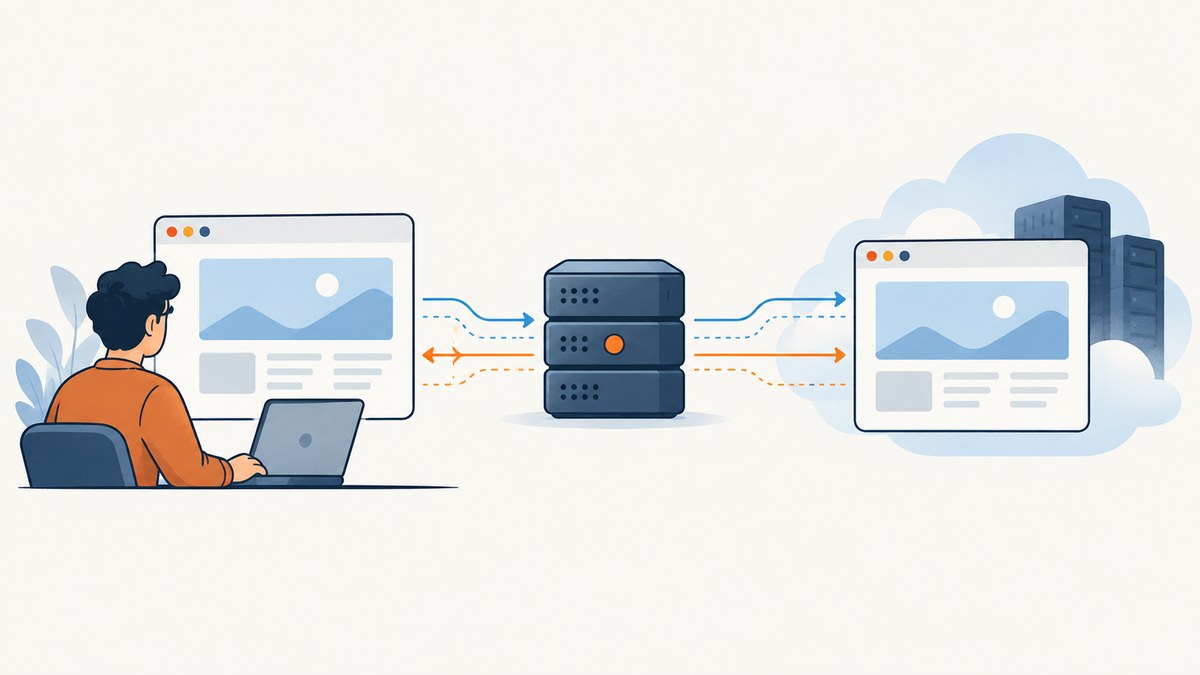
Yes, conditionally. Chromium supports --proxy-server. It can work in Chromeless when Chromeless starts a local Chrome process and passes launch arguments to it. But Chromeless’s public package description does not promise that arbitrary Chrome flags are forwarded in every version or connection mode. In particular, a flag passed to your local process does not configure a separately managed remote browser.
To set a proxy, first establish whether your Chromeless instance launches local Chrome or connects to a remote session. For local Chrome, pass the flag through the launch-argument mechanism supported by your installed Chromeless version, then verify the browser’s observed egress IP. For remote Chrome, use the remote service’s documented proxy configuration. Do not assume the local flag reaches it.
1. What the flag does
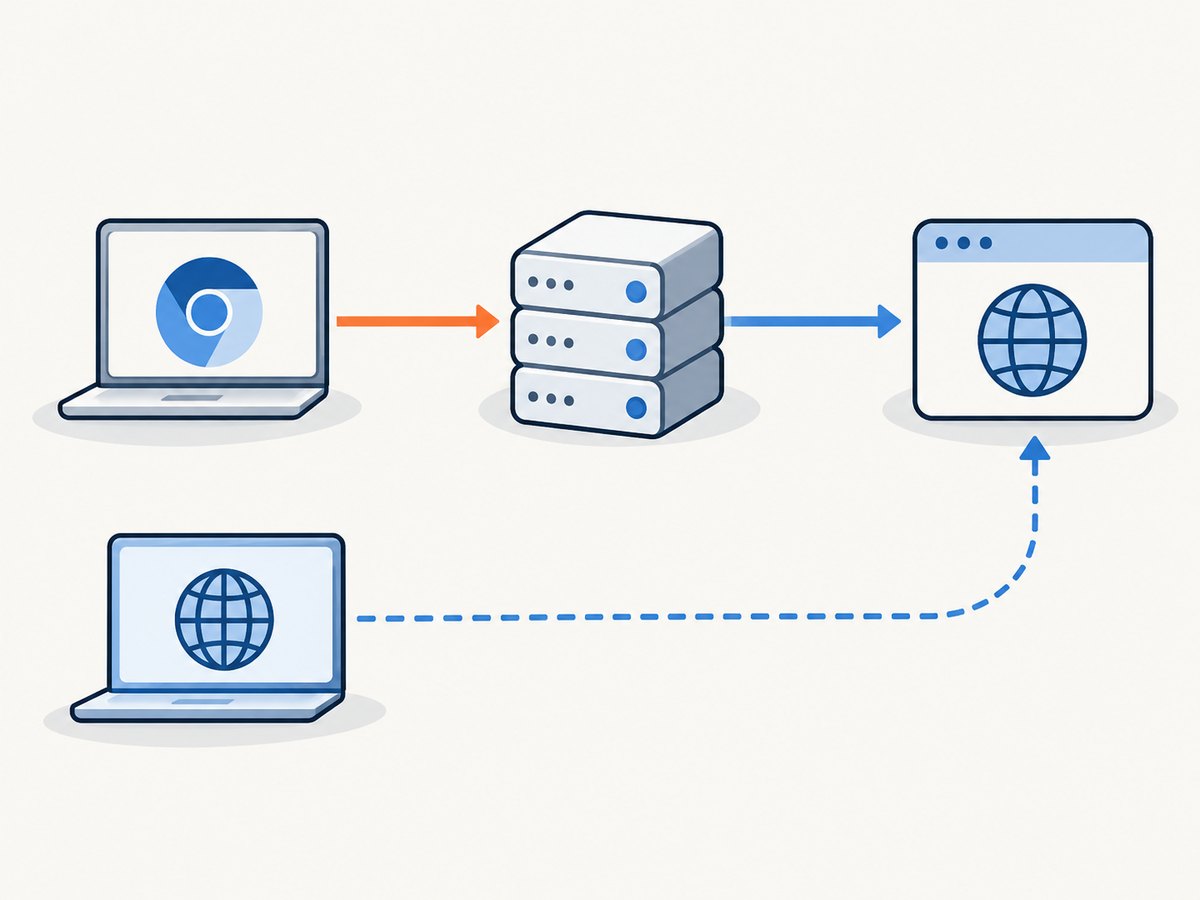
--proxy-server configures proxy routing for the Chrome process that receives the argument. Chromium documents URI-formatted proxy identifiers, including HTTP, HTTPS, SOCKS5, and direct://. A single HTTP proxy can be specified as --proxy-server="http://proxy.example:8080". A direct fallback can be appended as --proxy-server="http://proxy.example:8080,direct://".
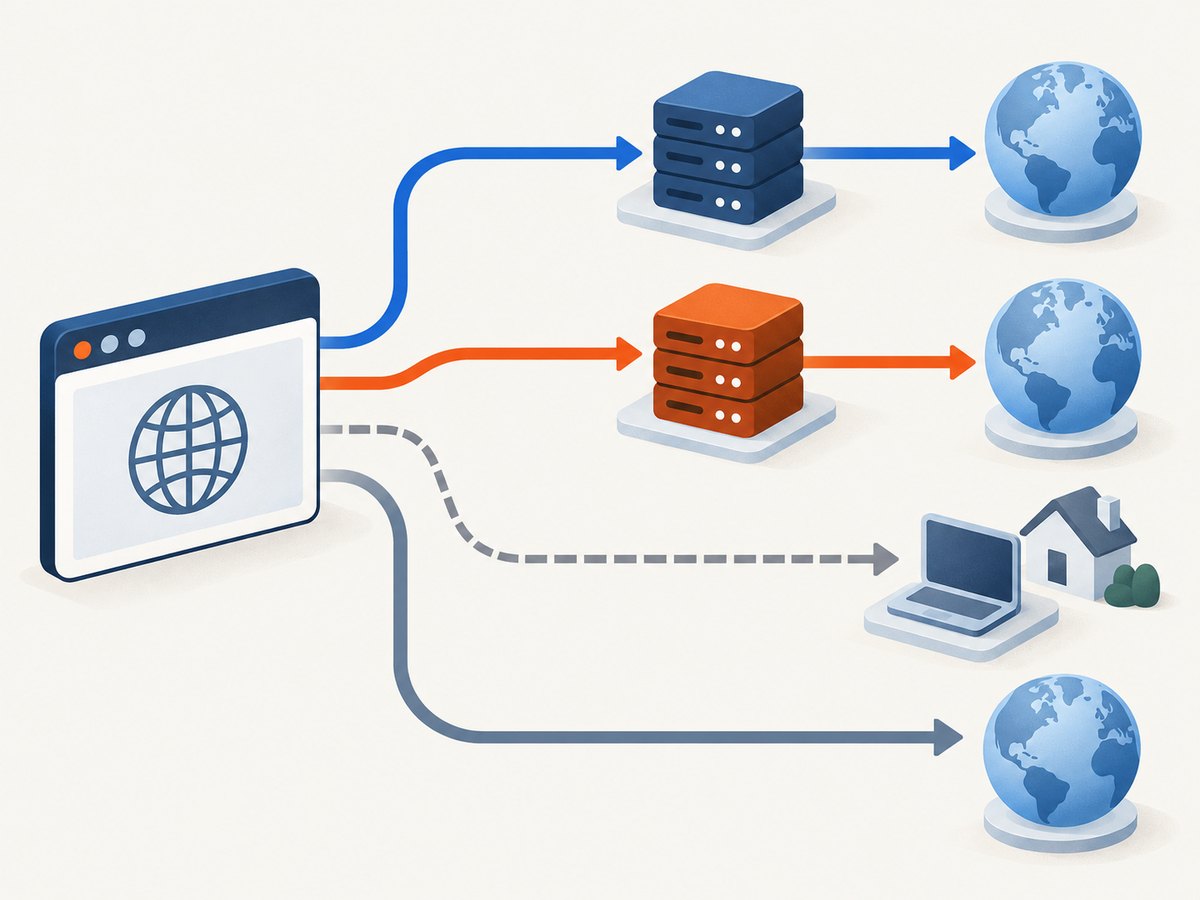
Mappings let you route schemes separately. For example, Chromium documents a mapping form like --proxy-server="http=https://proxy.example:443;socks=socks5://socks.example:1080". A bypass list can be supplied separately with --proxy-bypass-list. See the primary [Chromium proxy support guide](https://www.chromium.org/developers/design-documents/network-settings/).
The important boundary is the Chrome process. If Chromeless starts local Chrome, a launch flag may affect that process. If Chromeless connects to a remote browser managed elsewhere, setting a flag in your application process cannot reconfigure that already-running browser unless the remote service explicitly accepts and applies the option.
2. Determine which Chrome Chromeless controls
The Chromeless npm package describes both local development against a local Chrome browser and a built-in remote proxy. It also describes overriding local behavior by starting Chrome yourself and setting launchChrome: false in the Chromeless constructor. Its public package description does not document a universal --proxy-server option or guarantee arbitrary launch-flag forwarding for every mode. Check the documentation and behavior for your exact installed version. [Chromeless package information](https://www.npmjs.com/package/chromeless).
- Check the connection mode. Identify whether the constructor launches Chrome locally, attaches to a Chrome process you started, or connects to a remote endpoint.
- Check the installed package version. Inspect the version in your lockfile or package manager output, then consult documentation for that version.
- Find the supported launch-argument path. If the version exposes launch arguments for local Chrome, use that documented option. If it does not, start Chrome yourself with the flag and attach using the documented external-Chrome mode.
- For remote sessions, check remote configuration. Configure the proxy through the remote provider’s documented session settings. A local flag alone is not evidence that the remote browser uses it.
There is no safe universal Chromeless code snippet for passing arbitrary flags: the public package description does not establish a stable launch-argument API across versions and modes. Use the exact option documented by your installed version rather than guessing a constructor property name.
3. Configure a local Chrome process
If you start Chrome yourself, the Chromium command-line syntax is direct. Keep the proxy URI as a single argument; shell quoting protects special characters and spaces. The executable path varies by operating system and installation.
# Linux example; adjust the executable and profile path for your system
 google-chrome \
  --user-data-dir=/tmp/chrome-proxy-profile \
  --proxy-server="http://proxy.example:8080" \
  --proxy-bypass-list="localhost;127.0.0.1"
For a SOCKS5 endpoint without authentication:
google-chrome \
  --user-data-dir=/tmp/chrome-socks-profile \
  --proxy-server="socks5://socks.example:1080"
Then configure Chromeless to attach to the Chrome process you started, following the documented external-browser connection approach for your version. The package description identifies launchChrome: false as the local override when starting Chrome yourself, but you must still use the version’s documented connection details. Do not reuse a Chrome profile already open in another process; Chrome commonly locks active profiles.
Alternatively, if your Chromeless version documents a local launch-arguments setting, pass the equivalent --proxy-server=... argument there. This is version-specific; confirm the option name and expected argument format in that version’s documentation before relying on it.
4. Proxy URI, fallback, and bypass choices
| Need | Example value | Notes |
|---|---|---|
| One HTTP proxy | http://proxy.example:8080 |
Pass as the value of --proxy-server. |
| HTTPS proxy endpoint | https://proxy.example:443 |
The URI scheme describes the proxy connection. |
| SOCKS5 endpoint | socks5://socks.example:1080 |
Chrome supports SOCKSv5, but not username/password authentication for SOCKSv5. |
| Per-scheme mapping | http=http://proxy.example:8080;https=https://secure-proxy.example:443 |
Use Chromium’s mapping syntax and separators. |
| Direct fallback | http://proxy.example:8080,direct:// |
Allows direct access when the proxy route fails; this can defeat an expectation that all traffic must use the proxy. |
| Bypass local hosts | localhost;127.0.0.1 |
Supply through --proxy-bypass-list as a separate argument. |
Chromium supports HTTP, HTTPS, SOCKSv4, and SOCKSv5 proxy schemes. It does not use credentials embedded in proxy settings. Proxy authentication follows the ordinary authentication flow, so configure credentials through a supported authentication mechanism for your browser or proxy environment. SOCKSv5 username/password authentication is not supported by Chrome. These constraints are described in [Chromium’s proxy support guide](https://www.chromium.org/developers/design-documents/network-settings/).
5. Verify that requests use the proxy
Do not rely only on seeing the flag in a config file. Verify from the browser’s network behavior:
- Open a page or endpoint that reports the request’s public egress IP using the same Chrome instance that Chromeless controls.
- Compare the reported IP with the expected proxy egress address. If it matches the machine’s ordinary network egress instead, the browser may not be using the proxy.
- Repeat with a destination that should be covered by your proxy mapping and one that should match a bypass rule.
- If the result is ambiguous, capture Chrome net-export data and inspect proxy-related events. This can distinguish proxy resolution, bypass decisions, and connection failures.
Keep the test environment simple: use a fresh profile, avoid unrelated proxy extensions, and ensure the test URL is not on a bypass list. A successful page load alone does not prove proxy routing, because direct access may have succeeded.
6. Local launch versus remote session
| Connection model | Where to configure the proxy | What to verify |
|---|---|---|
| Chromeless launches local Chrome | The documented local launch-argument option for your installed version | That the argument reaches the launched Chrome and changes observed egress. |
| You start local Chrome yourself | Chrome command line, then attach Chromeless using its documented external-browser mode | That Chromeless attaches to the intended process and profile. |
| Chromeless remote proxy/session | The remote service’s documented proxy or session configuration | That the remote browser’s egress changes; a local launch flag is insufficient. |
Browserless is a separate remote Chromium wrapper whose documentation and source describe accepting a proxy-server setting and applying it to browser launch configuration. That demonstrates that a remote wrapper can choose to support the flag; it does not establish that Chromeless behaves the same way. Configure each remote service according to its own documentation.
7. Troubleshooting
| Symptom | Likely cause | Fix |
|---|---|---|
| The page loads, but egress IP is unchanged | The flag was not forwarded, Chrome was launched elsewhere, or traffic is bypassed. | Confirm the controlled process, inspect launch configuration, remove the test host from bypass rules, and verify using the browser’s observed egress IP. |
| Proxy works in local mode but not remote mode | The flag configured only the local Chrome process. | Use the remote provider’s documented proxy configuration and test the remote browser’s egress. |
| Chrome reports proxy connection errors | Invalid URI, wrong host or port, unreachable proxy, or a scheme mismatch. | Use a URI such as http://host:port or socks5://host:port, confirm endpoint reachability, and match the scheme to the proxy service. |
| Proxy authentication repeatedly fails | Credentials were embedded in the proxy URI or no supported authentication flow was configured. | Remove embedded credentials and configure authentication through the ordinary browser/proxy authentication flow. For SOCKSv5, Chrome does not support username/password auth. |
| Some requests go direct | A direct fallback or bypass rule applies, or different schemes use different mappings. | Review --proxy-bypass-list, fallback entries, and per-scheme mappings. Remove fallback if direct access is not acceptable. |
| Chromeless cannot attach to the manually started browser | Wrong connection details, inaccessible debugging endpoint, or a profile/process conflict. | Follow the installed version’s attach instructions, ensure the browser is reachable from the Chromeless process, and use a dedicated profile directory. |
| Flag appears ignored after a package upgrade | Launch behavior or configuration API may have changed. | Recheck the exact package version’s documentation and verify the actual Chrome launch arguments or net-export events. |
8. Reliability, performance, and cost considerations
A proxy adds a network hop. In practice, the extra route can affect navigation time and reliability depending on endpoint distance, capacity, and availability; the dossier provides no benchmark, so measure with your own target sites and proxy. A proxy outage can prevent pages from loading, while a configured direct fallback can preserve access at the cost of routing some requests outside the proxy.
For repeatable automation, use a dedicated browser profile, set explicit timeouts, and log the connection mode and proxy endpoint identity without logging secrets. Treat proxy credentials as secrets. Test expected proxy behavior after changing package versions, launch configuration, bypass rules, or proxy endpoints. If the workload requires a fixed egress policy, avoid unreviewed bypass entries and direct fallbacks.
Chromeless’s public package description does not establish a universal fee or performance guarantee for proxy use. Check the terms of the specific proxy endpoint and remote browser service you use. No named performance statistic should be inferred from the flag documentation.
Or skip the browser setup
If your goal is to get a screenshot rather than manage a browser proxy, ScreenshotNeo is a website screenshot API and MCP server from Yorker Media. One GET request returns a PNG, JPEG, WebP, or PDF. Its clean-shot flow accepts cookie and consent banners like a visitor, then removes 60+ known consent platforms, newsletter popups, and chat widgets before capture; each step can be turned off. Bot checks and CAPTCHAs, blank pages, timeouts, failed loads, and cache hits cost nothing, with the result identified by X-Page-Verdict and X-Billed headers. Its MCP server provides take_screenshot, get_page_info, and capture_pdf tools for Claude, Cursor, and other MCP clients.
See the ScreenshotNeo API documentation for request options. For a basic capture, use the supplied one-call API pattern and replace the target URL as needed:
curl -G "https://api.screenshotneo.com/v1/shot" -d access_key=YOUR_API_KEY --data-urlencode url=https://stripe.com -o shot.webpThe same endpoint can be called from Python or Node.js:
import requests
r = requests.get("https://api.screenshotneo.com/v1/shot", params={"access_key": "YOUR_API_KEY", "url": "https://stripe.com"}, timeout=90)
open("shot.webp", "wb").write(r.content)
const q = new URLSearchParams({ access_key: 'YOUR_API_KEY', url: 'https://stripe.com' });
const res = await fetch(`https://api.screenshotneo.com/v1/shot?${q}`);ScreenshotNeo includes full-page capture with lazy images loaded, element capture by CSS selector, dark mode, 12 device presets and custom viewports, retina scale, PDF controls, custom CSS and JavaScript, click and wait controls, request blocking, custom headers and cookies, user agent and Authorization, timezone and geolocation, transparent backgrounds, resizing, caching with a chosen TTL, signed image links, async jobs with signed webhooks, bulk capture for 100 URLs per call, a usage API, and an OpenAPI spec. Parameter names used by other screenshot APIs also work to make switching easier.
There are 1,000 screenshots a month free with no card; paid plans start at $5 for 3,000, with higher tiers available and yearly billing giving two months free. Every feature is on every plan. Cookie banners, popups and chat widgets are removed before the shot; bot checks, blank pages and failed loads are never billed; an MCP server lets AI agents take screenshots; 1,000 screenshots a month are free with no card and paid plans start at $5 for 3,000. Sign up for the free plan.
FAQ
Does the flag work with any Chromeless version?
There is no documented universal guarantee. Confirm launch-argument support in the exact version and mode you use, then verify browser egress.
Can I use a SOCKS5 proxy?
Chromium supports SOCKSv5 proxy URIs, but Chrome does not support SOCKSv5 username/password authentication. Check your endpoint’s authentication requirements before choosing it.
Does setting the flag change the proxy on a remote browser?
Only if the remote service receives and applies that setting. A local Chrome command-line argument does not automatically configure a separately managed remote browser.
What is the strongest verification?
Check the egress IP from the controlled browser and inspect Chrome net-export proxy events when you need to understand routing or failures.


