Best PSPDFKit Alternatives for an HTML-to-PDF API
Compare DocRaptor and CloudConvert for hosted HTML-to-PDF generation, and learn how to choose an alternative when you need more than conversion.

Short answer: If you need a hosted API that turns HTML into PDFs, evaluate DocRaptor and CloudConvert against your actual templates. DocRaptor uses Prince and documents PDF-oriented layout controls; CloudConvert describes a headless Chrome pipeline with URL or HTML-file input and synchronous or asynchronous jobs. Neither comparison establishes a replacement for every PSPDFKit capability. First decide whether your project needs server-side HTML rendering, PDF viewing and editing, or both.
1. Decide what “PSPDFKit alternative” means
PSPDFKit is the comparison point in this title, but the available product documentation reviewed here does not establish which PSPDFKit product or capability you intend to replace. An HTML-to-PDF API accepts content and returns a PDF. A broader embedded PDF SDK may also be responsible for displaying documents, editing annotations, filling forms, or integrating a viewer into an application. A conversion API is not automatically a substitute for that wider toolkit.
Write down the job before shortlisting vendors:
- Generate: Render HTML templates, web pages, invoices, reports, or receipts to PDF on a server.
- View or edit: Display existing PDFs or let users annotate, fill, sign, or modify documents in your product.
- Both: Keep generation and in-app PDF interaction as separate requirements unless a candidate demonstrates that it supports both.
This guide compares hosted HTML-to-PDF candidates. It does not claim feature parity with a complete PDF SDK, and it is not a definitive ranking: no independent rendering tests or service benchmarks were performed.
2. The short list
| Candidate | Rendering approach | Worth evaluating when | Documented workflow details |
|---|---|---|---|
| DocRaptor | Prince PDF generator | Precise paged-media behavior and PDF-specific layout features matter. | REST API; PDF bytes, hosted URL, or asynchronous status ID; documented page-count response header. |
| CloudConvert | Headless Chrome | Browser-rendered content, conversion jobs, or cloud-storage workflows fit your pipeline. | URL or HTML-file input; selector waits; sync or async processing; webhooks and storage integrations are listed. |
These are vendor-described capabilities, not independent findings about output quality. A rendering engine label does not prove how your fonts, JavaScript, assets, or protected pages will behave. Use a representative test set before choosing.
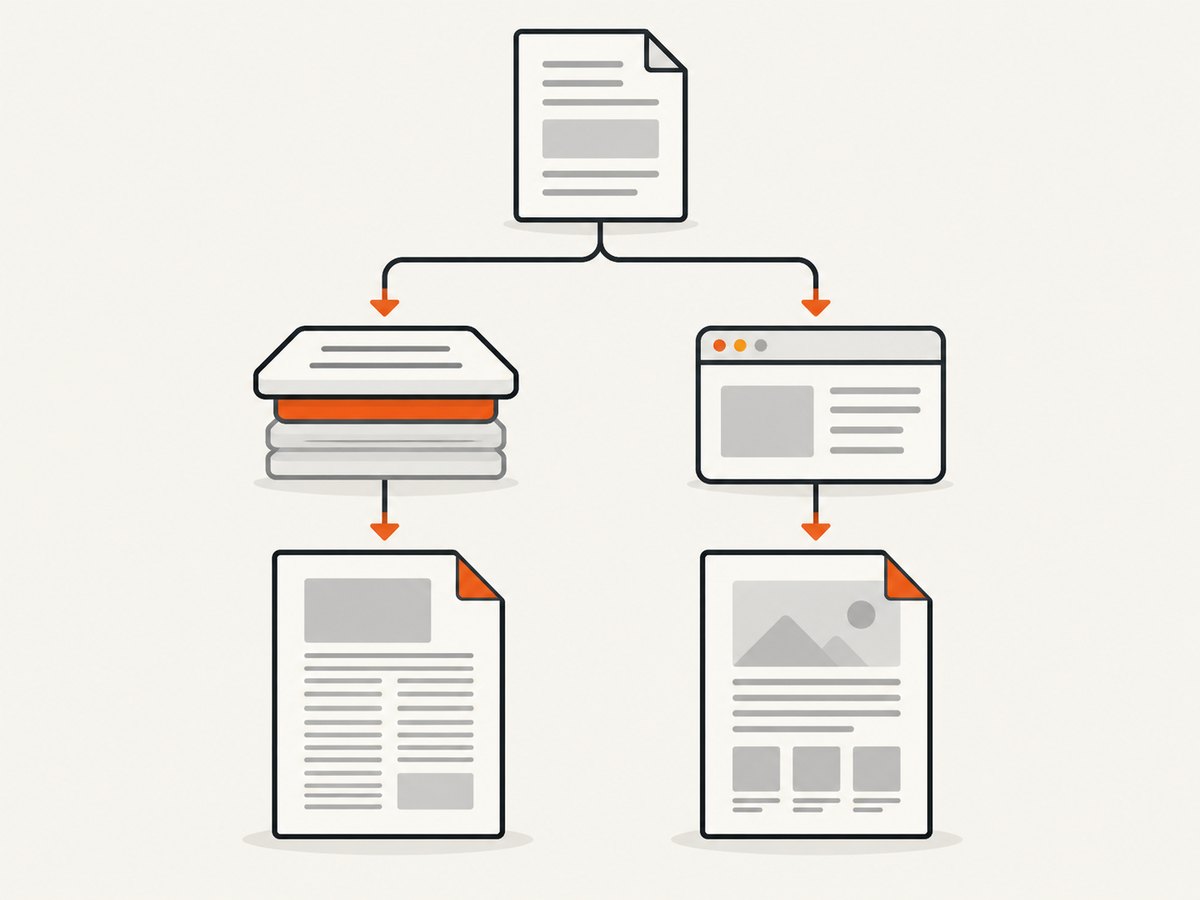
3. DocRaptor: Prince-based PDF generation
DocRaptor describes its service as a REST HTML-to-PDF API powered by Prince. Its product materials list controls and output features including varied page sizes and styles within one PDF, forms, accessible-PDF tagging, headers and footers, floats, PDF-specific JavaScript, crop marks, bookmarks, CMYK, asynchronous and parallel generation, hosted documents, and encryption claims. Treat these as vendor-published capabilities. Confirm the specific behavior, security scope, and current commitments that your application requires.
Minimal request
The API overview documents a JSON POST to https://api.docraptor.com/docs, with API-key authentication, type: "pdf", and document_content for HTML content. The example below uses Python Requests; substitute a real API key through an environment variable and check the vendor’s current documentation for exact authentication and response handling.
import os
import requests

api_key = os.environ["DOCRAPTOR_API_KEY"]
payload = {
    "type": "pdf",
    "document_content": "<!doctype html><html><body><h1>Hello, PDF</h1></body></html>"
}
response = requests.post(
    "https://api.docraptor.com/docs",
    auth=(api_key, ""),
    json=payload,
    timeout=90,
)
response.raise_for_status()
with open("document.pdf", "wb") as pdf:
    pdf.write(response.content)
The API documentation describes PDF bytes, a hosted URL, and an asynchronous status ID as response paths. Choose based on file size, request latency tolerance, and whether a background job suits your service. Read the current API documentation for the precise option names and status workflow before wiring it into production.
Where it may fit
- Your layouts rely on paged-media behavior, running headers and footers, floats, mixed page sizes, or PDF-specific features.
- You want the rendering service to handle generation rather than maintain conversion infrastructure yourself.
- You can validate the feature set and security terms with the vendor for your data and use case.
DocRaptor recommends trying the most complex document elements first. That is useful shortlist advice: a one-page invoice will not expose the risks in a long report with a table of contents, charts, floats, mixed page sizes, or accessibility requirements.
4. CloudConvert: Chrome-based conversion jobs
CloudConvert describes its HTML-to-PDF pipeline as powered by headless Chrome. Its product page lists URLs or HTML files as inputs, custom authorization headers for URL fetches, waits for CSS selectors, page-size and margin controls, headers and footers, synchronous or asynchronous processing, webhooks, and integrations with S3, Azure, and Google Cloud. It also promotes job chains for conversion, watermarks, and thumbnails.
This set of documented workflow options can be relevant if your input is browser-rendered content or your existing system already hands files to a conversion pipeline. It does not prove that a particular page will render correctly or that a protected URL will be reachable from the service. Test access, timing, and output with your own content.
Plan the job shape
- Choose whether to send HTML content or ask the service to fetch a URL.
- If the page is dynamic, determine what condition signals that it is ready. The product page documents selector waits; test the selector against slow and incomplete loads.
- Set page size and margins, then check page breaks, headers, and footers in the resulting PDF.
- Choose synchronous processing for a request-response path only if its latency works for your application. For background processing, assess the documented async and webhook workflow.
- If output belongs in object storage or needs a chained conversion step, validate the relevant storage integration and job chain with a small representative workflow.
Consult CloudConvert’s current API documentation for exact job payloads and parameter syntax. The reviewed product page supports the workflow capabilities above but is not a complete request schema.
5. Prince or Chrome: how to choose
Do not select from the engine name alone. Put the same representative HTML through each candidate and compare the PDFs against requirements that matter to your users.
| Question | What to inspect | Why it matters |
|---|---|---|
| Does CSS match? | Fonts, grid or flex layouts, print styles, page breaks, and generated content. | HTML that looks acceptable in a browser can paginate differently in a PDF renderer. |
| Does dynamic content finish? | JavaScript-generated text, charts, images, and selectors that appear late. | A capture taken before content is ready may omit important data. |
| Does pagination hold up? | Long tables, headings near page breaks, footnotes, headers, and mixed page sizes. | Small examples do not reveal behavior on long documents. |
| Can the service fetch the inputs? | Fonts, images, authenticated URLs, cookies, and authorization headers. | Missing assets or denied access can produce a valid but incomplete PDF. |
| Can you operate the response path? | Bytes versus hosted output, async status handling, callbacks, and storage. | The workflow affects latency, retries, and where generated documents live. |
6. A practical evaluation, step by step
- Define acceptance criteria. List required page sizes, margins, page numbering, accessibility, form behavior, output delivery, security terms, and expected peak volume.
- Build a test corpus. Include the simplest document and the hardest real documents: long tables, charts, image-heavy pages, custom fonts, dynamic sections, protected assets, and unusual page breaks.
- Run the same inputs. Keep HTML, assets, locale, and expected output identical across candidates. Record missing content and layout differences rather than relying on a quick visual impression.
- Exercise failure cases. Test an inaccessible URL, a missing font, a slow script, malformed HTML, and an async job that takes longer than the caller waits.
- Review delivery and security. Confirm how bytes or hosted documents are retrieved, how long hosted output remains available, and whether the vendor’s current contractual and security terms match your requirements.
- Model actual costs. Use expected document volume and the current vendor calculators or quotes. Include integration work, retries, monitoring, template fixes, storage, and support in the comparison.
- Make a scoped decision. Record what the chosen service covers and what remains necessary for PDF viewing or editing if your product needs those too.
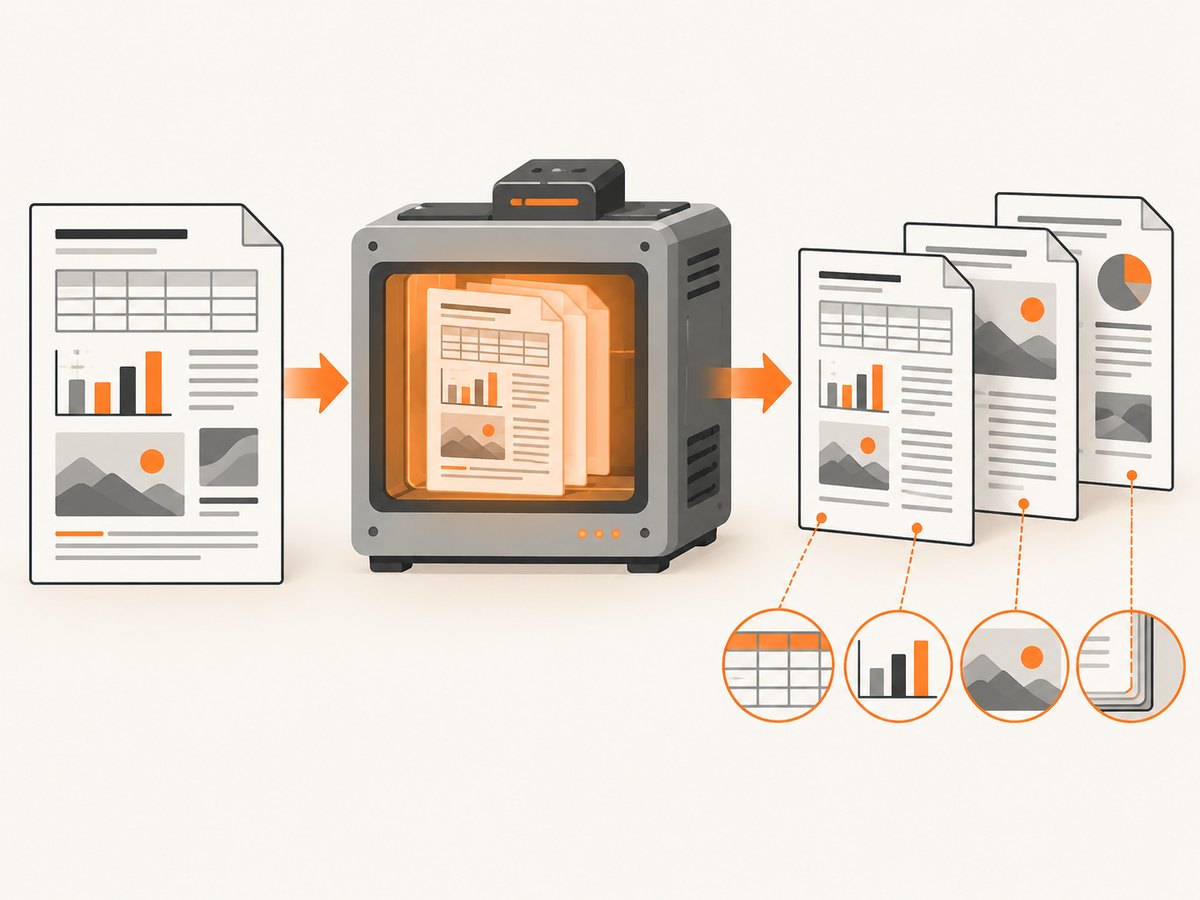
7. Pricing, reliability, and operational cost
CloudConvert’s page displayed a starting figure of $0.008 per file for the 10,000-file example shown on that page (accessed in 2026). This is a vendor-displayed example, not a universal quote or normalized comparison. Confirm the current calculator, included features, and billing basis using your expected job pattern. The reviewed material did not capture a directly comparable current DocRaptor price, so no price ranking is justified.
DocRaptor advertises a 99.99% uptime guarantee on its product page. That is a vendor claim; verify current contractual language and scope instead of treating it as independently measured availability. The reviewed sources do not provide comparable service benchmarks, so do not infer which provider is faster or more reliable from this guide.
Operational cost includes more than per-file price: building templates, maintaining CSS and assets, handling retries, tracking asynchronous jobs, monitoring failed output, and supporting changes to business documents. Run a monthly estimate using your own volume and a realistic failure and reprocessing allowance. Keep output validation in your application where a malformed or incomplete PDF would harm users.
8. Troubleshooting common conversion problems
| Symptom | Likely cause | What to do |
|---|---|---|
| PDF is missing images or fonts | Remote assets could not be fetched, a URL requires authentication, or a resource path is wrong. | Check asset URLs and access requirements. For URL fetching, confirm the vendor supports the needed authorization path and test it with the actual resource. |
| Dynamic section is blank | Rendering began before JavaScript populated the page. | Use a documented readiness condition such as a selector wait where available, then test slow responses and missing-data cases. |
| Pages break in unexpected places | Print CSS, content length, or renderer behavior differs from the browser preview. | Inspect the PDF itself, add explicit print styles and break rules, and rerun long and edge-case documents on the target engine. |
| Request times out in your app | Generation time exceeds the caller’s synchronous wait budget. | Assess the service’s asynchronous path and status handling. Set client timeouts deliberately and avoid treating a client timeout as proof the job failed. |
| API returns an error instead of PDF bytes | Authentication, request format, input, or service processing failed. | Log status and a safe error response, verify the current API schema and credentials, and do not save an error body with a .pdf extension. |
| Output is correct for short files but not long reports | Pagination, resource loading, or document complexity changes with length. | Include the longest representative document in acceptance tests; evaluate memory, latency, page count, and output integrity at expected load. |
9. When a screenshot API is the right adjacent tool
If the actual need is a rendered image of a web page rather than a PDF document, ScreenshotNeo is the alternative to try first: it returns clean screenshots, bills only clean shots, and its lowest paid plan starts at $5. It is a screenshot API and MCP server, not a general PDF viewing or editing SDK.
ScreenshotNeo accepts a URL in one GET request and can return PNG, JPEG, WebP, or PDF. For a simple URL-to-PDF task, the API can be called like this; see the ScreenshotNeo API documentation for options and setup.
curl -G "https://api.screenshotneo.com/v1/shot" -d access_key=YOUR_API_KEY --data-urlencode url=https://stripe.com -o shot.pdfUse the response and options that match your output. ScreenshotNeo supports full-page capture, CSS-selector element capture, custom CSS and JavaScript, wait conditions, viewport and device presets, cookies and headers, and PDF settings such as paper size, margins, landscape, and page ranges. Its parameter names also work with those used by other screenshot APIs to make migration easier.
10. Or skip the browser setup
If the task is to capture a rendered page, ScreenshotNeo handles the browser capture through one API request. For a WebP screenshot, use this request:
curl -G "https://api.screenshotneo.com/v1/shot" -d access_key=YOUR_API_KEY --data-urlencode url=https://stripe.com -o shot.webpCookie banners are accepted and removed before capture, along with known consent platforms, newsletter popups, and chat widgets. You can turn each cleanup step off. Bot checks, blank pages, failed loads, timeouts, and cache hits cost nothing; response headers report the page verdict and billing status. An MCP server lets Claude, Cursor, and other MCP clients use screenshot, page-info, and PDF-capture tools. The free plan includes 1,000 screenshots a month with no card; paid plans start at $5 for 3,000.
Sign up for ScreenshotNeo free: 1,000 screenshots a month, no card required.
11. FAQ
Is DocRaptor or CloudConvert a full PSPDFKit replacement?
Not established by the reviewed sources. They are documented here as hosted HTML-to-PDF candidates. Verify separately whether you still need an embedded viewer, editing, or other SDK capabilities.
Which API handles complex CSS better?
The available sources do not establish a universal winner. Test your real templates, assets, fonts, and JavaScript on both rendering approaches.
Can I compare their prices directly?
Not from the figures available here. CloudConvert displayed a specific 10,000-file example; a comparable current DocRaptor amount was not captured. Check current vendor pricing for your workload.
Should I use an HTML-to-PDF API for a page preview?
Only if PDF is the required output. For a visual page capture, a screenshot API may fit better; for PDF editing or viewing, evaluate an SDK designed for those tasks.
12. Recommendation
Shortlist DocRaptor when Prince-based rendering and its documented PDF layout features match the hardest parts of your documents. Shortlist CloudConvert when its Chrome-based input, job, and storage workflow fits your system. Then run the same complex documents through each and verify output, response handling, security terms, and total cost. Treat generation and PDF interaction as separate requirements until a vendor demonstrates both. If your job is a clean webpage screenshot rather than full PDF document processing, start with ScreenshotNeo.


