How to Publish Cypress Failure Screenshots When an Azure Pipeline Is Canceled
Use Cypress run-mode screenshots, Azure’s always() condition, and cancellation timeouts to preserve failure evidence when a pipeline is canceled.

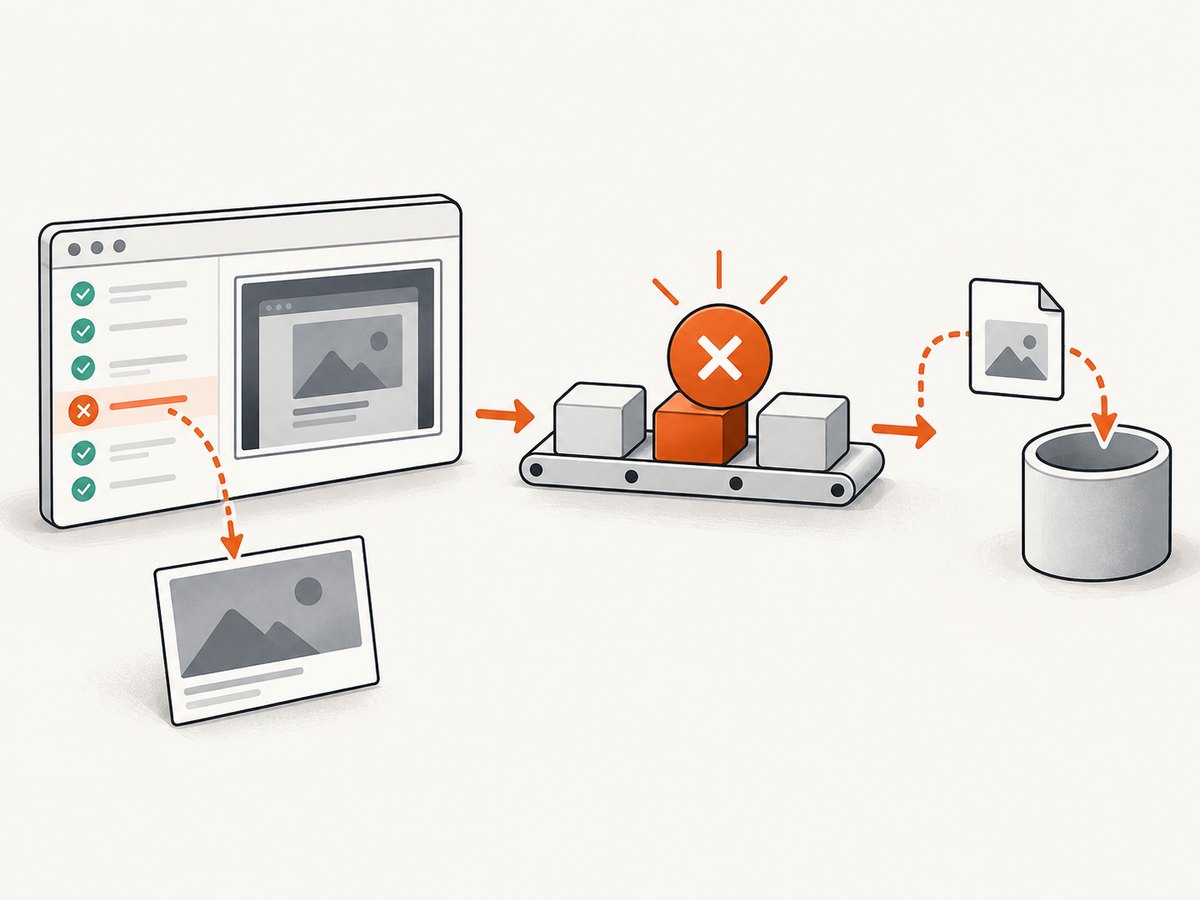
To publish Cypress failure screenshots after an Azure Pipeline is canceled, run Cypress in cypress run mode, publish the configured screenshots directory with an Azure publish step using condition: always(), and give the job cancellation cleanup time with cancelTimeoutInMinutes.
This pattern works on Azure DevOps Services:
jobs:
- job: Cypress
  cancelTimeoutInMinutes: 5
  steps:
  - script: npx cypress run
    displayName: Run Cypress

  - publish: cypress/screenshots
    artifact: cypress-screenshots
    condition: always()
    displayName: Publish Cypress screenshots
always() makes the upload step eligible after a failure or cancellation, but it cannot run after a skipped parent, a critical agent failure, or termination of the agent. The cancellation timeout is finite, so an upload is possible rather than guaranteed.
How Cypress creates failure screenshots
Cypress automatically captures screenshots when a test fails during cypress run, including CI runs. It does not automatically capture failure screenshots in interactive cypress open mode. The default output directory is cypress/screenshots. See the Cypress screenshot documentation for the current behavior and configuration options.
Before changing Azure YAML, verify the Cypress side:
- Use
npx cypress run, not onlynpx cypress open. - Leave
screenshotOnRunFailureenabled unless you intentionally manage screenshots yourself. - Find the effective
screenshotsFolderin your Cypress configuration. - Make the Azure artifact path match that directory relative to the job’s working directory.
Relevant Cypress configuration
The defaults are screenshotOnRunFailure: true and screenshotsFolder: 'cypress/screenshots'. You can make them explicit in cypress.config.js:
const { defineConfig } = require('cypress')

module.exports = defineConfig({
  e2e: {
    screenshotOnRunFailure: true,
    screenshotsFolder: 'cypress/screenshots'
  }
})
If your repository uses a different folder, for example artifacts/cypress/screenshots, publish that exact path:
const { defineConfig } = require('cypress')

module.exports = defineConfig({
  e2e: {
    screenshotOnRunFailure: true,
    screenshotsFolder: 'artifacts/cypress/screenshots'
  }
})
Complete Azure Pipelines YAML
Keep the Cypress command and artifact upload in the same job. That ensures the publisher can see files created on the same agent and avoids relying on a later stage that may never start after cancellation.
trigger:
- main

pool:
  vmImage: ubuntu-latest

jobs:
- job: Cypress
  displayName: Cypress end-to-end tests
  # Azure gives always-run cleanup work a bounded cancellation window.
  cancelTimeoutInMinutes: 5

  steps:
  - checkout: self

  - task: NodeTool@0
    displayName: Use Node.js
    inputs:
      versionSpec: '20.x'

  - script: npm ci
    displayName: Install dependencies

  - script: npx cypress run
    displayName: Run Cypress

  - publish: cypress/screenshots
    artifact: cypress-screenshots
    condition: always()
    displayName: Publish Cypress failure screenshots
The publish shortcut uploads a file or directory as a Pipeline Artifact. The target must exist at the path supplied. When no test fails, the directory may not contain files; when Cypress writes elsewhere, the artifact can be empty or the step can report that the path was not found.
Make the path and working directory explicit
Relative paths are resolved from the job’s current working directory. If your tests run from a subdirectory, either change directory consistently or use the corresponding path in the publish step:
steps:
- script: |
    cd web
    npx cypress run
  displayName: Run Cypress from web

- publish: web/cypress/screenshots
  artifact: cypress-screenshots
  condition: always()
  displayName: Publish screenshots
A diagnostic listing before publication makes path problems visible in the job log:
- bash: |
    echo "Working directory: $(pwd)"
    echo "Screenshot candidates:"
    find . -type f \( -name '*.png' -o -name '*.jpg' -o -name '*.jpeg' \) -print
  displayName: Inspect screenshot files
  condition: always()

- publish: cypress/screenshots
  artifact: cypress-screenshots
  condition: always()
  displayName: Publish Cypress screenshots
Why always() is required
Without a condition, a normal step is skipped when an earlier step fails. Azure’s always() condition is intended to run even when a previous dependency fails or the run is canceled. Microsoft’s pipeline conditions documentation describes it as: “Always: Run even if a previous dependency fails, even if the run is canceled.”
- publish: cypress/screenshots
  artifact: cypress-screenshots
  condition: always()
The condition does not override every pipeline state:
| Situation | What happens | What to do |
|---|---|---|
| Cypress exits with test failures | The publish step is eligible. | Use always(). |
| Job is canceled while Cypress is running | Azure begins cancellation and then allows cleanup for a bounded period. | Set a suitable cancelTimeoutInMinutes. |
| Parent stage or job was skipped | Child steps do not start. | Keep publication in the running Cypress job. |
| Agent is terminated or loses connectivity | No later step can upload files from that agent. | Use a durable agent and reduce artifact size. |
| Critical infrastructure failure | always() cannot recover the agent. |
Inspect agent and service-health logs. |
Cancellation timing and cancelTimeoutInMinutes
Azure jobs have a cancellation grace period for steps that are configured to run after cancellation. Microsoft’s job reference describes cancelTimeoutInMinutes as “how much time to give ‘run always even if cancelled tasks’ before killing them”; the documented default is five minutes. Increase it when screenshots are numerous or the artifact is large, subject to limits imposed by your Azure environment.
jobs:
- job: Cypress
  cancelTimeoutInMinutes: 10
  steps:
  - script: npx cypress run
  - publish: cypress/screenshots
    artifact: cypress-screenshots
    condition: always()
This setting does not force Cypress to finish instantly and does not guarantee an upload if the agent is terminated. It only gives eligible cleanup steps more time after cancellation begins.
Azure DevOps Services versus Azure DevOps Server
The YAML publish shortcut and Pipeline Artifacts are documented for Azure DevOps Services. If you run Azure DevOps Server, use the Build Artifacts task supported by your server version instead of assuming the Services artifact syntax is available.
# Azure DevOps Server example
- task: PublishBuildArtifacts@1
  displayName: Publish Cypress screenshots
  condition: always()
  inputs:
    PathtoPublish: 'cypress/screenshots'
    ArtifactName: 'cypress-screenshots'
    publishLocation: 'Container'
Check the version-specific Microsoft documentation for your Server installation before standardizing the task.
Preserving or clearing screenshots between runs
Cypress clears the contents of its downloads, screenshots, and videos folders before a cypress run by default. This prevents an artifact from silently containing screenshots from an older run. In a persistent workspace, set trashAssetsBeforeRuns: false only when retaining previous assets is intentional, and use run-specific directories or cleanup logic to avoid mixing evidence.
const { defineConfig } = require('cypress')

module.exports = defineConfig({
  trashAssetsBeforeRuns: false,
  e2e: {
    screenshotOnRunFailure: true,
    screenshotsFolder: 'cypress/screenshots'
  }
})
What to do after the run
When the job completes, open the pipeline run summary and select the cypress-screenshots artifact to download it. The artifact is separate from the test result UI and remains useful when the pipeline was canceled before later reporting steps could run.
Troubleshooting
The artifact is empty
- Confirm the command was
cypress run. - Check that a failure actually occurred after the browser started.
- Verify
screenshotOnRunFailureis not false. - Print the effective working directory and list files with
find. - Compare the configured
screenshotsFolderwith the Azurepublishpath.
No screenshot was generated
Cypress does not automatically capture failure screenshots in cypress open. Run the test in CI mode with npx cypress run, and ensure the failure happens in a test or hook that Cypress can report.
The publish step says the path does not exist
The path is relative to the job directory, not necessarily the repository root you expect. A custom Cypress configuration, a cd in the test step, or a monorepo layout commonly causes this. Use an explicit repository-relative path and the diagnostic listing shown above.
The step is skipped after cancellation
Check whether the parent job or stage was skipped before cancellation. always() applies to an eligible step; it cannot start a child of a skipped parent. Keep the upload step in the same job as Cypress.
Upload starts but never finishes
The cancellation window may have expired. Increase cancelTimeoutInMinutes, reduce screenshot size or count, and avoid uploading unrelated files. A terminated agent or lost network connection cannot be repaired by a YAML condition.
Old screenshots are missing
Cypress removes asset folders before each run by default. Set trashAssetsBeforeRuns: false only for a deliberate retention workflow, and isolate assets by build identifier if you need historical comparison.
You use Cypress Cloud
Cypress can display screenshots for recorded CI runs in Cypress Cloud, but that requires the Cloud recording setup, including running with --record and a record key. Cloud is optional; local screenshots published as an Azure artifact are sufficient for this workflow.
Performance, reliability, and cost
- Keep artifacts focused. Upload only the screenshots directory, not the entire workspace.
- Allow enough cleanup time. Large PNGs and slow agents need a larger cancellation timeout.
- Use deterministic paths. A fixed output directory makes YAML review and incident diagnosis easier.
- Expect cancellation races. If cancellation arrives before Cypress writes the file, there may be nothing to publish.
- Separate current and historical evidence. Default Cypress cleanup avoids stale files; explicit retention requires its own naming and cleanup policy.
- Pipeline artifact storage has service-specific behavior. Confirm retention and limits in your Azure organization or Server version.

Or skip the browser setup
If your goal is to capture a page outside the Cypress run, ScreenshotNeo provides a single HTTP request for a PNG, JPEG, WebP, or PDF. The API can accept a URL without maintaining browser setup in your pipeline.
See the ScreenshotNeo API documentation for all options. The same request in common clients is:
curl -G "https://api.screenshotneo.com/v1/shot" -d access_key=YOUR_API_KEY --data-urlencode url=https://stripe.com -o shot.webpimport requests
r = requests.get(
"https://api.screenshotneo.com/v1/shot",
params={"access_key": "YOUR_API_KEY", "url": "https://stripe.com"},
timeout=90,
)
r.raise_for_status()
open("shot.webp", "wb").write(r.content)const q = new URLSearchParams({ access_key: 'YOUR_API_KEY', url: 'https://stripe.com' });
const res = await fetch(`https://api.screenshotneo.com/v1/shot?${q}`);
if (!res.ok) throw new Error(`Screenshot failed: ${res.status}`);
const fs = await import('node:fs/promises');
await fs.writeFile('shot.webp', Buffer.from(await res.arrayBuffer()));ScreenshotNeo removes cookie and consent banners, newsletter popups, and chat widgets before capture. Bot checks, blank pages, timeouts, failed loads, and cache hits are not billed, and the response identifies the result with X-Page-Verdict and X-Billed headers. Its MCP server provides take_screenshot, get_page_info, and capture_pdf tools for Claude, Cursor, and other MCP clients. The free plan includes 1,000 screenshots per month without a card; paid plans start at $5 for 3,000 shots.
Create a free ScreenshotNeo account to try the API.
FAQ
Does always() guarantee that screenshots are uploaded?
No. It makes the step eligible after failure or cancellation. A skipped parent, critical agent failure, termination, missing path, or exhausted cancellation window can still prevent publication.
Where does Cypress save failed test screenshots?
By default, in cypress/screenshots during cypress run. A configured screenshotsFolder changes that location.
Should the artifact upload be in a separate stage?
Usually no. Keep it in the same job as Cypress so it can access the agent’s files and remain eligible when cancellation prevents later stages from starting.
Can this work with Azure DevOps Server?
Yes, but use the supported Build Artifacts task for Server rather than assuming the Services-only Pipeline Artifact shortcut is available.
Why are previous-run screenshots absent?
Cypress clears its asset folders before a run by default. Disable that behavior only when you intentionally manage retention and isolation.


