How to Publish Image Templates: Canva, Adobe Stock, and Figma
Choose the right route to publish image templates: sell Canva links, submit to Adobe Stock, or share reusable templates with a Figma team or Community.
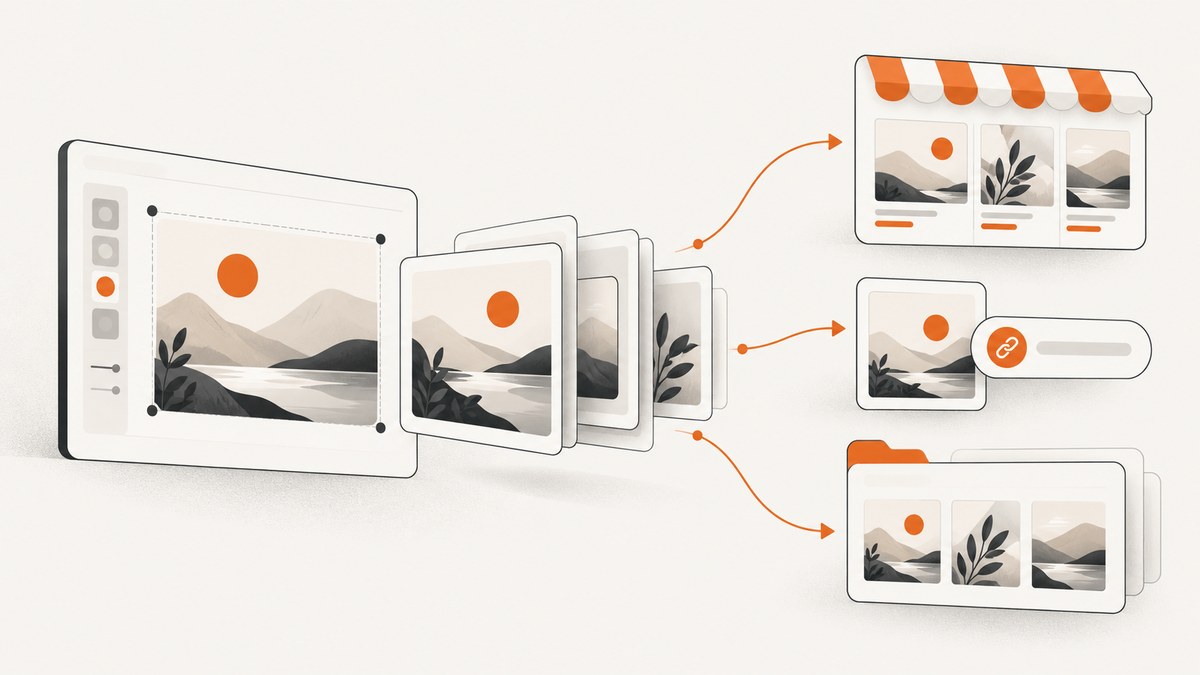
To publish an image template, first choose where it should live: a public creator marketplace, a template link you sell to customers, a stock marketplace submission, or a private team library. The destination determines who can access it, which file and preview formats you need, what license applies, and whether you can earn money. This guide covers the documented Canva, Adobe Stock, and Figma routes, plus a practical preparation checklist.
“Image template” can mean a reusable social graphic, presentation slide, or other editable design. The workflows below focus on templates in Canva, design-template submissions to Adobe Stock, and Figma Slides. Confirm current program availability and requirements on the platform before submitting: eligibility, plans, terms, and technical rules can change.
1. Choose where to publish
| Route | Best for | What to expect |
|---|---|---|
| Canva Template Creator marketplace | Creators seeking discovery in Canva’s public template library | Apply with a portfolio. If accepted, create in Canva and publish. Canva describes the program as beta and says accepted creators can receive royalties when people use their templates; check whether applications are open. |
| Sell your own Canva template link | Designers who already have a customer channel, such as a shop | You deliver a link that lets a customer start from an editable design. If the design uses Pro Content, Canva says it can only be sold as a Canva template link, not as a PDF or another file type. |
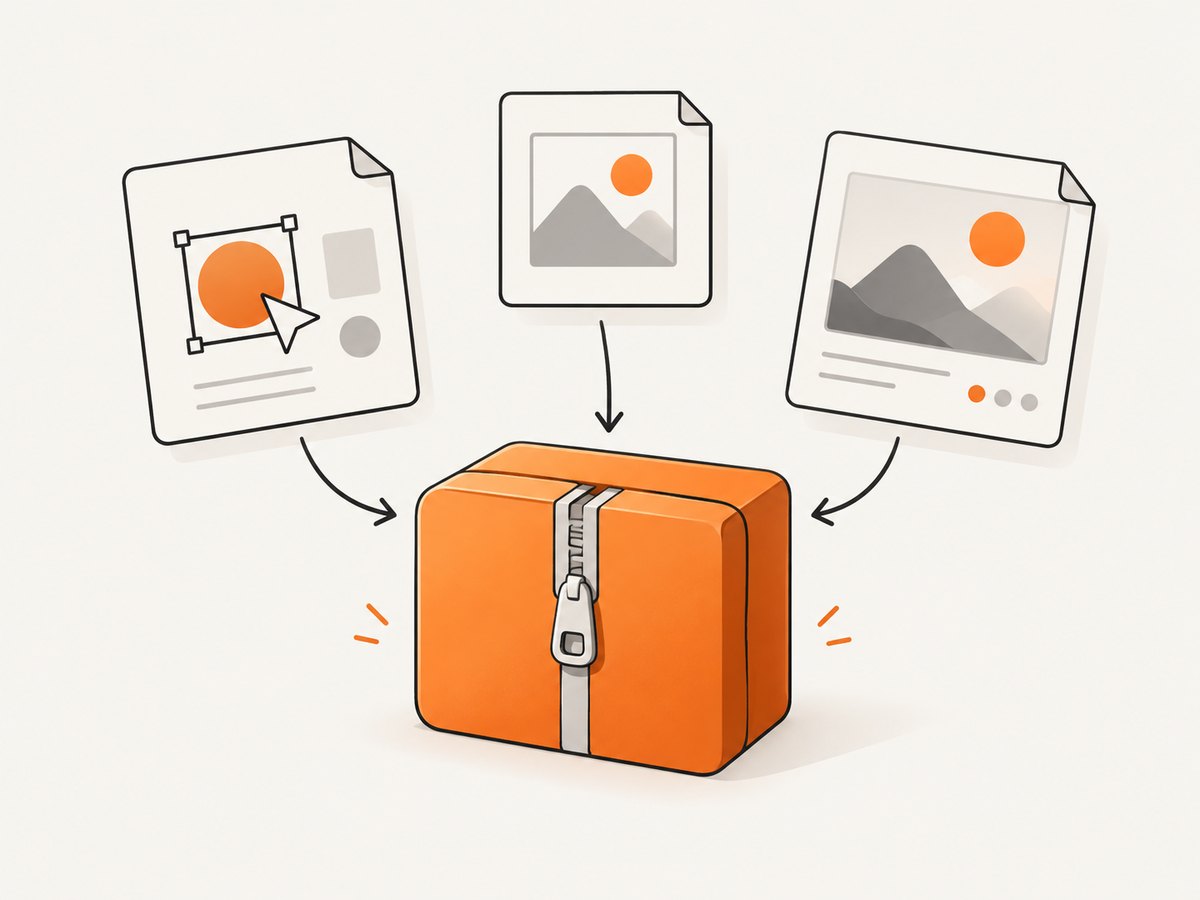
| Adobe Stock contributor submission | Contributors submitting design templates for review in Adobe Stock | Prepare an individual ZIP for each template with the template file, thumbnail, and preview image. Check the specific authoring application’s format rules. |
| Figma team or organization template | Internal reuse by teammates or organization members | Publish the source deck from a team folder and choose an audience. Team, folder, and organization permissions determine who can find or use it. |
| Figma Community template | Public discovery and duplication by Figma Slides users | Publish from the Slides editor if you have edit permission on a paid plan. Community slide templates use CC BY 4.0, and later listing updates do not change copies users already duplicated. |
These are different publishing models. A public listing, a direct sale, a stock submission, and an internal shared asset do not grant the same rights or access. Decide which outcome you want before formatting files or promising buyers how they can use a design.
2. Prepare the template before publishing
Make editing obvious
Arrange the design so someone who did not create it can quickly identify what to replace. Keep the editable areas clear and group related elements. For a team template, lock elements that should remain fixed and leave user-customizable elements available. Figma Buzz documents locking objects and publishing selected assets; check the current feature guidance for the workflow you use.
Use a descriptive title and write short directions that explain the intended use, what can be changed, and how to customize it. For Figma Community, the publishing flow supports a name, description with directions, and support contact information. If the platform offers categories, choose the one a likely user would search.
Check originality, licenses, and releases
- Use original work and assets you have rights to distribute in the format and channel you selected.
- Canva says designs sold using Canva content must be original, and Canva content cannot be resold on a standalone basis.
- Canva says a template containing Pro Content may be sold only as a Canva template link, not as a PDF or another file type.
- For Canva contributor stock submissions, the contributor agreement requires the submitted media to be your own original work and calls for releases for identifiable people or property where applicable.
- Check the licenses of any assets from other sources too. A license to use an element in a design does not automatically mean you can redistribute it as an editable template.
For Figma Community slide templates, make the CC BY 4.0 license visible to anyone who may adapt or redistribute the template. For a private team template, check the permissions that apply to the folder and audience. Do not assume a design is private just because you created it inside a workspace.
Prepare the right preview and package
Preview assets help reviewers and users understand the template before opening it. For Adobe Stock, the current technical requirements cited here specify one ZIP per submission containing only the template file, thumbnail, and preview image. The preview must be named Preview1.jpg, use RGB, be 2048 pixels wide and 1536–6144 pixels high, and have a minimum resolution of 72 ppi.
Adobe also recommends clearly organizing and labeling layers, pages, and artboards. Its linked application-specific requirements determine the exact native template format and file-size cap, so verify those before uploading. For Canva direct sales, provide the template link when Pro Content is included. For Figma Community, use the listing description to explain the template and its intended customization.
3. Publish through Canva
Apply to the Template Creator marketplace
- Prepare a portfolio that shows the quality and range of your template work.
- Review Canva’s current Template Creator application page and confirm that it is accepting applications.
- Apply with your portfolio. The program page describes an application and acceptance process; submitting an application does not guarantee entry.
- If accepted, create templates in Canva and publish them through the creator workflow.
- Review the listing from the perspective of someone searching Canva: make its use clear and ensure the preview represents the editable template.
Canva says accepted Template Creators can receive royalties when users use their templates. Treat that as the marketplace’s creator compensation description. It is not evidence of an affiliate referral program, and no commission or acceptance rate is established by the cited sources.
Sell a Canva template yourself
- Create an original design intended for customization, rather than distributing Canva content by itself.
- Check whether it contains Pro Content and follow Canva’s delivery restriction: a design containing Pro Content can only be sold as a Canva template link.
- Create the template link using Canva’s current sharing controls, then test the link while signed in as a separate customer account if possible.
- Deliver the link through your chosen customer channel and explain what the buyer receives and how to make a copy or edit it.
Do not describe the link as transferring ownership of included Canva elements. Explain any usage limits that follow from your own assets or the applicable platform terms.
4. Submit a design template to Adobe Stock
- Choose the authoring application and read Adobe Stock’s current requirements for that application. Confirm the native file type and file-size limit.
- Organize and label layers, pages, and artboards so a reviewer and eventual user can navigate the design.
- Export the thumbnail and the required preview. Check the preview filename, dimensions, RGB color space, and resolution against the current technical page.
- Place only the template file, thumbnail, and preview image into an individual ZIP for this template. Do not bundle multiple submissions into one archive if the instructions require a separate ZIP per design.
- Add accurate metadata, then submit through the contributor workflow and review any feedback or status updates.
For evergreen seasonal designs, Adobe advises submitting two to three months before the event and using “20XX” instead of a specific year. That makes the template reusable across years. The requirements page referenced in the research dossier was updated September 24, 2026; check it again at upload time because application formats and caps can change.
5. Publish in Figma Slides
Share with a team or organization
- Put the source deck in a team folder.
- Use the team publishing flow and select whether the audience is the team or the organization.
- Add a clear name and description with instructions for using and adapting the template.
- Check team, folder, and organization permissions from the perspective of the intended users.
- Ask a teammate with the expected access level to locate and use the template before relying on it for a wider rollout.
Publishing a template does not override folder or organization access rules. If colleagues cannot see it, confirm both the selected audience and the source folder permissions.
Publish to Figma Community
- Open the Slides editor with edit permission on a paid plan.
- Start the Community publishing flow and supply a useful name, directions, and support contact information.
- Review the listing and publish it for public discovery and duplication.
- Make the CC BY 4.0 license clear to people who plan to reuse or redistribute the template.
Community updates do not propagate into copies that people already duplicated. If a change is important, update the listing and tell users who have existing copies how to get the revision. Treat each duplicate as its own file for maintenance planning.
6. Make a reusable screenshot preview
Template listings often need a clean visual preview of a page or published example. You can capture one manually in a browser, or automate the capture when you have many examples to prepare. For reliable previews, decide whether you need the entire page or a specific element, and account for lazy-loaded images, consent banners, popups, and dynamic content.

With a browser automation library, the general process is: open the public page, wait until the content you need is present, capture either the viewport, full page, or a selected element, and save the output in the dimensions your listing requires. Use screenshots only for content you have permission to capture and publish. Adobe’s required preview dimensions are a separate upload rule; a browser screenshot may need resizing or a suitable export afterward.
Or skip the browser setup
ScreenshotNeo is a website screenshot API and MCP server for developers. One GET request returns a PNG, JPEG, WebP, or PDF. Cookie banners are accepted like a visitor and removed along with 60+ known consent platforms, newsletter popups, and chat widgets before capture; each cleanup step can be turned off. Bot checks and CAPTCHAs, blank pages, timeouts, failed loads, and cache hits cost nothing, and the response identifies the result with X-Page-Verdict and X-Billed headers. Its MCP server offers take_screenshot, get_page_info, and capture_pdf for Claude, Cursor, and other MCP clients.
See the ScreenshotNeo API documentation for request options and setup. Replace the target URL with the page you are authorized to capture.
curl -G "https://api.screenshotneo.com/v1/shot" -d access_key=YOUR_API_KEY --data-urlencode url=https://stripe.com -o shot.webpimport requests
r = requests.get("https://api.screenshotneo.com/v1/shot", params={"access_key": "YOUR_API_KEY", "url": "https://stripe.com"}, timeout=90)
open("shot.webp", "wb").write(r.content)const q = new URLSearchParams({ access_key: 'YOUR_API_KEY', url: 'https://stripe.com' });
const res = await fetch(`https://api.screenshotneo.com/v1/shot?${q}`);These examples return the response body as the screenshot; save it to a file in your application. ScreenshotNeo also supports full-page and element capture, device presets and custom viewports, retina scale, dark mode, custom CSS or JavaScript, click and wait behavior, request blocking, custom headers and cookies, geolocation, timezone, resizing, caching, signed links, asynchronous jobs, bulk capture, and PDF options.
The free plan includes 1,000 screenshots per month with no card. Paid plans start at $5 for 3,000; yearly billing gives two months free, and every feature is available on every plan. See ScreenshotNeo for plan details. Sign up for 1,000 free screenshots a month, with no card.
7. Troubleshooting and maintenance
| Problem | Likely cause | Fix |
|---|---|---|
| Canva application is unavailable | Creator intake may be closed or the program status may have changed. | Check Canva’s current creator page and use a direct template-link sales route only if that fits your audience and rights. |
| Customer receives a file they cannot edit | The delivery method may not preserve an editable Canva starting point, especially when Pro Content is used. | Deliver a Canva template link for a design with Pro Content, and test it as a customer before listing. |
| Adobe Stock upload is rejected | The ZIP may contain extra files, multiple designs, a misnamed preview, incorrect dimensions/color space, or an unsupported native format. | Make one ZIP per design containing only the specified three assets. Recheck the Preview1.jpg specifications and the authoring-app requirements. |
| Figma teammates cannot find a team template | The source folder, selected audience, or team permissions do not include them. | Check folder access and the team/organization audience, then verify with a user who has the expected role. |
| A Figma Community user still has an old version | Published changes do not update already duplicated copies. | Publish the revision and tell existing users to duplicate or copy the updated source themselves. |
| Template preview shows a banner or incomplete page | The site may show consent UI, dynamic content, or lazy-loaded images before the capture is ready. | Wait for the needed content, use an appropriate full-page or element capture, and remove overlays where the capture method supports it. |
8. Reliability, performance, and cost
Plan the workflow around review and access rather than assuming that a successful upload means the template is usable. Check the final listing or link while signed out or through an account with the audience’s permissions. Keep a source copy and a revision note so you can correct previews, instructions, or rights issues without losing track of the published version.
For bulk preview capture, avoid unnecessary repeated requests and use caching when the page has not changed. Dynamic pages may need a wait for a selector or network activity; full-page capture can take longer than viewport capture, and loading lazy images adds work. ScreenshotNeo offers caching with a chosen TTL, asynchronous jobs, bulk capture of up to 100 URLs per call, and a usage API. It bills clean shots; bot checks, blank pages, timeouts, failed loads, and cache hits are free under its stated billing model. Check each response’s verdict and billing headers when reconciling a capture job.
For publishing costs, distinguish platform compensation from your own sales revenue. Canva describes royalties for accepted Template Creators, while a self-sold template depends on your own customer channel. The sources here do not establish comparable earnings, acceptance rates, or affiliate referral terms for Canva, Adobe, or Figma. Avoid projecting income from these programs without current, specific evidence.
9. Publishing checklist
- Destination and audience chosen: public marketplace, customer delivery, stock submission, private team, or Community.
- Current eligibility, access, and technical requirements checked.
- Design is original and all incorporated assets are licensed for the intended distribution.
- Editable areas, fixed elements, title, and directions are clear.
- Preview and file package meet the chosen platform’s requirements.
- Permissions and customer-facing access tested with the intended audience.
- License and update behavior understood, including the effect on existing copies.
- Listing reviewed after publication and maintenance owner identified.
Frequently asked questions
Can I publish the same template on multiple platforms?
That depends on the platform terms, asset licenses, and any exclusivity or submission rules you accept. Review those terms for each destination and ensure the files and previews meet each platform’s distinct requirements.
Does Canva guarantee acceptance or royalties?
No. The creator route requires an application and acceptance. Canva describes royalties for accepted creators when users use templates, but that does not establish a guaranteed amount or acceptance.
Will a Figma Community update fix copies already in use?
No. Existing duplicates remain separate copies. Publish the update and provide a clear path for users to obtain it.
Is a screenshot preview a substitute for Adobe’s template package?
No. The screenshot is only a preview asset. Adobe’s submission also requires the editable template file and thumbnail in the individual ZIP, subject to the current application-specific rules.


