How to Publish TestNG Screenshots to Jenkins
Publish TestNG screenshots, XML results, and HTML reports in Jenkins with listeners, Pipeline post actions, secure globs, and failure troubleshooting.
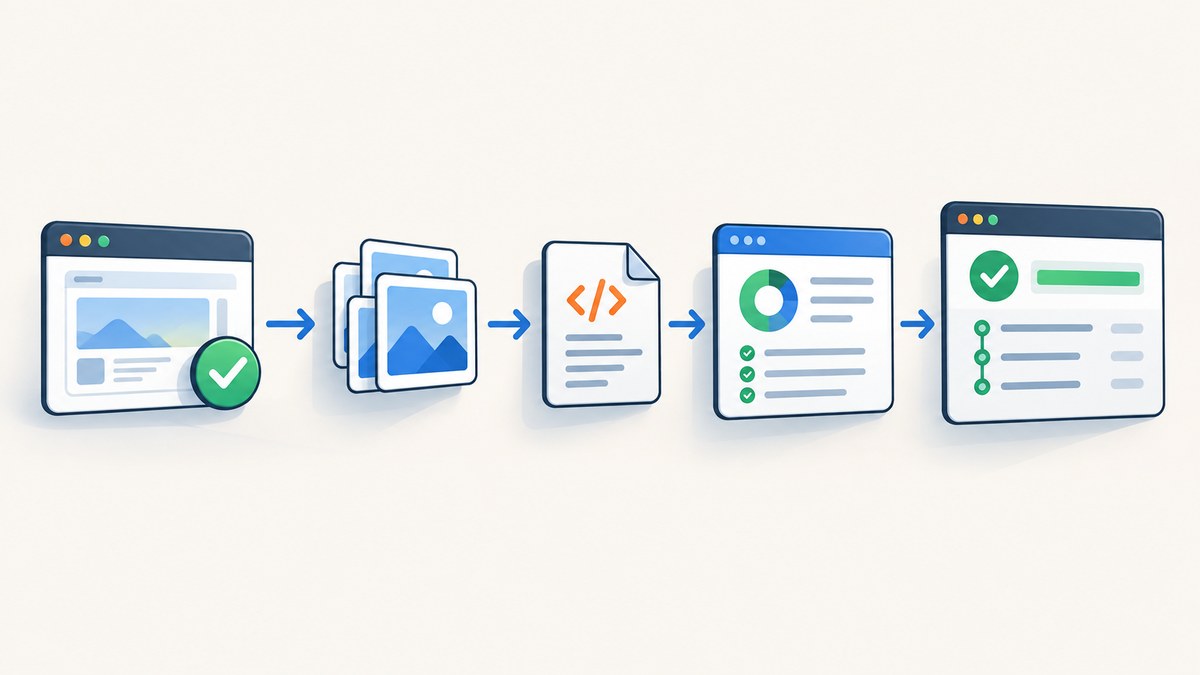
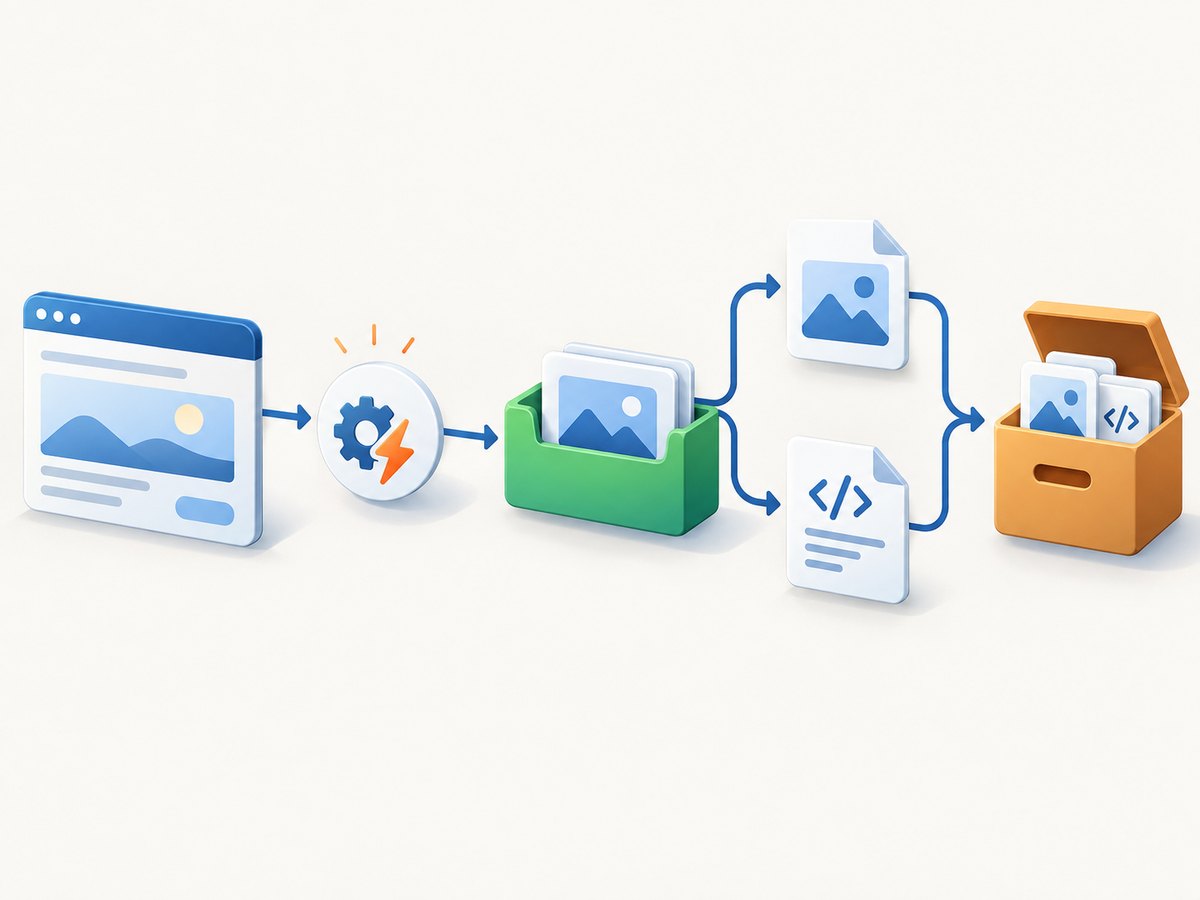
Direct answer: capture the browser image inside a TestNG listener, save it under a predictable workspace directory, then publish three different outputs in Jenkins: TestNG or JUnit XML for test data, the TestNG HTML directory for human navigation, and the PNG files as archived artifacts. Put all publication steps in post { always { ... } } so failures still produce evidence.
TestNG supplies lifecycle callbacks, not a browser screenshot API. Your Selenium, Playwright, or other driver must create the image. TestNG’s listener and reporter interfaces are the extension points for attaching paths and building report content (TestNG documentation).
1. Plan the workspace contract
Choose paths before writing code. A simple contract is:
test-output/testng-results.xml(or the location produced by your XML reporter)test-output/index.htmland the rest of TestNG’s HTML reporttest-output/screenshots/<unique-name>.pngfor raw images
The exact directory is suite-configured; Maven projects often use target/test-output. Jenkins globs are relative to the workspace, so inspect the tree and then make patterns narrow. A checklist:
- Enable TestNG XML output (native XMLReporter or a JUnit-compatible reporter).
- Register a listener in the test class,
testng.xml, or runner configuration. - Create the screenshot directory during the test run, including on clean workspaces.
- Use unique names when tests run in parallel or retry.
- Publish XML, HTML, and images with separate Jenkins steps.
2. Capture a screenshot when a test fails
This listener uses Selenium only to demonstrate the boundary. Adapt DriverHolder to your fixture. The listener does not assume a particular browser library.
import org.openqa.selenium.*;
import org.testng.*;
import java.nio.file.*;
import java.util.*;

public final class ScreenshotListener implements ITestListener {
  @Override public void onTestFailure(ITestResult result) {
    Object instance = result.getInstance();
    WebDriver driver = ((DriverHolder) instance).driver();
    if (!(driver instanceof TakesScreenshot)) return;
    try {
      Path dir = Paths.get("test-output", "screenshots");
      Files.createDirectories(dir);
      String base = (result.getTestClass().getName() + "-"
          + result.getMethod().getMethodName() + "-" + UUID.randomUUID())
          .replaceAll("[^A-Za-z0-9._-]", "_");
      Path file = dir.resolve(base + ".png");
      byte[] bytes = ((TakesScreenshot) driver).getScreenshotAs(OutputType.BYTES);
      Files.write(file, bytes);
      result.setAttribute("screenshotPath", file.toString());
    } catch (Exception captureError) {
      // Keep the original assertion failure; log capture errors separately.
      captureError.printStackTrace();
    }
  }
}

interface DriverHolder { WebDriver driver(); }
Capture on success or skip by implementing onTestSuccess or onTestSkipped, but failure-only capture usually controls storage. Register it with @Listeners(ScreenshotListener.class):
@Listeners(ScreenshotListener.class)
public class CheckoutTest implements DriverHolder { /* tests and driver() */ }
Alternatively add this to testng.xml:
<listeners>
  <listener class-name="com.acme.ScreenshotListener"/>
</listeners>
For parallel suites, include class, method, data-provider parameters, and a UUID. Sanitize names because parameter values can contain slashes or control characters. Capture after the driver has been created and before teardown closes it.
3. Add links with a reporter (optional)
Setting an attribute does not automatically add a link to TestNG’s built-in HTML. Implement IReporter, which runs after suites complete, read the screenshotPath attribute, and write a relative link such as screenshots/class-method-id.png into your custom HTML. Keep the link relative to the report directory; absolute workspace paths will not work when Jenkins serves the report.
TestNG also emits XML through its XMLReporter, and documents a listener that produces XML suitable for JUnitReport transformation. Pick one machine-readable format for each publisher. Native TestNG XML preserves TestNG-specific metadata; JUnit XML is convenient when the rest of the pipeline already consumes JUnit.
4. Publish native TestNG results, HTML, and images
Install the Jenkins TestNG Results and HTML Publisher plugins. The following declarative Pipeline keeps publication running after both passing and failing tests:
pipeline {
  agent any
  stages {
    stage('Test') {
      steps { sh './mvnw test' }
    }
  }
  post {
    always {
      testNG(reportFilenamePattern: '**/testng-results.xml')
      archiveArtifacts artifacts: 'test-output/screenshots/**/*',
                       allowEmptyArchive: true
      publishHTML(target: [
        allowMissing: true,
        alwaysLinkToLastBuild: true,
        keepAll: true,
        reportDir: 'test-output',
        reportFiles: 'index.html',
        reportName: 'TestNG HTML report'
      ])
    }
  }
}
testNG consumes an Ant-style report pattern; publishHTML archives a directory and adds a build link; archiveArtifacts retains files for later download. Argument names can differ by plugin version, so generate the step with Jenkins’ Pipeline Syntax page and verify the installed plugin documentation (Jenkins Pipeline steps).
Align every path with the real workspace. If the report is under target/test-output, use target/test-output for both reportDir and the screenshot glob. During diagnosis, run find . -name 'testng-results.xml' -o -name index.html, then replace broad discovery patterns with the smallest production glob.
5. Use JUnit publication when that is what your runner emits
Jenkins understands the JUnit XML format, which TestNG can also produce. Use the JUnit publisher when you already have JUnit-style files or need common trend views:
post {
  always {
    junit testResults: '**/test-results/**/*.xml', allowEmptyResults: true
    archiveArtifacts artifacts: 'test-output/screenshots/**/*',
                     allowEmptyArchive: true
  }
}
Do not match the same XML with both testNG and junit unless duplicate publication is intentional. Native TestNG publication is richer when XMLReporter output is available; JUnit is the simpler interoperability route.
6. Make links and artifacts reliable
- Stable layout: keep screenshots below the report directory when you want relative HTML links, and archive the same files separately for direct downloads.
- Retries: add an invocation number or UUID so a retry does not overwrite the first failure.
- Parallel workers: include worker or thread identity, and create directories with
Files.createDirectories. - Globs: use
**/testng-results.xmlonly when modules genuinely write there; avoid**/*for large workspaces. - Missing output:
allowEmptyArchive,allowMissing, andallowEmptyResultskeep diagnostics from replacing the original test status while paths are being fixed.
7. Security controls for Jenkins reports
Keep TestNG/Jenkins escaping options such as escapeExceptionMsg and escapeTestDesc enabled. Disabling escaping allows HTML in exception text and can create stored cross-site scripting risk. Treat HTML reports as build artifacts: Jenkins security policy may sanitize them or restrict inline resources, and untrusted test data should not be embedded as executable markup. Link to images with relative paths and avoid putting secrets in URLs, page text, screenshots, or custom headers.
8. Troubleshooting
| Symptom | Likely cause | Fix |
|---|---|---|
| No tests in Jenkins | XML was not generated or the pattern matches nothing | Inspect the workspace, confirm XMLReporter/JUnit output, and test the pattern against the actual path. |
| Screenshots missing after a failed build | Archive step ran only on success or excludes nested files | Put it under post { always { ... } } and use a recursive, specific glob. |
| Listener creates no files | It was not registered, the driver is not initialized, or teardown ran first | Verify @Listeners/testng.xml, capture in onTestFailure, and log capture exceptions. |
| HTML link is absent or 404 | Wrong reportDir/reportFiles, or an absolute link |
Confirm index.html exists and use a path relative to reportDir. |
testNG step is unknown or rejects arguments |
Plugin missing or syntax changed | Install/upgrade the intended plugin and regenerate syntax in Pipeline Syntax. |
| Parallel screenshots overwrite | Filename uses only the method name | Add class, parameters, worker identity, and UUID. |
| HTML renders blank or raw | Jenkins CSP/sanitization or blocked assets | Keep raw PNGs archived, avoid untrusted inline HTML, and follow your Jenkins security configuration. |
| Capture error hides the real failure | Listener throws while writing the image | Catch capture exceptions, log them, and preserve the original test result. |
9. Performance, reliability, and cost
A screenshot adds browser I/O and disk writes to each captured test. Capture failures by default, resize or compress upstream when appropriate, and avoid archiving unrelated workspace files. Retention settings determine storage consumption; keep only the build history needed for diagnosis. XML and HTML publication should remain in the unconditional post block so evidence survives test failures and agent cleanup. For large suites, asynchronous or batched artifact transfer can reduce pressure on the build agent, but the Jenkins plugin behavior and limits depend on your installation.
10. Or skip the browser setup
ScreenshotNeo provides a website screenshot API and MCP server. One GET request returns PNG, JPEG, WebP, or PDF, so a CI job can capture a URL without maintaining a browser driver. See the ScreenshotNeo API documentation.
curl -G "https://api.screenshotneo.com/v1/shot" -d access_key=YOUR_API_KEY --data-urlencode url=https://stripe.com -o shot.webpimport requests
r = requests.get("https://api.screenshotneo.com/v1/shot", params={"access_key": "YOUR_API_KEY", "url": "https://stripe.com"}, timeout=90)
open("shot.webp", "wb").write(r.content)const q = new URLSearchParams({ access_key: 'YOUR_API_KEY', url: 'https://stripe.com' });
const res = await fetch(`https://api.screenshotneo.com/v1/shot?${q}`);Before capture, ScreenshotNeo accepts cookie or consent banners and removes more than 60 known consent platforms, newsletter popups, and chat widgets; each step can be turned off. Bot checks/CAPTCHAs, blank pages, timeouts, failed loads, and cache hits are not billed, and X-Page-Verdict and X-Billed headers explain the result. Options include full-page capture with lazy images, CSS-element capture, dark mode, device presets or custom viewports, retina scale, custom CSS/JavaScript, clicks, waits, blocked resources, headers/cookies/user agent/Authorization, timezone and geolocation, transparent backgrounds, resizing, chosen cache TTL, signed links, async jobs with signed webhooks, bulk capture of up to 100 URLs, usage API, and OpenAPI support. Its MCP server exposes take_screenshot, get_page_info, and capture_pdf to Claude, Cursor, and other MCP clients.
Free usage includes 1,000 shots per month with no card. Paid plans start at $5 for 3,000 shots; every feature is on every plan. Create a free ScreenshotNeo account.
11. FAQ
Does TestNG itself take screenshots?
No. Its listener callbacks tell you when a test fails; the browser automation driver captures the bytes.
Can I publish only images?
Yes. Use archiveArtifacts, but XML and HTML provide searchable results and navigable context.
Should I use TestNG or JUnit in Jenkins?
Use native TestNG for TestNG-specific metadata. Use JUnit when your build already emits JUnit-compatible XML or shares trend tooling.
Why do screenshots vanish on failed builds?
Publication likely runs only after a successful stage. Move all three publication steps into post { always { ... } } and verify the glob.
How do I expose a screenshot link in custom HTML?
Implement IReporter, read the result attribute set by the listener, and write a relative link under the report directory.


