How to Position an Element at the Bottom of a DIN A4 Page with Puppeteer
Anchor an element to the bottom of every A4 PDF page with print CSS, or use Puppeteer’s footer template for page numbers and recurring footer content.
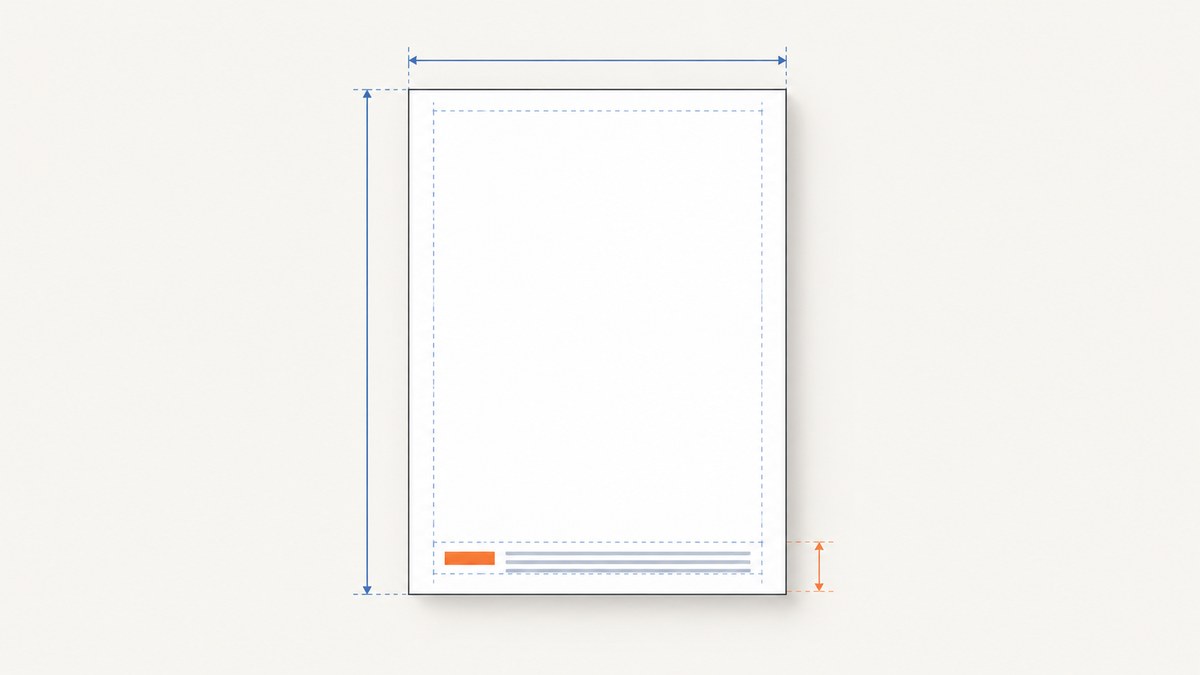
To place an element at the bottom of a DIN A4 page in a Puppeteer PDF, set the paper size to A4 and apply position: fixed in print CSS. In paged output, a fixed element is anchored to the page and repeats on every page. For a recurring PDF footer with page numbers, Puppeteer’s footerTemplate is usually the better fit.
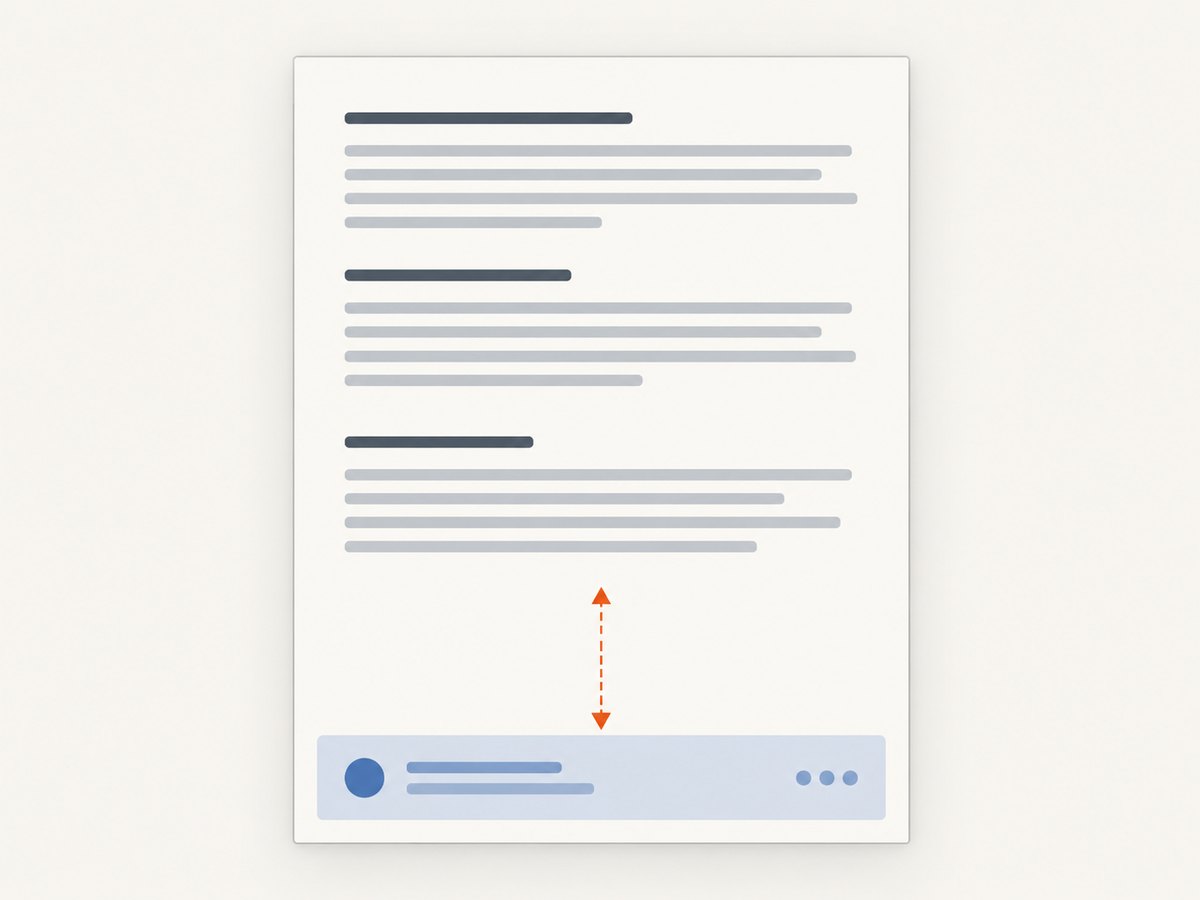
The key is to reserve enough bottom margin or other space so the flowing document content does not collide with the positioned element. The examples below show both approaches, how to choose between them, and how to debug common layout problems.
1. Create an A4 PDF with a fixed bottom element
Puppeteer’s page.pdf() renders using print media, so use @media print for print-only styles. This runnable Node.js example creates a two-page PDF in which the footer element is positioned on every page.
const puppeteer = require('puppeteer');

(async () => {
  const browser = await puppeteer.launch({ headless: true });
  try {
    const page = await browser.newPage();

    await page.setContent(`
      <!doctype html>
      <html>
        <head>
          <meta charset="utf-8">
          <style>
            @page {
              size: A4 portrait;
              margin: 15mm 15mm 22mm;
            }

            body {
              font-family: Arial, sans-serif;
              font-size: 12pt;
              line-height: 1.5;
            }

            .page-bottom {
              position: fixed;
              left: 15mm;
              right: 15mm;
              bottom: 5mm;
              border-top: 1px solid #999;
              padding-top: 2mm;
              font-size: 9pt;
              color: #444;
            }

            .content {
              /* Keep flowing content clear of the footer. */
              padding-bottom: 12mm;
            }

            .new-page {
              break-before: page;
            }
          </style>
        </head>
        <body>
          <div class="page-bottom">Internal report · Confidential</div>
          <main class="content">
            <h1>Quarterly report</h1>
            <p>First-page content goes here.</p>
            <section class="new-page">
              <h2>Second page</h2>
              <p>More content goes here.</p>
            </section>
          </main>
        </body>
      </html>
    `);

    await page.pdf({
      path: 'report.pdf',
      format: 'A4',
      preferCSSPageSize: true,
      printBackground: true,
    });
  } finally {
    await browser.close();
  }
})();
Save the script as make-pdf.js, install Puppeteer with npm install puppeteer, then run node make-pdf.js. Puppeteer downloads a compatible browser as part of its usual installation. In a managed environment where you provide your own Chrome or Chromium, configure the executable path and make sure its version is supported by your Puppeteer setup.
A4 portrait is 210 × 297 mm (about 8.2677 × 11.6929 inches). The CSS page margin and the fixed element’s bottom offset are separate measurements: the margin defines the page’s content area, while the offset positions the fixed box relative to the page. Tune both for the actual footer height and document structure, then inspect the PDF output.
Why the element repeats
In print layout, fixed-position content is page-relative and is repeated on the pages being printed. This makes it useful for a running label, a repeated note, or a visual footer. It does not mean “put this only at the end of the document.” If the element should appear only on the final page, use a deliberate document structure or a separate final page; fixed positioning alone cannot select that page.
2. Choose the right footer mechanism
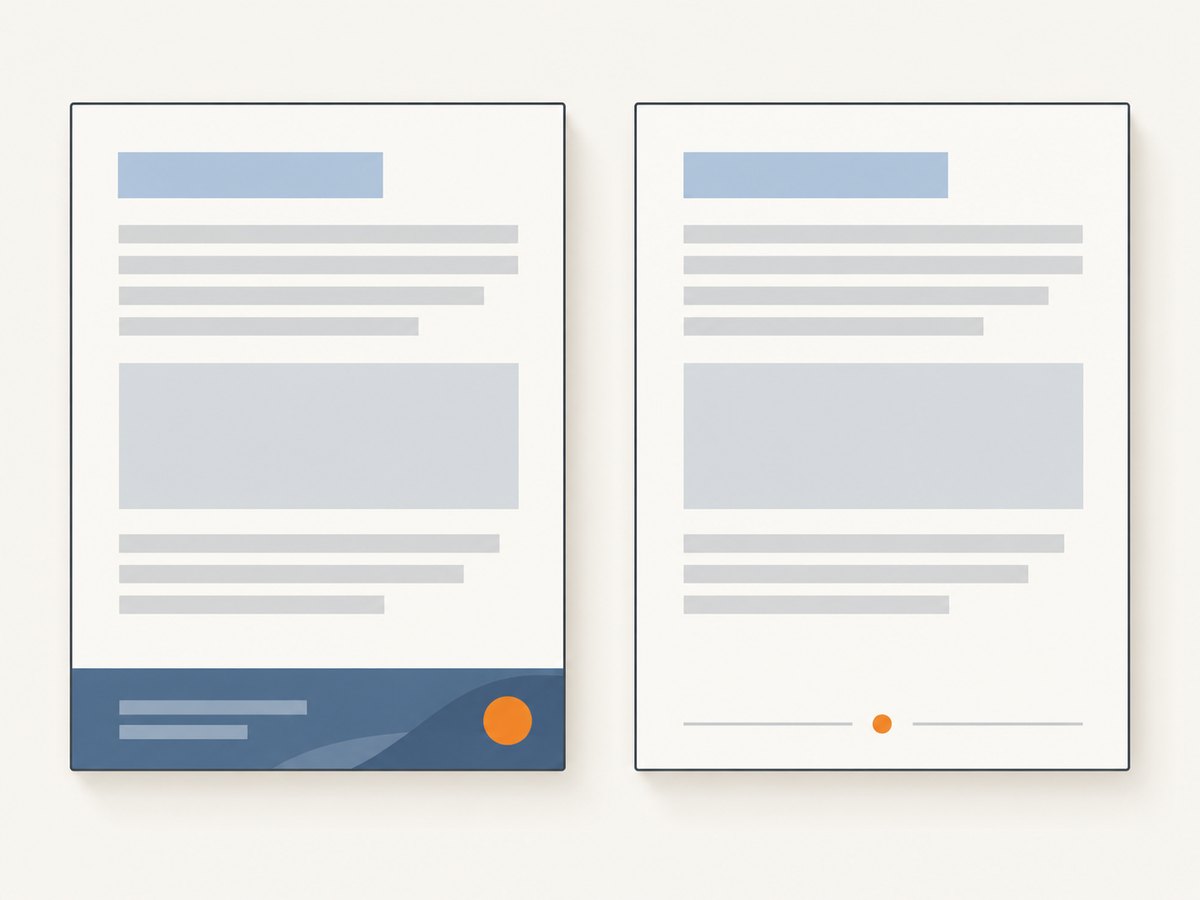
Use fixed CSS when the item is part of the page’s visual design and needs positioning alongside your HTML content. Use Puppeteer’s PDF footer template when the item is page furniture, such as a page number, total page count, or recurring print footer.
| Need | Use | Notes |
|---|---|---|
| Repeated visual element aligned to the page | Print CSS with position: fixed |
Repeats on printed pages. Reserve room to prevent overlap. |
| Page number or total page count | footerTemplate |
Enable displayHeaderFooter and use Puppeteer’s placeholder classes. |
| Content only on the final page | Document or page-specific structure | A fixed element repeats; it is not a final-page selector. |
Avoid using both a fixed CSS footer and a PDF footer template for the same content unless you intentionally want two footers. Otherwise, the PDF will contain duplicates.
3. Add page numbers with Puppeteer’s footer template
The built-in footer template renders in the PDF printing layer. Enable it with displayHeaderFooter, provide footerTemplate, and reserve bottom margin for its height. The special pageNumber and totalPages classes are replaced during PDF generation.
const puppeteer = require('puppeteer');

(async () => {
  const browser = await puppeteer.launch({ headless: true });
  try {
    const page = await browser.newPage();
    await page.setContent(`
      <!doctype html>
      <html>
        <head>
          <style>
            @page { size: A4; margin: 15mm; }
            body { font: 12pt Arial, sans-serif; }
          </style>
        </head>
        <body>
          <h1>Monthly report</h1>
          <p>Add enough report content here to create multiple pages.</p>
        </body>
      </html>
    `);

    await page.pdf({
      path: 'numbered-report.pdf',
      format: 'A4',
      displayHeaderFooter: true,
      footerTemplate: `
        <div style="width: 100%; font: 9px Arial, sans-serif; text-align: center; color: #444">
          <span class="pageNumber"></span> / <span class="totalPages"></span>
        </div>
      `,
      margin: { top: '15mm', right: '15mm', bottom: '18mm', left: '15mm' },
      printBackground: true,
    });
  } finally {
    await browser.close();
  }
})();
When you set the margin option in page.pdf(), make the footer’s bottom margin large enough for its content. A template that is taller than its reserved space may overlap body content or be clipped. Template markup is intentionally small and self-contained; do not assume styles from the page’s document will apply to it.
4. Set A4 size in CSS or Puppeteer
You can specify the paper size in either Puppeteer’s PDF options or the document’s @page rule. Puppeteer’s format: 'A4' is the straightforward choice. If CSS should control the paper dimensions, set preferCSSPageSize: true. Keep the configuration unambiguous: conflicting CSS and PDF size declarations make it harder to reason about the resulting layout.
await page.pdf({
  path: 'document.pdf',
  format: 'A4',
  preferCSSPageSize: true,
});
Or define the size in CSS and let it take priority:
@page {
  size: A4 portrait;
  margin: 15mm 15mm 22mm;
}
The larger bottom margin in this example creates room for a footer. A page’s 297 mm physical height is not all available for body content: page margins, footer height, and layout rules reduce the usable area. Portrait and landscape are distinct layouts; choose the orientation explicitly when the document’s dimensions matter.
5. Coordinate margins, offsets, and content flow
Three layout decisions work together:
- Page margin: the printable content area around the page. Give the bottom margin enough room for the footer.
- Fixed element offset: the
bottom,left, andrightvalues position the element on the page. Keep the footer inside the physical page boundaries. - Body flow: content that continues to the bottom of a page can pass behind a fixed element. Adjust the content, page breaks, or available spacing to avoid a collision.
CSS padding at the end of a long body does not automatically create a footer reservation on every page. If the body spans several pages, the fixed element will repeat while content continues to flow. Use appropriate page margins, split sections when needed, or shorten the content so that the last lines on each page remain clear of the footer.
For a predictable result, check both a short one-page document and a long document that crosses page boundaries. Also check the first and last pages, because page breaks and content density can make overlap show up only in specific locations.
6. Handle edge cases
One-off content on the last page
A fixed element is repeated across printed pages, so it is not suitable for a final-page-only signature, total, or closing note. Place that content at the end of the document in normal flow, add a dedicated final page, or generate that page separately. Choose based on whether it must sit at a fixed physical coordinate or simply follow the report content.
Different first-page or section footers
If the first page has a different layout, model that difference in your document structure and page-break logic. Do not expect a single fixed element to infer which page it is on. For complex, section-specific page furniture, test the exact output with your Chromium version and consider rendering each section as a separate document before combining PDFs.
Long or wrapping footer text
A footer with unpredictable text can become taller than the reserved space. Set a sensible width, font size, and line-height, then reserve enough bottom margin. If the text is dynamic, validate its length before generating the PDF or allow for wrapping in the layout plan.
Background colors and graphics
PDF backgrounds may not appear unless printBackground: true is enabled. This option is independent of positioning; it affects printed backgrounds, not whether an element is anchored to the page.
7. Troubleshooting Puppeteer A4 footers
| Symptom | Likely cause | Fix |
|---|---|---|
| Footer appears on every page, but should appear once | position: fixed repeats in paged print output |
Use normal-flow content at the end or a dedicated final page. |
| Body text overlaps the footer | Insufficient bottom margin or content extends behind the fixed box | Increase the page’s bottom margin, move the element, or adjust content and page breaks. |
| Footer is clipped at the bottom | The bottom offset or template height exceeds available page space | Keep the footer inside the page and reserve adequate margin for its height. |
| CSS A4 size seems ignored | Puppeteer PDF dimensions take priority | Set preferCSSPageSize: true when CSS should control page size; remove conflicting dimensions. |
| Footer template is missing | displayHeaderFooter is not enabled |
Set it to true and provide footerTemplate. |
| Page numbers are blank | Placeholder class names are missing or misspelled | Use pageNumber and totalPages classes in the template. |
| Backgrounds disappear in the PDF | Print backgrounds are not enabled | Set printBackground: true. |
| Layout differs between environments | Different browser versions, fonts, or page content can affect rendering | Pin and use a consistent Puppeteer/Chromium environment and ensure required fonts are available. |
8. Performance, reliability, and cost
PDF generation is a browser rendering task. For a service that produces many documents, reuse browser processes where appropriate, but isolate pages and close them after use; always close the browser when the worker shuts down. Avoid launching more concurrent renderers than the available memory and CPU can support. Large HTML documents, remote assets, and custom fonts add loading work and can make output less predictable.
Use a defined readiness condition before calling page.pdf(). If the page depends on remote images or fonts, wait for the content your document actually needs instead of relying on a short arbitrary delay. For operational reliability, log the input URL or document identifier, the PDF options, browser version, and any navigation or rendering error. Keep generated files bounded and clean up temporary output.
Cost depends on where Chromium runs and how the rendering service is operated: browser compute, memory, storage, and any remote assets all contribute. Puppeteer itself does not provide a per-PDF service price in the cited documentation. For a screenshot or PDF API, compare the billing unit and failure policy before routing production traffic.
9. Or skip the browser setup
If your task is capturing a web page as a PDF rather than controlling a custom Puppeteer document, ScreenshotNeo is a website screenshot API and MCP server for developers. It offers PDF capture and can handle a single URL with one request. The API documentation lists the available options and request parameters.
curl -G "https://api.screenshotneo.com/v1/shot" \
  -d access_key=YOUR_API_KEY \
  --data-urlencode url=https://stripe.com \
  -d format=pdf \
  -o page.pdf
ScreenshotNeo removes cookie banners, newsletter popups, and chat widgets before the shot. Bot checks, blank pages, and failed loads are never billed; responses include X-Page-Verdict and X-Billed headers. Its MCP server gives AI agents tools to take screenshots, inspect page information, and capture PDFs. The free plan includes 1,000 screenshots a month with no card; paid plans start at $5 for 3,000 shots. These are page-capture features, not a substitute for custom HTML layout or Puppeteer’s full PDF pagination controls.
Create a free ScreenshotNeo account for 1,000 screenshots a month, with no card required.
10. FAQ
Does fixed positioning mean the bottom of the paper or the content area?
It is page-relative in print. The page margin and fixed element offset are separate layout settings, so inspect the output to confirm the physical placement you want.
Can I put an element at the bottom of only one page?
Yes, but use page-specific structure or generate that page separately. A fixed element is repeated and does not target one page by itself.
Should I use CSS or footerTemplate?
Use CSS for page-relative visual content in the document. Use the footer template for recurring PDF furniture such as page numbers.
Does Puppeteer render PDFs using screen styles?
page.pdf() uses print media. Put PDF-specific layout rules in print CSS or the @page rule.


