How to Capture a Puppeteer Accessibility Snapshot
Capture, scope, inspect, and debug Puppeteer accessibility snapshots with runnable examples, option details, iframe guidance, and troubleshooting.
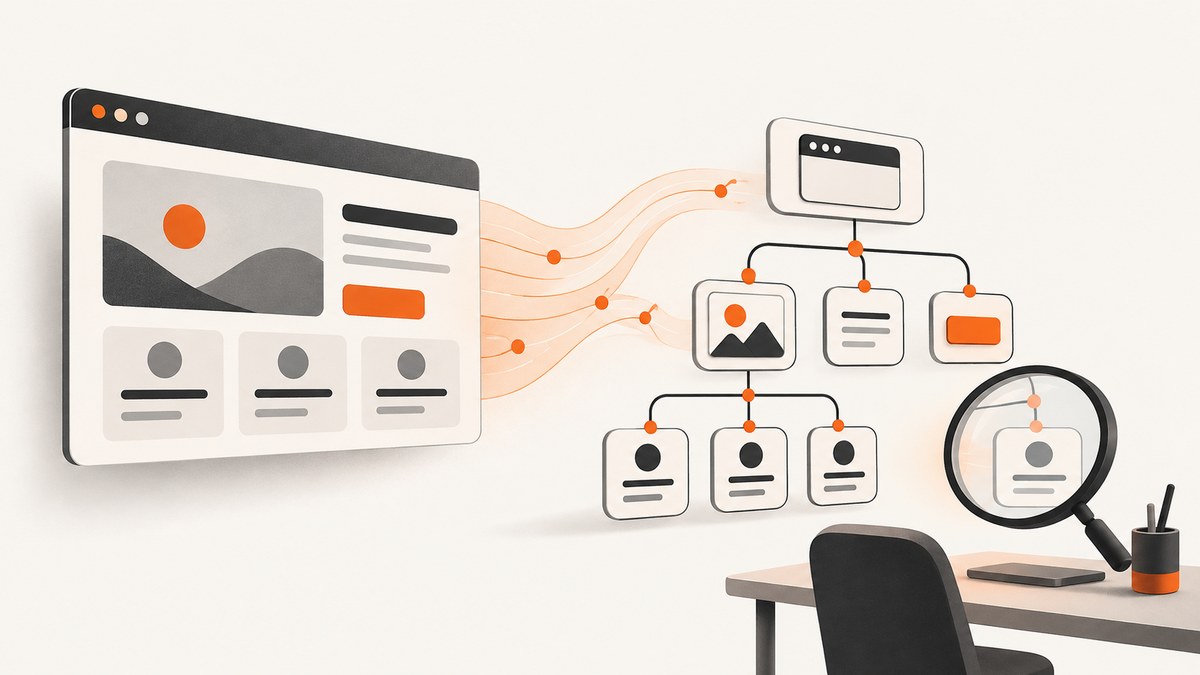
The direct answer: navigate to the page, synchronize on the state your test needs, then call await page.accessibility.snapshot(). Puppeteer returns the root serialized accessibility node for the current page, or null when no tree is available.
const snapshot = await page.accessibility.snapshot();
console.dir(snapshot, { depth: null });
The method captures the browser’s current accessibility representation, not a future state and not the raw DOM. That distinction determines when you call it, which options you use, and how you interpret the result. This guide shows a complete workflow, including filtered and unpruned trees, iframe coverage, element-scoped snapshots, focused-node searches, DevTools cross-checks, and failure handling.
1. Set up Puppeteer and capture the current tree
Install Puppeteer in a new project:
npm install puppeteerCreate a runnable script:
const puppeteer = require('puppeteer');

(async () => {
  const browser = await puppeteer.launch({ headless: true });
  const page = await browser.newPage();

  await page.goto('https://example.com', {
    waitUntil: 'networkidle2',
  });

  const snapshot = await page.accessibility.snapshot();

  if (snapshot === null) {
    throw new Error('No accessibility tree was returned');
  }

  console.dir(snapshot, { depth: null });
  await browser.close();
})();
The official Puppeteer accessibility snapshot documentation defines the return value as Promise<SerializedAXNode | null>. Use await; logging the unresolved promise will not give you the tree.
Synchronize on application state
A snapshot is only as useful as the page state at the instant you take it. A single networkidle2 navigation condition may be enough for a static page, but it does not prove that a client-rendered dashboard, dialog, menu, or validation message is ready. Synchronize on the event or selector that represents the state under test.
await page.goto('https://app.example.test/profile');
await page.waitForSelector('[data-testid="profile-ready"]');

const snapshot = await page.accessibility.snapshot();
For a user interaction, perform the action and wait for its visible result:
await page.getByRole('button', { name: 'Open settings' }).click();
await page.waitForSelector('[role="dialog"]');

const snapshot = await page.accessibility.snapshot();
If the application has no reliable selector, wait for a URL change, a response, or a specific text state. Avoid treating an arbitrary timeout as a readiness guarantee.
2. Understand what the returned object represents
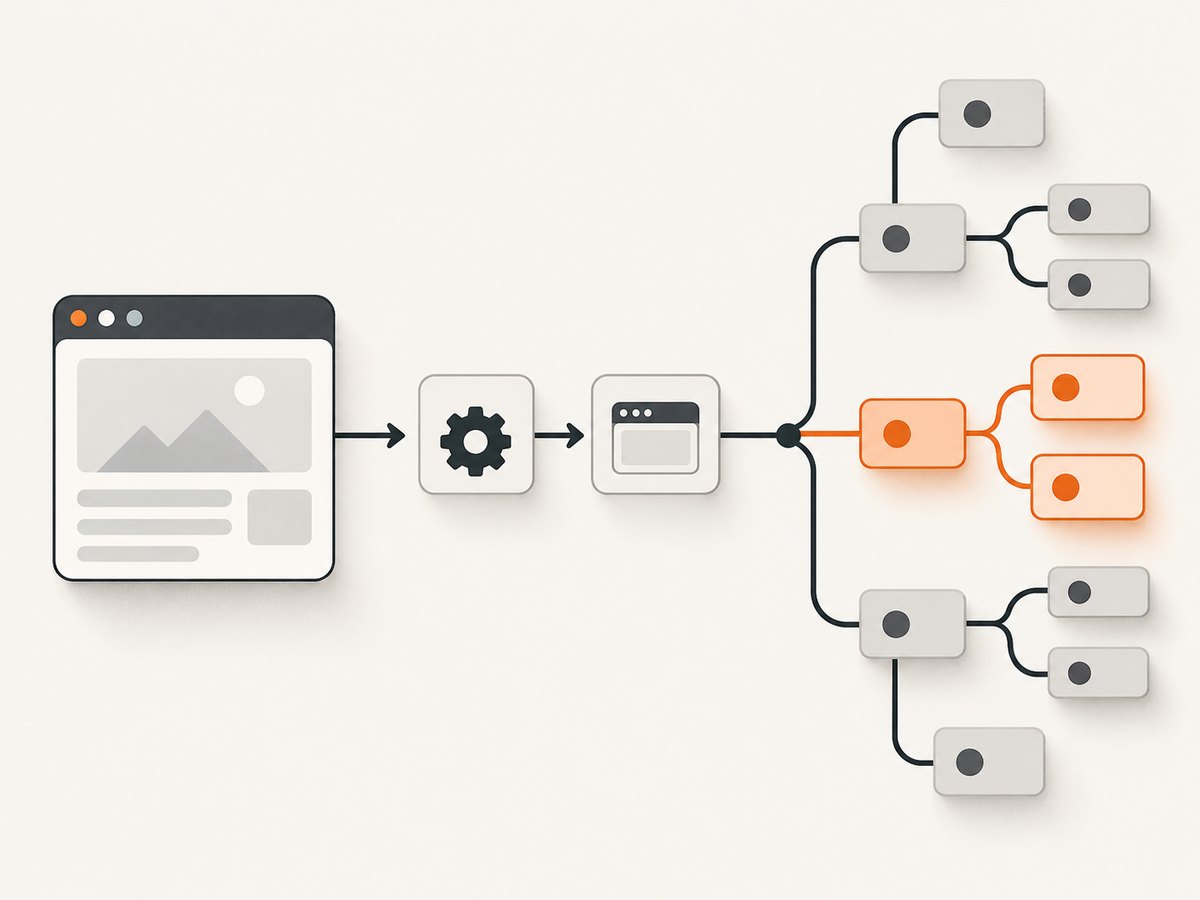
Puppeteer exposes Blink’s computed accessibility tree. Nodes can contain fields such as role, name, value, checked, disabled, focused, and a children array. The exact fields depend on the node and the installed Puppeteer version.
The default tree is filtered. Chrome may create nodes that most platforms and screen readers do not use, and Puppeteer removes those nodes unless you request the unpruned form. Therefore, an omitted div or structural node does not automatically indicate an accessibility defect.
This output describes Chrome’s semantic interpretation at capture time. It is valuable for repeatable inspection and assertions, but it does not prove that every screen reader on every operating system will expose exactly the same experience. Pair automated snapshots with keyboard testing, screen-reader testing, and manual inspection when accessibility conformance matters.
Print a readable tree
function printTree(node, indent = '') {
  if (!node) return;

  const details = [node.role, node.name].filter(Boolean).join(': ');
  console.log(`${indent}${details || '(unnamed node)'}`);

  for (const child of node.children || []) {
    printTree(child, `${indent}  `);
  }
}

const snapshot = await page.accessibility.snapshot();
printTree(snapshot);
Keeping the output to role and accessible name makes CI logs useful. Save the complete serialized object when you need to investigate properties such as focus, checked state, or a control value.
3. Use snapshot options deliberately
The documented SnapshotOptions interface has three controls.
| Option | Default | Use it when |
|---|---|---|
interestingOnly |
true |
You want a compact tree containing nodes Puppeteer considers useful. |
includeIframes |
false |
Your test must inspect accessibility trees inside iframe descendants. |
root |
Entire page | You want to inspect one element or region with an ElementHandle. |
Request an unpruned tree
const fullSnapshot = await page.accessibility.snapshot({
  interestingOnly: false,
});
Use this mode when a node seems to be missing, when you are diagnosing a structural relationship, or when you are comparing browser output with a specification. It can produce substantially more data, so avoid using it for every large page in a high-volume test suite.
Include iframe accessibility trees
const snapshotWithFrames = await page.accessibility.snapshot({
  includeIframes: true,
});
The option requests trees for each iframe in the frame subtree. Without it, an embedded document may appear absent even though it has its own accessible content. Cross-origin frames remain subject to browser security and page-loading constraints; enabling the option does not turn an unavailable or unloaded document into a usable tree.
Scope the snapshot to an element
const main = await page.$('main');

if (!main) {
  throw new Error('main element was not found');
}

const mainSnapshot = await page.accessibility.snapshot({
  root: main,
});
A scoped snapshot is useful for component tests, smaller logs, and assertions that should not break when unrelated page chrome changes. The root is an ElementHandle<Node>, so make sure the handle belongs to the current page and has not become stale after a re-render.
Combine options
const diagnosticSnapshot = await page.accessibility.snapshot({
  root: main,
  interestingOnly: false,
  includeIframes: true,
});
Check the documentation for the Puppeteer release installed in your project. API pages may show different release versions, and keeping your code aligned with the local package avoids surprises.
4. Find focused nodes and assert semantics
A common debugging task is identifying which accessible node currently owns focus. Traverse every child branch; returning after the first unsuccessful branch is a subtle bug that misses focused nodes in later siblings.
function findFocusedNode(node) {
  if (!node) return null;
  if (node.focused) return node;

  for (const child of node.children || []) {
    const found = findFocusedNode(child);
    if (found) return found;
  }

  return null;
}

const snapshot = await page.accessibility.snapshot();
const focused = findFocusedNode(snapshot);

console.log(focused
  ? { role: focused.role, name: focused.name }
  : 'No focused accessibility node');
For stable tests, assert the smallest semantic contract that matters:
const snapshot = await page.accessibility.snapshot();

function collect(node, result = []) {
  if (!node) return result;
  result.push(node);
  for (const child of node.children || []) collect(child, result);
  return result;
}

const buttons = collect(snapshot).filter(node => node.role === 'button');
const saveButton = buttons.find(node => node.name === 'Save changes');

if (!saveButton) {
  throw new Error('Save changes button is not exposed as expected');
}
Names can change with localization, user data, or product copy. Prefer test identifiers and role-based interactions for setup, then use the snapshot to verify the semantic result.
5. Compare the snapshot with Chrome DevTools
For a manual cross-check, open Chrome DevTools, select an element in the Elements panel, and choose the Accessibility tab. Chrome documents that the tab shows the accessibility tree, ARIA attributes, and computed accessibility properties. Enable Show accessibility tree to replace the DOM tree with the full-page accessibility tree.
Use DevTools when you need to answer questions quickly:
- Which accessible name did Chrome compute?
- What role and state are exposed for this control?
- Is an element omitted because it is presentational or otherwise uninteresting?
- Does the automated snapshot match the browser’s interactive view?
The automated and manual views are complementary. Puppeteer gives repeatable, scriptable output; DevTools gives interactive context, computed properties, and a direct mapping back to the selected DOM node.
6. Build a practical snapshot helper
Centralizing capture logic makes null handling, logging, and options consistent across tests.
async function captureAccessibility(page, options = {}) {
  const snapshot = await page.accessibility.snapshot(options);

  if (snapshot === null) {
    return {
      ok: false,
      snapshot: null,
      reason: 'Chrome returned no accessibility root',
    };
  }

  return {
    ok: true,
    snapshot,
  };
}

const result = await captureAccessibility(page, {
  interestingOnly: true,
  includeIframes: false,
});

if (!result.ok) {
  console.warn(result.reason);
} else {
  console.dir(result.snapshot, { depth: null });
}
For snapshot files in CI, serialize JSON with stable formatting:
const fs = require('node:fs/promises');

await fs.writeFile(
  'accessibility-snapshot.json',
  JSON.stringify(result.snapshot, null, 2),
  'utf8',
);
Keep snapshots as diagnostic artifacts unless you intentionally maintain them as contracts. Full-tree snapshots can change when Chromium, Puppeteer, page content, or accessibility mappings change.
7. Troubleshooting common problems
| Symptom | Likely cause | Fix |
|---|---|---|
snapshot is null |
No usable accessibility root was returned for the current page state. | Handle null explicitly; confirm navigation succeeded, the page is not closed, and the intended document has loaded. |
| Expected content is missing | The call ran before client rendering or after a transient state. | Wait for the application’s selector, navigation, response, or state condition before capturing. |
| Decorative or structural nodes are absent | interestingOnly is enabled by default. |
Retry with interestingOnly: false for diagnosis. |
| Iframe controls are absent | Iframe trees are excluded by default. | Set includeIframes: true and verify the frame has loaded its document. |
| A scoped capture throws or returns unexpected data | The ElementHandle is null or stale after a re-render. |
Re-query the element immediately before the snapshot and check the handle before using it. |
| Focused-node search returns null | Focus is on the page, browser chrome, or a node not exposed as focused. | Focus the intended control in the page, capture after the interaction, and log the unfiltered tree. |
| CI output differs between runs | Dynamic content, localization, timing, Chromium changes, or unstable names. | Synchronize on state, scope to a component, assert semantic invariants, and pin compatible browser and Puppeteer versions. |
8. Performance, reliability, and maintenance
Control tree size
Start with the default filtered tree. Use root for component-level checks and reserve interestingOnly: false for diagnostics. This reduces serialization, console output, snapshot storage, and diff noise.
Capture after meaningful state transitions
Repeated snapshots do not make an asynchronous application deterministic. Wait for the state that matters, then capture once. If a page continuously updates, freeze or mock the relevant data source where practical.
Make assertions resilient
Assert roles, names, and states that represent the behavior you care about. Avoid comparing an entire full-page JSON object unless you are deliberately maintaining a versioned accessibility fixture. A browser upgrade can legitimately alter internal or structural nodes.
Account for frames and browser versions
Iframe inclusion increases the amount of data and can expose timing issues in embedded documents. Test frame-heavy pages separately. Also verify option behavior against the API documentation for your installed Puppeteer release; the current documentation pages identify different 25.x versions.
Cost considerations
Puppeteer snapshots run inside your browser automation workload. The practical costs are browser startup, page navigation, serialization, CI time, and storing large diagnostic artifacts. Reuse a browser where your test isolation model allows it, scope snapshots, and avoid printing full trees for every passing test.
9. Or skip the browser setup
If your goal is a visual capture of a page rather than its semantic accessibility tree, ScreenshotNeo provides a website screenshot API. It accepts one GET request and returns a PNG, JPEG, WebP, or PDF. Before capture, it accepts cookie or consent banners like a visitor and removes more than 60 known consent platforms, newsletter popups, and chat widgets; each step can be disabled.
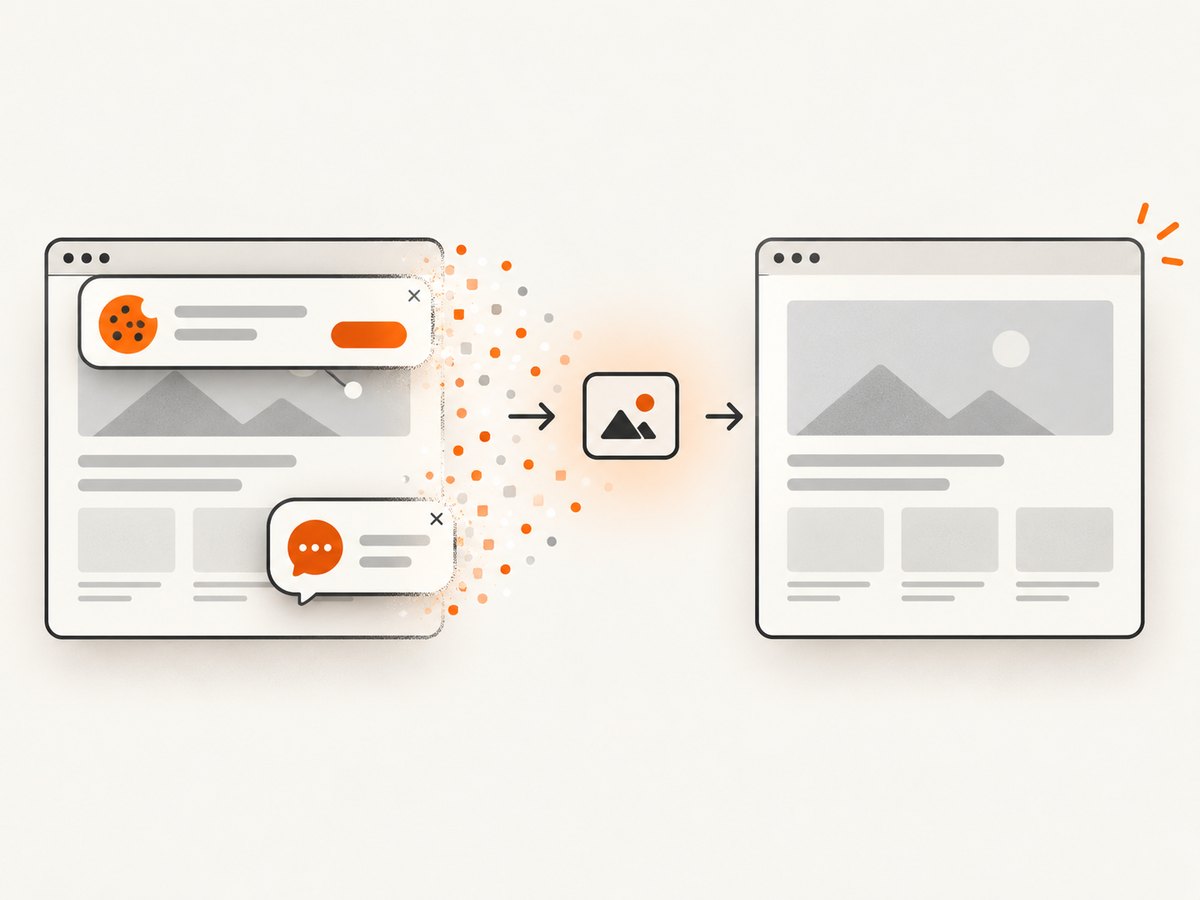
Clean shots are the only shots billed. Bot checks or CAPTCHAs, blank pages, timeouts, failed loads, and cache hits cost nothing, and response headers identify the page verdict and billing result.
See the ScreenshotNeo API documentation for the complete option list. The service supports full-page screenshots with lazy images loaded, CSS-selector element capture, dark mode, 12 device presets plus custom viewports, retina scale, PDF paper sizes and margins, custom CSS and JavaScript, clicks, selector or network-idle waits, request blocking, custom headers and cookies, user agents and Authorization, timezone and geolocation, transparent backgrounds, resizing, configurable caching, signed image links, asynchronous jobs with signed webhooks, bulk capture for up to 100 URLs per call, usage data, and an OpenAPI specification.
cURL
curl -G "https://api.screenshotneo.com/v1/shot" \
  -d access_key=YOUR_API_KEY \
  --data-urlencode url=https://stripe.com \
  -o shot.webp
Python
import requests

r = requests.get(
    "https://api.screenshotneo.com/v1/shot",
    params={"access_key": "YOUR_API_KEY", "url": "https://stripe.com"},
    timeout=90,
)
r.raise_for_status()
open("shot.webp", "wb").write(r.content)
Node.js
const q = new URLSearchParams({
  access_key: 'YOUR_API_KEY',
  url: 'https://stripe.com'
});
const res = await fetch(`https://api.screenshotneo.com/v1/shot?${q}`);
if (!res.ok) throw new Error(`Screenshot failed: ${res.status}`);
const data = Buffer.from(await res.arrayBuffer());
require('node:fs').writeFileSync('shot.webp', data);
ScreenshotNeo also provides an MCP server with take_screenshot, get_page_info, and capture_pdf tools for Claude, Cursor, and other MCP clients. The Free plan includes 1,000 screenshots per month without a card; paid plans start at $5 for 3,000 shots. Every feature is available on every plan.
Create a free ScreenshotNeo account and start with 1,000 screenshots a month at no charge.
10. FAQ
Does a snapshot return HTML?
No. It returns a serialized accessibility node tree derived from Chrome’s accessibility model.
Can I use a snapshot as a WCAG conformance result?
No. It is an inspection and testing aid. Conformance also requires evaluating interaction, keyboard behavior, content, and assistive technology experiences.
Why is the tree smaller than the DOM?
The accessibility tree contains nodes exposed for accessibility, and Puppeteer filters uninteresting nodes by default.
Should I always set interestingOnly: false?
No. Use the default for focused, readable output and disable pruning when investigating omissions or structure.
Can snapshots include content inside iframes?
Yes, request includeIframes: true, then ensure the embedded documents have loaded and are part of the frame subtree.
How do I inspect the same tree without code?
Use Chrome DevTools Elements > Accessibility and enable Show accessibility tree.


