How to Run Puppeteer on AWS CodeBuild
Run Puppeteer in CodeBuild by matching your build image, browser, and Linux libraries, then installing and launching it from a repeatable buildspec.
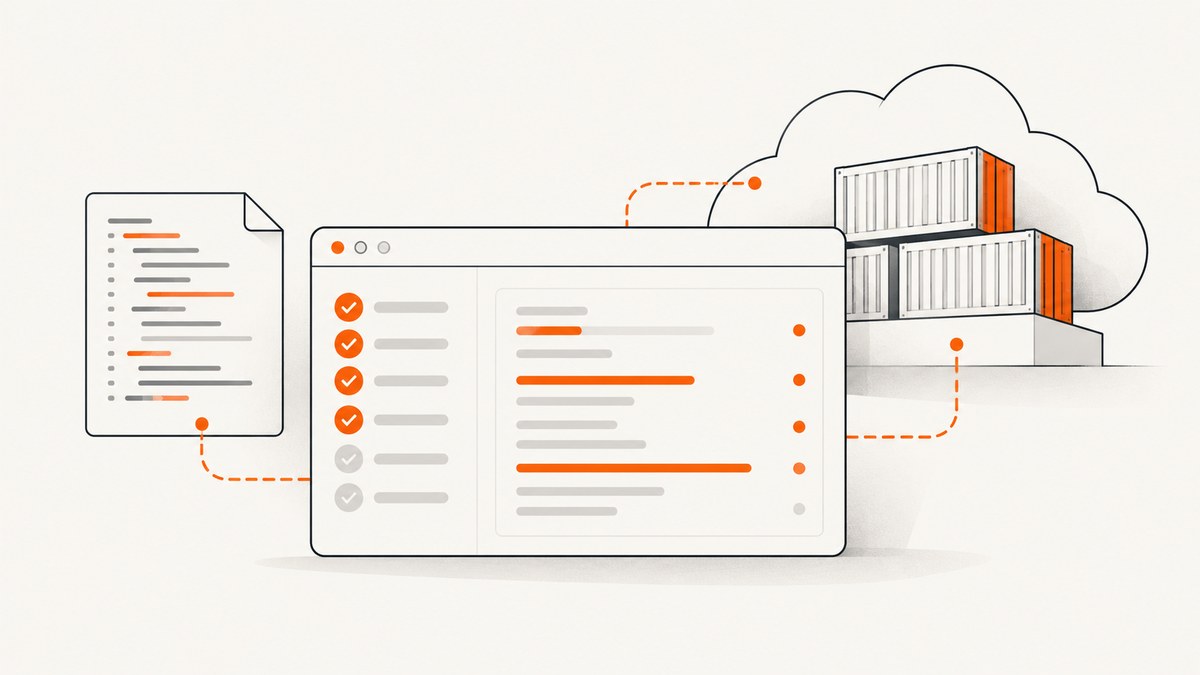
To run Puppeteer on AWS CodeBuild, select a Linux build image that matches your browser and project, install the project dependencies and a compatible browser in that environment, confirm the browser’s shared libraries are available, and run your test command from a CodeBuild buildspec. Puppeteer normally downloads a compatible Chrome for Testing and headless shell; if your package manager blocks install scripts, install the browser explicitly. A custom image can package a known browser and its dependencies, while a managed CodeBuild image can be simpler when its operating system and tools fit your project.
The build configuration below is a starting structure, not a verified universal recipe. The right image, browser, and operating-system dependencies depend on your project and can change over time. Validate them in your own build logs. AWS describes the build environment as containing a Docker image; the image determines the operating-system and tooling context for Puppeteer. See the CodeBuild build environment reference and Puppeteer installation guide.
1. Choose a CodeBuild image and architecture
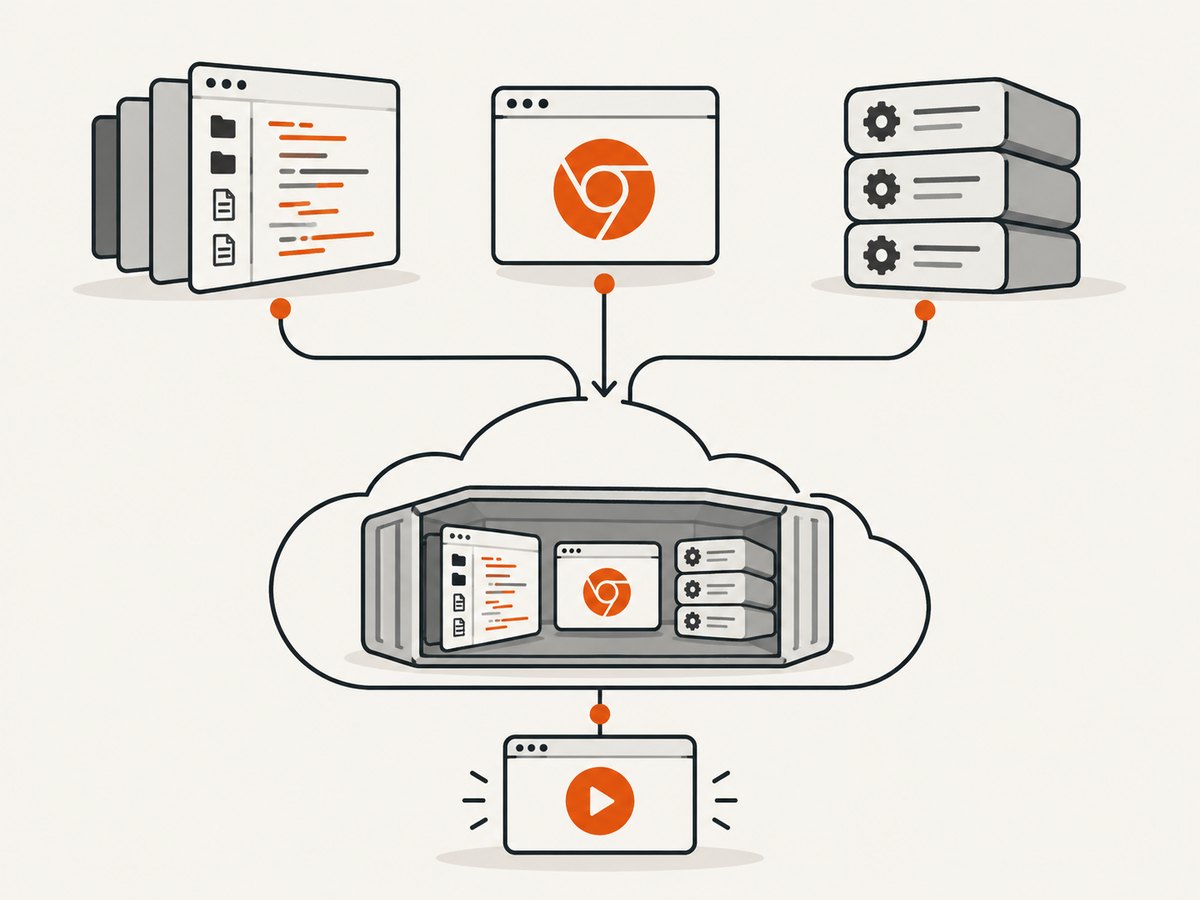
CodeBuild runs your build inside a selected Docker image with selected compute resources. Start by matching the image’s operating system and architecture to the browser you intend to launch. AWS offers CodeBuild images and supports custom images from public Docker Hub or accessible Amazon ECR repositories. AWS recommends images from its CodeBuild repository for service optimization, but neither managed nor custom images are best for every workload.
| Choice | Good fit when | Plan for |
|---|---|---|
| CodeBuild managed image | Its OS and available tools fit the project, and you can install the needed browser dependencies during the build. | Browser libraries and versions must be available at runtime. Confirm the current image’s OS and architecture. |
| Custom Docker image | You want to package a known browser and its Linux dependencies with your build environment. | You own image maintenance and browser updates. Confirm the image can be accessed by CodeBuild. |
AWS overrides a custom image’s ENTRYPOINT. Do not rely on an entrypoint script to install dependencies or prepare the build; place setup in the buildspec or bake it into the image. See AWS’s image and build environment options.
Also decide whether the build itself needs to build Docker images. Launching Chrome through Puppeteer does not by itself mean you need CodeBuild privileged mode. AWS documents privileged mode for Docker daemon interaction and Docker image builds; enable it only when the build’s Docker work requires it. If building Docker images in CodeBuild, follow AWS’s separate guidance for the Docker daemon and VPC configuration.
2. Install Puppeteer and its browser
The puppeteer package normally downloads a browser version compatible with that Puppeteer release. That download can be skipped if a package manager or project policy blocks install scripts. The result is often a build that installs the JavaScript package successfully but fails when the test launches its browser.
For an npm project, install dependencies and then explicitly install Puppeteer’s browser when needed:
npm ci
npx puppeteer browsers install
npm test
If install scripts are permitted and Puppeteer’s install hook downloads the intended browser, the explicit browser-install command may be unnecessary. Choose one deliberate browser-install path, and make sure it runs in the CodeBuild environment that executes the tests. A browser cached on a developer laptop does not make it available to a clean build container.
For other package managers, use that project’s lockfile-based install command and check its policy for dependency lifecycle scripts. If those scripts are disabled, arrange an explicit browser install step. Consult the Puppeteer installation guide for current browser installation commands and configuration.
3. Check Linux shared libraries
A browser binary alone may not be sufficient. Chrome on Linux depends on shared libraries that may not exist in a minimal base image. When you choose a custom image, determine the dependencies for that image and the browser version you plan to run. Puppeteer’s troubleshooting guide describes installing dependencies in a Dockerfile; its older Node 14 sample should not be copied as a current, universal dependency list.
When the browser exits immediately or reports a missing library, inspect the CodeBuild logs and the selected image’s installed libraries. Add the dependencies appropriate to that operating system, either in your custom image or through a build setup step. Then verify that the browser can launch under the same user and environment as the tests. See Puppeteer’s troubleshooting guide.
4. Add a buildspec
CodeBuild looks for buildspec.yml at the source root by default. Buildspec version 0.2 keeps commands in the same shell instance, and its phases let you order installation, setup, tests, and optional report collection. Adapt this example to your package manager, image, browser-install path, and actual test script:
version: 0.2

phases:
  install:
    commands:
      - npm ci
      - npx puppeteer browsers install
  build:
    commands:
      - npm test

artifacts:
  files:
    - test-results/**/*
The artifact path is only an example: configure it to match reports your test runner actually writes, or remove the artifacts section. If Puppeteer’s install hook already installs the desired browser, remove the explicit browser command. If you preinstall Chrome in a custom image, verify that Puppeteer selects it; configure an executable path only if the default selection does not match.
Buildspec commands and CodeBuild project settings can define environment values. Their precedence is start-build override, project, then buildspec. Values replace rather than shell-expand each other, so do not set PATH to a literal string containing $PATH and expect it to expand. Avoid putting secrets in plaintext environment variables; use CodeBuild’s Parameter Store or Secrets Manager mappings. See the CodeBuild buildspec reference.
5. Launch Puppeteer from the test code
With puppeteer, the normal launch path uses the browser Puppeteer manages. Keep the package and its downloaded browser aligned by allowing Puppeteer to choose its compatible browser unless you have a specific reason to use another binary.
const puppeteer = require('puppeteer');

async function main() {
  const browser = await puppeteer.launch({ headless: true });
  try {
    const page = await browser.newPage();
    await page.goto('https://example.com', { waitUntil: 'domcontentloaded' });
    console.log(await page.title());
  } finally {
    await browser.close();
  }
}

main().catch((error) => {
  console.error(error);
  process.exitCode = 1;
});
This example uses CommonJS. In a project configured for ES modules, use import puppeteer from 'puppeteer'; and run it using the project’s normal module setup. The finally block closes the browser even if navigation or an assertion fails, which helps avoid leaving browser processes behind in a build.
If your image supplies its own Chrome or Chromium, specify the binary only when the managed browser is not the one you intend to launch:
const browser = await puppeteer.launch({
  headless: true,
  executablePath: '/path/to/chrome'
});
Replace the path with the actual binary path in your image. Do not assume the path is the same across operating systems or images. Puppeteer pins a compatible browser by default; using a separately installed browser means you must manage compatibility yourself.
puppeteer-core is intended for use with a browser you manage. It does not apply Puppeteer configuration files or environment variables, so provide browser settings through its API and manage the binary installation yourself. For example:
const puppeteer = require('puppeteer-core');

const browser = await puppeteer.launch({
  executablePath: '/path/to/chrome',
  headless: true
});
See Puppeteer’s launch options and its configuration guide for version-specific details.
6. Diagnose common CodeBuild failures
| Symptom | Likely cause to check | What to do |
|---|---|---|
Could not find Chrome or no browser executable |
An install script was blocked, the browser-install step did not run, or the browser was installed outside the build’s cache or environment. | Check install logs and package-manager script policy. Install the browser explicitly in the build environment, or configure the intended preinstalled executable. |
| Browser starts and exits, or reports a missing shared library | The selected Linux image lacks a dependency required by the browser binary. | Identify the missing library and add the dependency for that image and browser. Check the final runtime environment, not just the Docker build stage. |
| Browser launches but behaves incompatibly | Puppeteer and a manually selected Chrome version may not align. | Prefer Puppeteer’s managed compatible browser, or pin and manage the chosen browser deliberately. Check the executable path. |
| Works locally but fails in CodeBuild | Local and build OS or architecture differ; install-script policy, libraries, or browser cache differ. | Compare the build image and architecture with local setup. Review browser installation and launch logs from the CodeBuild environment. |
Environment variable or PATH is unexpected |
CodeBuild settings replace values according to their precedence; shell syntax in a configured value may not be expanded. | Inspect start-build, project, and buildspec values. Do not use a literal $PATH expecting shell expansion; store secrets in supported secret stores. |
| Build fails while attempting Docker operations | The build is trying to use a Docker daemon without the configuration its Docker workload requires. | Determine whether the job actually builds images. Follow AWS’s Docker-in-CodeBuild and VPC guidance for that use case; Puppeteer alone is not a reason to enable privileged mode. |
When troubleshooting, preserve the first browser-launch error and the surrounding install output. Later failures may be consequences of the initial missing binary or library. For CI repeatability, record the image choice and package lockfile, and update the browser and image intentionally rather than relying on an unexamined local cache.
7. Improve repeatability, performance, and reliability
- Install once per build environment. Browser downloads add setup work. A custom image can package the browser and libraries, while a build-time install is easier to change with the project. Compare those approaches against your image maintenance and build startup needs.
- Keep versions aligned. Let Puppeteer manage its compatible browser where practical. If you select another executable, own the compatibility and update process.
- Keep setup visible. Put installation and test commands in the buildspec or image build so logs show what the build needs. Do not depend on an overridden custom-image entrypoint.
- Close browser processes. Use
try/finallyaround browser work so failures still close the browser. Keep test timeouts appropriate for the pages and checks your workload performs. - Validate the actual workload. The reviewed AWS and Puppeteer guidance does not establish a universal compute size, memory threshold, or performance figure for Puppeteer builds. Select compute resources based on your test’s page count, concurrency, and observed build behavior.
CodeBuild compute and build duration affect the service cost, but no workload-specific price or runtime can be inferred from this setup guide. Measure your own build duration and resource needs, and consult current AWS CodeBuild pricing for your region and environment. Avoid treating a browser download or sample configuration as a performance benchmark.
Or skip the browser setup
If your job only needs a website screenshot, ScreenshotNeo provides a screenshot API and MCP server for developers. A GET request takes a URL and returns an image or PDF; this example saves a WebP response:
curl -G "https://api.screenshotneo.com/v1/shot" -d access_key=YOUR_API_KEY --data-urlencode url=https://example.com -o shot.webpPython:
import requests

r = requests.get(
    "https://api.screenshotneo.com/v1/shot",
    params={"access_key": "YOUR_API_KEY", "url": "https://example.com"},
    timeout=90,
)
open("shot.webp", "wb").write(r.content)
Node.js:
const q = new URLSearchParams({ access_key: 'YOUR_API_KEY', url: 'https://example.com' });
const res = await fetch(`https://api.screenshotneo.com/v1/shot?${q}`);
if (!res.ok) throw new Error(`Screenshot request failed: ${res.status}`);
await Bun.write('shot.webp', res);
In Node.js environments without Bun, save the response body using the runtime’s supported file API. See the ScreenshotNeo API documentation for request options and response formats.
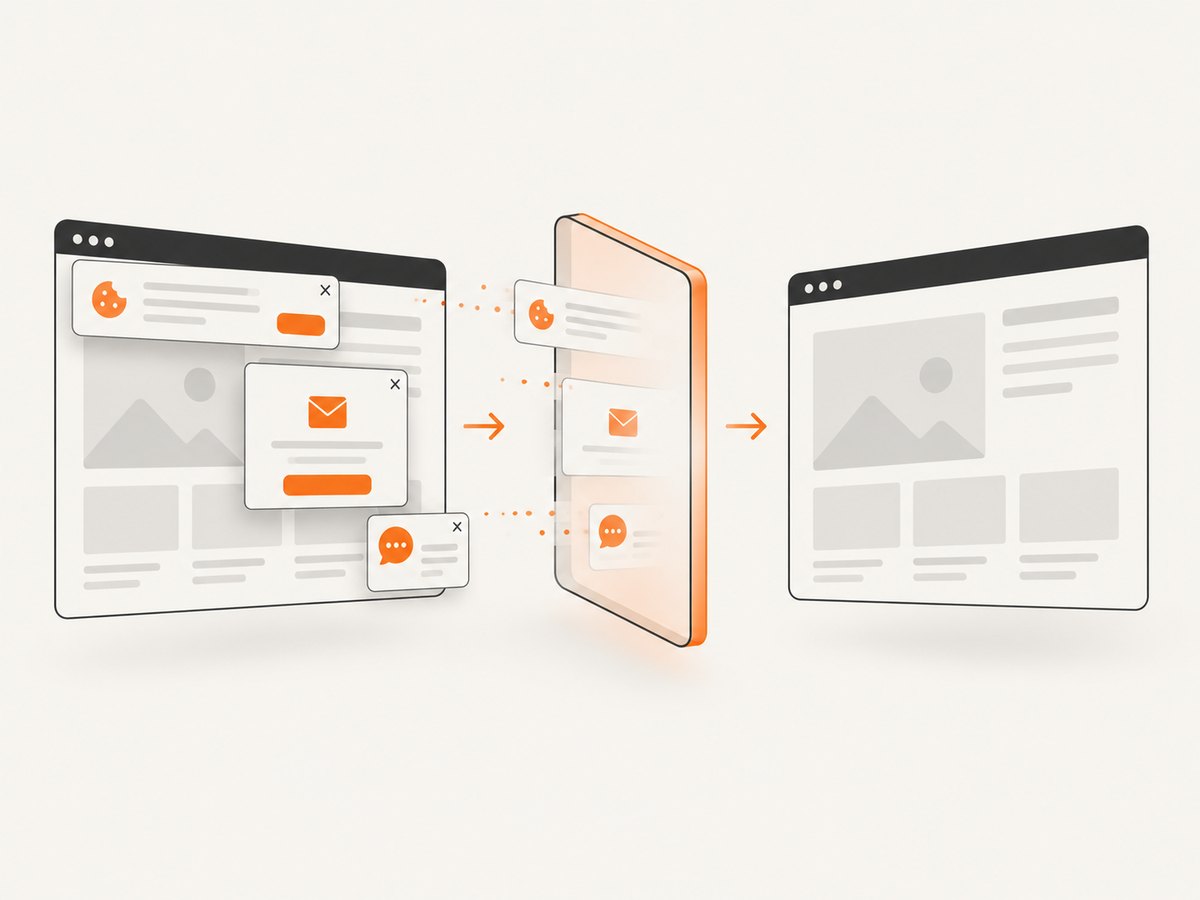
- Cookie and consent banners are accepted before capture; known consent platforms, newsletter popups, and chat widgets are removed before the shot. Each step can be turned off.
- Bot checks, blank pages, failed loads, timeouts, and cache hits are not billed. Responses indicate the page verdict and billing status.
- An MCP server lets AI agents, including Claude and Cursor, use screenshot tools.
- The free plan includes 1,000 screenshots a month with no card; paid plans start at $5 for 3,000.
Sign up free for 1,000 screenshots a month, with no card required.
FAQ
Does Puppeteer require privileged mode in CodeBuild?
Launching a browser is distinct from building Docker images. Privileged mode is documented for Docker daemon and image-build use cases; decide based on what the build actually does.
Should I use puppeteer or puppeteer-core?
Use puppeteer when you want Puppeteer to manage its compatible browser. Use puppeteer-core when you manage the browser yourself and will configure it through the API.
Can I use a custom Docker image?
Yes. CodeBuild supports custom images, but its setup overrides a custom image’s ENTRYPOINT. Include dependencies in the image or buildspec instead.
What compute size should I choose?
The available guidance does not establish a universal Puppeteer compute size or memory threshold. Choose based on the workload and observed build behavior.


