How to Run Puppeteer on Azure App Service When It Returns 403
Diagnose whether Azure or Chromium produced the 403, then fix access rules, browser dependencies, sandboxing, or move to a container.
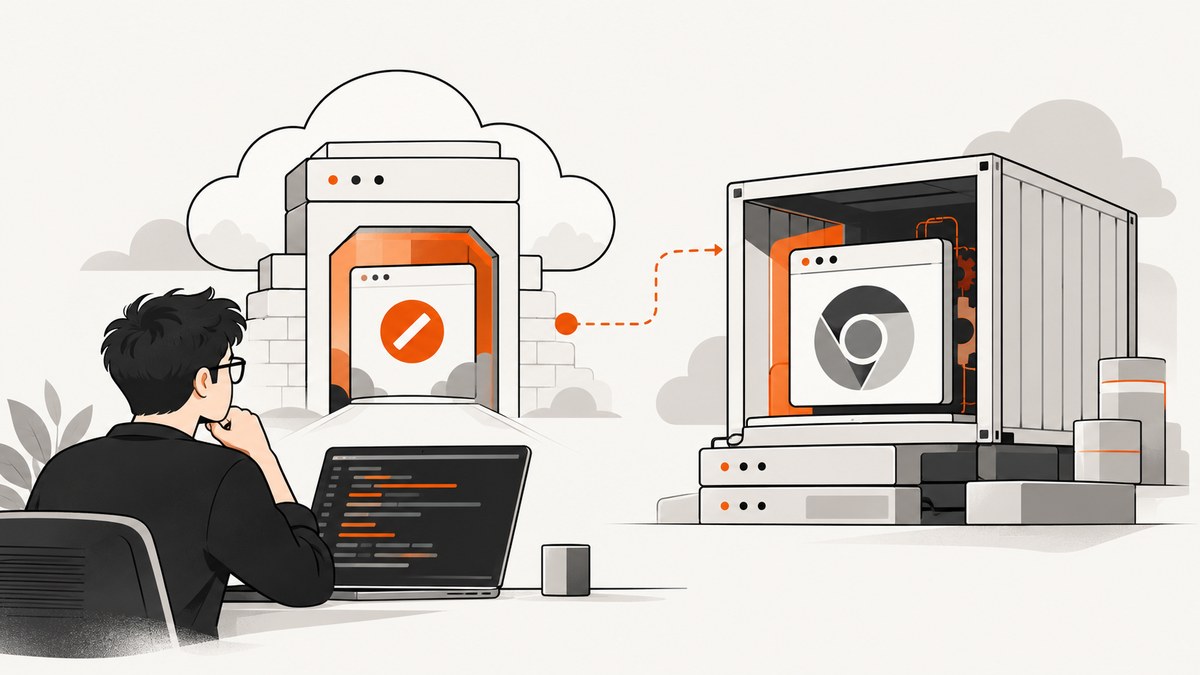
Short answer: a 403 from Puppeteer on Azure App Service can come from two different layers. Azure App Service may reject the request at its front end because of access restrictions, public-network settings, or private-endpoint routing. Or your request may reach the worker and Chromium may fail to start with an access-denied, sandbox, missing-library, or executable error. Check which layer produced the error before changing Puppeteer launch flags.
This guide gives you a decision tree, diagnostic code, App Service configuration steps, a safer deployment pattern, and a container fallback. It also explains when a screenshot API can remove the browser setup entirely.
1. Identify which component returned 403
Start by separating an HTTP response generated by App Service from an exception generated by puppeteer.launch().
| What you see | Likely layer | First action |
|---|---|---|
| HTTP 403 response before your route logs anything | App Service front end | Review Networking access restrictions and public access |
Your route runs, then launch() reports access denied or sandbox failure |
Chromium process | Inspect executable, libraries, permissions, and sandbox configuration |
| Browser starts but navigation receives 403 | Target website | Inspect target-site bot rules, headers, cookies, and authentication |
App Service access restrictions are inbound controls evaluated by front-end roles. Microsoft documents that a source not allowed by the rule list receives HTTP 403. Rules are priority ordered, and when restrictions exist the unmatched action can deny every source that is not explicitly allowed. See App Service access restrictions.
Capture the response status, headers, and body with a command-line request:
curl -i https://YOUR_APP.azurewebsites.net/healthIf this request is rejected and your application emits no corresponding log line, changing args in Puppeteer cannot fix it. If your route logs a request and then reports a browser exception, continue with the Chromium checks below.
2. Reproduce the failure with useful diagnostics
Use a minimal endpoint that records the browser version, executable path, and error text. Do not log secrets, cookies, or authorization headers.
import express from 'express';
import puppeteer from 'puppeteer';

const app = express();

app.get('/capture', async (req, res) => {
  let browser;
  try {
    console.log('Starting Puppeteer', {
      puppeteerVersion: puppeteer?.version,
      executablePath: puppeteer.executablePath(),
      node: process.version,
      platform: process.platform,
      arch: process.arch
    });

    browser = await puppeteer.launch({
      headless: true,
      dumpio: true,
      timeout: 30000
    });

    const page = await browser.newPage();
    await page.goto('https://example.com', {
      waitUntil: 'networkidle2',
      timeout: 60000
    });
    const image = await page.screenshot({ type: 'png' });
    res.type('png').send(image);
  } catch (error) {
    console.error('Puppeteer startup or navigation failed', error);
    res.status(500).json({ error: String(error) });
  } finally {
    if (browser) await browser.close().catch(() => {});
  }
});

const port = process.env.PORT || 8080;
app.listen(port, () => console.log(`Listening on ${port}`));
dumpio: true forwards Chromium’s own output to standard output, where App Service logs can capture it. Look for messages naming a missing shared library, an unreadable executable, a failed sandbox, or a browser revision that is not present.
3. Fix a genuine App Service network 403
- In the Azure portal, open the Web App and select Networking.
- Check Public network access. If it is disabled, confirm that your caller enters through the configured private endpoint or approved network path.
- Open the main-site access restriction rules. Record each rule’s priority, action, source IP or subnet, service tag, and any service endpoint requirement.
- Determine the caller’s real egress address. A worker behind NAT, a gateway, or a hosted CI runner usually does not appear as its private address.
- Add the narrowest allow rule covering that source, place it at the intended priority, and verify the unmatched rule action.
- Retest the health endpoint, then retest the Puppeteer route.
Access restrictions apply to inbound traffic at the App Service front end. They do not inspect or alter Chromium flags. If the browser is making an outbound request to another website, that target site’s response is a separate issue.
Private endpoints also change the entry path. A public DNS record may resolve to a route that cannot reach a private-only app, while a private DNS zone may be required inside the calling network. Validate DNS resolution and routing from the same environment that runs Puppeteer.
4. Fix a Chromium process failure
Verify the browser was installed
Puppeteer downloads a compatible Chrome for Testing revision and a headless-shell binary during installation. Its configuration also supports an explicit executablePath when you provide another browser. Read the Puppeteer installation guide and configuration guide for the version you deploy.
npm ci
npx puppeteer browsers list
node -e "const p=require('puppeteer'); console.log(p.executablePath())"
ls -l "$(node -e "const p=require('puppeteer'); process.stdout.write(p.executablePath())")"
Run these commands as part of deployment diagnostics, or expose the values through a protected administrative endpoint. Confirm that the deployment step and the runtime use the same package directory and cache location.
Check permissions and writable directories
The App Service process must be able to execute the browser and write its temporary profile. Set a known temporary directory and create it before launch:
import fs from 'node:fs';
import os from 'node:os';
import path from 'node:path';
import puppeteer from 'puppeteer';

const profileDir = fs.mkdtempSync(path.join(os.tmpdir(), 'chrome-profile-'));
const browser = await puppeteer.launch({
  headless: true,
  userDataDir: profileDir,
  dumpio: true,
  timeout: 30000
});
Do not assume a deployment cache is writable at runtime. App Service may recycle workers, and temporary storage is not a durable data store. Close the browser and remove temporary profiles after each job.
Check native Linux libraries
Chromium depends on native libraries for graphics, fonts, sandboxing, and other system functions. A managed App Service Linux Code image may not include everything required by your browser revision. A missing-library error usually names the shared object that could not be loaded. Installing random packages at application startup is slow and unreliable; use an image that contains the complete dependency set.
Treat --no-sandbox as a security tradeoff
Puppeteer’s troubleshooting documentation says that running without a sandbox is strongly discouraged. Do not make --no-sandbox the default response to a 403 or launch error. It does not fix an App Service front-end restriction, and it weakens browser isolation.
// Only use this temporarily for a controlled diagnostic.
const browser = await puppeteer.launch({
  headless: true,
  args: ['--no-sandbox', '--disable-setuid-sandbox']
});
If this makes a controlled test start, treat it as evidence that the runtime’s sandbox or permissions need a supported fix. Avoid untrusted pages during the diagnostic, and move to a container configuration that preserves the sandbox where possible.
5. Use a custom container when the managed runtime lacks dependencies
Microsoft community guidance identifies dependency-heavy headless Chromium workloads as a limitation of App Service Linux Code. Microsoft’s custom-container documentation describes running a Docker image on App Service. Azure Container Apps is another option when you want a container-oriented deployment model.
A minimal Dockerfile should pin the Node version, Puppeteer version, browser revision, and operating-system packages instead of relying on whatever the managed image currently contains:
FROM node:22-bookworm

WORKDIR /app
COPY package*.json ./
ENV PUPPETEER_CACHE_DIR=/opt/puppeteer-cache
RUN npm ci
RUN npx puppeteer browsers install chrome

COPY . .
ENV NODE_ENV=production
EXPOSE 8080
CMD ["node", "server.js"]
The exact native package list depends on the base image and browser revision. Build the image, launch it locally, and inspect the browser’s standard error before deploying. Keep the image versioned so a browser upgrade is deliberate and reversible.
Your server must listen on the port supplied by the container environment:
const port = Number(process.env.PORT || 8080);
app.listen(port, '0.0.0.0', () => {
  console.log(`HTTP server listening on ${port}`);
});
Emit launch diagnostics to standard output, configure health probes, and limit concurrent pages so one worker does not exhaust memory. These operational choices follow from the container and Puppeteer configuration model; validate the limits against your own workload.
6. Make navigation reliable after startup works
A successful browser launch does not guarantee a successful capture. Handle slow pages, redirects, consent dialogs, authentication, and bot checks explicitly.
const page = await browser.newPage();
await page.setViewport({ width: 1440, height: 900, deviceScaleFactor: 1 });
await page.setDefaultNavigationTimeout(60000);

await page.goto(targetUrl, {
  waitUntil: 'domcontentloaded',
  timeout: 60000
});

await page.waitForNetworkIdle({ idleTime: 500, timeout: 30000 }).catch(() => {});
await page.screenshot({ path: '/tmp/page.png', fullPage: true });- Use
domcontentloadedwhen third-party analytics prevent network idle from ever settling. - Wait for a meaningful selector when an application renders after navigation.
- Set a total job deadline and always close the browser in
finally. - Reuse one browser process for a small batch, but create an isolated page or context per URL.
- Block unnecessary fonts, video, ads, or trackers only when the resulting screenshot remains correct.
- Use a queue for bursts instead of launching unlimited Chromium processes.
7. Troubleshooting checklist
| Error or symptom | Cause | Fix |
|---|---|---|
| 403 before application logs | Access restriction, private endpoint, or public access setting | Allow the real source IP or correct the network route in Networking |
Failed to launch the browser process |
Missing executable, permissions, or native library | Verify executablePath, install the pinned browser, and inspect stderr |
ENOENT for Chrome |
Puppeteer cache was not installed or is in another location | Run browser installation during build and print the runtime path |
| Sandbox or setuid error | Runtime cannot initialize Chromium sandbox | Fix image permissions and sandbox support; use --no-sandbox only for controlled diagnosis |
| Browser launches, target returns 403 | Target website blocks the request | Check target policy, authentication, cookies, user agent, and rate limits |
| Works locally, fails after deployment | Different OS libraries, user, filesystem, or network egress | Compare versions and paths; reproduce with the deployed container image |
| Intermittent timeouts | Slow resources, cold starts, or too much concurrency | Set bounded timeouts, wait for a specific selector, queue work, and collect timings |
8. Performance, reliability, and cost considerations
Launching Chromium is expensive compared with serving an existing image. Keep a browser alive for a bounded batch, but recycle it periodically to control memory growth. Limit pages per worker and record navigation, rendering, and screenshot durations separately. Full-page screenshots can require substantially more memory than viewport captures, especially on long documents.
Pin Node, Puppeteer, Chrome, and the base image. A package update can change the downloaded browser revision or its library requirements. Deploy a canary, inspect startup logs, and keep the previous image available for rollback.
Network restrictions, private routing, and NAT affect reliability as much as browser code. Document the expected egress addresses and include a health endpoint that does not require Chromium. This lets you distinguish an unavailable app from a failed capture job.
For cost, account for App Service instance hours, container registry storage, logging, outbound bandwidth, and queue infrastructure. A managed screenshot API can be cheaper operationally when you need occasional captures and do not want to maintain browser images. Compare total engineering and hosting cost rather than only the per-request price.
9. Or skip the browser setup
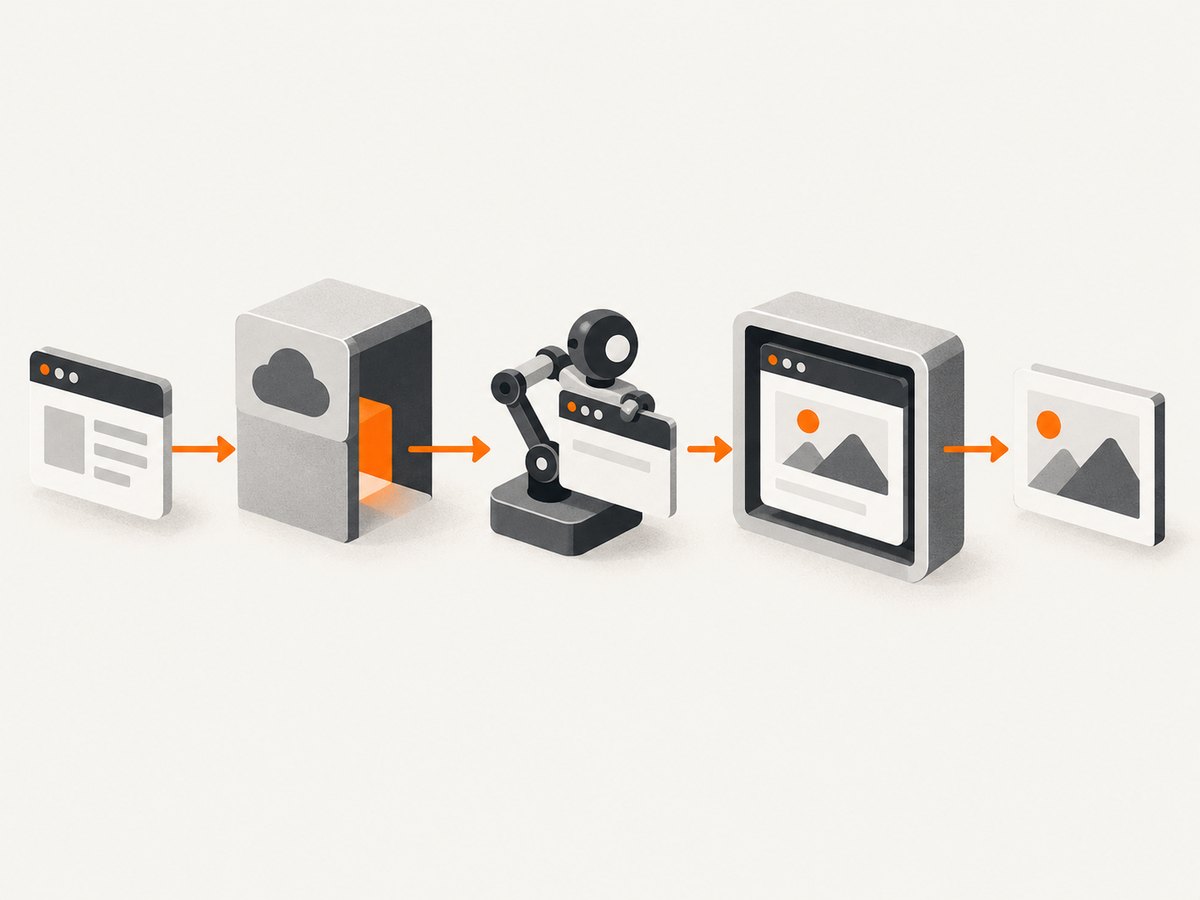
ScreenshotNeo provides a website screenshot API and MCP server. One GET request returns PNG, JPEG, WebP, or PDF. Cookie and consent banners are accepted before capture, then more than 60 known consent platforms, newsletter popups, and chat widgets are removed. Bot checks, blank pages, timeouts, failed loads, and cache hits are not billed; response headers identify the page verdict and whether it was billed.

See the ScreenshotNeo documentation for all options. A basic call is:
cURL
curl -G "https://api.screenshotneo.com/v1/shot" -d access_key=YOUR_API_KEY --data-urlencode url=https://stripe.com -o shot.webpPython
import requests
r = requests.get("https://api.screenshotneo.com/v1/shot", params={"access_key": "YOUR_API_KEY", "url": "https://stripe.com"}, timeout=90)
open("shot.webp", "wb").write(r.content)
Node.js
const q = new URLSearchParams({ access_key: 'YOUR_API_KEY', url: 'https://stripe.com' });
const res = await fetch(`https://api.screenshotneo.com/v1/shot?${q}`);
You can select full-page or element captures, dark mode, device presets or custom viewports, retina scale, PDF paper and margins, custom CSS and JavaScript, clicks, waits, request blocking, headers, cookies, user agents, authorization, timezone, geolocation, transparent backgrounds, resizing, caching TTLs, signed links, asynchronous webhooks, bulk capture for up to 100 URLs, and usage reporting. Its MCP server exposes take_screenshot, get_page_info, and capture_pdf to Claude, Cursor, and other MCP clients.
Plans include 1,000 screenshots per month free with no card; paid plans start at $5 for 3,000. Every feature is available on every plan. Create a free ScreenshotNeo account to try the endpoint.
10. FAQ
Does a 403 always mean Chromium is broken?
No. App Service can return 403 before your worker runs. Confirm the response body and application logs first.
Will adding --no-sandbox fix an App Service access restriction?
No. Access restrictions are enforced by the App Service front end. The flag only changes Chromium sandbox behavior and is a security compromise.
Should I use App Service Code or a container?
Use Code only when the runtime contains the browser and native libraries you need. Use a custom container when you need deterministic dependencies, pinned browser versions, or repeatable behavior across hosts.
Why does Puppeteer work locally but not in Azure?
The environments can differ in egress IP, filesystem permissions, Linux libraries, sandbox support, browser cache, and available memory. Compare those properties directly.
Can the target website’s own 403 be fixed in Azure settings?
No. A target-site 403 is controlled by that site. Review its authentication, bot policy, headers, cookies, and rate limits separately from App Service networking.


