How to Fix Puppeteer browser.close() EPERM Errors
A Puppeteer script can mention browser.close() and still fail earlier during launch. Use the stack trace to identify the failing operation, then check Windows permissions, container paths, and shutdown behavior.
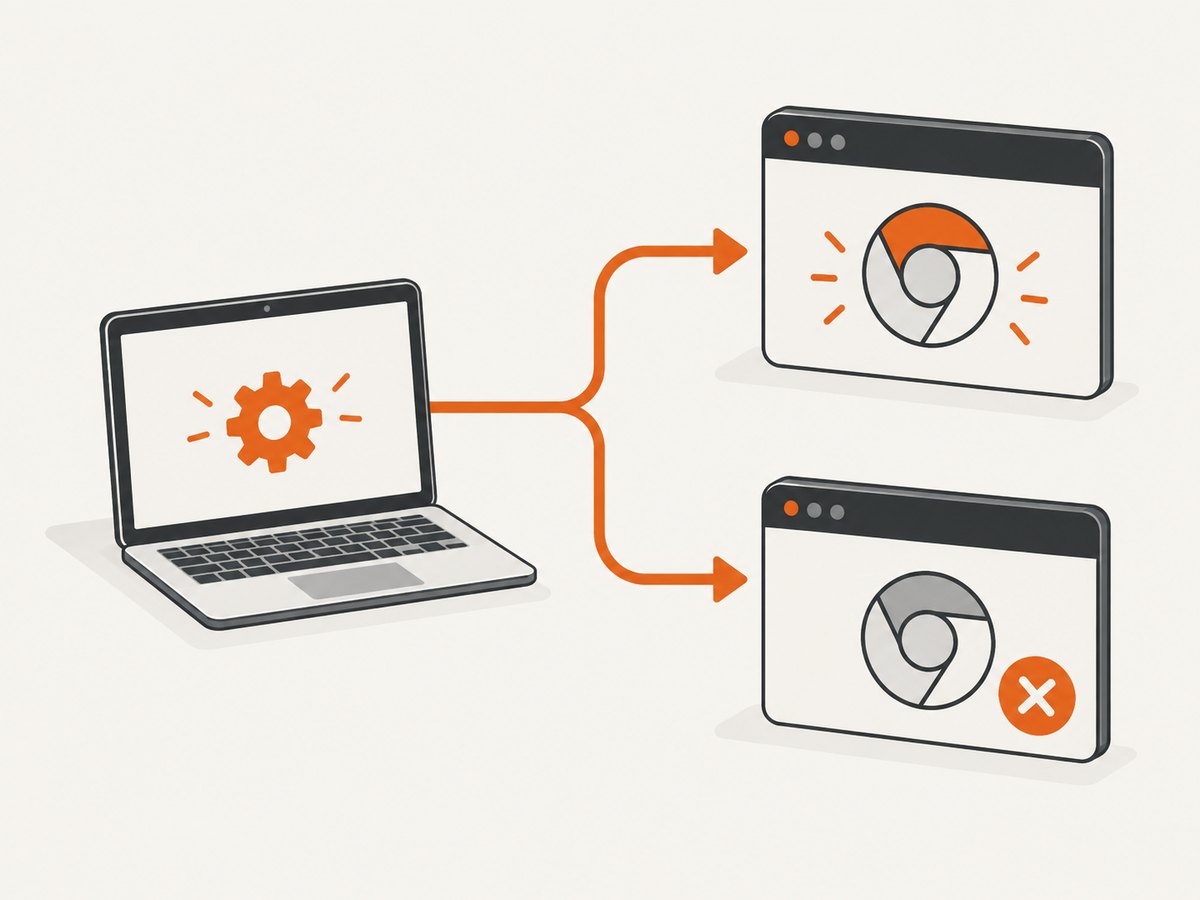
If Puppeteer reports Error: spawn EPERM, first check where the error occurs. When the stack trace points to puppeteer.launch() or Node’s spawn call, the browser process failed to start. A later browser.close() line in your script does not prove shutdown caused the error.
That distinction matters because launch and shutdown have different failure paths. For a launch-time error, inspect the full stack trace, browser executable and installation context, and the permissions of the account running Node. For a browser that starts but hangs or leaves Chrome processes behind, investigate open pages and process cleanup separately. A recent Windows report describes spawn EPERM during Puppeteer launch but has no confirmed diagnosis or fix, so treat the steps below as a diagnostic sequence, not a universal one-line solution. Puppeteer issue #14660
1. Identify whether launch or close failed
Read the complete error, starting at its first line and following the stack to the deepest Puppeteer and Node frames. Record the operation that was active when the exception was thrown. In particular, check the error code, syscall, and frames that name the Puppeteer browser launcher.
| Evidence | What it points to | Where to investigate |
|---|---|---|
syscall: 'spawn', Error: spawn EPERM, frames under @puppeteer/browsers/.../launch.js or BrowserLauncher.launch |
Node could not create the browser child process | Executable path, browser installation, account permissions, security controls, and runtime setup |
The browser launched and the script reached cleanup, but close() hangs or Chrome remains |
Shutdown or process-reaping problem | Open pages, browser flags, container init behavior, and lingering child processes |
| Chrome reports access denied for sandbox files | Browser sandbox permissions may be misconfigured | Use Puppeteer’s Windows sandbox guidance for that specific error |
| Profile, configuration, or Crashpad errors in a read-only container | Chrome may not be able to write its runtime files | Writable profile, configuration, and cache locations; ownership by the browser process user |
Save the whole stack trace before changing permissions or launch flags. A shortened log can hide the key distinction between failure to spawn Chrome and a failure while closing it.
2. Reproduce the error with a small script
Run a minimal script using the same Node version, user account, browser installation, and environment as the failing application. This helps tell whether the failure belongs to the application’s cleanup path or to browser startup itself.
const puppeteer = require('puppeteer');

(async () => {
  let browser;
  try {
    browser = await puppeteer.launch({ headless: true });
    const page = await browser.newPage();
    await page.goto('https://example.com', { waitUntil: 'domcontentloaded' });
    console.log('Browser launched and page loaded');
  } catch (error) {
    console.error('Puppeteer operation failed:', error);
    process.exitCode = 1;
  } finally {
    if (browser) {
      try {
        await browser.close();
      } catch (error) {
        console.error('Browser shutdown failed:', error);
        process.exitCode = 1;
      }
    }
  }
})();
If launch() rejects, browser was never assigned and the finally block cannot close a browser instance. If startup succeeds but the shutdown block fails or hangs, investigate the close path on its own. Avoid catching every error and logging only a short message: retain error.stack and, when present, properties such as code, syscall, and path.
3. Check Windows browser permissions and installation
On Windows, establish which browser Puppeteer is trying to start and how it was installed. The full puppeteer package downloads a compatible Chrome for Testing build; puppeteer-core does not download a browser, so your application or deployment must supply one. A separately installed browser can have different paths and ownership from Puppeteer’s managed cache. Puppeteer installation guide
- Check the installed Puppeteer version and whether the project uses
puppeteerorpuppeteer-core. - Confirm the resolved executable exists and that the account running Node can read and execute it. If you provide
executablePath, verify that exact file rather than assuming Puppeteer’s default browser is used. - For a documented Chrome sandbox access-denied error, follow Puppeteer’s Windows sandbox permission instructions. Puppeteer says versions 22.14.0 and later attempt to configure permissions for downloaded Chrome during installation using Chrome’s
setup.exe. - If that specific sandbox access-denied error persists, consult the documented manual
icaclscommand for the Chrome cache directory. In high-security environments, Puppeteer advises using a more restrictive SID from the installer.
Do not apply a broad permission change merely because the message contains EPERM. The Windows issue with spawn EPERM does not identify a cause, and the sandbox permission instructions are not a confirmed fix for that report. Puppeteer troubleshooting guide · Issue #14660
4. Verify the browser executable and package setup
Puppeteer’s browser management changed over time. Since Puppeteer 19, the default download cache for the full package is ~/.cache/puppeteer; on Windows, the home directory and effective account determine the expanded location. If a build step downloads Chrome as one user but the application runs as another, check whether that runtime account can access the browser files.
With puppeteer-core, provide a managed browser explicitly. For example:
const puppeteer = require('puppeteer-core');

(async () => {
  const browser = await puppeteer.launch({
    executablePath: process.env.CHROME_PATH,
    headless: true
  });
  try {
    const page = await browser.newPage();
    await page.goto('https://example.com', { waitUntil: 'domcontentloaded' });
  } finally {
    await browser.close();
  }
})();
Set CHROME_PATH to the actual browser executable available in the deployment environment. Do not copy this example unchanged if the path is unknown; first inspect the installed browser and the account’s access to it. The installation guide describes puppeteer-core as appropriate when managing browsers yourself or connecting to a remote browser. That setup difference can explain executable-location and ownership issues, but by itself does not prove the cause of spawn EPERM. Installation guide
5. In containers, give Chrome writable runtime paths
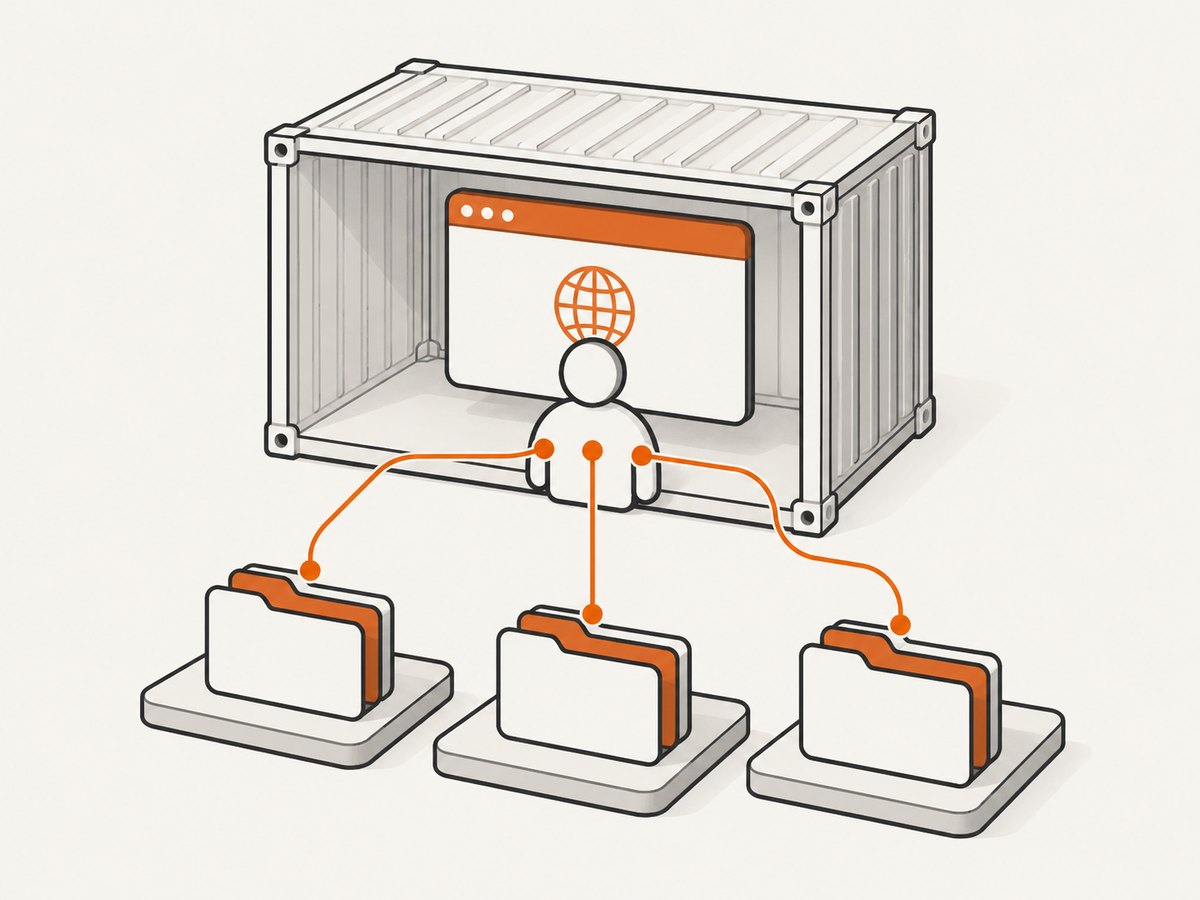
Chrome writes profile, configuration, and cache data as it starts. A read-only container filesystem or a mounted directory with unsuitable ownership can prevent that work. Set configuration and cache locations to writable paths, and give Puppeteer an explicit writable userDataDir when needed. Ensure the user that launches Chrome owns or can write to those locations.
const os = require('node:os');
const path = require('node:path');
const fs = require('node:fs');
const puppeteer = require('puppeteer');

const runtimeDir = path.join(os.tmpdir(), 'puppeteer-runtime');
const profileDir = path.join(runtimeDir, 'profile');
fs.mkdirSync(profileDir, { recursive: true });

process.env.XDG_CONFIG_HOME = path.join(runtimeDir, 'config');
process.env.XDG_CACHE_HOME = path.join(runtimeDir, 'cache');
fs.mkdirSync(process.env.XDG_CONFIG_HOME, { recursive: true });
fs.mkdirSync(process.env.XDG_CACHE_HOME, { recursive: true });

(async () => {
  const browser = await puppeteer.launch({
    headless: true,
    userDataDir: profileDir
  });
  try {
    const page = await browser.newPage();
    await page.goto('https://example.com', { waitUntil: 'domcontentloaded' });
  } finally {
    await browser.close();
  }
})();
This example uses the operating system’s temporary directory; in production, select a path that your container actually permits and that has enough space. If the profile must persist between runs, use an appropriately owned writable volume instead. Puppeteer’s troubleshooting guide also notes that its Docker example uses a dedicated non-root user and assigns ownership of its home and application paths. Diagnose ownership and write access rather than assuming the container needs to run as root. Puppeteer troubleshooting
6. Keep Chrome’s sandbox enabled where possible
Do not add --no-sandbox as a general response to EPERM. It changes Chrome’s security boundary and may not affect a process-creation failure at all. Puppeteer’s guidance says: “Running without a sandbox is strongly discouraged. Consider configuring a sandbox instead.” Only consider disabling it when the page content is absolutely trusted and you understand the security implications; prefer configuring the environment so Chrome can run sandboxed. Puppeteer troubleshooting guide
7. Investigate shutdown separately
If Chrome starts successfully but browser.close() hangs or leaves processes behind, check whether the application still has open pages or other work attached to the browser. A historical Windows report involved Puppeteer 13.1.1 with the combined flags --in-process-gpu and --use-gl=swiftshader. Its reporter’s workaround was to close pages before calling browser.close(). This is a narrow, unconfirmed report; it is not a general fix and does not explain the newer launch-time spawn EPERM. Puppeteer issue #7922
In Docker, distinguish a browser shutdown hang from zombie processes left for the container’s init process to reap. Puppeteer’s troubleshooting guide says dumb-init may help with zombie Chrome processes because PID 1 has special process-handling behavior. Consider that only when the evidence points to process reaping; it will not fix a Windows process-spawn permission error. Puppeteer troubleshooting guide
8. Check the Node and Puppeteer support context
Record the Node and Puppeteer versions when reporting or investigating the issue. Puppeteer’s system requirements page currently says Node 22.12 or later and that Puppeteer follows the latest maintenance LTS version of Node. The Windows report cited Node 25.2.1, but that fact does not establish that Node 25 caused the failure or that downgrading will fix it. Compare your runtime with the current requirements for your installed Puppeteer release before changing versions. Puppeteer system requirements · Issue #14660
9. Troubleshooting checklist
| Symptom | Likely area to inspect | Next step |
|---|---|---|
spawn EPERM with launch frames |
Process creation, executable access, security policy, installation context | Confirm the executable path and account; preserve full stack; verify permissions without assuming a sandbox fix |
| Chrome sandbox access-denied message | Windows sandbox file permissions | Use Puppeteer’s version-specific Windows guidance and documented icacls instructions |
| Profile or Crashpad database cannot be written | Read-only or incorrectly owned runtime directory | Set writable config, cache, and profile paths; inspect volume ownership |
| Browser not found or invalid executable path | puppeteer-core setup or custom browser path |
Install/manage a browser and supply a valid executablePath or supported channel |
| Chrome starts, but close hangs | Open pages, flags, or shutdown behavior | Test cleanup independently; remove unusual flags one at a time; treat the old GPU workaround as narrow |
| Chrome processes linger in Docker | Container PID 1 process reaping | Check init handling and Puppeteer’s dumb-init guidance |
| Failure changes between local and deployment | Different user, cache, mounts, runtime, or browser binary | Compare Node/Puppeteer versions, environment variables, resolved executable, user identity, and writable paths |
When filing an issue, include the operating system, Node and Puppeteer versions, package type, browser source and path, full stack trace, exact launch options, and whether Chrome ever starts. Remove API keys, cookies, authorization headers, and private URLs from logs before sharing them.
10. Performance, reliability, and cost considerations
Repeatedly downloading or reinstalling Chrome is not a diagnosis and can make deployment slower. For managed browsers, install the browser during a controlled build step and ensure the runtime account can read it. For puppeteer-core, keep the browser lifecycle and version under your deployment’s control. A persistent, writable cache can avoid needless downloads, while a per-job temporary profile can reduce cross-job state; choose based on whether you need isolation or reuse.
Always close the browser in a cleanup path after successful launch, and close pages or stop outstanding work when your application’s lifecycle requires it. Reuse a browser process for multiple jobs only when the workload and isolation requirements permit it. If one browser is shared, account for memory use and make sure one failed page does not prevent other jobs from being cleaned up. The right approach depends on workload; the cited Puppeteer sources provide no benchmark for a universally fastest configuration.
Budget for browser installation, runtime memory, and any remote browser infrastructure separately from the cost of the pages you capture. Puppeteer itself is a library; the dossier does not establish a price for hosted browsers or show that a hosted service fixes this Windows spawn error. If the environment cannot start Chrome locally, Puppeteer documents managing a remote browser with puppeteer-core as an architectural option. Verify a provider’s behavior and pricing before choosing one.
Or skip the browser setup
If your goal is to capture a website screenshot rather than operate Chrome yourself, ScreenshotNeo provides a website screenshot API and MCP server. Make one request with a URL; it returns PNG, JPEG, WebP, or PDF. See the ScreenshotNeo API documentation for options and response details.
curl -G "https://api.screenshotneo.com/v1/shot" \
  -d access_key=YOUR_API_KEY \
  --data-urlencode url=https://stripe.com \
  -o shot.webp
import requests
r = requests.get(
"https://api.screenshotneo.com/v1/shot",
params={"access_key": "YOUR_API_KEY", "url": "https://stripe.com"},
timeout=90,
)
open("shot.webp", "wb").write(r.content)const q = new URLSearchParams({
access_key: 'YOUR_API_KEY',
url: 'https://stripe.com'
});
const res = await fetch(`https://api.screenshotneo.com/v1/shot?${q}`);
if (!res.ok) throw new Error(`Screenshot request failed: ${res.status}`);
const image = Buffer.from(await res.arrayBuffer());
await import('node:fs/promises').then(fs => fs.writeFile('shot.webp', image));- Cookie and consent banners, newsletter popups, and chat widgets are removed before the shot; each of those steps can be turned off.
- Bot checks, blank pages, timeouts, failed loads, and cache hits are not billed. Responses identify the page verdict and billing status in
X-Page-VerdictandX-Billedheaders. - An MCP server provides
take_screenshot,get_page_info, andcapture_pdftools for AI agents and MCP clients. - The free plan includes 1,000 shots a month with no card. Paid plans start at $5 for 3,000 shots; every feature is on every plan.
Create a free ScreenshotNeo account for 1,000 screenshots a month with no card.
FAQ
Does browser.close() cause every Puppeteer EPERM error?
No. An error with syscall: 'spawn' and launch frames points to process creation. Diagnose shutdown only when the browser started and the failure occurs while closing it.
Is --no-sandbox the standard fix?
No. Puppeteer strongly discourages running without the sandbox. Configure sandbox permissions where possible, and do not assume disabling it resolves a spawn failure.
Is the recent Windows spawn EPERM report fixed?
The cited report did not include a confirmed diagnosis or fix. Check its current status and Puppeteer’s current documentation before relying on version-specific guidance.
Can I use Puppeteer without installing Chrome locally?
Yes. Puppeteer’s installation guide describes puppeteer-core for managing a browser yourself or connecting to a remote browser. You still need a reachable browser and an appropriate executable or connection setup.


