How to Set Browser Profile Settings With Puppeteer
Use Puppeteer’s userDataDir to persist browser data across launches, or BrowserContexts to isolate sessions. Includes runnable examples, troubleshooting, and lifecycle guidance.
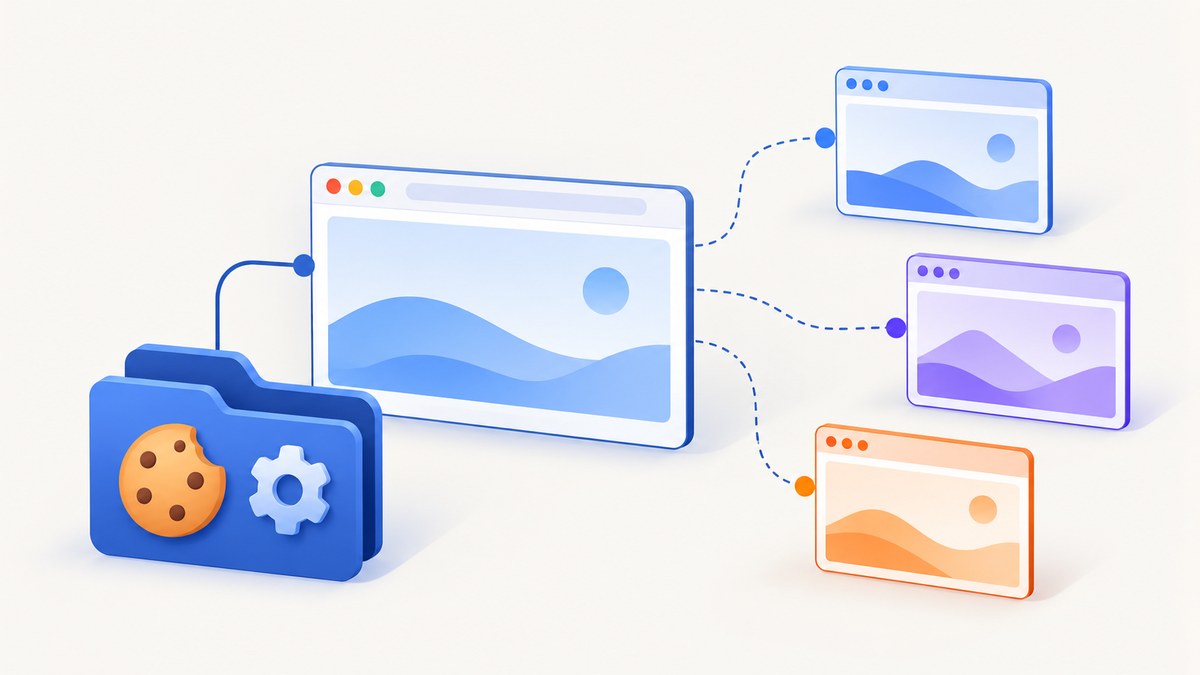
Direct answer: use Puppeteer’s userDataDir launch option when browser user data should live in a directory and be available to later launches. Use browser.createBrowserContext() when tasks need separate cookie, cache, and local-storage state inside a running browser. They solve related but different problems: a BrowserContext is an isolated session, not a named on-disk Chrome profile.
This guide, How to Set Browser Profile Settings With Puppeteer, shows both approaches, how to choose between them, and how to handle browser lifecycle and common failures. The examples use JavaScript with Node.js and Puppeteer. Check the API reference for the Puppeteer version installed in your project, since launch options and browser compatibility can vary by version.
1. Choose persistence or isolation
| Need | Use | What it means |
|---|---|---|
| Keep browser user data under a chosen directory for later launches | userDataDir |
A launch-time path to the browser’s user-data directory. |
| Run independent tasks without sharing session data | createBrowserContext() |
A separate context; contexts do not share cookies or cache, and the guide also identifies local storage as isolated. |
| Choose a browser build or channel | Launch options such as browser, channel, or executablePath |
Controls which browser Puppeteer launches, not whether task state persists. |
For example, use a directory-backed profile to retain a login between script runs. Use a fresh context for each account or test case when state must not leak between them. In Chrome, non-default contexts are incognito. Do not assume this is identical to every user-managed Chrome profile or that a BrowserContext is a selected profile directory.
The distinctions follow Puppeteer’s LaunchOptions reference, browser management guide, and BrowserContext documentation.
2. Persist browser data with userDataDir
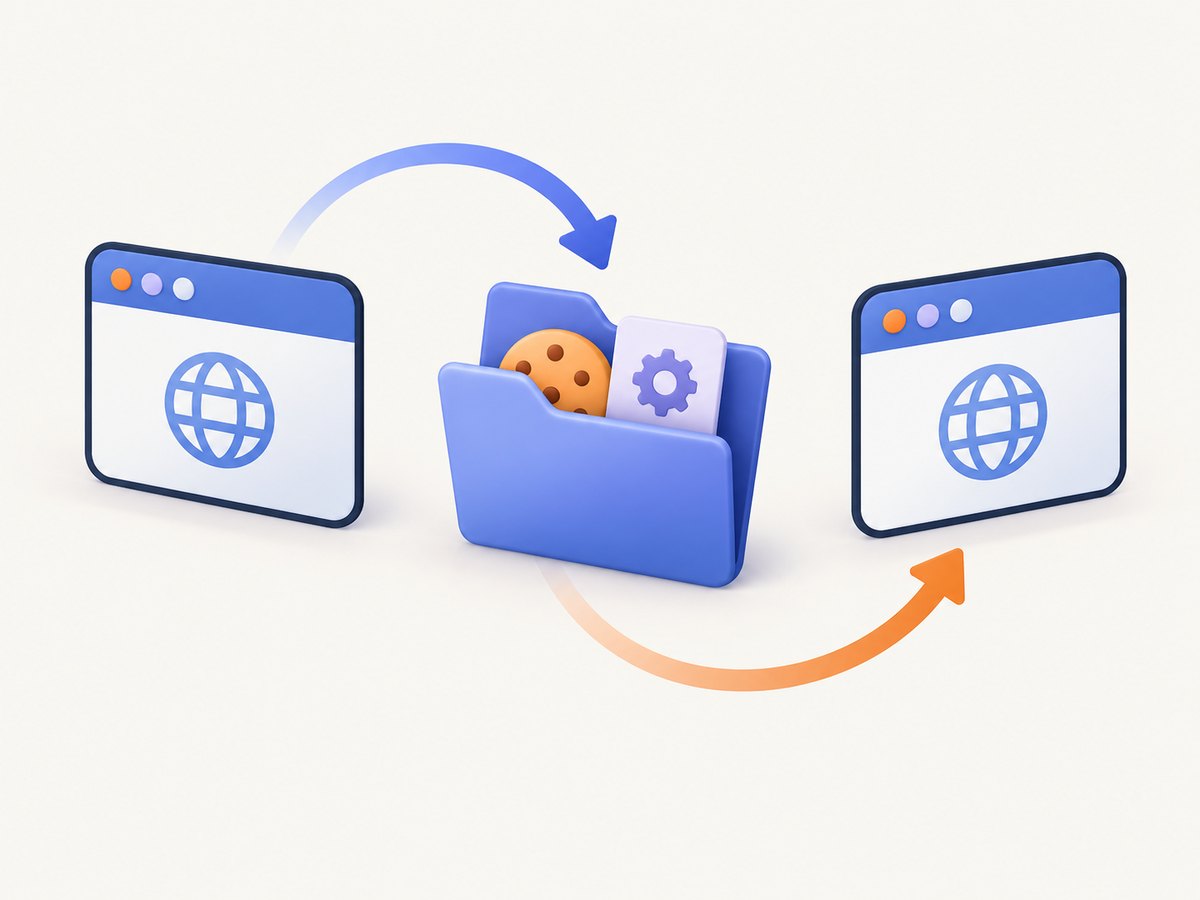
Set userDataDir in puppeteer.launch(). The path below is relative to the current working directory; it is an example, not a universal location. Choose a directory the process can read and write, and keep it stable if later runs need the same data.
const puppeteer = require('puppeteer');

async function main() {
  const browser = await puppeteer.launch({
    headless: true,
    userDataDir: './my-browser-profile',
  });

  try {
    const page = await browser.newPage();
    await page.goto('https://example.com', {
      waitUntil: 'domcontentloaded',
    });
    console.log('Title:', await page.title());
  } finally {
    await browser.close();
  }
}

main().catch((error) => {
  console.error(error);
  process.exitCode = 1;
});
Run it with node profile.js after installing Puppeteer in the project. On a later run, launch with the same directory to reuse its browser data. As a practical operating rule, avoid launching multiple browser processes against the same profile directory at once: concurrent use can create locking or data consistency problems. Puppeteer documents the option’s path semantics; this concurrency advice is operational guidance.
Keep the profile private
A persistent browser directory can contain sensitive session data. Treat it like a credential: restrict access, avoid committing it to source control, and do not copy a live profile into logs or build artifacts. Use a dedicated automation profile rather than pointing at a personal browser directory. Clear or delete the directory only when you intentionally want to discard its saved browser state.
3. Isolate tasks with BrowserContexts
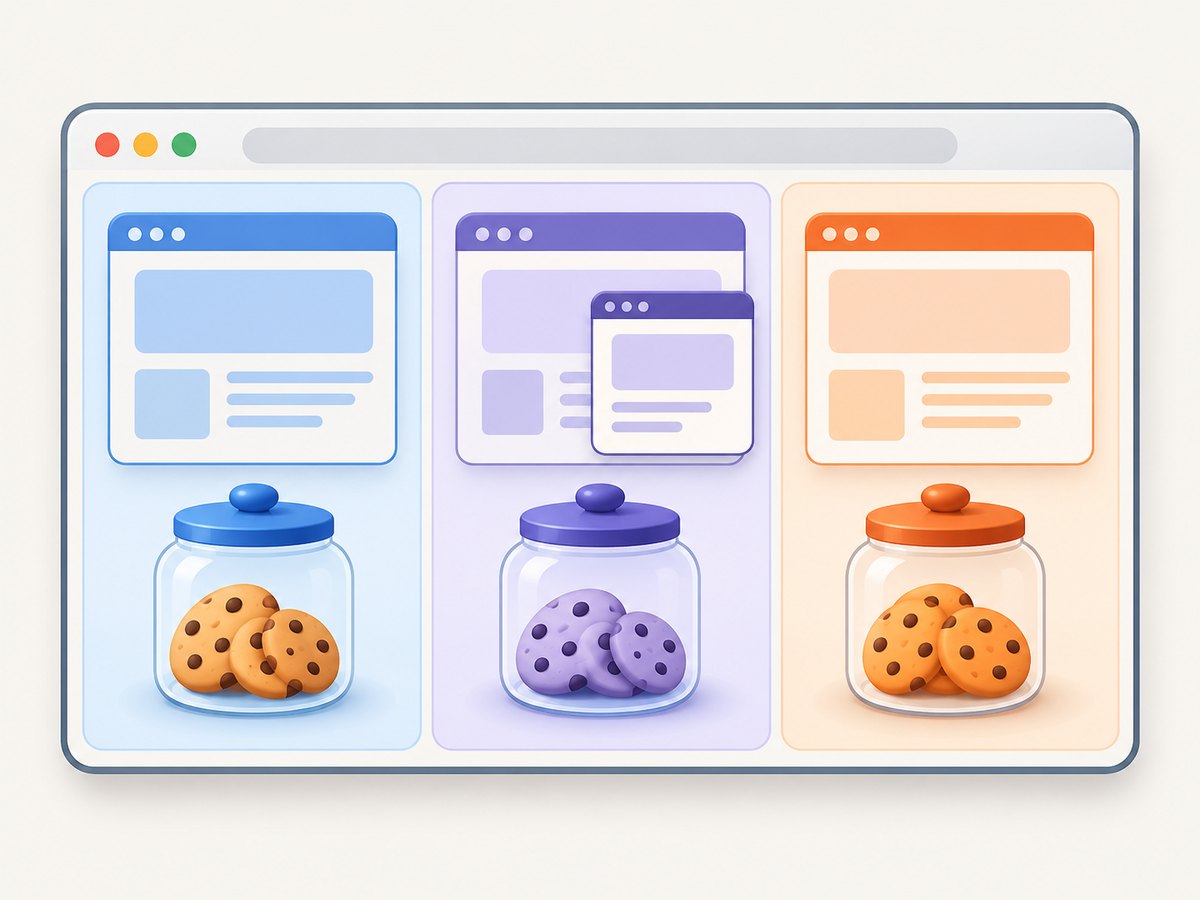
Create a context from the running browser, open pages through that context, and close it when its task is complete. This is useful for parallel or sequential jobs that should have separate cookies and local storage. The example closes the context even if navigation or page work fails.
const puppeteer = require('puppeteer');

async function main() {
  const browser = await puppeteer.launch({ headless: true });

  try {
    const context = await browser.createBrowserContext();
    try {
      const page = await context.newPage();
      await page.goto('https://example.com', {
        waitUntil: 'domcontentloaded',
      });
      console.log(await page.title());
    } finally {
      await context.close();
    }
  } finally {
    await browser.close();
  }
}

main().catch((error) => {
  console.error(error);
  process.exitCode = 1;
});
Pages and popups opened from a page remain associated with that page’s context. Closing the context closes its pages. For Chrome, Puppeteer documents non-default contexts as incognito contexts. This is a session-isolation tool; the cited API describes context separation and does not establish it as a user-selected persistent profile directory.
Set permissions for one context
Puppeteer’s browser management guide also demonstrates overriding permissions for a context. Keep the override scoped to the context whose test needs it:
const context = await browser.createBrowserContext();
try {
  await context.overridePermissions('https://example.com', [' geolocation']);
  const page = await context.newPage();
  await page.goto('https://example.com');
  // Perform the task that needs the permission.
} finally {
  await context.close();
}
Use the permission names supported by your Puppeteer and browser version; consult the current browser management guide for the documented API and examples. Do not treat permission overrides as profile settings that persist across launches.
4. Configure launch behavior separately
userDataDir is one launch option among several. The current LaunchOptions reference lists controls including:
browserandchannelto choose a browser type or installed channel where supported.executablePathto point to a browser executable.argsfor browser command-line arguments.headlessfor headless behavior.enableExtensionsandextensionsEnabledInIncognitofor extension-related launch behavior.extraPrefsFirefoxfor Firefox-specific preferences.
These settings choose or adjust the launched browser; they do not replace the profile directory or context decision. Puppeteer says it guarantees compatibility with its bundled browser and advises that using a custom executablePath is at the user’s risk. If a custom browser behaves differently, first reproduce with Puppeteer’s bundled browser and then verify the custom version and flags.
const browser = await puppeteer.launch({
  headless: true,
  userDataDir: './my-browser-profile',
  // Add only launch options supported by your installed Puppeteer version.
  args: [],
});
Package installation configuration is another layer. Puppeteer’s configuration reference covers settings such as browser download behavior, cache directory, and executable path, including environment-variable overrides. Those affect installation and browser discovery, rather than the state of a particular page session. See the Configuration reference when the issue concerns browser downloads or cache location.
5. Manage shutdown and connection lifecycle
Use browser.close() when the script owns the browser and should shut it down. The browser management guide distinguishes this from browser.disconnect(), which detaches Puppeteer without shutting down the browser or its pages. Choose based on ownership:
- Script launched and owns browser: close it in a
finallyblock. - Script attached to a browser managed elsewhere: disconnect when finished if that external process should continue.
- One task inside a shared browser: close its BrowserContext to close that task’s pages while leaving other contexts available.
Do not call browser.close() just to finish one isolated task if other work still depends on that browser. Conversely, do not leave launched browsers running accidentally; ensure cleanup runs on exceptions and failed navigation.
6. Troubleshooting
| Symptom | Likely cause | Fix |
|---|---|---|
Launch fails when using userDataDir |
The path is invalid, inaccessible, or not writable. | Resolve the path, create its parent directory if needed, and check the process user’s permissions. |
| Profile appears not to retain cookies | A different directory was used, the browser was not closed cleanly, or the site did not set a persistent cookie. | Log the resolved path, reuse the same directory, close the browser cleanly, and inspect the site’s cookie lifetime and storage behavior. |
| Browser says the profile is in use | Another process may be using the same profile directory. | Stop the competing process or give each concurrent browser process its own directory. |
| Two jobs unexpectedly share session state | Both pages were opened in the default context or the same context. | Create a separate BrowserContext per isolated task and open pages from that context. |
| A popup has unexpected state | The popup was opened from a page in a context whose state you did not intend to use. | Check which context owns the opener page; popups remain in that page’s context. |
| Browser executable fails or behaves differently | A custom path or channel points to an incompatible build or different browser. | Check the installed Puppeteer version and executable, then compare with the bundled browser. Puppeteer’s compatibility guarantee is for its bundled browser. |
| Browser remains open after the script | The process detached or skipped cleanup after an error. | Use try/finally; use close() for an owned browser and disconnect() only when leaving the external browser running is intended. |
| Settings seem ignored in headless mode | A setting may depend on browser support, launch arguments, or Puppeteer version. | Check current LaunchOptions documentation and test the same configuration with the supported bundled browser. |
7. Performance, reliability, and cost
A reused directory may avoid repeating interactive setup such as signing in, but it also carries accumulated state: cookies can expire, local storage can change, and browser data can become stale. Build automation so it can detect an expired session and report a useful error rather than silently assuming the profile remains authenticated.
Contexts are useful for separating tasks within a browser process, but each page and browser operation still consumes resources. Reuse a browser process when the workload allows it, create contexts for the isolation boundary you need, and close contexts promptly. For concurrent work, balance the number of pages and browser processes against available memory and site limits; no single setting removes those constraints.
Self-hosted Puppeteer has no per-screenshot API price, but it does have infrastructure and maintenance costs: browser installation, compute, storage for persistent profiles, and time spent handling browser/version changes. Do not count a saved profile as a reliable substitute for authentication renewal or secret management.
8. Or skip the browser setup
If the job is simply to capture a page as an image or PDF, ScreenshotNeo provides a screenshot API and MCP server, so your application can make a request instead of managing a Puppeteer browser profile. See the ScreenshotNeo API documentation.
curl -G "https://api.screenshotneo.com/v1/shot" -d access_key=YOUR_API_KEY --data-urlencode url=https://stripe.com -o shot.webpimport requests
r = requests.get(
"https://api.screenshotneo.com/v1/shot",
params={"access_key": "YOUR_API_KEY", "url": "https://stripe.com"},
timeout=90,
)
open("shot.webp", "wb").write(r.content)const q = new URLSearchParams({ access_key: 'YOUR_API_KEY', url: 'https://stripe.com' });
const res = await fetch(`https://api.screenshotneo.com/v1/shot?${q}`);
if (!res.ok) throw new Error(`Screenshot request failed: ${res.status}`);
const bytes = Buffer.from(await res.arrayBuffer());
require('node:fs').writeFileSync('shot.webp', bytes);- Cookie banners are accepted and removed before capture; newsletter popups and chat widgets are removed too, and each cleanup step can be turned off.
- Bot checks, blank pages, failed loads, timeouts, and cache hits are not billed; response headers report the page verdict and billing status.
- An MCP server lets Claude, Cursor, and other MCP clients use screenshot, page-info, and PDF tools.
- The Free plan includes 1,000 shots a month with no card; paid plans start at $5 for 3,000 shots. Every feature is on every plan.
Create a free ScreenshotNeo account for 1,000 screenshots a month with no card.
9. Frequently asked questions
How do I keep cookies between Puppeteer runs?
Launch with the same userDataDir path on each run, and make sure the site’s cookies are persistent and the process can access that directory.
Can I use BrowserContexts as persistent profiles?
Use them for isolated sessions within a browser. Puppeteer documents userDataDir as the launch option for a user-data directory; the context documentation describes isolation rather than a user-selected profile directory.
Does browser.disconnect() close pages?
No. Puppeteer’s guide says it detaches without shutting down the browser or its pages. Use browser.close() when the browser should shut down.
Where should I put the profile directory?
Choose a stable, writable location appropriate for the environment running the script. Avoid a personal browser directory and keep sensitive profile data out of source control.


