How to Load Canvas-Rendered Images in Puppeteer PDF Generation
Make Puppeteer PDFs wait for canvas drawing to finish. Use an application readiness signal, handle fonts and CORS, and choose when to export the canvas as an image.
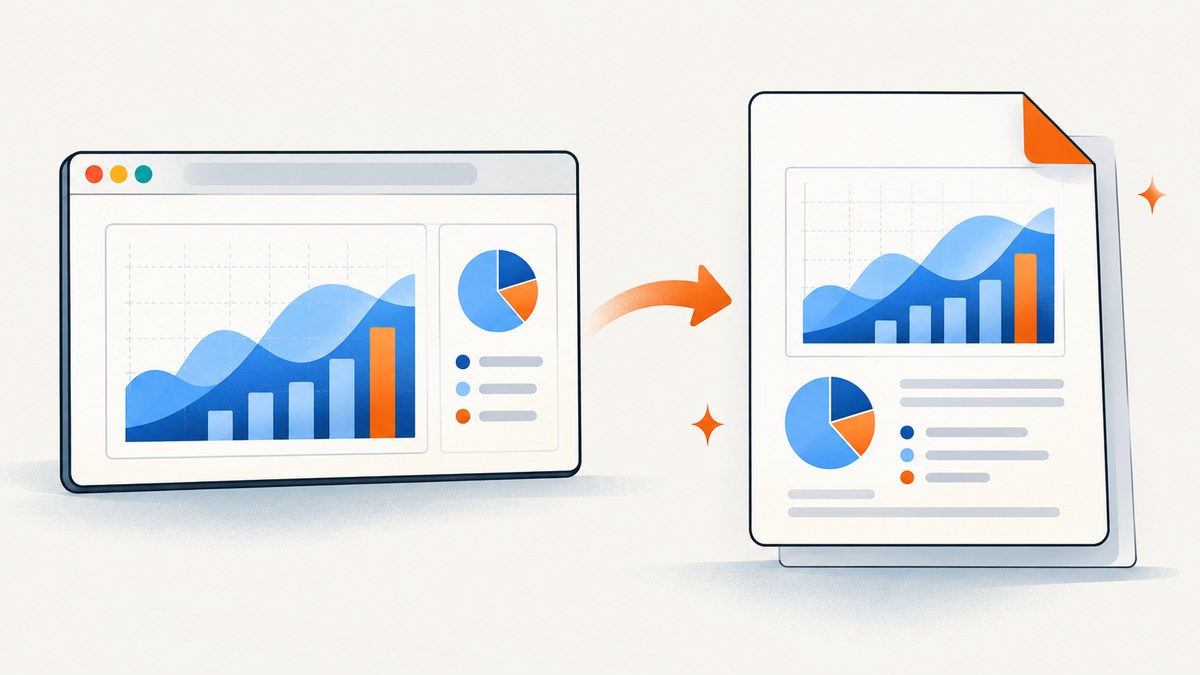
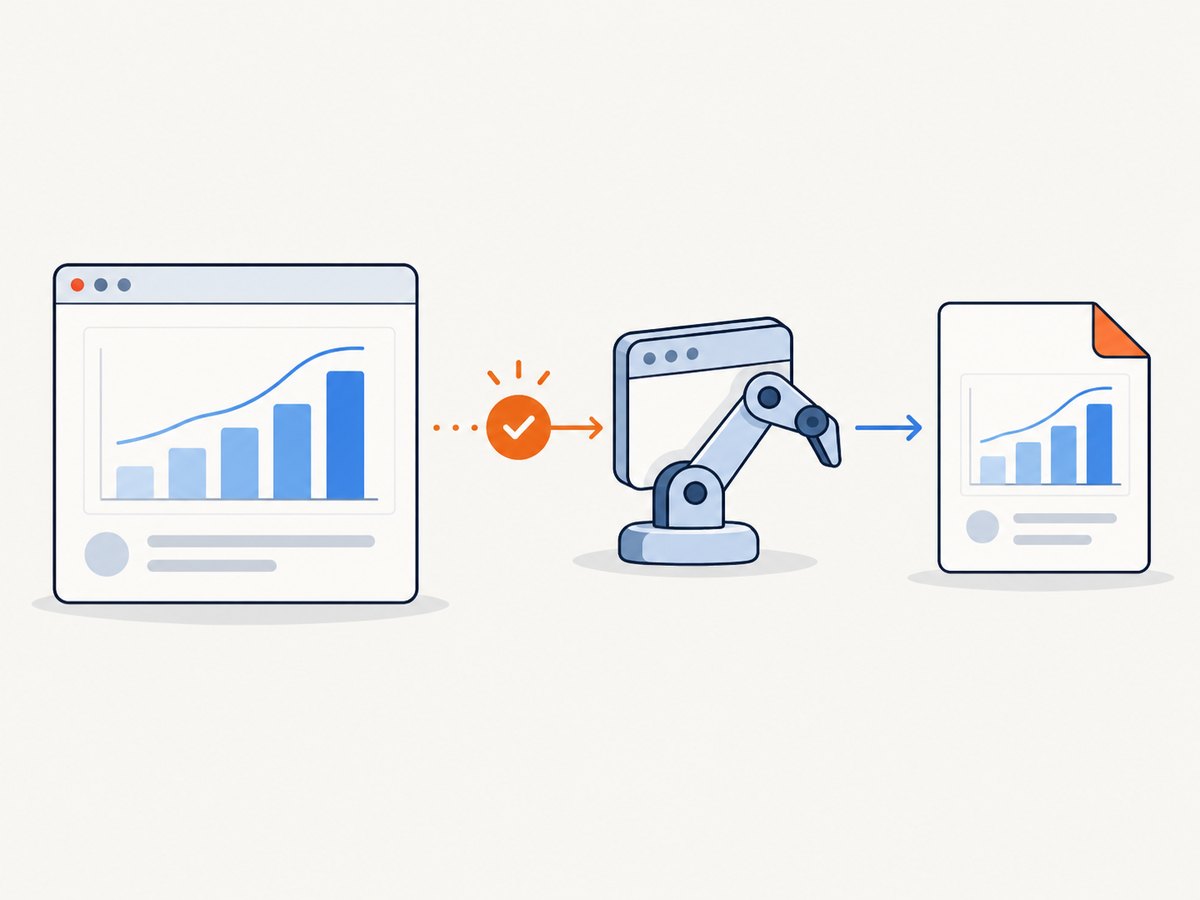
A canvas-rendered image is missing from a Puppeteer PDF when page.pdf() runs before the application has finished drawing it, or when the canvas cannot be exported because of dimensions or cross-origin content. The reliable fix is to signal readiness after the final draw and wait for that signal before generating the PDF. Convert the canvas to an image only when your PDF pipeline needs a regular image resource.
Puppeteer does not infer that a chart, map, diagram, or other canvas is ready just because navigation completed or fonts loaded. Your application knows when its drawing work is done, so expose that fact and have Puppeteer wait for it. The steps and code below use that approach, then cover image conversion, print styling, errors, performance, and verification.
1. Set up a canvas readiness signal
Use a page-side flag that becomes true only after all data, source images, and drawing operations have finished. This small example sets the flag after a synchronous draw; for asynchronous work, set it after the final awaited operation as shown in the next section.
<canvas id="chart" width="800" height="400"></canvas>
<script>
  const canvas = document.querySelector('#chart');
  const ctx = canvas.getContext('2d');
  ctx.fillStyle = '#245';
  ctx.fillRect(0, 0, canvas.width, canvas.height);
  window.canvasReady = true;
</script>
The readiness flag is an application contract: it means the exact content needed in the PDF is now drawn. A default value of false avoids confusing an unset flag with a completed render. If a page can render multiple charts, expose a promise or a flag that represents all of them, rather than treating one finished canvas as proof that the whole report is ready.
2. Wait in Puppeteer, then create the PDF
Navigate with a condition that fits the page, wait for the canvas contract, wait for fonts, and generate the PDF. This runnable Node.js example assumes Puppeteer is installed in the project and the target page sets window.canvasReady as above.
const puppeteer = require('puppeteer');

(async () => {
  const browser = await puppeteer.launch({ headless: true });
  try {
    const page = await browser.newPage();
    await page.goto('https://example.com/report', {
      waitUntil: 'networkidle2',
    });
    await page.waitForFunction(() => window.canvasReady === true);
    await page.evaluate(() => document.fonts.ready);
    await page.pdf({
      path: 'output.pdf',
      printBackground: true,
    });
  } finally {
    await browser.close();
  }
})();
networkidle2 is a useful navigation condition when it matches the page, but it is not a substitute for the application signal. Some pages keep network requests open, and drawing can begin after a response arrives or after asynchronous data processing. The signal tells Puppeteer that the canvas work you care about has actually completed. Puppeteer’s waitForFunction resolves once the page-side function becomes truthy; its PDF guide shows navigation followed by page.pdf(), while the API documents PDF options and font waiting. See the Puppeteer PDF guide, waitForFunction API, and PDF options.
Handle asynchronous data and source images
If the chart uses fetched data or images, wait for each dependency before the final draw, then set readiness. Set an image’s crossOrigin property before assigning its source when you need to read or export its pixels; the server must also permit the cross-origin request.
<canvas id="chart" width="800" height="400"></canvas>
<script>
  window.canvasReady = false;

  async function renderChart() {
    const response = await fetch('/chart-data.json');
    if (!response.ok) throw new Error(`Chart data: ${response.status}`);
    const data = await response.json();

    const source = new Image();
    source.crossOrigin = 'anonymous';
    source.src = '/assets/chart-background.png';
    await source.decode();

    const canvas = document.querySelector('#chart');
    const ctx = canvas.getContext('2d');
    ctx.drawImage(source, 0, 0, canvas.width, canvas.height);
    drawData(ctx, data);
    window.canvasReady = true;
  }

  renderChart().catch(error => {
    window.canvasError = String(error);
  });
</script>
Only set canvasReady after every awaited input and the last drawing call. On failure, expose an error state so the automation can fail clearly instead of waiting until timeout. For a report with several canvases, set readiness after all render functions resolve. If rendering depends on animation frames, wait for the frame that performs the final draw; a timer alone cannot prove that happened.
3. Decide whether to print the canvas directly or replace it
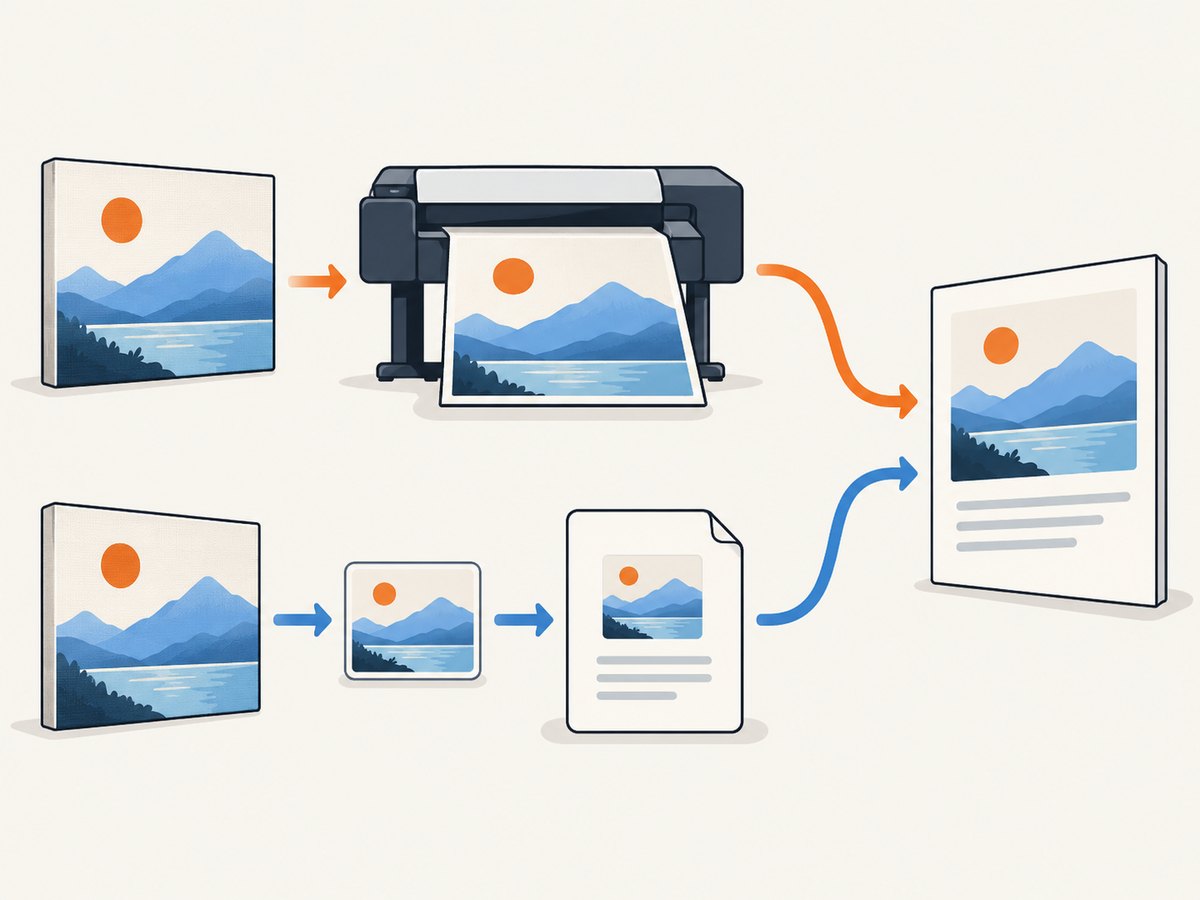
Chromium can print the page with the canvas still in place. This keeps the path simple and avoids encoding another copy of the bitmap. It still requires waiting until drawing is complete. Convert to an <img> when downstream processing expects an image element, when you want to check image loading separately, or when the PDF pipeline handles image resources more reliably than canvas content.
| Approach | Readiness and memory | Cross-origin and print considerations |
|---|---|---|
| Print canvas directly | Wait for the final draw. Avoids serialization and another encoded image copy. | Canvas remains subject to browser canvas rules. Print CSS and background settings still affect the page. |
Convert with toBlob() |
Wait for drawing, encode asynchronously, and wait for the replacement image’s load. Better suited to large images than a large data URL. | Export can fail if the canvas is tainted. Keep the object URL alive through PDF generation. |
Convert with toDataURL() |
Convenient for small canvases, but produces a string representation in memory. | Has the same origin-clean requirement and may use substantial memory for large bitmaps. |
MDN documents that toDataURL() returns a data URL and recommends toBlob() with an object URL for large images, avoiding a large in-memory string. Read toDataURL() and toBlob() for the browser behavior.
4. Convert the finished canvas to an image when needed
This example waits for the canvas signal, checks dimensions, encodes to PNG, installs an image, and waits for its load before PDF generation. It revokes the object URL after page.pdf() completes.
await page.waitForFunction(() => window.canvasReady === true);
const objectUrl = await page.evaluate(async () => {
  const canvas = document.querySelector('#chart');
  if (!canvas || canvas.width === 0 || canvas.height === 0) {
    throw new Error('Canvas is missing or has zero dimensions');
  }

  const blob = await new Promise(resolve => canvas.toBlob(resolve, 'image/png'));
  if (!blob) throw new Error('Canvas could not be encoded');

  const url = URL.createObjectURL(blob);
  const img = new Image();
  img.alt = 'Rendered chart';
  img.src = url;
  await new Promise((resolve, reject) => {
    img.onload = resolve;
    img.onerror = () => reject(new Error('Replacement image failed to load'));
  });
  canvas.replaceWith(img);
  return url;
});

await page.evaluate(() => document.fonts.ready);
await page.pdf({ path: 'output.pdf', printBackground: true });
await page.evaluate(url => URL.revokeObjectURL(url), objectUrl);
The object URL is page-local and must remain valid until PDF generation has finished. If PDF generation throws, a production workflow should still revoke it during cleanup. The code waits for image loading explicitly; it does not assume that creating a Blob means Chromium has decoded and laid out the replacement image.
When a data URL is acceptable
For a small chart, a data URL can be simpler because it can be assigned directly to img.src. It is not the preferred route for a large canvas: base64 encoding expands the representation and the string occupies memory alongside the canvas bitmap. For large visualizations, use a Blob and object URL or print the canvas directly.
5. Control print media, color, and page layout
page.pdf() renders using print media by default. That means a canvas can be present and ready yet look different because print CSS hides it, changes its dimensions, or changes surrounding layout. If the intended output is the screen design, emulate screen media before PDF generation. Enable printed backgrounds when the design relies on CSS backgrounds, and use exact print color adjustment when exact colors matter.
await page.emulateMediaType('screen');
await page.addStyleTag({
  content: `
    * { -webkit-print-color-adjust: exact; print-color-adjust: exact; }
    canvas, img { max-width: 100%; }
    .report-chart { break-inside: avoid; }
  `,
});
await page.pdf({
  path: 'output.pdf',
  format: 'A4',
  printBackground: true,
  preferCSSPageSize: true,
});
Choose either print media for a print-specific layout or screen media for screen styling; verify that choice against the document’s CSS. Puppeteer’s Page.pdf API describes PDF generation, and the PDF options reference includes paper size, margins, page ranges, background printing, and font waiting. Exact colors can still depend on the page’s CSS and Chromium rendering.
6. Troubleshoot missing or incorrect canvas output
| Symptom | Likely cause | Fix |
|---|---|---|
| Canvas is blank or partly drawn | page.pdf() ran before the last draw, image decode, or data response. |
Set readiness after the complete render path; wait with waitForFunction. Record a page-side error state for failed dependencies. |
| Wait times out | The flag is never set, a render promise rejected, or the wrong page/frame owns the flag. | Initialize the flag, catch and expose render errors, confirm the selector and frame context, and use a timeout appropriate to the workload. |
Export throws SecurityError |
A foreign-origin image was drawn without CORS permission, making the canvas origin-unclean. | Serve the asset with an allowed Access-Control-Allow-Origin response, assign img.crossOrigin before src, or proxy the asset through the same origin. Converting to Blob does not bypass this restriction. |
Export returns data:, or no useful image |
The canvas has zero width or height. | Check the canvas dimensions before export and set nonzero bitmap dimensions, not only CSS width and height. |
| Canvas is missing despite fonts being ready | Font readiness covers fonts, not application JavaScript or canvas drawing. | Keep a separate application signal and wait for both conditions. |
| Colors or backgrounds differ | PDF uses print media, backgrounds are omitted, or print color adjustment differs. | Select screen or print media intentionally, set printBackground: true where needed, and apply -webkit-print-color-adjust: exact for exact print colors. |
| Image replacement is blank | The Blob was null, its URL was revoked too early, or image loading failed. | Check the Blob, await img.onload, retain the object URL until PDF completion, and revoke it in cleanup. |
Cross-origin canvas restrictions are a browser security boundary, not a Puppeteer timing problem. MDN’s CORS-enabled images guide explains that drawing cross-origin pixels without permission makes the canvas unclean and blocks export.
7. Performance, reliability, and cost
- Prefer signals to delays. A fixed sleep wastes time on fast pages and can still be too short on slow ones. A readiness condition waits for the actual work and makes failures diagnosable.
- Avoid duplicate bitmap copies. Direct printing avoids encoding; for conversion, Blob and object URL avoid the large string produced by
toDataURL(). Large canvas dimensions increase pixel storage and encoding work. - Bound waits and report failures. Use finite navigation and readiness timeouts in production. Include the URL, render state, console errors, and failed requests in diagnostic logs, while avoiding sensitive page data.
- Make capture repeatable. Fix viewport, media type, page size, margins, and data inputs. Wait for images and fonts where relevant. The same source can otherwise produce different page breaks or chart dimensions.
- Account for browser resources. Reuse a browser process where appropriate, isolate pages for independent jobs, and close pages and browsers in cleanup. Keep concurrency within available memory, especially for large canvases and PDFs.
There is no single runtime or memory figure that applies to all pages: canvas pixel dimensions, image inputs, fonts, page length, and browser concurrency determine the work. Cost for a self-hosted workflow depends on the compute and storage you operate; measure representative documents and set limits for page size, capture duration, and concurrent jobs.
8. Use ScreenshotNeo when you do not need custom Puppeteer code
If the task is capturing a website rather than controlling a custom canvas application, ScreenshotNeo offers a website screenshot API and MCP server. It cannot replace the application-specific readiness contract above when your chart is drawn by code that only your page can signal. For a normal page capture or PDF, one API request can handle browser setup. See the ScreenshotNeo API documentation for parameters and response details.
curl -G "https://api.screenshotneo.com/v1/shot" -d access_key=YOUR_API_KEY --data-urlencode url=https://stripe.com -o shot.webpimport requests
r = requests.get(
"https://api.screenshotneo.com/v1/shot",
params={"access_key": "YOUR_API_KEY", "url": "https://stripe.com"},
timeout=90,
)
open("shot.webp", "wb").write(r.content)const q = new URLSearchParams({ access_key: 'YOUR_API_KEY', url: 'https://stripe.com' });
const res = await fetch(`https://api.screenshotneo.com/v1/shot?${q}`);ScreenshotNeo removes cookie and consent banners, newsletter popups, and chat widgets before the shot; bot checks, blank pages, and failed loads are never billed. Its MCP server lets AI agents take screenshots. The free plan includes 1,000 screenshots a month with no card, and paid plans start at $5 for 3,000. Sign up for 1,000 free screenshots a month, with no card required.
9. Verification checklist
- Confirm the readiness flag is initialized and set after the final canvas draw.
- Confirm every source image has loaded and permits CORS before drawing if export is required.
- Check canvas bitmap width and height; CSS sizing alone does not create bitmap pixels.
- If converting, confirm
toBlob()returned a Blob and wait for the replacement image’s load event. - Keep the object URL alive until PDF generation completes, then revoke it.
- Choose print or screen media intentionally and enable backgrounds when the design needs them.
- Open the resulting PDF and check chart visibility, colors, cropping, and page breaks.
10. FAQ
Does networkidle2 guarantee that a canvas is complete?
No. It describes network activity, not completion of application rendering. Use an explicit page-side signal for the canvas work.
Should I always convert the canvas before printing?
No. Print the canvas directly when it works for your page. Conversion is useful when downstream handling needs an image resource or when you want to verify its load independently.
Can Puppeteer’s font wait replace the canvas flag?
No. Font readiness says nothing about whether chart data arrived or drawing finished. Wait for both when both matter.
Why does the PDF show a different layout than the browser?
PDF generation uses print media by default. Print CSS, paper dimensions, and background settings can change layout and appearance.
Can I fix a tainted canvas by converting it to a Blob?
No. Both Blob and data URL export require an origin-clean canvas. Configure CORS for the source image or serve it through an allowed origin.


