How to Run Headless Chrome With Puppeteer in AWS Lambda Docker Images
Build a Lambda container image that runs Puppeteer with a compatible Chromium binary, then test it locally and troubleshoot common deployment failures.
To run Puppeteer and headless Chrome in an AWS Lambda Docker image, build for the same CPU architecture as the function, include a Lambda-compatible Linux Chromium binary, and pass its explicit path to puppeteer.launch(). A practical starting point is an AWS Node.js base image, puppeteer-core, and @sparticuz/chromium. Extract the browser to writable /tmp, close it in a finally block, then invoke the container locally with AWS’s Lambda Runtime Interface Emulator before publishing.
This guide uses JavaScript ES modules. It covers the browser/package choices, a runnable container example, local validation, deployment constraints, resource and reliability considerations, and common failures. AWS supports its Node.js base image, an AWS OS-only image, and non-AWS base images; the latter two approaches require a Lambda runtime interface client. AWS Node.js container image documentation.
1. Choose the image and browser combination
There are two separate pieces to make compatible: the Lambda runtime image and the Chromium executable. Puppeteer is the automation library; it does not make an arbitrary host browser binary compatible with Lambda. The binary must exist in the image or be extracted when the function runs.
| Choice | Use it when | Trade-off |
|---|---|---|
| AWS Node.js base image | You want AWS’s Lambda runtime setup and Node.js in one base image. | Current Node.js 20-and-later images use Amazon Linux 2023 (AL2023); package management uses microdnf, also available as dnf. |
| AWS OS-only image | You need to provide a runtime yourself while keeping an AWS OS image. | You must include and configure the Lambda runtime interface client. |
| Non-AWS image | You have an existing base image or specific OS needs. | You must provide the Lambda runtime interface client and verify all runtime and browser dependencies. |
For the browser package, the simplest serverless pairing in this example is puppeteer-core plus @sparticuz/chromium. puppeteer-core does not manage a browser download for you; the Chromium package supplies the executable and recommended arguments. By contrast, the full puppeteer package normally downloads a compatible Chrome for Testing browser as part of installation. Use that route only when you intentionally manage and package that browser yourself. See the Puppeteer installation guide and launch configuration reference.
Pin and verify the Chromium package version during builds. The @sparticuz/chromium version scheme follows Chromium releases and may include breaking changes at patch level, so do not assume a version pairing remains compatible forever. Its documented approach is to pass chromium.args, await chromium.executablePath(), and launch in headless: "shell" mode. See the @sparticuz/chromium project documentation.
2. Create a minimal Puppeteer Lambda project
Make a project directory containing the following three files. This example accepts a URL in the event, loads it, and returns the page title. It closes the browser even if navigation or title retrieval fails.

package.json
{
  "name": "puppeteer-lambda",
  "version": "1.0.0",
  "type": "module",
  "dependencies": {
    "@sparticuz/chromium": "PIN_A_VERIFIED_VERSION",
    "puppeteer-core": "PIN_A_COMPATIBLE_VERSION"
  }
}
Replace both placeholders with exact versions you have verified together, then commit the generated lockfile. Exact pinning and a lockfile make image builds repeatable; they do not remove the need to check compatibility when updating either package.
index.mjs
import puppeteer from "puppeteer-core";
import chromium from "@sparticuz/chromium";

export const handler = async (event) => {
  const url = event?.url;
  if (typeof url !== "string" || !url.startsWith("https://")) {
    return {
      statusCode: 400,
      body: JSON.stringify({ error: "Provide an HTTPS url" })
    };
  }

  const executablePath = await chromium.executablePath();
  const browser = await puppeteer.launch({
    args: await puppeteer.defaultArgs({
      args: chromium.args,
      headless: "shell"
    }),
    executablePath,
    headless: "shell"
  });

  try {
    const page = await browser.newPage();
    await page.goto(url, { waitUntil: "networkidle0", timeout: 30000 });
    return {
      statusCode: 200,
      body: JSON.stringify({ title: await page.title() })
    };
  } finally {
    await browser.close();
  }
};
The HTTPS check is a simple input guard, not a complete defense against server-side request forgery. If callers can choose arbitrary URLs, validate allowed hosts and resolved addresses according to your application’s threat model. The page navigation timeout is shorter than many Lambda maximum execution periods so a slow site can fail clearly instead of consuming the whole invocation.
Dockerfile
FROM public.ecr.aws/lambda/nodejs:20

COPY package*.json ${LAMBDA_TASK_ROOT}/
RUN npm ci --omit=dev

COPY index.mjs ${LAMBDA_TASK_ROOT}/
CMD ["index.handler"]
Build from a directory with a committed package-lock.json. The AWS base image includes the Lambda runtime interface, so this example does not add a separate runtime client. AL2023 uses microdnf/dnf if you need OS packages. Avoid adding packages speculatively: first inspect the actual missing-library error, then install only the needed dependency using the package manager available in the selected base image.
3. Build for Lambda and test locally
- Match the architecture. Build
linux/amd64for an x86_64 Lambda function orlinux/arm64for an ARM64 function. A binary for the wrong architecture will not launch. - Build the image. For x86_64, run
docker build --platform linux/amd64 -t puppeteer-lambda .. For ARM64, substitutelinux/arm64. AWS documents the platform flag in its container image guide. - Start the local container. Run
docker run --rm -p 9000:8080 puppeteer-lambda. For an AL2023 image, local Docker must be version 20.10.10 or later. - Invoke the Lambda handler through the emulator. In another terminal, run:
curl -X POST \
  'http://localhost:9000/2015-03-31/functions/function/invocations' \
  -H 'content-type: application/json' \
  -d '{"url":"https://example.com"}'
The Lambda Runtime Interface Emulator accepts an invocation in the same general way AWS describes for local container testing. Check both the HTTP response and the container logs. A successful title response verifies that the handler started, Chromium launched, and navigation completed for this test URL; it does not establish that every target site or production load condition will work. See AWS’s local image testing instructions.
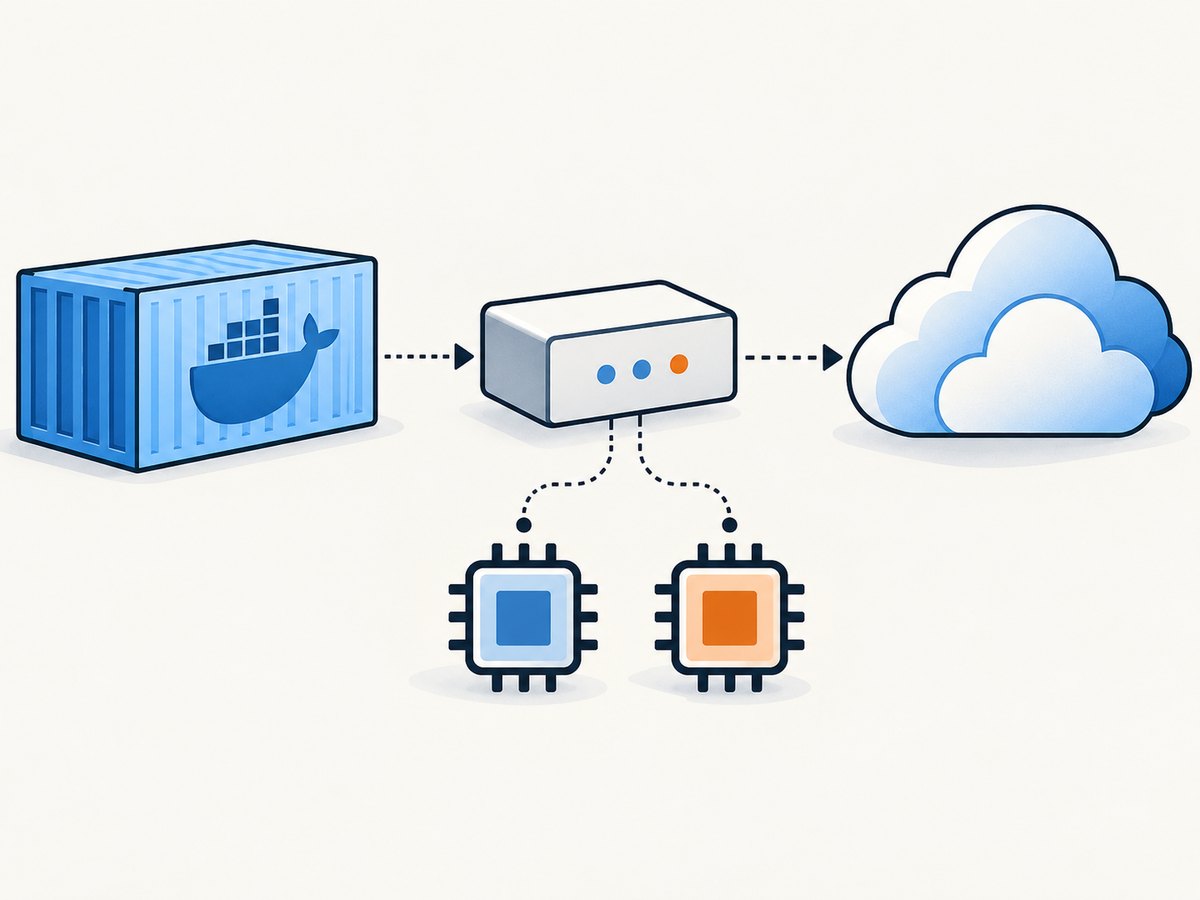
4. Configure capture behavior for real pages
The sample uses networkidle0, which waits until there are no more than zero network connections for at least 500 ms. This can produce a more settled page, but analytics, polling, streaming, or long-lived connections may prevent the condition from arriving. Pick the least restrictive wait condition that satisfies your output:
domcontentloadedwaits for the initial document to be parsed; use it when speed matters and later assets are unnecessary.loadwaits for the load event and its dependent resources, but not necessarily application-specific rendering.networkidle0andnetworkidle2wait for network quiet with different connection thresholds; pages with persistent activity can time out.
For a screenshot, call page.screenshot({ type: "png", fullPage: true }); for a PDF, call page.pdf({ format: "A4", printBackground: true }). Keep generated output in memory for a response or write it to /tmp before handing it to another service. Lambda’s writable temporary area is /tmp; the browser package documents extracting its binary there and reusing it on warm starts. Configure enough ephemeral storage for the extracted browser, user profile, and output files.
When managing Chromium yourself, pass its documented launch arguments and explicit executable path. The Puppeteer launch API describes executablePath as the browser binary path used by launch(). Avoid copying a desktop Chrome path from a development machine: it will not exist in the Linux image. The Puppeteer configuration reference covers configuration files and options.
5. Package and deploy without architecture surprises
Lambda container images must be supported OCI/Docker images and match the function’s architecture. Lambda allows at most 10 GB of uncompressed image data, including layers, and AWS recommends keeping the image manifest below 25,400 bytes. See AWS image requirements. Browser binaries and duplicated browser downloads can make images large, so inspect the final image rather than judging only the source directory.
Use the same architecture setting throughout build, registry publication, and function configuration. If you build a multi-platform artifact or use emulation locally, verify the architecture of the final image and of the Chromium executable. Cross-building can hide assumptions that a native build would expose.
Use an AWS container registry and follow the current Lambda image deployment flow in the AWS deployment documentation. Keep the package lockfile and image build inputs under version control. When updating Node.js, Chromium, Puppeteer, or the base image, rebuild and repeat local invocation against representative pages.
6. Troubleshoot launch and capture failures
| Symptom | Likely cause | Fix |
|---|---|---|
| Exec format error or browser exits immediately | CPU architecture mismatch between image, function, or Chromium. | Align the build platform and Lambda architecture; inspect the image platform and rebuild. |
| “No such file or directory” for Chrome | Wrong executablePath, failed extraction, or a binary path copied from another environment. |
Use await chromium.executablePath(), log the returned path, and verify extraction in the local emulator. |
| Missing shared library / error while loading shared libraries | The chosen binary expects a library absent from the image. | Read the exact library named in the error and add its OS package to the selected base image. Retest in the same image. |
| Browser/Puppeteer protocol or launch errors | Incompatible package versions or inappropriate launch options. | Pin a known compatible pair, use the Chromium package’s documented arguments and headless mode, then rebuild. |
| “Failed to launch” with sandbox wording | Chrome cannot establish a usable sandbox in that container environment. | First check whether the container can provide the sandbox. Puppeteer documents --no-sandbox only for content you absolutely trust; it weakens browser isolation. Do not use it as a blanket fix for arbitrary URLs. See Puppeteer troubleshooting. |
| Extraction, profile, or output write fails | Insufficient writable space or a path outside Lambda’s writable temporary storage. | Use /tmp, remove stale files when appropriate, and configure enough ephemeral storage for the browser and artifacts. |
| Navigation timeout or intermittent blank result | The target is slow, requires interaction, blocks automation, or never reaches the selected network idle condition. | Log navigation errors, choose an appropriate wait condition, set a bounded timeout, and handle the target’s expected failure explicitly. |
| Works locally, fails after deployment | Different architecture, environment, permissions, storage, or package build. | Reproduce using the exact image and platform, inspect CloudWatch logs, and compare runtime configuration with the local invocation. |
7. Improve performance, reliability, and cost control
Browser startup and extraction add work to an invocation, and large image layers take longer to move through the build and deployment path. Keep dependencies intentional, avoid bundling both a downloaded Chrome and a separate Chromium unless needed, and measure your own cold and warm invocation behavior. No single startup or capture time applies to every page, region, architecture, and memory setting.
Warm Lambda environments may reuse files in /tmp; @sparticuz/chromium documents that its extracted binary is reused on warm starts. Treat that as a cache optimization, not durable storage: code must still handle a fresh environment and missing extracted files. Always close the browser in finally so failed navigation does not leave child processes consuming resources during a reused invocation.
Browser pages are memory-intensive. Set the function memory and timeout based on measured behavior for your page mix, and bound navigation and downstream calls independently. A timeout that is too small causes avoidable failures; an unbounded wait on a busy page consumes invocation time and cost. Reuse one browser for multiple pages within a single invocation only when your handler’s lifecycle and isolation requirements permit it, and close it before returning.
Lambda charges follow the configured service and execution resources; browser work that takes longer or uses more memory can increase function cost. Separately account for image storage and transfer through your deployment setup. Keep outputs modest, use appropriate formats and viewport sizes, and avoid waiting for resources the result does not need. Do not assume a successful local capture predicts a target site’s behavior under all production traffic.
8. When you do not need to operate Chromium
If the job is simply to obtain screenshots or PDFs from URLs, you can use ScreenshotNeo, a website screenshot API and MCP server from Yorker Media, instead of building and maintaining a browser image. A GET request takes a URL and returns an image or PDF. Its options include full-page and element captures, device and viewport settings, waiting controls, custom headers and cookies, and async or bulk jobs. See the ScreenshotNeo API documentation.
Or skip the browser setup
One request returns the capture. Replace the example URL with the page you need and use your ScreenshotNeo access key:
curl -G "https://api.screenshotneo.com/v1/shot" \
  -d access_key=YOUR_API_KEY \
  --data-urlencode url=https://stripe.com \
  -o shot.webp
Cookie banners, popups, and chat widgets are removed before the shot. Bot checks, blank pages, and failed loads are never billed. An MCP server lets AI agents use screenshots. The free plan includes 1,000 screenshots a month with no card; paid plans start at $5 for 3,000. Sign up for 1,000 free screenshots a month.
FAQ
Should I install puppeteer or puppeteer-core?
Use puppeteer-core when the browser is supplied separately, as in this guide. Use puppeteer when you intentionally want Puppeteer’s installation flow to download its compatible Chrome for Testing browser and you package that browser appropriately.
Can I use a browser executable from my laptop?
Not as-is. Lambda needs a Linux-compatible binary present in the image or extracted at runtime, with the right architecture and required libraries.
Does this example work for arbitrary URLs?
It demonstrates navigation, not a guarantee that every site can be captured. Sites can require authentication, interaction, or additional waits, and arbitrary URL inputs require application-level validation.
Can I use this image for PDF generation?
Yes. Puppeteer’s page API includes page.pdf(); ensure the temporary storage and memory settings accommodate the rendered page and resulting file.


