How to Fix “Chrome Not Found” with Puppeteer in Laravel Sail
Fix Puppeteer’s “Chrome not found” error in Laravel Sail by installing Chrome in the right container, correcting its path, or using Selenium.
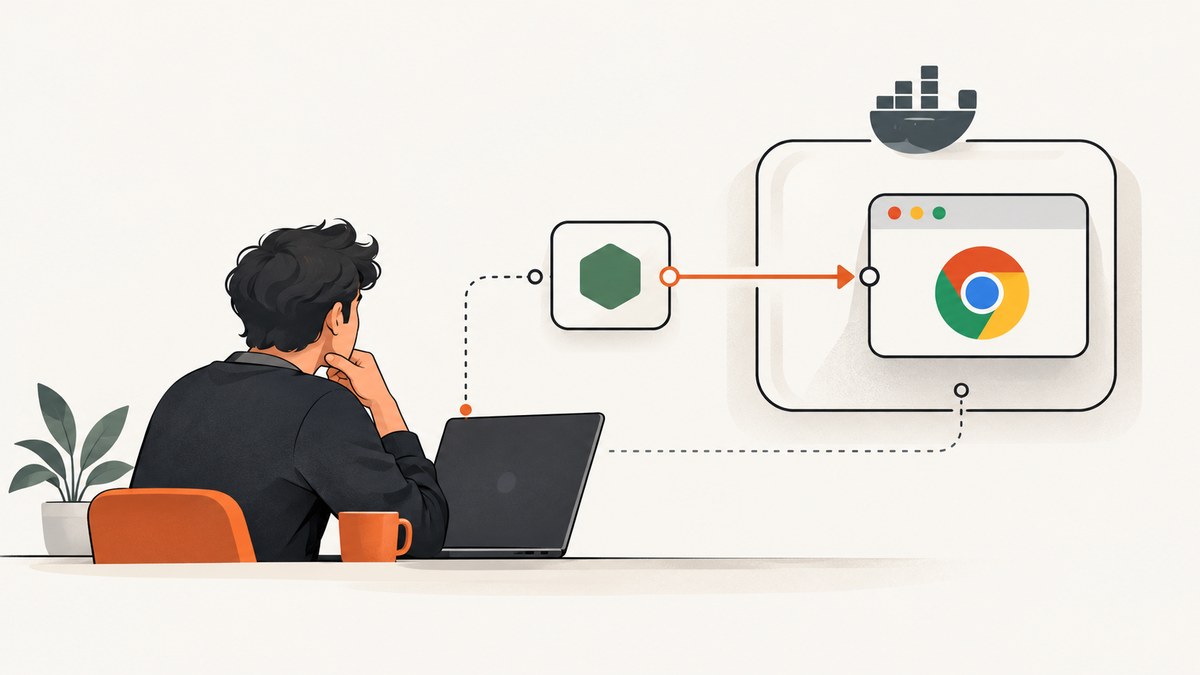
Puppeteer’s “Chrome not found” error in Laravel Sail means the Node.js process cannot find a browser executable where it expects one. The usual causes are a skipped Puppeteer browser download, a Chrome cache that exists on the host but not in the container, or an incorrect executable path. Fix it in the environment that actually runs Puppeteer: install Puppeteer-managed Chrome in the Sail image, point Puppeteer at Chrome or Chromium installed in that image, or run Chrome in a separate Selenium service.
First, enter the Sail container and check what it can see. Do not install a browser on your laptop and assume a Linux container can use that file or cache.
./vendor/bin/sail shell
node -e "const p = require('puppeteer'); console.log(p.executablePath())"
which chromium || which chromium-browser || which google-chrome-stable
If the executable path printed by Puppeteer does not exist, or none of the system-browser commands find a binary, use one of the repair paths below.
1. Install Puppeteer’s compatible Chrome in the Sail environment
The puppeteer package normally downloads a compatible Chrome for Testing build. That download can be skipped when a package manager blocks lifecycle scripts. Puppeteer’s installation guide identifies a missing browser download as a cause of Could not find Chrome (ver. ...) [Puppeteer installation guide].
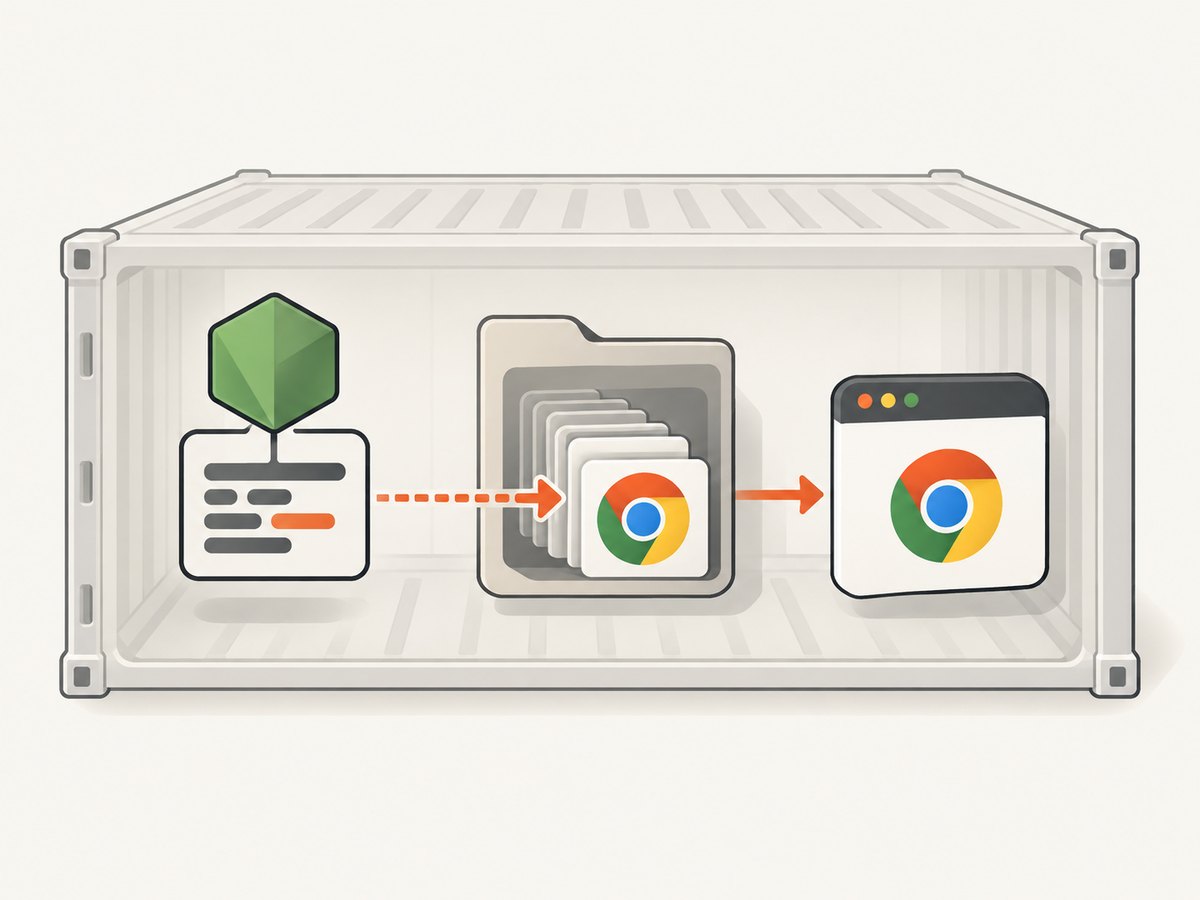
From the directory containing your Node project, install the package and browser in the same container or image used at runtime:
npm install puppeteer
npx puppeteer browsers install
Confirm the browser is available to the runtime user:
node -e "const p = require('puppeteer'); const fs = require('node:fs'); const path = p.executablePath(); console.log(path); console.log('exists:', fs.existsSync(path))"For a deployed Sail application, make the browser installation part of the image build or deployment process. Installing it interactively in a running development container may appear to fix the problem but leave a fresh container without the browser. Ensure the browser cache is preserved in the runtime filesystem and accessible to the user running Node.
Check your package manager configuration if installation completes without downloading Chrome. npm, pnpm, Yarn Berry, Bun, and Deno can be configured to suppress install scripts. Enable the Puppeteer installation step according to your package manager’s policy, or run the browser installation command explicitly after dependency installation.
2. Point Puppeteer at Chrome or Chromium installed in the image
If your Docker image installs a system browser, configure Puppeteer to use its actual container path. The path varies by base image and package; determine it inside Sail with which, then provide that exact path. Puppeteer supports executablePath and the PUPPETEER_EXECUTABLE_PATH environment variable for this setup [Puppeteer configuration].
const puppeteer = require('puppeteer');

async function main() {
  const browser = await puppeteer.launch({
    executablePath: process.env.PUPPETEER_EXECUTABLE_PATH || '/usr/bin/chromium',
    headless: true,
  });

  try {
    const page = await browser.newPage();
    await page.goto('https://example.com', { waitUntil: 'networkidle2' });
    console.log(await page.title());
  } finally {
    await browser.close();
  }
}

main().catch((error) => {
  console.error(error);
  process.exitCode = 1;
});
For example, if which google-chrome-stable prints /usr/bin/google-chrome-stable, use that value instead of /usr/bin/chromium. A path copied from macOS, Windows, or the host Linux machine will not work unless that same path exists inside the container.
If you set PUPPETEER_SKIP_DOWNLOAD, Puppeteer will no longer provide its downloaded browser as a fallback. Pair that setting with an installed browser and a verified executable path. Otherwise, remove the skip setting and let Puppeteer manage Chrome.
3. Run Chrome in a separate Selenium service
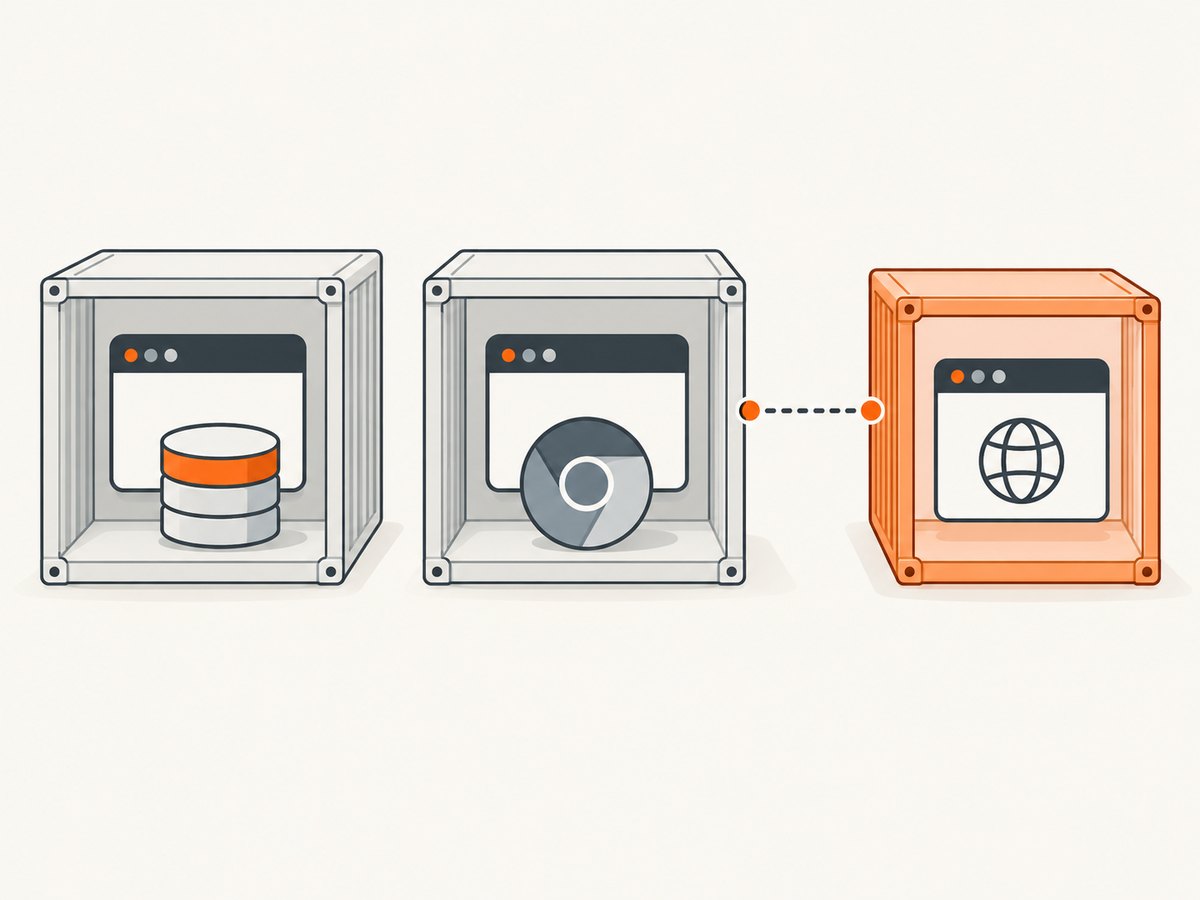
A separate browser container is useful for Laravel Dusk and remote-browser workflows. The Laravel Sail documentation shows a Selenium service pattern using selenium/standalone-chrome, a shared-memory mount, the Sail network, and a dependency from the test service [Laravel Sail Selenium documentation]. On Apple Silicon, Laravel documents using selenium/standalone-chromium.
Add a Selenium service to compose.yaml, following the current Sail documentation for your project’s Compose structure and image version. A representative service shape is:
selenium:
  image: selenium/standalone-chrome
  extra_hosts:
    - 'host.docker.internal:host-gateway'
  volumes:
    - '/dev/shm:/dev/shm'
  networks:
    - sail
Ensure the Laravel test container shares the network and starts after the Selenium service. Configure the test client to connect to the service hostname and port, such as selenium, rather than calling puppeteer.launch() to search for a local executable. Exact Compose options can depend on the Sail version and the project’s existing service definitions; use the official Sail example as the source for the complete configuration.
Choose the browser arrangement
| Approach | Browser lives in | Common cause of failure | Good fit |
|---|---|---|---|
| Puppeteer-managed Chrome | Puppeteer cache in the Sail image/runtime | Install script blocked, cache mismatch, or permissions | A Node service that needs a compatible, pinned browser |
| System Chrome or Chromium | Application image | Wrong path, missing libraries, or version drift | Teams that manage OS packages centrally |
| Selenium service | Separate browser container | Wrong service hostname, startup ordering, network, or shared-memory limits | Dusk and workflows that benefit from browser isolation |
The main decision is who owns the browser installation and version. Puppeteer-managed Chrome is straightforward when the app image can include its browser cache. A system package fits an image with centrally managed OS dependencies, but the executable path and browser compatibility need maintenance. Selenium adds a service and network dependency, but the PHP application container does not need a local browser.
Container checks that prevent repeat failures
- Check from the runtime container and user. Run
puppeteer.executablePath()and test that the file exists in the same container and as the same user that launches Puppeteer. - Check download scripts and cache. Make sure installation scripts ran, the browser cache is present in the final image, and the runtime user can read it. A build stage’s cache may not carry over to a separate runtime stage.
- Install Linux libraries. Chrome may exist but fail to launch because system libraries are missing. Puppeteer’s troubleshooting guide lists Debian dependencies including
libnss3,libgbm1, GTK and audio libraries, and fonts [Puppeteer troubleshooting]. Install dependencies appropriate to the image distribution. - Provide writable profile and cache locations. Chrome needs writable locations for profile and cache data. In a restricted container, set
XDG_CONFIG_HOME,XDG_CACHE_HOME, and Puppeteer’suserDataDirto writable paths such as locations under/tmp, or mount writable volumes. - Use the browser sandbox deliberately. Prefer a non-root runtime user and follow the container permissions recommended by Puppeteer. Do not add
--no-sandboxreflexively; only use it when required by the container security model and after accounting for the risk [Puppeteer Docker troubleshooting]. - Do not assume Alpine behaves like Debian. Puppeteer documents that Chrome does not support Alpine out of the box. Chromium, Puppeteer, and required libraries need to be matched carefully [Puppeteer Alpine troubleshooting].
- Give Selenium enough shared memory. The Sail Selenium example mounts
/dev/shm; retain the shared-memory setup appropriate to the official example to reduce browser failures under load.
Troubleshooting “Chrome not found Puppeteer Laravel Sail”
| Symptom | Likely cause | Fix |
|---|---|---|
Could not find Chrome (ver. ...) |
Puppeteer’s browser download was skipped or its cache is absent | Run npx puppeteer browsers install in the image/runtime, or enable the install script. |
spawn ... ENOENT |
The configured executable path does not exist in the container | Run which chromium or which google-chrome-stable inside Sail and set that path. |
| Chrome file exists but launch exits immediately | Missing shared libraries, incompatible browser package, or permission problem | Review Chrome’s launch output; install required OS libraries and confirm the runtime user can execute the binary. |
| Browser works in shell but not under PHP or a worker | Different user, environment variables, working directory, or container | Compare the service user and environment with the working shell; check cache and executable access from the actual process. |
| Chrome cannot create profile or cache files | Read-only filesystem or unwritable home directory | Set writable XDG directories and userDataDir, or provide writable mounts. |
| Remote Selenium connection refused | Service is not running, client starts first, or hostname/port is wrong | Check Compose service health and network membership, add startup dependency, and use the service name from the client container. |
| Browser crashes on pages or during parallel captures | Memory or shared-memory pressure | Reduce parallel browser sessions, inspect container memory limits, and configure the Selenium shared-memory mount where applicable. |
Performance, reliability, and cost
Installing Chrome in the image avoids a separate Selenium network hop, while a remote service makes the browser independently managed. Puppeteer’s cache should be included deliberately in the final runtime image; otherwise an image rebuild or deployment can reintroduce the error. A Selenium service needs to start before its clients and remain reachable. For either arrangement, run a small launch check during deployment or in the same environment as the scheduled job.
Browser launches consume memory and CPU. Reusing a browser process for multiple pages can avoid repeated startup work, but isolate jobs appropriately and close pages and browsers when finished. Limit concurrency to what the container can support. Browser version drift can also produce hard-to-diagnose differences, so keep the browser and Puppeteer installation process reproducible.
The direct software costs here are the resources and maintenance for the containers and browser packages you run; the cited documentation does not establish a fixed cost or performance benchmark. Selenium uses additional container resources, while a local browser consumes resources in the app container. Measure with your own workload rather than assuming a throughput figure.
Or skip the browser setup
If the task is to capture a website screenshot rather than run arbitrary browser automation, ScreenshotNeo provides a screenshot API and MCP server. One GET request returns an image or PDF, with options for full-page capture, CSS selectors, viewport and device presets, wait conditions, and more. See the API documentation.
curl -G "https://api.screenshotneo.com/v1/shot" -d access_key=YOUR_API_KEY --data-urlencode url=https://stripe.com -o shot.webpimport requests
r = requests.get(
"https://api.screenshotneo.com/v1/shot",
params={"access_key": "YOUR_API_KEY", "url": "https://stripe.com"},
timeout=90,
)
open("shot.webp", "wb").write(r.content)const q = new URLSearchParams({ access_key: 'YOUR_API_KEY', url: 'https://stripe.com' });
const res = await fetch(`https://api.screenshotneo.com/v1/shot?${q}`);ScreenshotNeo removes cookie banners, newsletter popups, and chat widgets before capture. Bot checks, blank pages, and failed loads are never billed. Its MCP server lets AI agents use take_screenshot, get_page_info, and capture_pdf. The Free plan includes 1,000 screenshots a month with no card; paid plans start at $5 for 3,000 screenshots. If you need Puppeteer to interact with pages or run custom browser code, keep the container setup above; the API is for screenshot and PDF capture.
Sign up for 1,000 free screenshots a month, with no card required.
FAQ
Does installing Puppeteer install Chrome in Laravel Sail?
Usually Puppeteer downloads a compatible Chrome, but package-manager settings can block the install script. Verify the browser cache in the container rather than relying on the package installation result alone.
Can I use the Chrome installed on my host computer?
Only if the executable is actually mounted into the container and compatible with its operating system and libraries. Normally, install the browser in the container or use a remote Selenium service.
Do I need Chrome in the PHP container?
Only if Puppeteer or another local browser process runs there. A Selenium service can keep the browser separate, with the test client connecting over the Compose network.
Is “Chrome not found” always a missing executable?
Often it means a missing executable or cache. If the browser exists, missing libraries, filesystem permissions, or runtime-user differences can produce a related launch failure; use the full error output to distinguish them.


