How to Run Puppeteer with Chromium on Alpine Docker
Install Alpine’s Chromium, point Puppeteer to the right executable, and handle version compatibility, sandboxing, fonts, and common Docker failures.

To run Puppeteer with Chromium on Alpine Docker, install Chromium from the selected Alpine repository, configure Puppeteer to use that package’s executable, include the runtime libraries and fonts your pages need, and pin and smoke-test the exact browser and Puppeteer versions together. Puppeteer’s default downloaded Chrome for Testing binary should not be assumed to work on Alpine: its troubleshooting guide says Chrome does not support Alpine out of the box. Puppeteer’s Alpine guidance describes using Alpine Chromium with an explicit executable path.
1. Choose the browser installation route
There are two practical routes. The Alpine-specific route installs Chromium with apk and gives Puppeteer its path. It keeps the application on Alpine, but you own the compatibility checks for the OS branch, architecture, Chromium package, fonts, and Puppeteer release. The other route is Puppeteer’s maintained Docker image, which includes Chrome for Testing and its dependencies, but uses a Debian Bookworm Node base rather than Alpine. Its documented sandbox mode requires the container to run with SYS_ADMIN. See the Puppeteer Docker guide and official Dockerfile.
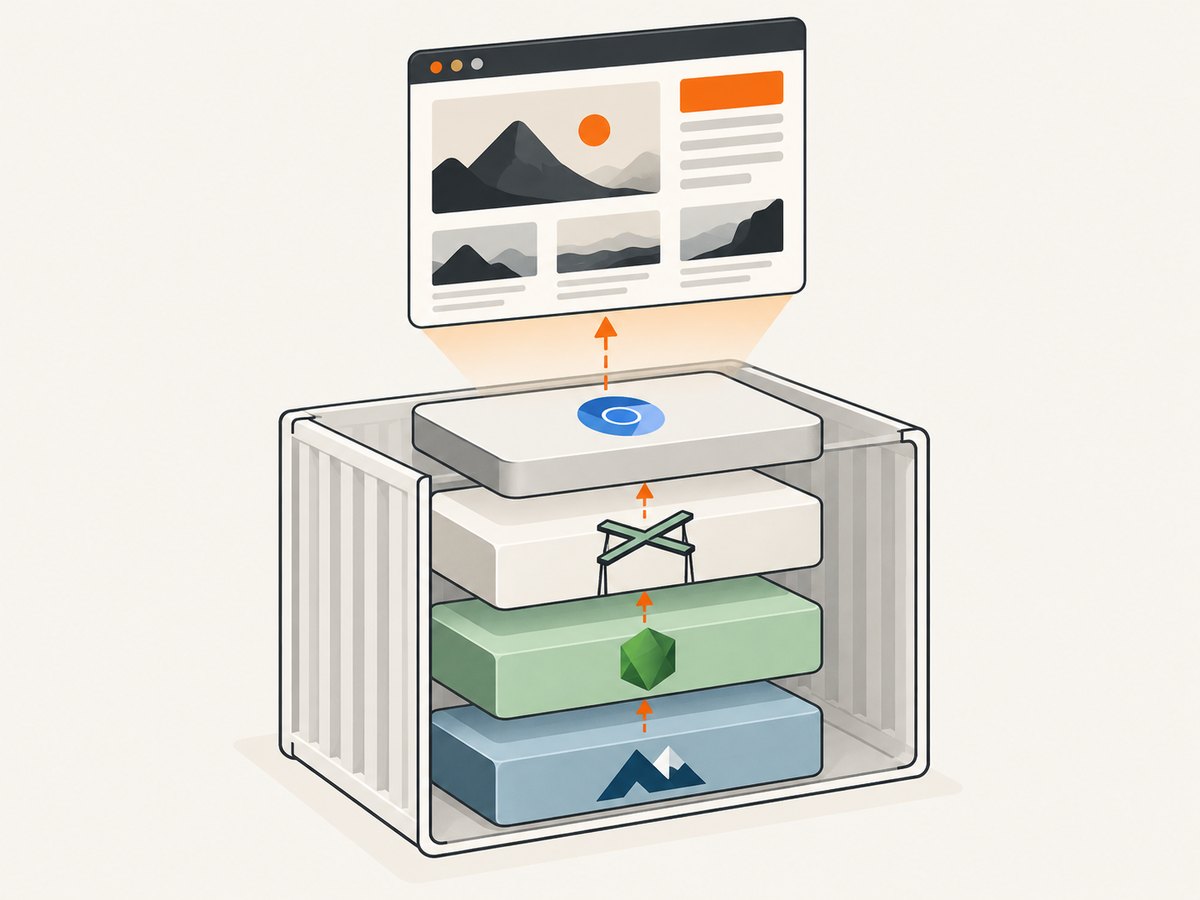
The rest of this guide shows the Alpine route. Choose it when Alpine is a requirement and you can maintain a tested browser/library pair. If sandboxed browser isolation is a priority and the runtime can provide the documented privileges, evaluate the maintained image instead. The sources do not establish a universal image-size or performance winner.
2. Install Chromium and runtime dependencies
Start with a pinned Node and Alpine tag. The following is an illustrative pattern, not a tested universal image. Check package names and executable aliases for your chosen Alpine branch and architecture; add app-specific fonts or libraries as needed.
FROM node:<pinned-version>-alpine<release>

RUN apk add --no-cache \
    chromium \
    nss \
    freetype \
    harfbuzz \
    ca-certificates \
    ttf-freefont

ENV PUPPETEER_EXECUTABLE_PATH=/usr/bin/chromium-browser

WORKDIR /app
COPY package*.json ./
RUN npm ci --omit=dev
COPY . .

USER node
CMD ["node", "app.js"]
Puppeteer’s Alpine example uses /usr/bin/chromium-browser. Alpine may expose both chromium and chromium-browser command names; do not rely on an alias without checking the built image. The package metadata for Alpine v3.22 x86_64 lists Chromium 142.0.7444.59-r0 and dependencies including NSS, FreeType, fontconfig, GTK, and graphics libraries. That package version is specific to that branch and architecture, not a version to copy blindly. See the Alpine v3.22 Chromium package record.
For a first build, inspect the executable and installed package versions inside the image:
docker run --rm your-image sh -lc '
  command -v chromium-browser || command -v chromium
  chromium-browser --version 2>/dev/null || chromium --version
  node --version
'
If the executable is at a different path, set PUPPETEER_EXECUTABLE_PATH to that path. Keep the OS branch, architecture, package version, and Puppeteer version recorded in build metadata or lockfiles so a later failure can be reproduced.
3. Pin Puppeteer and launch the package-provided browser
Install and pin your Puppeteer dependency through the application lockfile. Standard Puppeteer installation downloads a recent Chrome for Testing and, since Puppeteer v21.6.0, a chrome-headless-shell binary. puppeteer-core does not download Chrome and expects the caller to supply browser configuration. When using apk Chromium, explicitly configure its executable so your application does not accidentally depend on a downloaded browser. Refer to the Puppeteer installation guide.
const puppeteer = require('puppeteer');

async function main() {
  const browser = await puppeteer.launch({
    executablePath: process.env.PUPPETEER_EXECUTABLE_PATH,
    // See the sandbox section before using this flag.
    args: ['--no-sandbox'],
  });

  try {
    const page = await browser.newPage();
    await page.goto('https://example.com', {
      waitUntil: 'networkidle2',
      timeout: 30000,
    });
    await page.screenshot({ path: '/tmp/example.png' });
  } finally {
    await browser.close();
  }
}

main().catch((error) => {
  console.error(error);
  process.exitCode = 1;
});
This example uses networkidle2 for illustration. Pages with polling, analytics, or long-lived connections may never become idle; a targeted selector or a bounded delay can be more suitable. Use a finite navigation timeout and always close the browser in a finally block, including when navigation or capture throws.
4. Treat sandboxing as a deployment decision
The --no-sandbox argument appears in Puppeteer’s Alpine example, but it weakens browser isolation. Puppeteer explains that Chrome’s sandbox protects the host from untrusted web content and says to use this flag only when the content is absolutely trusted. A screenshot worker that visits arbitrary URLs should not treat --no-sandbox as a routine convenience. Prefer a deployment that supports the browser sandbox, or constrain what the worker can access and evaluate the risk with your runtime configuration. The correct setup depends on the container runtime and workload. Read the sandbox notes before deploying.
Puppeteer’s maintained Docker image documents a sandboxed path that requires SYS_ADMIN. Its current Dockerfile uses Debian Bookworm and a non-root pptruser; this is a maintained alternative, not an Alpine recipe. Running as a non-root user where practical is useful, but verify that the browser has writable profile and cache directories under the same user and runtime configuration used in production.
5. Check versions, fonts, and architecture
Puppeteer’s troubleshooting guide advises finding the Chromium package version and selecting a corresponding Puppeteer-supported browser version. Its Chromium 100 / Puppeteer 13.5.0 pairing is an old illustration, not current version advice. The same page reports timeout issues with Alpine 3.20 Chromium at the time of writing and says Alpine 3.19 resolved those reports. Treat that as historical, version-specific information; it is not proof that current releases fail.
- Pin the base tag and architecture: an Alpine package version may differ across branches and CPU architectures.
- Pin the application dependency: keep the selected Puppeteer release in the package lockfile.
- Verify the executable: run
command -vand the browser’s--versioninside the final image. - Include fonts deliberately: FreeFont provides a starting set, but pages using other scripts or brand fonts may render differently unless their fonts are available.
- Smoke-test after every relevant update: rebuild and run as the production user, with the production flags and mount permissions.
A successful launch does not guarantee identical page rendering across architectures or font sets. If output matters to downstream image comparison, validate representative pages and keep the container and browser versions stable.
6. Capture reliably in a container
Browser processes consume memory and CPU, and a page can hang on navigation, script execution, or resource loading. Set explicit navigation timeouts, limit concurrency to what the container can support, and close pages and browsers on both success and failure. If the service handles repeated jobs, consider browser reuse only with deliberate page cleanup and isolation; stale cookies, cache, local storage, and crashed processes can affect later work.
Choose the page readiness condition to fit the site. domcontentloaded is often faster when the needed content is present early. load waits for load completion. Network-idle conditions suit pages that settle, but can time out on sites with continuous requests. A selector wait can express the actual readiness requirement more precisely:
await page.goto(url, { waitUntil: 'domcontentloaded', timeout: 30000 });
await page.waitForSelector('[data-report-ready="true"]', { timeout: 10000 });
await page.screenshot({ path: '/tmp/page.png', fullPage: true });
Do not expose an unrestricted screenshot endpoint to arbitrary URLs without considering server-side request risks: a browser can request more than the initial page, including linked resources. Restrict destinations and network access according to your application’s threat model. This is an operational precaution for URL-fetching services, not an Alpine-specific browser setting.
7. Troubleshooting common failures
| Symptom | Likely cause | Fix |
|---|---|---|
Could not find Chrome or browser download path errors |
Puppeteer is trying to use its downloaded browser, while the image is intended to use apk Chromium. | Set executablePath explicitly from the verified Alpine path. Confirm the package is installed and inspect whether you should use puppeteer-core for your install model. |
Failed to launch, missing shared library, or an executable that exists but will not start |
A required runtime library is missing, the path is wrong, or the package set does not match the branch. | Check the browser path and package dependencies in the final image; install compatible packages from the selected Alpine repository. Use the package metadata and Puppeteer Alpine example as references. |
| Navigation times out on one Alpine version | Could be a version-specific browser issue, a page that never settles, blocked network access, or insufficient resources. | Reproduce with the exact pinned image and a simple URL. Check the readiness condition and logs before changing Alpine versions. Historical reports for Alpine 3.20 should not be generalized to current releases. |
| Blank, missing, or substituted characters | The image lacks fonts used by the page, or fonts have not finished loading before capture. | Install the required font packages, wait for document.fonts.ready when appropriate, and validate with pages covering the scripts you need. |
| Browser crashes under load | Too many simultaneous Chromium processes, memory pressure, or browser lifecycle leaks. | Reduce concurrency, set resource limits based on observed workload, close pages and browsers in cleanup paths, and capture process logs. |
Permission errors under USER node |
Chromium cannot write its profile, cache, or temporary files at configured locations. | Use writable per-user directories and test the image with the same user as production. Avoid solving a write issue by running the entire workload as root without considering isolation. |
| Different rendering after a rebuild | The Alpine branch, architecture, Chromium package, Puppeteer version, or fonts changed. | Record and pin those inputs, then compare output from the same representative pages after upgrades. |
8. Performance, reliability, and cost considerations
There is no universal benchmark in the cited sources for Alpine versus the maintained Puppeteer image. Measure your own workload: startup time, peak memory, capture duration, and failure rate for representative pages. Browser startup and page complexity can dominate a small container’s resource budget, while fonts and scripts affect both output and timing.
For reliability, build repeatably, use a lockfile, keep browser and OS updates intentional, and run a smoke capture in CI or image validation whenever one of those inputs changes. In production, capture browser stderr, navigation errors, exit codes, and timeouts with enough context to identify the image digest and package versions. Set job limits and cleanup behavior so a stalled page does not retain a browser indefinitely.
For cost, account for container CPU and memory, execution time, orchestration overhead, and engineering time spent maintaining Chromium compatibility. The research does not support a cost-per-capture figure. If you only need website screenshots and do not need to own the browser runtime, a screenshot API may replace this maintenance work.
9. Or skip the browser setup
ScreenshotNeo is a website screenshot API and MCP server. One GET request returns a PNG, JPEG, WebP, or PDF. See the ScreenshotNeo API docs for request options.
curl -G "https://api.screenshotneo.com/v1/shot" \
  -d access_key=YOUR_API_KEY \
  --data-urlencode url=https://example.com \
  -o shot.webp
import requests
r = requests.get(
"https://api.screenshotneo.com/v1/shot",
params={"access_key": "YOUR_API_KEY", "url": "https://example.com"},
timeout=90,
)
open("shot.webp", "wb").write(r.content)const q = new URLSearchParams({
access_key: 'YOUR_API_KEY',
url: 'https://example.com',
});
const res = await fetch(`https://api.screenshotneo.com/v1/shot?${q}`);
if (!res.ok) throw new Error(`Screenshot request failed: ${res.status}`);
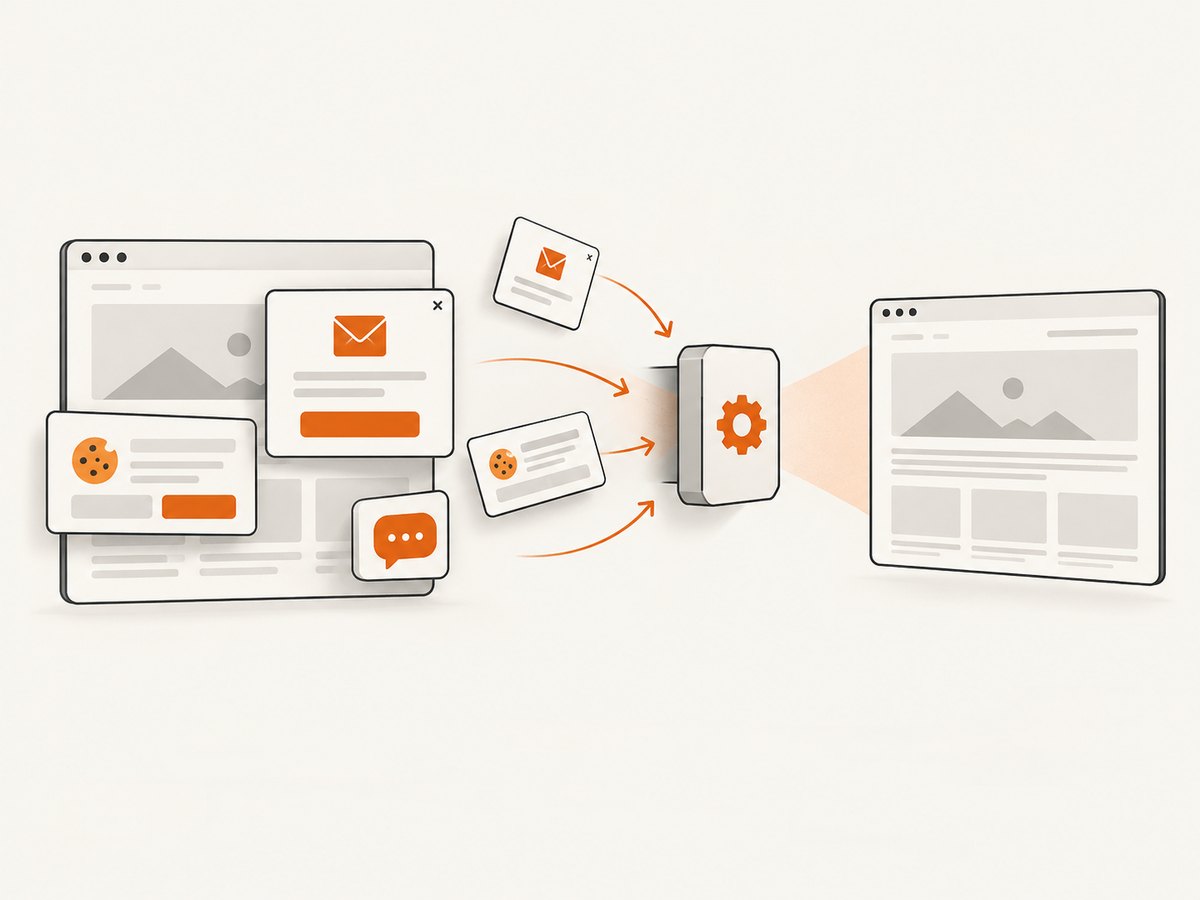
await Bun.write('shot.webp', res);With ScreenshotNeo, cookie banners are accepted and removed before the shot, along with known newsletter popups and chat widgets; each cleanup step can be turned off. Bot checks, blank pages, failed loads, timeouts, and cache hits are not billed, and response headers identify the page verdict and billing status. Its MCP server gives AI agents tools to take screenshots, get page information, and capture PDFs. The free plan includes 1,000 screenshots a month with no card; paid plans start at $5 for 3,000 shots. Every feature is available on every plan. Sign up free for 1,000 screenshots a month, no card required.
10. Frequently asked questions
Can I use the Chrome for Testing binary Puppeteer installs by default?
Do not assume it will work on Alpine. Puppeteer says Chrome does not support Alpine out of the box; use a compatible browser setup and verify the image.
Should I choose puppeteer or puppeteer-core?
Standard Puppeteer downloads a browser during installation. puppeteer-core does not, so it is a natural fit when your application supplies and configures the browser itself. In either case, set the executable path explicitly for apk Chromium.
Is Alpine always faster or smaller for Puppeteer?
The cited sources provide no universal size or performance comparison. Measure the built image and capture workload you plan to deploy.
Is --no-sandbox safe for public URLs?
Puppeteer warns that disabling the sandbox weakens protection and says to do so only when content is absolutely trusted. For arbitrary pages, assess a sandbox-capable deployment and your network isolation requirements.
Why does the browser version differ after a rebuild?
Alpine package versions follow the selected branch and architecture. Pin the base image and record the installed Chromium and Puppeteer versions so upgrades are deliberate and reproducible.


